

Gift Vouchers
We explain how to sell your products without a date in Lueira.
On this page
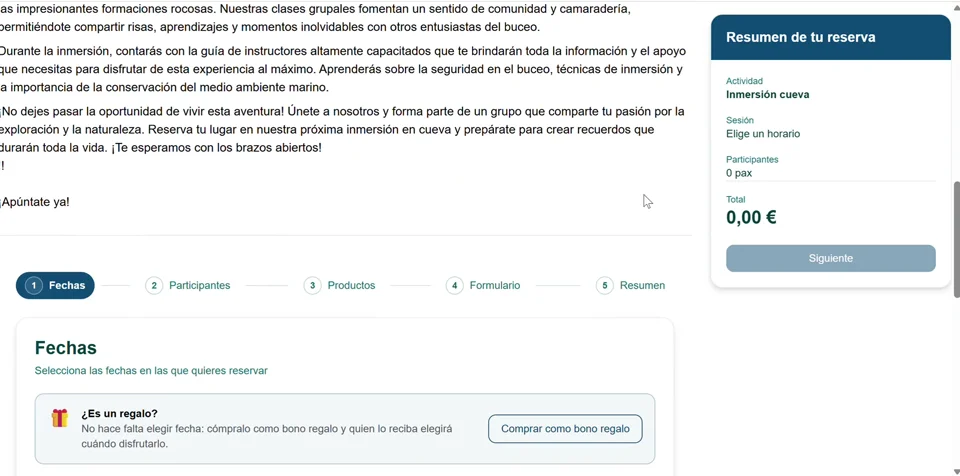 Configurar bono regalo
📍 A Gift Voucher is used to give a specific activity as a gift, with automatic redemption (PDF, redemption code, redemption portal). If you need to sell a free-amount gift card, valid for any product, see Free-amount gift cards.
What is a Gift Voucher?
A Gift Voucher lets you sell an activity without the buyer having to choose a date at the time of purchase: the customer pays now, and it is the recipient of the gift who, later on, chooses the day and time when redeeming the voucher.
1. Set up which products can be given as gifts
You can decide product by product whether it can be sold as a Gift Voucher. For now this option is available for group products (group classes or activities).
Go to School > Products and open the group product you want to make giftable for editing.
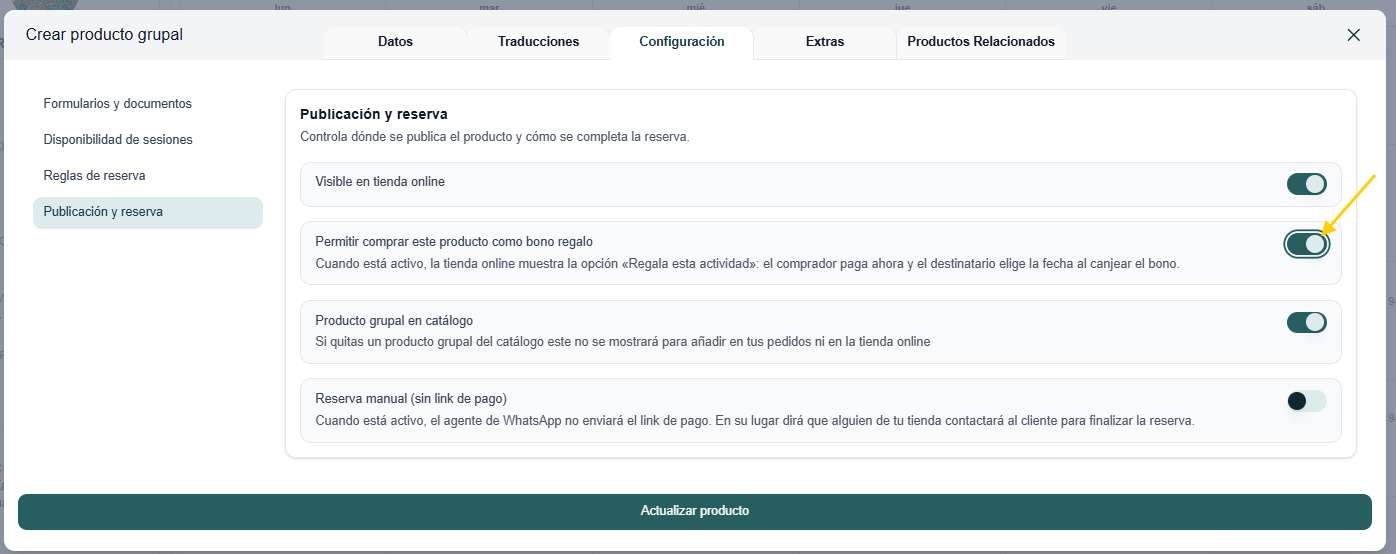
In the product's Publication card (where the "Visible in online store" switch is), turn on the "Allow this product to be bought as a gift voucher" switch.
Save the changes.
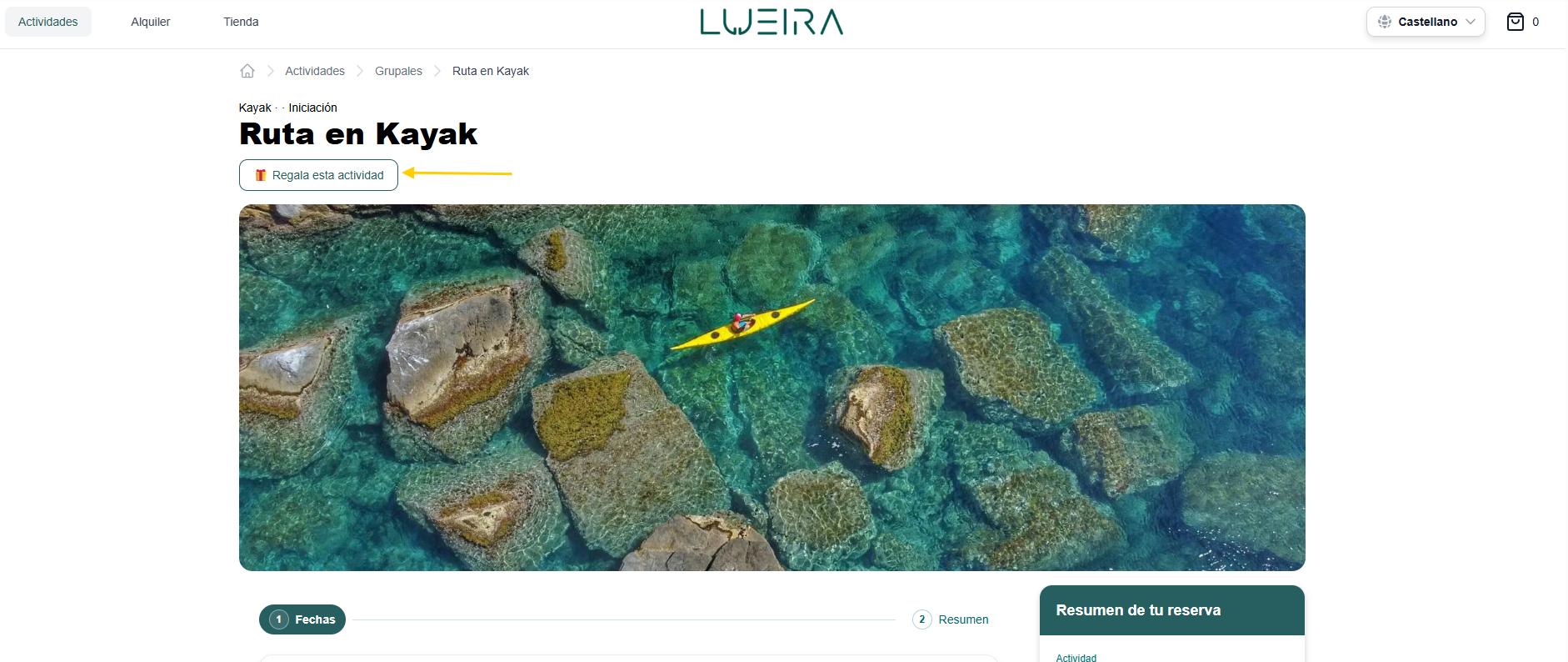
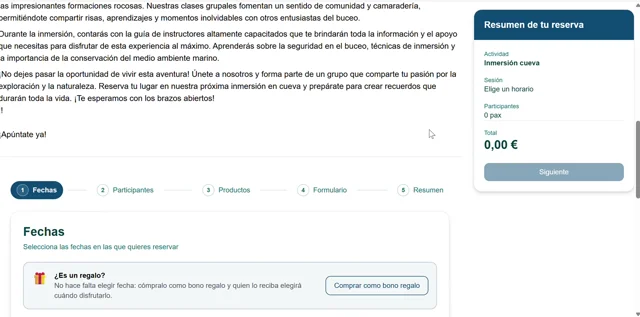
Once it is turned on, the product page in the Online Store will automatically show the "Give this activity as a gift" option: the buyer pays now and the recipient chooses the date when redeeming the voucher.
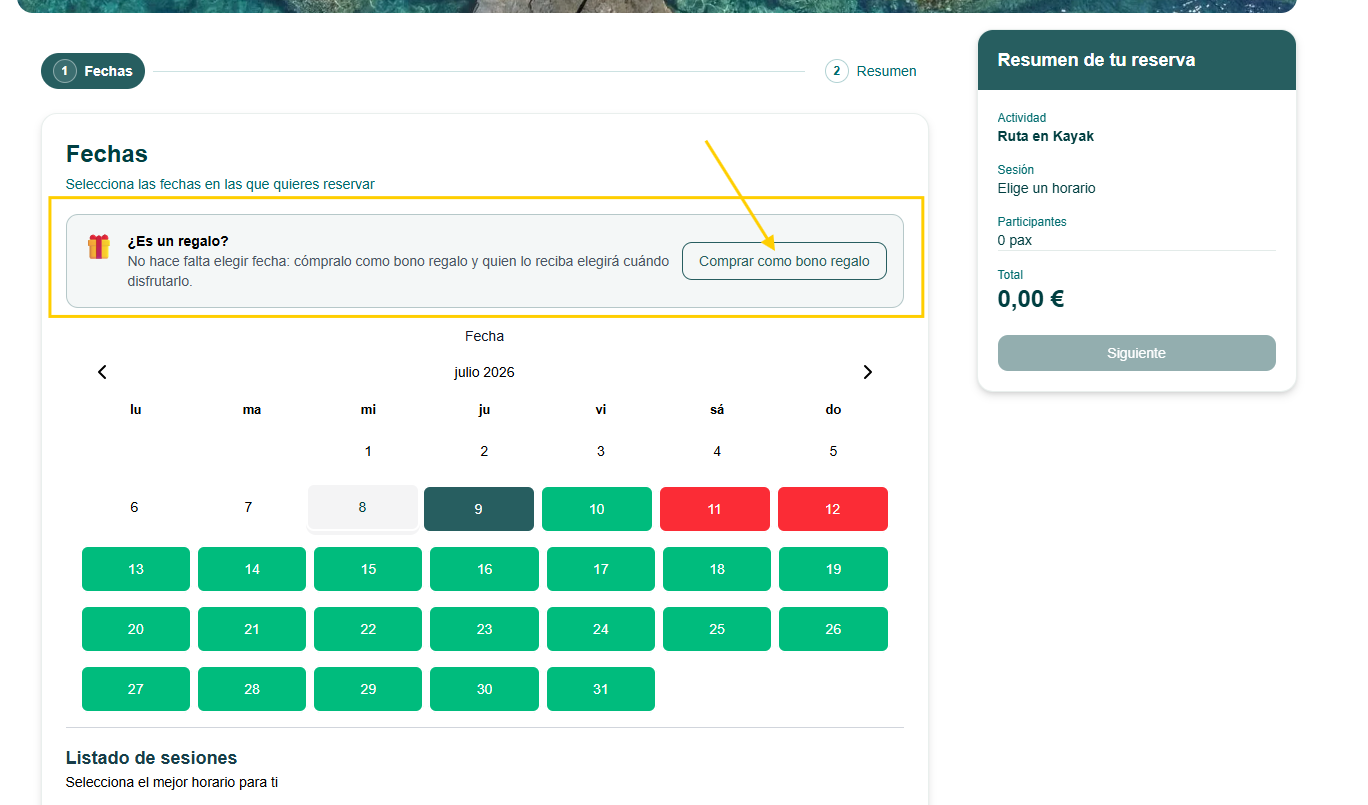
2. How a customer buys a Gift Voucher
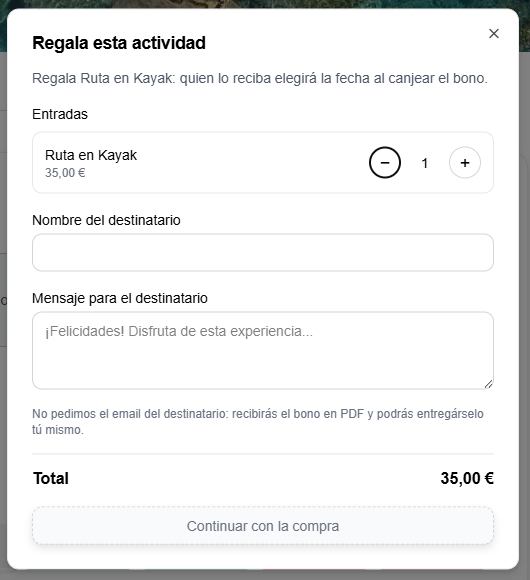
From the product page in the Online Store, with the "Give this activity as a gift" option, the customer indicates:
Number and type of tickets or places to give
Name of the recipient
A personalized message for the recipient
As soon as the payment is confirmed:
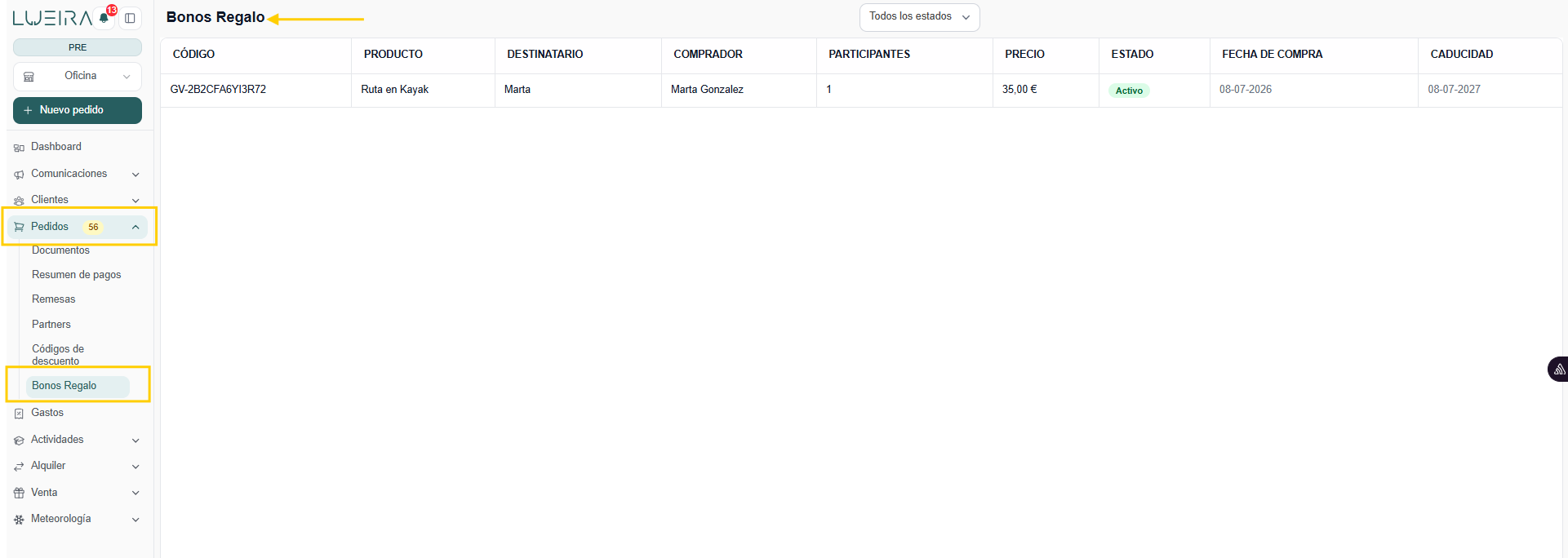
The voucher is created automatically in the Gift Vouchers section (within Orders), with all the associated information.
The buyer receives a confirmation email with a PDF of the voucher, ready to forward or print for the recipient.
3. The Gift Voucher PDF
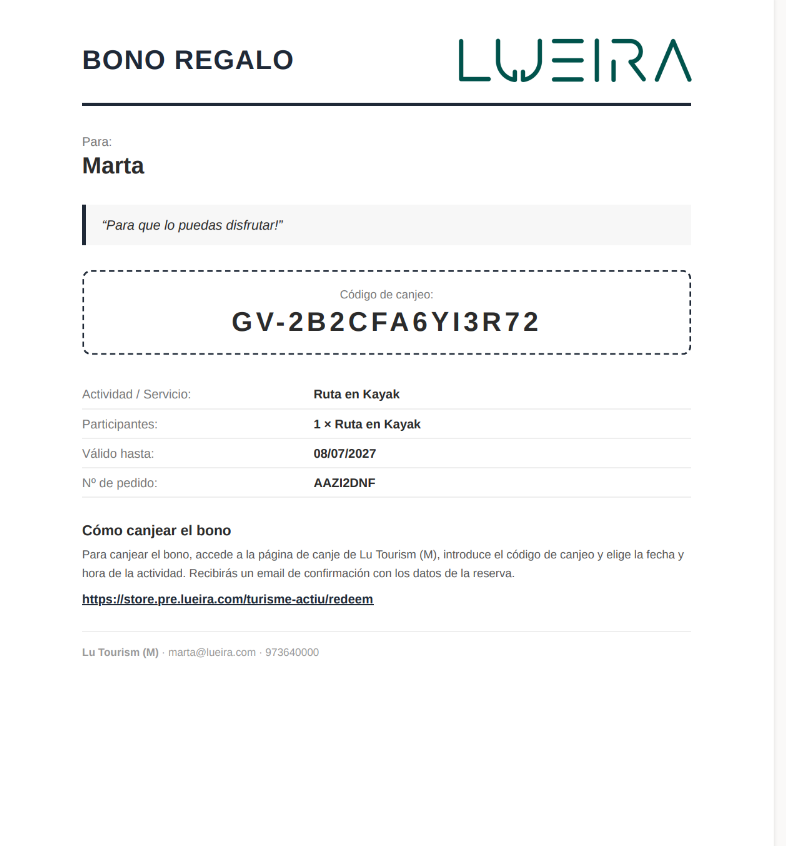
The PDF includes:
Your business logo (the same one configured for the Online Store)
Recipient's name and personalized message
Name of the activity and participants (category and number)
Validity of the voucher
Booking number (internal order reference) and redemption code
Your business's contact details
Instructions and the direct link to redeem the voucher
The PDF and the purchase email are sent in the language in which the customer made the purchase.
4. How the recipient redeems the voucher
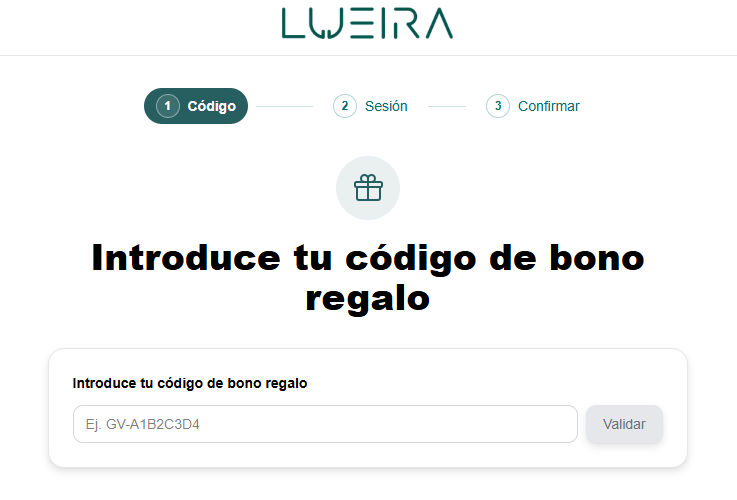
The recipient redeems the voucher through a public redemption link, specific to your business (included in the PDF). During the process they are asked for:
The voucher's redemption code
First and last name
Email
Phone number (of the person who will attend the activity)
Acceptance of the legal terms and the privacy policy
To choose a session, the recipient sees a monthly calendar with the days that have available sessions highlighted; when they select a day, the times for that day appear.
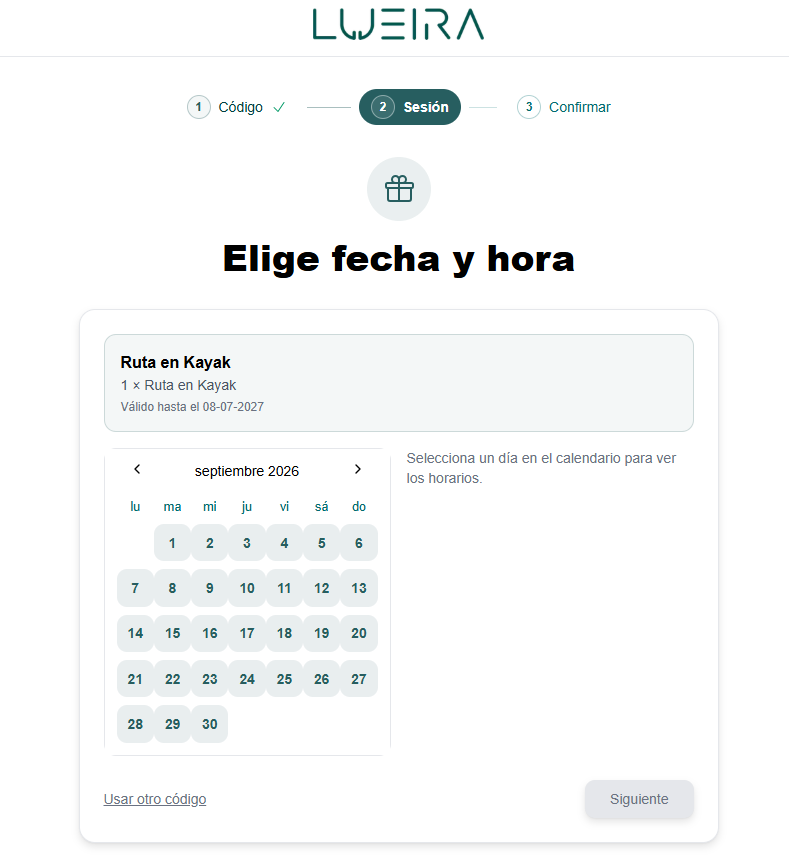
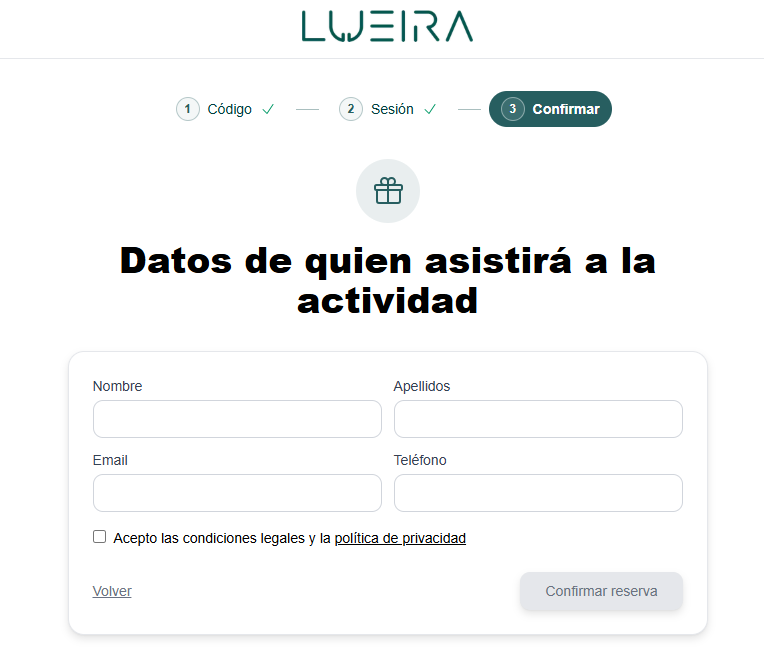
Once confirmed, the person who attends the activity receives an email with the booking details (date, time and place) without showing the price, since the voucher is already paid. If you have the internal email copy enabled, this email is also sent as a blind copy to your configured address.
If the code is not valid, has already been redeemed, has been cancelled or has expired, a clear notice is shown on the page itself: "This gift voucher is not valid or can no longer be redeemed".
5. Managing Gift Vouchers from the back office
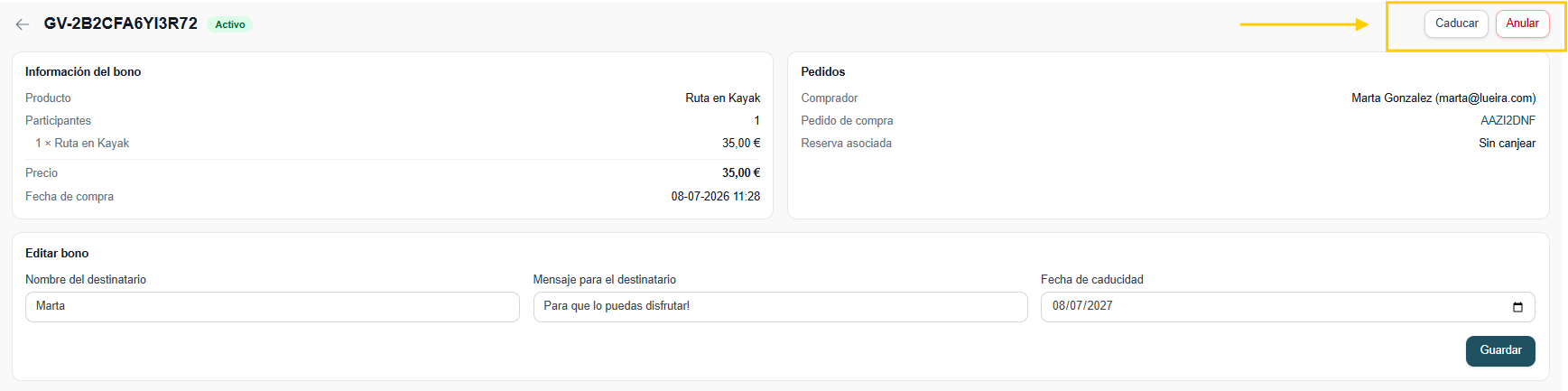
You will find the Gift Vouchers section within the Orders module, next to the discount codes. There you can check, for each voucher:
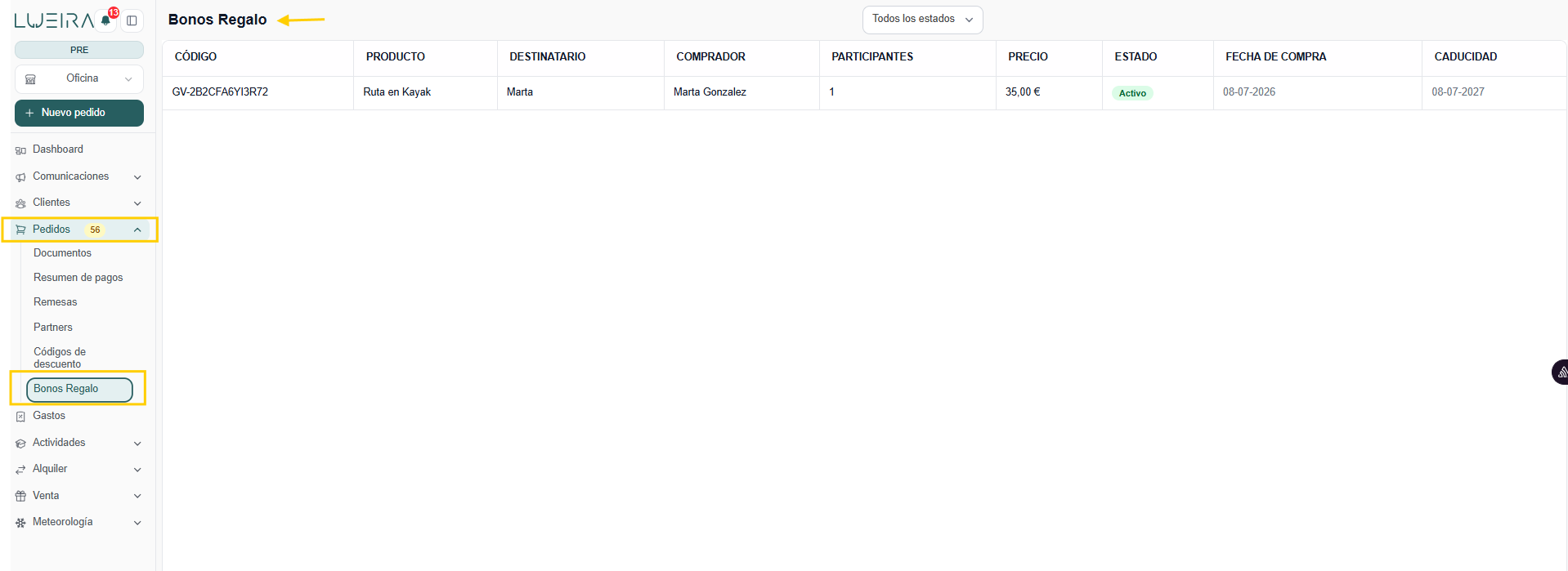
Product/activity purchased (name and tickets or places)
Buyer and recipient details
Purchase date and expiry date
Status: active / used / expired
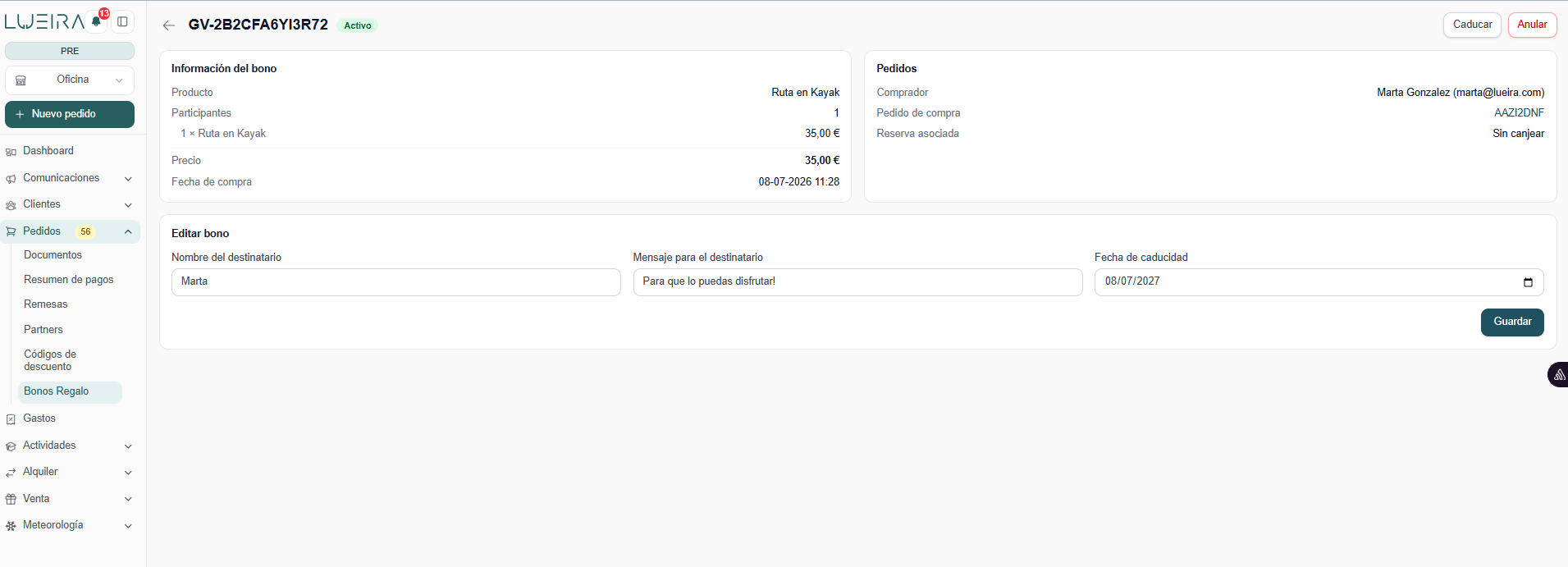
The associated booking once redeemed, with a direct link to the corresponding order
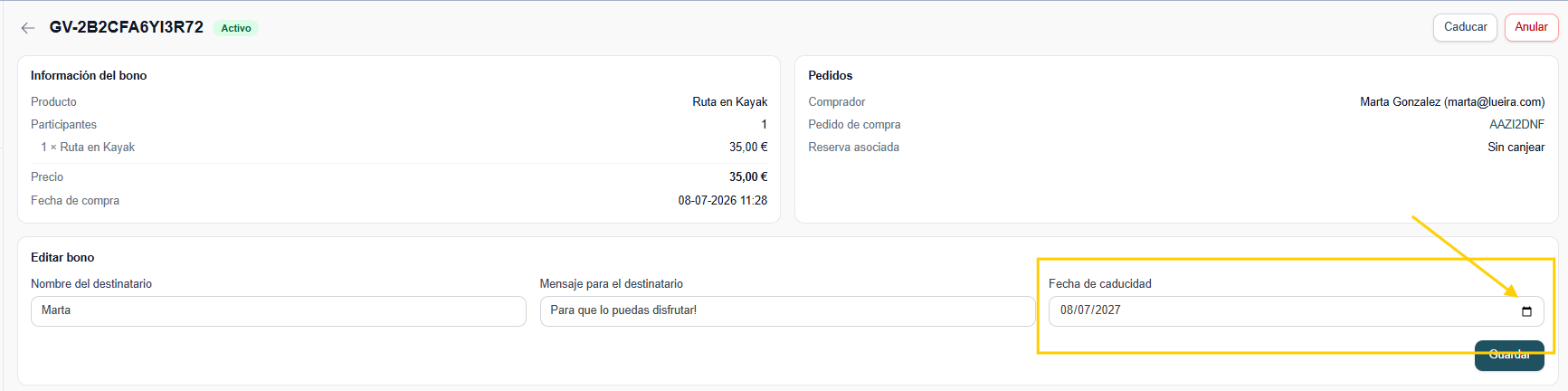
From a voucher's details you can edit it, mark it as expired or cancel (revoke) it if necessary.
6. Gift Voucher terms
Configurable expiry: you decide how many days the voucher is valid from its purchase. Go to Settings > Online store (General tab), find the Gift voucher validity card, enter the Days of validity and click Save. By default it is 365 days (12 months); 180 days is about 6 months.
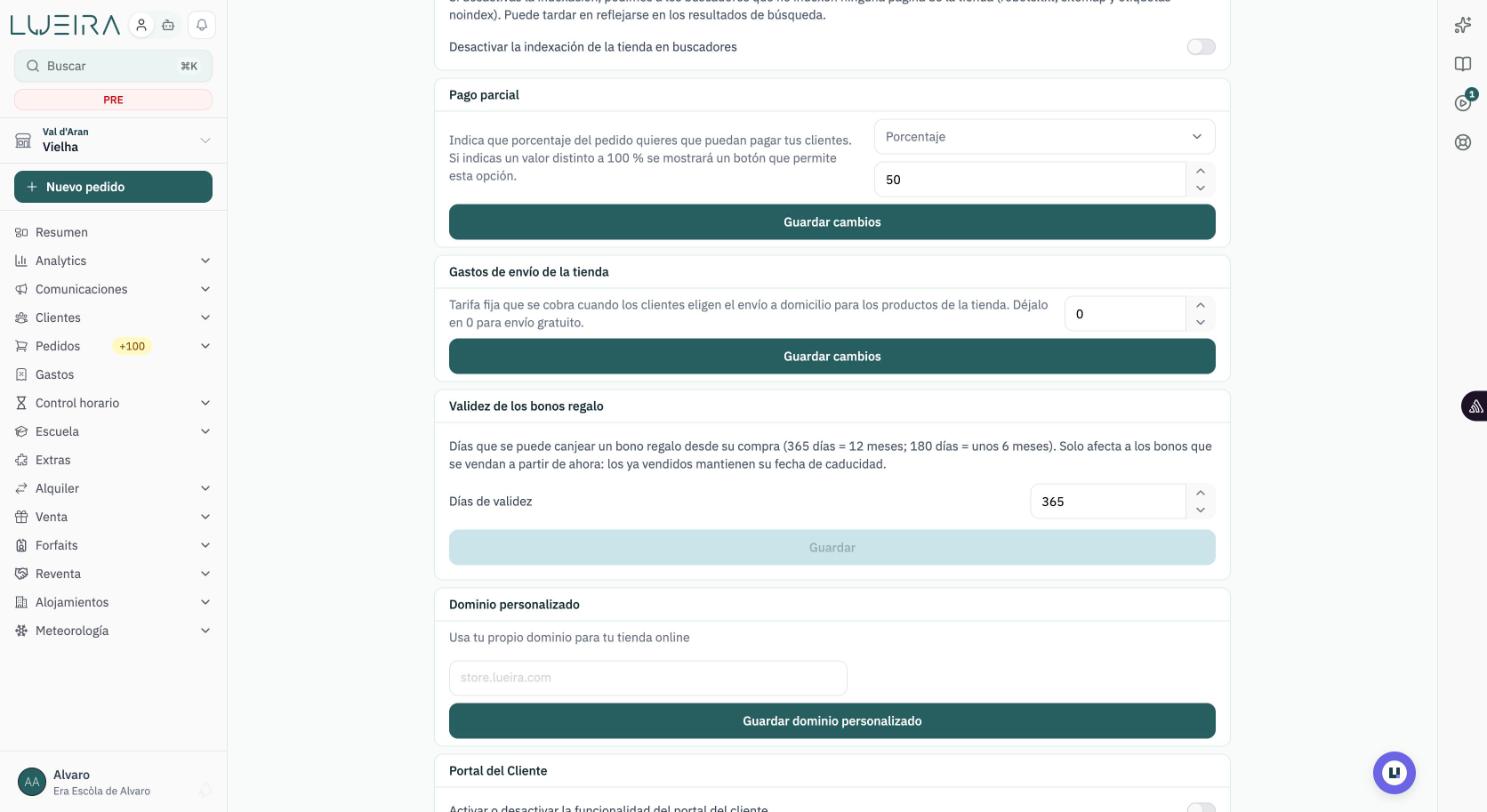
⚠️ The change only affects the vouchers sold from that moment on. Vouchers already sold keep their expiry date. If you need to change the date of a specific voucher, edit it from its details (section 5).
Frozen price: the voucher's price is fixed at the time of purchase, even if the activity goes up in price later.
On redemption a normal booking is generated for your business; since the voucher is already paid, nothing additional is charged to the recipient.
7. Languages
All the voucher's texts (PDF, emails and redemption page) are available in the languages supported by Lueira, not just Spanish.
Videos about this guide
Related guides
- Orders navigationView the status of all your orders, invoices or payments
- How to create ordersWe show you how to create orders and add every type of product to them.
- Creating a lesson booking from the admin: several days, a second teacher and line priceHow to create a lesson order from the admin: add private or group sessions, book several days in a row, add a second teacher without losing the charge for the second lesson and change the price of a line.
- Order statusesThis section gives you an overview of the status an order is in
- Order lifecycle: statuses, payment and confirmationA complete explanation of the order and payment statuses in Lueira, how they relate to each other, and when an order is confirmed automatically or manually depending on the payment method.
- Deleted and cancelled orders: the difference, how to see them and how to ask for them to be restoredThe difference between cancelling and deleting an order, where to find cancelled orders, how to find out who changed or deleted an order with Change tracking, and what to do so support can restore an order deleted by mistake.