

Free-amount gift cards (valid for any product)
How to sell a free-amount gift card, valid for any product, using a Pack with no linked sessions and manual redemption. To gift a specific activity with automatic redemption, use Gift Vouchers.
On this page
📍 This guide is for free-amount gift cards, which the recipient can spend on any product (classes, rental, shop...). If you would rather gift a specific activity, with automatic redemption, PDF and redemption code, use the native Gift Vouchers feature instead.
In Lueira you can easily offer and manage gift cards or gift vouchers, both in the online store and from the management software itself. Below we explain how to set them up, send them to your customers and apply them to orders.
1. Create the gift card product
Go to the products section and create a new Pack, using the "Add pack" button in the top right corner.
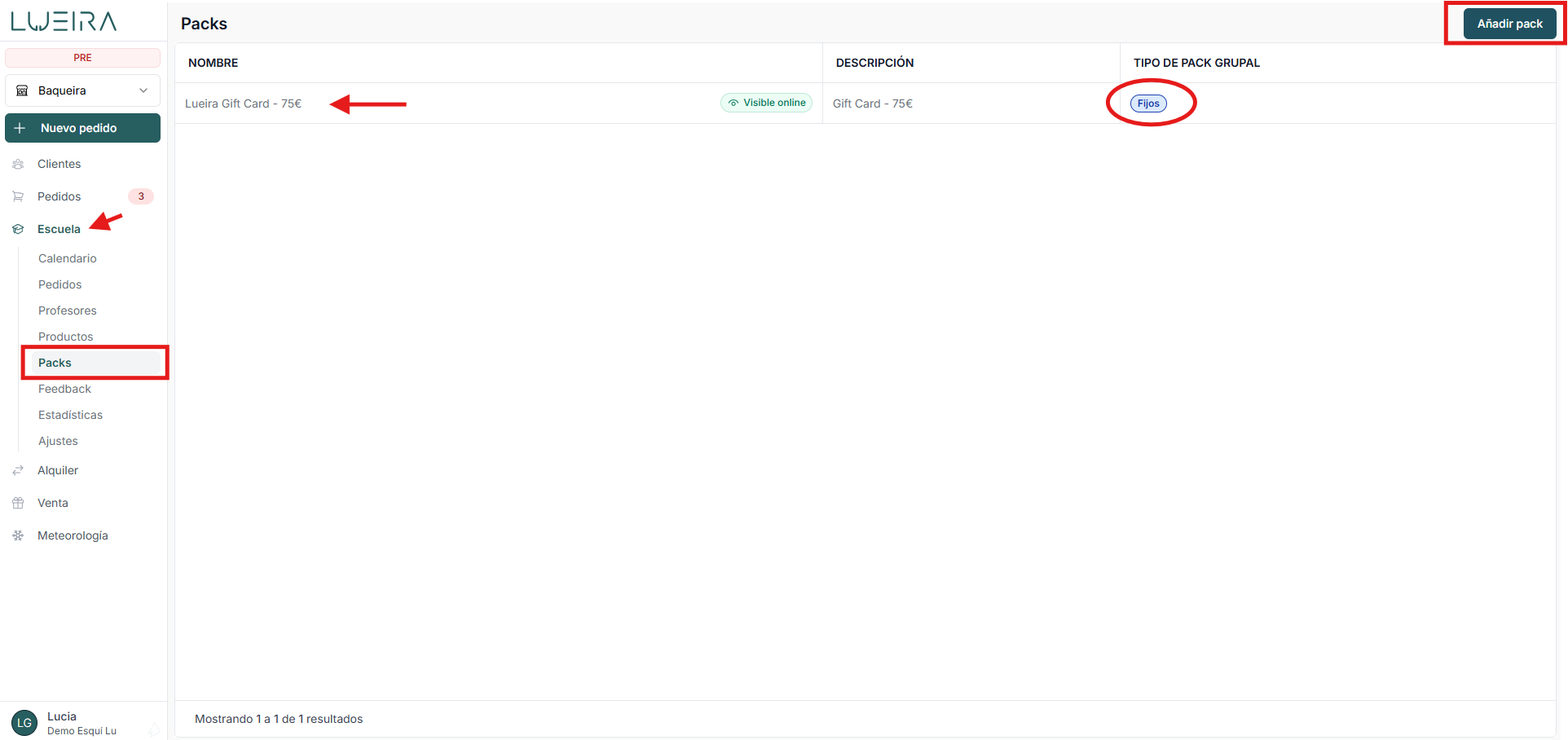
Use the settings window to edit the pack's information fields:
Name (example: LUEIRA Gift Card 75€).
Type: fixed type, (lets us sell a product with no linked dates or sessions).
Description (short explanatory text).
Image of the gift card.
VAT and price (example: 75€ and 21% VAT, the value of the card).
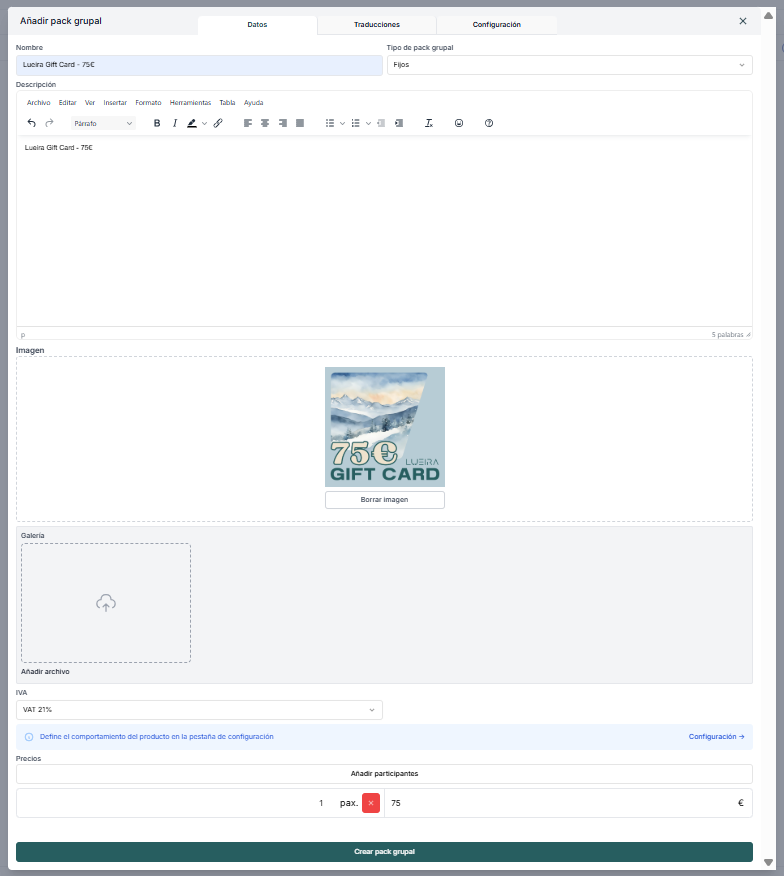
Once configured, we save the settings using the "Create group pack" button.
There is no need to link group product sessions to this pack. This way, the customer can buy the "empty" pack, to redeem the card whenever they want and for whichever activity they want to use it on.
2. Set up the email template
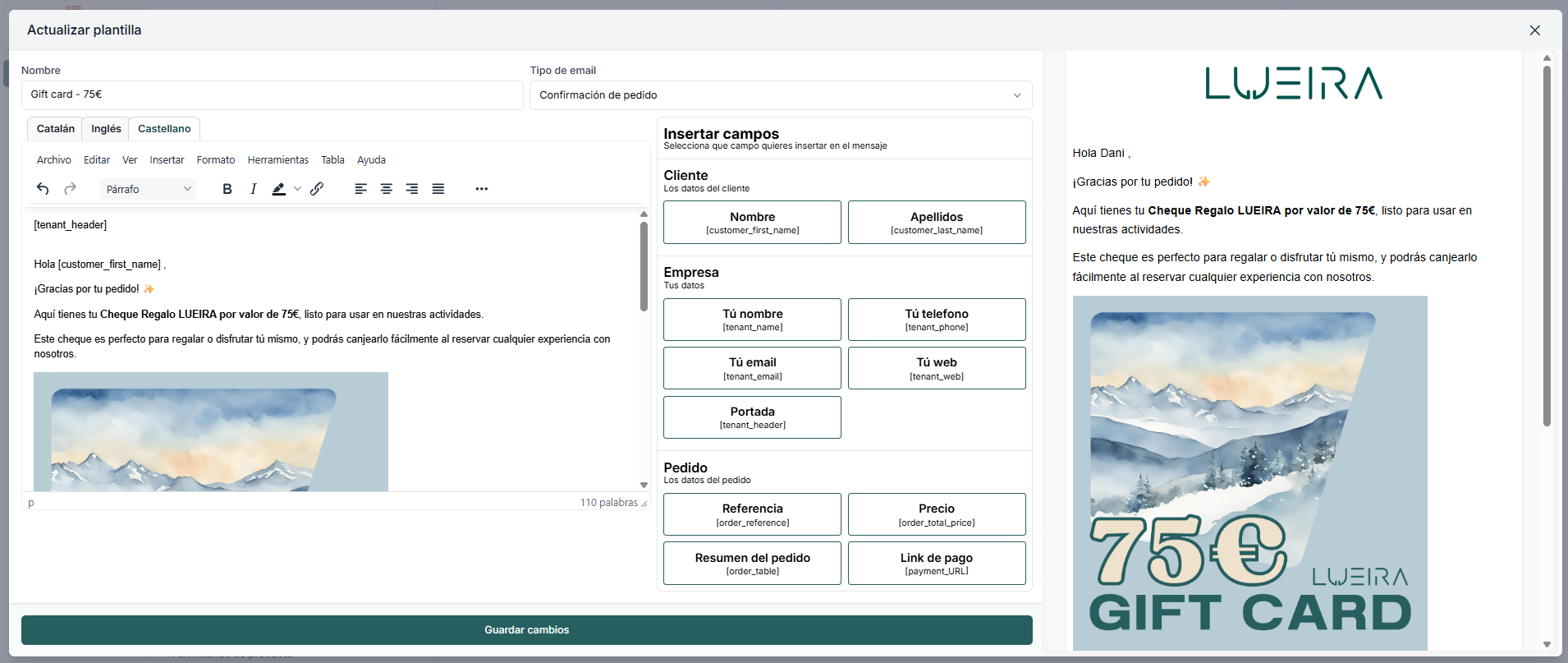
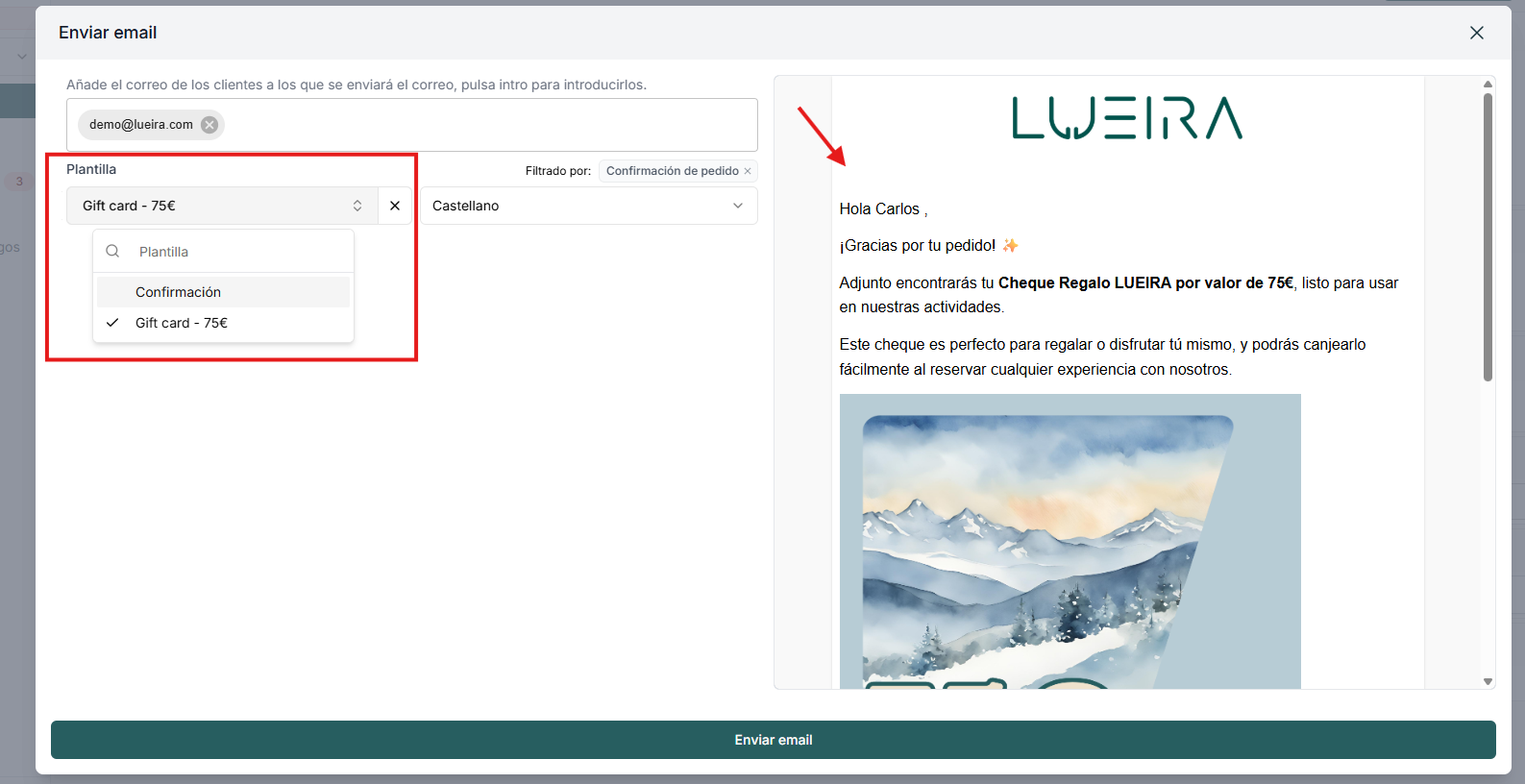
We recommend creating a specific template for sending the gift card to the customer when they purchase a gift card.
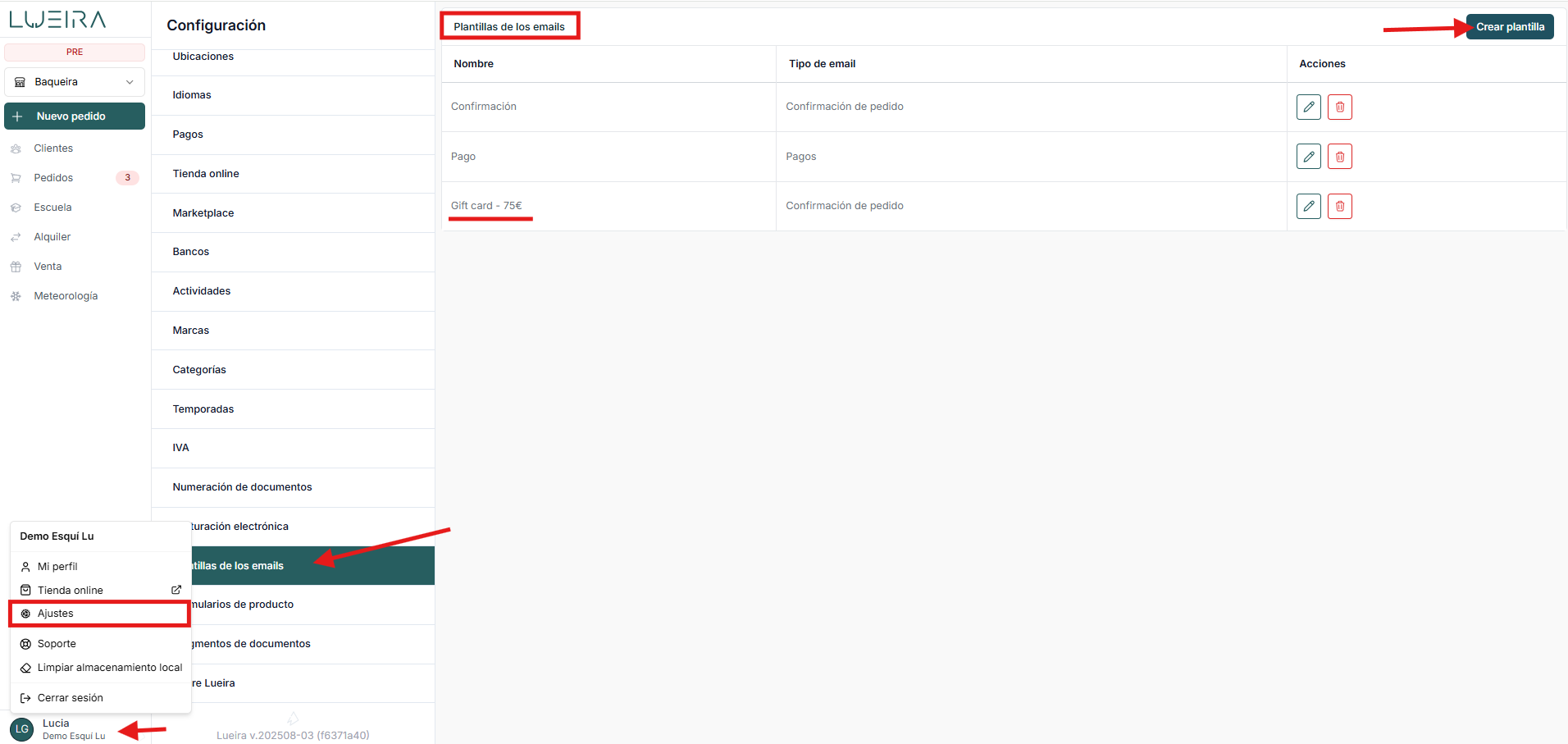
To create this template we will do it from Account settings > Email templates > Create template.
This template should include:
The voucher image.
The order reference number (used for internal control and for the customer to present when redeeming).
Optional: set an expiry date (example: 3 months, 1 year).
State the validity (which activities it covers).
Show the amount.
This way, the customer will receive all the necessary details by email.
3. Purchase experience in the online store
When you make the pack visible in the online store, it looks like this:
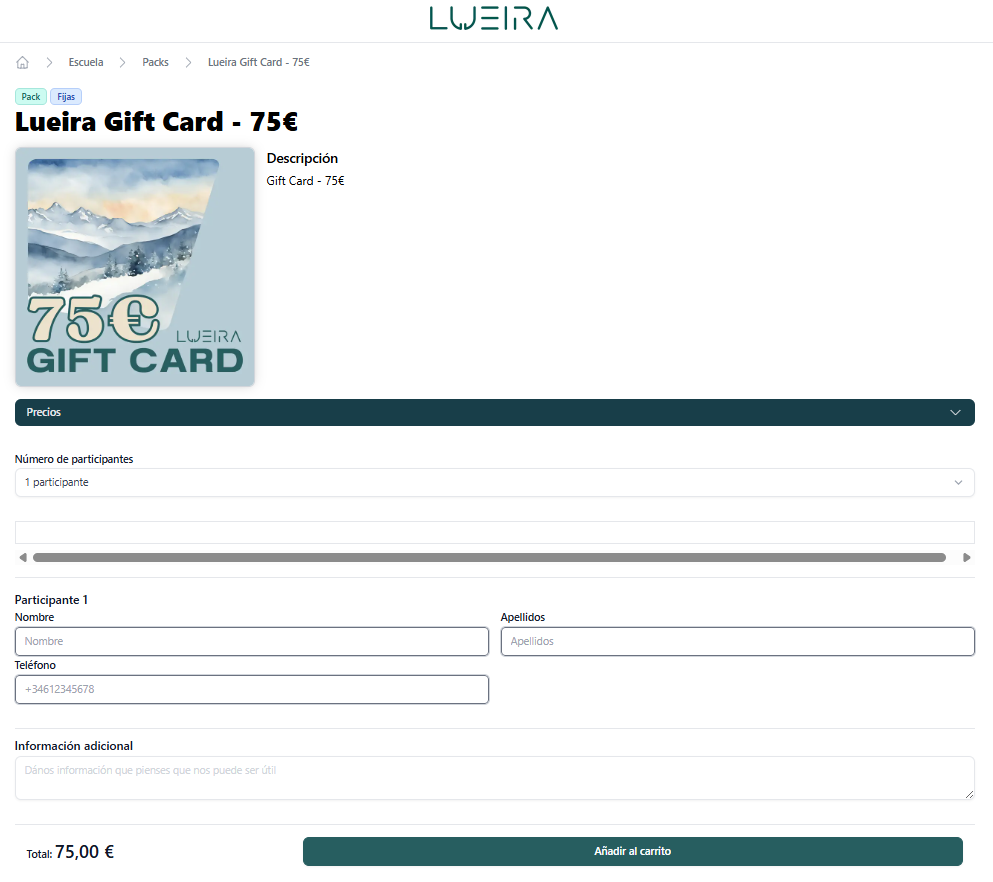
Customers can buy the pack without sessions for the configured value, adding the participant's information and any additional information they want. They can add it to their shopping list and proceed to payment as usual:
The customer selects the gift voucher (with the gift card's name, description, image and price visible).
They fill in their contact details and pay using the payment gateway.
Once confirmed, the order will appear in your order list with its reference number.
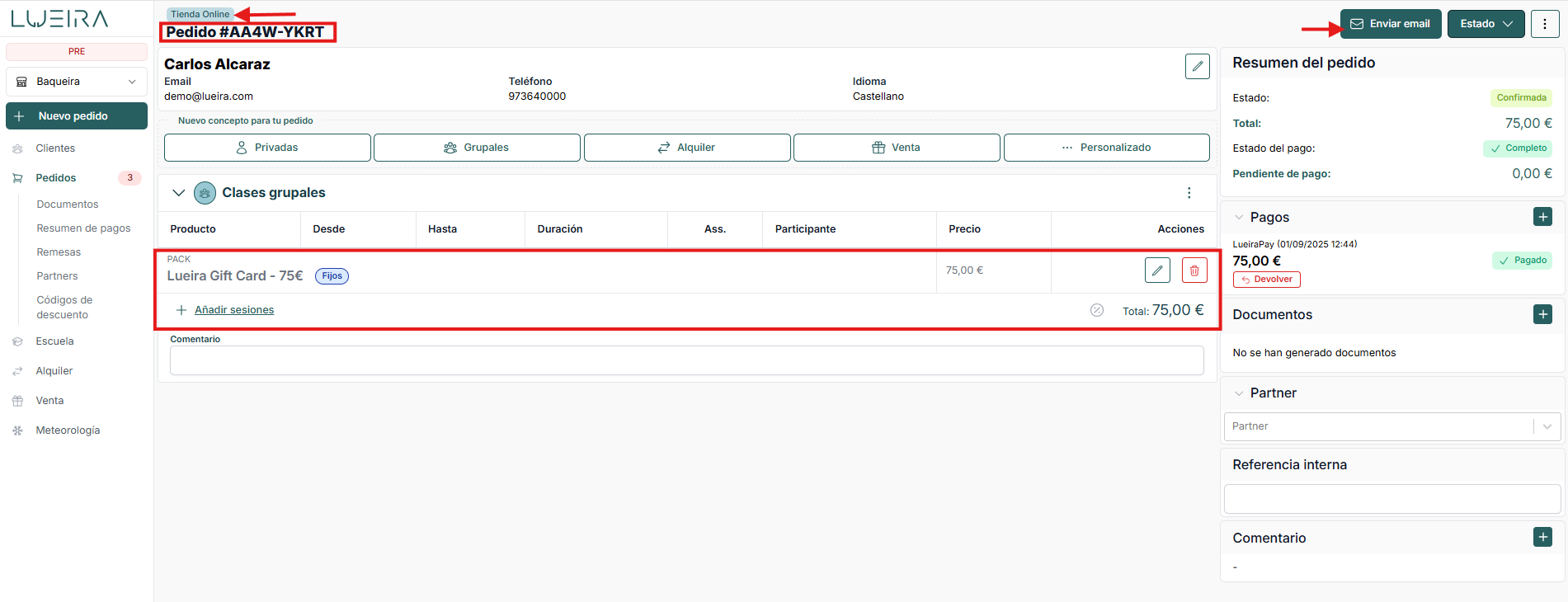
From the order page you can use the "Send email" button to use the configured gift card email template.
4. Redeem the gift card
When a customer wants to use the gift card:
The customer must show you the email where the reference number of the original order is visible (to verify that the voucher/card is valid and matches one of your sales)
Find the original order and copy the reference number.
Create the order for the customer, and add to the order the activities this person wants to do with your company (example: adult alpine skiing group classes).
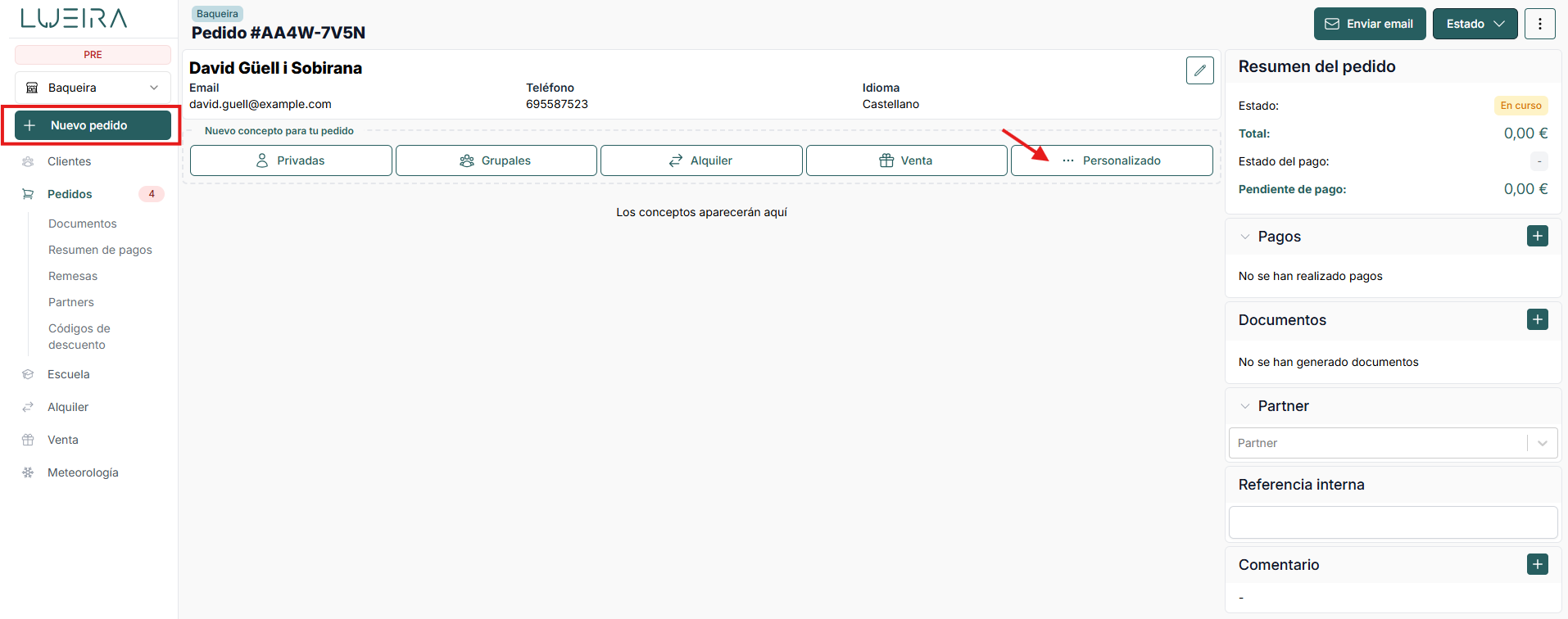
Add a custom product with the name of the gift card.
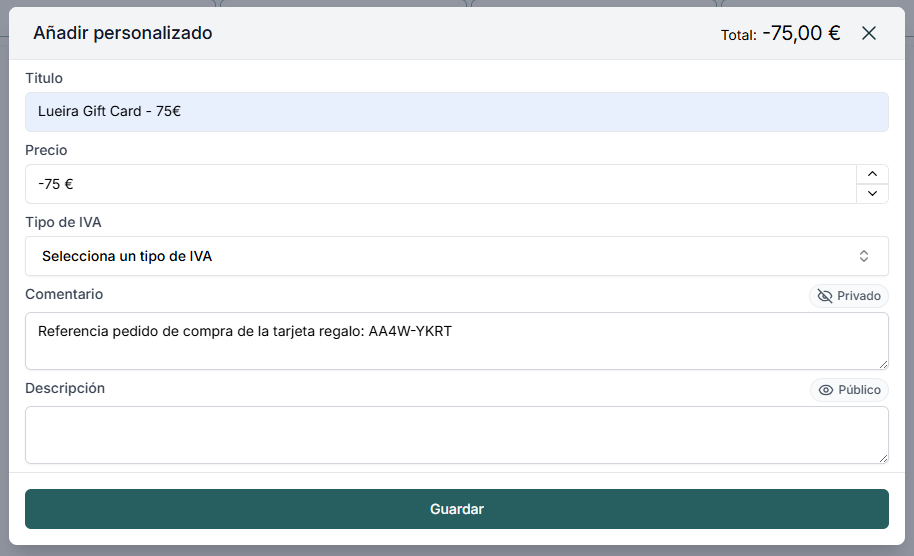
Enter the amount as a negative (example: -75€).
Remove the VAT.
Add the order reference number in the comments.
Save the changes: the total amount will be updated by subtracting the voucher value.
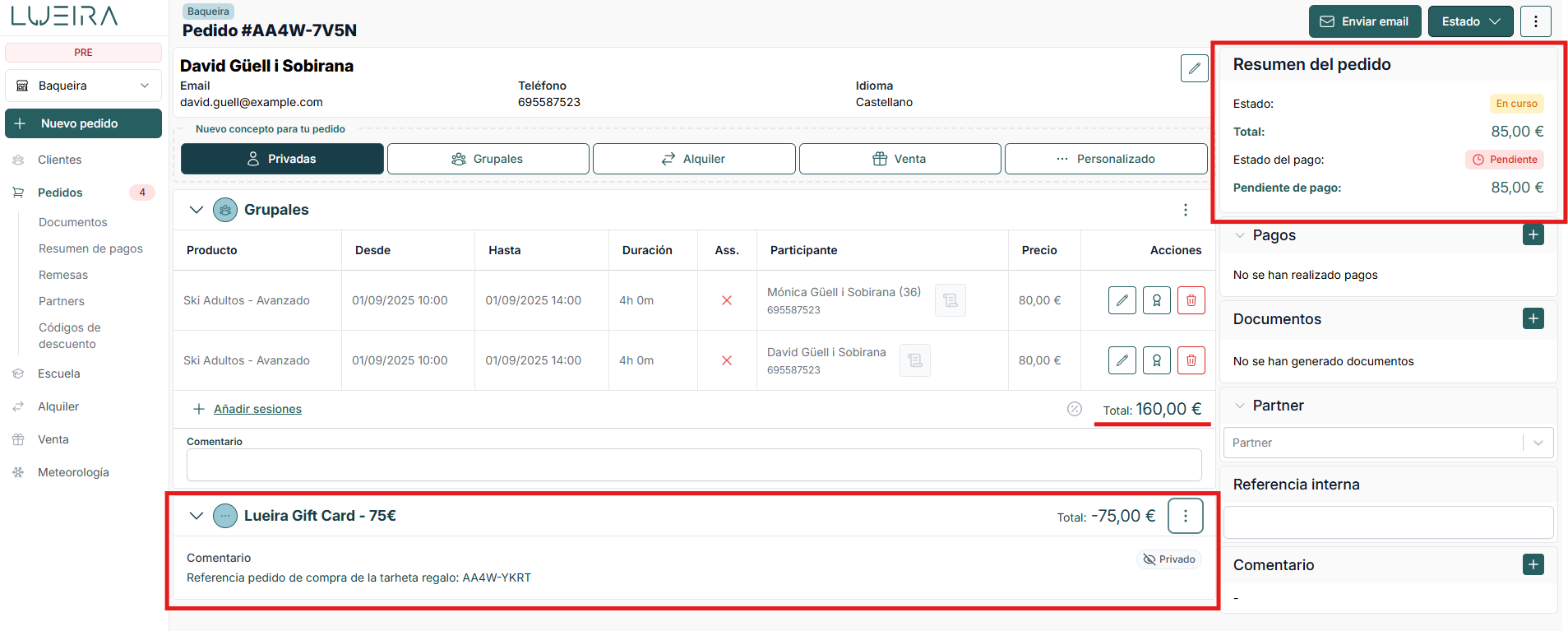
Free-amount gift cards in Lueira are managed by creating a Pack with no sessions, setting up an email template to send it, and applying them as a discount on orders using a custom product with a negative value.
If you have any questions, don't hesitate to contact the Lueira support team!
