

Create a sales order
We will show you how to add a sales product to an order
From the admin panel you can manually create Sales orders to sell physical inventory products to a customer at the counter or by phone, without the customer having to go through the online store.
1. Create or open an order
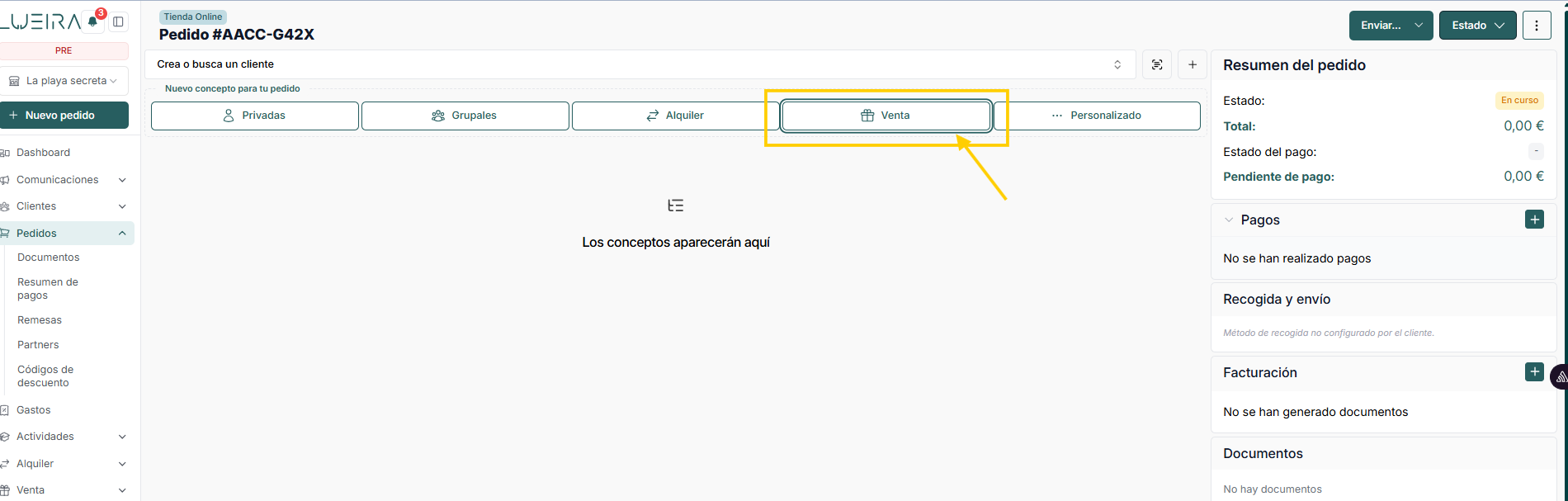
Go to Orders and click New order, or open an existing order in progress. At the top of the order you will find the item type tabs: Private, Group, Rental, Sales and Custom.
2. Add Sales products
Click the Sales tab. A panel with the inventory search opens. You can find the product in two ways:
Search by name — type the name of the product or variation in the "Search the inventory" field.
Barcode scanner — turn on the scanner and scan the product's code. Lueira identifies it automatically.

Once the product is found, it appears in the table with its name, quantity and price. You can adjust the quantity and add a comment if needed. When you are done, click Save.
3. View Sales orders
All orders that contain Sales products appear in Sales → Orders, where you can filter them and manage their status.
If you have any questions, don't hesitate to contact the Lueira support team!
Related guides
- Add sales productsWe show you how to create sales products and variations
- Extras (Add-ons)Learn how to create, link and manage extras (add-ons) in your bookings for group products, group packs, Rental and private products.
- Free-amount gift cards (valid for any product)How to sell a free-amount gift card, valid for any product, using a Pack with no linked sessions and manual redemption. To gift a specific activity with automatic redemption, use Gift Vouchers.