

Extras (Add-ons)
Learn how to create, link and manage extras (add-ons) in your bookings for group products, group packs, Rental and private products.
On this page
Extras are additional products you can offer during the purchase process and that are added per participant within a booking.
For example: equipment rental, insurance, photos, transport, etc.
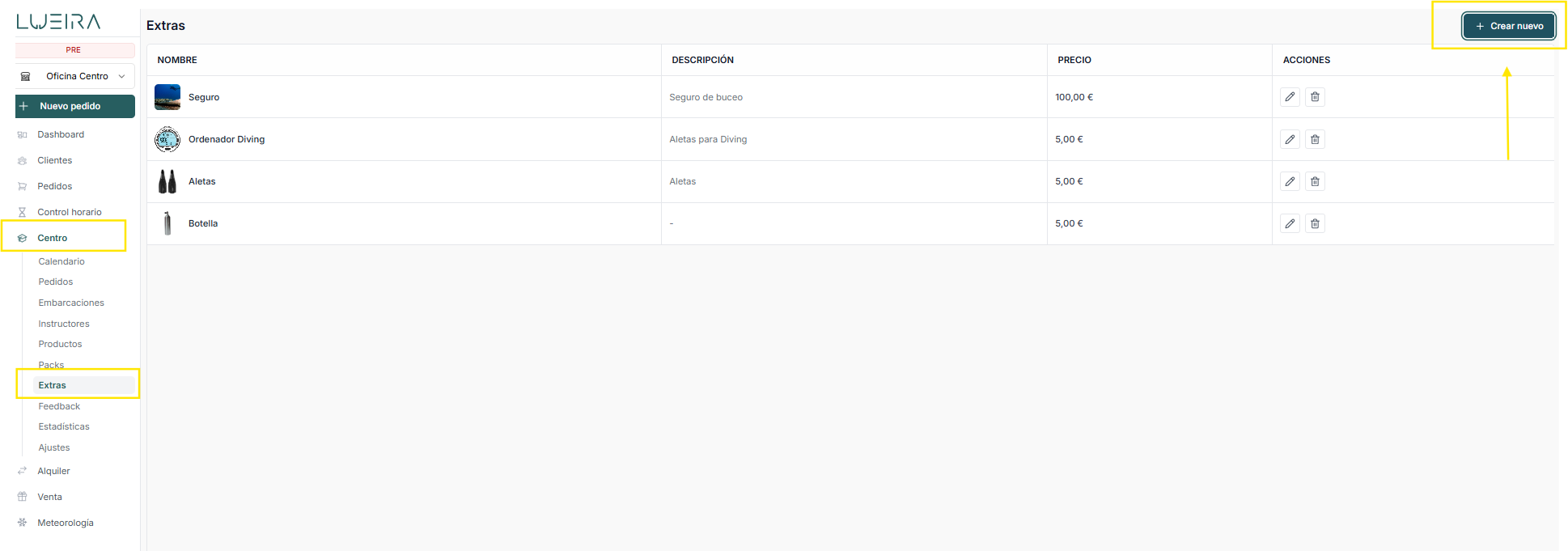
1. Create an extra
To start, you need to create the extras you want to offer.
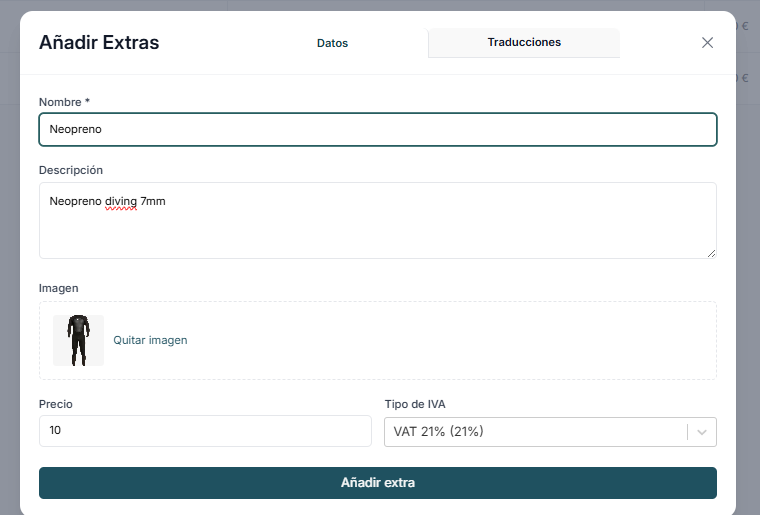
When creating an extra, you will need to define:
Name
Description
Price → a fixed price that will be added to the order total
Translations (if you work with several languages in the online store)
2. Link extras to products
Extras will only be available on the products you link them to. You can link them to group products, group packs, Rental products and private products.
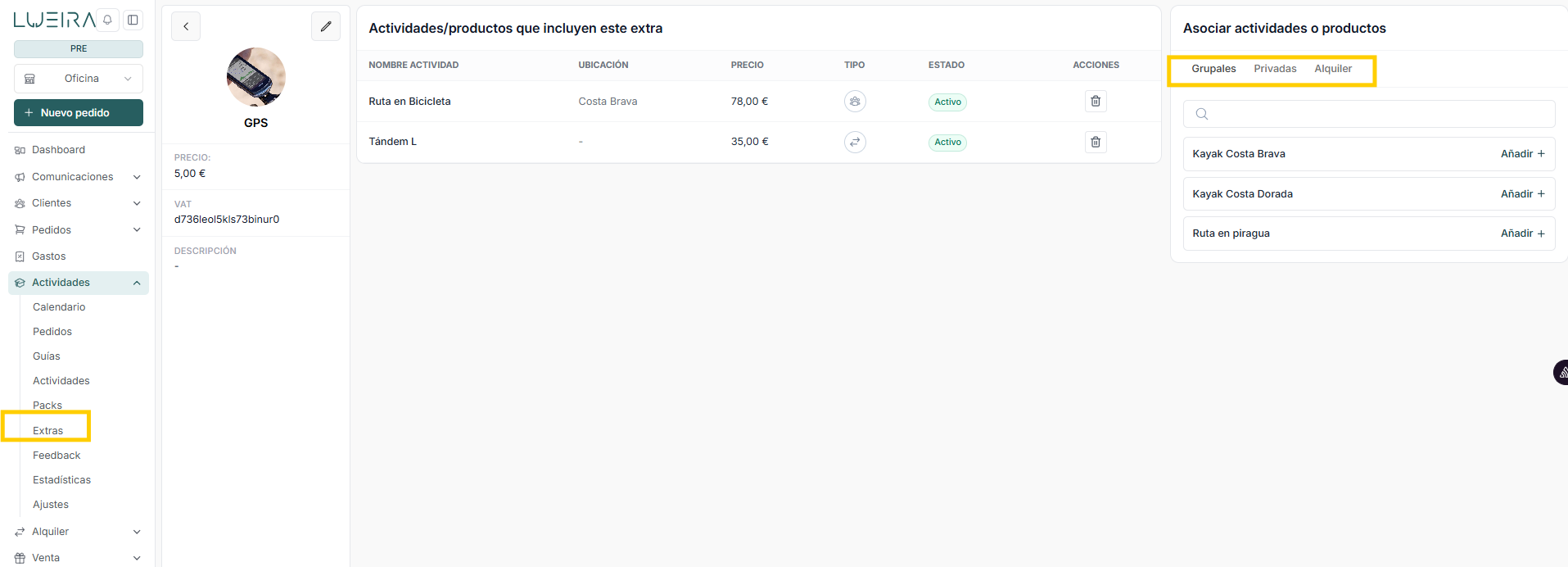
Option 1: From the extra
Go to the extra
Open its detail
Link it to the group products, group packs, Rental and/or private products you want
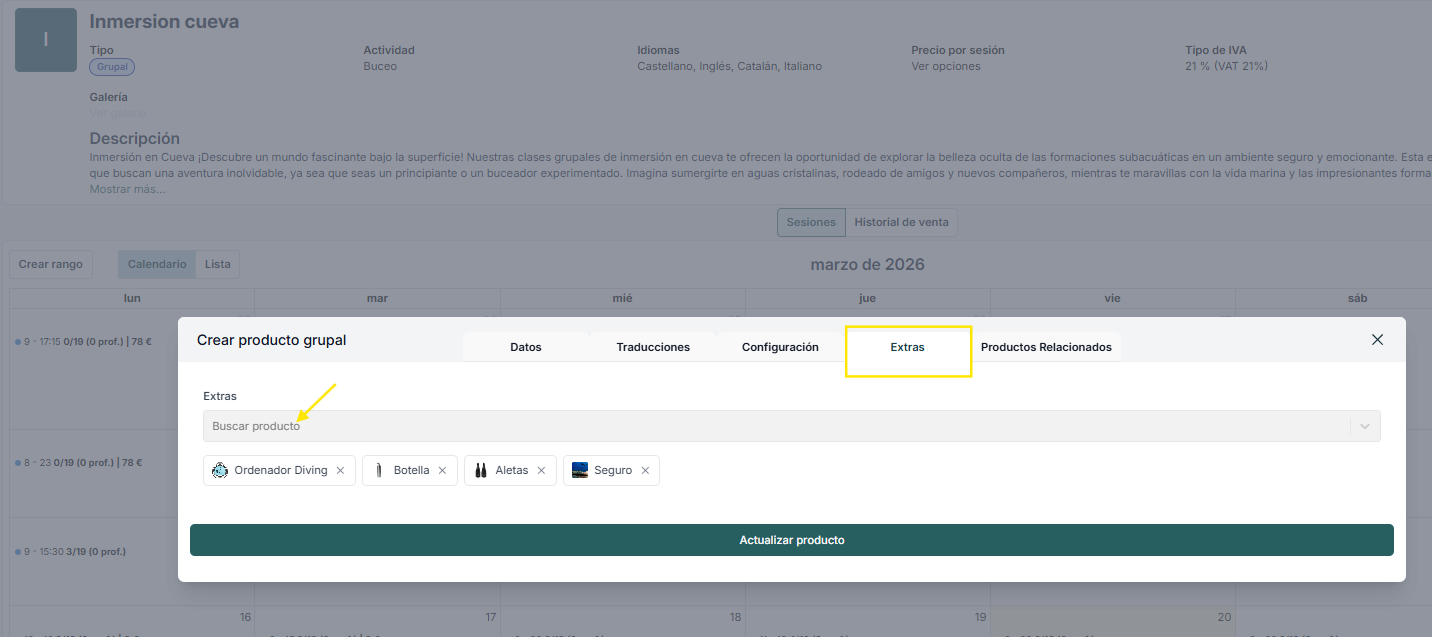
Option 2: From the product
Go to the product (group, group pack, Rental or private)
Click Edit
Go to the "Extras" tab
Select the extras you want to add
Advanced features
See the specific guides for more advanced configurations:
→ Extra groups and mandatory extras: organise extras into categories and define mandatory minimum selections.
→ Use a Rental product as an extra: link Rental products as an extra of another product, with integrated stock management.
3. Add extras to an order
In the Online Store
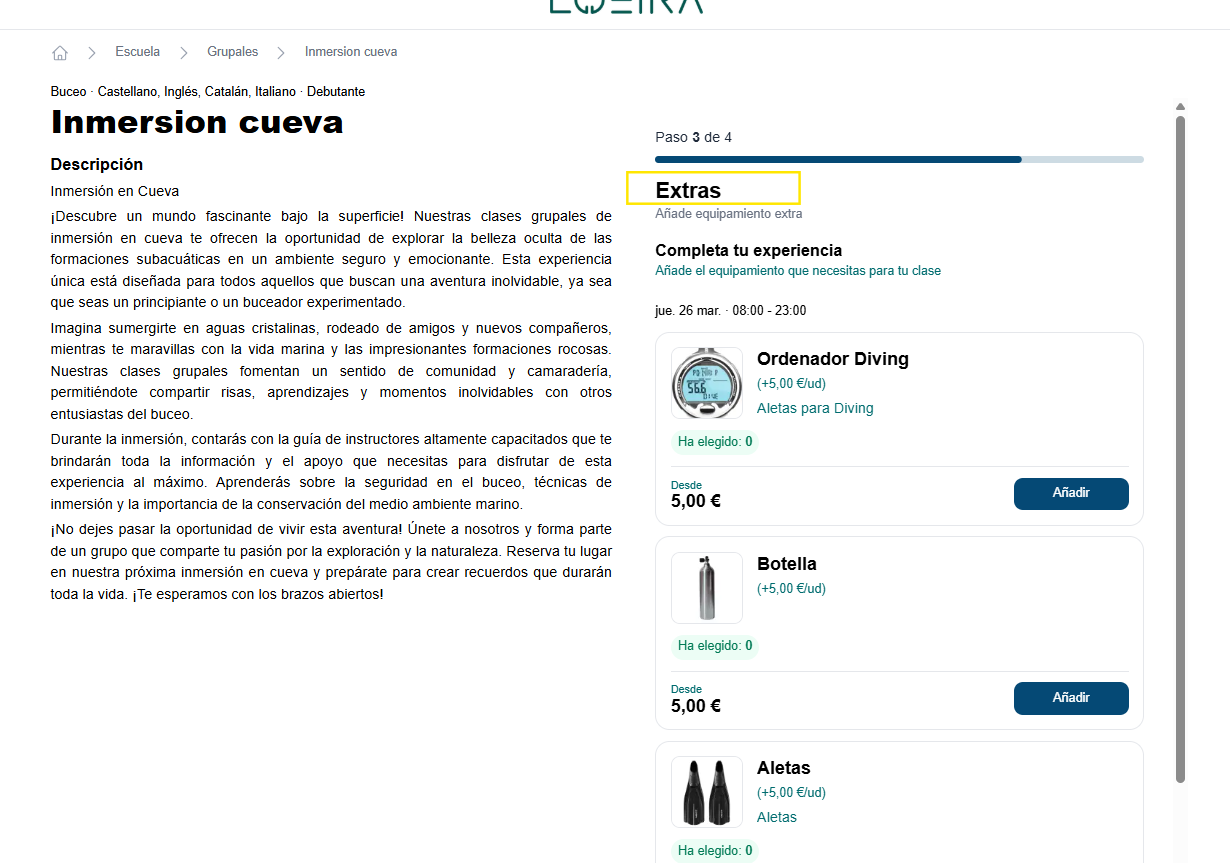
Customers will see the extras during the purchase process and will be able to:
Add them to the order
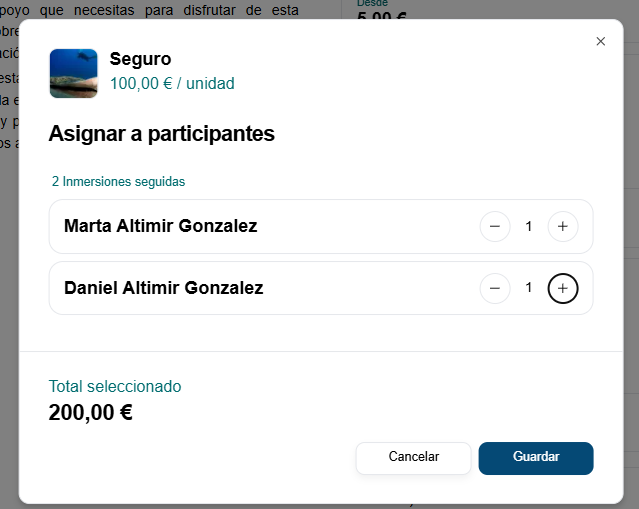
Select them for each participant
For Rental products sold as an extra, see the "Price as an extra" and respect the availability/stock of the Rental product.
This applies both to individual group products and to group packs: when buying a pack, the customer can link the available extras to each of the assigned participants.
Extras per unit in Rental products
When more than one unit of the same product is booked in a Rental product (for example, 2 bicycles), in the Extras step the Online Store shows a selector with each booked unit ("Unit 1", "Unit 2"...), with a counter of the extras already added to each one.
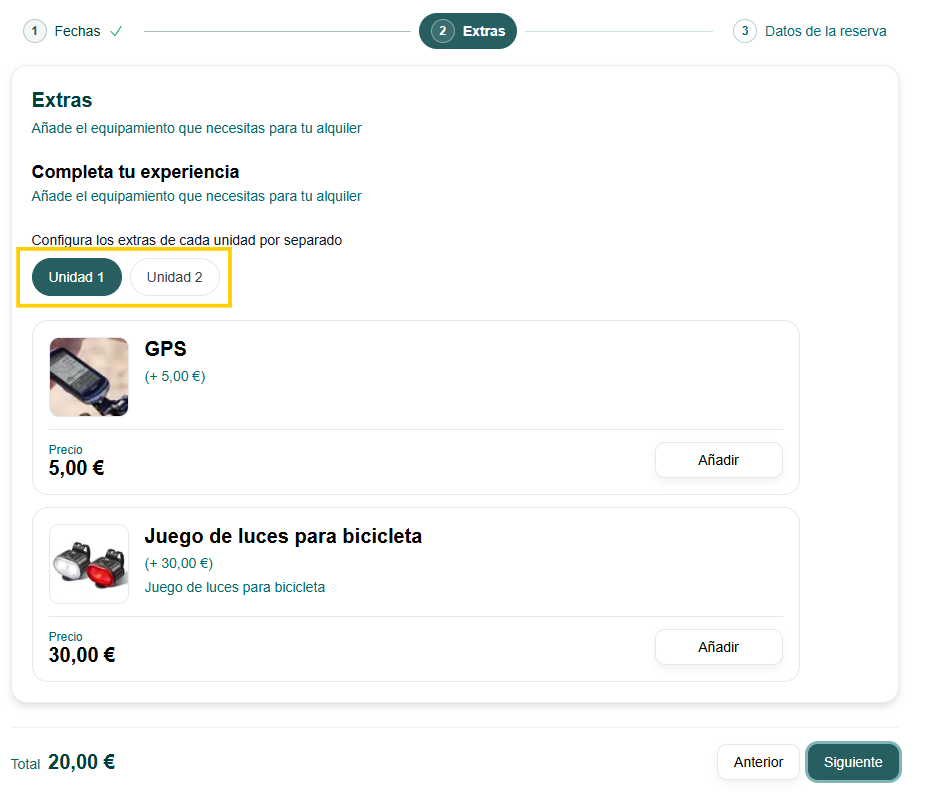
The customer chooses which unit they are configuring and selects its extras independently for that unit, without them being automatically applied to the rest.
If an extra group is mandatory (minimum selections), that requirement is validated per unit: each unit must meet the minimum separately before you can continue.
In the backoffice, the extra is linked only to the booking item it was assigned to, instead of appearing associated with all the items.
4. Viewing extras
Once the order is placed, you can easily see:
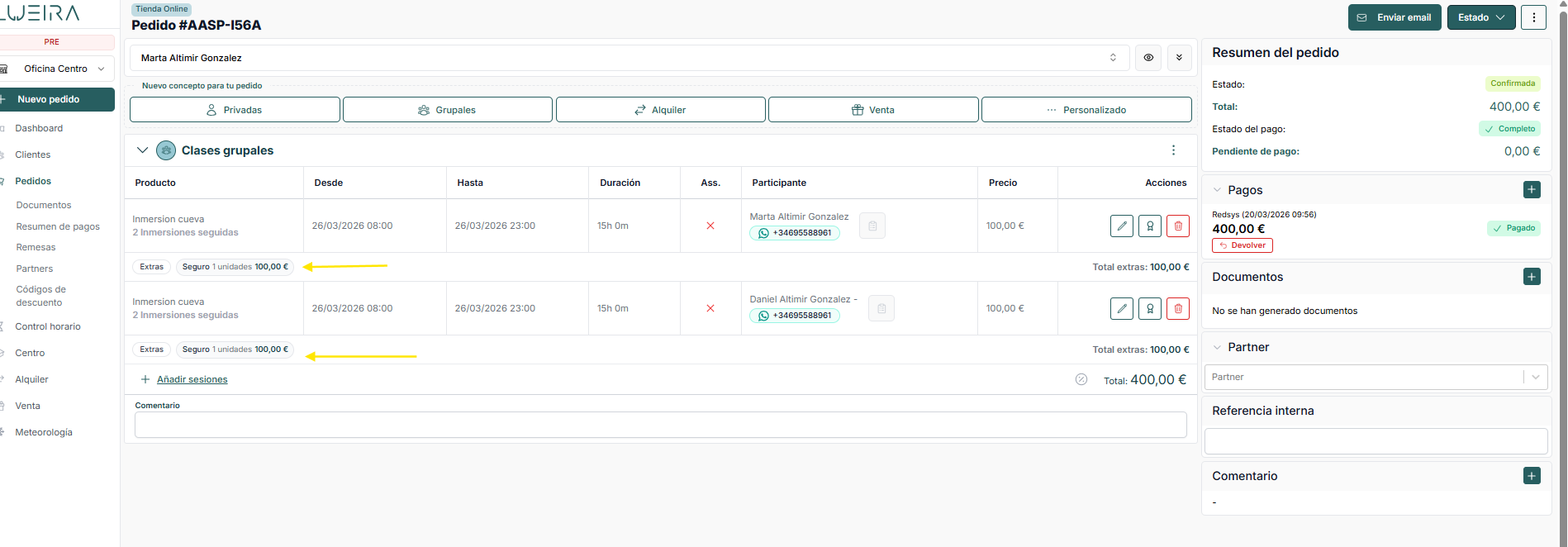
Which extras have been purchased
Which participants they are assigned to
Whether they were added from the Online Store or from Admin, the extras are reflected in the order detail (group products, group packs, Rental orders and private products).
5. Documents and invoicing
Extras (including Rental products that act as an extra) are correctly reflected in:
Invoices, receipts and quotes
Submission to Fiskaly and other tax integrations: add-ons are sent with their corresponding amount and VAT.
⚠️ Important
To be able to add an extra to an order, the extra must first be linked to the product (group, group pack, Rental or private).
When a Rental product is used as an extra of another product, it still consumes its usual stock: if it is booked as an extra, it will not be available as a free rental in that same time slot.
Related guides
- Add sales productsWe show you how to create sales products and variations
- Create a sales orderWe will show you how to add a sales product to an order
- Free-amount gift cards (valid for any product)How to sell a free-amount gift card, valid for any product, using a Pack with no linked sessions and manual redemption. To gift a specific activity with automatic redemption, use Gift Vouchers.