

Customer Portal
This section explains how the new Customer Portal works within the Online Store.
On this page
The goal of this first phase is to let customers view their bookings and profile, manage their Packs/Vouchers, and create relatives (participants) during the booking process for an activity.
1. Accessing the Portal
In the Online Store you will find the Log in button.
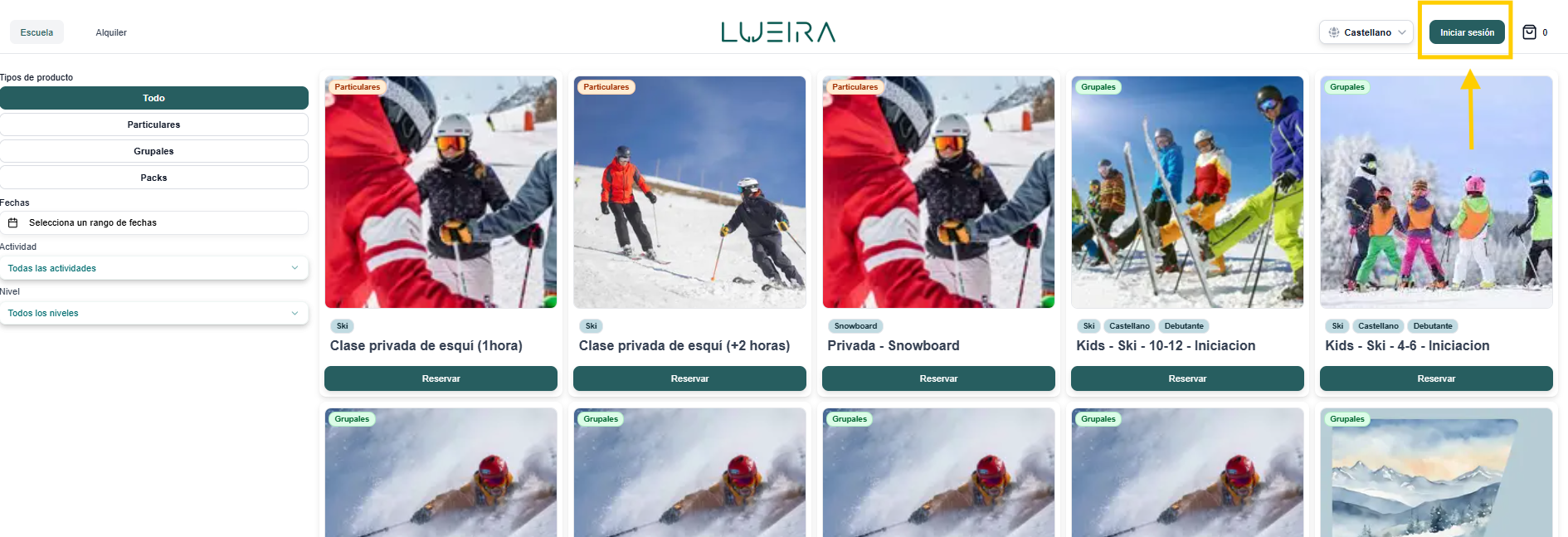
Logging in with an existing email
If the customer's email already exists in the tenant's database, they can log in directly by entering their email.
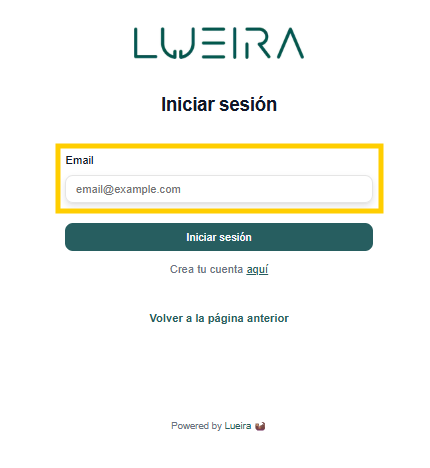
Creating a new account
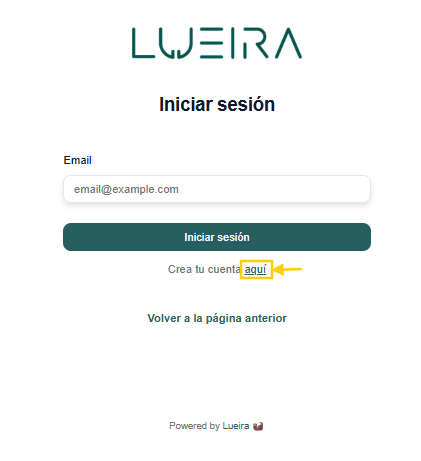
If the email does not exist, the customer can create a new account.
Once logged in, they can access the Your account section.
2. My Bookings
From the Bookings section of the Portal, the customer can view the full list of their bookings, with a filter to see Active or Past bookings.
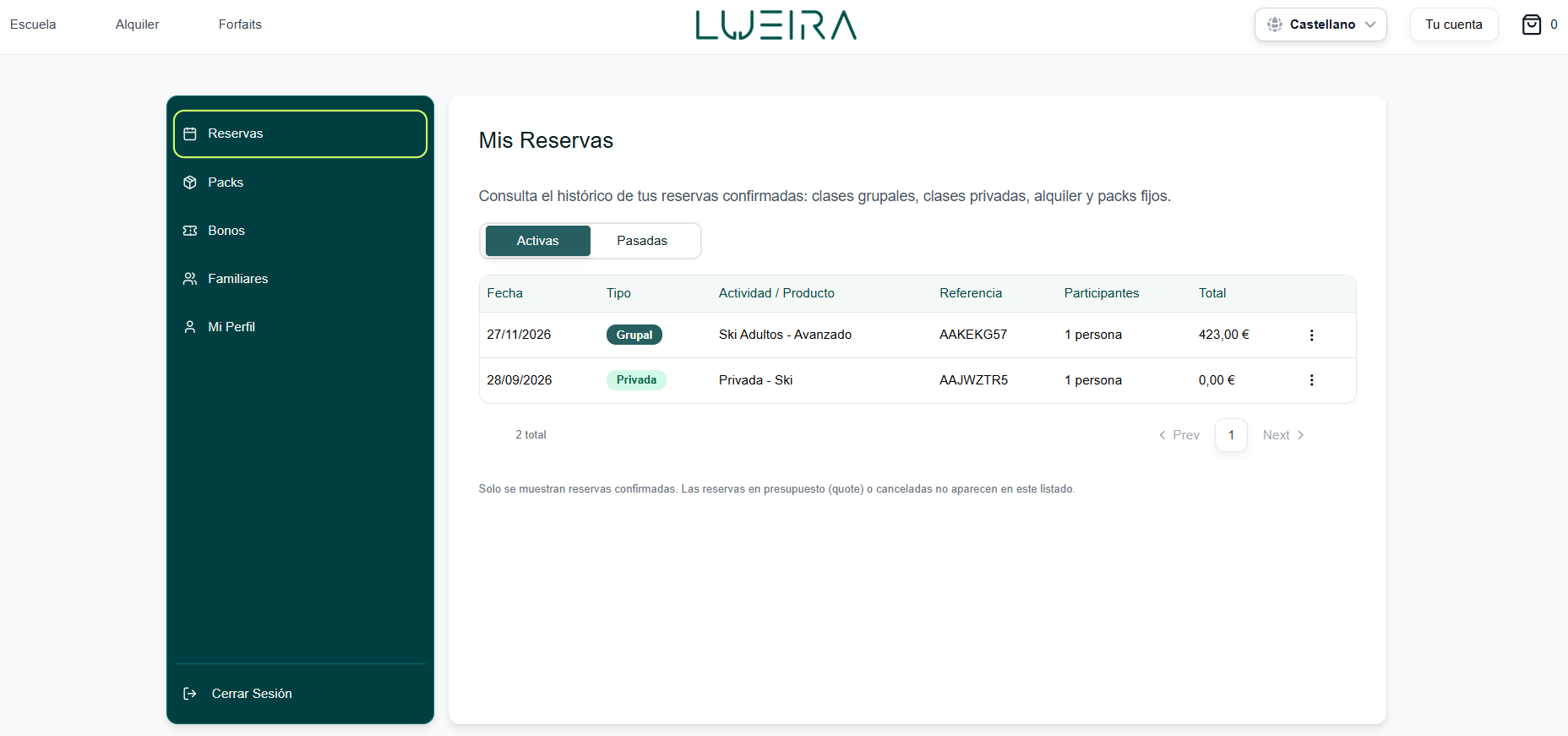
For each booking, the date, activity type, activity/product, reference, participants and amount are shown.
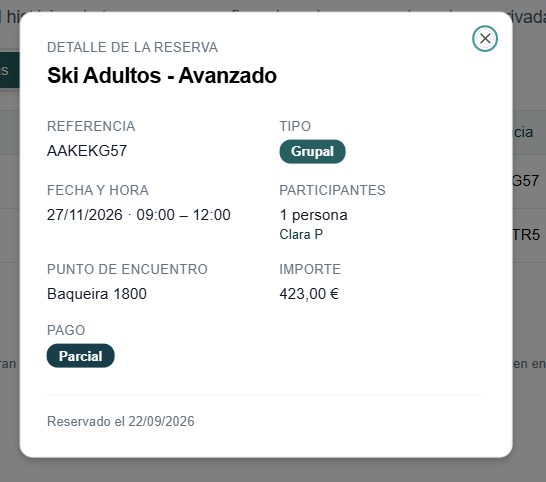
From the "⋮" menu on each row they can open View details, where they will find the date and time, the meeting point, the participants' names, the amount, the payment status and the date the booking was made.
Please note: the footer of the list only counts confirmed bookings.
3. Managing Packs
From the Portal, the customer can manage the packs they have bought. Specifically, they can:
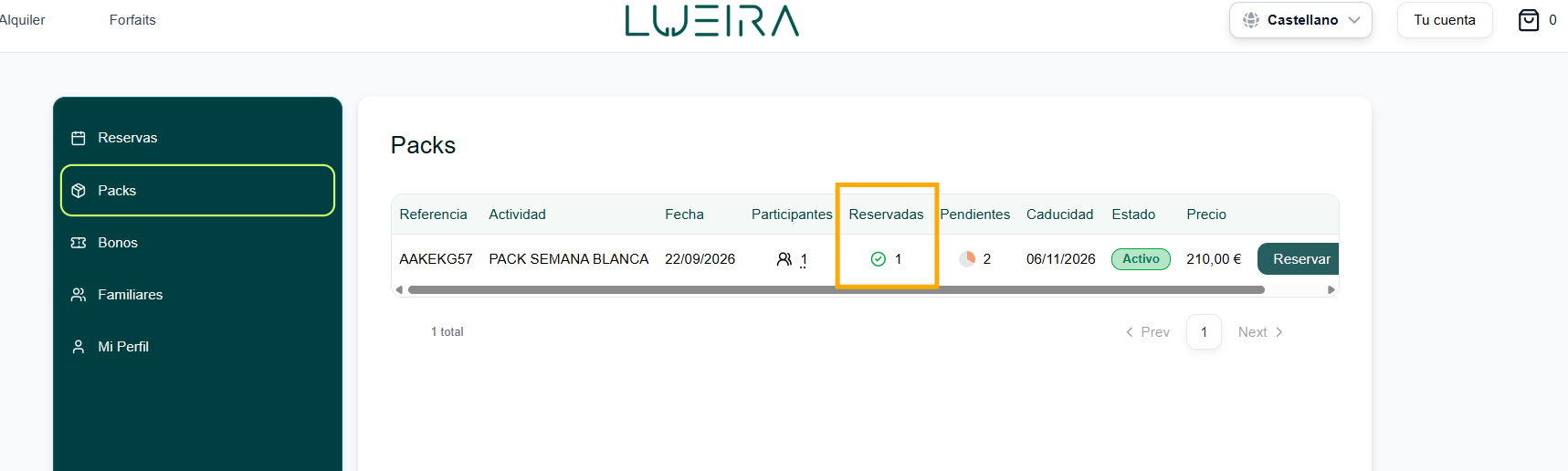
See the sessions already booked (used).
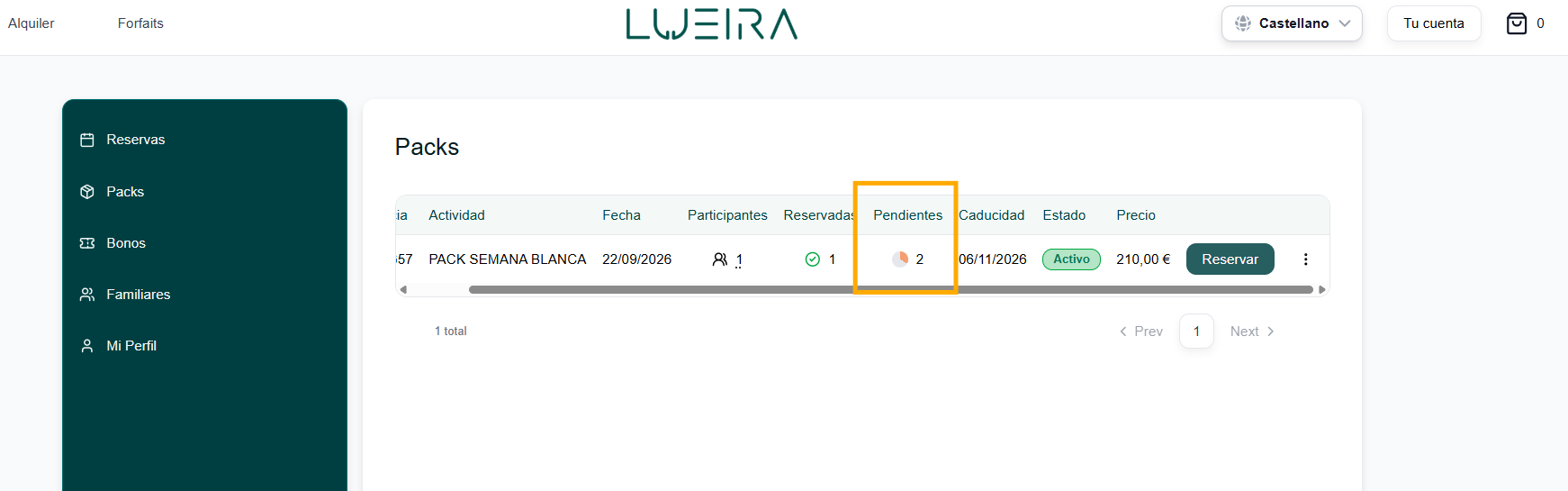
See the pending sessions of each Pack.
See the Pack details
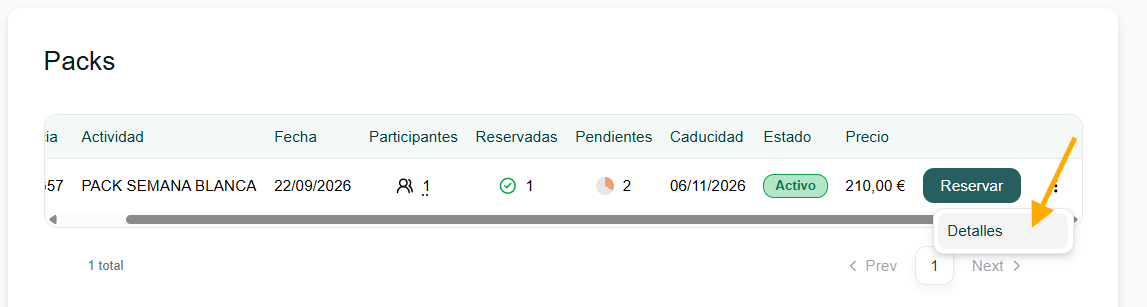
In this modal we can see the date, time and meeting point of the booked session.
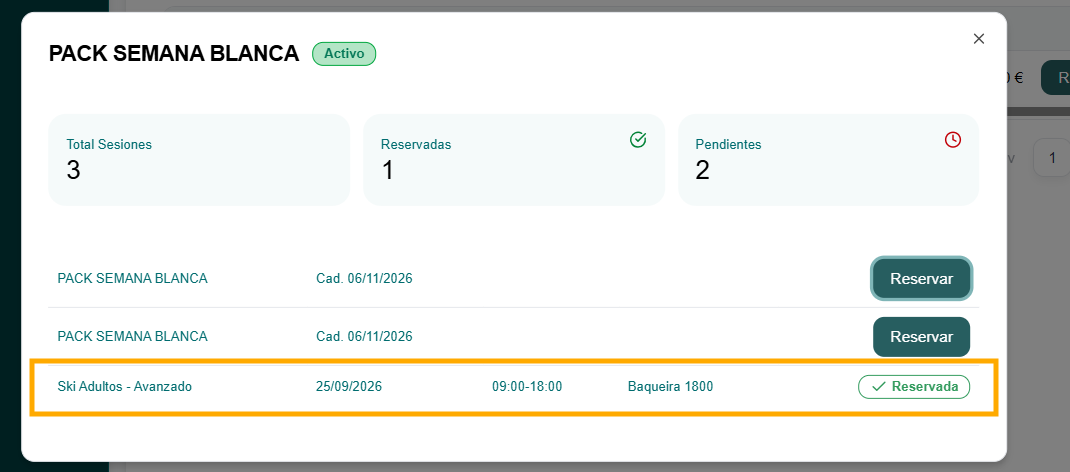
Book sessions directly from the Portal.
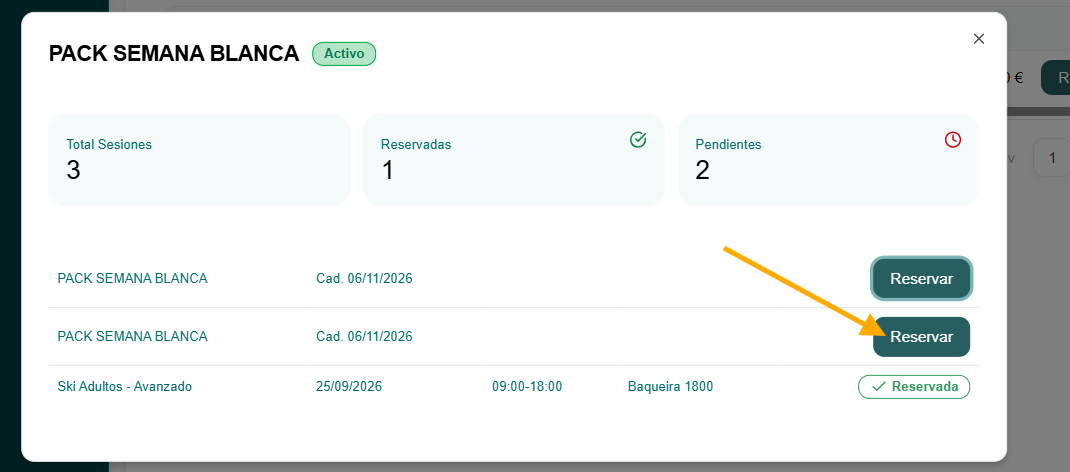
In this example, I have bought a Pack of 5 sessions for 1 participant and have already used 1 session.
When I select Book, a modal opens to book the pending session.
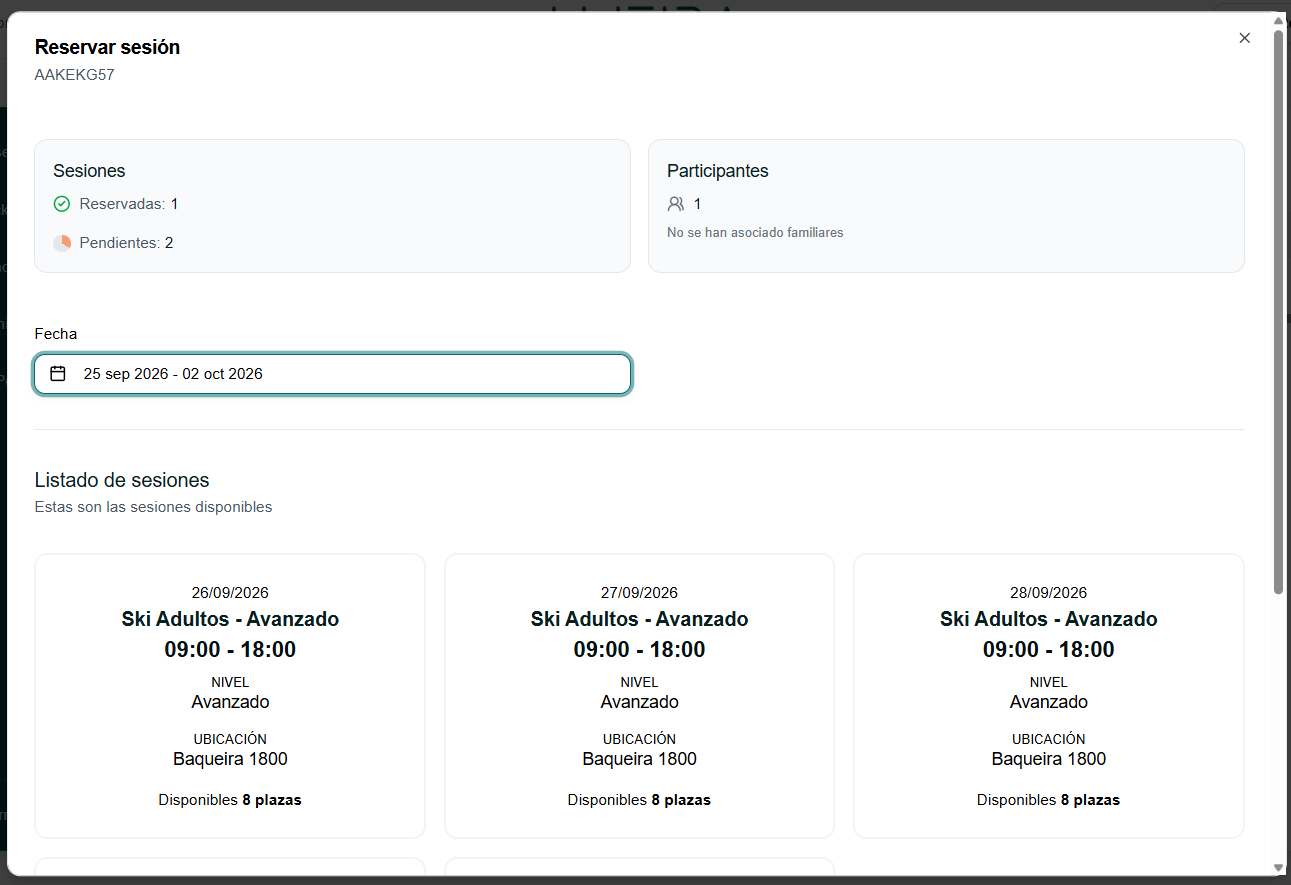
As soon as the customer completes the session booking, it will be reflected both in Lueira and in their Portal.
4. Managing Private Lesson Vouchers
In addition to Packs, from the Portal the customer can also view their private lesson vouchers: their status, the remaining hours balance and the lessons already booked against each one, and book new lessons while the voucher is active.
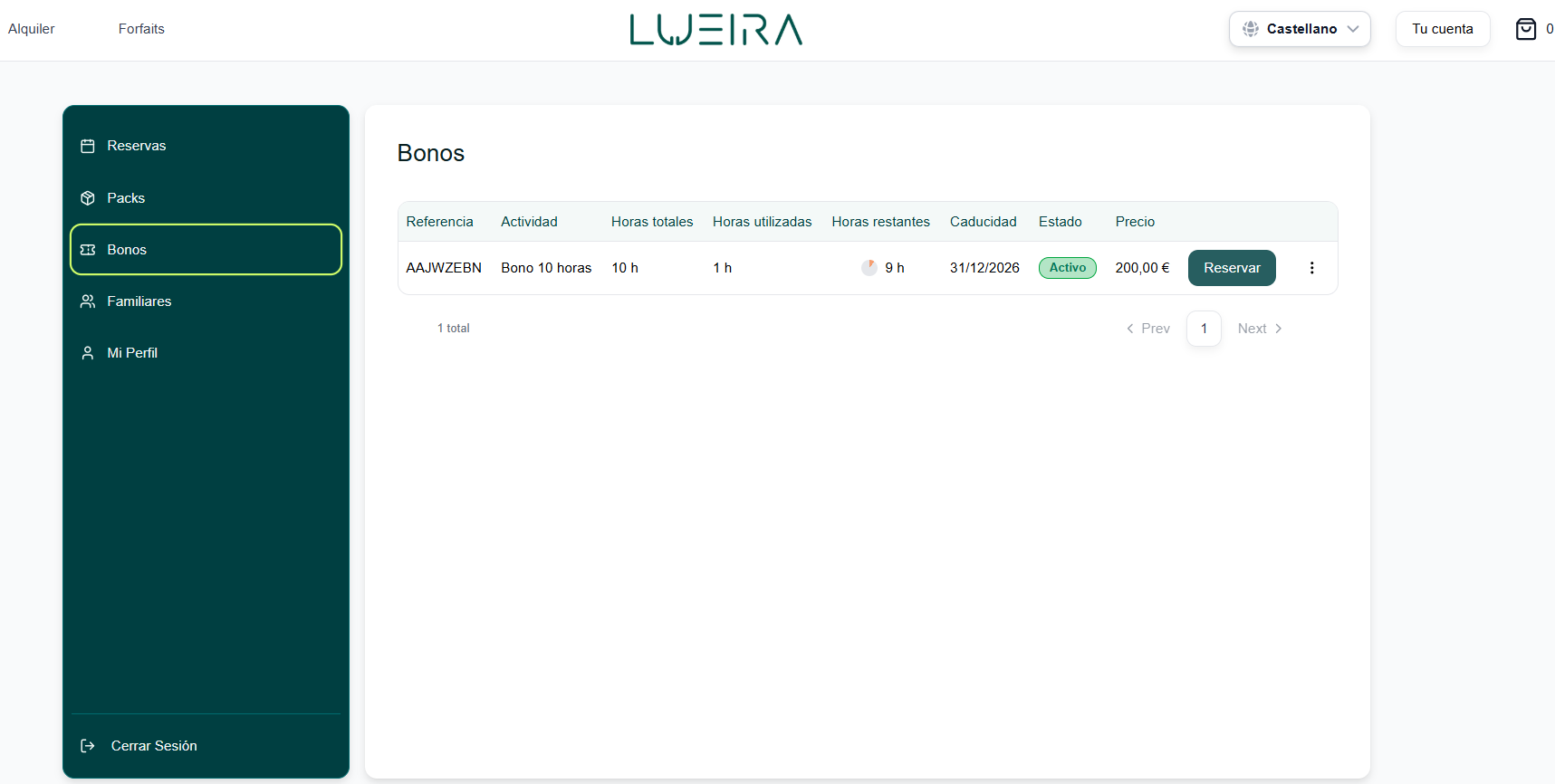
You can see full details of how these Vouchers work in Private lesson vouchers.
5. Managing relatives
Since the customer is authenticated, they can:
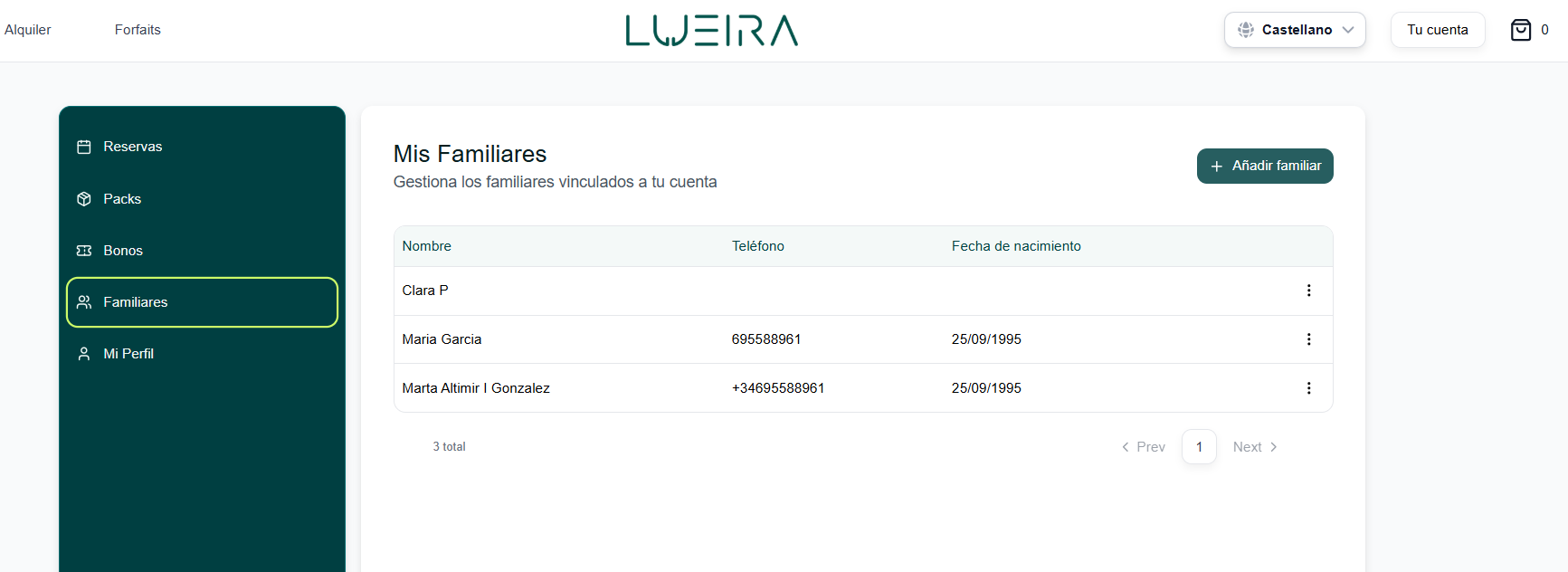
View the relatives already linked and add relatives:
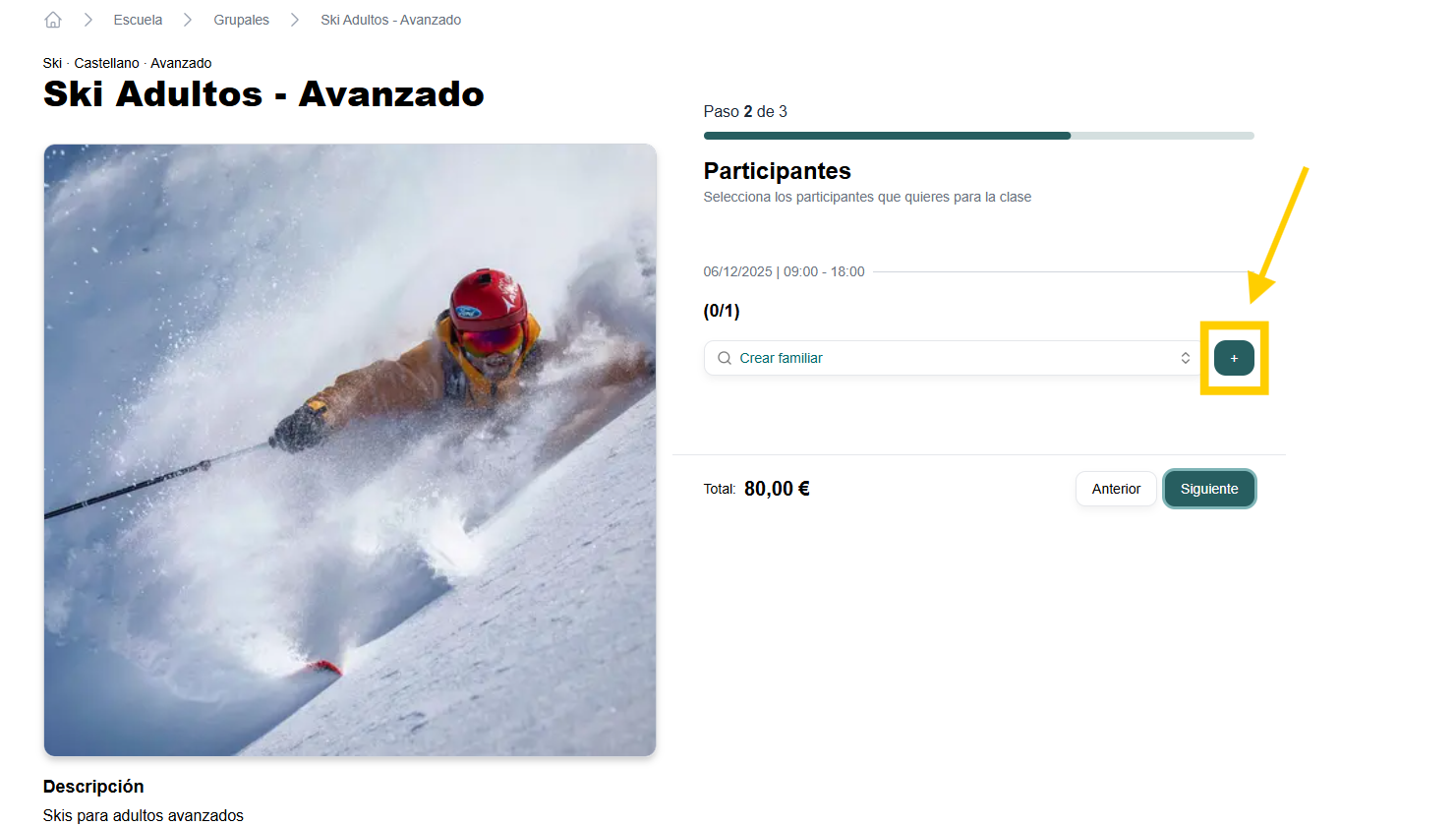
Create new relatives during the purchase process. These relatives will be associated with the customer so they can be used in future bookings.
Edit the details of an already saved relative (first name, last name, phone, email, date of birth and comment) from each relative's actions menu.
6. My Profile
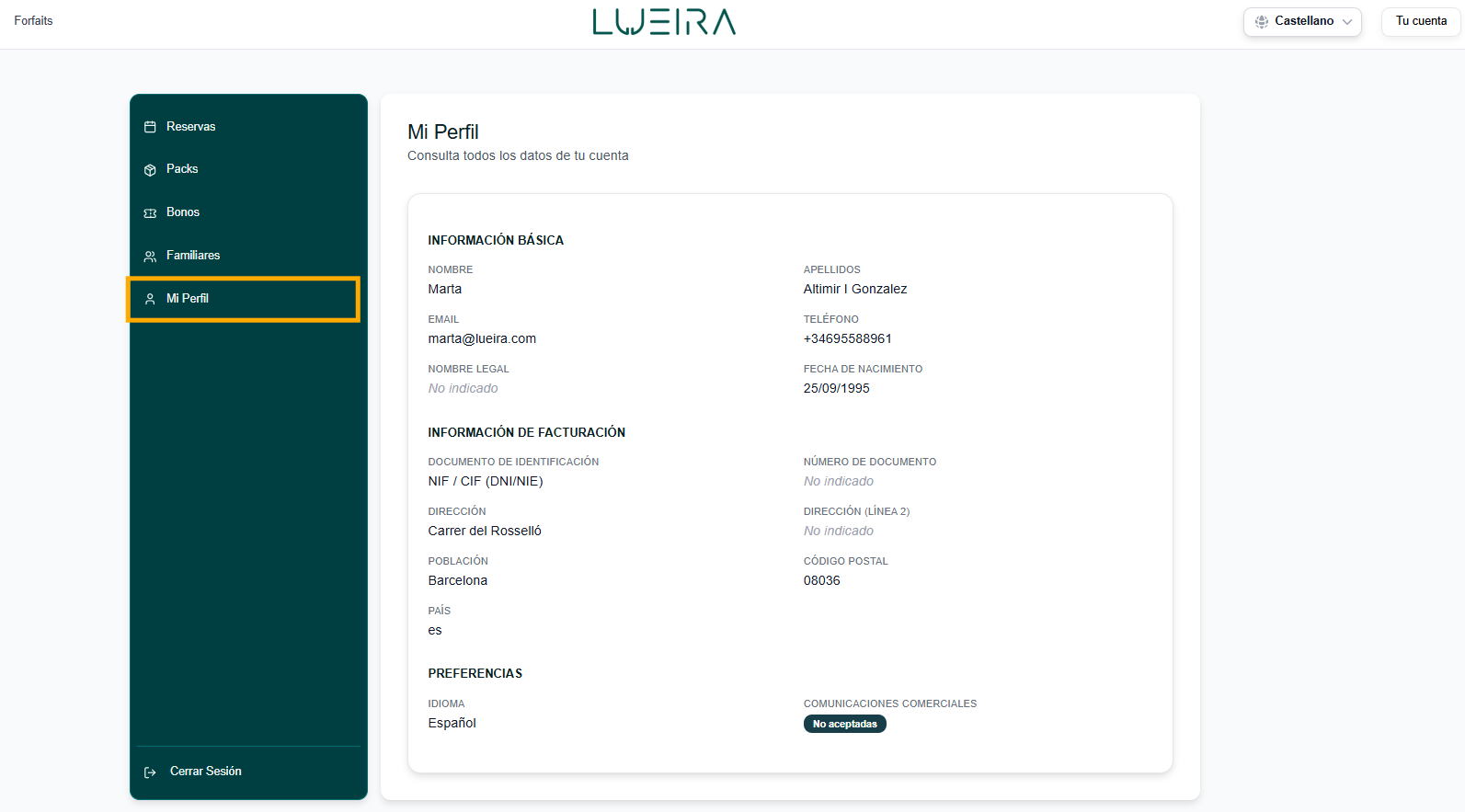
In the My Profile section the customer can view their details: basic information, billing details and language. For now it is a read-only record; if they need to correct any information, they must contact the centre/shop.
If any information is not filled in on their record, it will be shown as "Not specified".
If you have any questions or doubts, you can contact us using the Lueira support chat!
Related guides
- Add a new customerLearn how to manage your customer database.
- Creating customer groups with rulesHow to set up a customer group that is either manual or calculated automatically from rules (bookings, rental, activities, purchases, spending, language), which filters always apply and how consent affects the audience.
- How to book and view your bookings, packs and vouchers in the customer portalA guide for your customers: how to log in to the customer portal, view your bookings, check your pack or voucher and book new sessions. Designed to be linked from the confirmation email.
- Installing the ID card scanner
- Installing the Plustek scanner (driver and connection program)How to install the Plustek SecureScan X-Mini scanner on the desk computer: first the driver, then the connection program (WebSocket), and how to test it in Lueira.
- Managing relatives and friends in bookings with LueiraWe explain how the relatives section of a customer works in Lueira