

Managing relatives and friends in bookings with Lueira
We explain how the relatives section of a customer works in Lueira
On this page
- Managing relatives and friends in bookings with Lueira
- How do I add participants?
- Changing a relative's or customer's level: moving their future sessions
- What counts as "the equivalent session"
- The prompt when changing the level
- Why a session stays at the previous level
- What's not included
- Allowing the level change to be made from the Instructors App
Managing relatives and friends in bookings with Lueira
At Lueira we understand that a customer often makes a booking that includes more people. These people may be relatives or friends, and we understand that the activities or rentals managed from a single booking may include lessons for one or several people, and a rental or other lessons for others.
In this respect, Lueira makes it easy: you can add the details of the people taking part in an activity and link them to a customer as their "relatives". This way, within a customer we can have a database of the people included in the booking, and save this information for future bookings.
How do I add participants?
Changing a relative's or customer's level: moving their future sessions
When you change a relative's level (or the customer's own level, if they take part as a student) from their profile, Lueira checks whether they have future group-class sessions or cursillo days, and offers to move them to the new level, always asking first.
What counts as "the equivalent session"
Group classes: a session of the new level that starts and ends on the same day and at the same time. If the booking is part of a pack, the equivalent session must belong to the same pack.
Cursillos: the new level's group within the same cursillo, with the same criteria (age, mode…) and the same days.
The prompt when changing the level
If there is a session that can be moved, saving shows the prompt "Also change the future sessions?", with how many sessions would move and how many would stay at the previous level, and three options:
Change level and move sessions.
Only change the level (sessions are not touched).
Cancel.
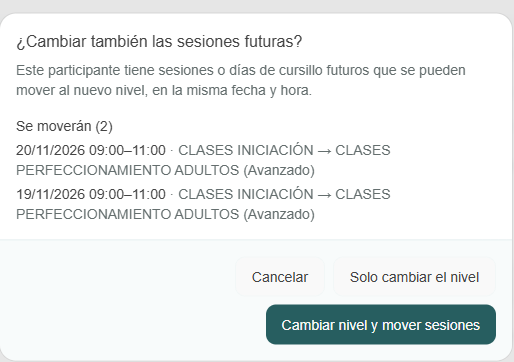
If there is nothing to move, the level changes directly and no prompt appears.
Moving a booking does not recreate it: attendance, extras, price and form answers are kept. Days that have already passed are not touched. In the order, the session now shows with the new level's product, at the same date and time:

Why a session stays at the previous level
A future session is not moved, and the reason is shown, when:
there is no session of the new level at the same time;
the new level's session is not in the pack;
the new level's session is full;
in a cursillo, there is no group of that level for this participant, or the new level's group has no session that day.
If Lueira cannot check which sessions would move (for example, due to a temporary problem while looking them up), the level is still saved, without moving anything, and a notice is shown.
What's not included
Private lessons are not affected by this change.
A level change made from a product form, from the MCP or from the online shop does not move sessions.
In the Customer Portal (My packs → Book sessions), if a pack's participants have a level, the sessions offered for booking are filtered by that level; the customer can change the filter. This only affects which sessions can be booked, it does not move bookings already made.
To learn what a level is and how levels are created, see Class levels.
Allowing the level change to be made from the Instructors App
By default, a participant's level can only be changed from ADMIN. If you want your team to also be able to do it from the app, enable it under School / Center / Activities > Settings > Instructors App > Feedback, comments and levels, with the switch "Allow changing participants' level from the Instructors App". It comes disabled by default, and each school decides whether to enable it.
With the setting enabled, a "Change level" button appears on a group class participant's profile inside the app, with the same prompt and the same rules as in ADMIN. With the setting disabled, the button does not appear in the app.
Related guides
- Add a new customerLearn how to manage your customer database.
- Creating customer groups with rulesHow to set up a customer group that is either manual or calculated automatically from rules (bookings, rental, activities, purchases, spending, language), which filters always apply and how consent affects the audience.
- Customer PortalThis section explains how the new Customer Portal works within the Online Store.
- How to book and view your bookings, packs and vouchers in the customer portalA guide for your customers: how to log in to the customer portal, view your bookings, check your pack or voucher and book new sessions. Designed to be linked from the confirmation email.
- Installing the ID card scanner
- Installing the Plustek scanner (driver and connection program)How to install the Plustek SecureScan X-Mini scanner on the desk computer: first the driver, then the connection program (WebSocket), and how to test it in Lueira.