

Creating customer groups with rules
How to set up a customer group that is either manual or calculated automatically from rules (bookings, rental, activities, purchases, spending, language), which filters always apply and how consent affects the audience.
On this page
- Manual group or rule-based group
- Manual group or rule-based group
- Manual group: adding members and viewing the audience
- Manual group: adding members and viewing the audience
- Synchronisation with the provider
- The conditions, one by one
- The conditions, one by one
- Combining conditions, order statuses and preview
- Combining conditions: AND, OR and subgroups
- Which orders count
- Filters that always apply
- Audience preview
- What to do if…
- What to do if…
Manual group or rule-based group
Manual group or rule-based group
When you want to write to only part of your customers ("those who rented this winter", "those who have spent more than €200"), you don't need to pick them one by one: you can create a rule-based group and Lueira works out who is in it. That list is the audience of your email campaigns. This guide explains how to set it up; for the rest of the flow, see Email campaigns: what they are and what you need to get started.
Groups are created in Customers > Groups (New group button: a name and an optional comment). When you open a group you will see three tabs: Discounts, Customers and Marketing. The rules are in Marketing.
On that tab, you choose how the group is built with the selector at the top right:
Manual: you add the members by hand in the Customers tab. Good for small, closed lists.
By rule: the members are calculated by a rule and update on their own when the data changes.
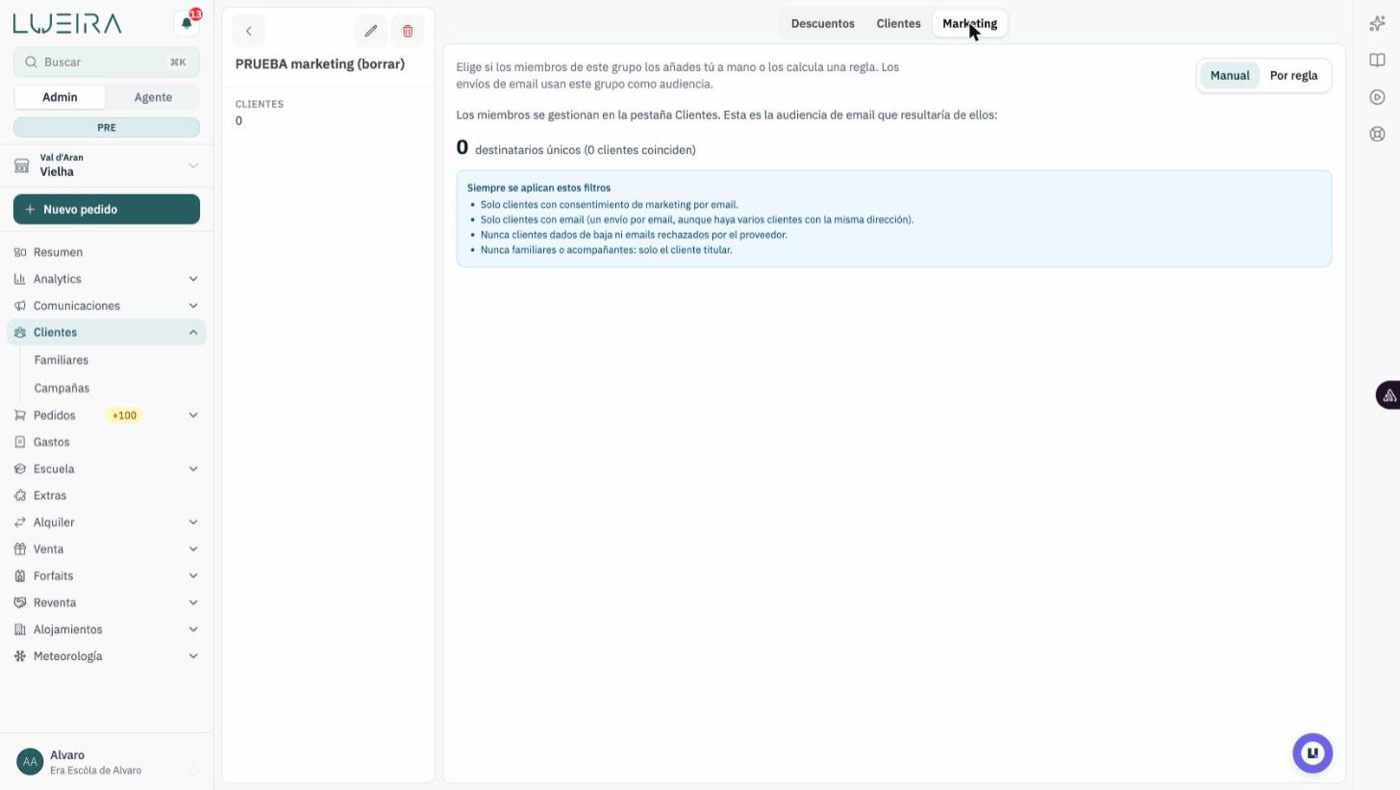
In both modes, a blue box reminds you of the filters that always apply (explained below) and shows how many unique recipients the group would have.
💡 The same group can be used for online store discounts and as an email audience: they are independent uses.
Manual group: adding members and viewing the audience
Manual group: adding members and viewing the audience
A manual group is the simplest way to test a campaign or to write to a small, closed list.
In Customers > Groups, click New group, type the Name (and a Comment if you want) and click Save.
Go to the group's Customers tab and click Add customer.
Type the customer's name in the search box ("Search by customer name"; it does not search by email), pick them and click Add customer.
Open the Marketing tab: you will see the real audience, for example "1 unique recipients (1 customers match)", with the list of people (name and email) who would receive the email.
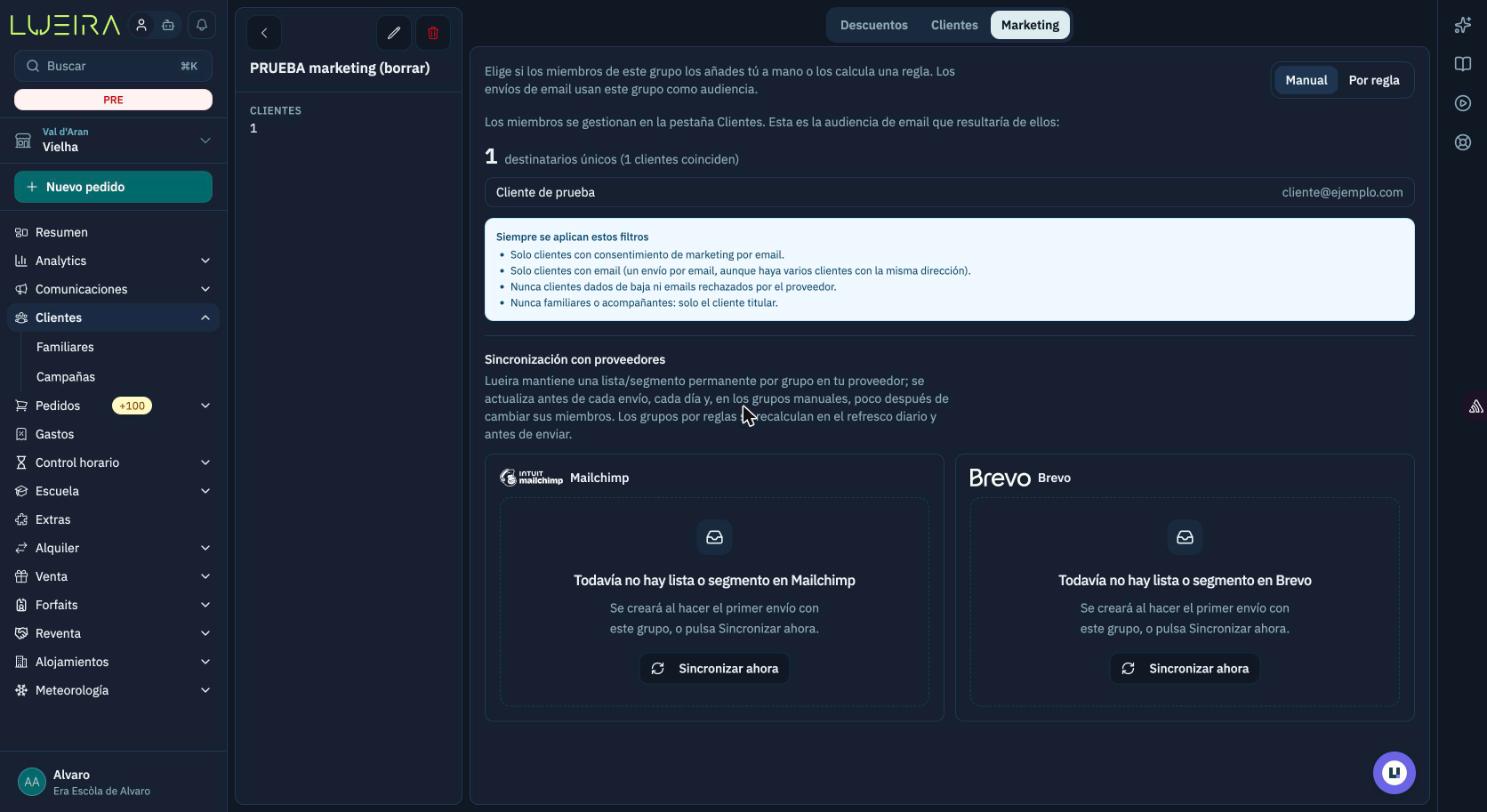
⚠️ A customer in the group is not the same as a recipient. If the customer has no marketing consent, the group can have 1 customer and still show "0 unique recipients (0 customers match)", and they will not receive the email. In testing, the customer started counting as a recipient after ticking the Receive communications checkbox on their record (Edit customer, Additional information section), with the consent inherited from the newsletter already confirmed. Tick that box only if the customer has given their permission (see Marketing consent and unsubscribes (GDPR)).
Synchronisation with the provider
Below, the Provider synchronisation section explains that Lueira keeps a permanent list or segment per group in your provider (Brevo or Mailchimp), called "Lueira: group name". It is updated before each send, every day and, for manual groups, shortly after their members change. Until you have made any send with the group you will see "There is no list or segment yet"; it is created on the first send or when you click Sync now.
The conditions, one by one
The conditions, one by one
In By rule mode, click Add condition and choose one of these eight:
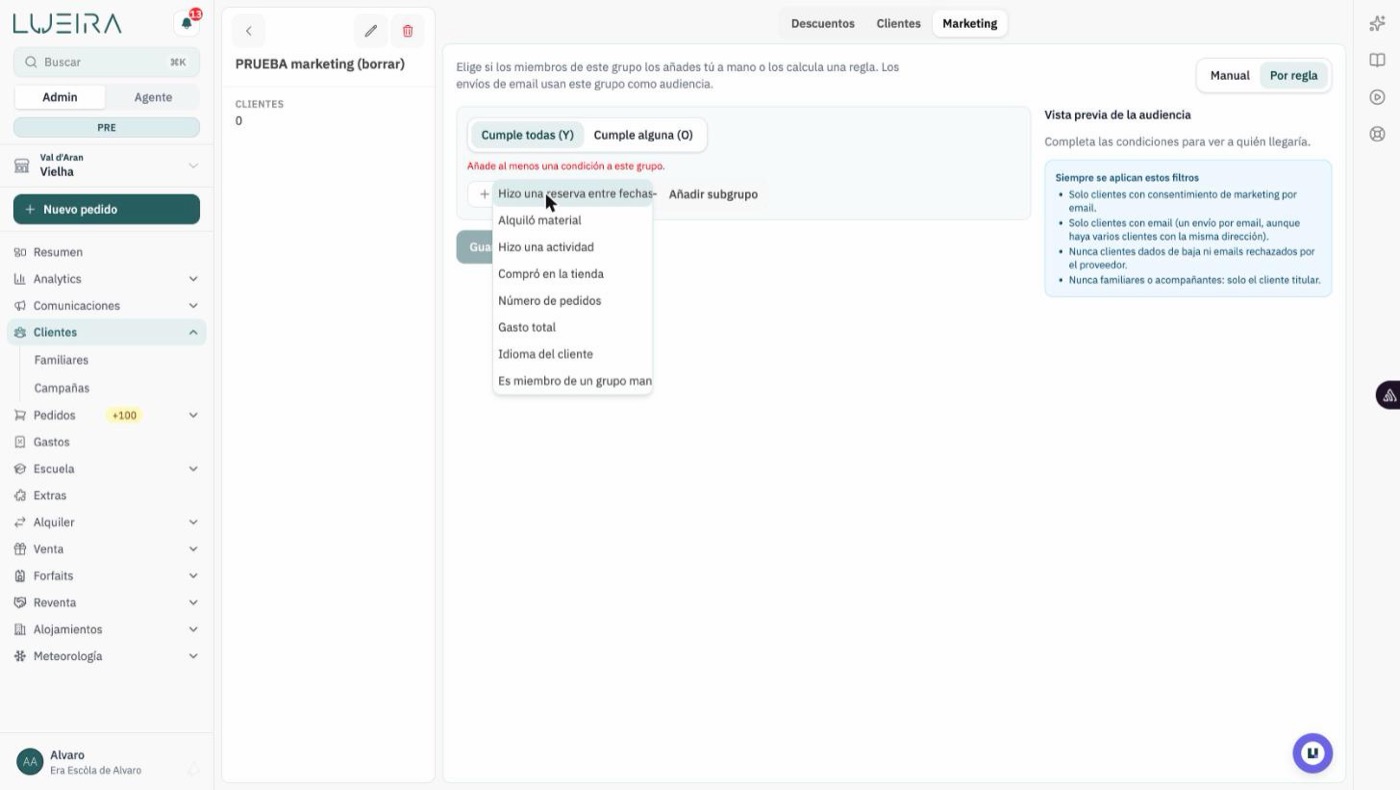
| Condition | What you set | Practical example |
|---|---|---|
| Made a booking between dates | Reference date (default "Purchase date"), From and To (inclusive). At least one date is required. | Customers with a booking from 1 December to 28 February, to let them know the next season is opening. |
| Rented equipment | Rental product ("Any equipment" or a specific one) and dates. | Those who rented skis last winter, to offer them an early-bird rental pack. |
| Did an activity | Activity type ("Any activity" or one) and dates. | Those who took a beginner course, to suggest the next level. |
| Bought in the shop | Shop product ("Any product" or one) and dates. | Those who bought a cap or a jacket, to announce the sale. |
| Number of orders | Comparison (default "at least (≥)") and number of orders. | Customers with at least 3 orders: your most loyal audience. |
| Total spend | Comparison, Amount (in cents) and currency (optional). | Spend of at least 20000 (that is, €200) for a VIP offer. |
| Customer language | One or more languages: Spanish, Catalan, English, German, Italian, French, Portuguese, Basque, Dutch. | Only English-speaking customers, to send them the English version of the template. |
| Is a member of a manual group | One or more manual groups already created. | Combine the rule with the manual group "Club members". |
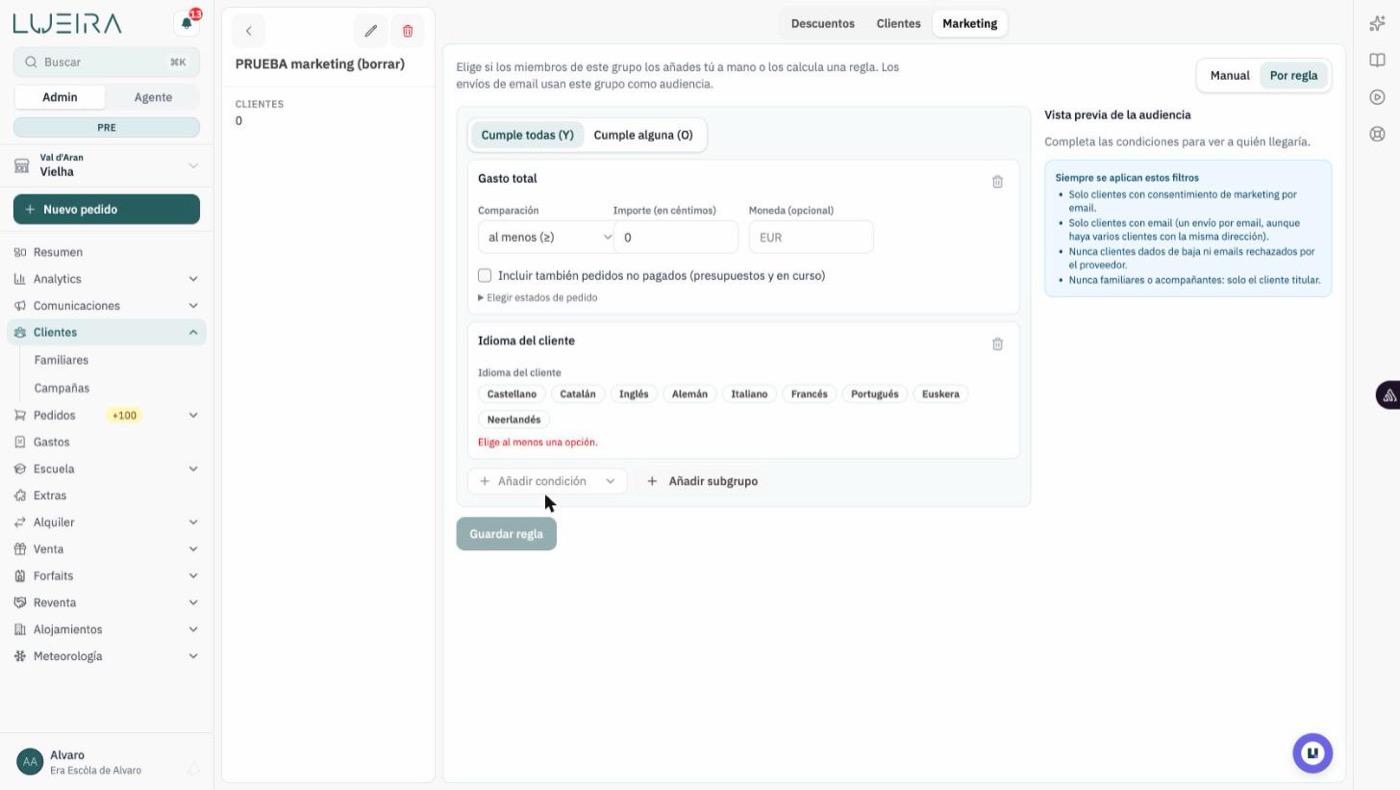
⚠️ In Total spend the amount is entered in cents: for €200 type 20000, not 200.
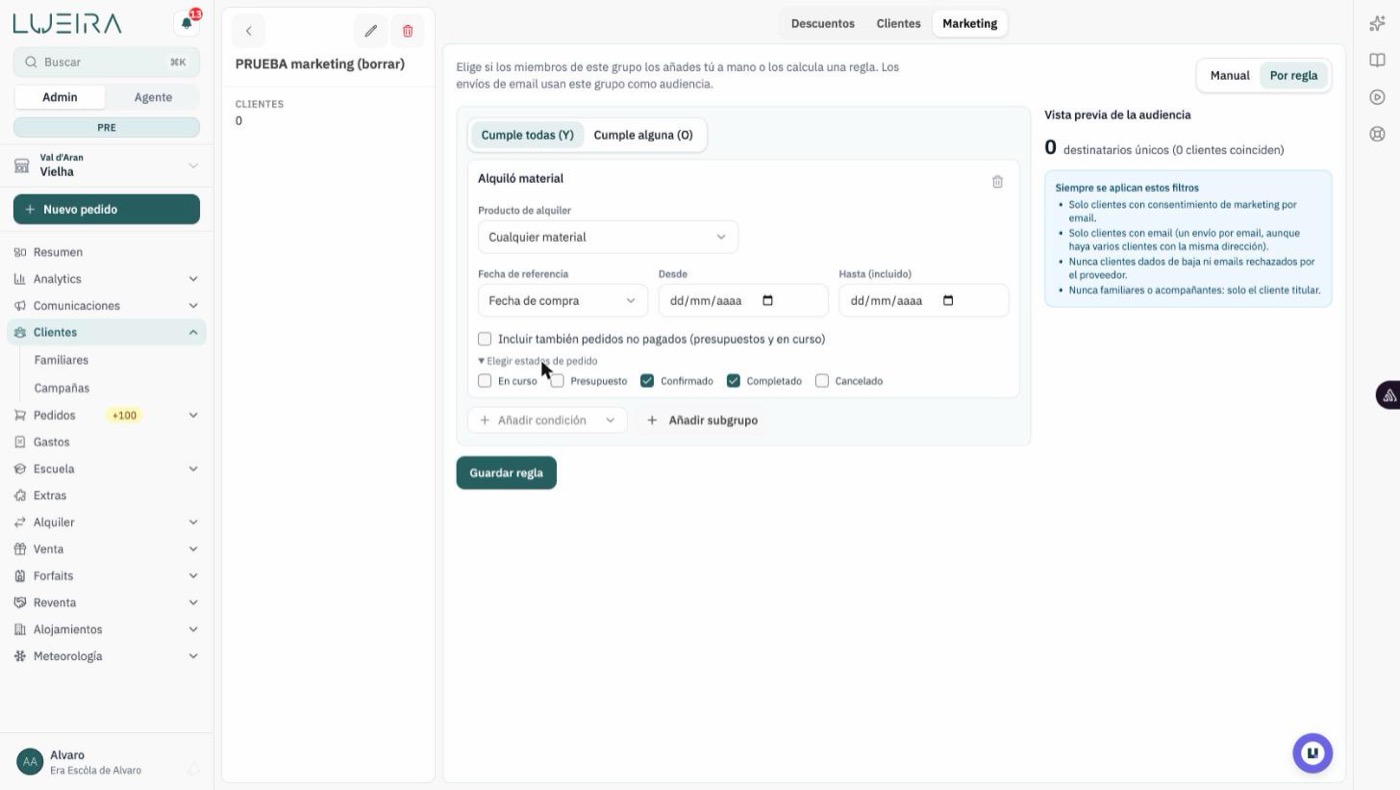
💡 The order-based conditions (booking, rental, activity, shop, number of orders and spend) have a shared option: Also include unpaid orders (quotes and in progress) and a Choose order statuses drop-down. We explain it in the next section. Before using a rule, check the audience preview to see how many people it reaches.
Combining conditions, order statuses and preview
Combining conditions: AND, OR and subgroups
At the top of the editor you choose how the conditions are combined:
Meets all (AND): the customer must meet all the conditions. Example: "rented equipment" and "English language".
Meets any (OR): meeting one is enough. Example: "did an activity" or "bought in the shop".
With Add subgroup you can nest another AND/OR block inside the rule, for cases such as: "(rented equipment or did an activity) and Spanish language".
Click Save rule to save it. The button is not enabled until every condition is complete; the editor warns you in red about what is missing ("Add at least one condition to this group", "Enter a start or end date", "Choose at least one option").
Which orders count
By default, only paid and confirmed orders count: in the Choose order statuses drop-down, Confirmed and Completed come ticked. The other available statuses are In progress, Quote and Cancelled. You can tick them or use the Also include unpaid orders (quotes and in progress) checkbox.
⚠️ If you include cancelled or unpaid orders, the group may reach people who did not actually buy. Do it only if that is what you want.
Filters that always apply
Whatever the rule says, emails are never sent to:
Customers without email marketing consent: only those who have accepted it receive them.
Customers without an email address. Also, if several customers share the same email, only one email is sent (the most recent consent wins).
Customers who have unsubscribed or whose emails have been rejected by the provider.
Relatives or companions: only the main customer.
That is why the real audience is almost always smaller than the number of customers who meet the rule. More about consent in Marketing consent and unsubscribes (GDPR).
Audience preview
In the group's Marketing tab, the Audience preview shows how many unique recipients the group would have and, in brackets, how many customers match. Below it, it shows the list of people (name and email). While the rule is incomplete you will see "Complete the conditions to see who it would reach". It also appears, with the same count and list, when you choose the group in step 1 of New send. Check it before saving and before every send.
⚠️ Not tested: whether the preview is recalculated in real time or on save, and a rule combined with AND/OR and subgroups. In testing, only a manual group was used.
What to do if…
What to do if…
The preview shows 0. It is almost always consent: no customer who meets the rule has accepted email marketing (or you have not confirmed the consent inherited from the newsletter in Settings > Integrations > Marketing (CRM)). Try removing conditions, or widening the dates.
The group has fewer people than I expected. Check the filters that always apply: no consent, no email, unsubscribes, relatives and repeated emails.
It won't let me save the rule. Some condition is incomplete: look for the red warning (a date is missing, a language or manual group has not been chosen, or there are no conditions at all).
A customer who did buy doesn't appear. Look at the order status: by default only Confirmed and Completed count. If the order is in Quote or In progress, tick Also include unpaid orders.
Total spend doesn't add up. Remember that the amount is in cents: €200 is 20000.
"Is a member of a manual group" doesn't show me any groups. It only lists manual groups; if you see "There are no other customer groups", first create a group in Customers > Groups.
I have changed a rule and have scheduled sends. Review the send before its time: you can open it and check the audience.
When the group is ready, continue with Sending an email campaign step by step.
Related guides
- Add a new customerLearn how to manage your customer database.
- Customer PortalThis section explains how the new Customer Portal works within the Online Store.
- How to book and view your bookings, packs and vouchers in the customer portalA guide for your customers: how to log in to the customer portal, view your bookings, check your pack or voucher and book new sessions. Designed to be linked from the confirmation email.
- Installing the ID card scanner
- Installing the Plustek scanner (driver and connection program)How to install the Plustek SecureScan X-Mini scanner on the desk computer: first the driver, then the connection program (WebSocket), and how to test it in Lueira.
- Managing relatives and friends in bookings with LueiraWe explain how the relatives section of a customer works in Lueira