

How to book and view your bookings, packs and vouchers in the customer portal
A guide for your customers: how to log in to the customer portal, view your bookings, check your pack or voucher and book new sessions. Designed to be linked from the confirmation email.
On this page
Customer portal: your bookings, packs and vouchers
With the customer portal you can view your bookings, check your pack or voucher and book new sessions without calling the centre. This guide is for you, the customer. (If you are the business and want to activate it, go to the end of the guide.)
1. Logging in to the portal
Open the link in the confirmation email for your purchase, or go to the business's shop and click Log in.
Enter the email you booked with. If it already exists, you get straight in.
If it is your first time with a different email, you can create a new account.
2. Viewing your bookings
Under Bookings you will see the list of Active and Past bookings, with date, activity, reference, participants and amount. In the ⋮ menu of each booking, View details shows the time, the meeting point and the payment status.
3. Your pack or voucher
Go to the packs or vouchers section.
You will see how many sessions (or hours) you have used and how many you have left, for example "1 of 5 sessions used".
Click Book on a pending session, choose the day and time and confirm.
When you complete the booking, it will appear in the portal and in the business's system. With an hours voucher, you can only book while it is within its validity period.
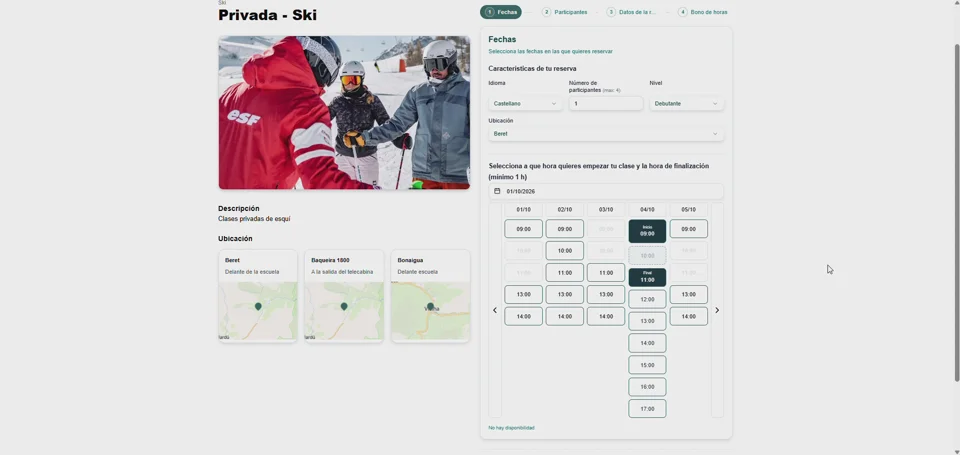 Bono de clases particulares en el portal de clientes
4. Relatives and participants
You can see the linked relatives, add new ones when booking and edit their details from each relative's menu.
5. My profile
Your profile is read-only. If you need to correct any information, contact the business.
What to do if…
I can't cancel or change the date of a booking: this is not yet possible from the portal. Contact the business.
I can't find my booking: check that you are logging in with the same email you booked with.
My voucher won't let me book: check that it is Active and within its validity period; if it has expired, only the business can book against it.
For the business: how to activate the portal
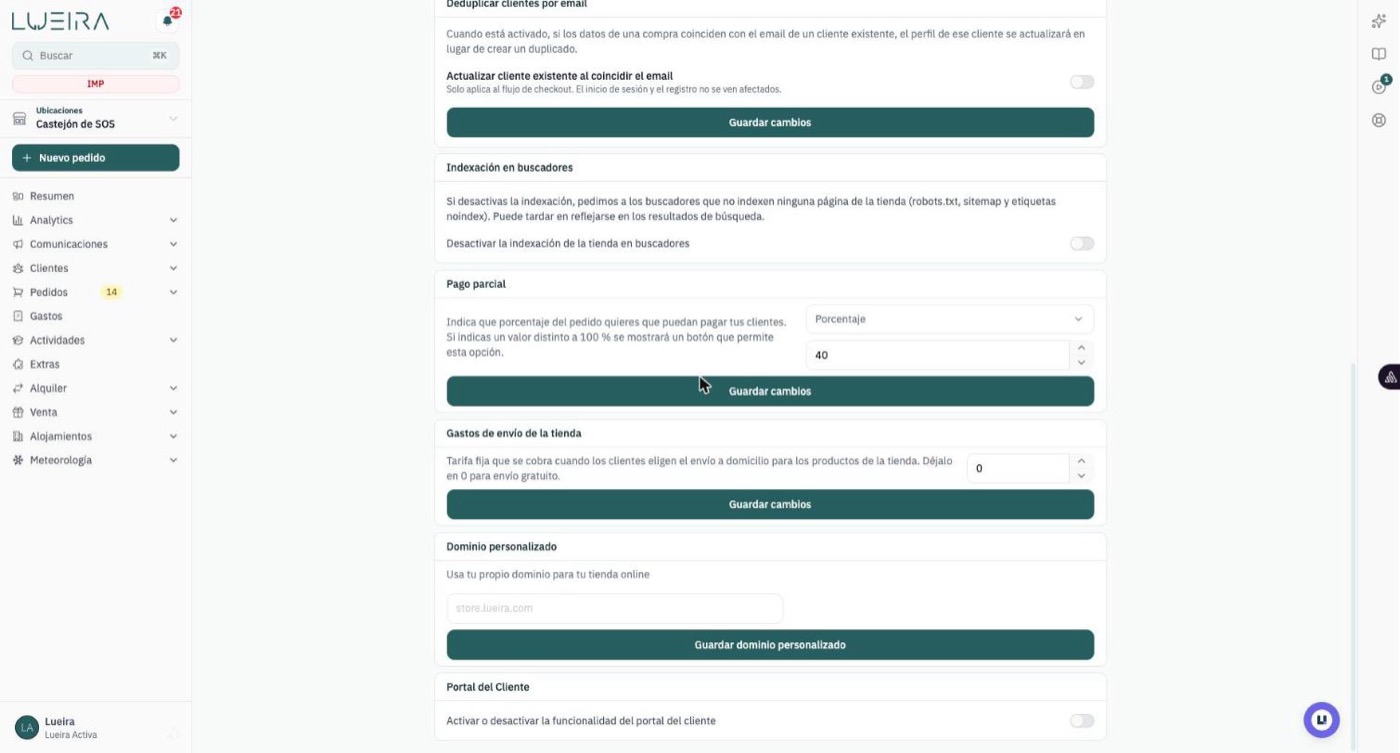
Go to Settings > Online store, scroll down to the last block, Customer Portal, and turn on the switch "Enable or disable the customer portal feature". It is off by default. More information for administrators in Customer Portal.
Related guides
- Add a new customerLearn how to manage your customer database.
- Creating customer groups with rulesHow to set up a customer group that is either manual or calculated automatically from rules (bookings, rental, activities, purchases, spending, language), which filters always apply and how consent affects the audience.
- Customer PortalThis section explains how the new Customer Portal works within the Online Store.
- Installing the ID card scanner
- Installing the Plustek scanner (driver and connection program)How to install the Plustek SecureScan X-Mini scanner on the desk computer: first the driver, then the connection program (WebSocket), and how to test it in Lueira.
- Managing relatives and friends in bookings with LueiraWe explain how the relatives section of a customer works in Lueira