

Email campaigns: what they are and what you need to get started
What you can do with Lueira email campaigns (groups, templates and sends through Brevo), what you need before sending your first one, and what is not included yet.
On this page
- What email campaigns are
- What email campaigns are
- What Lueira does and what the provider does
- What Lueira does and what the provider does
- What you need to get started
- What you need to get started
- Consent: who receives your emails
- Consent: who receives your emails
- What is not included yet and what to do if…
- What is not included yet
- What to do if…
What email campaigns are
What email campaigns are
With email campaigns you can write to your customers by email from Lueira: a seasonal promotion, an opening announcement, an offer for people who rented equipment last year… You choose who (a group of customers), what (an email template you design in Lueira) and when (now or scheduled). The actual sending is done by your account with an email marketing provider (today, Brevo).
This guide explains what each piece is, what you need to have ready before sending and what the module does not include yet. If you are looking for the automatic emails of an order (confirmation, payment…), that is something else: see Email settings in Lueira.
💡 Do not confuse it with Marketing integrations, which covers Google Analytics, Tag Manager and Meta Pixel in the online shop.
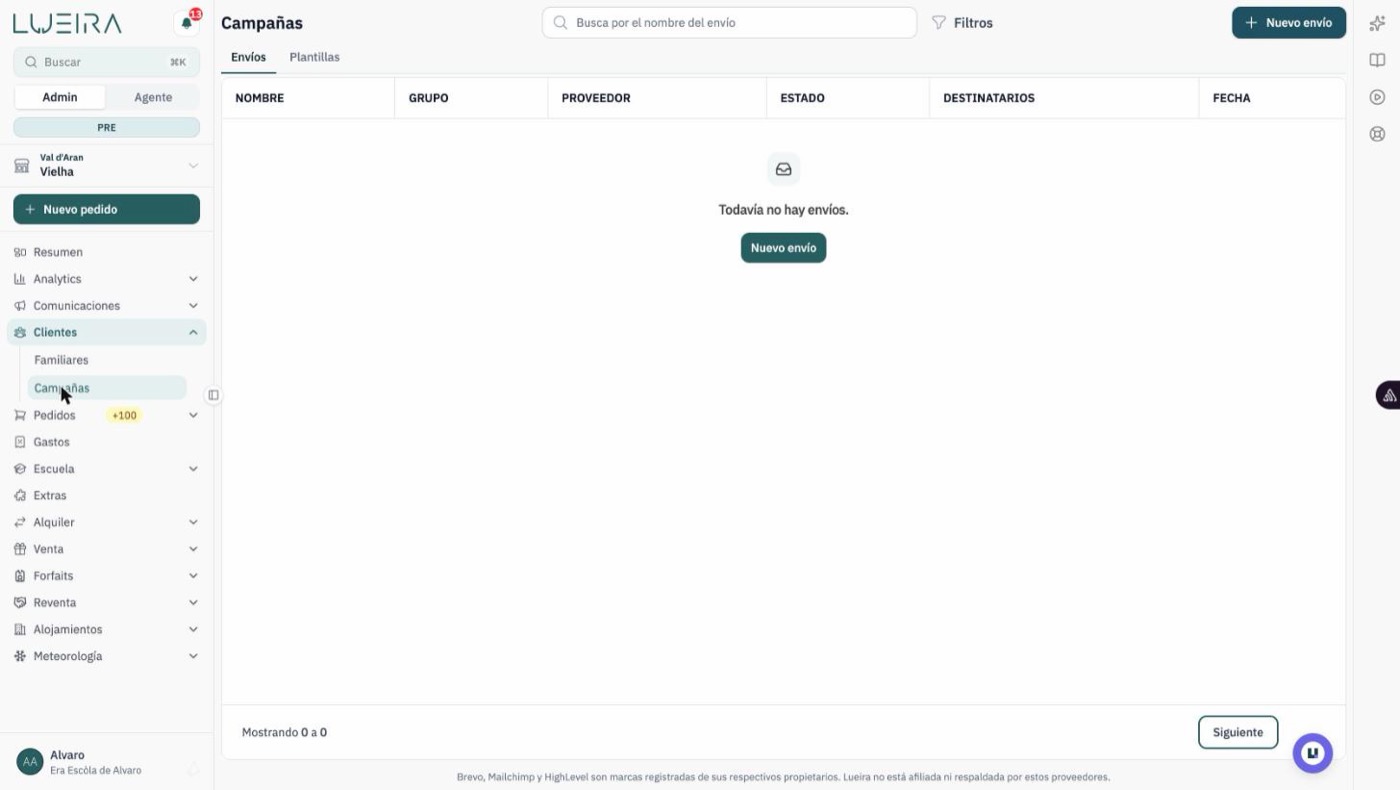
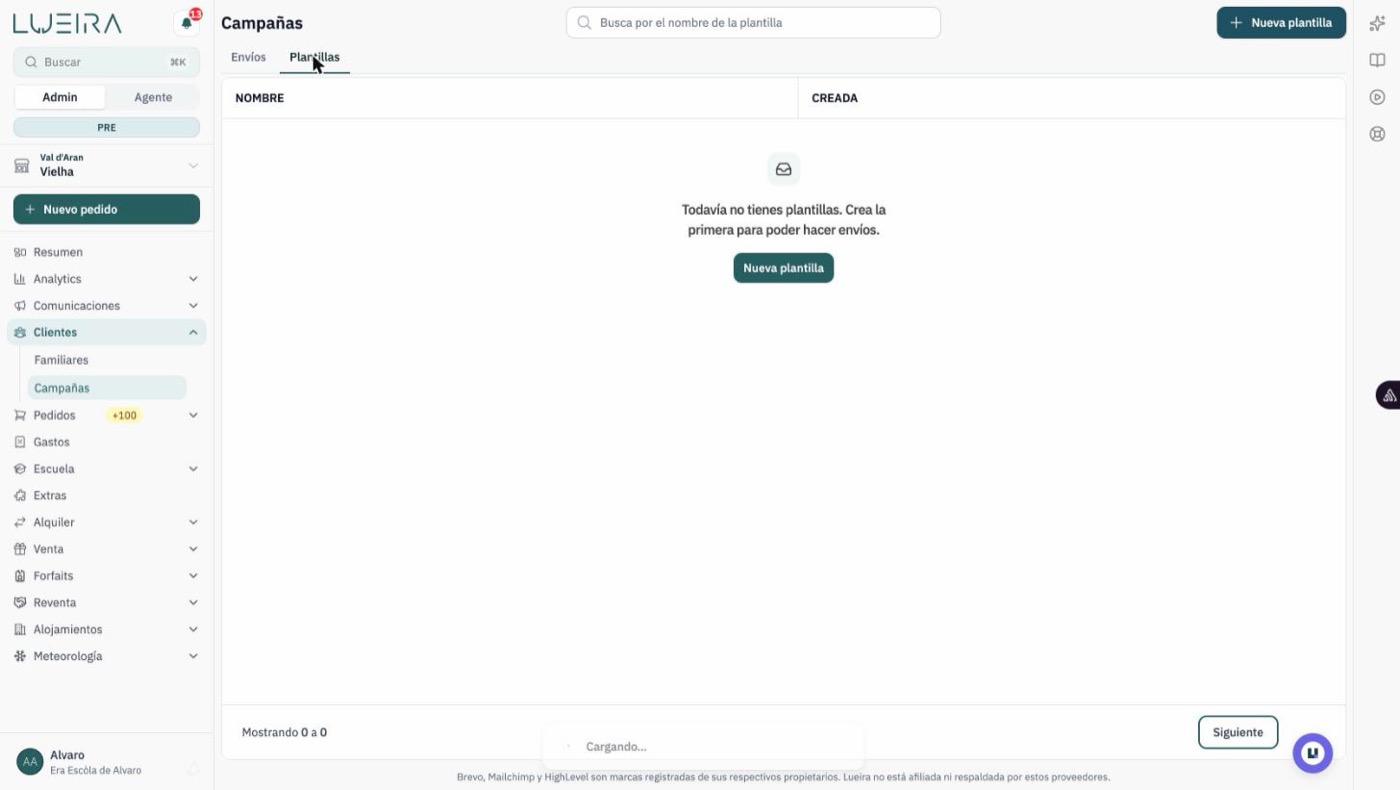
You will find the module under Customers > Campaigns. It has two tabs: Sends (the sends already made and scheduled) and Templates (your email designs).
What Lueira does and what the provider does
What Lueira does and what the provider does
The module splits the work like this:
| Lueira does | The provider (Brevo) does |
|---|---|
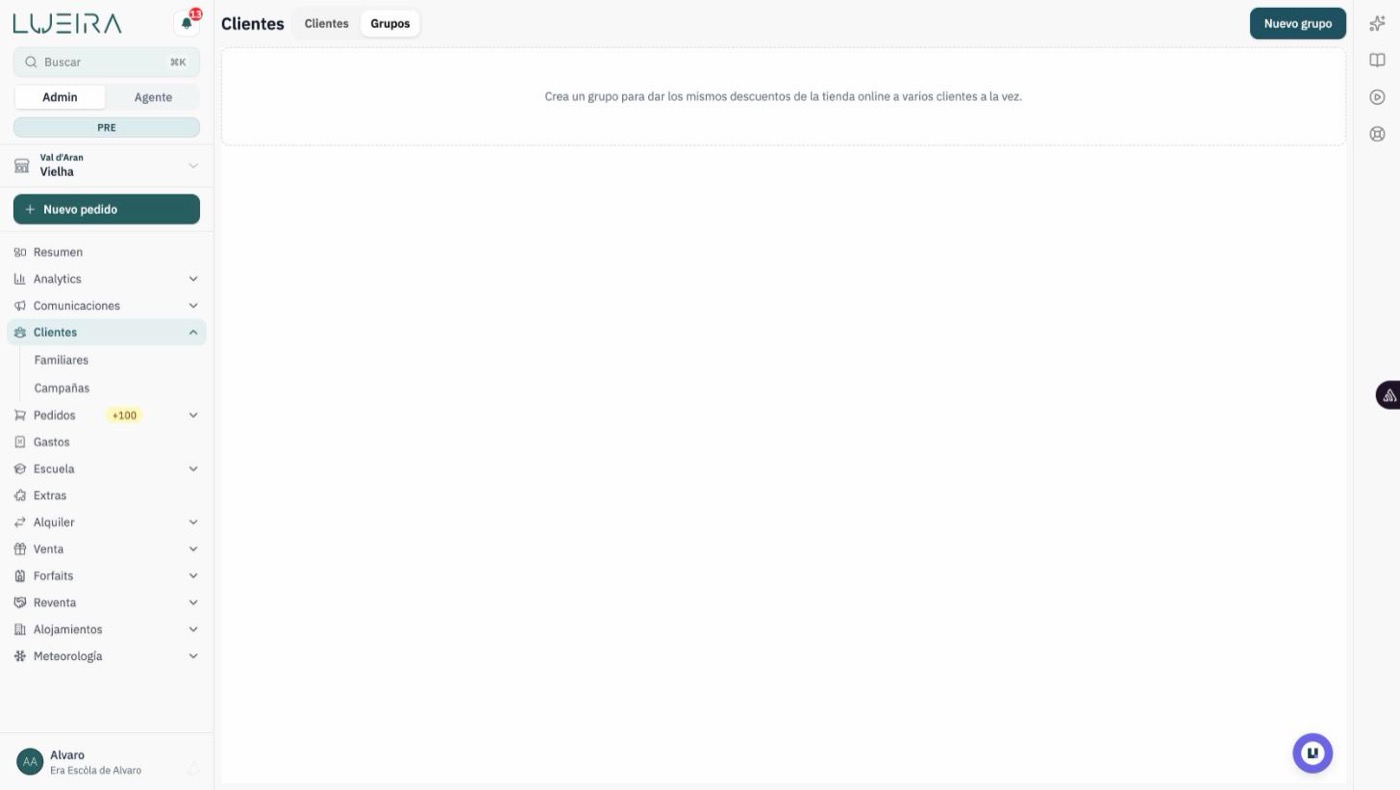
| Create customer groups by rules (for example, "rented equipment this winter") or by hand, in Customers > Groups. | Deliver the email to your customers' inbox with your account and your sender. |
| Design the template with the Lueira editor, with variables ({{nombre}}, {{empresa}}…) and the mandatory legal footer. | Apply the limits and credits of your Brevo plan (sends per day or per month). |
| Run the pre-send checks before sending and exclude anyone who should not receive it. | Keep the statistics (opens, clicks, bounces) of each send. |
| Manage consent and record the unsubscribes the provider reports to it. | Handle the unsubscribe when the customer clicks the link in the email footer and notify Lueira. |
⚠️ Lueira does not show metrics for your sends (opens, clicks…). Those statistics are viewed in the campaign report in your provider account.
💡 The connection is with your own Brevo account: the sender, the credits and the delivery history are yours, not Lueira's.
What you need to get started
What you need to get started
Before your first send you need to have these five things. Lueira checks them when you send (pre-send checks), but it is best to prepare them beforehand.
The module active on your account. Email campaigns are an add-on ("Marketing" module). If you do not see Campaigns under Customers, or sending is blocked for lack of the module, contact support: they can activate it.
A connected and activated Brevo account. In Settings > Integrations > Marketing (CRM) you will see Brevo with the label Configured, pending activation when the key is saved, and Active when you can already use it in your sends. How to connect it: Connect Brevo to Lueira.
A verified sender in Brevo. The email address you will send from has to be verified in your Brevo account; when sending, you choose it from the Verified sender list.
Your company's legal address in Settings > Company details. It is printed in the footer of every email, and without it sending is not allowed.
A template and a customer group. The template is created in Customers > Campaigns > Templates; the group, in Customers > Groups. The template must include the unsubscribe link and the footer with the address (the editor already includes them).
⚠️ Never share the Brevo API key by chat or email, or with support: it is only pasted into Lueira's connection screen.
Consent: who receives your emails
Consent: who receives your emails
Lueira only sends a campaign to customers who have given their marketing consent, and always respects unsubscribes:
A customer without consent has never agreed to receive marketing and receives nothing.
A subscribed customer has agreed: they are the only ones who receive campaigns.
An unsubscribed customer has unsubscribed from the link in the email and receives nothing again until they consent anew.
If the provider rejects an email (for example, because it bounces), that customer does not receive it either.
In addition:
Customers who accepted the old newsletter checkbox are not included in any audience until you confirm, in Settings > Integrations > Marketing (CRM), with the Legacy newsletter consent switch that this consent is valid (the screen stores the confirmation date).
In a customer's record, the Receive communications checkbox marks that they have given their permission. Tick it only if they have.
A customer's family members never receive campaigns.
If two customers share the same email, it receives a single send (the most recent consent wins).
👉 Full details and good practices in Marketing consent and unsubscribes (GDPR).
What is not included yet and what to do if…
What is not included yet
Providers. In Settings > Integrations > Marketing (CRM) you can choose Brevo or Mailchimp; HighLevel appears as Coming soon. These guides explain the process with Brevo.
No statistics inside Lueira. Opens and clicks are checked in the campaign report in your provider account.
Email only. Campaigns are not sent by WhatsApp or SMS from this module. For WhatsApp see WhatsApp templates in Lueira.
💡 Lueira is not affiliated with or endorsed by Brevo, Mailchimp or HighLevel: they are trademarks of their owners.
What to do if…
I do not see "Campaigns" under "Customers". Your account does not have the module active or you lack permissions. Ask support to activate it and check your role.
I want to send but I do not have a Brevo account. Create a Brevo account (there is a free plan with sending limits) and then follow Connect Brevo to Lueira.
I have connected Brevo but the send tells me something is missing. It is one of the seven pre-send checks. See Common errors and questions about email campaigns for the cause and the fix for each one.
A customer says they did not receive the campaign. It is almost always consent (not subscribed, or unsubscribed), a family member, a duplicate email or a Brevo plan limit. It is explained in Common errors and questions about email campaigns.
I want to see how many people opened the email. Open the campaign report in your Brevo account.
If you are still stuck, contact support giving the name of the send and the time. Do not include your API key.
Related guides
- Communications in LueiraThe Communications module brings together everything you need to talk to your customers by email and WhatsApp: templates, the WhatsApp Agent, the unified inbox and the knowledge base that feeds the WhatsApp Agent.
- Before connecting WhatsApp: prerequisites in MetaStep-by-step guide to preparing your Meta business portfolio, business verification, display name and number, and to choosing between the WhatsApp Business app (coexistence) and a dedicated number (Cloud API).
- Connect WhatsApp in LueiraHow to connect your WhatsApp Business number to Lueira: choose between connecting the WhatsApp Business app or a dedicated number, and complete the process in Meta in under 2 minutes.
- One WhatsApp number per locationIf your account has several locations, each one can have its own WhatsApp number. Requirements, how to connect them and what is shared between numbers.
- WhatsApp AgentSet up the WhatsApp Agent, which automatically replies to your customers' WhatsApp messages, uses your articles as its source of information and can create orders directly from the chat.
- What the WhatsApp Agent sells and what it does when it can'tThe WhatsApp Agent only books what exists as a product in your store. For everything else it sends the customer the purchase link from your website. Here you can see how it works and how to set it up.