

Marketing integrations
On the Lueira platform we have added the ability to configure metrics in the online store so you can analyse your data better.
On this page
- Marketing integrations
- What these integrations cover and what they do not
- What these integrations cover and what they do not
- Do I need to configure them to see the Lueira Analytics panel?
- How do I measure Google Ads conversions?
- Does Lueira send purchases from the server (Conversions API)?
- How to connect Google Analytics from the server
- How to connect the Meta Conversions API
- How to connect OpenAI Ads
- Rotate or disconnect a key
- Can I add my own scripts or my cookie consent tool (CMP)?
Marketing integrations
Lueira lets us add, in the online store settings, different metrics that will allow you to track customer behaviour and optimise the performance of your online store.
To configure these metrics we must go to the settings of our online store.
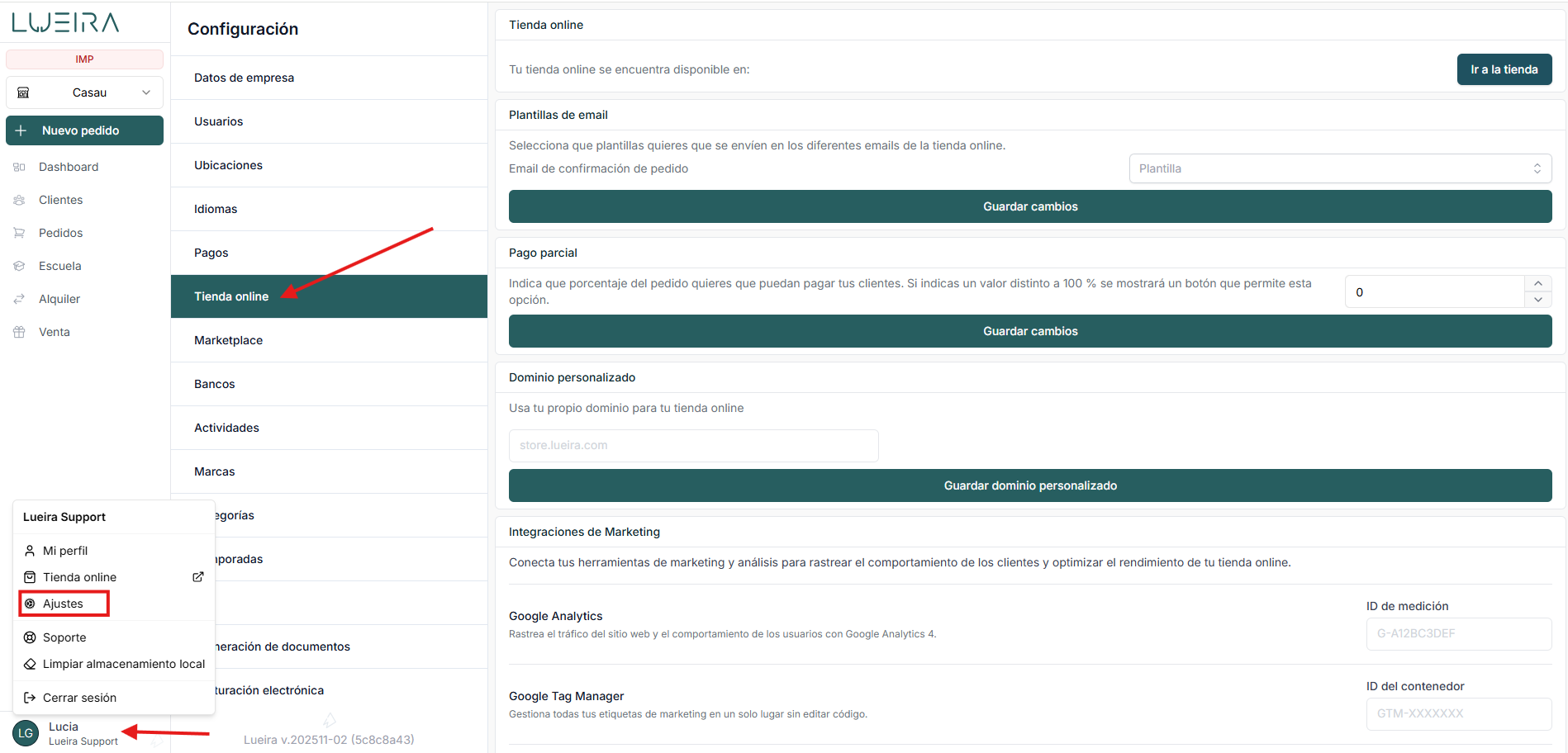
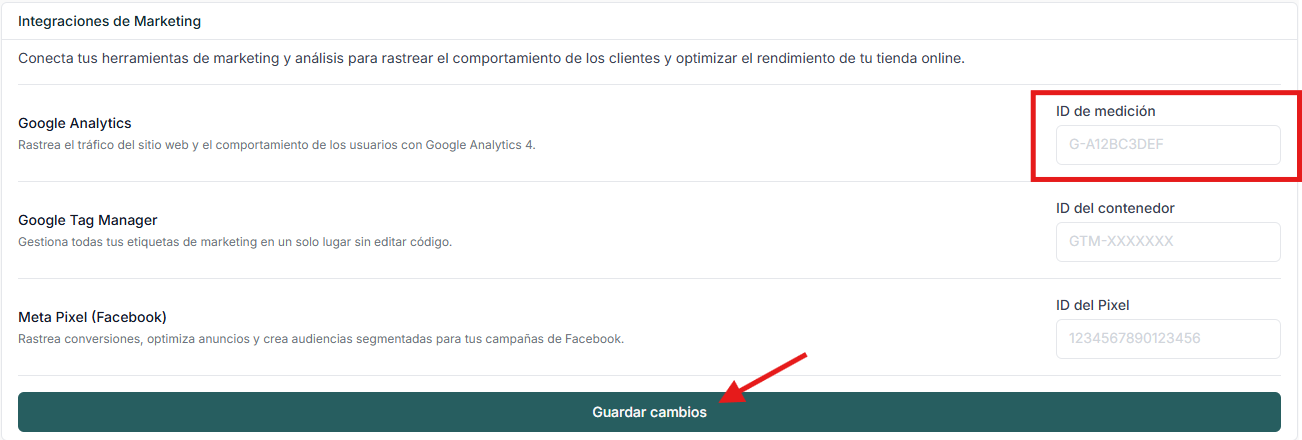
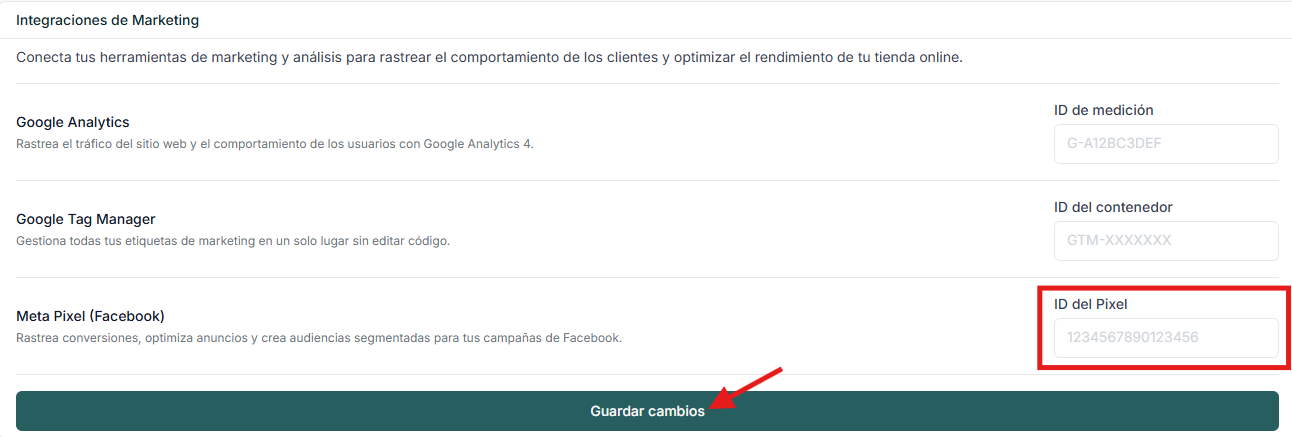
On this page we can see the Marketing Integrations section:
Google Analytics
Track website traffic and user behaviour with Google Analytics 4: measure the people who visit your website and where they come from, which pages they visit and how they behave on them, create reports...
In short, it is used to understand your customers and improve the website according to their habits.
To find the Measurement ID, we must go to Google Analytics.
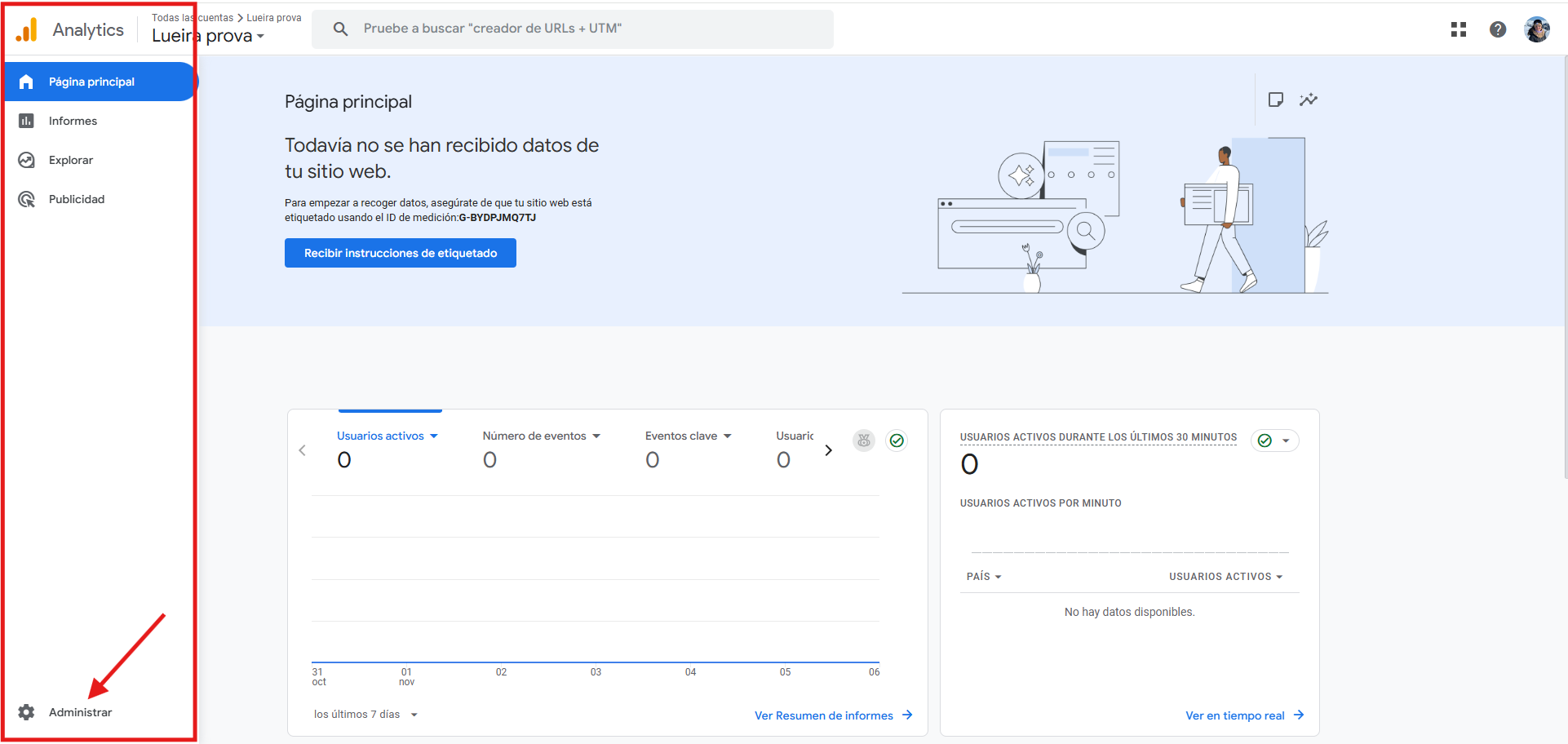
On the left side of the screen we will go to the Admin panel.
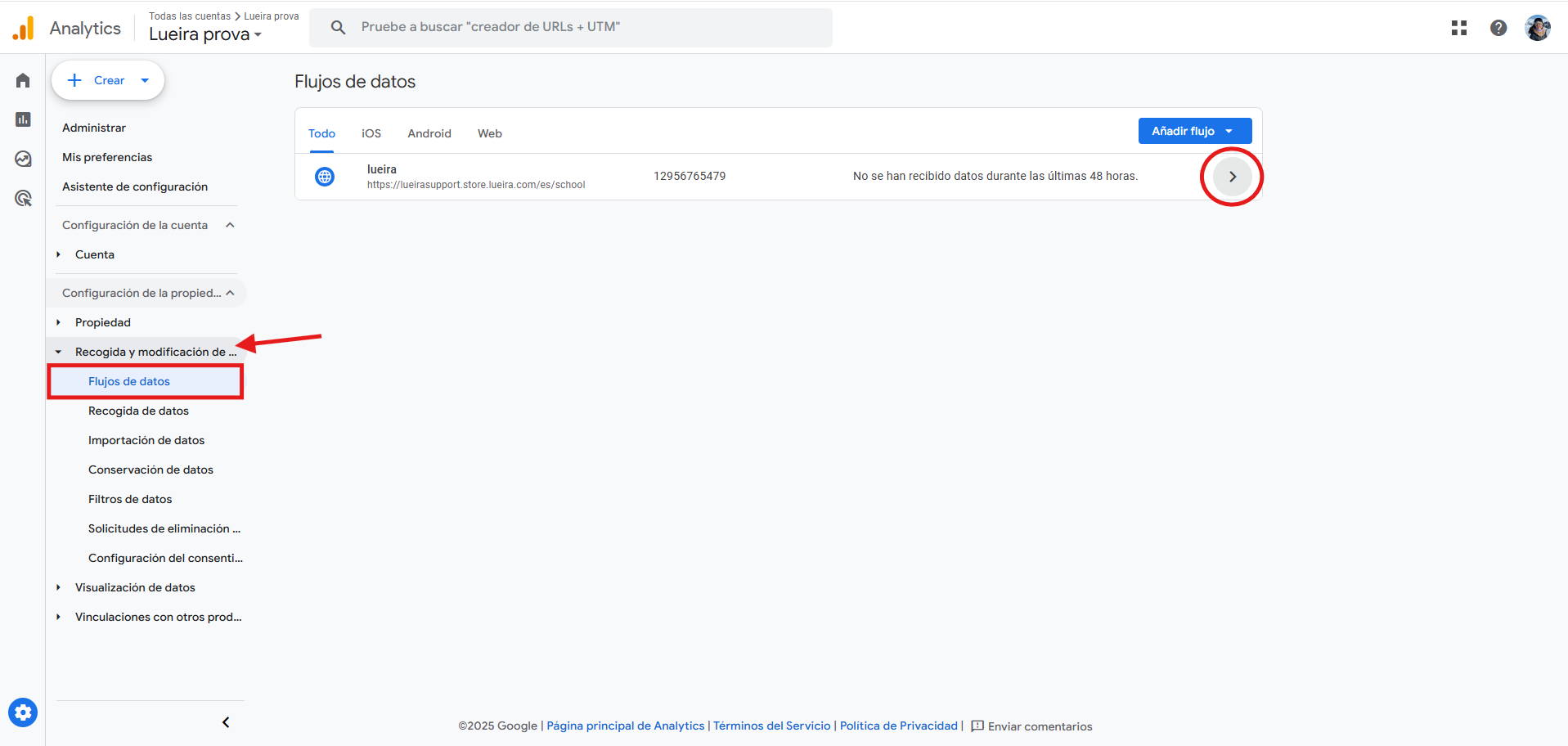
Inside the Admin panel, we will go to "Data collection and modification", and within it, to "Data streams". Once on this screen, we will click the arrow on the stream of the website we want to analyse.
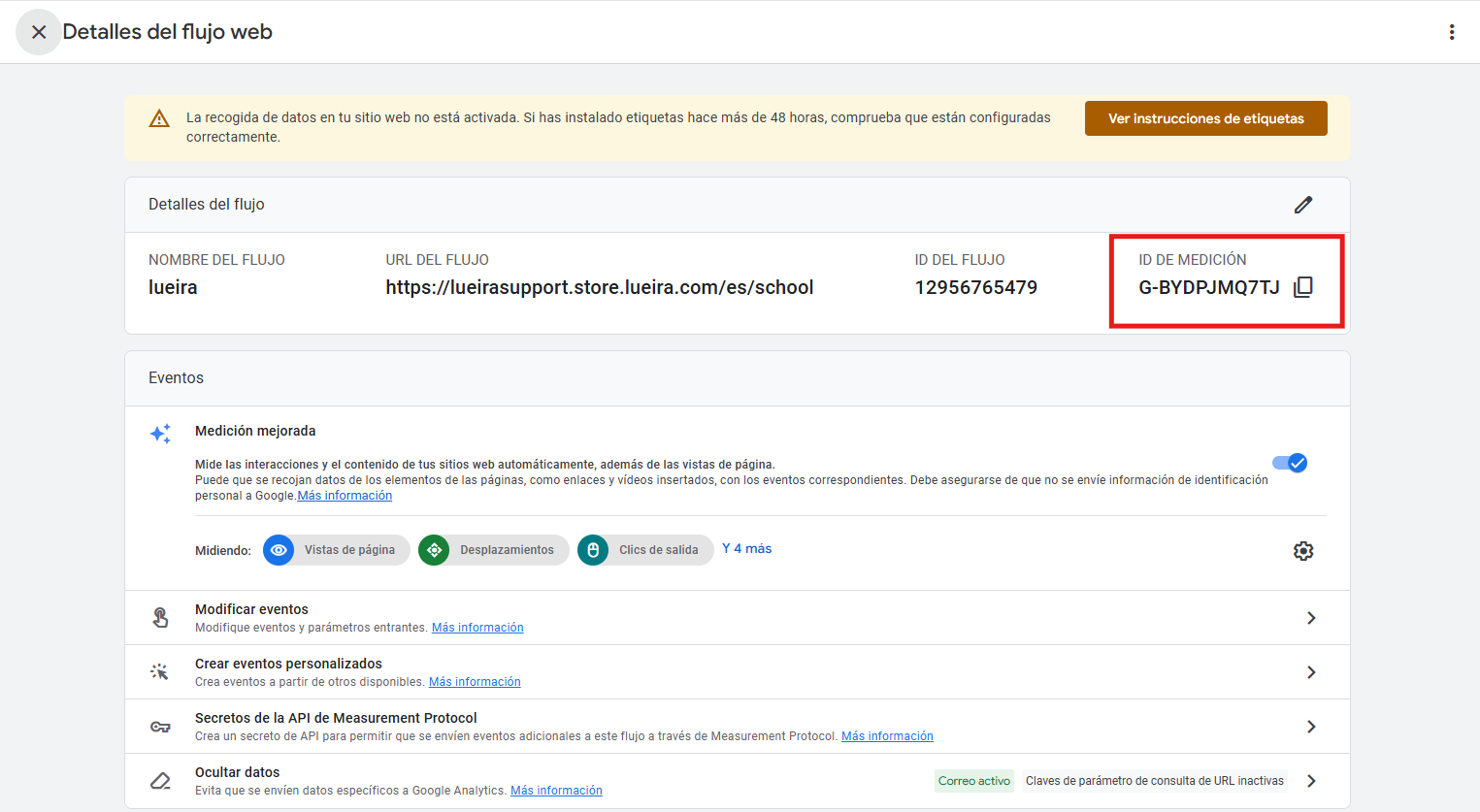
A window will open where we can see the Measurement ID, which is the ID number we must enter in the Lueira settings, and then we save the changes.
Google Tag Manager
Manage all your marketing tags in one place without editing code: it acts as a container where you can install and control other tools, and lets you add or remove tracking tags... These tags are snippets of code used to collect data. For example, you can measure how many people reach the payment page, how many look at a booking, how many click the contact button...
In short, it is a management platform that makes the technical work with Analytics, Meta Pixel and other tracking codes easier.
To find the Container ID, we must go to Google Tag Manager, logging in to the account where you created the container. If you have several containers, select the right one, the one that corresponds to the website you want to study.
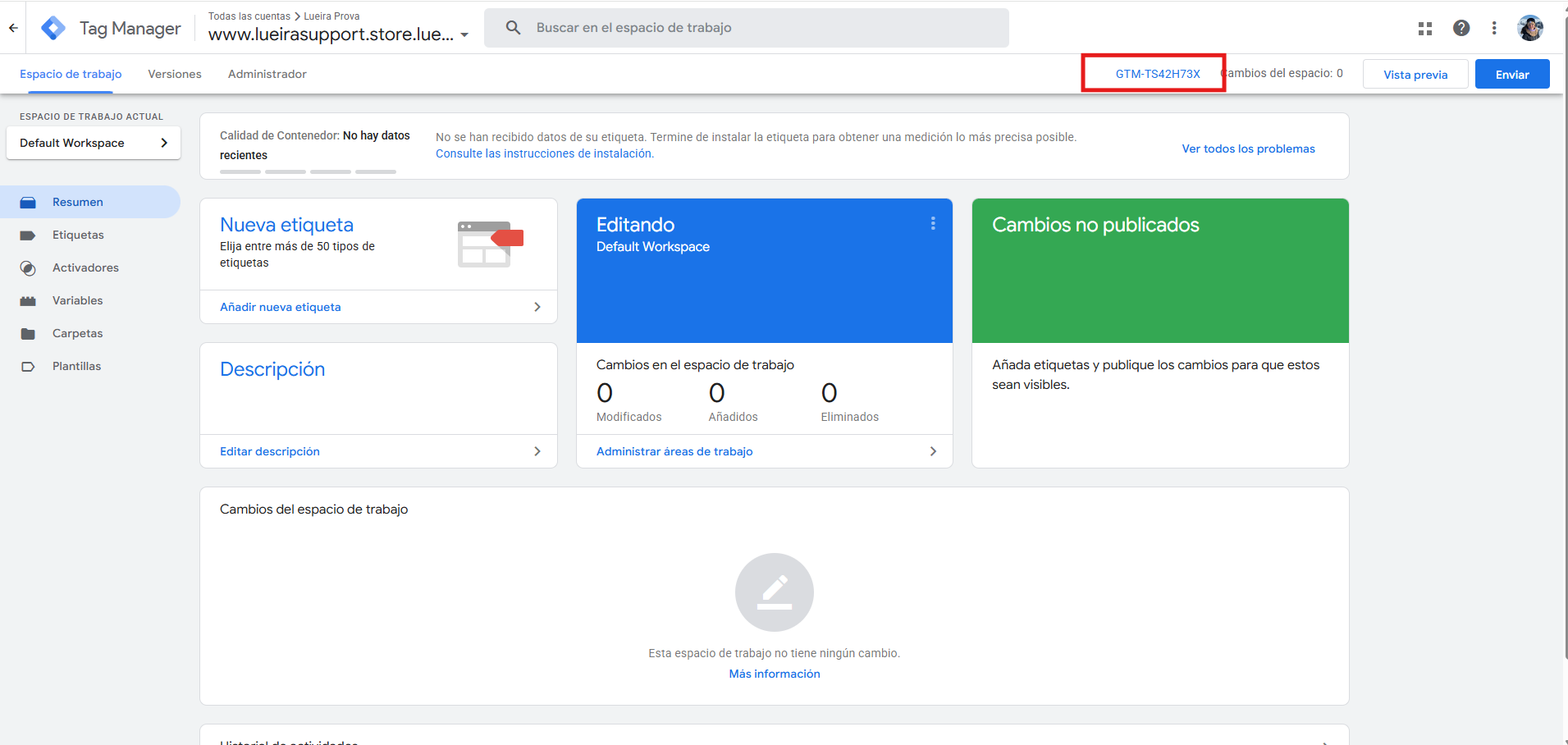
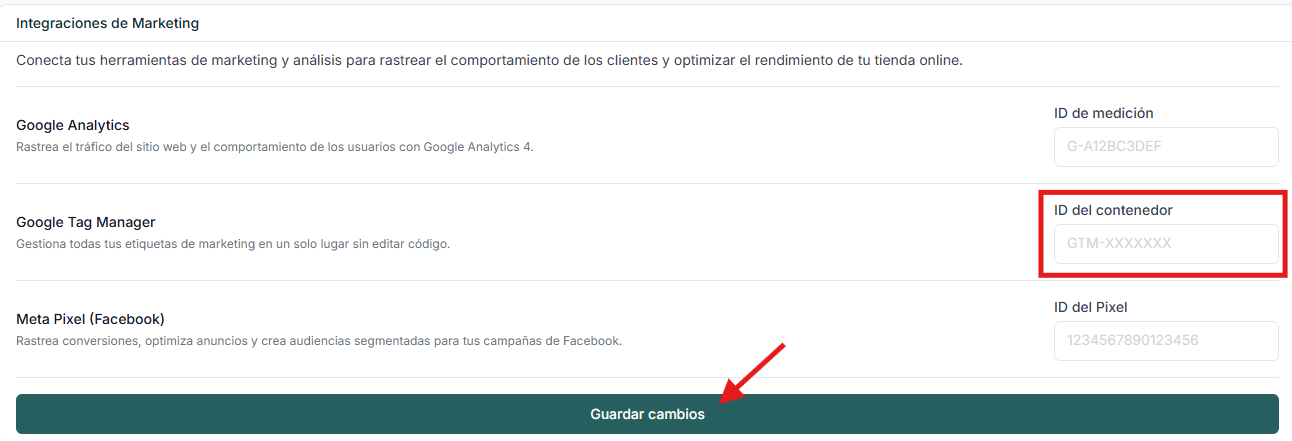
Once inside, you will see that at the top of the screen the Container ID appears, which you must enter in the Lueira settings and then save the changes.
Meta Pixel
Track conversions, optimise ads and create targeted audiences for your Facebook campaigns, record the actions users take on your website, create custom ads, improve targeting and performance... It is placed on your website to record user actions and optimise advertising; it tracks events such as website visits, adding products to the cart and completing a purchase, and helps us understand what users do on the website once they have seen the ads.
In short, it is used to make advertising smarter and more effective on Facebook and Instagram.
To find the Pixel ID, we must go to Meta Events Manager.
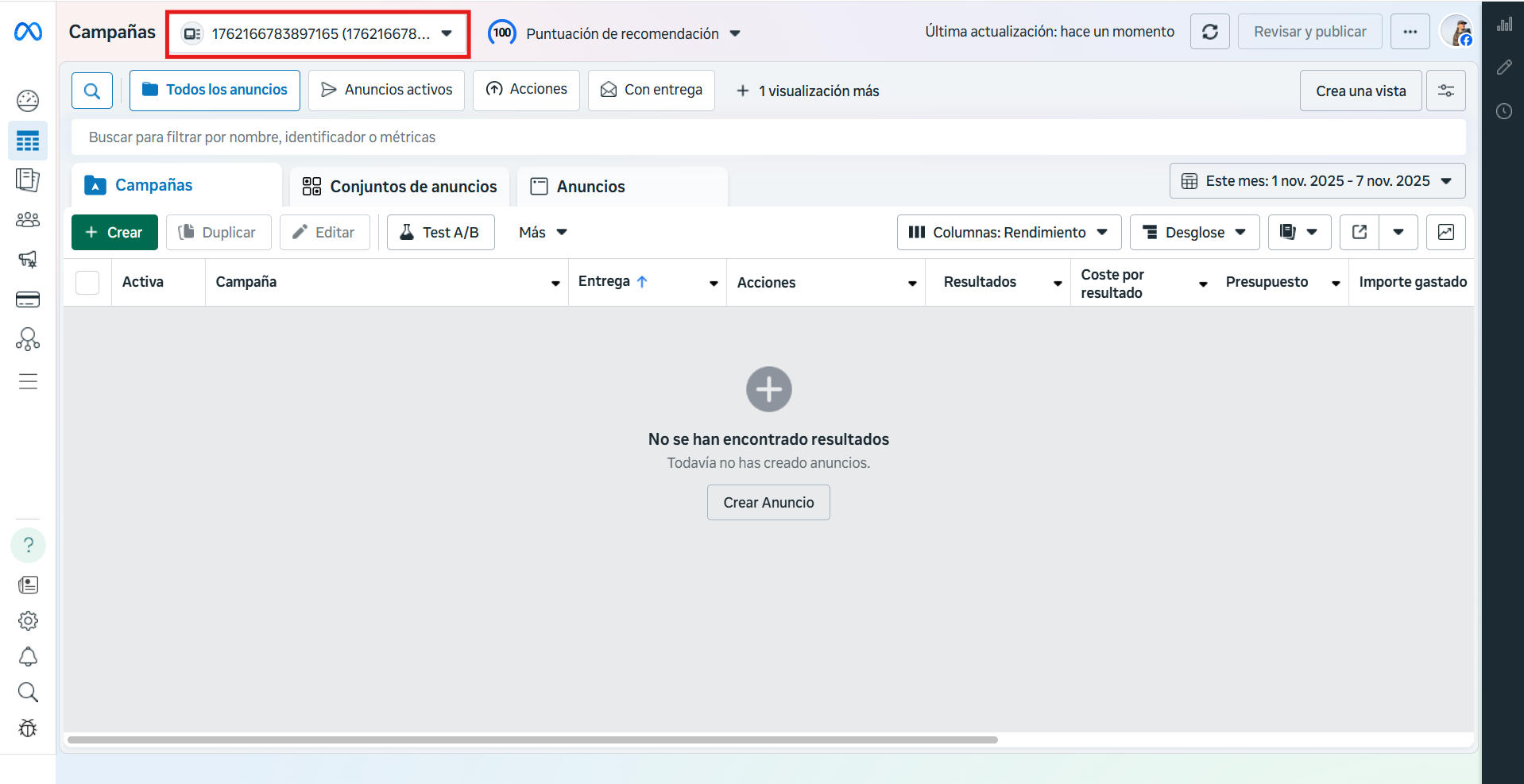
At the top of the screen we can see a number (usually 15-16 digits). We copy that number, enter it in the Lueira settings and save the changes.
If you have any questions, don't hesitate to get in touch with the Lueira support team!
What these integrations cover and what they do not
What these integrations cover and what they do not
Do I need to configure them to see the Lueira Analytics panel?
No. The Analytics section of the side menu (Online Store Lifecycle, Bookings and Campaign Links) uses its own online store data and works even if you have not entered any ID here. The reverse is not true either: whatever you configure in Google Analytics, Google Tag Manager or Meta Pixel is sent to those tools, not to the Lueira Analytics panel.
📘 Analytics in Lueira: Online Store Lifecycle, Bookings and Campaign Links
How do I measure Google Ads conversions?
There is no specific field for Google Ads. Conversions are configured in your Google Tag Manager container: there you create the Google Ads tags and link them to the events sent by the store (for example, the purchase). You can find the list of events in Which events we track in analytics.
Does Lueira send purchases from the server (Conversions API)?
Yes, if you connect it. In addition to the code that runs in the customer's browser, each online store can send the confirmed purchase directly from Lueira to three platforms. It is useful because ad blockers and browsers with enhanced privacy prevent some purchases from arriving through the browser.
Google Analytics 4 (Measurement Protocol).
Meta (Conversions API).
OpenAI Ads (Conversions API).
How it works:
It is sent only once, when the online order is confirmed. Orders created manually in the panel and cancelled orders are not sent.
It is only sent if the person accepted the corresponding cookies in the store: marketing cookies for Meta and OpenAI Ads, and measurement cookies for Google Analytics. If they rejected them, nothing is sent.
It is only sent if the order arrived with the identifier used by each platform (for example, the Meta cookie or the Google Analytics identifier). An order from someone who came in without going through any of them may not appear.
Meta and Google receive the same event identifier as the browser, so they do not count the same purchase twice.
Everything is configured in Settings → Online store → Integrations, in the Marketing Integrations section. Each online store has its own configuration.
How to connect Google Analytics from the server
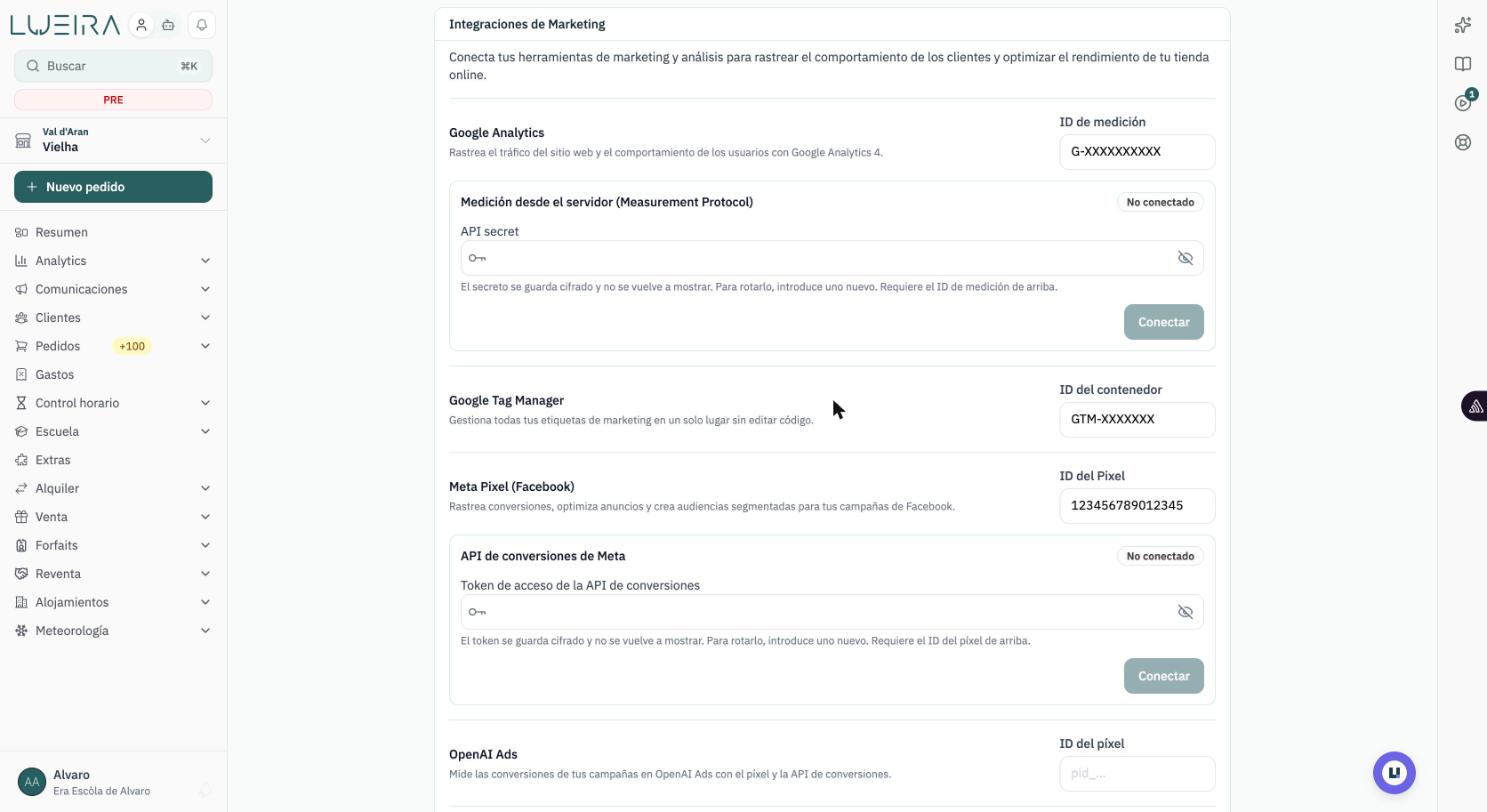
First enter the Google Analytics Measurement ID and save. The server connection needs it.
In the Server-side measurement (Measurement Protocol) card, paste the API secret that you create in Google Analytics (Admin → Data streams → your stream → Measurement Protocol API secrets) and click Connect.
Check that it shows Connected. You will also see Status and Health. If you see Connection error, check the secret and save it again.
How to connect the Meta Conversions API
First enter the Meta Pixel ID and save. The Conversions API needs it.
In the Meta Conversions API card, paste the Conversions API access token (you generate it in Meta Events Manager, in the pixel settings) and click Connect.
Check that it shows Connected. If you see Connection error, check the token and save it again.
How to connect OpenAI Ads
If you advertise your business on OpenAI Ads (ads in ChatGPT), the OpenAI Ads section measures the conversions of your campaigns with the pixel and the Conversions API.
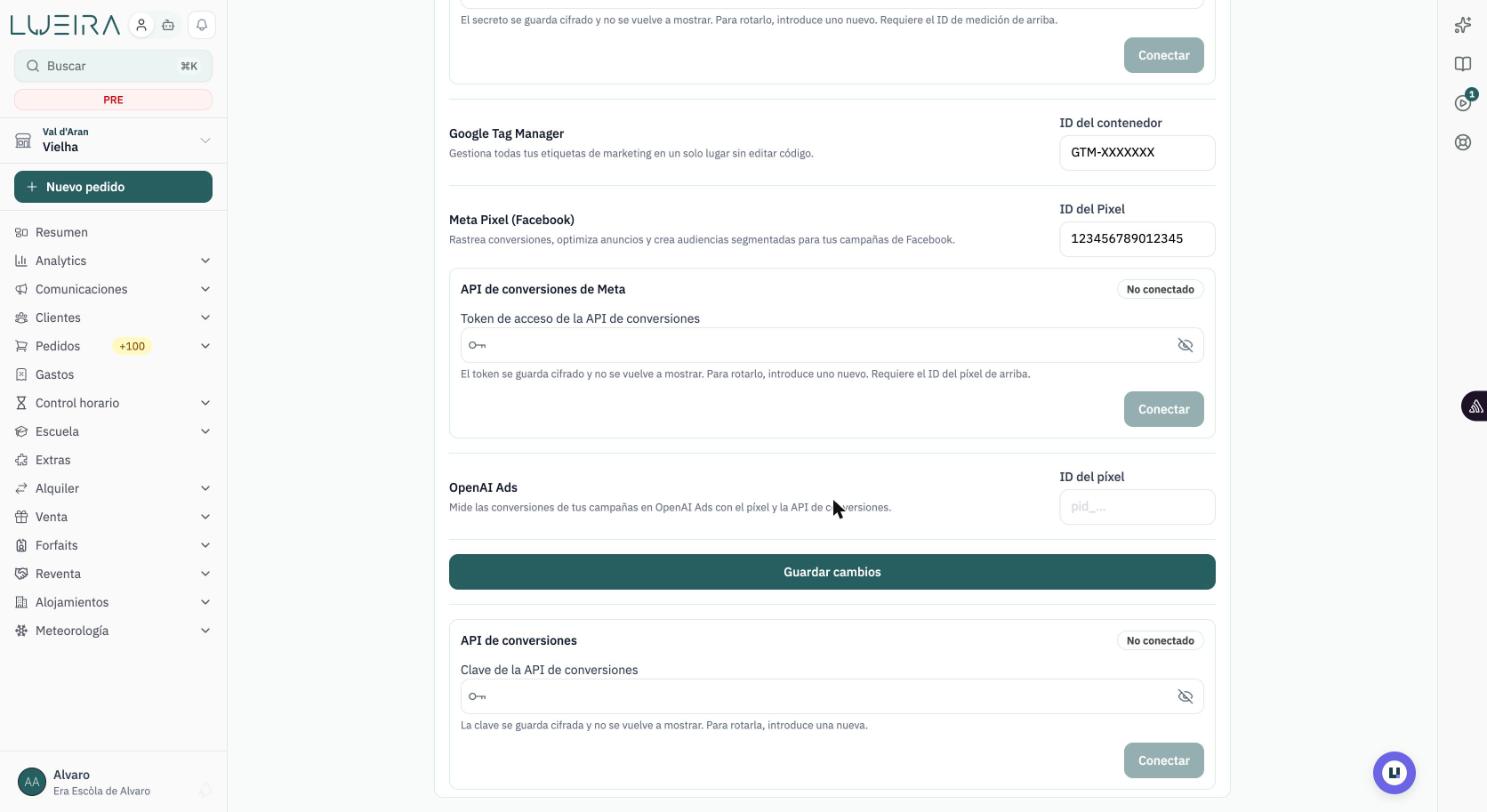
Enter the pixel ID that OpenAI Ads gives you and click Save changes.
In the Conversions API card, paste the Conversions API key and click Connect.
Check that the status is Connected. You will see the Key ending in and the Last verification. If you see Connection error, check the key and save it again.
Rotate or disconnect a key
For security, the secret, the token and the key are stored encrypted and are not shown again. To change them, click Update secret, Update token or Update key and enter a new one. Disconnect deletes the key and the store stops sending purchases to that platform.
⚠️ Do not share these keys by chat or email. If you need to send them to Lueira support, ask for a secure channel first.
Can I add my own scripts or my cookie consent tool (CMP)?
In Settings → Online store → Integrations you can only enter the identifiers and keys of the integrations above (Google Analytics Measurement ID, Google Tag Manager Container ID, Meta Pixel ID and the OpenAI Ads ones). There is no field to paste your own code into the store. If you need another tool, check with support.
Related guides
- Configuring Company Settings in LueiraIn this section you can configure all the properties of your school
- Settings (School / Center / Activities)Configure the parameters of your school, center or activities space: levels, meeting points, schedules, prices and more.
- Features: turn optional features on or off in your accountHow to turn Short courses, Private lesson vouchers, Material resources and Instructor ranking on or off from Settings > Company > Features.
- Several sites or centers in one Lueira accountHow to manage several sites (establishments) in the same account: create a site, give it its own online store link and decide whether it invoices with its own tax details.
- Diagnose: check your setup, an order or a productHow to use the Diagnose button and the Setup status screen to find out what is missing or wrong in your account, your store, an order, a pack or a product, and how to fix it.
- Create and manage locationsHow to create, edit and delete a location (a physical place where you operate) in Settings > Locations, what each field means and what to do if you cannot create one.