

Analytics in Lueira: Online Store Lifecycle, Bookings and Campaign Links
New Analytics module: your visitors' journey in your online store, the status of your bookings and a campaign link generator with UTM parameters.
On this page
In the left-hand side menu you will find the Analytics section, with three sub-sections: Online Store Lifecycle, Bookings and Campaign Links.
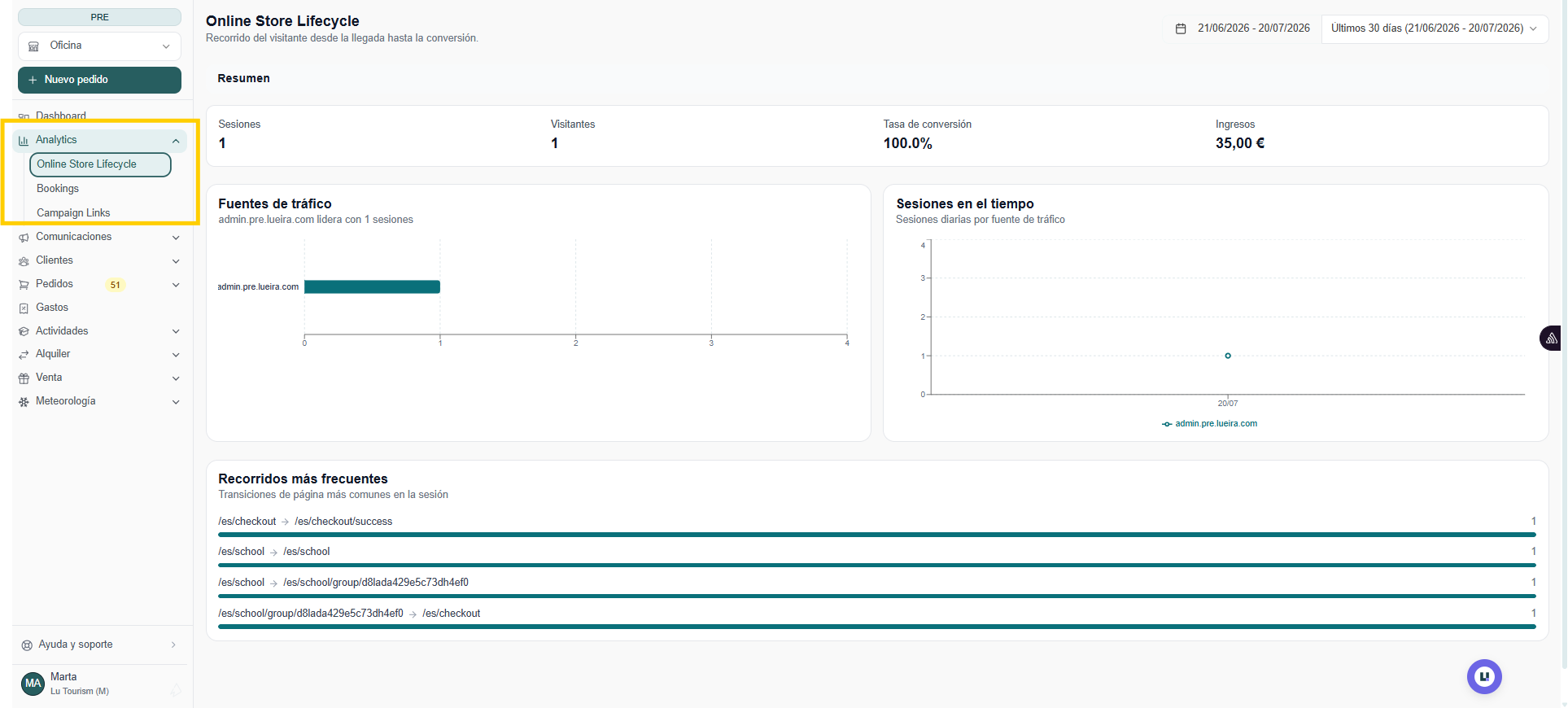
All three sections share the same date range selector at the top right (for example "Last 30 days"), which you can change to see the data for another period.
Online Store Lifecycle
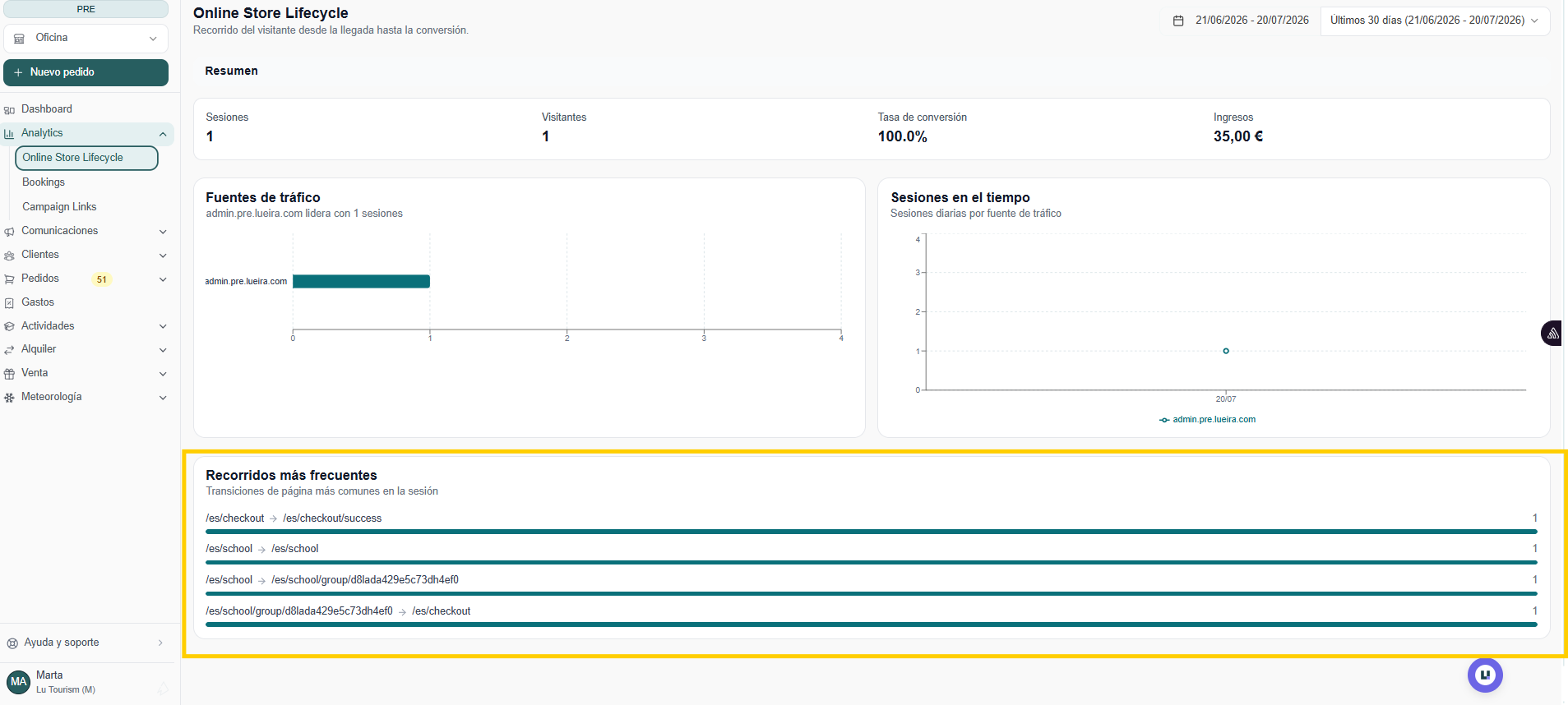
It shows your visitors' journey from the moment they arrive at the online store until they buy (or don't).
Summary
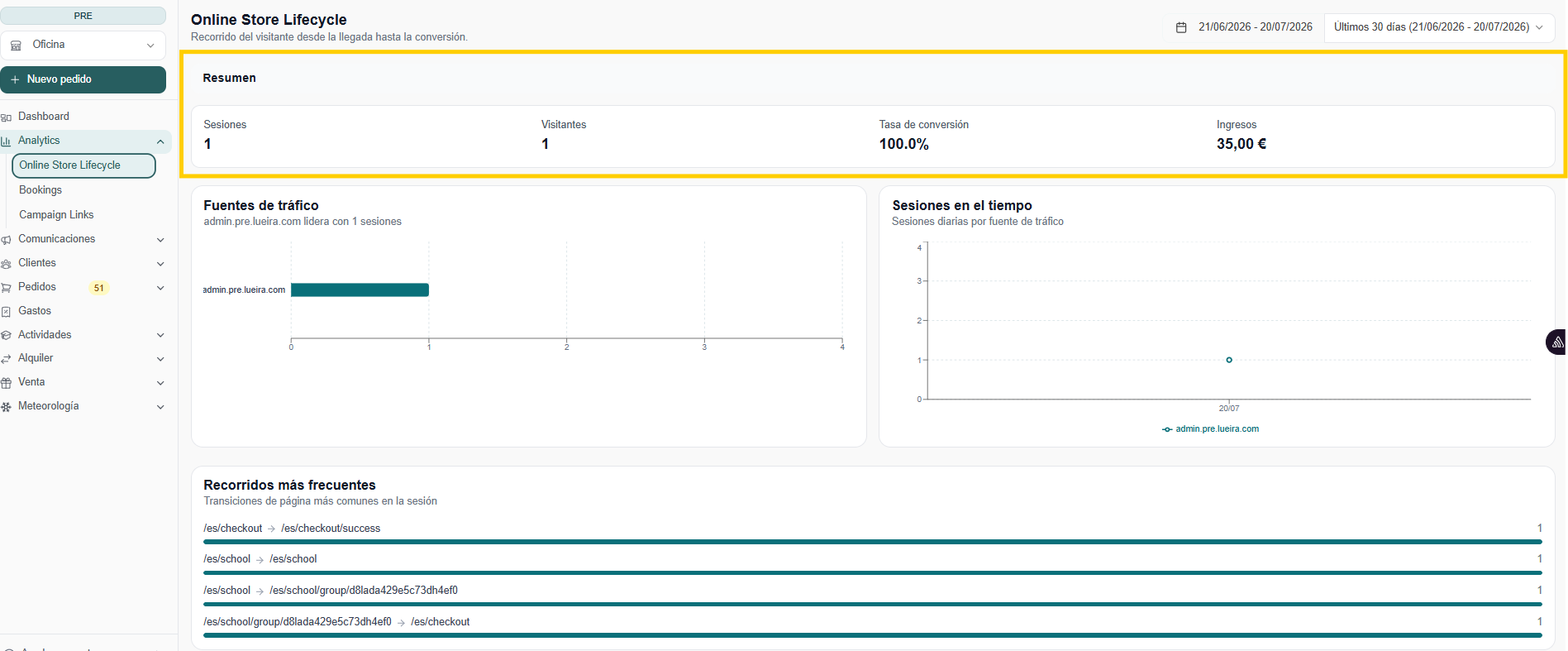
Sessions: number of visits to the online store in the selected range.
Visitors: distinct people who generated those sessions.
Conversion rate: what percentage of those sessions ended in a purchase.
Revenue: total amount generated by those conversions.
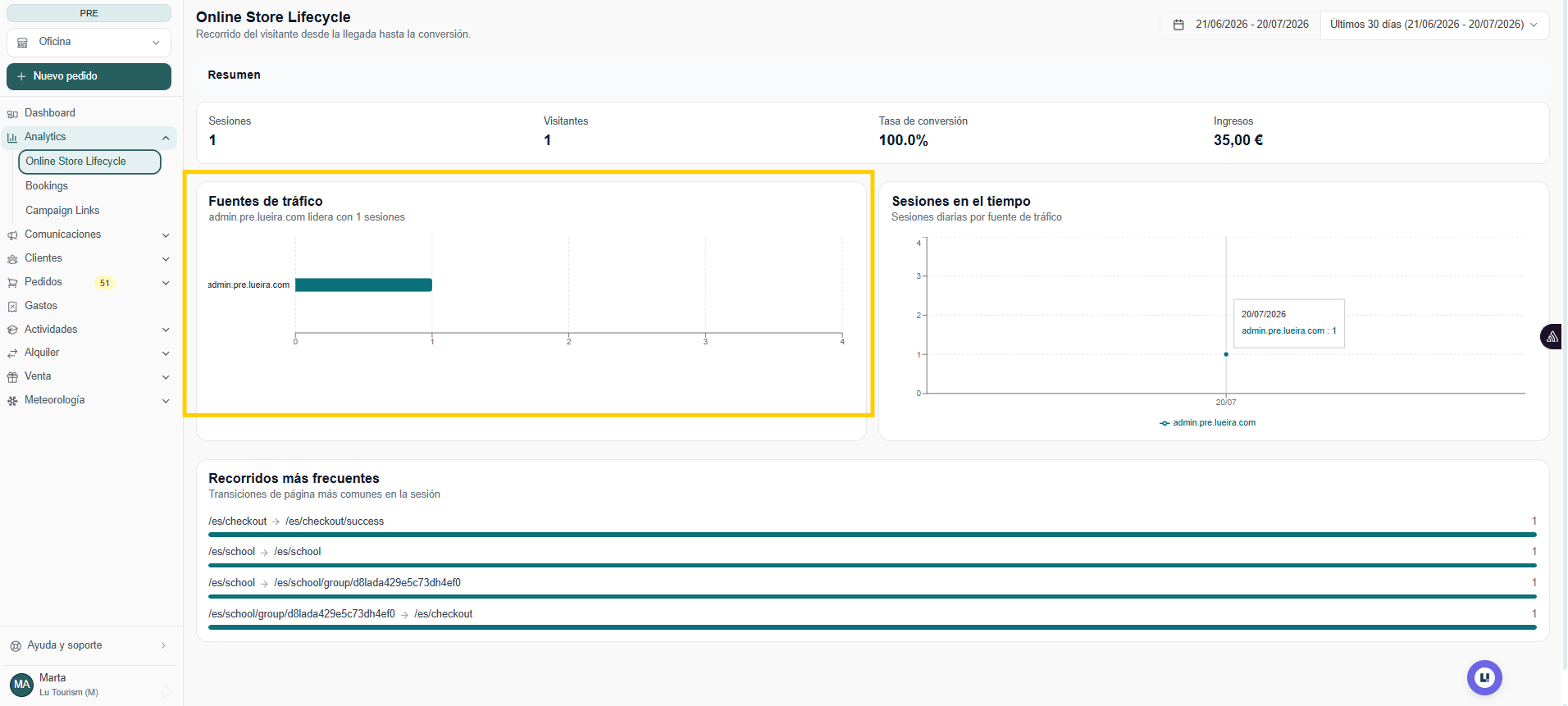
Traffic sources
Horizontal bar chart with the number of sessions by origin (for example, your own website, direct traffic, or any source tagged with UTM parameters). If you use Campaign Links to share campaign links, the sessions that arrive through those links will appear grouped here by the Source you entered when generating them.
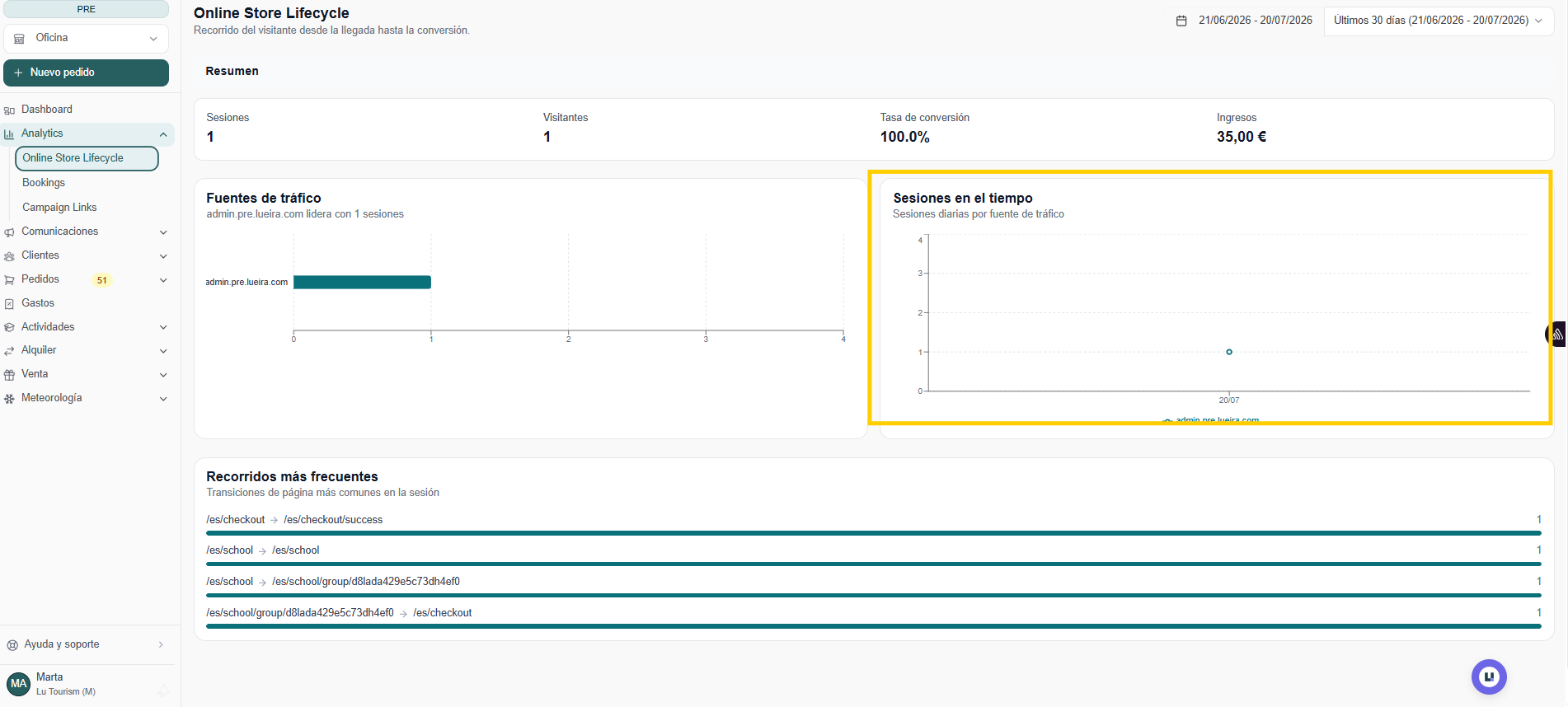
Sessions over time
Line chart with daily sessions, broken down by traffic source, so you can see whether traffic is growing or falling day by day and which channel explains it.
Most frequent journeys
List of the most common page transitions within a single session (for example, from a product page to the checkout), with the number of times each transition has occurred. It helps you see how your customers browse before buying.
Bookings
It shows the status of your orders and how far in advance your customers book.
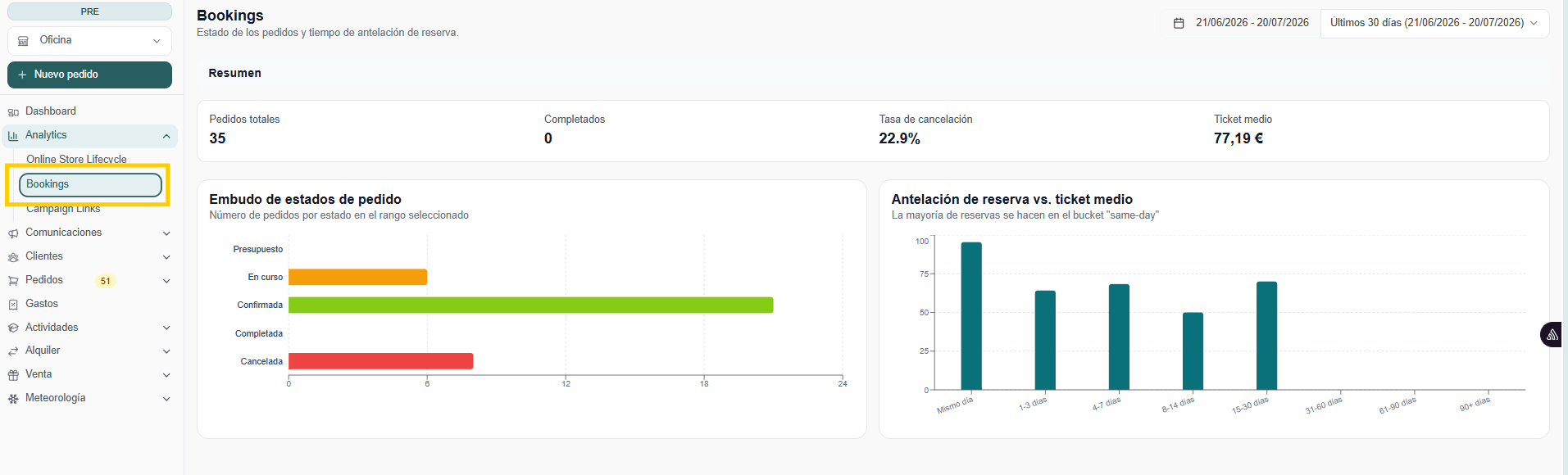
Summary
Total orders: number of orders created in the selected range.
Completed: orders that have reached the completed status.
Cancellation rate: percentage of cancelled orders out of the total.
Average ticket: average amount per order.
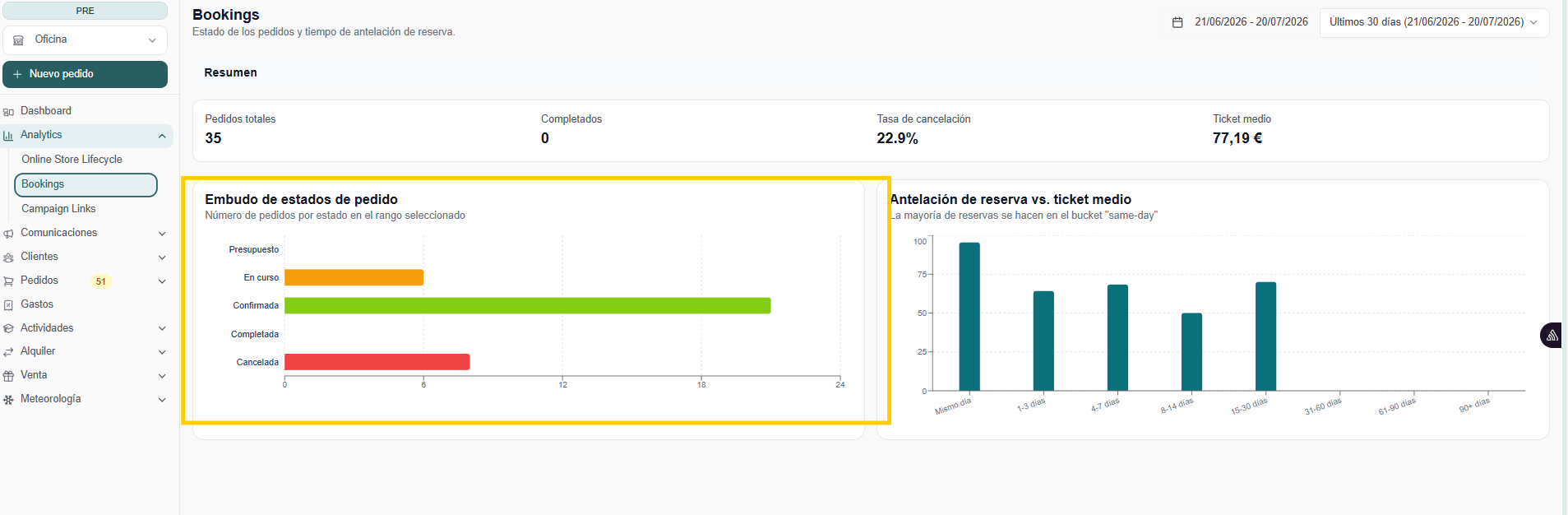
Order status funnel
Bar chart with the number of orders in each status (Quote, In progress, Confirmed, Completed, Cancelled) within the selected range, so you can see at a glance where your orders are concentrated.
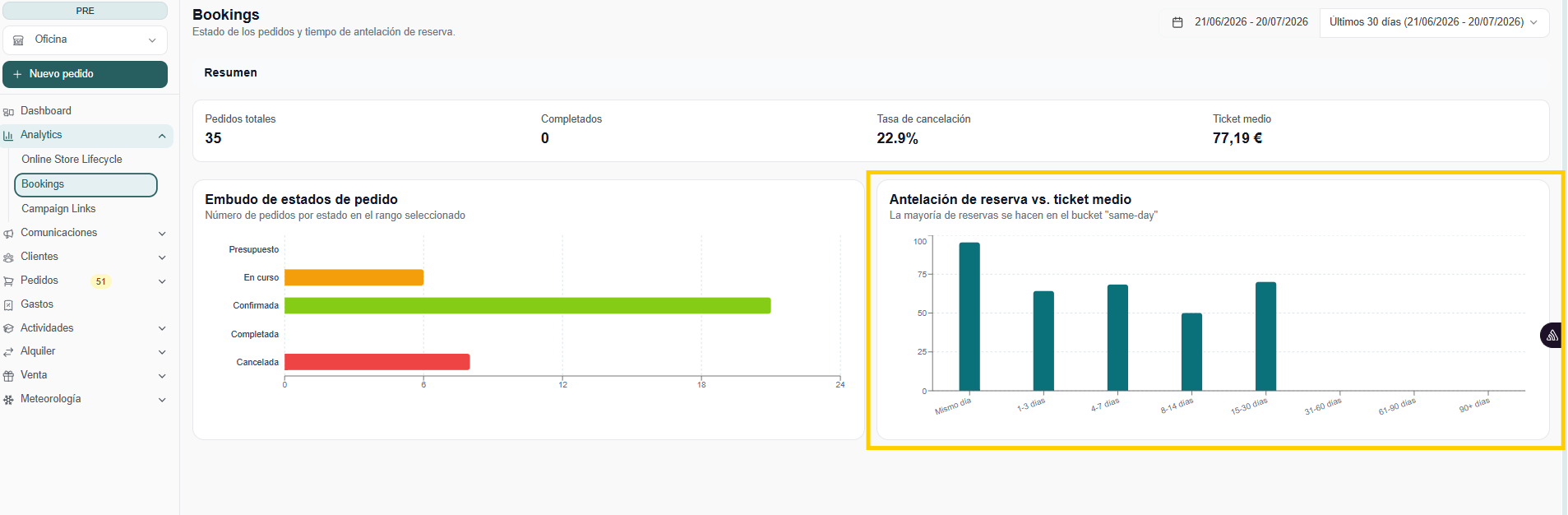
Booking lead time vs. average ticket
Bar chart that groups orders by their booking lead time (same day, 1-3 days, 4-7 days, 8-14 days, 15-30 days, 31-60 days, 61-90 days, 90+ days) and shows the average ticket of each group. It helps you know whether your customers book from one day to the next or well in advance, and whether that affects how much they spend.
Campaign Links
It is a link generator with UTM parameters, so you don't have to type them by hand every time you launch a marketing campaign (social media, email, an ad, etc.).
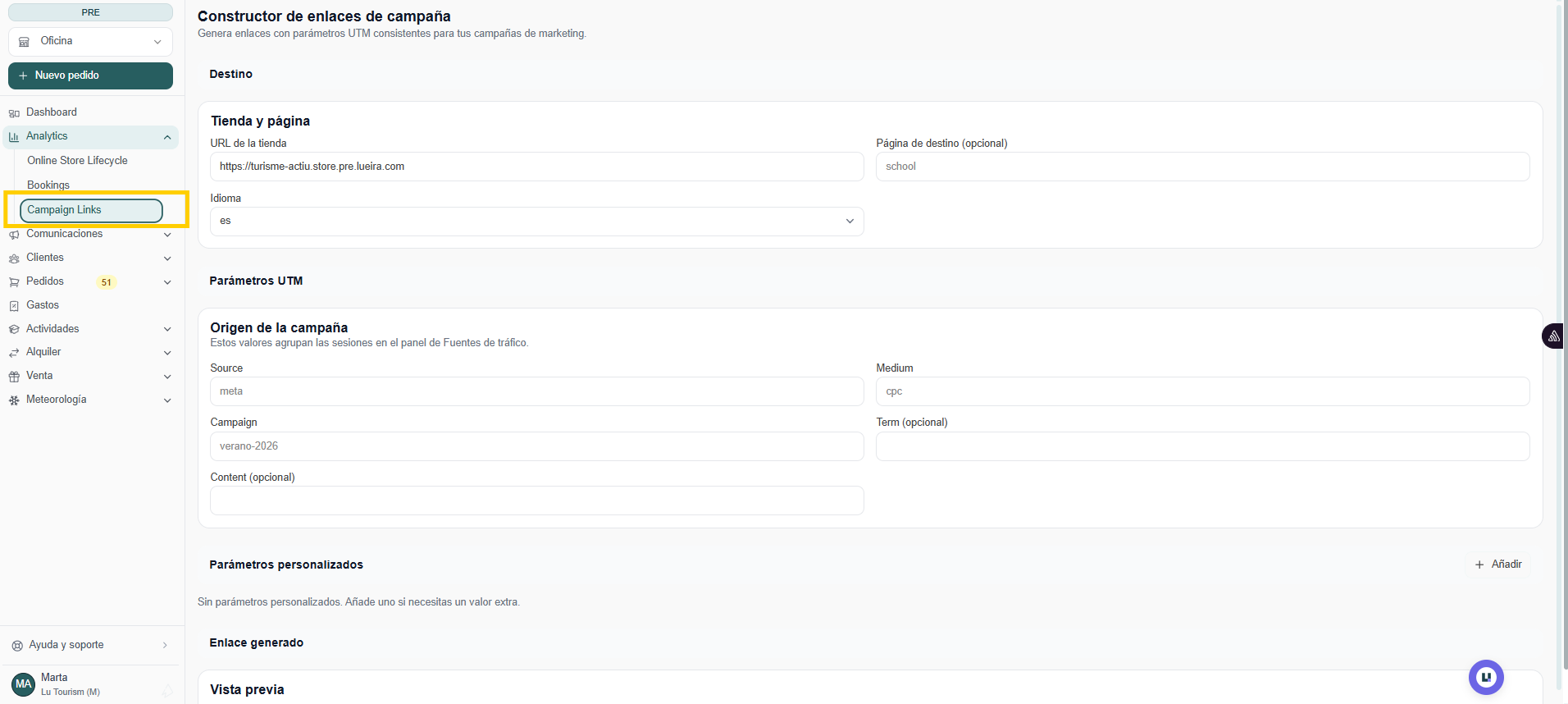
Destination
Store URL: filled in automatically with the URL of your online store.
Landing page (optional): if you want to take the visitor to a specific page (for example, "school" to go straight to your school catalogue) instead of the home page.
Language: language in which the store will open.

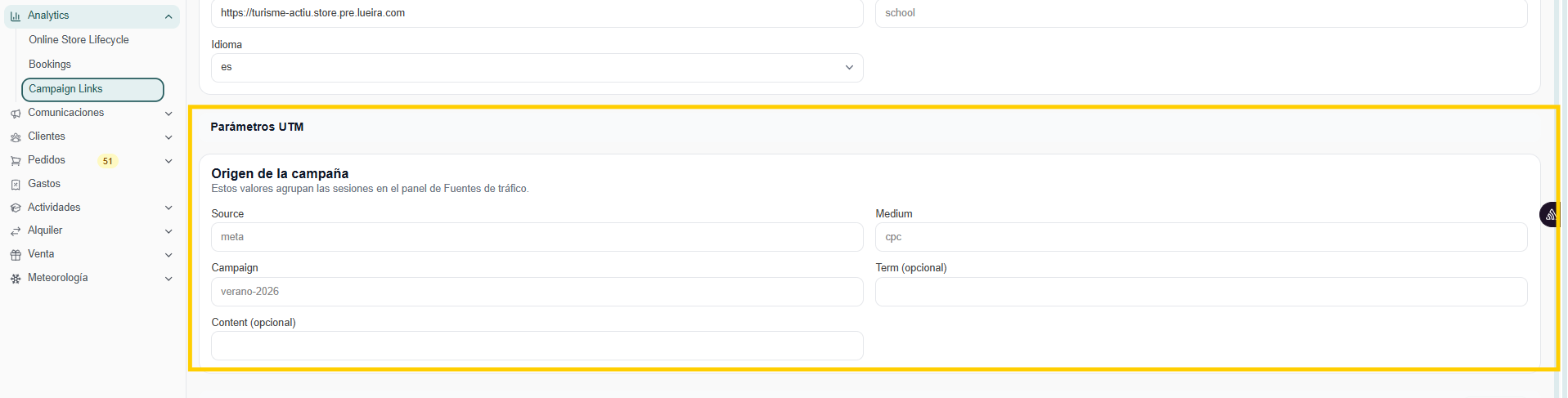
UTM parameters
These values are the ones that later group the sessions in the Traffic sources panel of Online Store Lifecycle:
Source: where the traffic comes from (for example, meta, google, newsletter).
Medium: the type of channel (for example, cpc, email, social).
Campaign: the name of the campaign (for example, summer-2026).
Term and Content (optional): to fine-tune further, for example by distinguishing between two different ads or keywords in the same campaign.
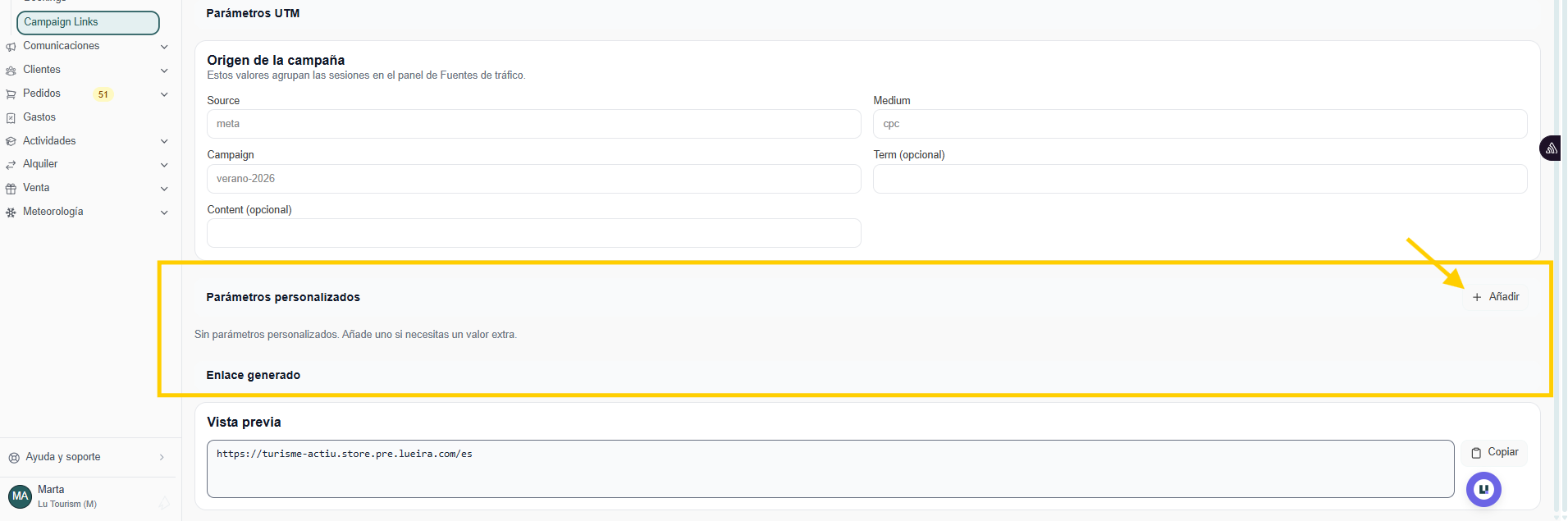
Custom parameters
With + Add you can add extra key-value parameters to the link, if you need to track something that the standard UTM fields do not cover.
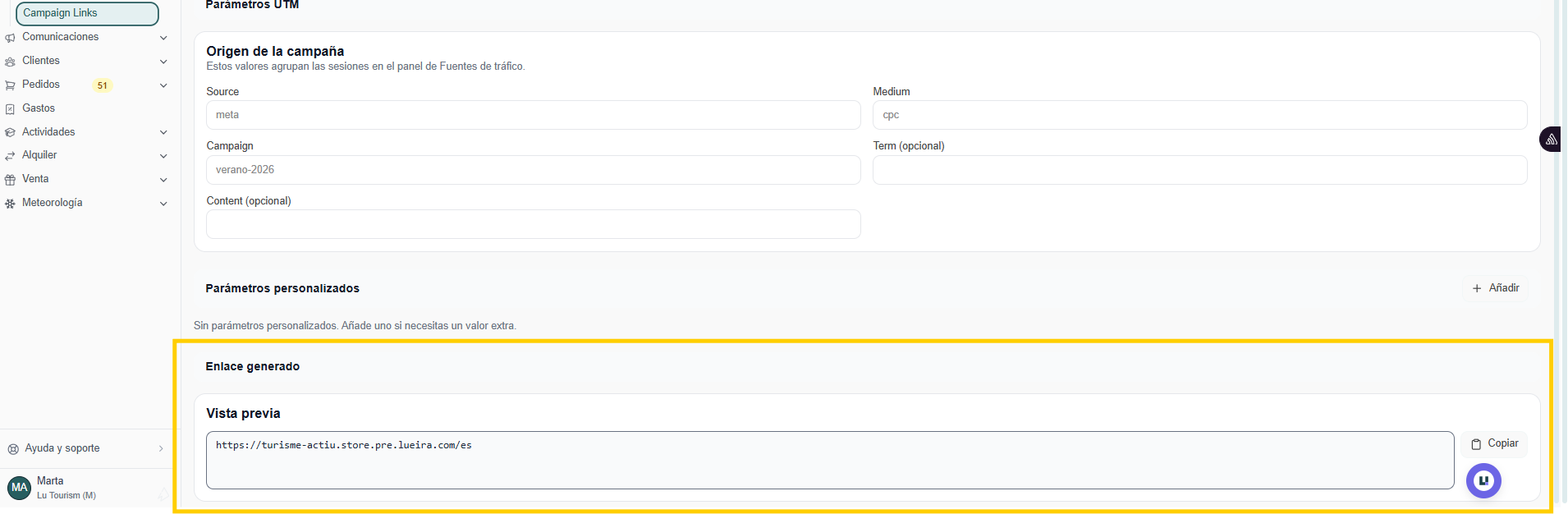
Generated link
As you fill in the fields, the Preview shows you the complete final link, ready to copy with the Copy button and paste wherever you want to share it.
💡 This screen only generates the link: it does not save or remember the campaigns you create, so if you want to reuse a combination of parameters, keep it somewhere else yourself (for example, in a campaigns document).
If you have any questions, don't hesitate to contact Lueira's support team!
Related guides
- Configuring Company Settings in LueiraIn this section you can configure all the properties of your school
- Settings (School / Center / Activities)Configure the parameters of your school, center or activities space: levels, meeting points, schedules, prices and more.
- Features: turn optional features on or off in your accountHow to turn Short courses, Private lesson vouchers, Material resources and Instructor ranking on or off from Settings > Company > Features.
- Several sites or centers in one Lueira accountHow to manage several sites (establishments) in the same account: create a site, give it its own online store link and decide whether it invoices with its own tax details.
- Diagnose: check your setup, an order or a productHow to use the Diagnose button and the Setup status screen to find out what is missing or wrong in your account, your store, an order, a pack or a product, and how to fix it.
- Create and manage locationsHow to create, edit and delete a location (a physical place where you operate) in Settings > Locations, what each field means and what to do if you cannot create one.