

WhatsApp Agent
Set up the WhatsApp Agent, which automatically replies to your customers' WhatsApp messages, uses your articles as its source of information and can create orders directly from the chat.
On this page
- WhatsApp Agent
- How it works in one sentence
- Set up the WhatsApp Agent
- 1. Assistant name
- 2. Reference welcome message
- 3. Tone
- 4. Message examples
- Knowledge: the AI's information base
- Create a Knowledge article
- Article statuses
- Which articles you should have
- Number blocklist
- Pause the WhatsApp Agent globally
- Escalate a conversation to a human agent
- How escalation is triggered
- Create orders from the conversation
- 1. Search and suggest options
- 2. Build the order
- 4. Send the payment link
- 5. Automatic confirmation
- Related articles
- Common problems and what is included
- Common problems
- The AI does not reply to a customer
- How do I know the AI has passed a conversation to a person?
- Is it included in my plan?
- More guides about the WhatsApp Agent
WhatsApp Agent
The WhatsApp Agent is an agent that replies to your customers' incoming WhatsApp messages for you. You give it a name and a tone and provide information about your business — and from there it holds conversations, answers questions and can even create orders in your online store.
It works 24/7. While you are running an activity or sleeping, your customers still get instant answers.
How it works in one sentence
When a WhatsApp message comes in, the AI reads it, looks for the answer in your Knowledge (the articles you have created), replies to the customer with the tone and style you have configured, and if the conversation moves towards a booking it can create it directly in Lueira.
The AI also understands and replies to voice messages: it transcribes the customer's audio and responds consistently with the content of the message.
Set up the WhatsApp Agent
Go to Communications > Settings and scroll down to the AI Assistant block. Click Edit and you will see four fields:
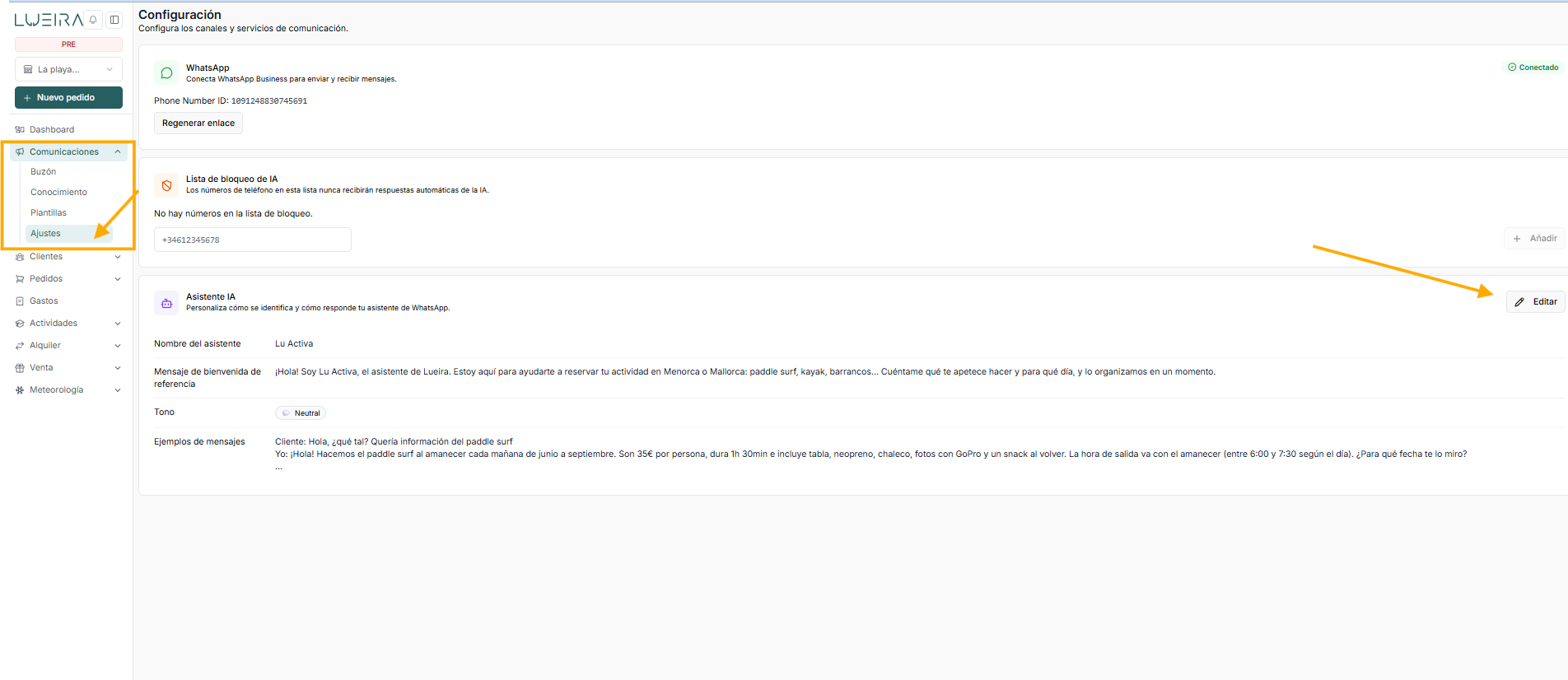
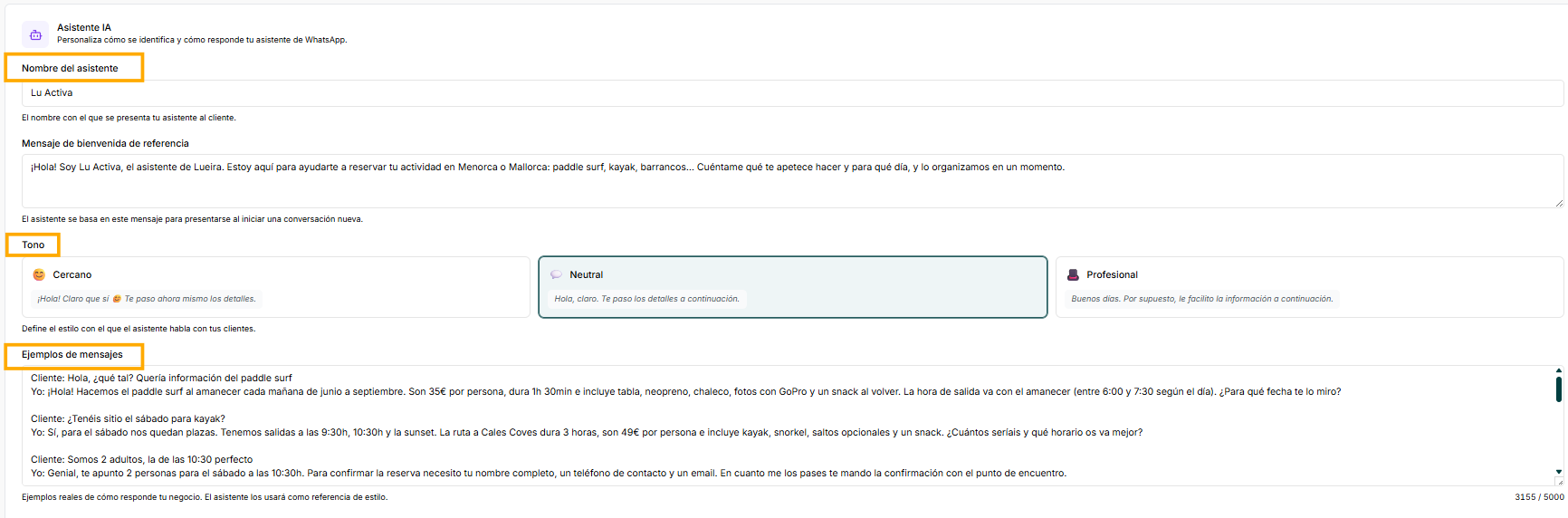
1. Assistant name
How your WhatsApp Agent introduces itself to the customer. You can use your business name, a catchy name of its own or whatever you prefer. For example: Lu Activa for a water activities company, Marina for a diving center.
2. Reference welcome message
This is the message the AI uses to introduce itself when starting a new conversation. It does not have to be the literal greeting — the AI adapts it to the context — but it sets the guideline for how it introduces itself.
A good welcome message makes clear: who you are, what you offer and how the customer can start talking to you.
3. Tone
Defines the style in which the AI speaks. You have three options:
Friendly — very direct, informal "you", occasional emojis, short sentences, casual language. Example: "Hi! Of course 😊 I'll send you the details right now."
Neutral — approachable but restrained, informal "you", no emojis, medium-length sentences. Example: "Hi, of course. I'll send you the details below."
Professional — formal, polite address, careful language, no emojis, structured answers. Example: "Good morning. Certainly, I am happy to provide the information below."
Choose the one that most resembles how you write to your customers today.
4. Message examples
Here you paste real conversations you have had with customers, and the AI uses them as a style reference.
Knowledge: the AI's information base
The AI does not make up answers. When a customer asks something, it first searches the Knowledge articles you have published. That is why this section is the real brain of the WhatsApp Agent — without Knowledge, the AI has very little to say.
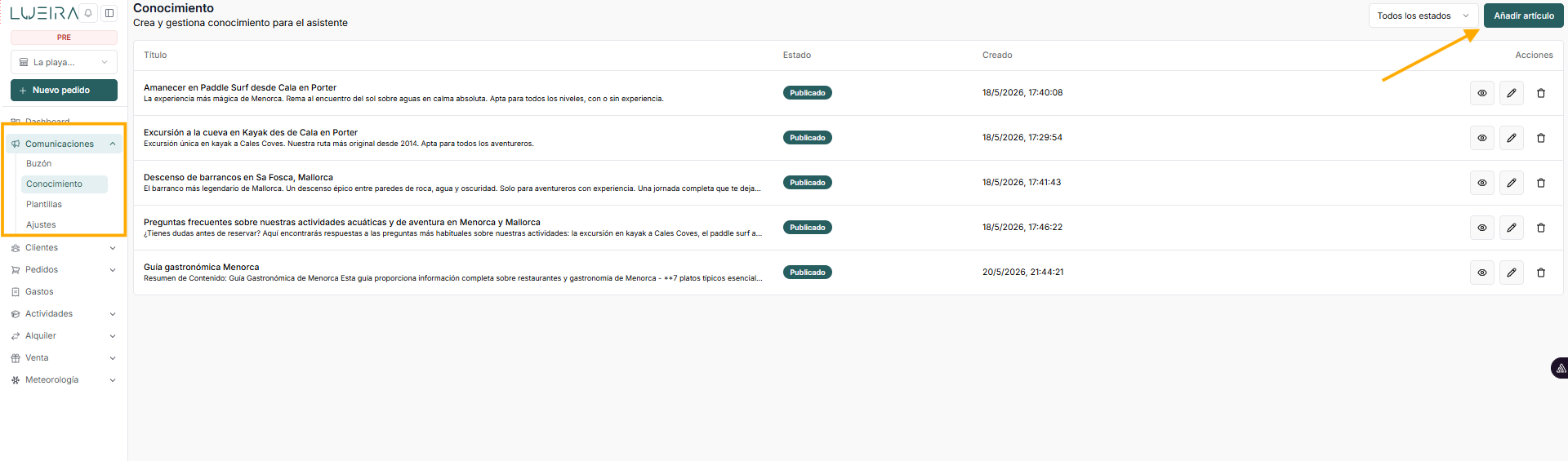
Create a Knowledge article
Go to Communications > Knowledge and click Add article. Each article has:
Title — short and descriptive (e.g. "Kayak cave trip from Cala en Porter").
Description — a one-sentence summary that helps the AI know what the article is about.
Content — all the detailed information. The more specific it is (exact prices, duration, what is included, what to bring, meeting point, ages, required level), the better the AI will answer.
Article statuses
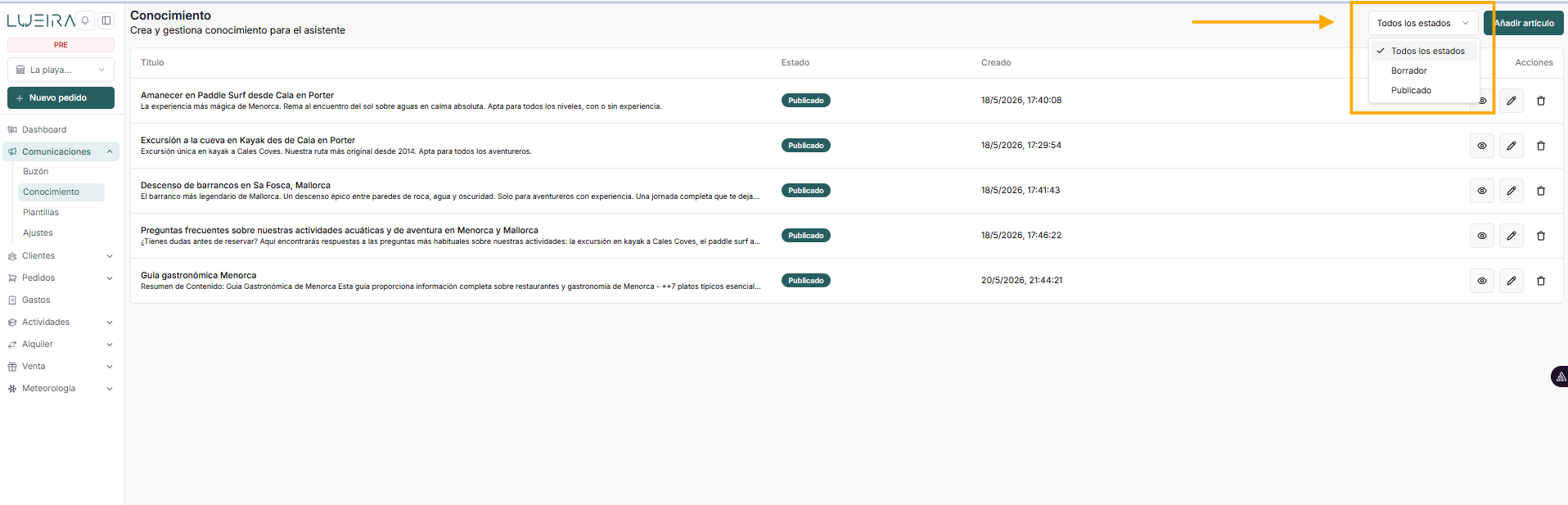
Each article can be Published (the AI uses it) or Draft (the AI ignores it). Draft is useful when you are preparing information you don't want it to use yet, or when you want to temporarily pause an article without deleting it.
From the Knowledge list you can filter by status with the dropdown in the top right corner, and each article has the view, edit and delete actions.
Which articles you should have
The recommended minimum:
One article for each activity or product you offer — with price, duration, what is included, what to bring, meeting point and required level.
A frequently asked questions article — cancellation policy, what happens if it rains, minimum ages, accessibility, payment methods.
Contact and location information.
Number blocklist
In the AI blocklist block (in the same Settings section) you can add phone numbers the AI must never reply to automatically. It is useful for:
Your own number and your team's (you don't want the AI to answer you when you message each other).
Suppliers you communicate with on WhatsApp.
Any customer whose conversation you prefer to handle manually.
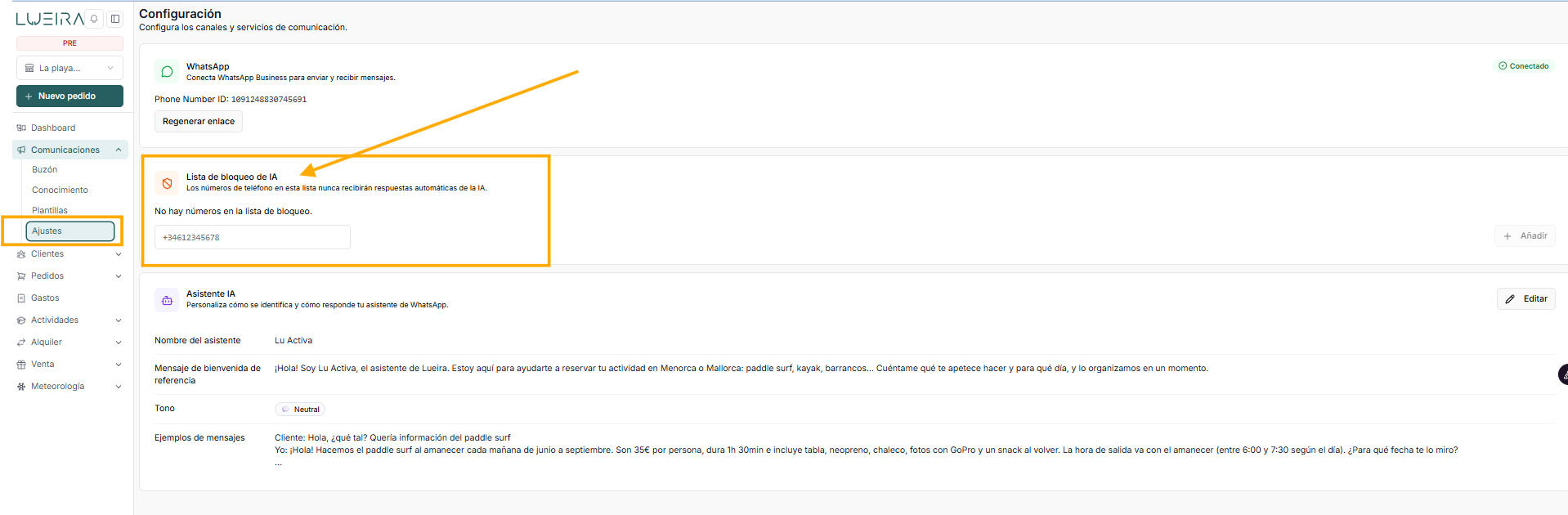
To add a number, type it in international format (e.g. +34612345678) in the field and click Add. To remove it, click the X next to the number.
Pause the WhatsApp Agent globally
If you need the AI to stop replying to all customers temporarily, you can pause it without losing its configuration. Go to Communications > Settings > AI Assistant and turn off the toggle next to the status badge. When the WhatsApp Agent is on you will see the Active badge (green dot); when you turn it off, the badge changes to Paused (amber dot) and no incoming message will receive an automatic reply.
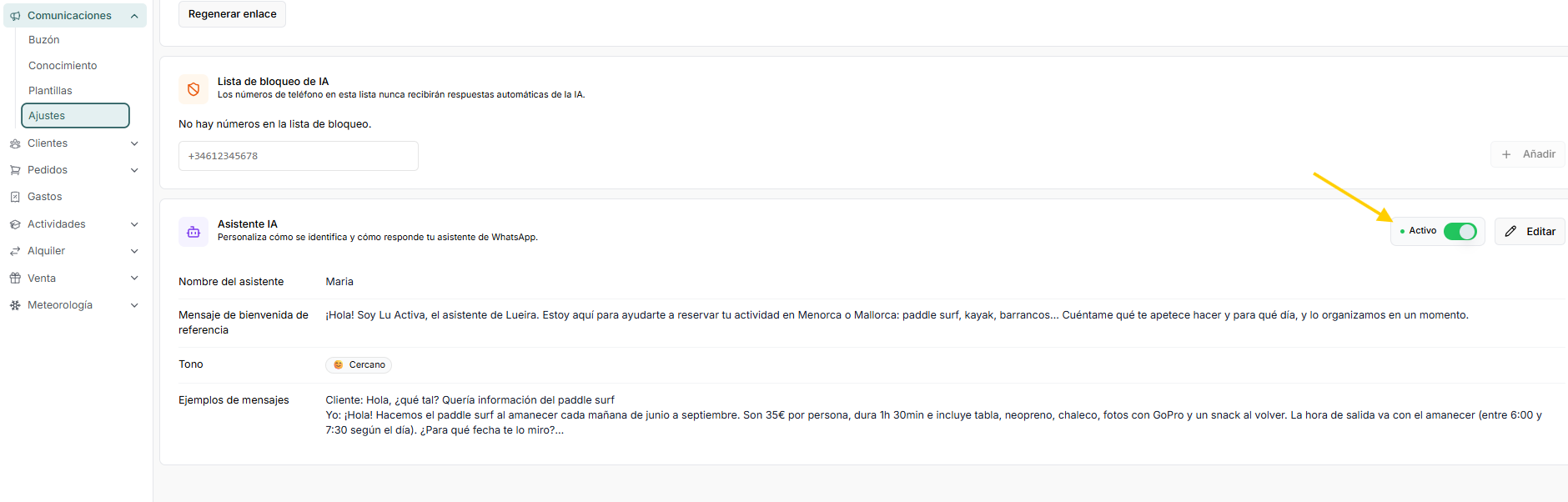
To reactivate it, turn the toggle back on from the same place. The badge changes to Active and the WhatsApp Agent resumes normal operation.
This is useful when you have a special event, an exceptional situation, or simply want to manage a season manually without losing the WhatsApp Agent's configuration.
Escalate a conversation to a human agent
There are situations where the AI is not enough and someone on your team needs to take over. That is what the human escalation system is for: each conversation can be in one of these three states:
AI active — the AI replies automatically as normal.
Pending human — the conversation has been escalated and nobody is handling it yet. The AI does not reply.
Human active — a member of your team is handling the conversation from the Admin. The AI does not reply.
How escalation is triggered
There are two situations in which a conversation moves to the Pending human state:
1. The customer asks to speak to a person. When the customer writes something like "I want to talk to a person", "I need help from a human" or similar expressions, the AI detects it and acts as follows:
It automatically sends a confirmation message to the customer: "We are going to put you in touch with an agent. Someone from the team will contact you shortly."
The conversation moves to Pending human. The AI stops replying.
Lueira sends a notification email to your account's notification address, letting you know that a customer wants to talk to an agent.
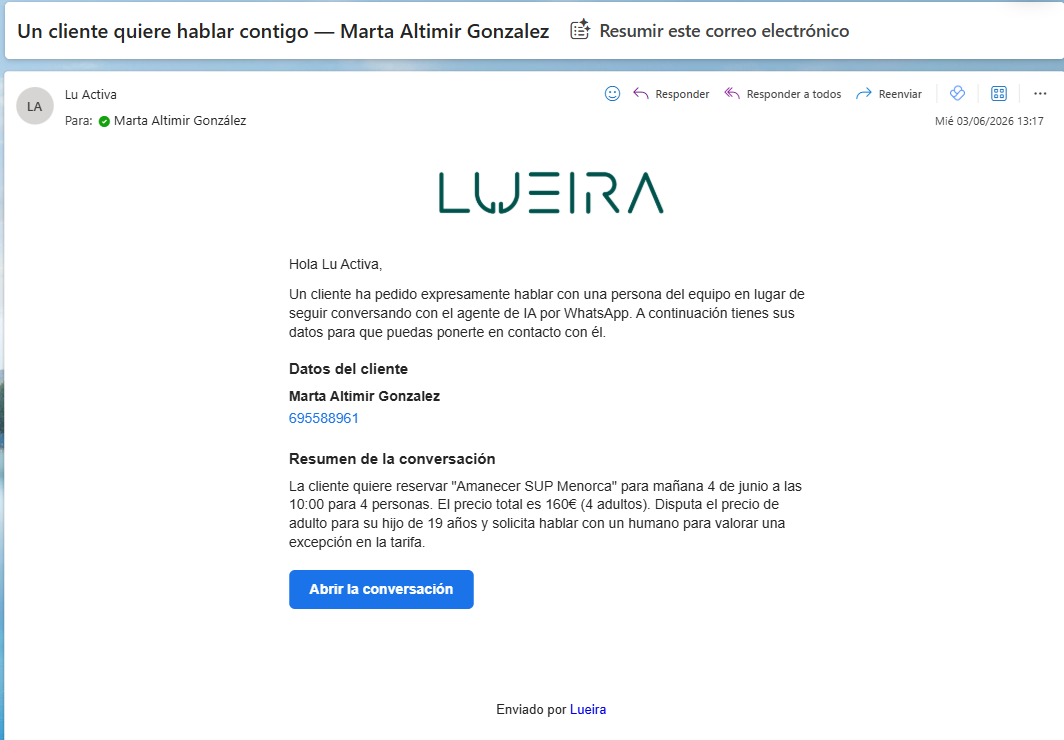
A notification appears in Lueira's notification panel.
2. The AI does not have enough information to answer.
Create orders from the conversation
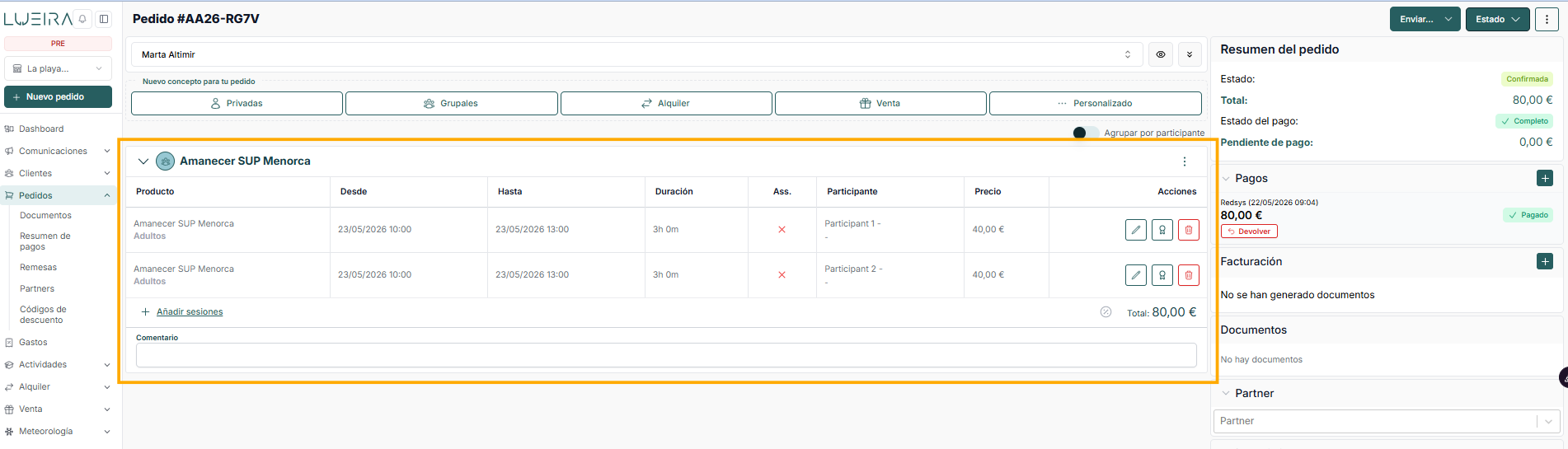
When the conversation moves towards a booking, the AI can guide the customer step by step until the order is paid and confirmed in Lueira, without you having to step in.
These are the steps of the flow for booking a group class:
1. Search and suggest options
The AI checks your group class catalog live and shows the customer the available options. It can list your group activities, see the sessions scheduled on a specific day, check the details of each product (price, duration, what is included, free spots) and simulate the final price before closing anything.
2. Build the order
The AI adds the group session to the customer's cart with the details agreed in the conversation:
The specific session (day and time).
The number of participants and, if the customer provides them, the name and phone number of each one.
Customer details.
4. Send the payment link
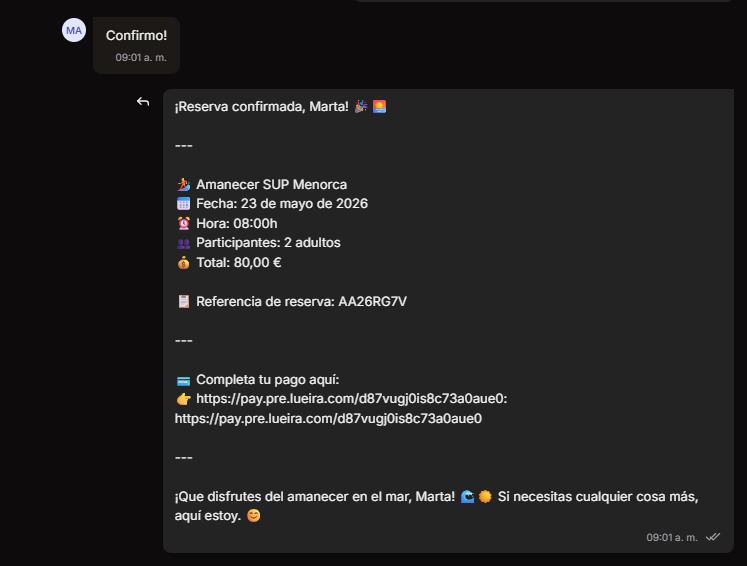
When everything is ready, the AI closes the cart. Lueira creates the order and returns a payment link to the customer in the conversation itself.
If you have partial payment enabled in your online store settings, the customer will pay the deposit percentage you have defined and the rest will be charged later according to the product's Timeline.
5. Automatic confirmation
When the customer pays, everything is automatic. Lueira:
Confirms the order on the platform.
Sends the customer an order confirmation email.
Sends the customer an order confirmation WhatsApp (if you have that template configured).
Sends the customer a payment confirmation email.
If the product has documents to sign or check-in forms, it sends them to the customer to complete.
Related articles
WhatsApp templates in Lueira — for outgoing messages and automatic notifications.
Product Timeline: automatic communications based on the session — for the reminders and communications that are triggered automatically after each booking.
Communications in Lueira — overview of the module.
Common problems and what is included
Common problems
The AI does not reply to a customer
Check, in this order:
That the WhatsApp Agent is Active and not Paused (Communications → Settings → AI Assistant).
That the conversation is not in Pending human or Human active: in those states the AI does not reply.
That the number is not in the AI blocklist.
If you have Synced personal contacts enabled, the AI does not reply to numbers saved as contacts on the WhatsApp Business phone. Turn it off if your team also saves customer numbers there.
That WhatsApp is still connected in Communications → Settings → Numbers and connection. If the connection appears down, contact us before reconnecting.
How do I know the AI has passed a conversation to a person?
Lueira sends a notification email to your account's notification address and shows an alert in the notification panel (see "Escalate a conversation to a human agent"). If you don't receive the email, check your SPAM folder and that your account's notification email is the correct one.
Is it included in my plan?
The WhatsApp Agent is an extra service: it is not included in the plan by default. Contact us if you want to activate it or find out what you have contracted.
More guides about the WhatsApp Agent
What the WhatsApp Agent sells and what it does when it can't — products you don't sell in Lueira and sending your website link.
Web purchase link in Knowledge articles — the purchase URL, by language.
WhatsApp Agent Knowledge — how to create articles it uses well.
Communications Inbox — handle a conversation and return it to the AI.
The WhatsApp Agent doesn't reply or replies badly — checklist.
Web chat — the same assistant on your website.
Related guides
- Communications in LueiraThe Communications module brings together everything you need to talk to your customers by email and WhatsApp: templates, the WhatsApp Agent, the unified inbox and the knowledge base that feeds the WhatsApp Agent.
- Before connecting WhatsApp: prerequisites in MetaStep-by-step guide to preparing your Meta business portfolio, business verification, display name and number, and to choosing between the WhatsApp Business app (coexistence) and a dedicated number (Cloud API).
- Connect WhatsApp in LueiraHow to connect your WhatsApp Business number to Lueira: choose between connecting the WhatsApp Business app or a dedicated number, and complete the process in Meta in under 2 minutes.
- One WhatsApp number per locationIf your account has several locations, each one can have its own WhatsApp number. Requirements, how to connect them and what is shared between numbers.
- What the WhatsApp Agent sells and what it does when it can'tThe WhatsApp Agent only books what exists as a product in your store. For everything else it sends the customer the purchase link from your website. Here you can see how it works and how to set it up.
- WhatsApp Agent Knowledge: how to create articles it uses wellHow to create, link to products, translate and publish the Knowledge articles the WhatsApp Agent draws its answers from.