

Communications Inbox: handle a conversation and hand it back to the AI
How to read WhatsApp conversations, step in when you want to reply yourself, send a template if the 24-hour window is closed, and hand the conversation back to the WhatsApp Agent.
On this page
What the Inbox is
In Communications > Inbox you see your customers' WhatsApp conversations, including those handled by the WhatsApp Agent. On the left you have the list (with a search box, Search conversations), in the centre the messages and on the right the customer's profile.
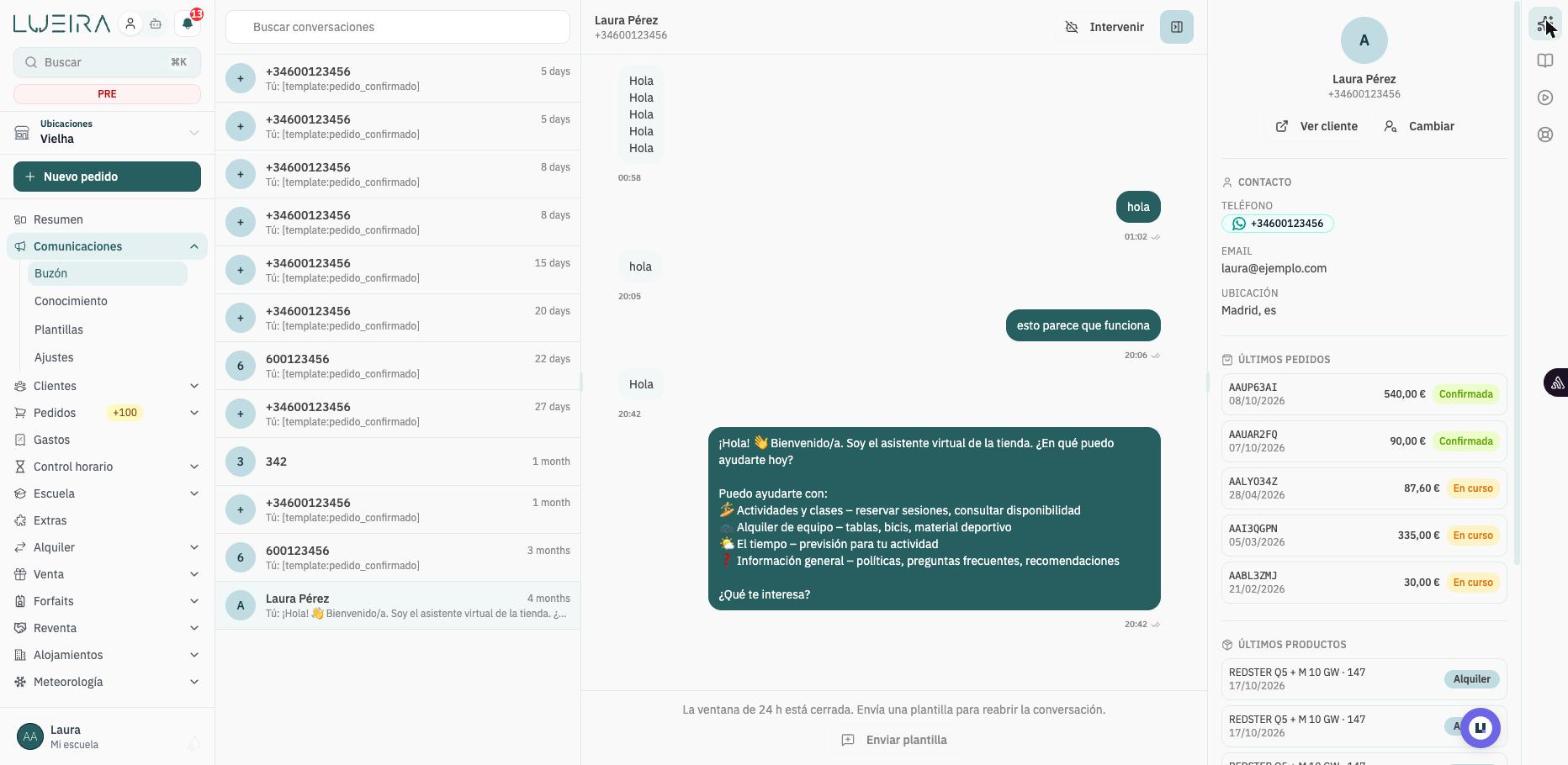
The profile on the right shows the customer's phone, email and location, their latest orders and latest products, and the View customer and Change buttons. If the number is not yet linked to any customer, click Link customer and search by name, phone or email to see their orders here. If the customer has unsubscribed from marketing, you will see it indicated.
If your account has one WhatsApp number per location, a Number selector appears at the top with the summary "X of Y numbers connected" (see One WhatsApp number per location).
Step in and hand the conversation back to the AI
While the WhatsApp Agent is active, it is the one replying. If you want to reply yourself:
Open the conversation and click Step in (at the top, to the right of the name). The AI stops replying to that customer.
Write your messages as usual.
When you are done, click Hand back to AI so the WhatsApp Agent picks the conversation up again.
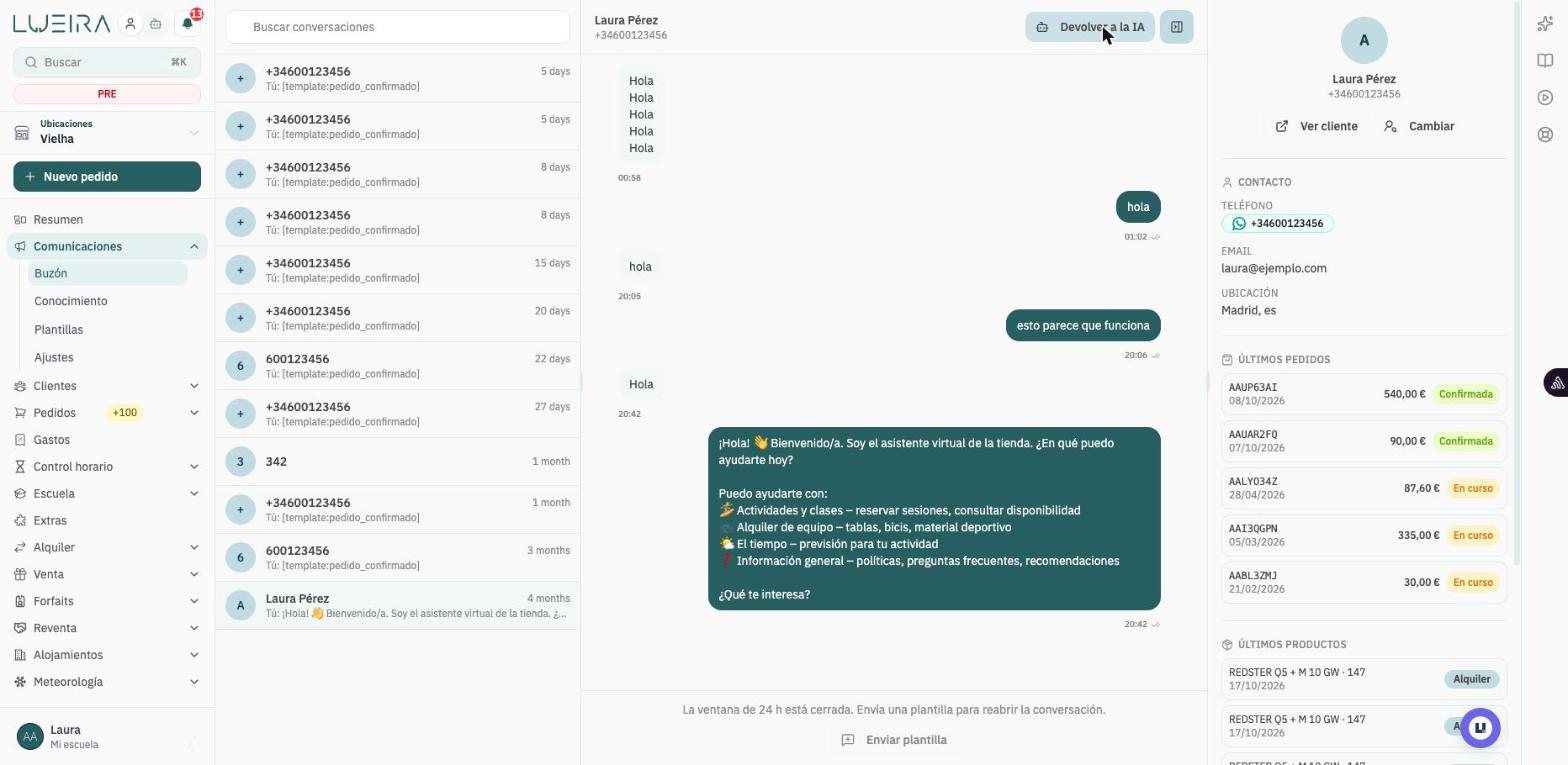
If the last message is from the customer and has not been answered yet, when you hand it back Lueira asks you "Give the AI the latest messages?": with Yes, let it reply the WhatsApp Agent reads what happened while you were handling it and replies now; with No, just hand back it waits for the customer's next message.
Each conversation is in one of these states: AI active, Pending human (the customer asked to speak to a person or the AI could not help; nobody is handling it yet) or Human active (your team is handling it). In the last two, the AI does not reply. More detail in WhatsApp Agent.
If your account has several locations
In an account with several locations, each location has its own WhatsApp number. The Inbox only shows you the conversations of the numbers of the locations you can work in, and you can only reply in them. If a colleague with access to another location opens the Inbox, they will see the conversations of theirs.
If you don't see a conversation you expected, ask an administrator to check that your user has access to the location of that number. Accounts with a single location see all conversations, as always.
24-hour window and sending templates
WhatsApp only lets you write freely during the 24 hours after the customer's last message. After that time, instead of the text box you will see the notice "The 24-hour window is closed. Send a template to reopen the conversation" and the Send template button.
Click Send template.
Choose a template from the dropdown and review the preview.
Click Send template.
Keep in mind:
Only approved templates appear (see WhatsApp templates in Lueira). If you don't have any, you will see that there are no approved templates.
Templates with numbered parameters (
{{1}}) cannot be sent from the Inbox; a notice is shown on screen.Attachments (photo, video, document or voice note) can weigh at most 16 MB; depending on your number's connection type, attachments may not be available.
Why the AI did not reply to a message
When the AI does not reply to a message, the conversation shows the No AI reply label with the reason:
Conversation handed over to an agent: it is in Pending human or Human active.
Number on the block list.
Synced personal contact: the number is saved in the contacts of the WhatsApp Business phone.
AI paused: the WhatsApp Agent is paused in Communications > Settings.
AI module disabled: the account does not have the WhatsApp Agent enabled.
To resolve each case, follow The WhatsApp Agent doesn't reply or replies badly.
Related guides
- Communications in LueiraThe Communications module brings together everything you need to talk to your customers by email and WhatsApp: templates, the WhatsApp Agent, the unified inbox and the knowledge base that feeds the WhatsApp Agent.
- Before connecting WhatsApp: prerequisites in MetaStep-by-step guide to preparing your Meta business portfolio, business verification, display name and number, and to choosing between the WhatsApp Business app (coexistence) and a dedicated number (Cloud API).
- Connect WhatsApp in LueiraHow to connect your WhatsApp Business number to Lueira: choose between connecting the WhatsApp Business app or a dedicated number, and complete the process in Meta in under 2 minutes.
- One WhatsApp number per locationIf your account has several locations, each one can have its own WhatsApp number. Requirements, how to connect them and what is shared between numbers.
- WhatsApp AgentSet up the WhatsApp Agent, which automatically replies to your customers' WhatsApp messages, uses your articles as its source of information and can create orders directly from the chat.
- What the WhatsApp Agent sells and what it does when it can'tThe WhatsApp Agent only books what exists as a product in your store. For everything else it sends the customer the purchase link from your website. Here you can see how it works and how to set it up.