

WhatsApp templates in Lueira
Create WhatsApp templates to send messages to your customers — manually from an order or automatically when a booking is confirmed, a payment comes in or a session is approaching.
On this page
- WhatsApp templates in Lueira
- Create a template
- Template type
- Variables and personalisation
- Languages
- When it is sent
- When an order is confirmed
- When a payment is confirmed
- Manually from an order
- As a step of a Product Timeline
- Default template
- Meta approval
- Manual sending from an order
- Best practices
- Related articles
- Common problems with templates
- Common problems
- The template is approved but the message doesn't arrive or shows as not delivered
- The template stays "Pending" or is "Rejected"
- I don't see the "Free message" option
WhatsApp templates in Lueira
WhatsApp templates let you send messages to your customers without writing them one by one. You use them to confirm orders, notify received payments, remind of the meeting point before a session or any other recurring communication.
You create them once, Meta approves them, and from then on Lueira can send them in two ways: automatically when an event happens (an order is confirmed, a payment comes in, X hours remain before a session) or manually from the detail of any order.
Create a template
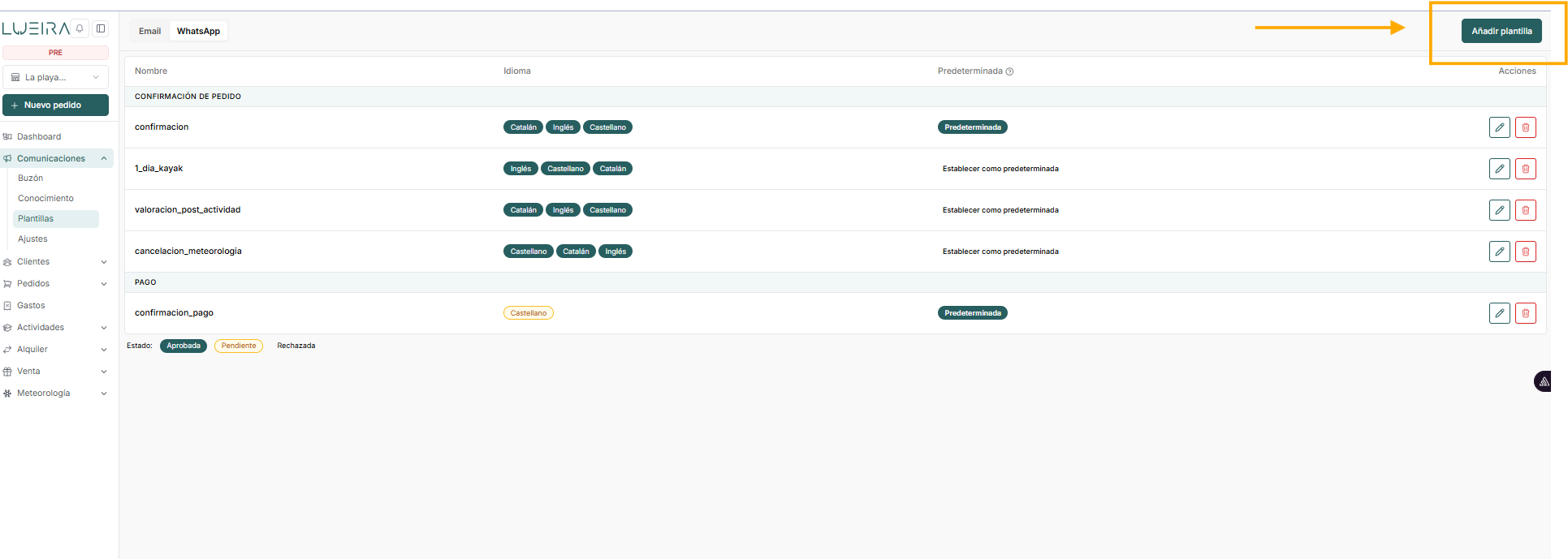
Go to Communications > Templates and click Add template. The form is divided into four blocks that match the structure of a WhatsApp message:
Header (optional) — the message header. It can be text or a media element.
Body — the message body. This is where the variables that personalise each send go.
Footer (optional) — a thin line at the bottom of the message.
Buttons (optional) — quick-reply or URL buttons.
On the right you have a preview that updates in real time and shows you how the customer will see the message in WhatsApp.
Template type
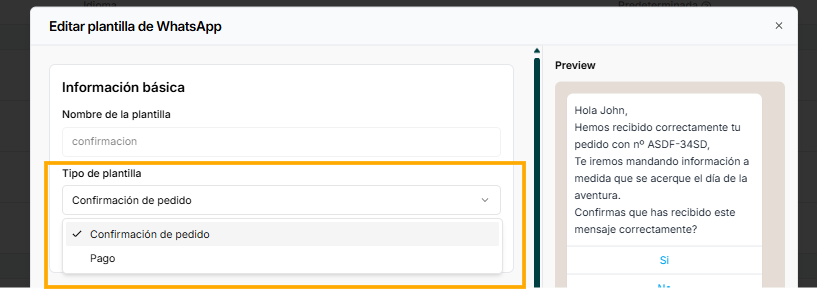
When you create a template you have to choose its type, which determines at which automatic moments it will be available:
Order confirmation — triggered automatically when an order changes to confirmed status.
Payment — triggered automatically when a payment for an order comes in.
Payment refund — triggered automatically when a refund is recorded.
Other — for templates that do not correspond to any automatic order event: reminders before the activity, thank-you messages afterwards, review requests, cancellation notices, etc. "Other" type templates can only be used as a step of a Product Timeline or sent manually from an order.
When you create a new template, Lueira shows you a notice reminding you that WhatsApp templates must be approved by Meta before they can be used.
Variables and personalisation
To personalise each send with customer or order data, use the variable selector. The most common ones are:
[customer_first_name]— customer's first name[tenant_name]— your business name[order_reference]— order reference[order_table]— order breakdown in table format[payment_URL]— payment link
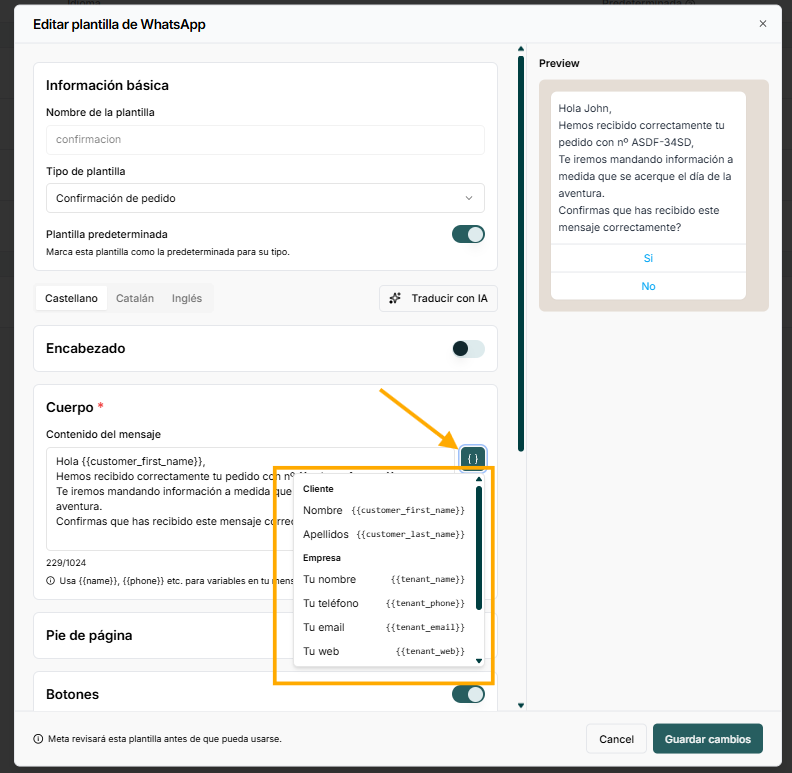
When the template is sent, Lueira replaces each variable with the real data of that customer or order.
Languages
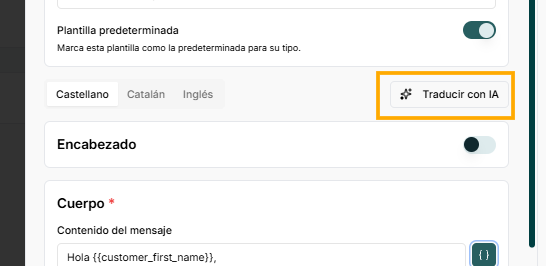
Each template can have versions in Spanish, Catalan, English and French. You will see one tab per language — the one for the tenant's default language appears first.
If you don't want to translate by hand, click Translate with AI and the AI will fill in the remaining languages from the one you have already written. Always review the result before saving, especially if you have used local expressions.
When it is sent
A template, on its own, is not sent. You have to decide at what moment Lueira will use it. There are three ways to use it depending on its type:
When an order is confirmed
Only available for Order confirmation type templates. When an order changes to confirmed status, the template is automatically sent to the customer. Useful for messages like "We have received your booking, here are the details".
When a payment is confirmed
Only available for Payment type templates. When a payment for an order comes in, the template is automatically sent to the customer. Useful for payment confirmations or notices like "Payment received, all in order".
Manually from an order
Any approved template (of any type, including "Other") is available for you to send by hand whenever you want from the detail of any order. Useful for one-off or non-recurring communications. Further below I explain how the manual sending flow works.
As a step of a Product Timeline
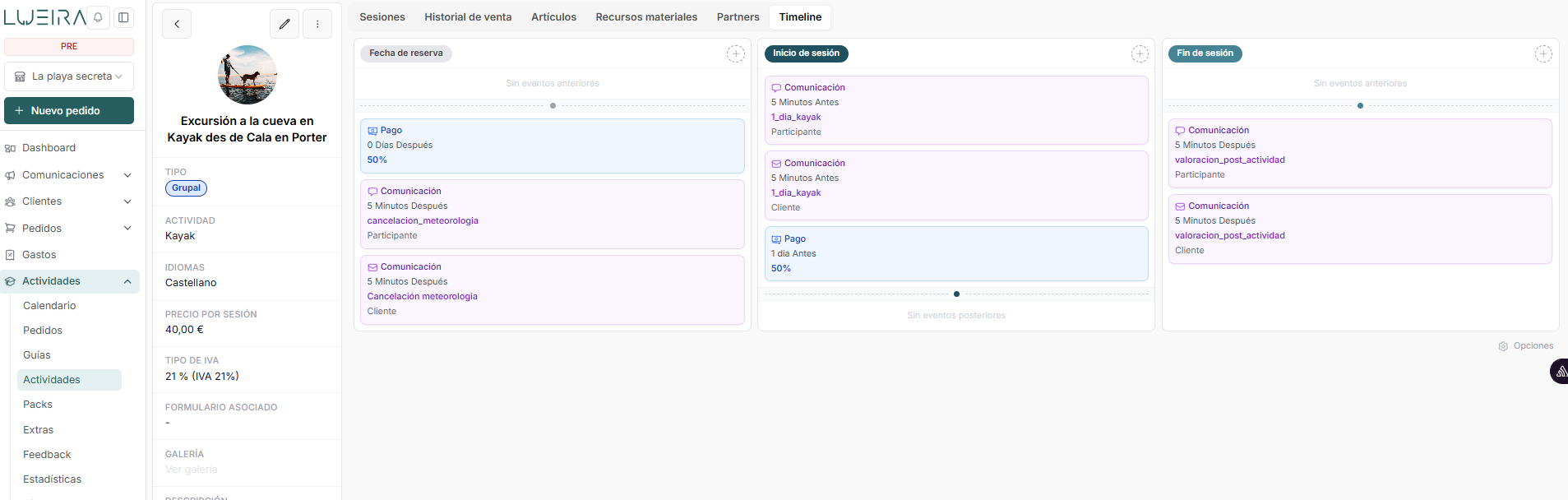
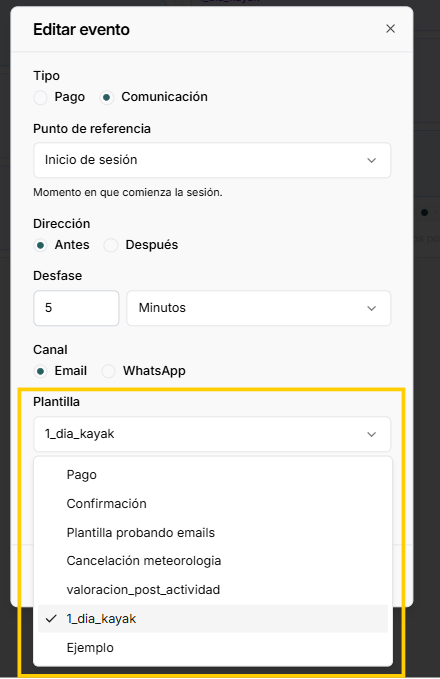
The template is linked as one of the steps of a product's Timeline and is sent at the moment you define: X hours/minutes/days before or after the start or end of each session, or after the booking date.
This is what lets you schedule automatic reminders before the activity, thank-you messages afterwards, etc. Linking the template to the Timeline step is done from the product's Timeline tab, not from the templates screen. Other type templates are especially useful here, since they are not linked to any specific order event.
👉 How to set up the Product Timeline
Default template
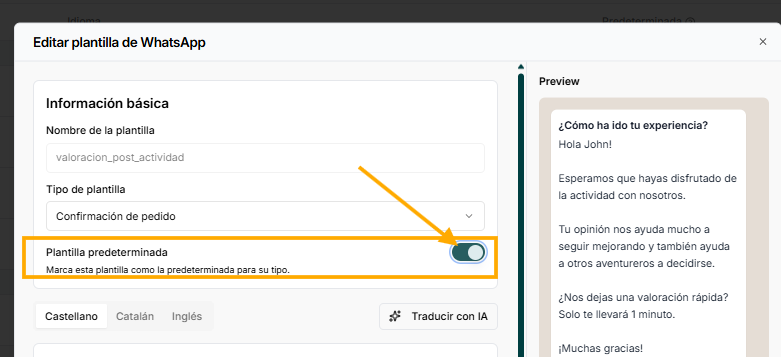
For the automatic order triggers (order confirmation and payment confirmation), you can have several templates of the same type. The one you mark as default will be the one used when the event is triggered. Useful if you want to keep alternative versions of the same template without all of them being triggered at once.
Meta approval
WhatsApp templates go through Meta approval before they can be sent. When you save a template, its initial status is Pending. Meta reviews it and can:
Approve it → it changes to Approved status and can be sent.
Reject it → it changes to Rejected status. The most frequent reasons are promotional content not categorised as Marketing, badly defined variables or language outside Meta's policies. If a template is rejected, edit it and submit it for approval again.
Without an approved template, none of the triggers above will work — neither manual, nor automatic, nor Timeline.
Manual sending from an order
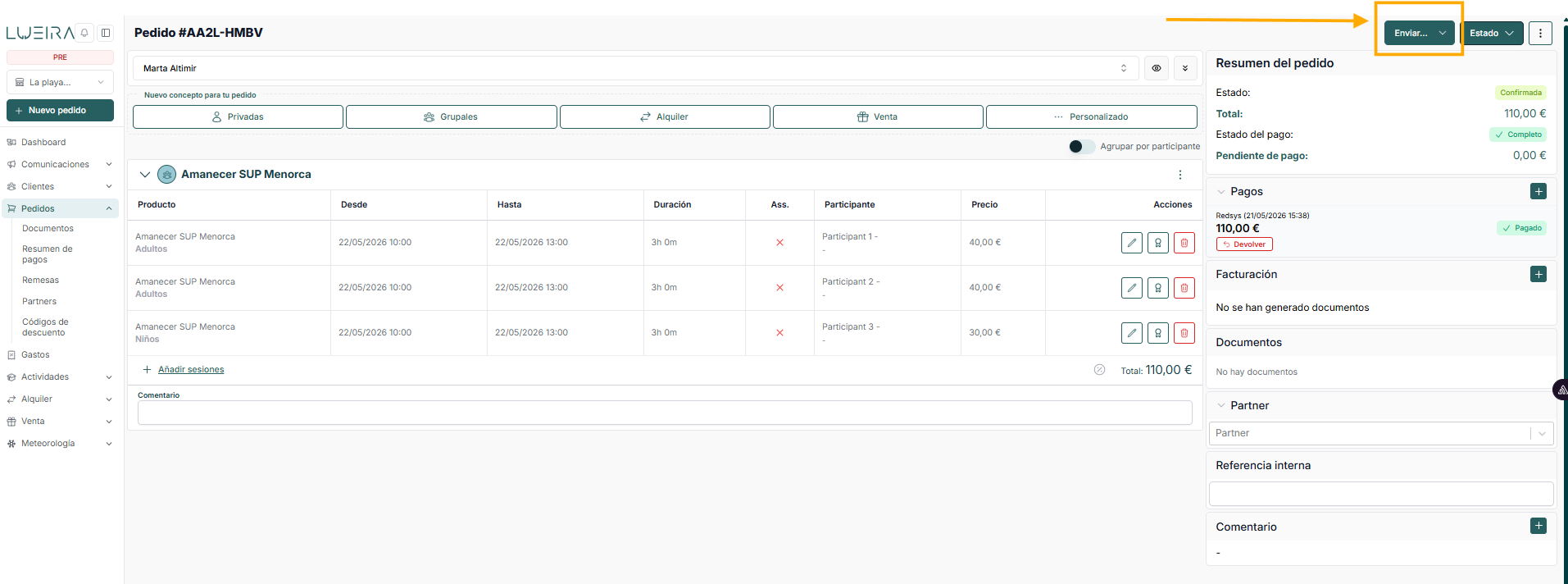
Even if you have set up the triggers in the template, you can always send messages by hand from the detail of any order. Click the Send WhatsApp message button and a dialog opens with two options:
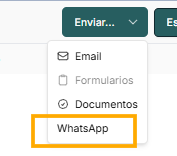
Template — you choose one of your approved templates. The system automatically fills in the variables with the order and customer data.
Free message — you write the message by hand. It is only available if you have an open conversation with that customer within the last 24 hours (this is a WhatsApp Business restriction, not a Lueira one). If the conversation window is not open, this option does not appear.
Before sending you can confirm or change the customer's phone prefix.
Best practices
Make the most of variables — a message with the customer's name and the order data reads much better than a generic one.
Use the preview before saving to confirm the format looks right in WhatsApp.
Start with the main language and translate with AI, but always review the translations by hand before submitting them for approval.
For reminders, reviews, cancellations or other communications not linked to order events, use the Other type and link them to the Product Timeline.
Related articles
Product Timeline: automatic communications based on the session — to set up scheduled sends before, during or after each session.
WhatsApp Agent — so the AI automatically answers incoming messages.
Communications in Lueira — overview of the module.
Common problems with templates
Common problems
The template is approved but the message doesn't arrive or shows as not delivered
The most common cause is that your WhatsApp Business account in Meta does not have a valid payment method (card) or the currency is not set: Meta blocks the sending of templates even if they are approved. Check the billing of your WhatsApp Business account in Meta (Business settings → WhatsApp accounts → your account → Billing, or from the Billing Hub) and add the card and the currency.
📘 More detail in Before connecting WhatsApp: prerequisites in Meta, "Payment method" section.
The template stays "Pending" or is "Rejected"
Pending: Meta has not reviewed it yet. In the meantime it cannot be sent, neither manually nor automatically.
Rejected: edit it and submit it for approval again (see "Meta approval" above).
If, after connecting WhatsApp, no template moves out of pending, or the number appears as unavailable, you may need to reconnect WhatsApp. Write to us before doing so and we will guide you.
I don't see the "Free message" option
It is only available if the customer has written to you in the last 24 hours. Outside that window, WhatsApp only allows sending approved templates.
Related guides
- Communications in LueiraThe Communications module brings together everything you need to talk to your customers by email and WhatsApp: templates, the WhatsApp Agent, the unified inbox and the knowledge base that feeds the WhatsApp Agent.
- Before connecting WhatsApp: prerequisites in MetaStep-by-step guide to preparing your Meta business portfolio, business verification, display name and number, and to choosing between the WhatsApp Business app (coexistence) and a dedicated number (Cloud API).
- Connect WhatsApp in LueiraHow to connect your WhatsApp Business number to Lueira: choose between connecting the WhatsApp Business app or a dedicated number, and complete the process in Meta in under 2 minutes.
- One WhatsApp number per locationIf your account has several locations, each one can have its own WhatsApp number. Requirements, how to connect them and what is shared between numbers.
- WhatsApp AgentSet up the WhatsApp Agent, which automatically replies to your customers' WhatsApp messages, uses your articles as its source of information and can create orders directly from the chat.
- What the WhatsApp Agent sells and what it does when it can'tThe WhatsApp Agent only books what exists as a product in your store. For everything else it sends the customer the purchase link from your website. Here you can see how it works and how to set it up.