

Connect WhatsApp in Lueira
How to connect your WhatsApp Business number to Lueira: choose between connecting the WhatsApp Business app or a dedicated number, and complete the process in Meta in under 2 minutes.
On this page
- Connect WhatsApp in Lueira
- Connect WhatsApp in Lueira
- 1. Open the WhatsApp settings
- 2. Choose the connection type
- Option A — WhatsApp Business app
- Option B — Dedicated phone number
- 3. Complete the setup in Meta
- Once connected
- Related articles
- Where each setting is now and what to do if you don't see Communications
Connect WhatsApp in Lueira
Connect WhatsApp in Lueira
For Lueira to be able to send and receive WhatsApp messages, you need to connect a phone number. The process is done only once from Communications > Settings and takes about 2 minutes.
📋 Before you start: you need a Meta business portfolio, a verified business (recommended) and your number ready. If you are not sure, first read Before connecting WhatsApp: prerequisites in Meta.
1. Open the WhatsApp settings
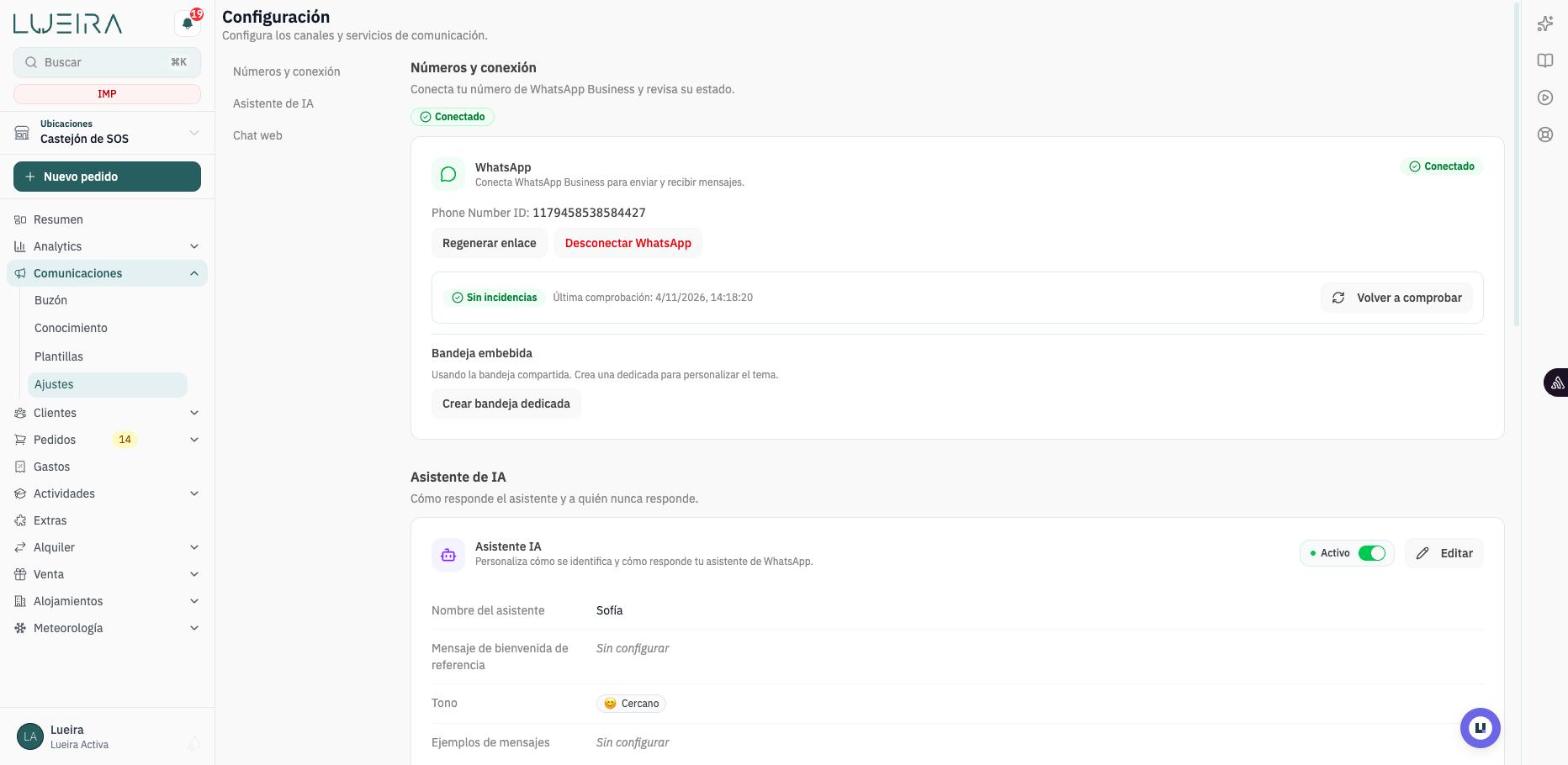
Go to Communications > Settings. At the top you will find the WhatsApp block, which will show the status Pending if you have not connected any number yet.
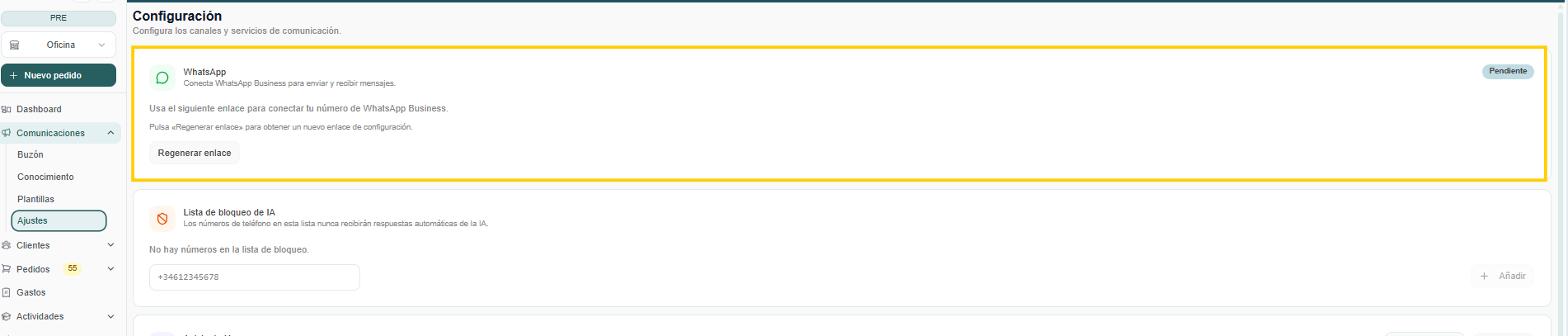
You will see a setup link. Click the copy icon or open it directly to go to the connection page.

2. Choose the connection type
On the setup page you have two options:
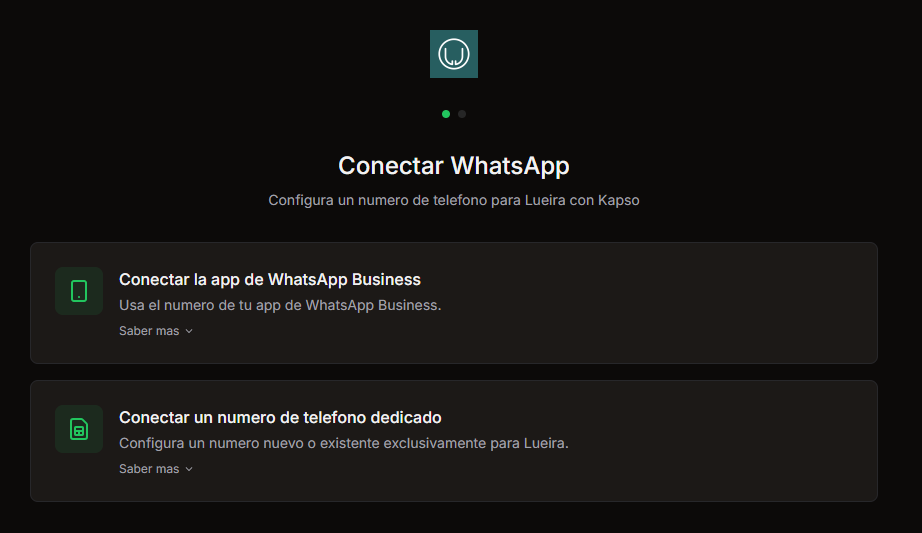
Option A — WhatsApp Business app
Use the number you already have in your WhatsApp Business app. It is the fastest option if you already have an active number and want to keep using the app.
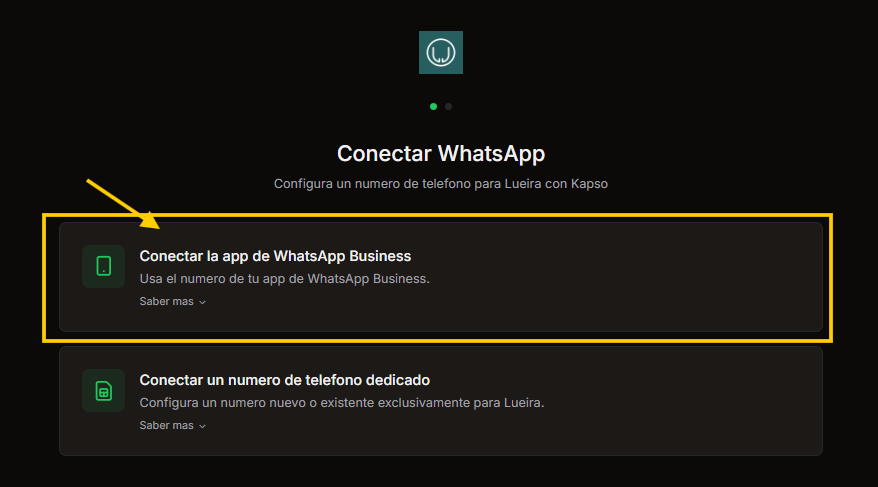
You can keep using the WhatsApp Business app alongside Lueira.
Messages are synced between the app and Lueira.
Capacity of up to 20 messages per second.
⚠️ Important: after connecting, use the WhatsApp Business app regularly. If about two weeks go by with no activity in the app, the phone is disconnected and you will have to connect it again.
Option B — Dedicated phone number
Set up a new number or an existing one exclusively for Lueira. It is the recommended option if you want to get the most out of the communication features.
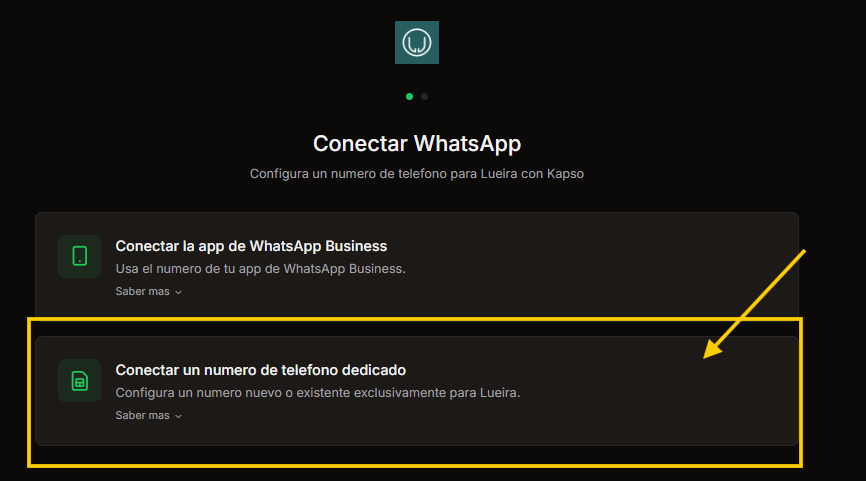
Full API access without the limitations of the app.
Sending speed scales automatically with your usage and the quality of your messages, up to 1,000 messages per second.
Compatible with advanced features such as the WhatsApp Agent and automatic templates.
3. Complete the setup in Meta
Whichever option you chose, the process is the same:
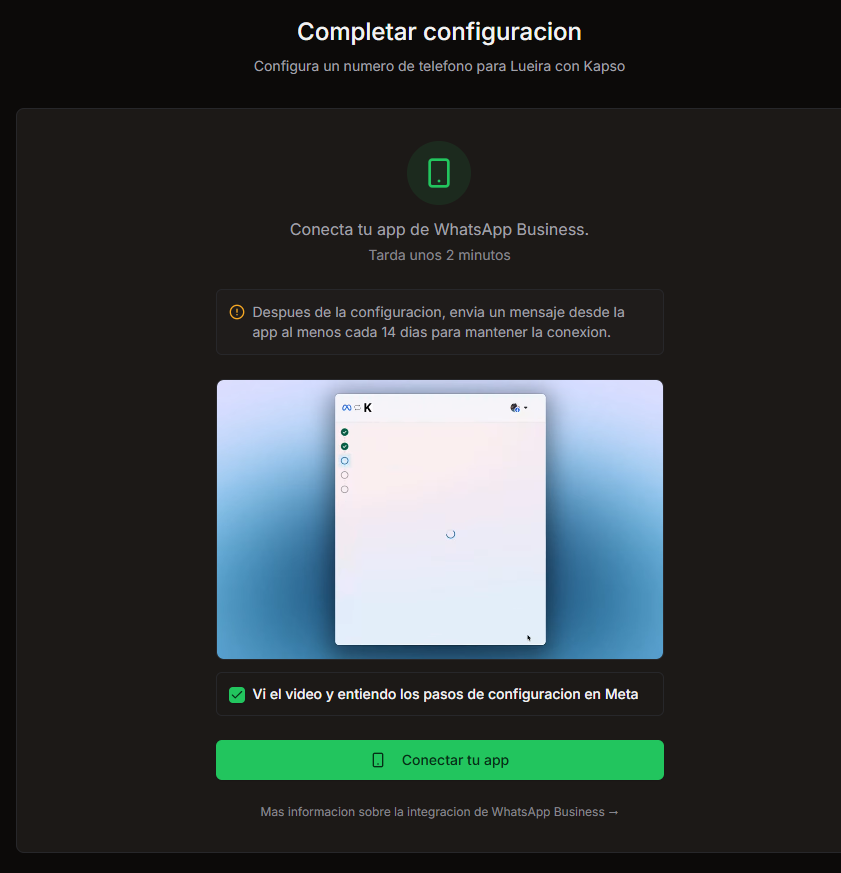
Watch the instructions video shown on screen.
Tick the checkbox "I watched the video and I understand the setup steps in Meta".
Click the button: Connect your app (Option A) or Set up number (Option B).
The Meta flow will open. Log in with your Facebook Business account, select or create your WhatsApp Business account and authorize access.
Once connected
When the connection is complete, the status in Communications > Settings will change from Pending to connected. From then on you can:
Receive and send WhatsApp messages from the Lueira Inbox.
Create and use WhatsApp templates for automatic communications and reminders.
Activate the WhatsApp Agent so that it replies automatically to your customers.
Related articles
Before connecting WhatsApp: prerequisites in Meta — business portfolio, verification, display name and differences between the app and a dedicated number.
WhatsApp templates in Lueira — how to create and use templates for outgoing messages.
WhatsApp Agent — set up a WhatsApp Agent that replies automatically to your customers 24/7.
Where each setting is now and what to do if you don't see Communications
The Communications > Settings screen is divided into three sections, which you can see in the menu on the left of the screen: Numbers and connection (the WhatsApp status), AI Assistant and Web chat.
Don't see the Communications tab? The module is activated per account. If it does not appear in your menu, write to us and we will activate it before you connect the number.
If your account has several locations, see One WhatsApp number per location.
Related guides
- Communications in LueiraThe Communications module brings together everything you need to talk to your customers by email and WhatsApp: templates, the WhatsApp Agent, the unified inbox and the knowledge base that feeds the WhatsApp Agent.
- Before connecting WhatsApp: prerequisites in MetaStep-by-step guide to preparing your Meta business portfolio, business verification, display name and number, and to choosing between the WhatsApp Business app (coexistence) and a dedicated number (Cloud API).
- One WhatsApp number per locationIf your account has several locations, each one can have its own WhatsApp number. Requirements, how to connect them and what is shared between numbers.
- WhatsApp AgentSet up the WhatsApp Agent, which automatically replies to your customers' WhatsApp messages, uses your articles as its source of information and can create orders directly from the chat.
- What the WhatsApp Agent sells and what it does when it can'tThe WhatsApp Agent only books what exists as a product in your store. For everything else it sends the customer the purchase link from your website. Here you can see how it works and how to set it up.
- WhatsApp Agent Knowledge: how to create articles it uses wellHow to create, link to products, translate and publish the Knowledge articles the WhatsApp Agent draws its answers from.