

The WhatsApp Agent doesn't reply or replies badly: how to diagnose it
Checklist for when the WhatsApp Agent doesn't answer, says there is no availability, doesn't sell or doesn't let you see the Communications tab.
On this page
The WhatsApp Agent doesn't reply to a customer
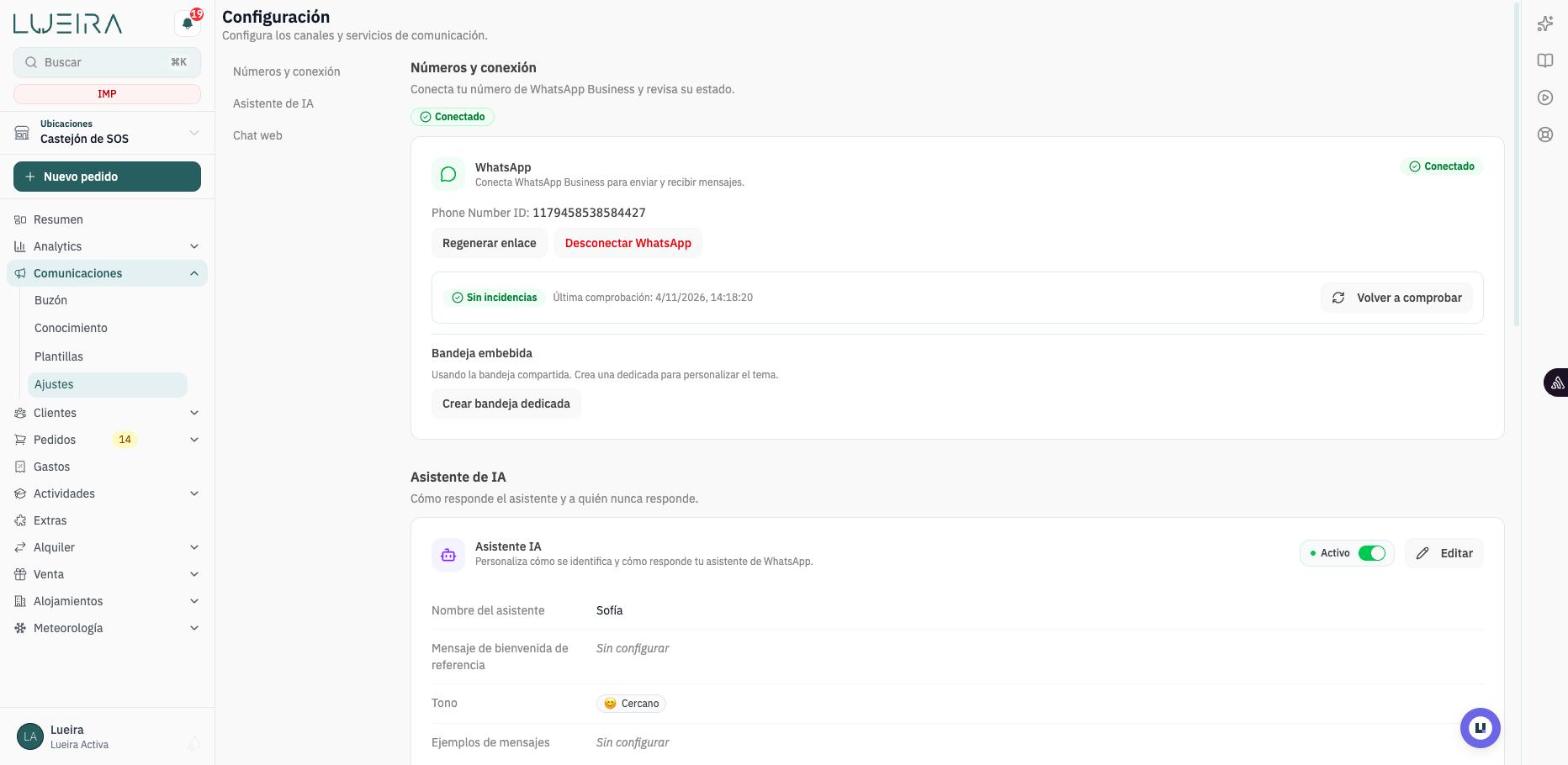
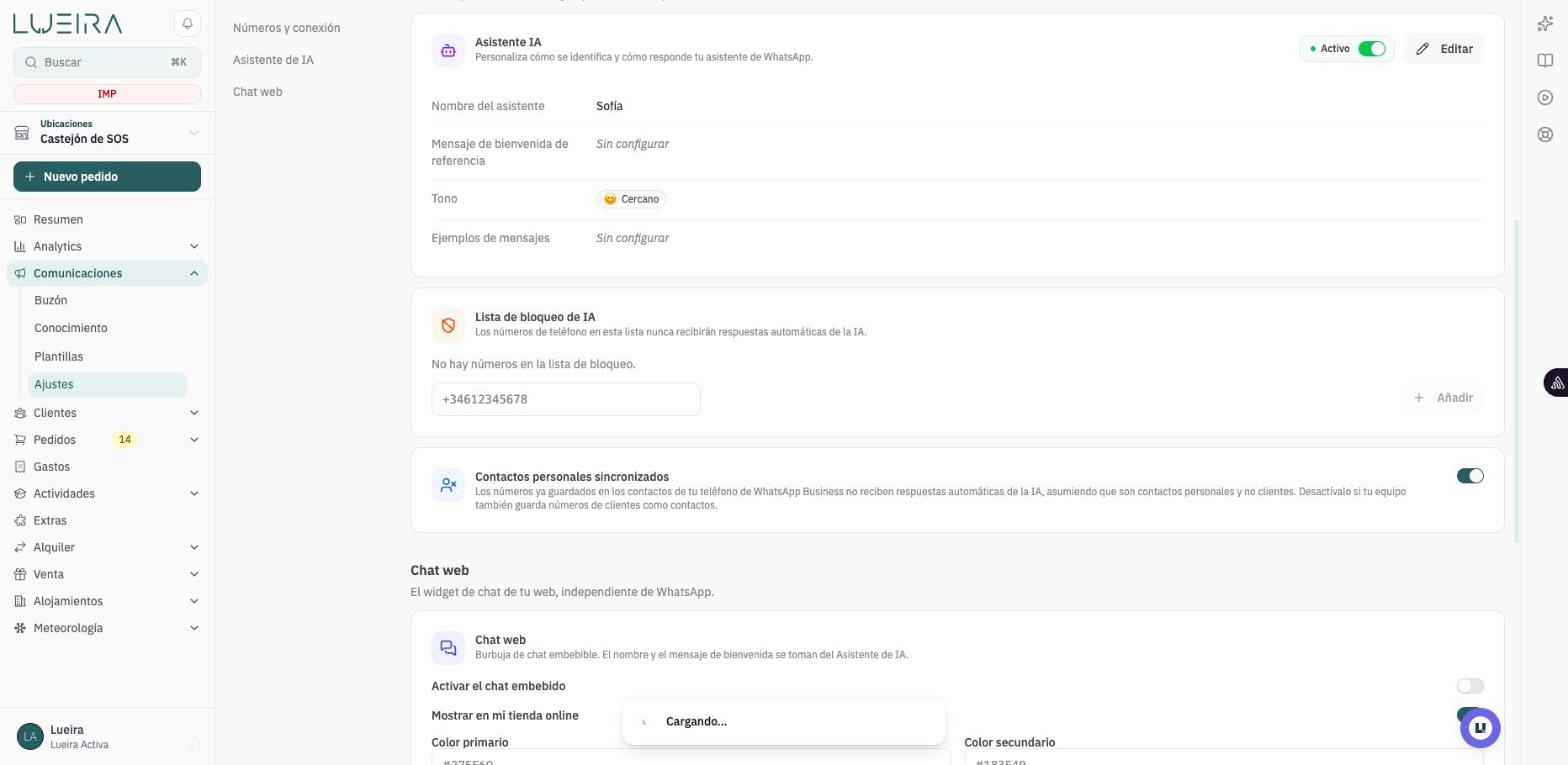
Check, in this order, in Communications > Settings:
AI Assistant active. The badge must say Active, not Paused.
The conversation is not taken over. In Communications > Inbox, if it is in Pending human or Human active the AI doesn't reply. Click Return to AI when you are done.
The number is not in the AI blocklist.
Synced personal contacts. If enabled, the AI doesn't reply to numbers saved as contacts on the WhatsApp Business phone. Turn it off if your team also saves customer numbers there.
WhatsApp connected. Under Numbers and connection it must show Connected and No issues; click Check again. If it shows as down, contact us before reconnecting.
The WhatsApp Agent says there is no availability (and there is)
The WhatsApp Agent checks the real availability of your online store, so when it says there are no spots it is almost always because of something about the product or the date. Check:
That the product is visible in the online store and has sessions created on those dates.
That the session has free spots and is not blocked.
That it doesn't clash with the minimum notice or the closing time for online bookings.
That the customer is asking for the correct year: the WhatsApp Agent doesn't offer past dates.
If everything is fine, try booking those same dates yourself from the online store. If they do appear there and the WhatsApp Agent still says no, contact us with the customer's phone number, the requested date and the approximate time of the message so we can look into it.
I can't see the Communications tab
The Communications module (Inbox, Knowledge, Templates and Settings) is activated per account. If it doesn't appear in the menu, it isn't activated in yours yet: contact us and we will activate it. Before connecting the number, read Before connecting WhatsApp: prerequisites in Meta and follow Connect WhatsApp in Lueira.
The WhatsApp Agent doesn't sell or doesn't send the purchase link
If the customer asks about something you don't sell in Lueira and the WhatsApp Agent doesn't give them the link, see What the WhatsApp Agent sells and what it does when it can't. To set it up: Web purchase link in Knowledge articles.
Related guides
- Communications in LueiraThe Communications module brings together everything you need to talk to your customers by email and WhatsApp: templates, the WhatsApp Agent, the unified inbox and the knowledge base that feeds the WhatsApp Agent.
- Before connecting WhatsApp: prerequisites in MetaStep-by-step guide to preparing your Meta business portfolio, business verification, display name and number, and to choosing between the WhatsApp Business app (coexistence) and a dedicated number (Cloud API).
- Connect WhatsApp in LueiraHow to connect your WhatsApp Business number to Lueira: choose between connecting the WhatsApp Business app or a dedicated number, and complete the process in Meta in under 2 minutes.
- One WhatsApp number per locationIf your account has several locations, each one can have its own WhatsApp number. Requirements, how to connect them and what is shared between numbers.
- WhatsApp AgentSet up the WhatsApp Agent, which automatically replies to your customers' WhatsApp messages, uses your articles as its source of information and can create orders directly from the chat.
- What the WhatsApp Agent sells and what it does when it can'tThe WhatsApp Agent only books what exists as a product in your store. For everything else it sends the customer the purchase link from your website. Here you can see how it works and how to set it up.