

Web chat: the WhatsApp Agent on your website
Turn on the chat bubble in your online store or on any website, customize colors and texts and limit the allowed domains.
What the Web chat is
The Web chat is a chat bubble you can show in your online store or on any web page. It works independently of WhatsApp and uses the name and welcome message of your WhatsApp Agent. It is configured in Communications > Settings > Web chat.
Configure and activate the chat
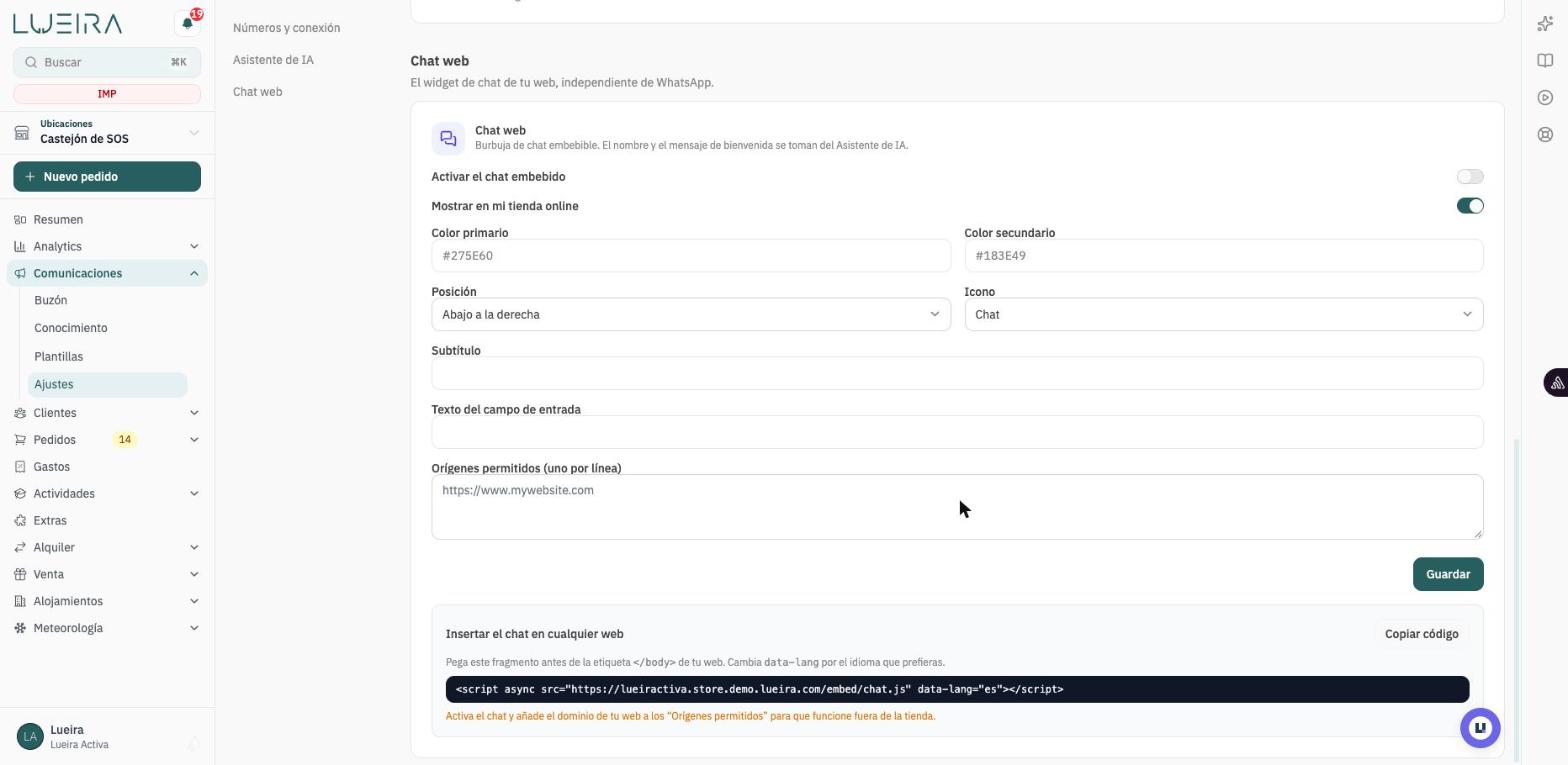
Enable embedded chat: turns the chat on or off.
Show in my online store: shows the bubble in your Lueira online store.
Primary and secondary color: the colors of the bubble (format
#275E60).Position: for example, bottom right. Icon: the drawing on the bubble.
Subtitle and Input field text: the texts the customer sees.
Allowed origins: domains of your website where the chat can appear, one per line (for example
https://www.tuweb.com).
Click Save to apply the changes.
Embed the chat on your website
In the Embed the chat on any website block, click Copy code.
Paste the snippet right before the
</body>tag of your website. Changedata-langto the language you prefer (for examplees).Enable the chat and add your website's domain in Allowed origins: without this it won't work outside your online store.
The name and welcome message are taken from your WhatsApp Agent (see WhatsApp Agent).
Related guides
- Communications in LueiraThe Communications module brings together everything you need to talk to your customers by email and WhatsApp: templates, the WhatsApp Agent, the unified inbox and the knowledge base that feeds the WhatsApp Agent.
- Before connecting WhatsApp: prerequisites in MetaStep-by-step guide to preparing your Meta business portfolio, business verification, display name and number, and to choosing between the WhatsApp Business app (coexistence) and a dedicated number (Cloud API).
- Connect WhatsApp in LueiraHow to connect your WhatsApp Business number to Lueira: choose between connecting the WhatsApp Business app or a dedicated number, and complete the process in Meta in under 2 minutes.
- One WhatsApp number per locationIf your account has several locations, each one can have its own WhatsApp number. Requirements, how to connect them and what is shared between numbers.
- WhatsApp AgentSet up the WhatsApp Agent, which automatically replies to your customers' WhatsApp messages, uses your articles as its source of information and can create orders directly from the chat.
- What the WhatsApp Agent sells and what it does when it can'tThe WhatsApp Agent only books what exists as a product in your store. For everything else it sends the customer the purchase link from your website. Here you can see how it works and how to set it up.