

Common errors and questions about email campaigns
What each pre-send check means, what to do if the account is configured but not activated, why a campaign does not reach some customers and what to do about plan limits, an unverified sender or failed sends.
On this page
The pre-send checks, one by one
Common errors and questions about email campaigns
When you prepare a send, Lueira reviews seven things before letting you send and, if something fails, it tells you. This guide explains each check, its most common cause and how to fix it, and answers "why did it not reach some customers". For the full flow, see Send an email campaign step by step.
The checks appear in step 4 of the wizard ("Review") and, in a draft, also with the Run checks button in the send's detail.
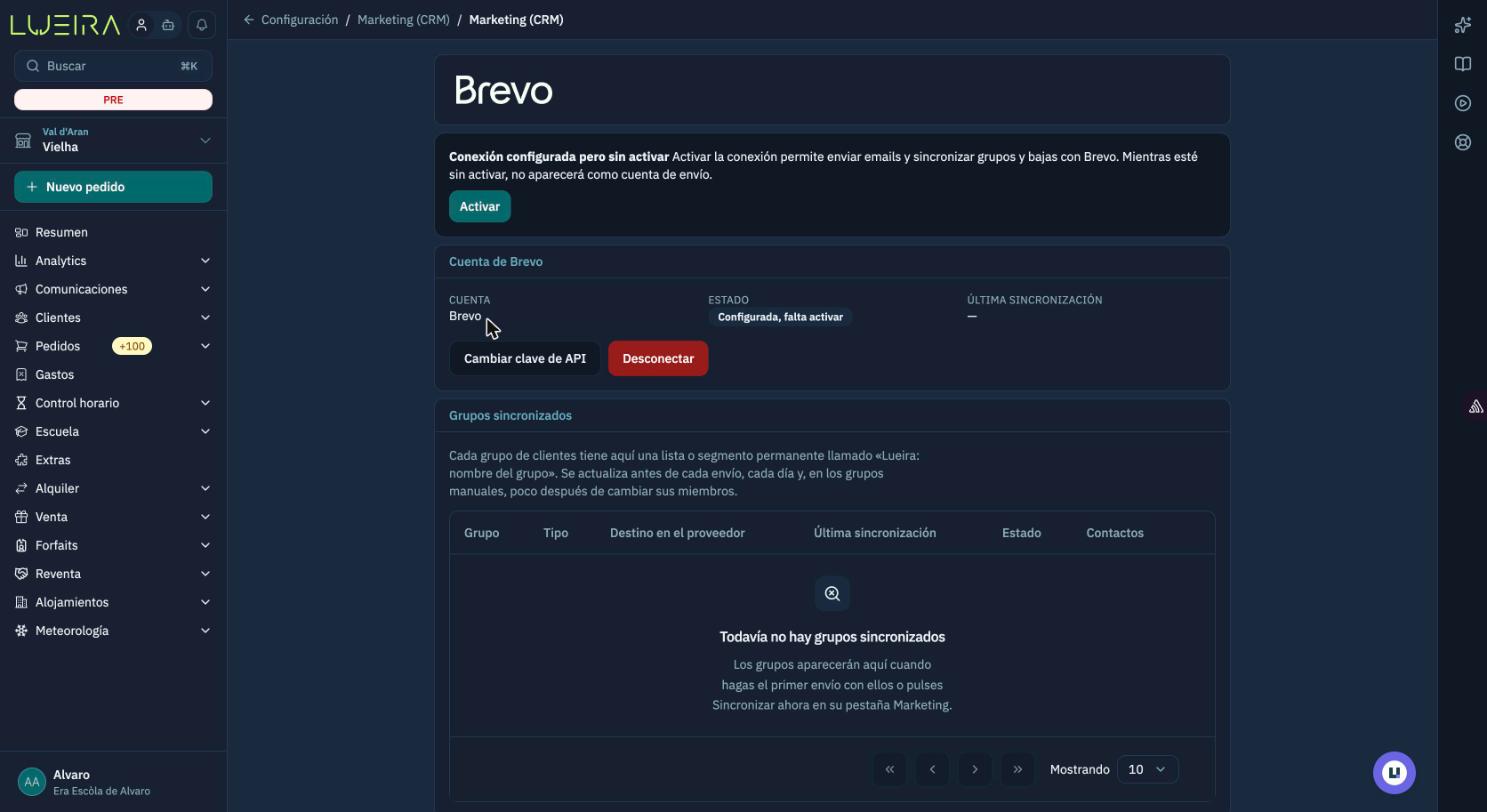
"Configured but not activated" in step 3
If in step 3 ("Sender and subject") you cannot choose an account and a message like "Brevo is configured but not activated" appears, the key is saved but the connection is not activated. Click Go to Marketing (CRM), go into Manage and click Activate: you will see "Brevo activated: you can now use it in your sends".
| Check | Usual cause | How to fix it |
|---|---|---|
| Marketing add-on active | Your account has not purchased the campaigns add-on, or the trial has ended. | Contact support to activate it. See Email campaigns: what they are and what you need to get started. |
| Provider account connected | There is no connected and activated account, or the key no longer works. | Settings > Integrations > Marketing (CRM): activate the connection or change the key with Change API key. See Connect Brevo to Lueira. |
| Valid template (variables, unsubscribe and address) | The template has no unsubscribe link or no footer with the address. | Open the template and restore the footer with Unsubscribe me and the address. |
| Company legal address configured | Your company has no legal address. | Complete it in Settings > Company details. |
| Valid sender | The sender is not verified in your provider. | Verify it in Brevo and choose it from the Verified sender list in step 3. |
| Subject provided | The subject is empty. | Write a subject (in step 3 it comes filled with the template's). |
| The audience has recipients | The group has no customers with marketing consent. | Check the rules and the consent. See Create customer groups by rules. |
⚠️ Always choose the sender from the Verified sender list. If you type by hand an email that is not verified in your provider, Lueira warns you ("This email is not verified in the provider account and the email would not be delivered. Choose one of the verified senders.") and does not let you continue; a test send from such a sender fails with an error.
Did not reach some customers, plan limits and failed sends
"Why did it not reach some customers?"
If the send went out but some customers say they did not receive it, go through this in order:
Consent: did the customer have marketing consent, or were they unsubscribed? Only subscribed customers receive. See Marketing consent and unsubscribes (GDPR).
It is a family member or companion: they never receive campaigns, only the account-holder customer.
Duplicate email: if several customers share an email, it receives a single send.
No email, or email rejected by the provider.
Spam or filters: ask them to check the promotions or spam folder, and to add your sender to their contacts.
Limits of your Brevo plan (next section).
In the send's detail, the Excluded filter shows you who was not sent to (see Tracking an email send).
Brevo plan limits and lack of credits
Brevo limits how many emails you can send per day or per month depending on your plan. If you exceed it or run out of credits, the provider rejects or delays the rest. Add credits or change plan in your Brevo account and try again.
Failed send
If a send appears as failed, filter by Failed in its detail. If the reason is on your account (credits, sender, key), fix it in Brevo or in Lueira and prepare the send again. If you do not know what the reason is, contact support.
What to do if…
In step 3 it says my account is "configured but not activated". Click Go to Marketing (CRM), go into Manage and click Activate.
The sender check fails. Verify the sender in your Brevo account (senders and domains section) and choose it again from the Verified sender list.
The unsubscribe link or the address is missing. Restore the template footer and complete the address in Settings > Company details.
Lack of credits. Top up credits or upgrade the plan in Brevo and try again.
A screen "An error has occurred. Please try again" appears when opening the template editor. Click Try again or reload the page and enter again from Customers > Campaigns.
The send failed and I do not know why. Contact support with the name of the send and the time. Do not include your API key.
⚠️ Never share the Brevo API key by chat or email.
Related guides
- Communications in LueiraThe Communications module brings together everything you need to talk to your customers by email and WhatsApp: templates, the WhatsApp Agent, the unified inbox and the knowledge base that feeds the WhatsApp Agent.
- Before connecting WhatsApp: prerequisites in MetaStep-by-step guide to preparing your Meta business portfolio, business verification, display name and number, and to choosing between the WhatsApp Business app (coexistence) and a dedicated number (Cloud API).
- Connect WhatsApp in LueiraHow to connect your WhatsApp Business number to Lueira: choose between connecting the WhatsApp Business app or a dedicated number, and complete the process in Meta in under 2 minutes.
- One WhatsApp number per locationIf your account has several locations, each one can have its own WhatsApp number. Requirements, how to connect them and what is shared between numbers.
- WhatsApp AgentSet up the WhatsApp Agent, which automatically replies to your customers' WhatsApp messages, uses your articles as its source of information and can create orders directly from the chat.
- What the WhatsApp Agent sells and what it does when it can'tThe WhatsApp Agent only books what exists as a product in your store. For everything else it sends the customer the purchase link from your website. Here you can see how it works and how to set it up.