

Tracking an email send
What you see in the list and in the detail of a send: statuses, recipients, history, and how to remove the schedule or cancel before its time.
On this page
The sends list and its detail
The sends list and its detail
When you make a send, in Customers > Campaigns > Sends you can see how it is going: how many it has been sent to, who has been excluded and why, and when it went out. To send a campaign, see Send an email campaign step by step.
The Sends tab is a table with the columns Campaign, Group, Provider, Status, Recipients and Date. At the top you have a search box by send name and a Filters button. While there are no sends you will see "There are no sends yet." with a New send button. Click a row to open the detail.
A send goes through these statuses, which you will see in the Status column and next to the name in the detail:
Draft: saved but not sent. It is created automatically when moving from step 3 to step 4 of the wizard ("Draft saved").
Scheduled: it has a departure date and time (shown in the Date column).
Sending: you have already confirmed the send and the recipients are frozen.
💡 The status of a send and of each recipient may take a while to update. To know for sure whether an email was delivered, open the campaign report in your provider account: Brevo also sends you a notification email when it finishes sending.
The detail of a send
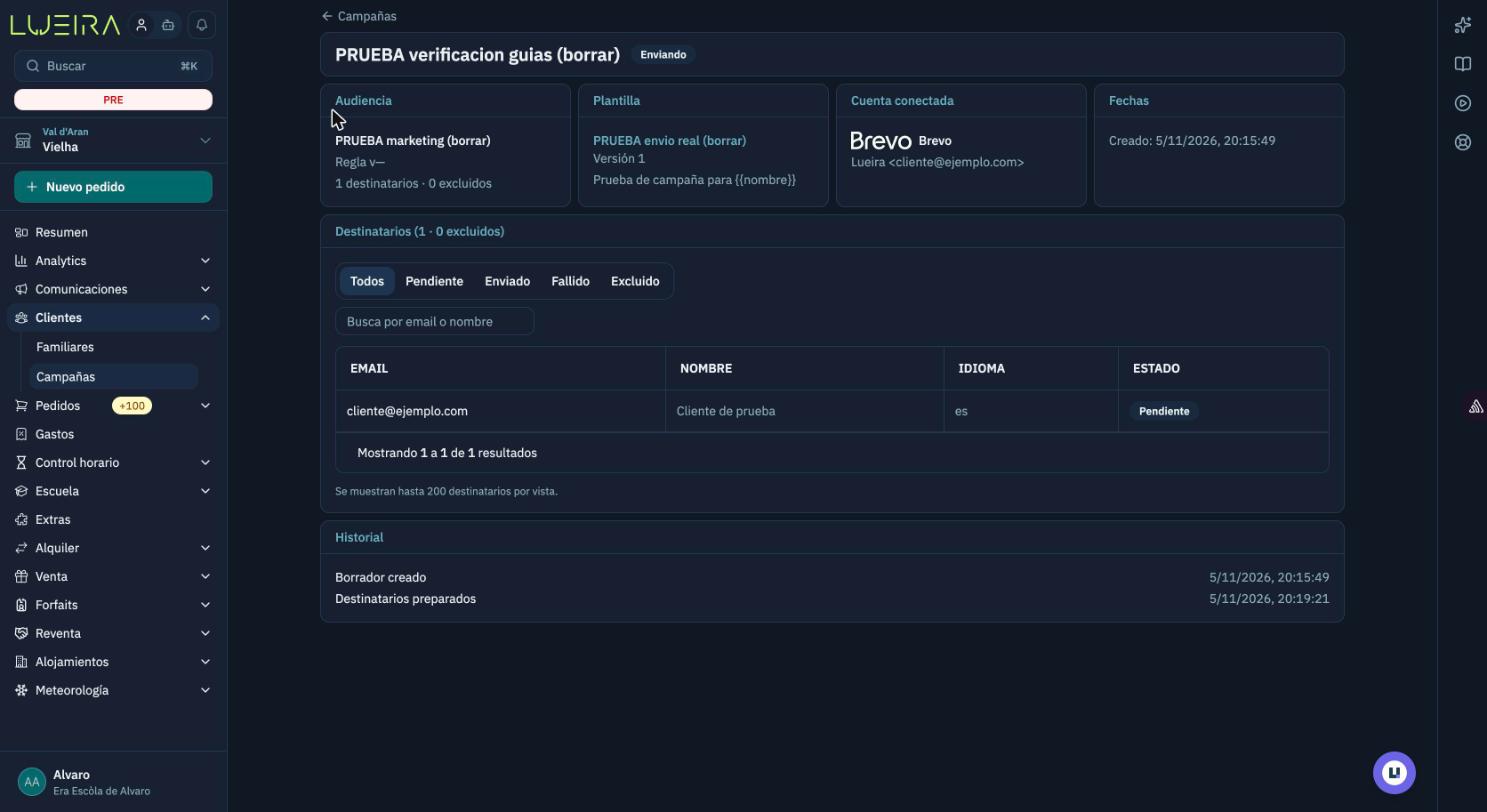
At the top are the name of the send and its status. Below, four cards:
Audience: the customer group and the count ("1 recipients · 0 excluded").
Template: the template used and its version. While it is a draft it says "Latest version (fixed when prepared)": when you confirm the send, the version that existed at that moment is fixed (for example, Version 1), and editing the template afterwards does not change sends that are already prepared.
Connected account: the provider (Brevo) and the sender.
Dates: when it was created and, if it is scheduled, when it will go out.
Then, the Recipients block (for example, "Recipients (1 · 0 excluded)"). It has the filters All, Pending, Sent, Failed and Excluded, a search box by email or name, and a table with each person's Email, Name, Language and Status. Up to 200 recipients are shown per view. At the end, the History with the dates of each step ("Draft created", "Recipients prepared").
💡 In a draft, the Pre-send checks card has the Run checks button, which runs the same seven checks as step 4 of the wizard.
Scheduling, canceling and resolving questions
Schedule, remove the schedule and cancel
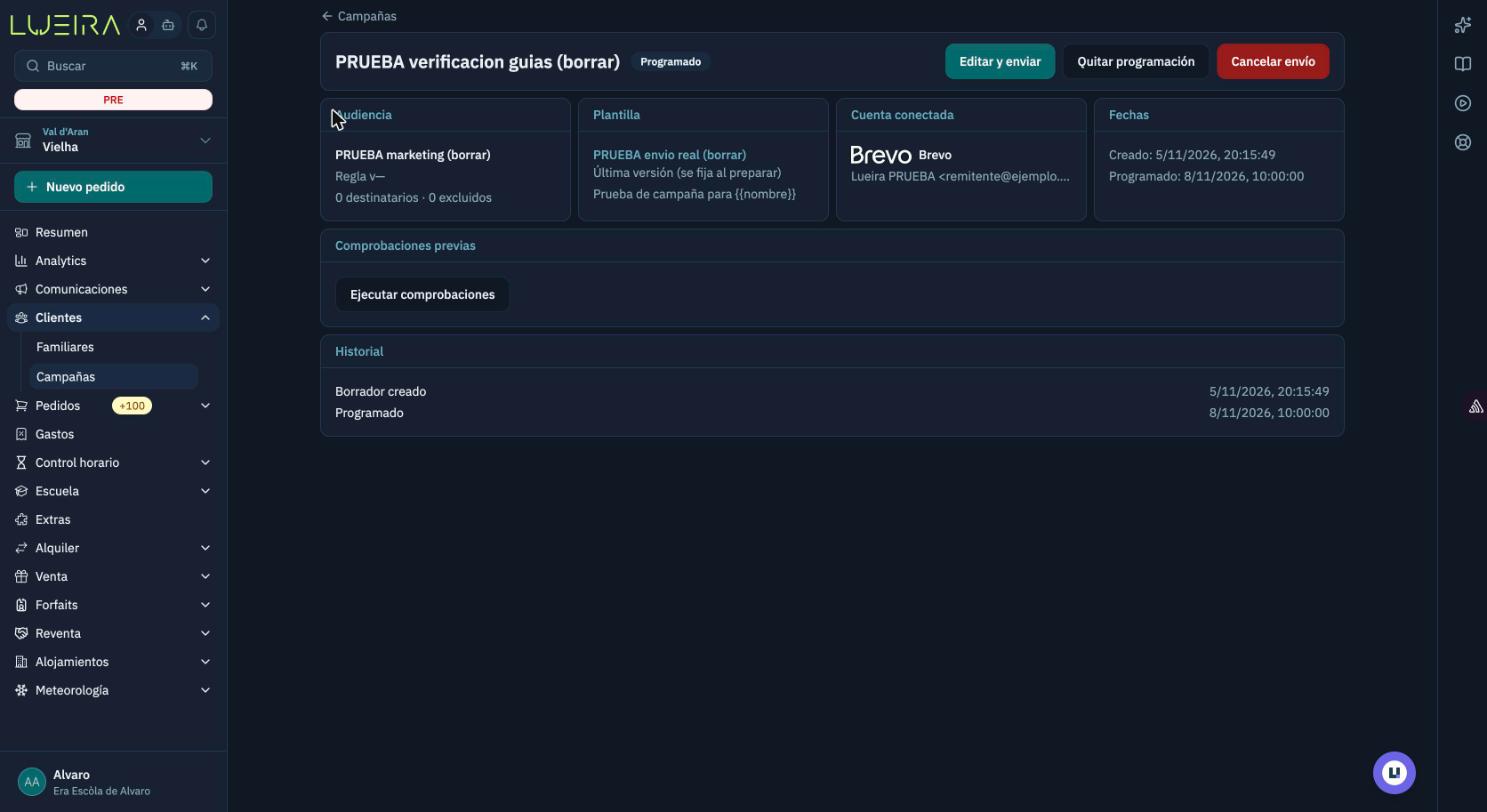
In the detail of a send that has not gone out yet, these buttons appear:
Edit and send: reopens the wizard at the review step to change something or send it.
Remove schedule (only if it is scheduled): the send goes back to Draft and the date disappears from the history. You can schedule it again or send it now.
Cancel send: to discard the send.
⚠️ A send already confirmed with Send now cannot be undone. If you make a mistake on a scheduled one, cancel it or remove the schedule before its time.
💡 Lueira does not show metrics for opens or clicks; those statistics are checked in the report in your provider account. Brevo also sends you a notification email when it finishes sending ("your campaign has been sent… to 1 contacts") with a link to the report.
What to do if…
I do not see my send in the list. Check the search box and the Filters, and that you are on the Sends tab and not Templates.
It is still on "Sending" and the recipient on "Pending". Check whether the email has arrived and look at the campaign report in your Brevo account. If the email arrived but the status does not change, contact support with the name of the send.
A customer says they did not receive the email. See whether they were among the excluded (Excluded filter) and the reason; if not, check the provider's report. See Common errors and questions about email campaigns.
I want to know how many people opened the email. Open the campaign report in your Brevo account.
The send appears as failed. Filter by Failed and see Common errors and questions about email campaigns.
Related guides
- Communications in LueiraThe Communications module brings together everything you need to talk to your customers by email and WhatsApp: templates, the WhatsApp Agent, the unified inbox and the knowledge base that feeds the WhatsApp Agent.
- Before connecting WhatsApp: prerequisites in MetaStep-by-step guide to preparing your Meta business portfolio, business verification, display name and number, and to choosing between the WhatsApp Business app (coexistence) and a dedicated number (Cloud API).
- Connect WhatsApp in LueiraHow to connect your WhatsApp Business number to Lueira: choose between connecting the WhatsApp Business app or a dedicated number, and complete the process in Meta in under 2 minutes.
- One WhatsApp number per locationIf your account has several locations, each one can have its own WhatsApp number. Requirements, how to connect them and what is shared between numbers.
- WhatsApp AgentSet up the WhatsApp Agent, which automatically replies to your customers' WhatsApp messages, uses your articles as its source of information and can create orders directly from the chat.
- What the WhatsApp Agent sells and what it does when it can'tThe WhatsApp Agent only books what exists as a product in your store. For everything else it sends the customer the purchase link from your website. Here you can see how it works and how to set it up.