

QR code in the order confirmation email
How to enable the order QR code in the confirmation email, what changes and how your team uses it from the Orders list.
On this page
QR code in the order confirmation email
Lueira can add a QR code to the order confirmation email your customers receive. The code uniquely identifies the order, so that booking can be located instantly as soon as the code is read, without having to search for it by hand.
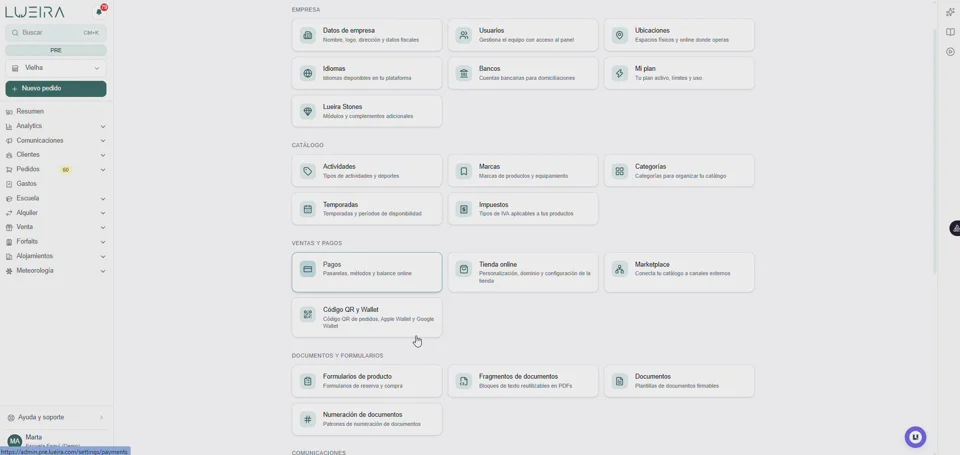 Código QR en el email de confirmación de pedido
Where to enable it
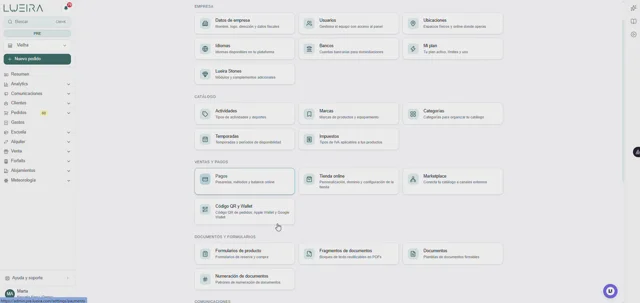
Path: Settings → QR code and Apple/Google Wallet.
From this same screen you can also enable the "Add to Apple Wallet" / "Add to Google Wallet" buttons in the confirmation email — they are explained in Apple Wallet and Google Wallet in the order confirmation email.
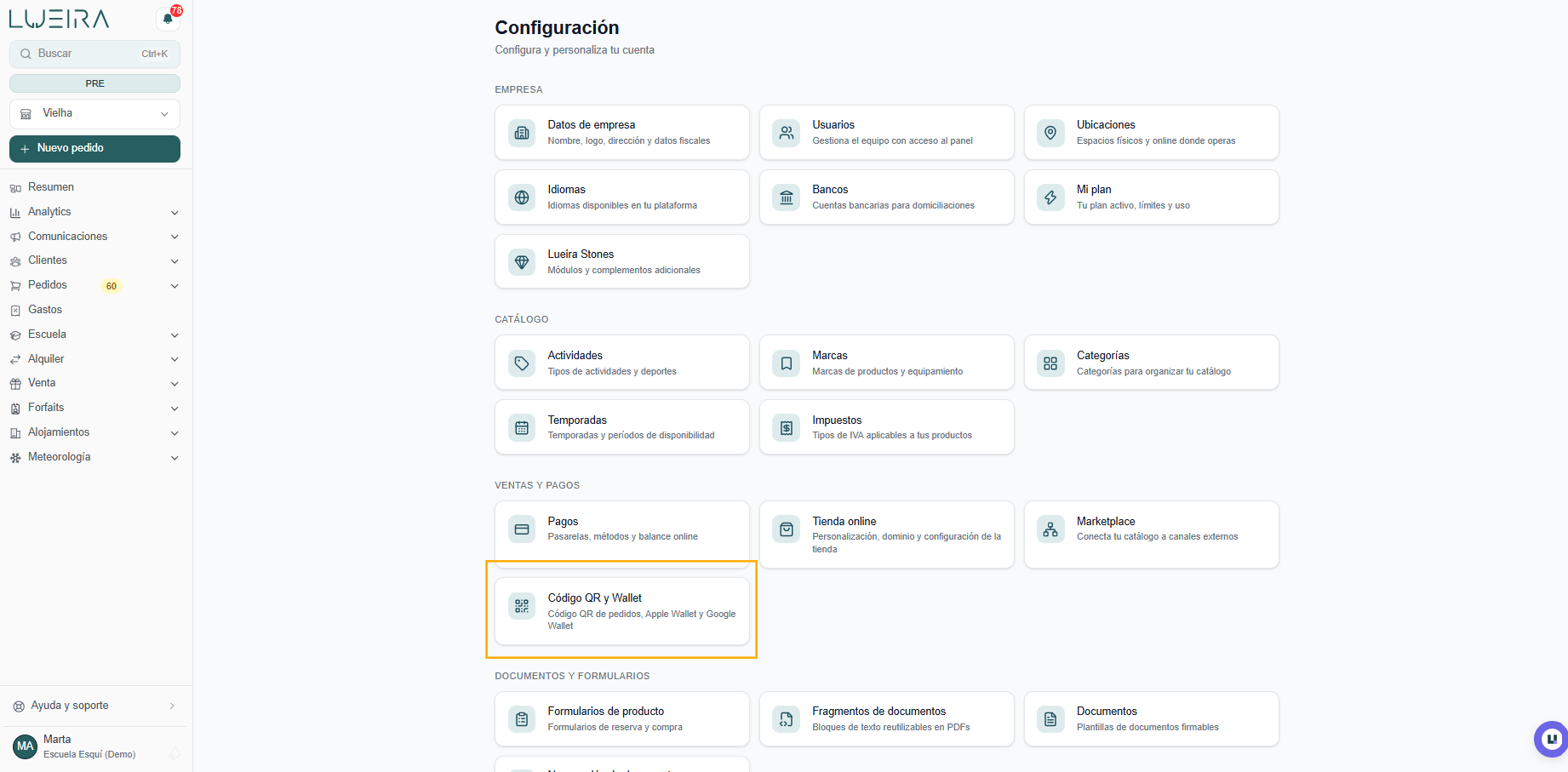
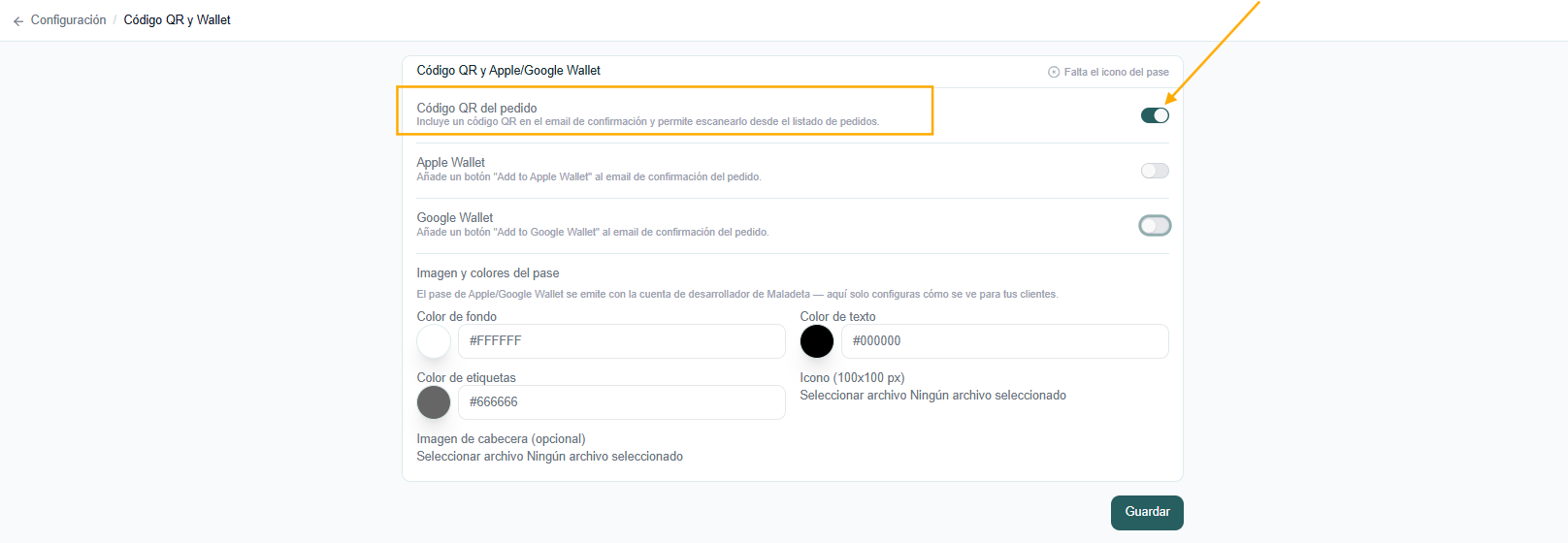
Turn on the Order QR code switch and click Save.
What changes once it is enabled
The order confirmation email (the one sent automatically when an online booking is confirmed, or the one you send manually from the order) includes an image with the order's QR code.
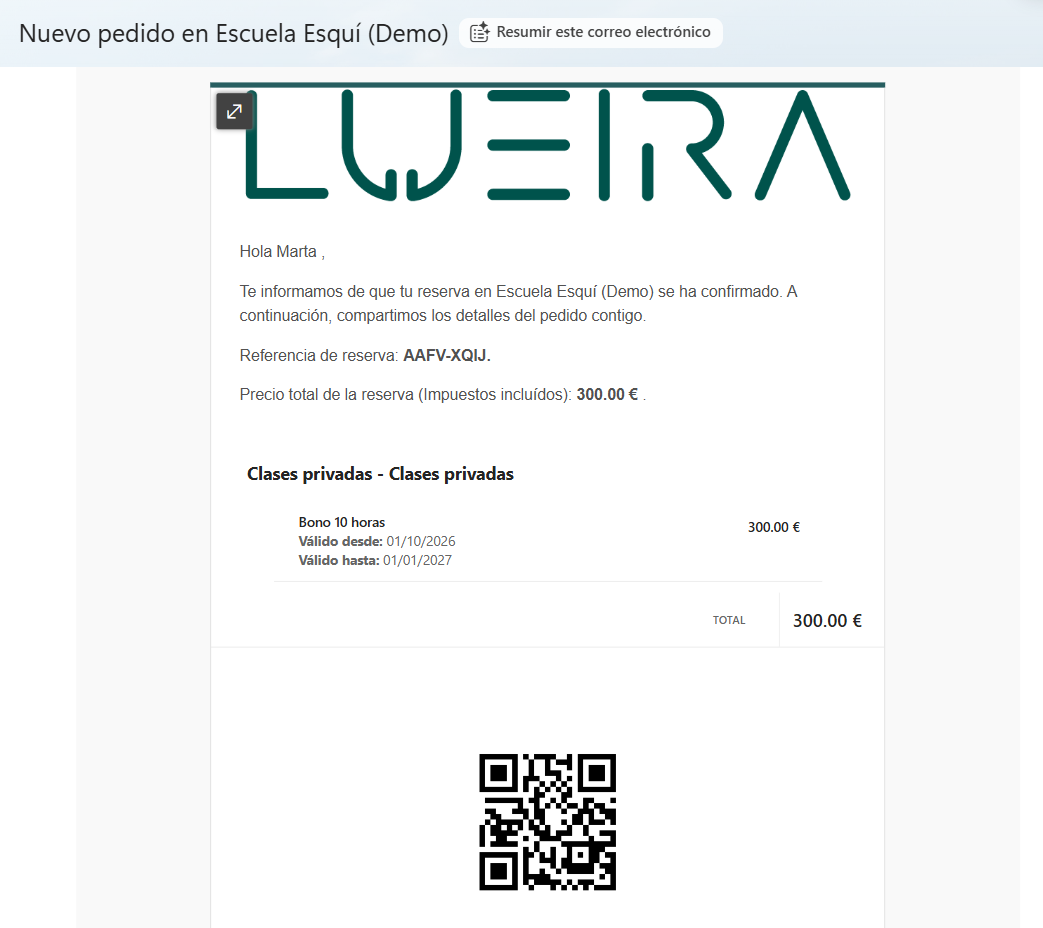
The change only affects emails sent after the switch is turned on: confirmation emails already sent before are not modified or resent on their own.
If your online store has a confirmation page after payment, the same switch enables the button to print/view the order's QR code there.
How to scan the order
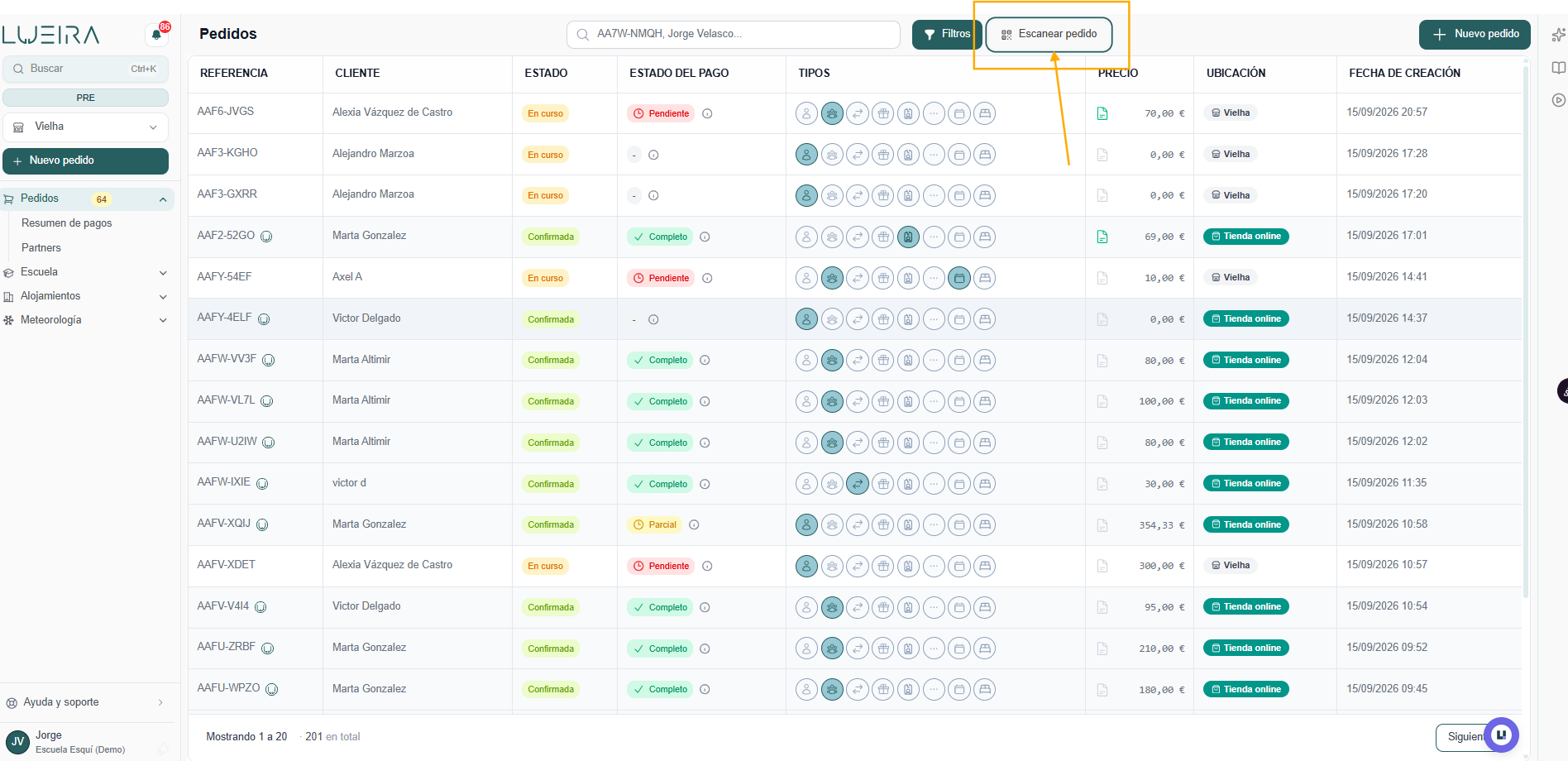
From the Orders list, the Scan order button (at the top right of the list) opens a window to read the order's QR code and locate it instantly, without having to search for it by hand.
The window offers three ways to read the code, which you switch between with the icons at the top:
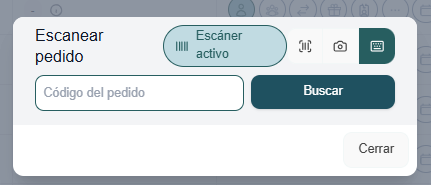
Scanner — for a physical barcode/QR reader (USB or Bluetooth) connected to the computer; the reader "types" the code just as if you typed it.
Camera — uses the device's camera (the computer's webcam, or the camera of a tablet or phone) to read the QR by pointing it at the email on the screen or at a printed copy. On tablets and phones with a touch screen it is the mode that opens by default (if the browser allows it); on a computer you have to select it manually with the camera icon.
Manual — type or paste the order code by hand and click Search.
Lueira remembers the last mode used on that device/browser, so you do not have to choose it again each time.
If you have your own template for the order confirmation
If your account uses Lueira's standard template for the Order confirmation email (you have not created your own template for that type of email), the QR code is added automatically when you turn on the switch, without you having to touch anything else.
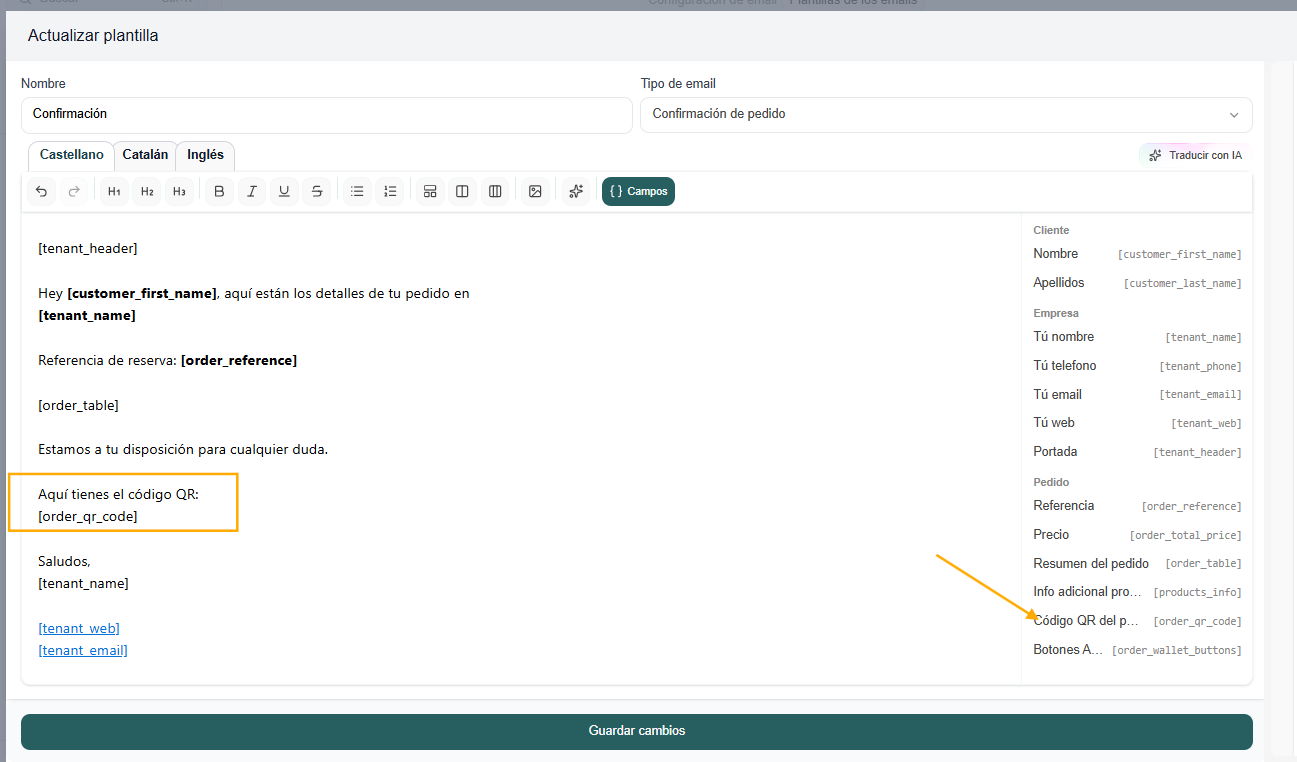
If, on the other hand, you have created your own Order confirmation template (from the standard view or from the advanced editor of Communications), you will have to insert the QR code block into that template yourself, just as you do with other variables such as [products_info] — check the editor's Variable picker or manually add [order_qr_code] at the point in the template where you want the image to appear.
If you also have Apple Wallet or Google Wallet enabled, add the [order_wallet_buttons] block as well — it is explained in Apple Wallet and Google Wallet in the order confirmation email.
Related articles
Apple Wallet and Google Wallet in the order confirmation email — enable the Wallet buttons from the same settings screen.
Email settings in Lueira — all the settings for transactional emails and templates.
Communications in Lueira — overview of the Communications module and the advanced template editor.
Do you have questions about this feature? Write to us in the support chat and we will help you.
Videos about this guide
Related guides
- Orders navigationView the status of all your orders, invoices or payments
- How to create ordersWe show you how to create orders and add every type of product to them.
- Creating a lesson booking from the admin: several days, a second teacher and line priceHow to create a lesson order from the admin: add private or group sessions, book several days in a row, add a second teacher without losing the charge for the second lesson and change the price of a line.
- Order statusesThis section gives you an overview of the status an order is in
- Order lifecycle: statuses, payment and confirmationA complete explanation of the order and payment statuses in Lueira, how they relate to each other, and when an order is confirmed automatically or manually depending on the payment method.
- Deleted and cancelled orders: the difference, how to see them and how to ask for them to be restoredThe difference between cancelling and deleting an order, where to find cancelled orders, how to find out who changed or deleted an order with Change tracking, and what to do so support can restore an order deleted by mistake.