

Notify orders by email
You can send emails to your customers confirming their orders
On this page
Notify orders by email
Every time a new order is confirmed and we want the customer to make the payment, we can notify them by email with the order summary and the payment link.
To set up the email templates, we go to the Settings>Email templates tab and customize the email template to our liking as shown in the image below.
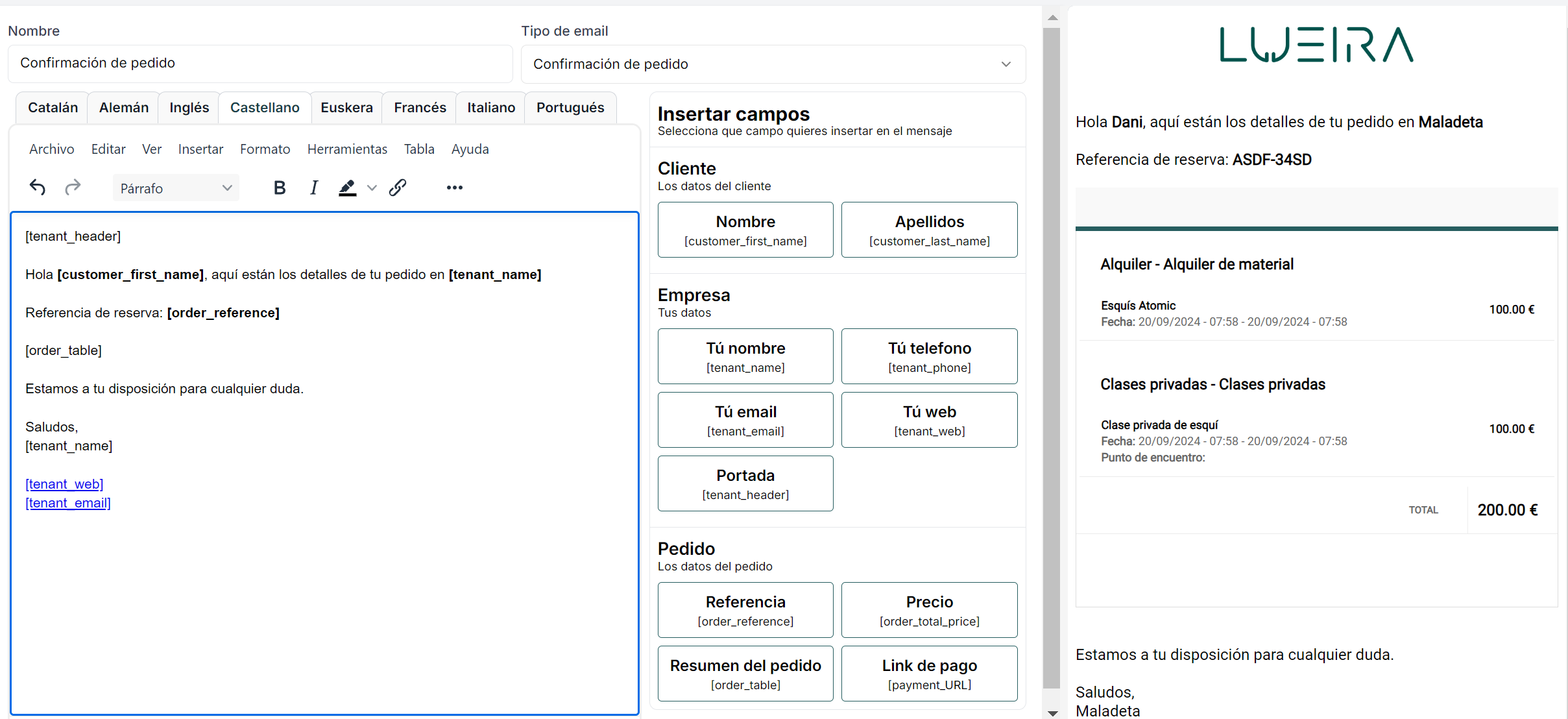
The different customer, company and order boxes will let you personalize your emails, updating with the data of each customer.
If you have any questions, don't hesitate to contact the Lueira support team!
Confirmation template vs. payment template
If your account has the Communications module, the templates are in Communications > Templates (Email tab). Each template has an Email type, and each type serves a different purpose:
Order confirmation: the email with the booking summary that the customer receives when an online store order is confirmed. This is where the order table (
[order_table]) and the information of each product ([products_info]) go, for example your bank details if you collect payment by bank transfer.Payments: the email with the payment link. It is the only one that offers the Payment link (
[payment_URL]) and Payment amount ([payment_amount]) variables.
⚠️ The payment link only works in templates of the Payments type. If you put it in a confirmation template, the customer will not receive a valid link.
💡 In the payment template, use [payment_amount] to state how much they have to pay with that link. [order_total_price] is the total of the booking, which does not match the outstanding amount if the customer has already paid part of it. And keep [order_table] so the customer can see what they have booked.
Do I receive a copy of the emails?
The copies you turn on in Email settings (copy of the confirmation email and of the payment email) only arrive for online store orders and when the customer pays a payment link. If you create the booking by hand and send the email from the order, you do not receive an automatic copy: add your email as a recipient in the send window (type it and press Enter so it is added).
👉 More detail on template types and automatic sending in Email settings in Lueira.
Related guides
- Orders navigationView the status of all your orders, invoices or payments
- How to create ordersWe show you how to create orders and add every type of product to them.
- Creating a lesson booking from the admin: several days, a second teacher and line priceHow to create a lesson order from the admin: add private or group sessions, book several days in a row, add a second teacher without losing the charge for the second lesson and change the price of a line.
- Order statusesThis section gives you an overview of the status an order is in
- Order lifecycle: statuses, payment and confirmationA complete explanation of the order and payment statuses in Lueira, how they relate to each other, and when an order is confirmed automatically or manually depending on the payment method.
- Deleted and cancelled orders: the difference, how to see them and how to ask for them to be restoredThe difference between cancelling and deleting an order, where to find cancelled orders, how to find out who changed or deleted an order with Change tracking, and what to do so support can restore an order deleted by mistake.