

Cursillos: seasonal courses with groups and a session calendar
Complete guide to cursillos: how they differ from products and packs, how to create them, set up groups using segmentation criteria, generate sessions and an occupancy calendar, assign instructors, and how to book them from an order.
On this page
- In this guide
- Cursillos, Products and Packs: how they differ
- Step 1: Create the cursillo
- Data
- Translations
- Settings
- Extras
- The cursillo panel
- Pricing by season calendar (optional)
- When should you use a calendar in a cursillo?
- Step 1: Create a cursillo calendar
- Step 2: Create the seasons and their prices
- Step 3: Assign the seasons to the days
- Step 4: Link the calendar to the cursillo
- How the price is calculated
- Step 2: Define the segmentation criteria
- Marking a criterion as "age"
- Step 3: Generate and configure the groups
- Step 4 (optional): Enable subgroups by start date
- Step 5: Generate the sessions and review the occupancy calendar
- Generate sessions
- Occupancy calendar
- Moving participants and teachers between groups or sessions
- Booking a cursillo from an order (Admin)
- Details of a group session
- How your customers see it in the online store
- Managing the cursillo
- Related guides
Cursillos are a new type of product within the School section, designed for seasonal courses with several sessions. Unlike a regular group product, a cursillo organizes participants into groups (by level, age or another criterion you define) and spreads those groups across sessions throughout a season, with its own occupancy calendar and teachers assignment.
In this guide
Cursillos, Products and Packs: how they differ
Within School > Group you will now find three tabs: Products, Packs and Cursillos. All three live in the same place because they cover similar but not identical needs:
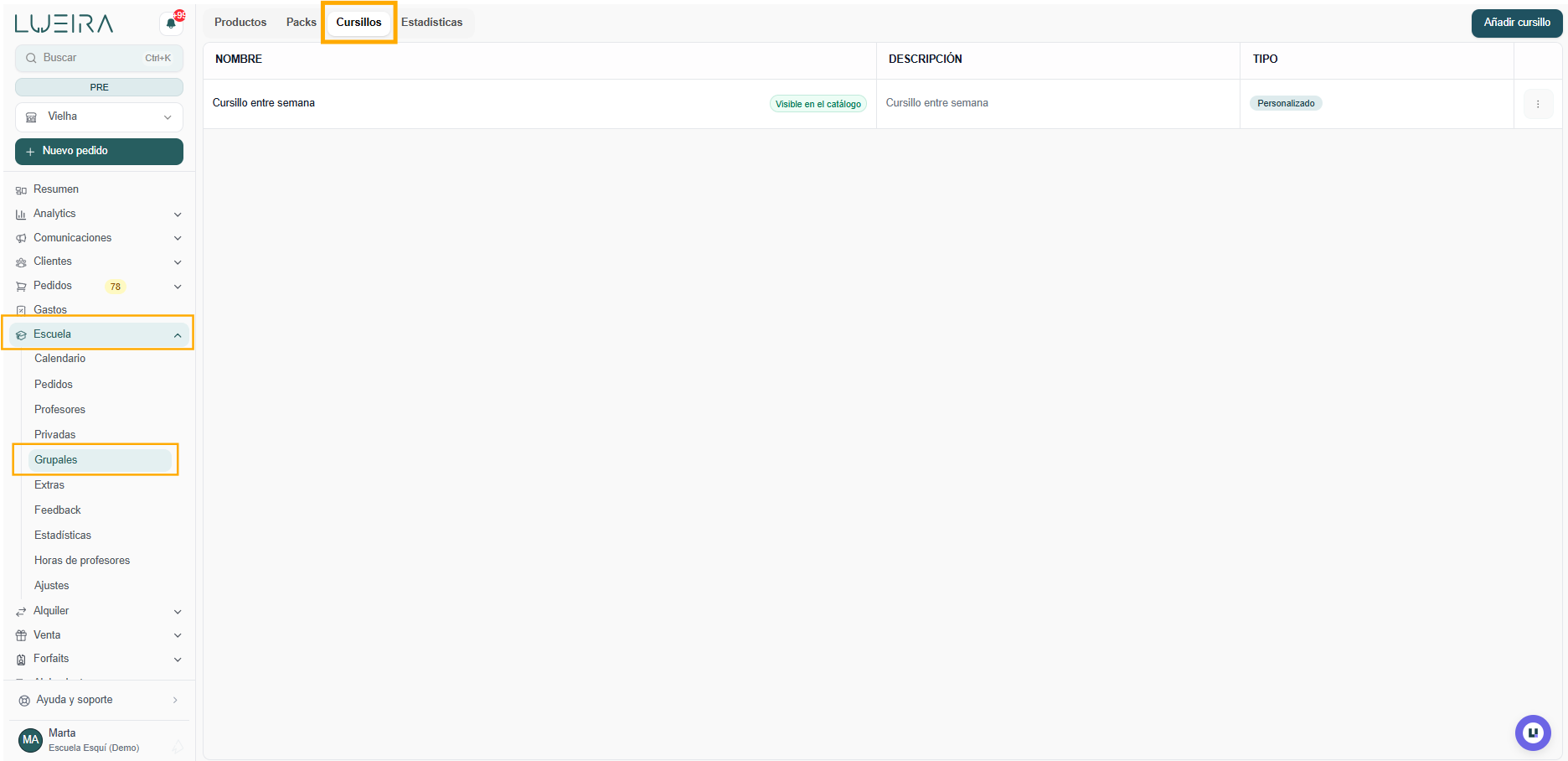
Group products: one-off activities with limited places per session (a class, a day trip...).
Packs: bundles of several sessions of a group product that the customer uses up over time.
Cursillos: a seasonal course with its own groups (by level, age...), a session calendar generated in advance and a price that depends on how many days the participant books.
Step 1: Create the cursillo
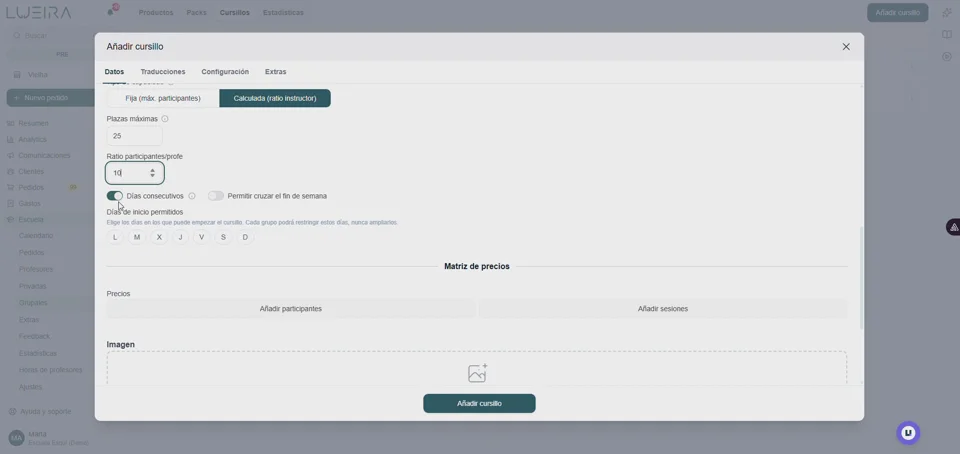 Cursillos paso 1: datos del cursillo
Go to School > Group > Cursillos and click New cursillo. A form with four tabs opens: Data, Translations, Settings and Extras.

Data
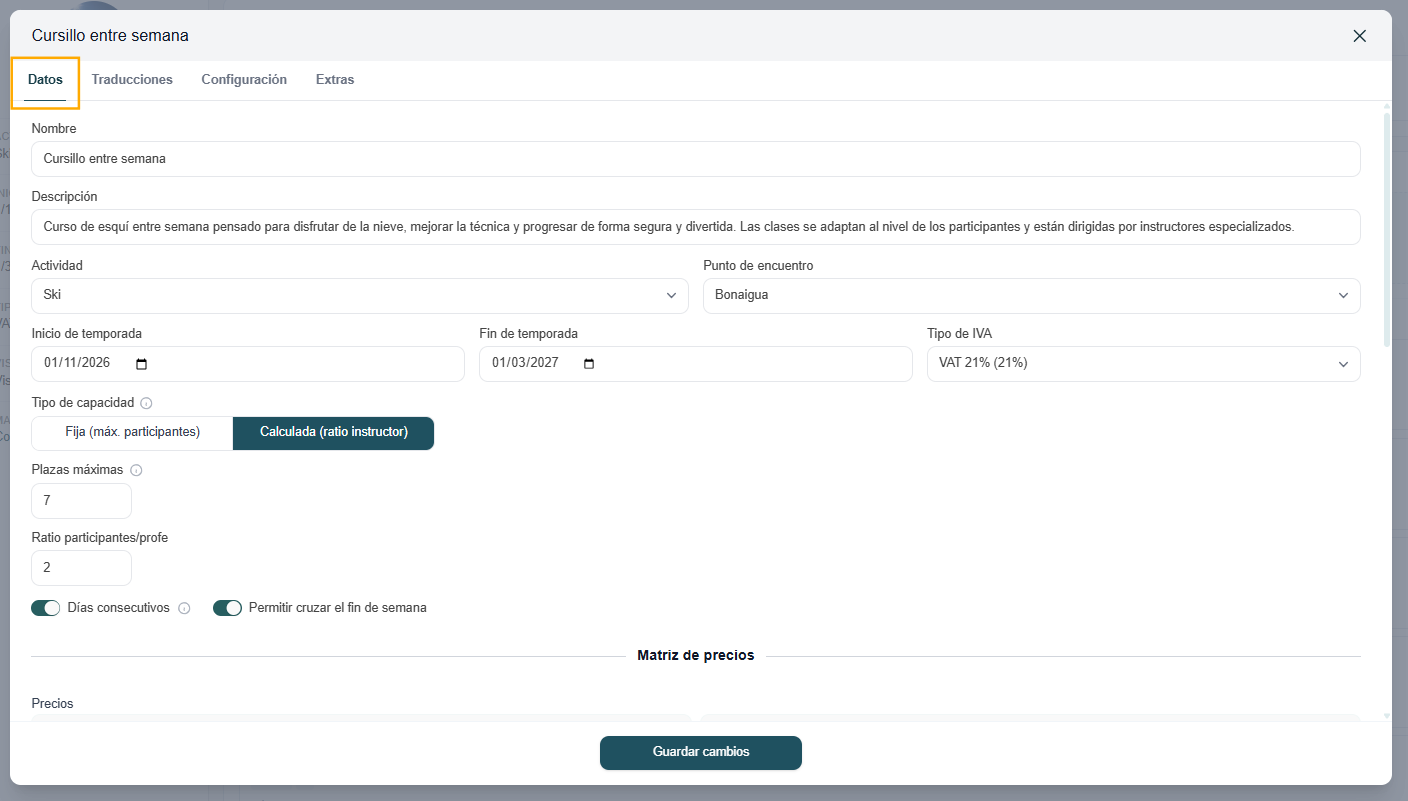
Name and Description (required).
Activity: the activity in your profile that the cursillo belongs to (Settings > Activities).
Season start and end (required): the date range in which the cursillo is taught. It sets the limits of the session calendar.
VAT type.
Capacity type: default capacity that will be applied to the groups you generate later.
Fixed: you define a maximum number of places per group.
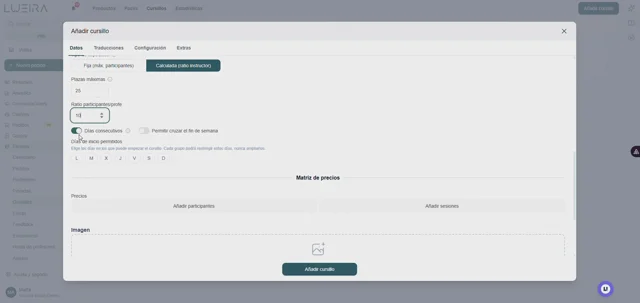
Calculated (teacher ratio): you define how many participants each teacher can take (for example 1:8) and the group's capacity depends on how many teachers you assign to it. You can combine the ratio with an absolute maximum number of places.
Consecutive days: enable it if the student must book consecutive days in the calendar (for example, Monday to Friday). Disable it for cursillos with separate, non-consecutive days (for example, only Tuesdays and Thursdays).
Allow crossing the weekend: only available with consecutive days enabled. It lets a run of consecutive days continue from Friday to Monday without the weekend counting as a break.
Price matrix: defines the price according to the number of sessions booked and the number of participants in the booking (same editor used by session packs). The minimum and maximum number of days that can be booked is calculated automatically from the values you fill in here: if you only set prices for 3 and 5 sessions, the customer will only be able to book 3 or 5 days. As an alternative to this single matrix, you can enable Calendar mode and set the price by seasons instead of by number of days (see Pricing by season calendar below).
Image and gallery of the cursillo.
Translations
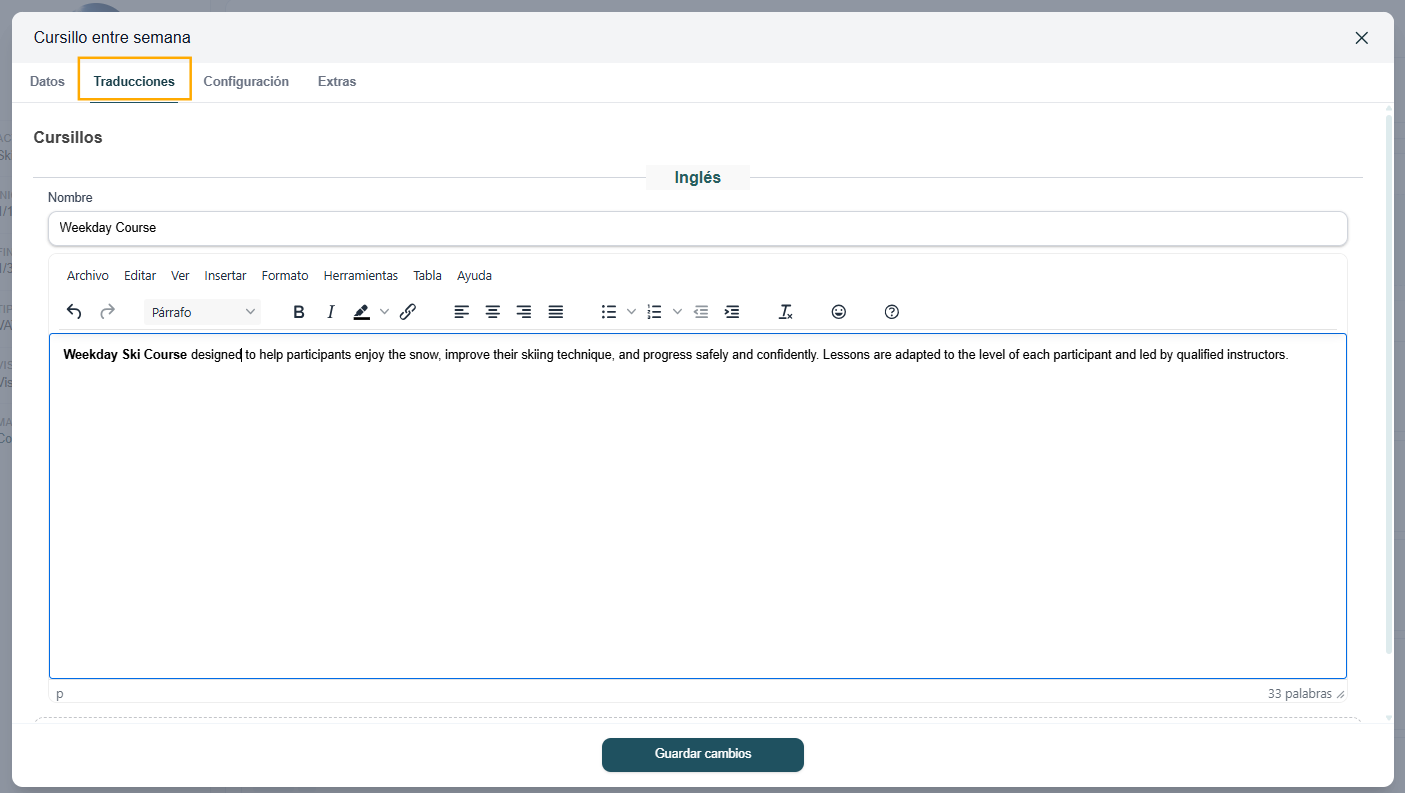
Name and description of the cursillo in the languages configured in your account, just like the rest of the products.
Settings
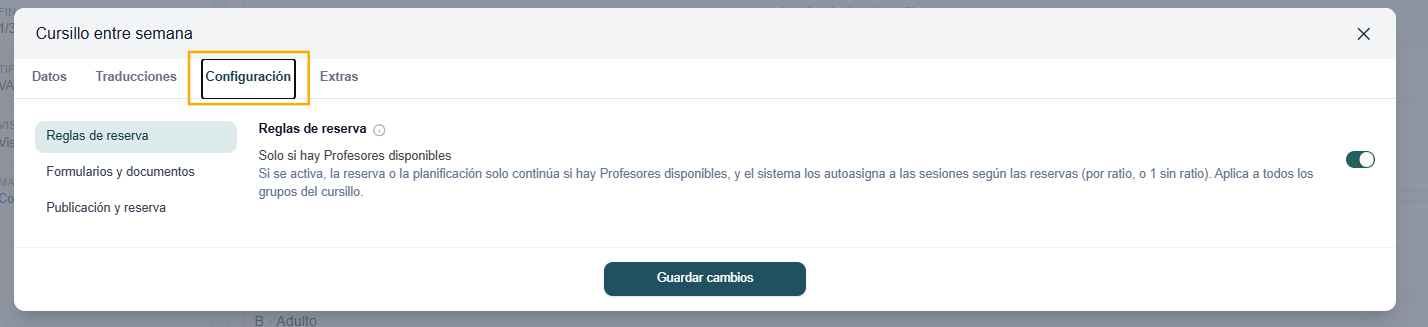
Three blocks:
Booking rules: the "Only if teachers are available" switch means that booking and planning only move forward if there are free teachers, and Lueira auto-assigns them to the sessions according to the bookings (by ratio, or 1 if no ratio is configured). It applies to all the groups in the cursillo.
Forms and documents: just like the rest of School products, you can attach an online store (checkout) form, a check-in form, a participant form and document templates for digital signature. See Product forms and Document management.
Publishing and booking: visibility of the cursillo in the online store (visible, hidden, etc.), just like the rest of the products.
Extras
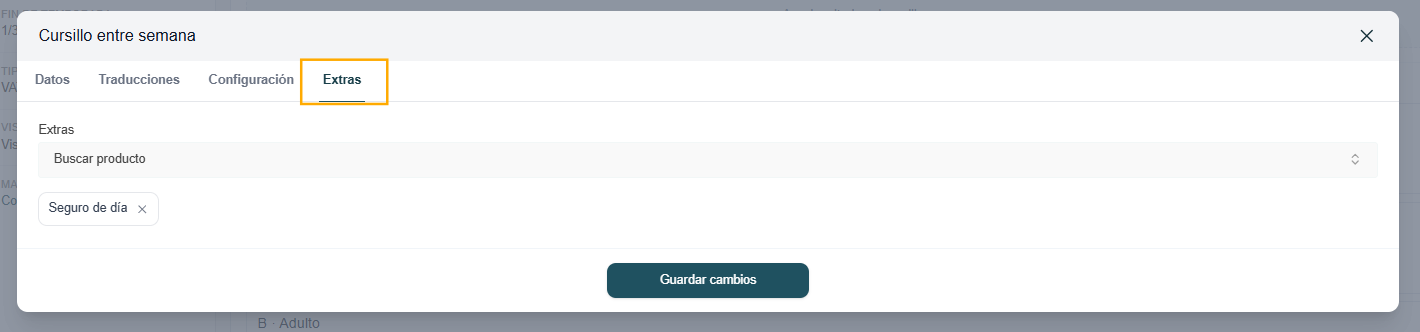
Add the extra products (add-ons) you want to offer alongside the cursillo. The customer will be able to choose them per participant when booking.
The cursillo panel
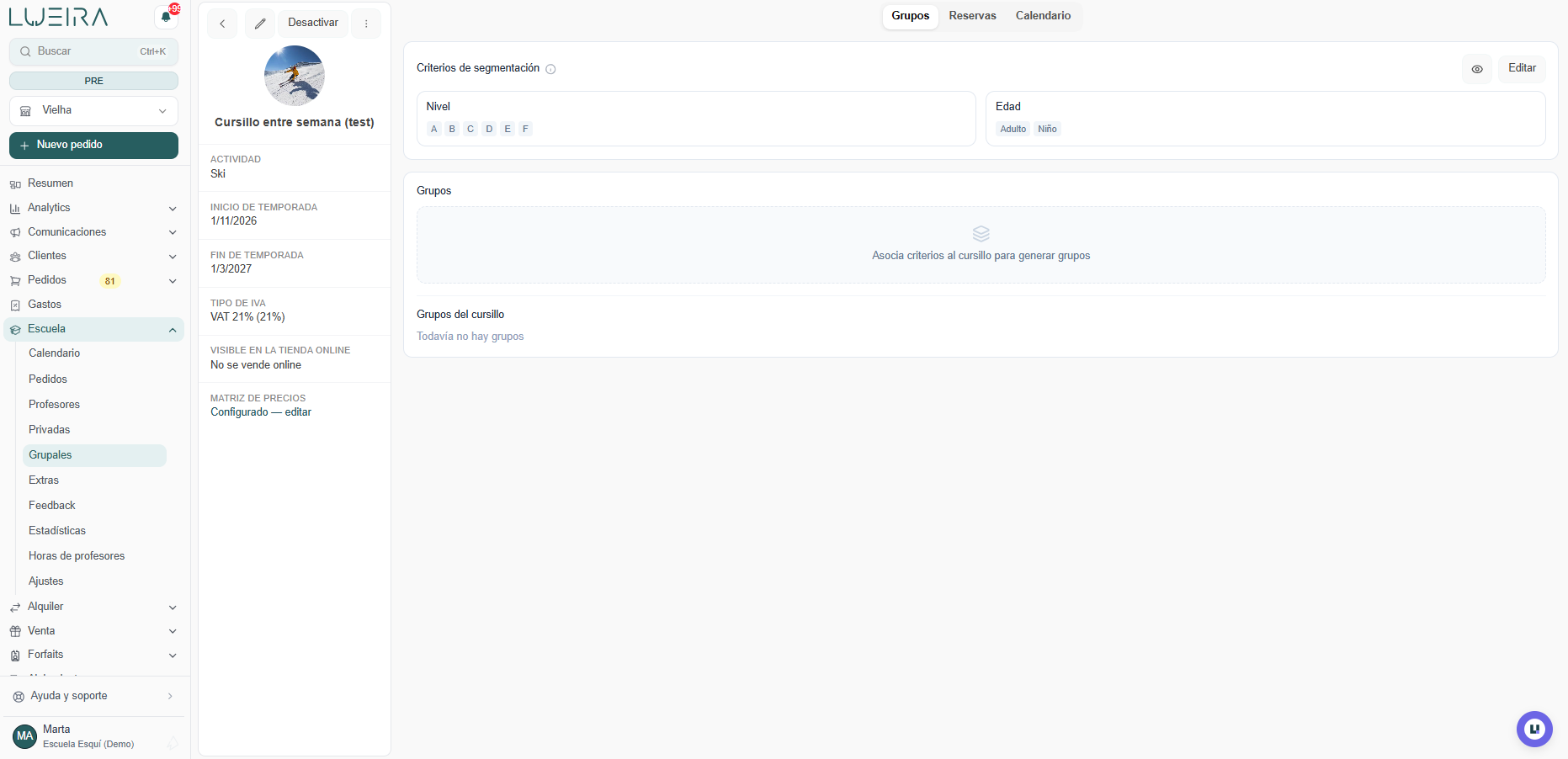
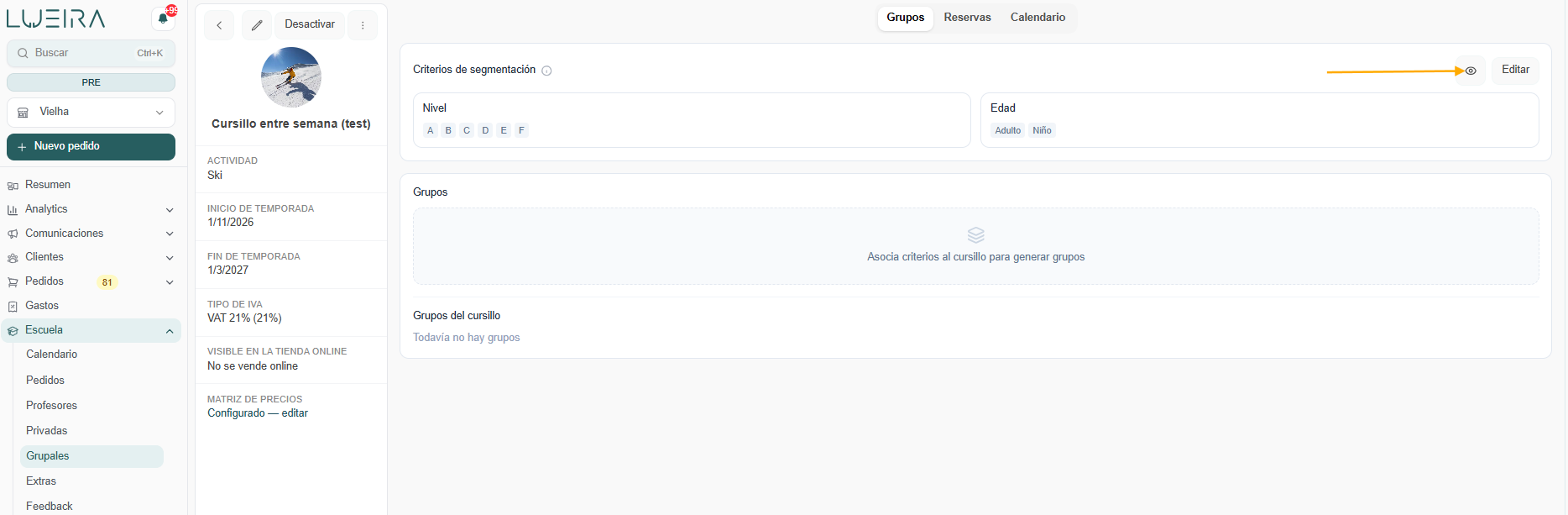
When you save, you go to the cursillo's record, with its main data (activity, season start/end, VAT type, store visibility) and, next to the price, a "Configured / Not configured — edit" link that directly opens the price editor: the single matrix or the season calendar, depending on the mode you have chosen. Below the record there are three tabs: Groups, Orders and Calendar. The Groups and Calendar tabs are where you will complete the following steps.
Pricing by season calendar (optional)
If the cursillo has a high/low season, weekends with a different rate, or any price variation depending on the booked date, instead of the single matrix you can set the price with a season calendar: a calendar with several seasons (each with its own name, color and its own price matrix by participants × days) that you then assign day by day in a monthly calendar.
When should you use a calendar in a cursillo?
With the single matrix, the price only depends on how many days the participant books, whatever the specific date. Use a season calendar instead when the price must vary according to the dates booked: for example, July weeks that are more expensive than September ones, or a weekend price that differs from weekdays.
Step 1: Create a cursillo calendar
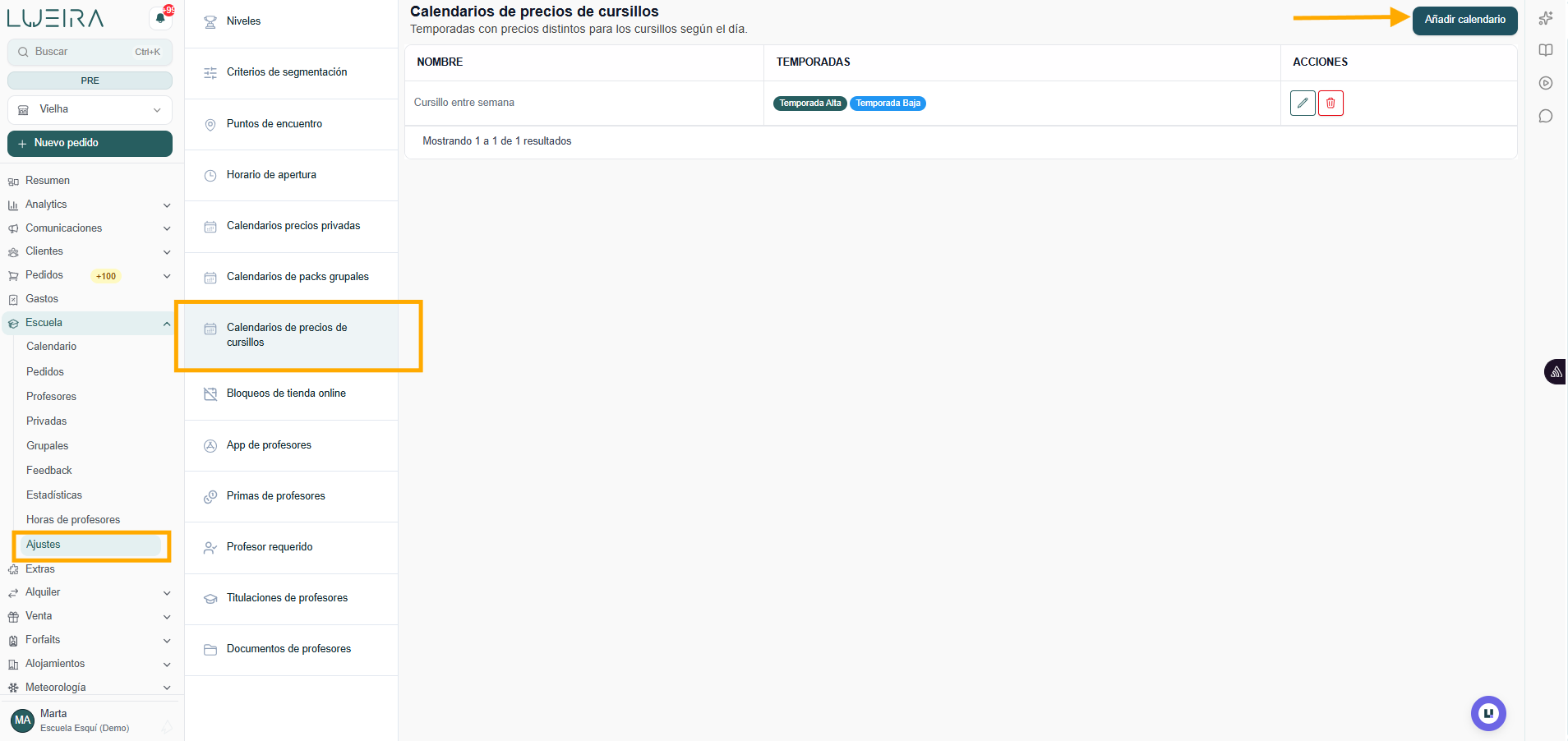
Go to School > Settings > Cursillo price calendars and click Add calendar. The same calendar can be reused in several cursillos (for example, all those of the same activity or season), so you normally don't need to create a different one for each cursillo.
Step 2: Create the seasons and their prices
Inside the calendar, in the Seasons tab, click Add season and define:
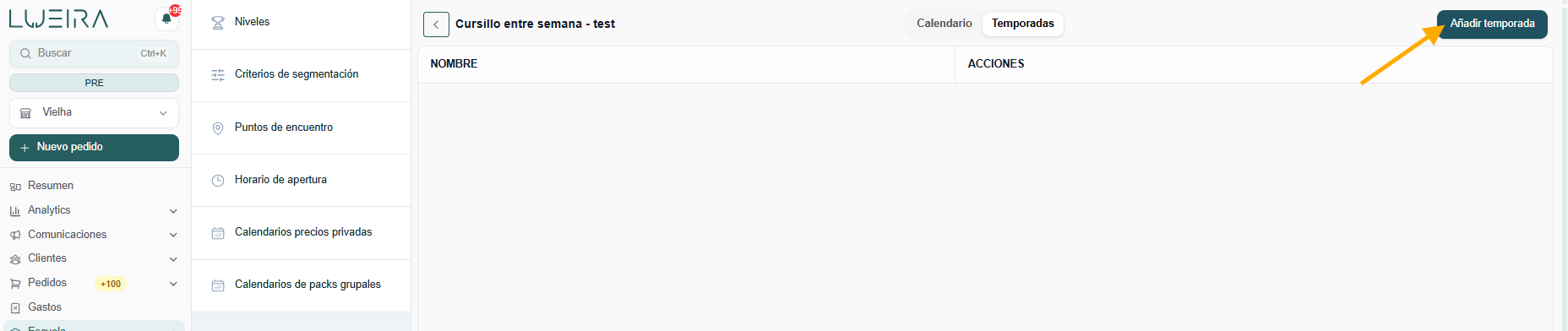
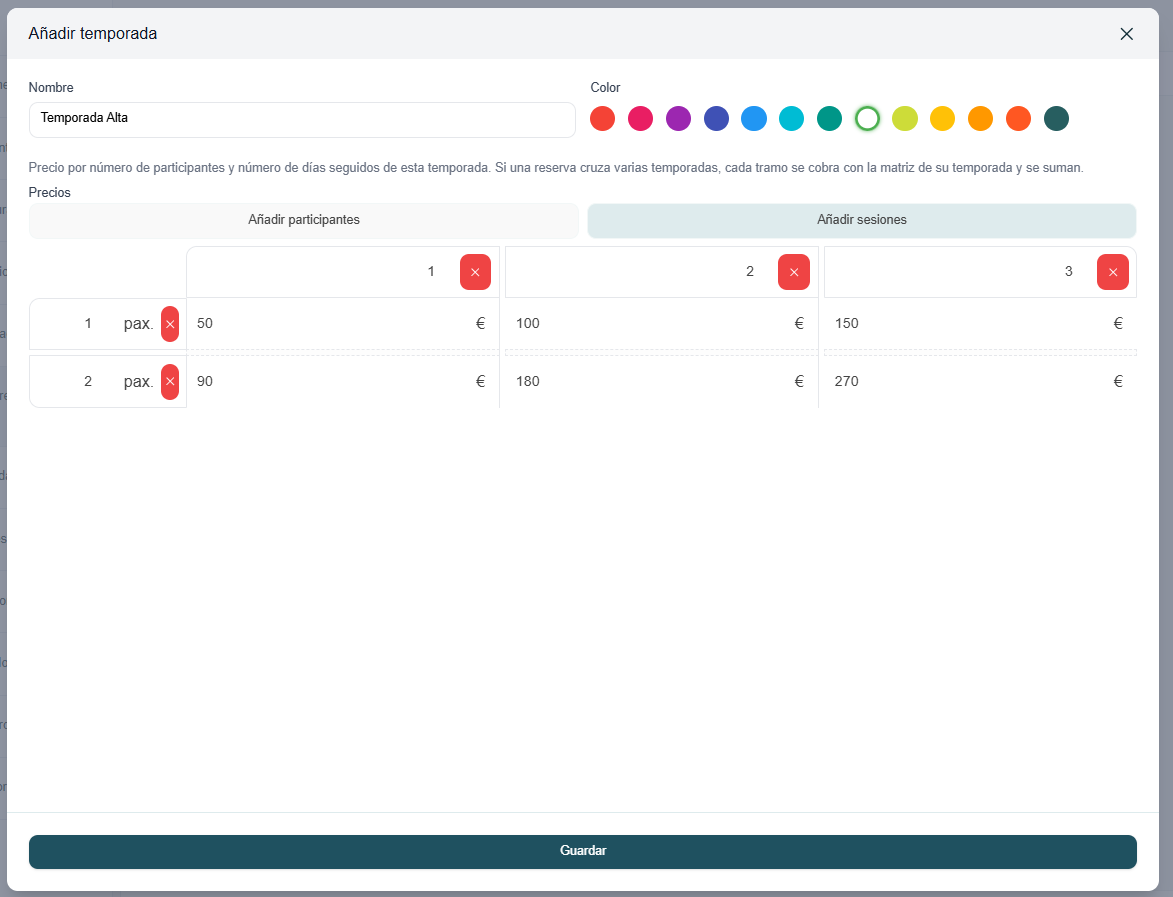
Name (for example "High season", "Weekend") and a color, which is the one you will see later when assigning days in the calendar.
The price matrix for that season: just like in the single matrix, the price according to the number of participants and the number of consecutive days of this season that are booked.
Step 3: Assign the seasons to the days
In the Calendar tab, in month view, select one or several days and choose which season they belong to. The days are colored according to the color of their season, so you can check at a glance how the year is distributed.
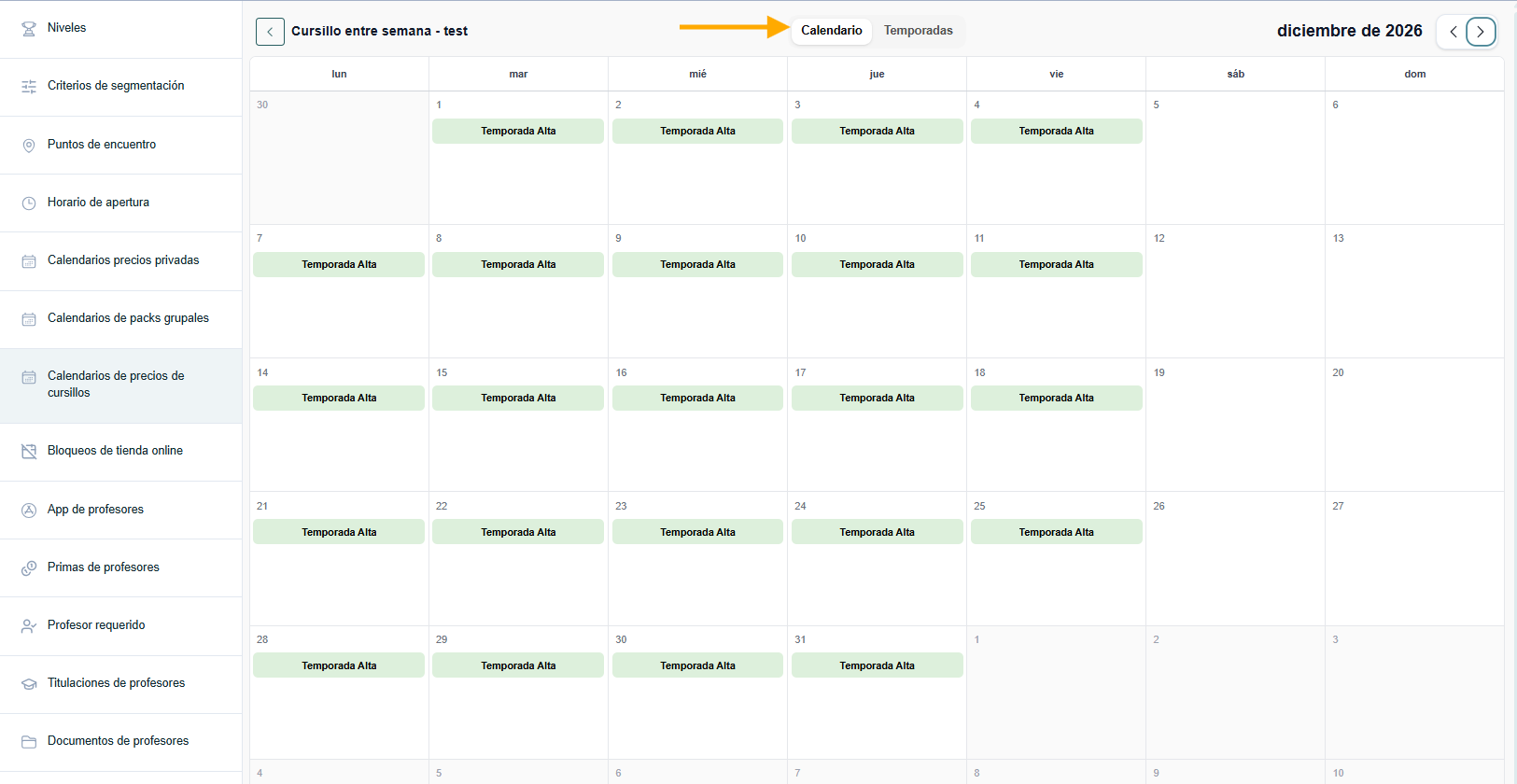
Important: a day with no season assigned has no price. If a booking includes that day, Lueira will block it until you assign a season to that date.
Step 4: Link the calendar to the cursillo
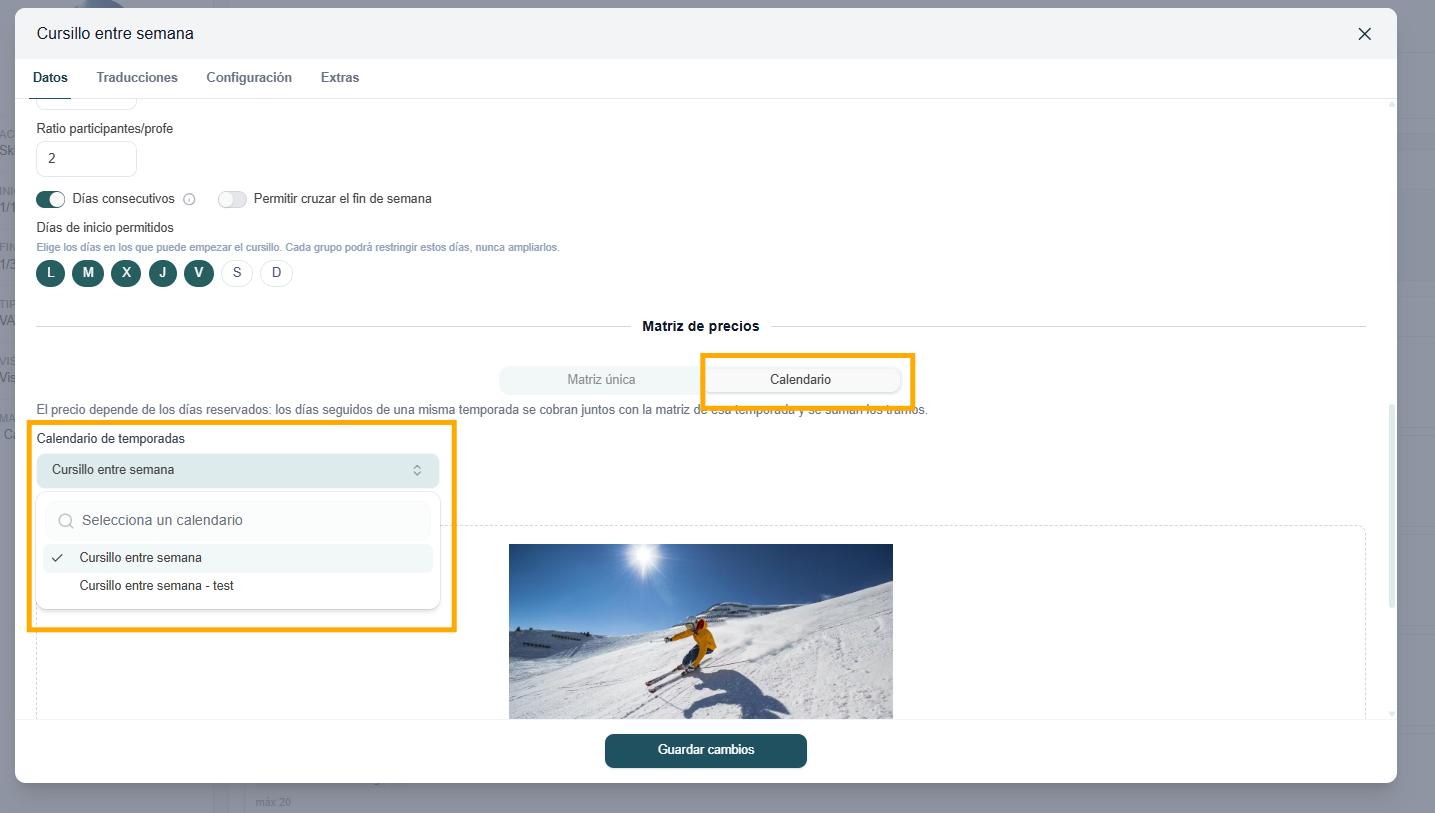
In the cursillo form (Data tab) or in the price link of its record, choose the Calendar mode instead of Single matrix and select the season calendar you want to use.
How the price is calculated
Lueira groups the booked days into runs of consecutive days of the same season: as soon as a day belongs to another season (including a weekend that doesn't have the same season assigned as the weekdays), the previous run is closed and a new one starts. Each run is charged using the matrix of its own season, and the final price of the booking is the sum of all the runs.
Step 2: Define the segmentation criteria
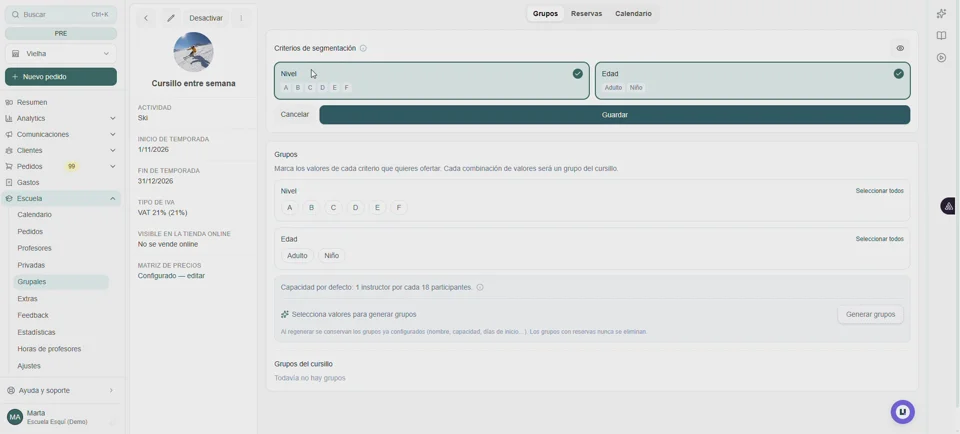 Cursillos pasos 2 y 3: creación de grupos
Before creating groups you need at least one segmentation criterion: a label that describes who each group is aimed at (for example "Level": Beginner/Intermediate/Advanced, or "Age": 4-6/7-12/13+). They are configured centrally in School > Settings > Segmentation criteria, and then linked to each cursillo from its Groups tab.
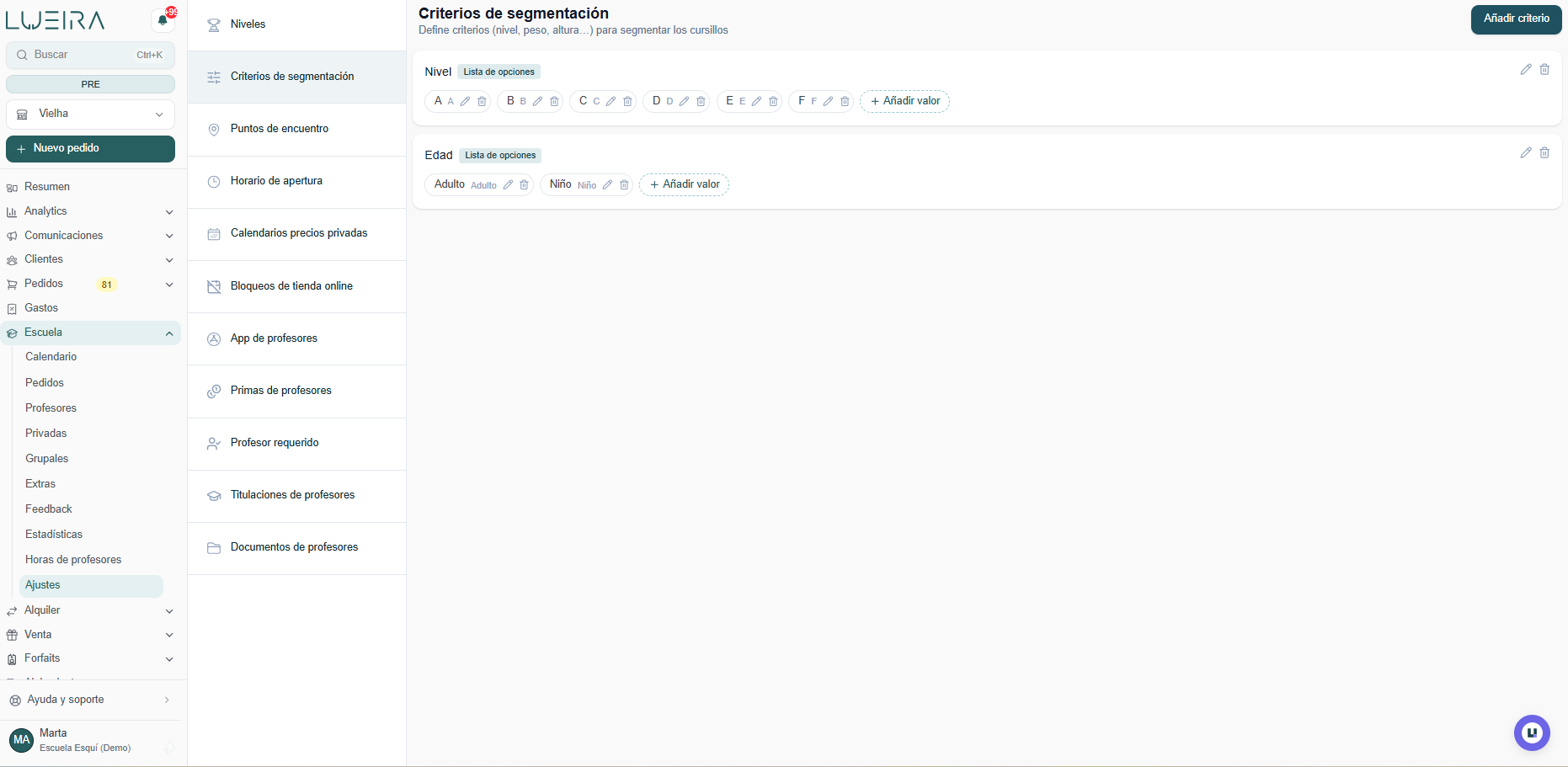
You can go there directly from here:
Marking a criterion as "age"
If you want Lueira to automatically check the participants' age when booking, create (or edit) a criterion of type Numeric range and tick the box "This criterion represents age (calculated from date of birth)". When you tick it, Lueira automatically fills in the criterion's unit with "years" and it can no longer be edited by hand — that unit is exactly what it uses internally to recognize the criterion as an "age" one.
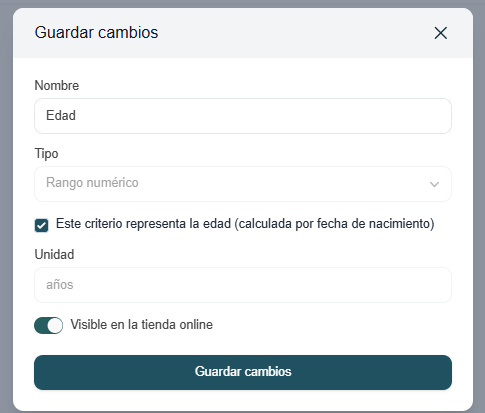
With the criterion marked as age, link it to a group of the cursillo (Step 3) and give it values with their range (for example "Children": 4-12, "Adult": 18-100).
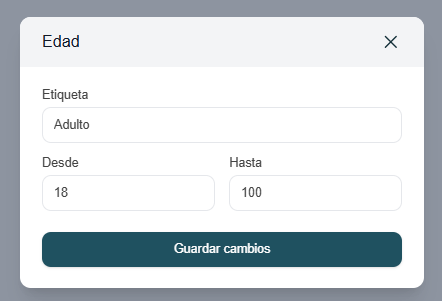
When someone books that cursillo from Admin (manually) (see Booking a cursillo from an order), if the chosen group has an age value linked, Lueira calculates the participant's age from their date of birth (as of today) and, if it doesn't fit in the range, blocks the book button until the team explicitly ticks "Book anyway".
Step 3: Generate and configure the groups
In the cursillo's Groups tab:
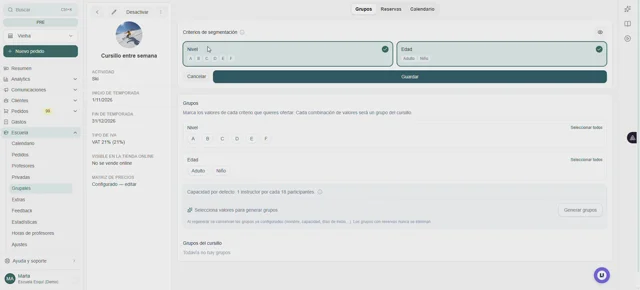
Link the segmentation criteria you want to use for this cursillo (for example Level and Age) by clicking Edit in the criteria block.
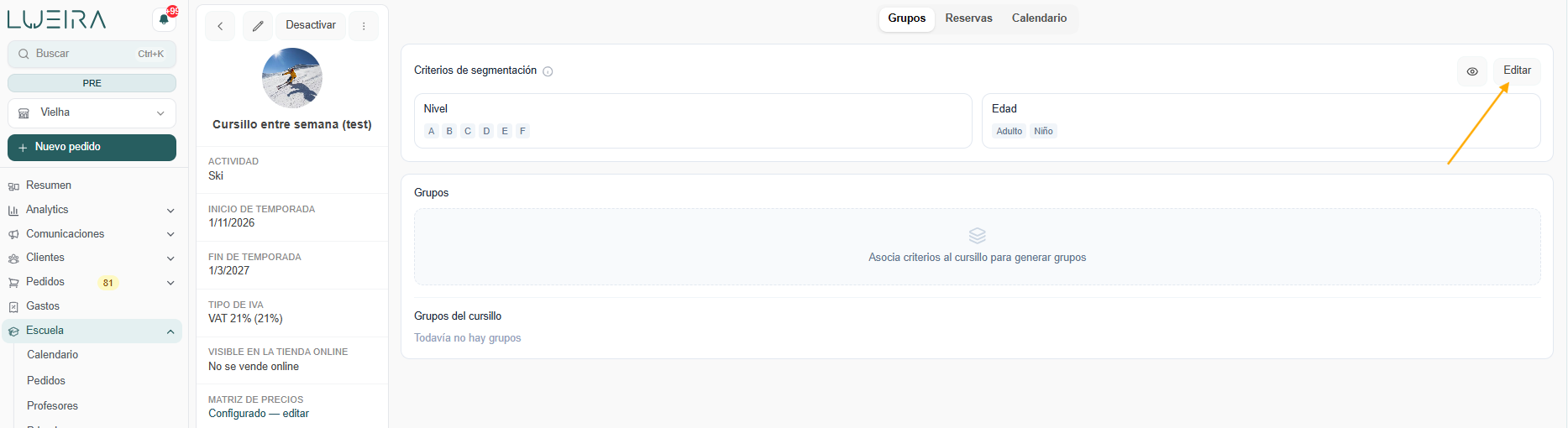
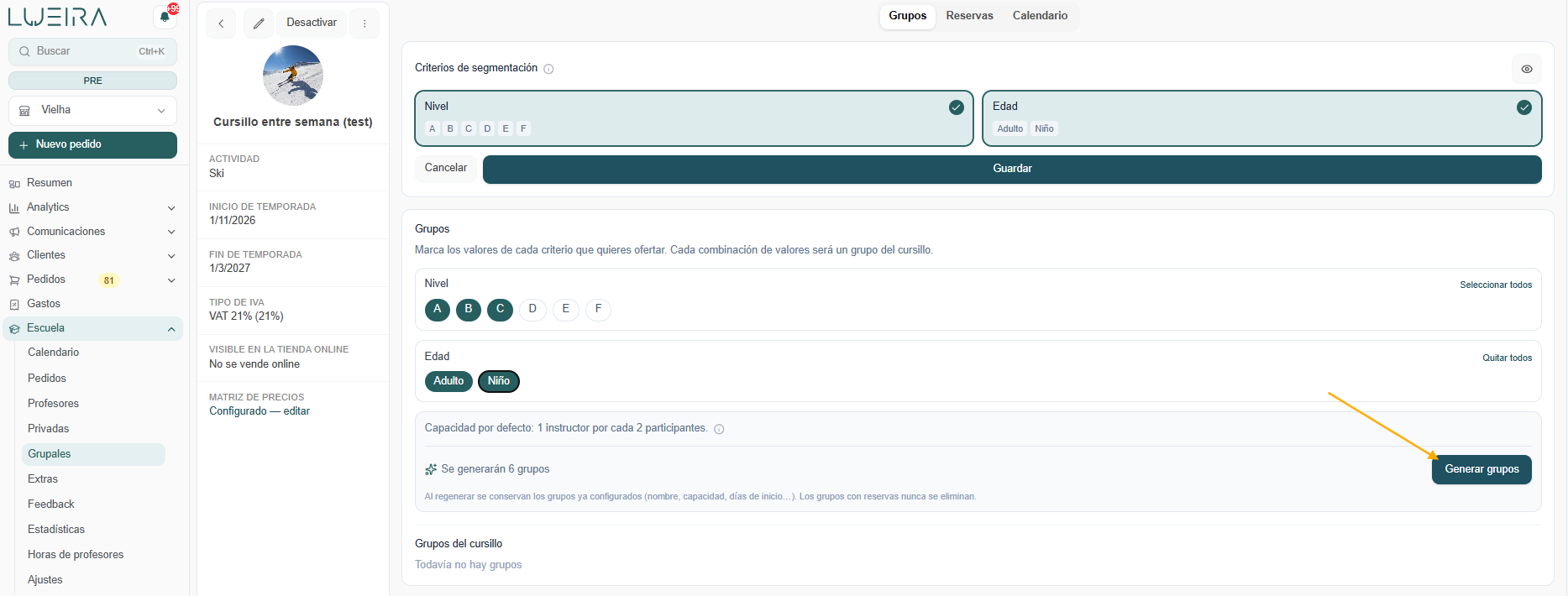
Select which values of each criterion you want to combine (for example, the three levels and the two age ranges). Lueira shows you a preview of how many groups will be created (the product of the selected combinations).
Click Generate groups. Lueira creates one group for each combination, with the default capacity you configured in the cursillo's Data tab.
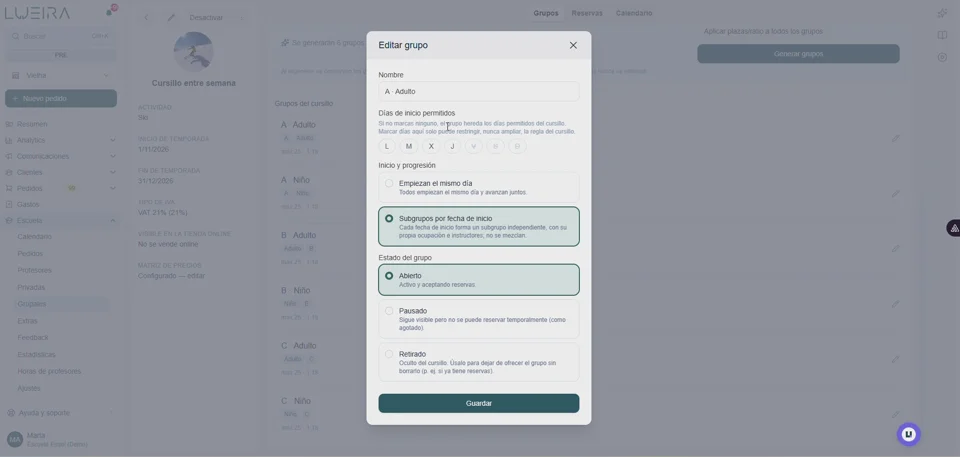
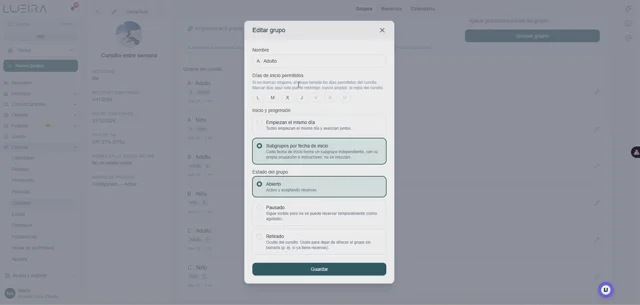
Each generated group can be edited individually (pencil icon) to adjust:
Name of the group.
Allowed start days: on which days of the week a participant can start in this specific group (it can only restrict, never extend, the days that the cursillo allows in general).
Start and progression: same day (all the participants in the group share the same session every day) or subgroups by start date. See the details in Step 4 below.
Status: Open (sellable as normal), Paused (stops accepting new bookings, as if it were full, but can be reopened) or Withdrawn (hidden from the cursillo; useful when you want to stop offering a group that already has bookings without deleting it).
Step 4 (optional): Enable subgroups by start date
 Cursillos paso 4: configuración de grupos
Some groups (typically the beginner level) accept sign-ups on several days of the week: someone can start on a Monday and another person on a Tuesday. The problem is that whoever starts on Tuesday cannot simply join the session of someone who already has a day of class behind them — they need their own progression. That is what subgroups by start date, within the same group, are for.
To enable them, edit the group (Groups tab, pencil icon):
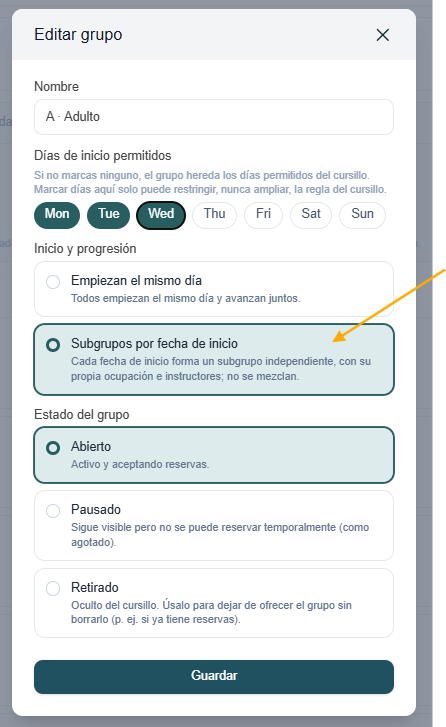
In "Allowed start days" tick several days (for example Mon, Tue and Wed) — subgroups only make sense if you can start on more than one day.
In "Start and progression" choose "Subgroups by start date" (instead of "They start on the same day") and save.
From then on, Lueira automatically separates the group's participants according to the day they started: whoever started on Monday and whoever started on Tuesday end up in different subgroups, each with its own occupancy and teachers assigned within the same group.
A group in "They start on the same day" mode keeps behaving exactly as before: a single session shared by everyone.
Step 5: Generate the sessions and review the occupancy calendar
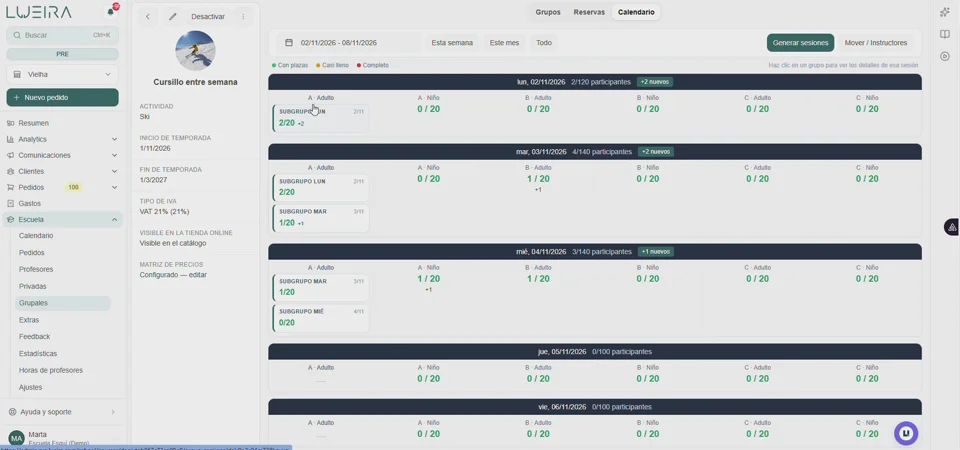 Cursillos paso 5: generar sesiones y ver el calendario
In the cursillo's Calendar tab:
Generate sessions
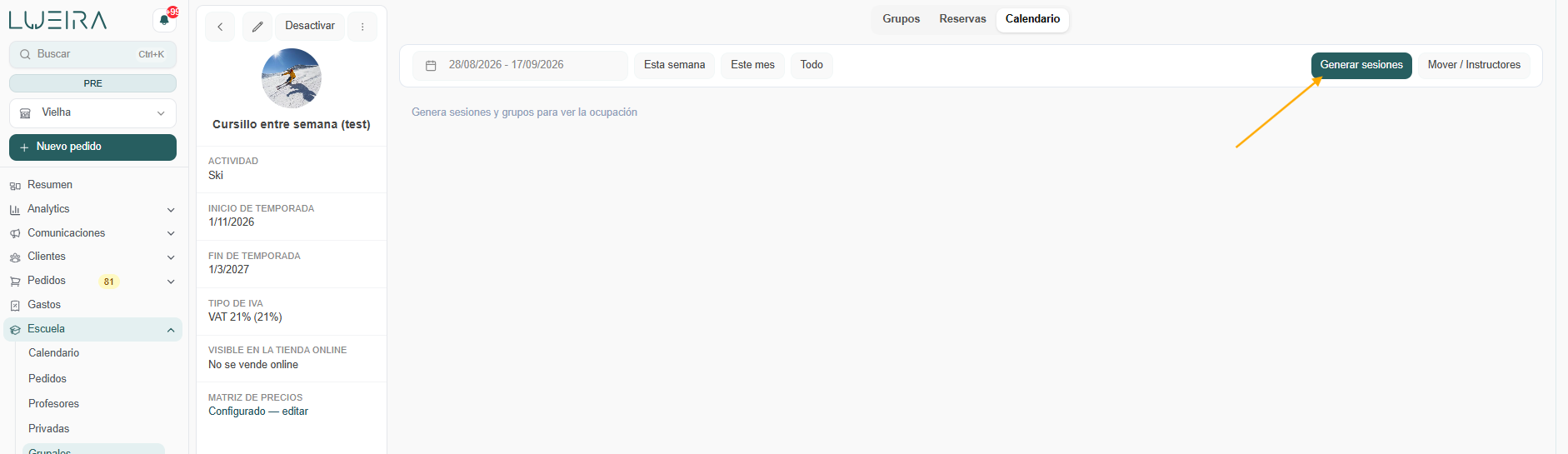
Click Generate sessions and choose on which days of the week the cursillo is taught (by default Monday to Friday; add Saturday or Sunday if there are classes on those days too) and the schedule (start and end time). Lueira automatically creates a session for each chosen day of the week within the cursillo's season.
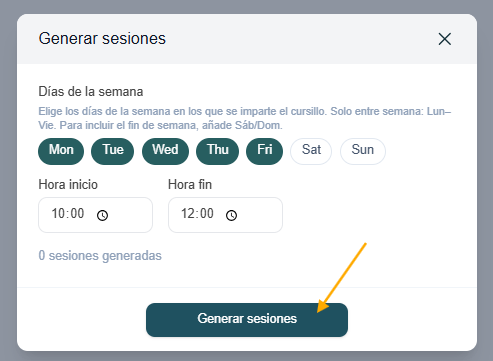
Occupancy calendar
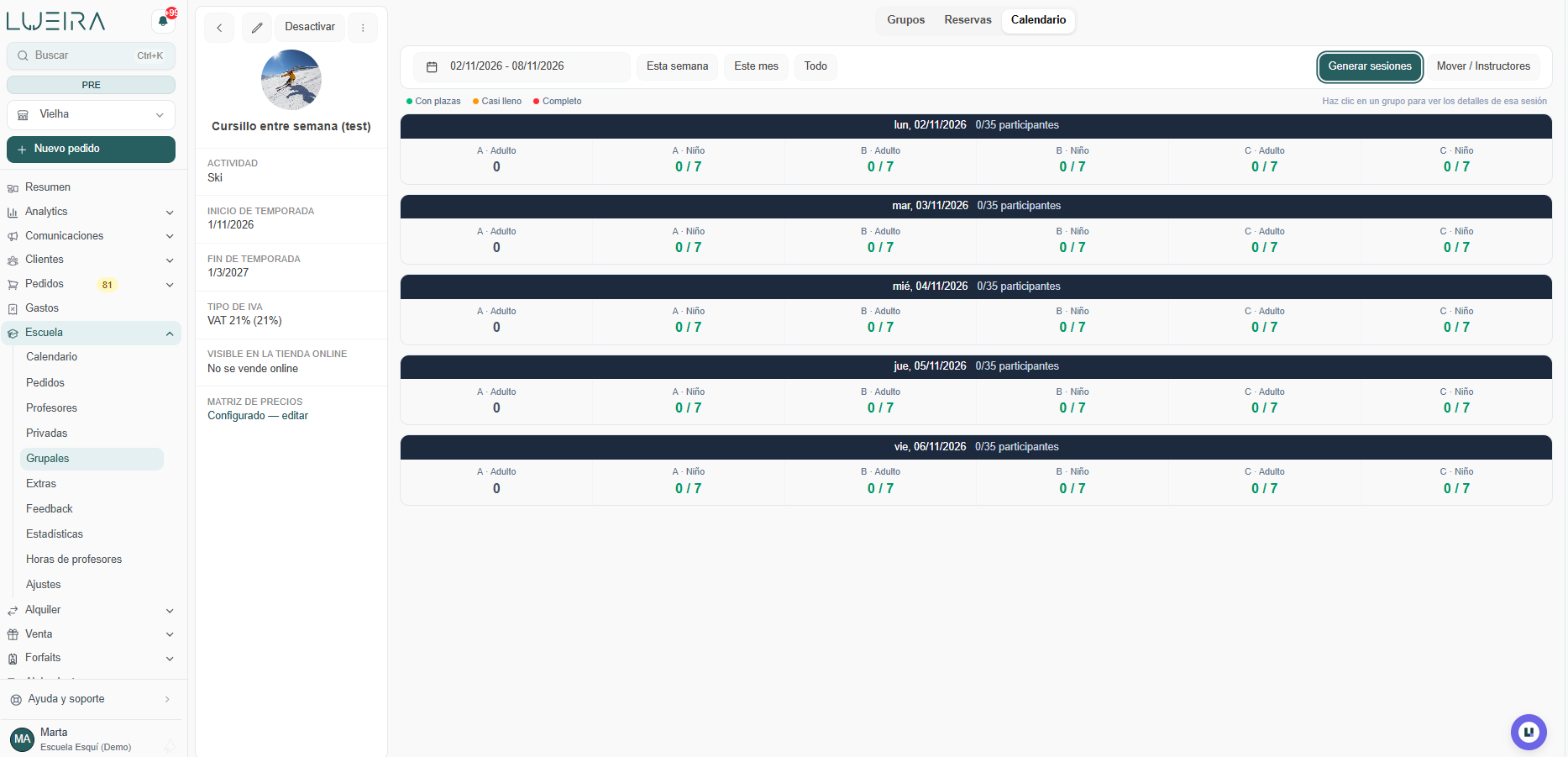
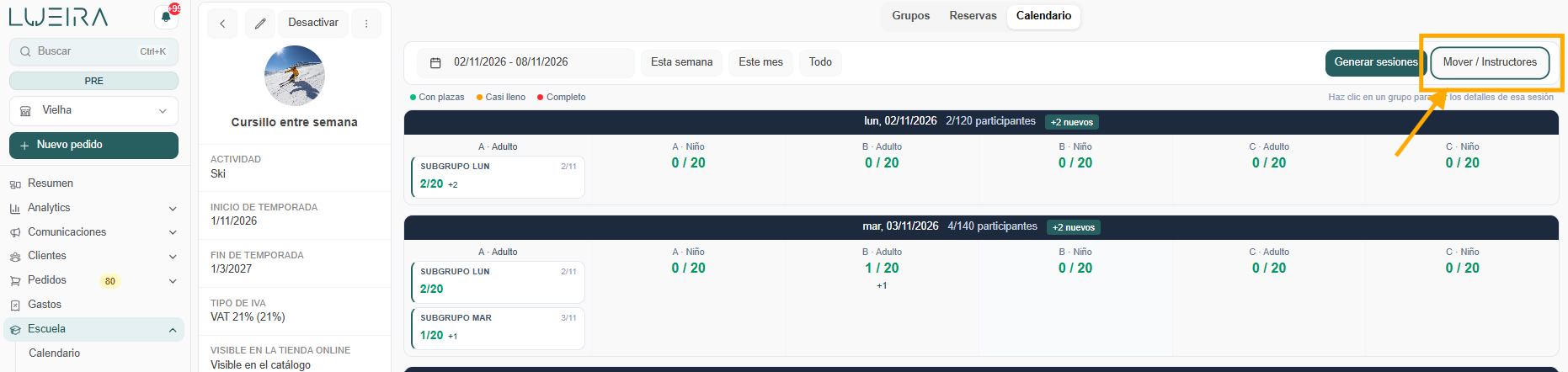
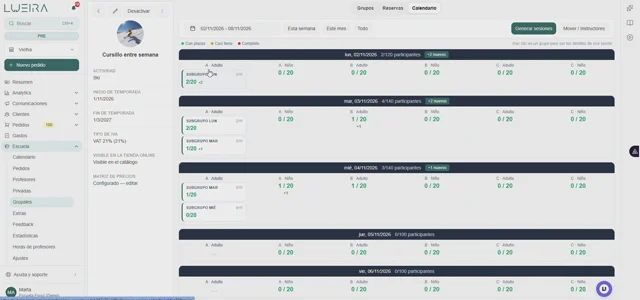
Below you will see a calendar with one row per day and one column per group, with the number of occupied places / capacity for each day + group combination, colored according to the occupancy level (green: places available, amber: almost full, red: full).
You can filter by week, month or the whole season, and click any group on a day to open the details of that session.

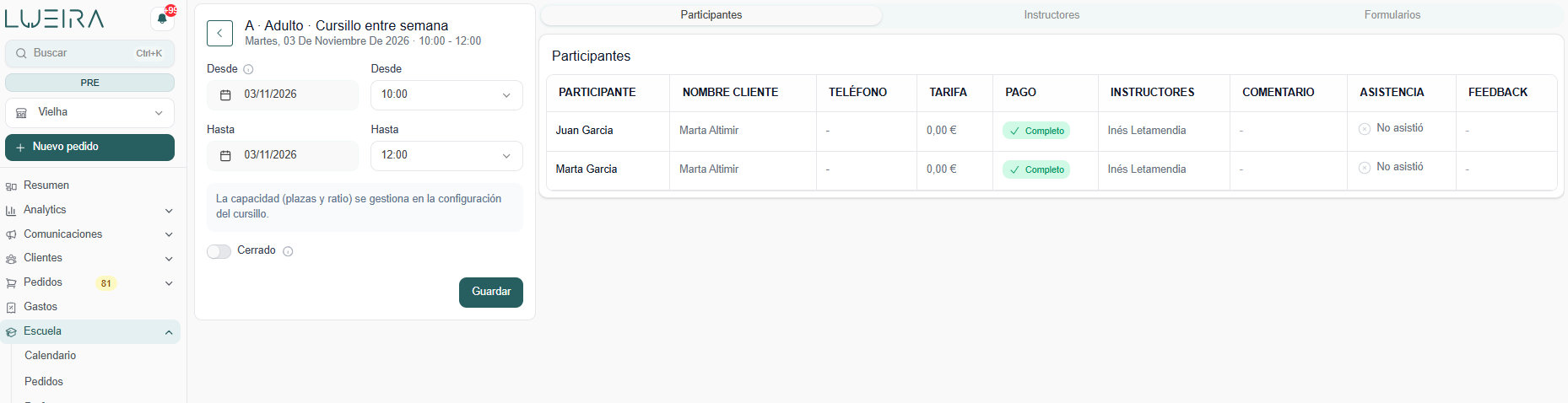
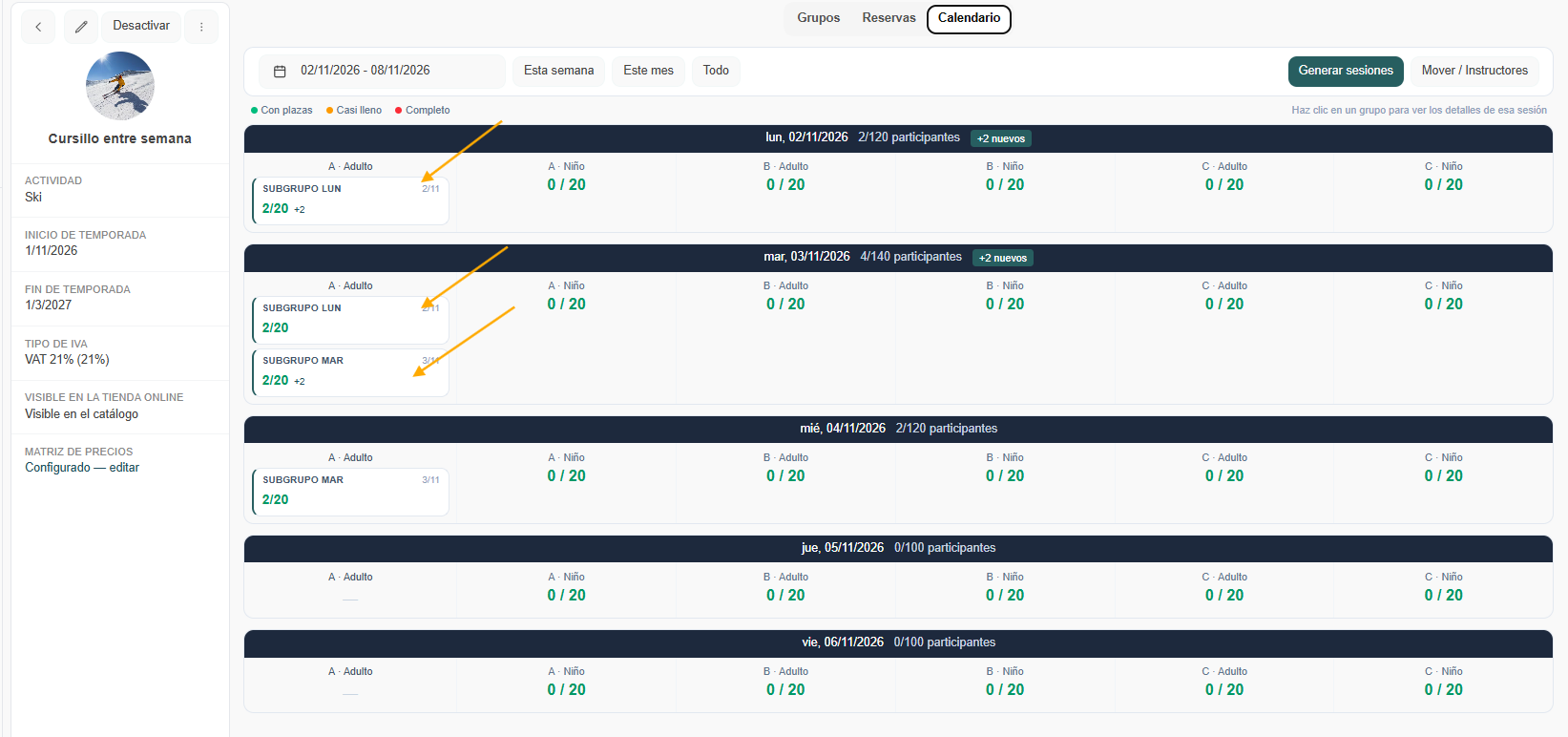
If a group has subgroups by start date, its column is split into one card for each subgroup with a session that day (for example "Mon subgroup" and "Tue subgroup"), each with its own start date and its own occupancy. A day on which no subgroup has a session shows a dash ("—"); a normal group ("They start on the same day" mode) still looks the same as always, as a single column.
Moving participants and teachers between groups or sessions
 Cursillos: mover participantes e instructores
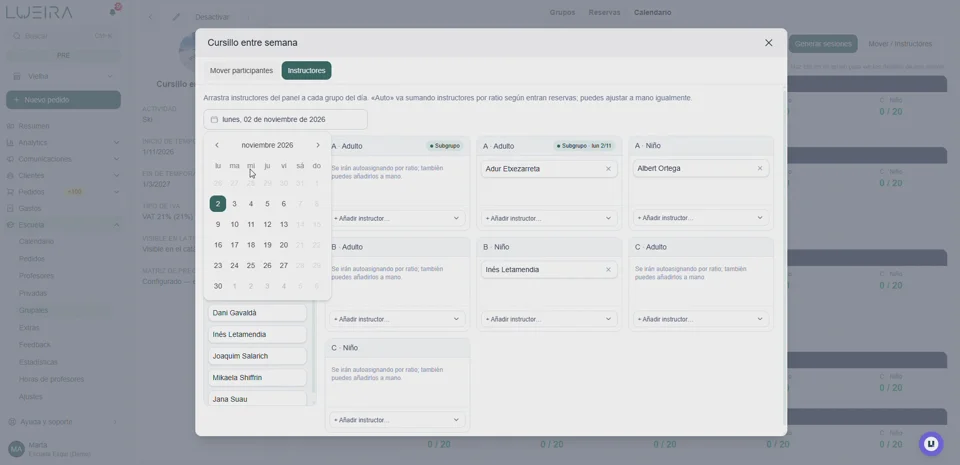
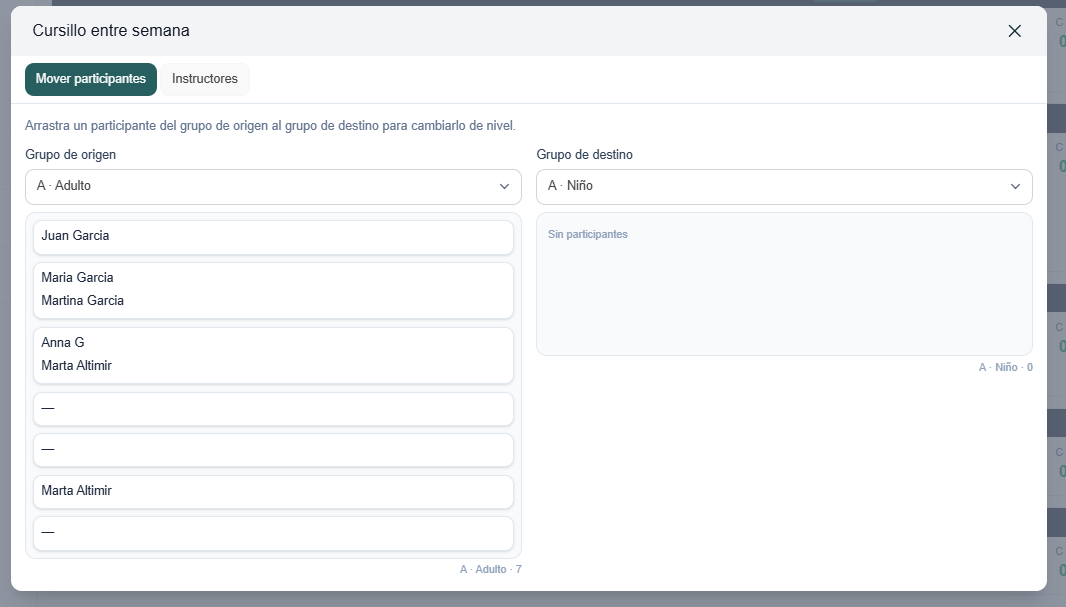
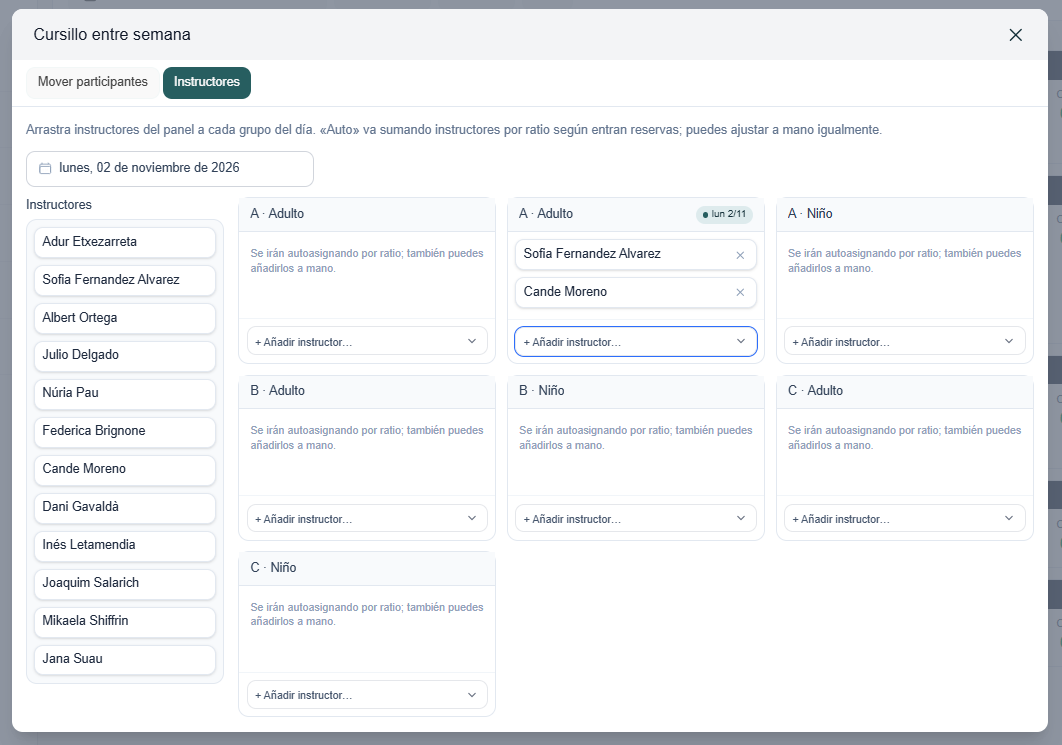
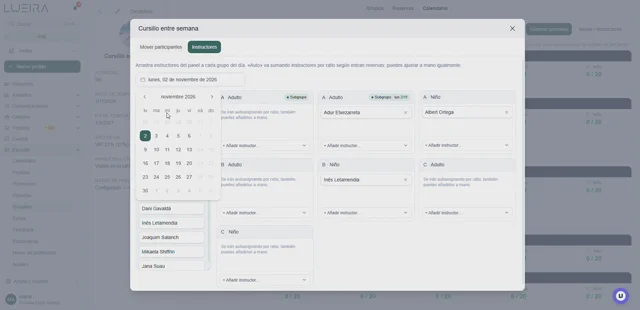
The Move / Instructors button opens a panel with two views:
Groups: drag participants from one group to another (for example, to move someone up a level after an assessment).
Teachers: choose a day in the calendar selector. You will see one column for each group with a session that day; if a group has subgroups by start date, one column appears for each subgroup active that day, with a label indicating its start date (e.g. "Mon 21/09").
Drag teachers from the panel on the left to the lane you want, or use the "+ Add teacher" dropdown at the bottom of each column.
Booking a cursillo from an order (Admin)
 Cursillos: reservar un cursillo manualmente
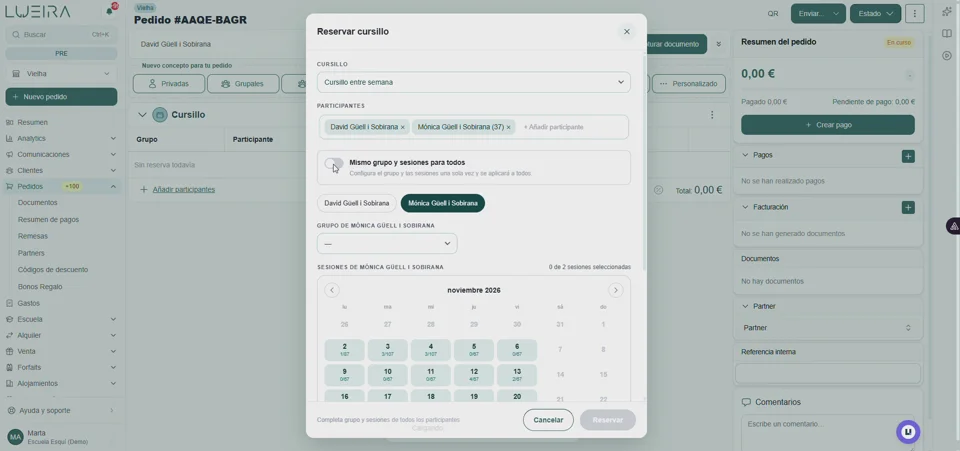
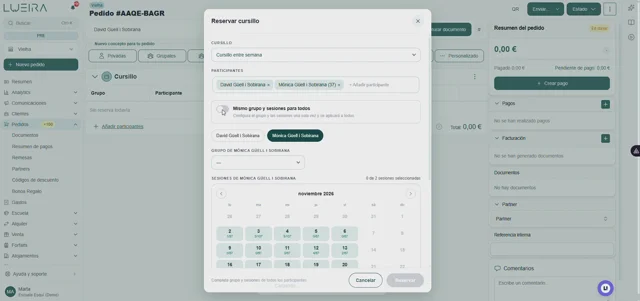
To sell a cursillo from an order, add a cursillo-type line and the "Book cursillo" window will open:
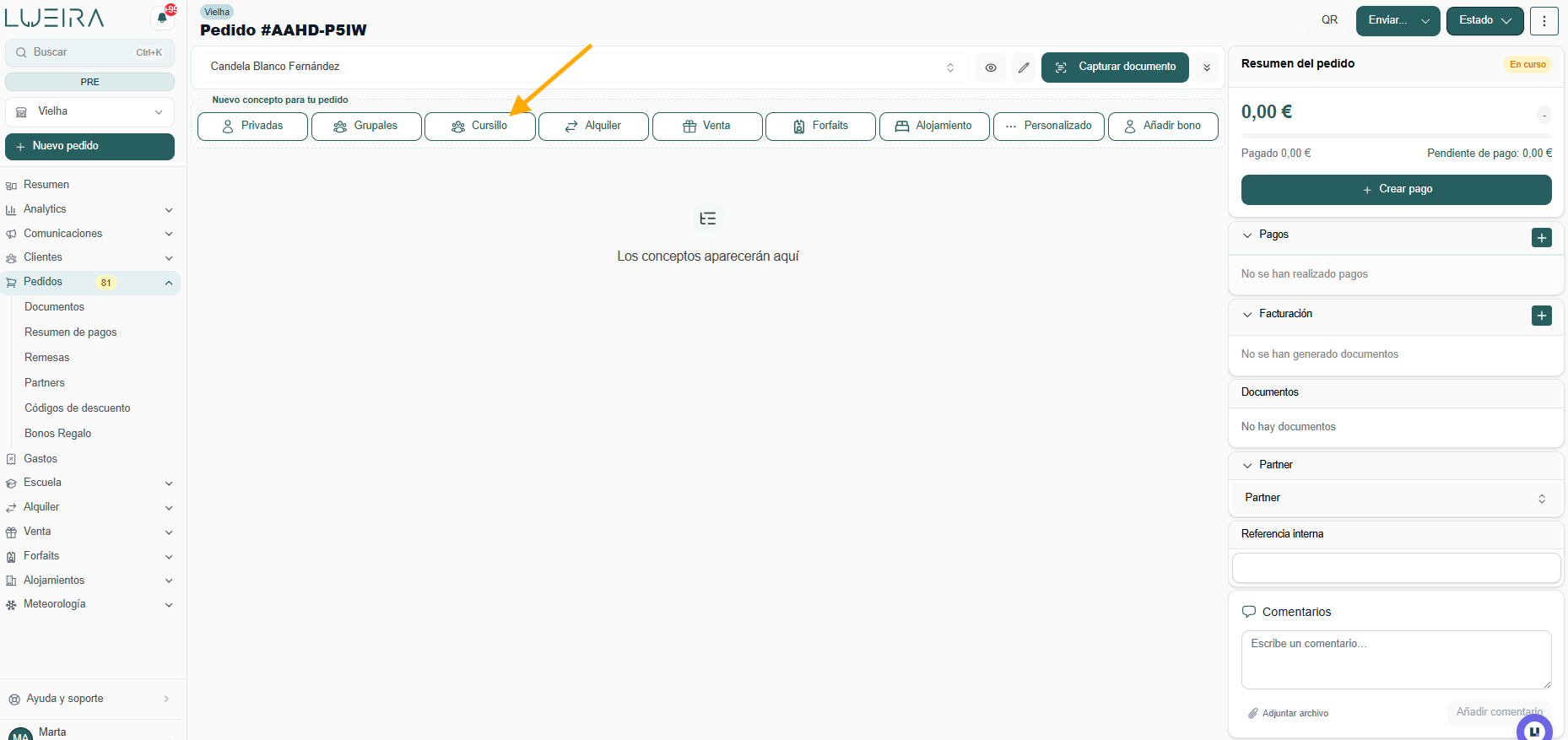
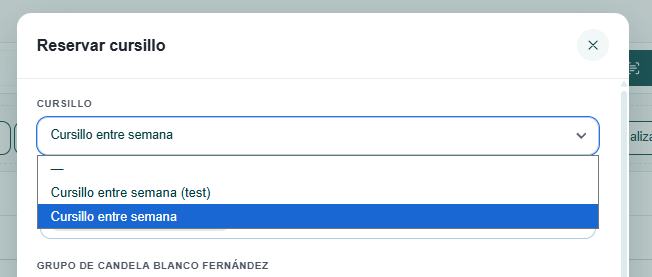
Choose the cursillo.
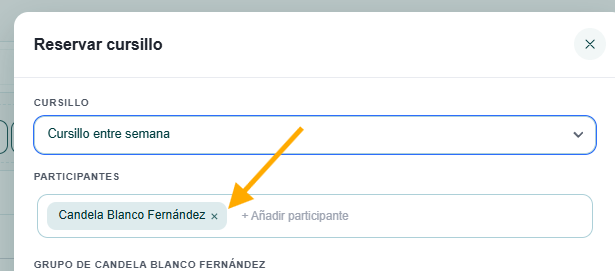
Add the participants (relatives of the order's customer). If you don't add anyone, you can still book with a "generic" place and assign the name later.
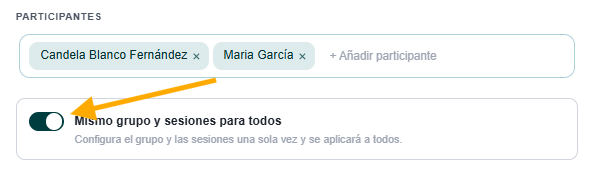
With more than one participant, choose whether they all share the same group and the same sessions, or whether each has their own combination (for example, siblings at different levels, or starting on different days within a group with subgroups).
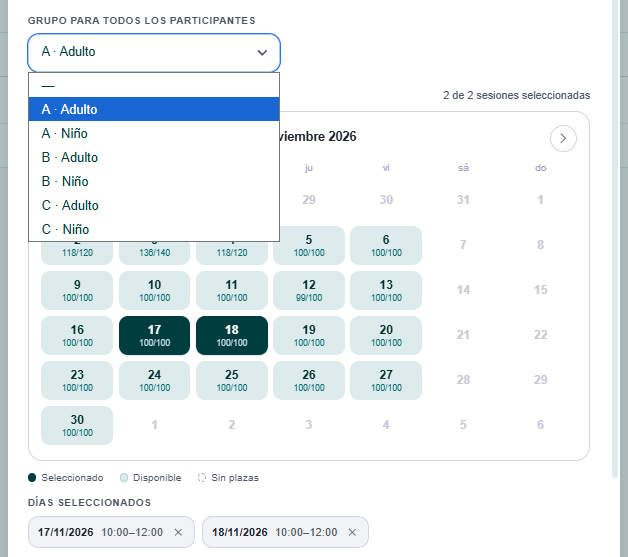
Select the group and, in the calendar, the days to book (the number of days must respect the minimum/maximum resulting from the cursillo's price matrix). If the group uses subgroups by start date, Lueira assigns the booking to the corresponding subgroup based on the first day chosen — you don't need to choose it by hand.
If the cursillo has extras configured, choose them per participant from "Participant details".
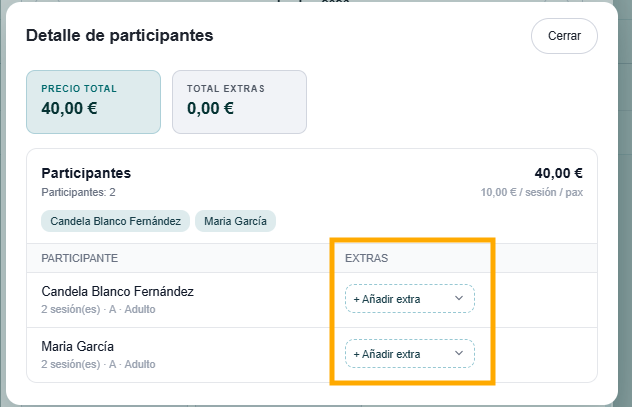
Lueira calculates the total price according to the price matrix (sessions × participants) and shows it next to the extras total.
Two warnings may appear before you confirm the booking:
If an age criterion is linked to the chosen group and the participant's age (based on their date of birth) doesn't fit the group's range, Lueira warns you and asks you to confirm that you want to book anyway.
If the cursillo requires an available teacher and any of the chosen sessions has none free, Lueira warns you; you can still create the booking and assign the teacher by hand later.
When you confirm, Lueira creates the booking (or several, if the participants don't share group/sessions) and adds it as a line of the order.
Details of a group session
When you click a cell in the occupancy calendar (or a subgroup card) you go to the details of that specific session (a group or subgroup, one day).
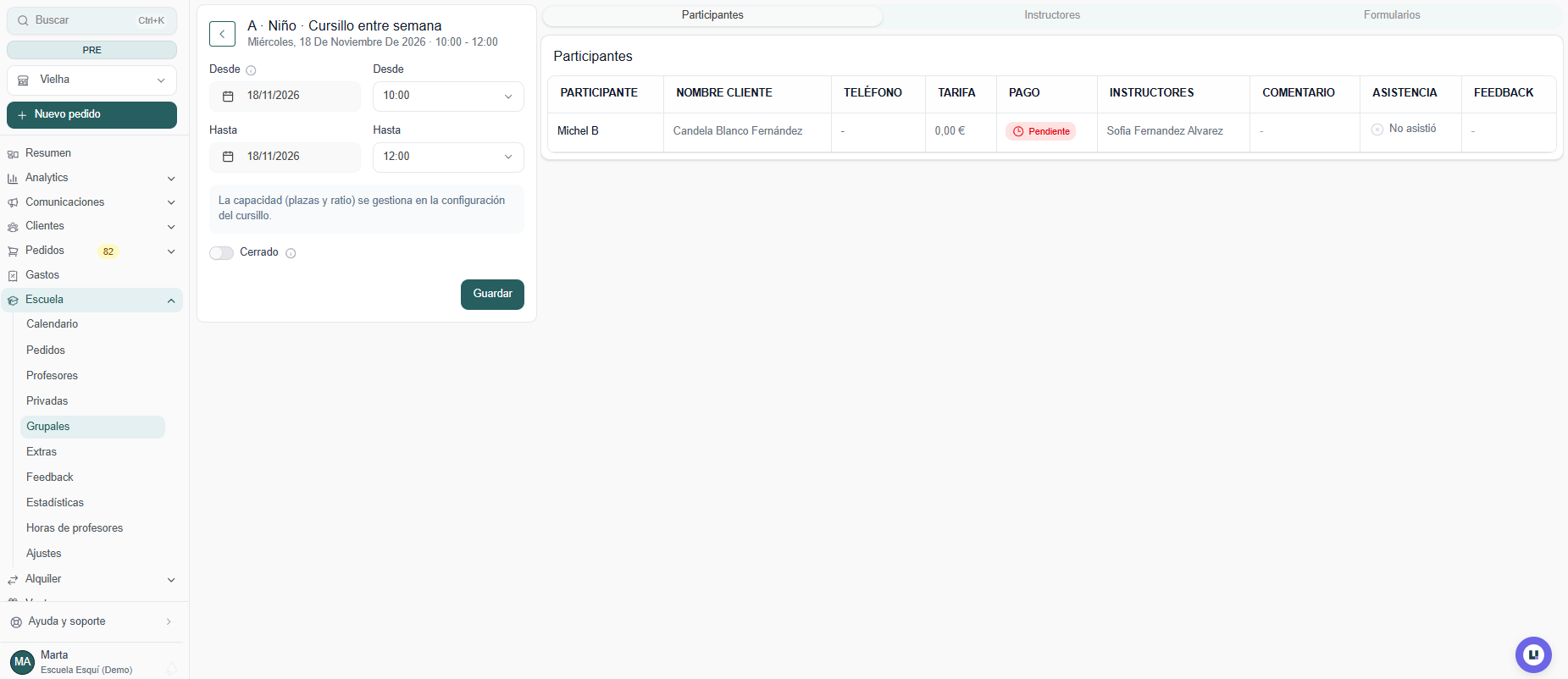
From here you can:
Adjust the schedule (start/end date and time) for that day only, if you need a one-off exception.
Close the session: it stops accepting new bookings on that specific day (equivalent to capacity 0); existing bookings are kept. The capacity itself (places and ratio) is still managed from the cursillo's settings, not here.
Add or remove the teachers assigned to that session (or to that subgroup, if the group uses them). The teachers field lives in the session's own form, along with the schedule and the closure: changes are not saved automatically, they are applied when you click Save in the session, together with any other changes you have made.
See the list of participants in that session: name, customer, phone, payment status, assigned teachers and their attendance (mark whether they attended with one click). Each row links to the corresponding order.
If the cursillo has check-in, participant or checkout forms configured, a Forms tab shows each participant's answers.
How your customers see it in the online store
If the cursillo is visible in the online store, your customers book it from its public page: they choose the group (level, age...) and, in a calendar, the available start days within the season.
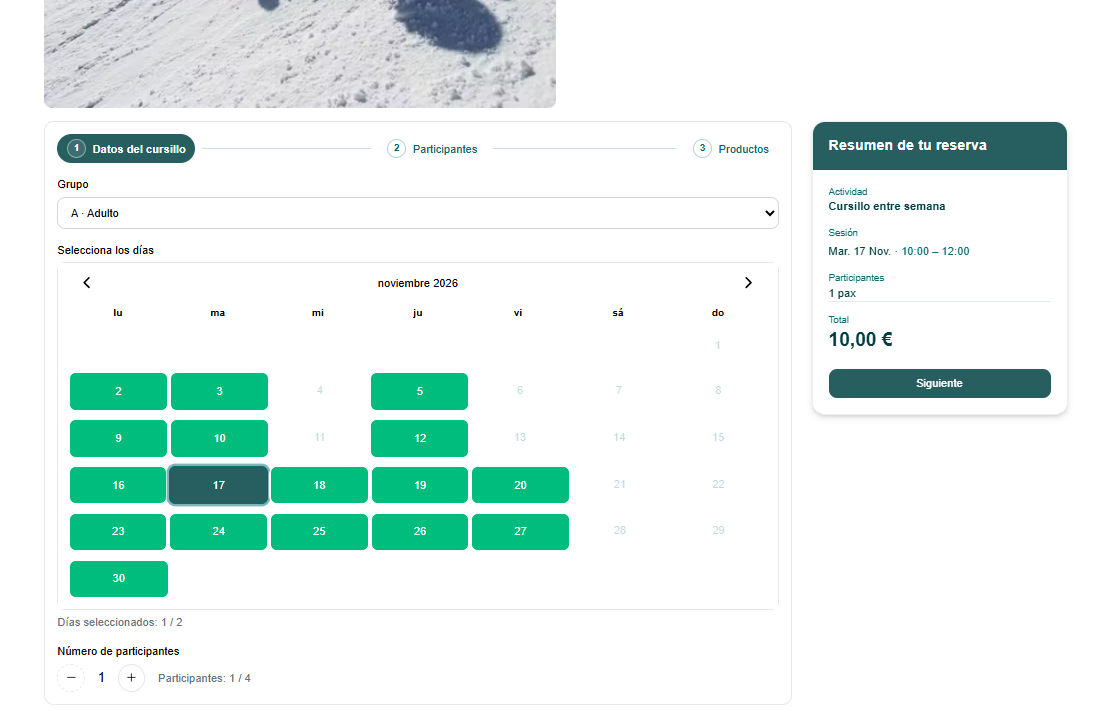
The "subgroup" concept is entirely internal: the customer never sees it or has to choose it. If the group uses subgroups by start date, Lueira simply calculates availability date by date: if the subgroup for a specific start date is full (or there is no teacher available when the cursillo requires one), that date stops being shown as bookable in the store calendar, while the rest of the start dates remain open as normal.
When the booking is completed, Lueira automatically assigns it to the correct subgroup — you will see it reflected in the occupancy calendar and in the admin's Move/Teachers panel as soon as it comes in.
Managing the cursillo
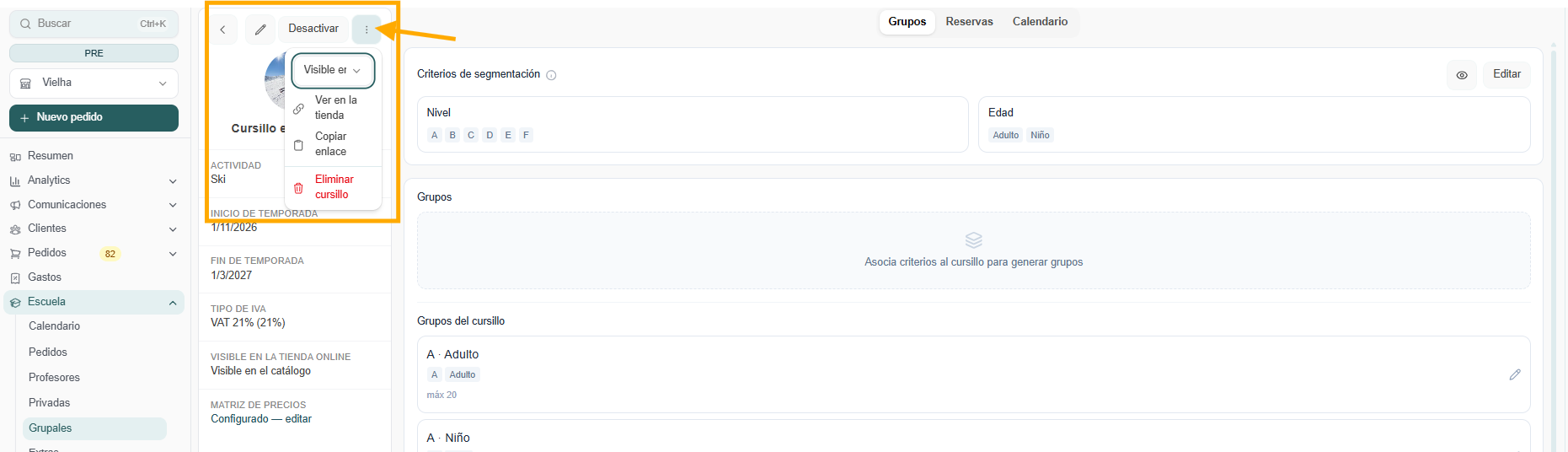
From the ⋮ menu of the cursillo's record you can activate or deactivate the cursillo, change its visibility in the online store, view or copy the public link, and delete it.
Related guides
Adding school products — "classic" private and group products, to compare with cursillos.
Session packs — the other way to sell several sessions of a group product.
Pack pricing by season calendar — the same season calendar mechanism, applied to session packs.
Product forms — checkout, check-in and participant forms.
Document management — contracts, consents and digital signatures.
Videos about this guide
Related guides
- School navigationHere you will find everything the School section offers
- Which product type do I need? Group, private, pack, voucher or multi-day courseGuide to choosing the right product for what you sell: private lessons (price per hour or rates), several sessions priced by number of sessions, fixed dates, hour voucher, multi-day course or a single student with a group schedule.
- Add School productsComplete guide to creating and configuring private and group products in the School section: form fields, session availability and creating sessions in the calendar.
- Product sheet: Data, Translations, Settings, Extras and Related ProductsReference guide to the tabs of the product creation/editing form (private, group, rental or sale): what each one contains and links to the specific guides.
- How do I set up a new season?We show you how to set up a new ski season in Lueira
- How can I set up the new season of my ski school in LueiraWe show you how to set up a new ski season in Lueira