

Assigning participants to instructors
Guide to assigning participants to instructors in group sessions
On this page
In group sessions with several teachers, you can assign which participants belong to each one.
This helps you organise the session better when there are subgroups within the same activity.
What is it for?
This feature is useful when:
There are several teachers in the same session
Each teacher manages a specific group of participants
You need to organise the activity by levels or internal groups
1. Accessing the teachers assignment
Inside a session:
Open the session details
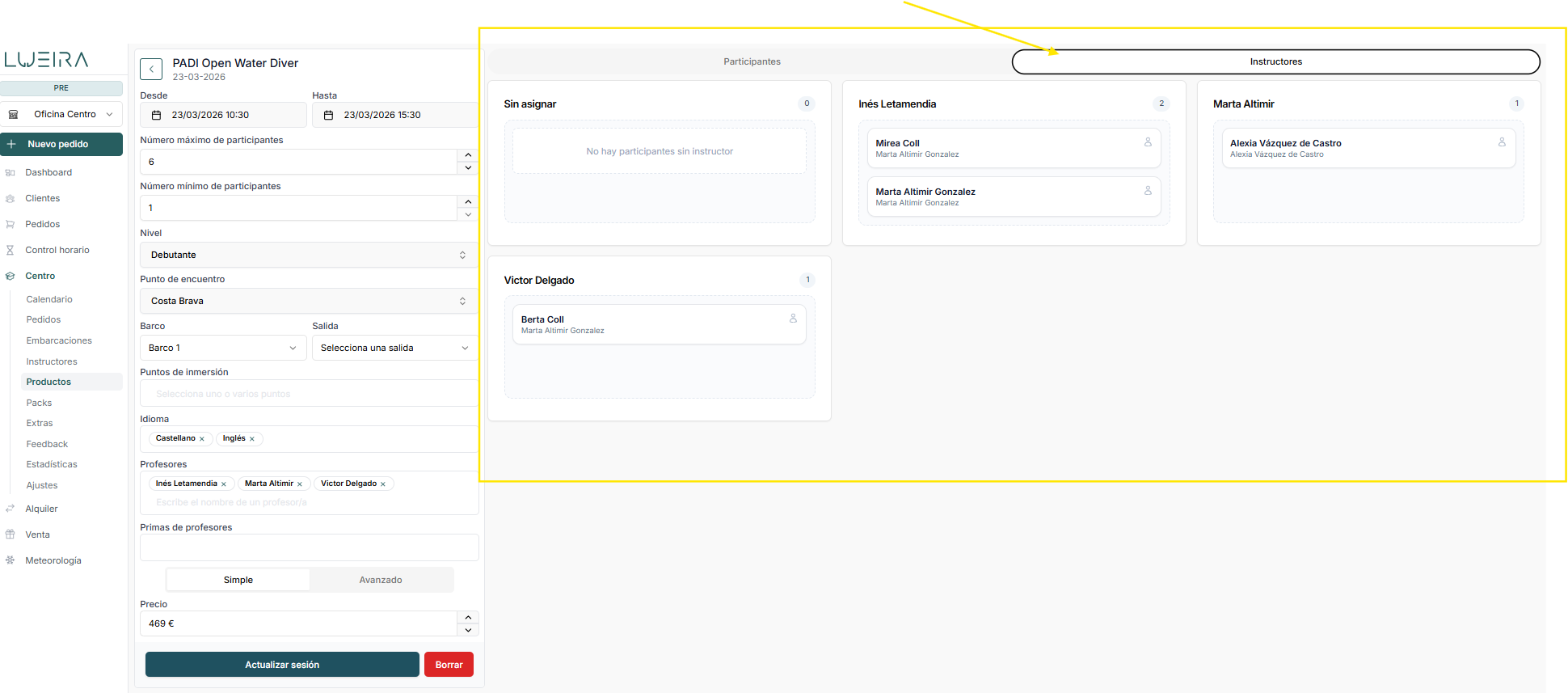
Go to the "Teachers" tab
Here you will see:
The assigned teachers
The participants organised by teacher
An "Unassigned" column (if there are participants without an teacher)
2. Assigning participants to an teacher
You can assign participants visually:
👉 By dragging the participant to the corresponding teacher
Each teacher has their own block
You just have to move the participant to the desired block
3. Changing the assignment
If you need to change the assignment:
You can drag the participant again to another teacher
Or move them to "Unassigned" if you do not want to decide yet
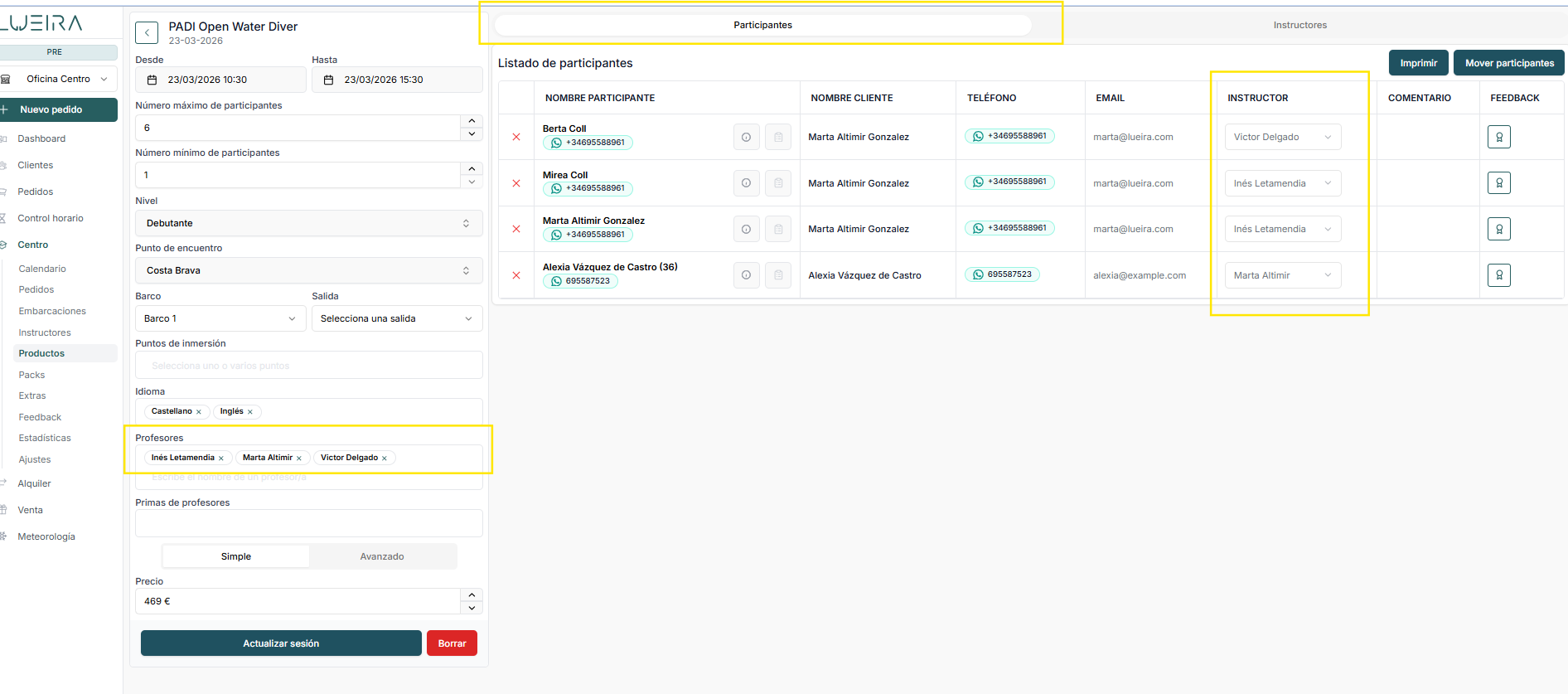
4. Alternative view (list)
You can also see the information in table format, where:
Each participant has an assigned teacher
You can change it from the teacher selector
What you need to keep in mind
In the Instructors App, each teacher will only see in their account the participants assigned to them.
You can only assign participants to teachers who have previously been added to the session
A participant can only have one assigned teacher
If you do not assign an teacher, the participant will remain in "Unassigned"
Related guides
- School navigationHere you will find everything the School section offers
- Which product type do I need? Group, private, pack, voucher or multi-day courseGuide to choosing the right product for what you sell: private lessons (price per hour or rates), several sessions priced by number of sessions, fixed dates, hour voucher, multi-day course or a single student with a group schedule.
- Add School productsComplete guide to creating and configuring private and group products in the School section: form fields, session availability and creating sessions in the calendar.
- Product sheet: Data, Translations, Settings, Extras and Related ProductsReference guide to the tabs of the product creation/editing form (private, group, rental or sale): what each one contains and links to the specific guides.
- How do I set up a new season?We show you how to set up a new ski season in Lueira
- How can I set up the new season of my ski school in LueiraWe show you how to set up a new ski season in Lueira