

Material resources in group products
Learn how to link material resources to your group products: automatic assignment per participant, manual reassignment from the order and availability control in the Online Store.
On this page
Material resources in group products
What is it for?
This feature is available for accounts configured as Active tourism or Sports school.
If you offer a group product that requires physical equipment - kayaks, surfboards... - you can link it to the product. Lueira will automatically assign the equipment to each participant when a booking is made and will make sure that no more than what is available is booked.
How to link equipment to the group product
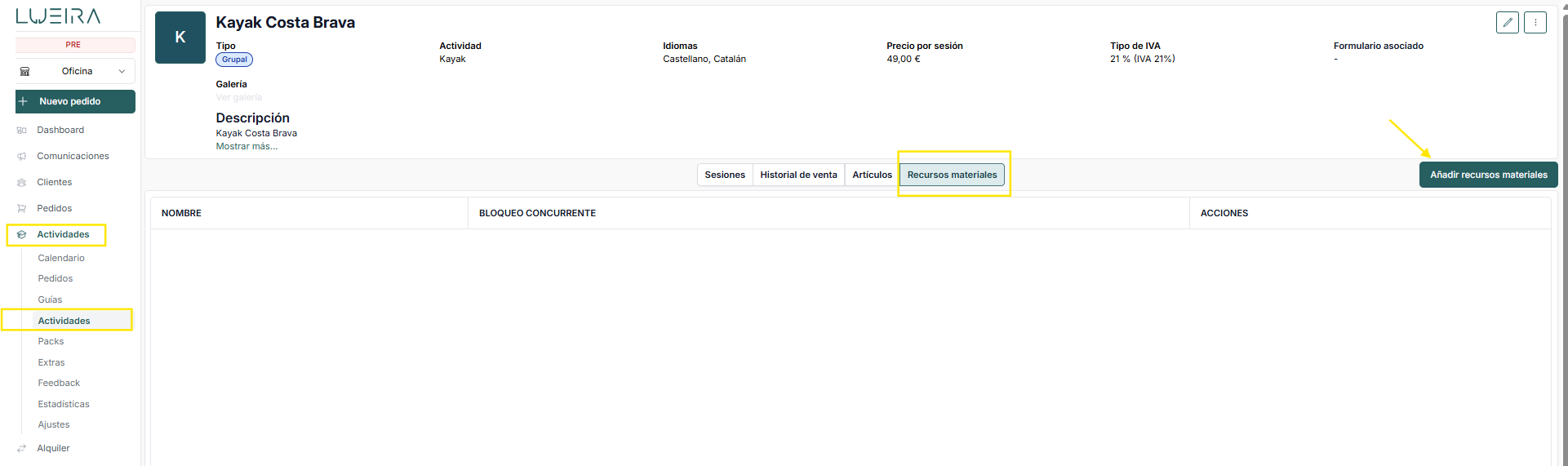
Go to the group product and open the "Material resources" tab
In the material resources section, click Add material resources.
Search for and select the rental product you want to link. You can link it at whole-product level (all its variations) or just one specific variation.
Before confirming, check the option Allow the resource to be blocked in different orders.
This option matters when a unit of equipment has more than one seat (for example, a double kayak has 2 seats) and controls whether those seats can be shared between different orders:Enabled: the seats of the same unit can be assigned to participants from different orders. A double kayak could have one seat taken by one order and the other by a different order.
Disabled: each unit is assigned exclusively to a single order. The double kayak will only be assigned when one same order needs both seats.
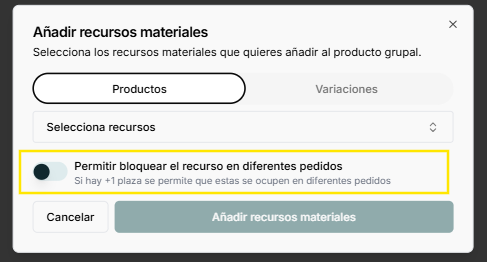
Click Add material resources to save.
How it affects Online Store orders
The Online Store calculates availability taking into account both the free seats in the session and the available equipment. The customer sees and can book the minimum of both values. It is not possible to complete a purchase that exceeds that limit.
Example: you offer a Group kayak tour with 10 seats. You have two variations linked: Single kayak (1 seat) and Double kayak (2 seats). For a specific session you have 3 single kayaks and 2 double kayaks → 7 equipment seats in total (3×1 + 2×2). Even if the session has 10 free seats, the Online Store will show 7 available seats and will not allow booking more.
How it affects manual orders from Admin
From the admin panel you have more flexibility:
You can create a booking even if there is not enough equipment for all the participants. Those who exceed the availability will be left without an assigned resource.
You can see and change the equipment assigned to each participant from the order itself: open the group booking modal and use the material resource selector. Only the units linked to the product and available in that time slot will appear.
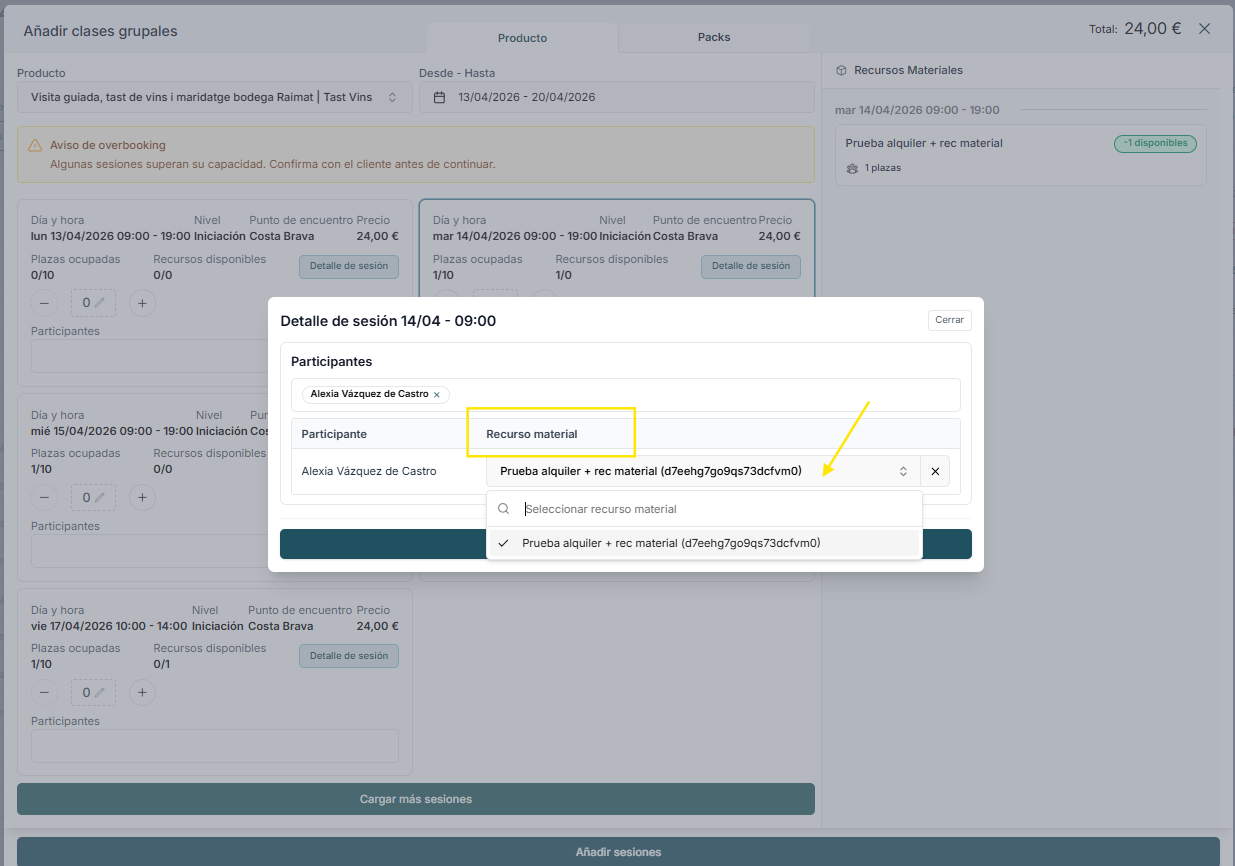
You can also unassign the equipment from a participant if you need to.
Important notes
The equipment must be set up beforehand in Rental > Products with its stock defined.
If you link the whole product (without specifying a variation), any variation can be assigned. If you link a specific variation, only that one will be used.
Availability takes into account the bookings that already exist for that time slot, so it always reflects the real stock at that moment.
If a unit of equipment already has an active rental order in that time slot, it is considered occupied and will not be available to be assigned to a group booking. Rental stock and group product stock share the same availability.
The options in the "Add material resources" form
When you click Add material resources in the Material resources tab of the group product, the window has two tabs and a switch. These are the names you will see on screen today:
| Option | What it does |
|---|---|
| Products (tab) | Links the whole rental product: any of its variations can be assigned to the participants. |
| Variations (tab) | Links only the variation you choose (for example, only the "Double kayak"): only that one will be used. |
| Share units between orders (switch) | Enabled: the free seats of a unit (for example, a 3-seat sled) can be sold to people from different orders. Disabled: each unit belongs exclusively to the first order that occupies it; even if it has free seats left, it is not assigned to any other order. |
The Share units between orders switch is the same one that the previous section describes as "Allow the resource to be blocked in different orders". You will also see it as the Share between orders column in the product's resource list.
Related guides
- School navigationHere you will find everything the School section offers
- Which product type do I need? Group, private, pack, voucher or multi-day courseGuide to choosing the right product for what you sell: private lessons (price per hour or rates), several sessions priced by number of sessions, fixed dates, hour voucher, multi-day course or a single student with a group schedule.
- Add School productsComplete guide to creating and configuring private and group products in the School section: form fields, session availability and creating sessions in the calendar.
- Product sheet: Data, Translations, Settings, Extras and Related ProductsReference guide to the tabs of the product creation/editing form (private, group, rental or sale): what each one contains and links to the specific guides.
- How do I set up a new season?We show you how to set up a new ski season in Lueira
- How can I set up the new season of my ski school in LueiraWe show you how to set up a new ski season in Lueira