

Meeting points in private products
Guide to setting up meeting points in private products
On this page
In private products, you can set up more than one meeting point so that the customer can choose the one that suits them best during the booking process.
What is it for?
This feature lets you:
Offer several locations for the same activity
Give the customer flexibility during the purchase process
1. Setting up meeting points
You can add several meeting points when creating or editing a private product.
How to do it
Open the private product
In the Data tab, find the “Meeting point” field
Select one or several meeting points
👉 You can edit the product at any time to add or change these points
2. Selection in the Online Store
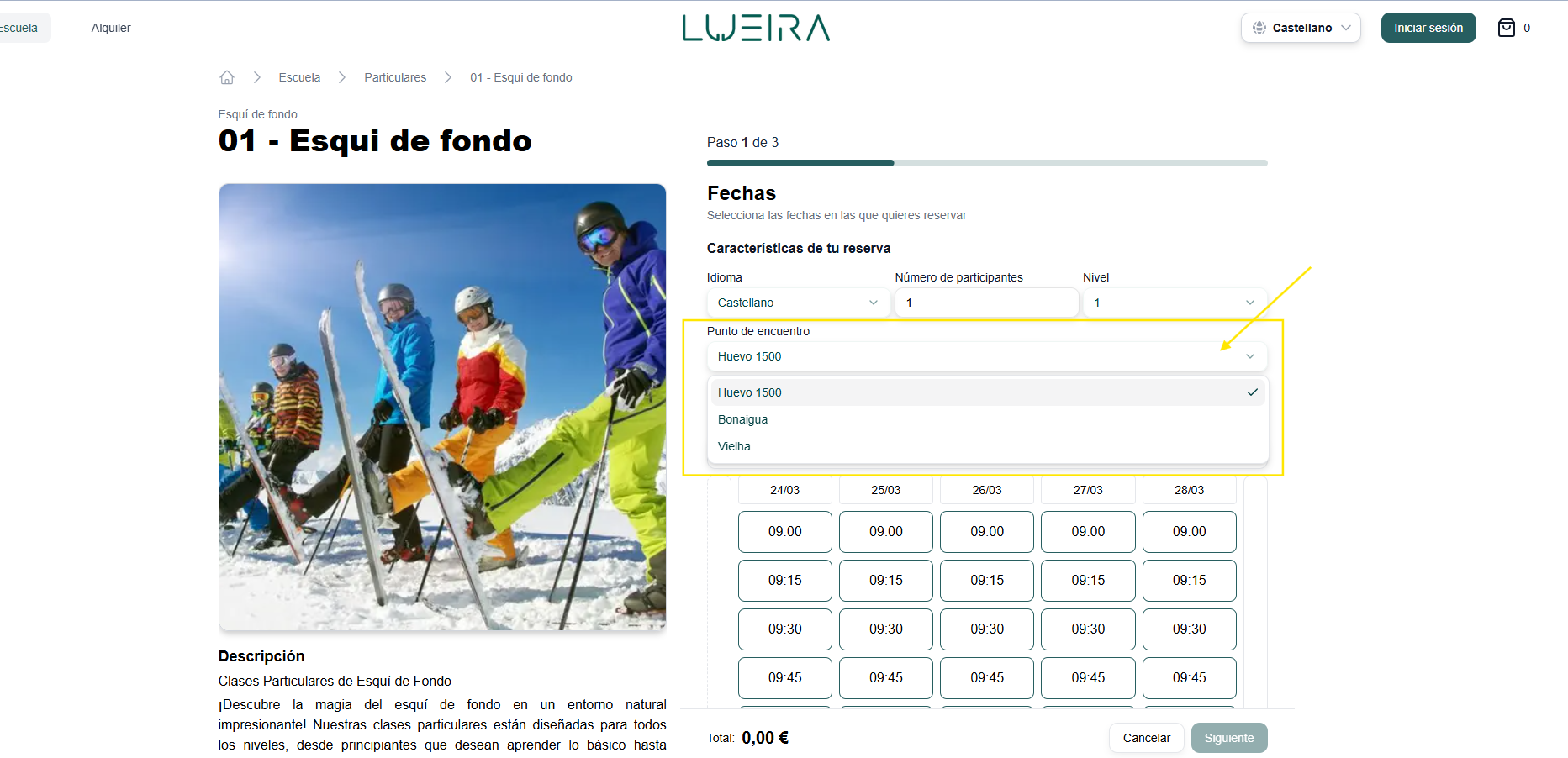
During the purchase process:
The customer will see the available meeting points
They can select the one they prefer before continuing with the booking
3. Display in the calendar
Once the booking has been made:
The selected meeting point is saved in the booking
It will be shown in the calendar along with the rest of the information
4. Selection from the platform (backoffice)
If you create the booking from the platform:
Select the product
Choose the available meeting point
Continue with the booking process

What to keep in mind
You can set up one or several meeting points per product
If there are several, the customer will have to select one
The chosen point will be linked to the booking
Related guides
- School navigationHere you will find everything the School section offers
- Which product type do I need? Group, private, pack, voucher or multi-day courseGuide to choosing the right product for what you sell: private lessons (price per hour or rates), several sessions priced by number of sessions, fixed dates, hour voucher, multi-day course or a single student with a group schedule.
- Add School productsComplete guide to creating and configuring private and group products in the School section: form fields, session availability and creating sessions in the calendar.
- Product sheet: Data, Translations, Settings, Extras and Related ProductsReference guide to the tabs of the product creation/editing form (private, group, rental or sale): what each one contains and links to the specific guides.
- How do I set up a new season?We show you how to set up a new ski season in Lueira
- How can I set up the new season of my ski school in LueiraWe show you how to set up a new ski season in Lueira