

Travel times between meeting points
Set the minimum time a teacher, instructor or guide needs to travel from one meeting point to another, and how it affects availability in the Online Store and the warnings in Admin.
When you have several meeting points, the same teacher, instructor or guide may have back-to-back activities at different locations. Travel times let you define the minimum number of minutes the team needs to move between two meeting points, to avoid consecutive bookings that would be unworkable in practice (the professional would not arrive on time).
Set up travel times
Path: School / Center / Activities > Settings > Meeting points, "Times" tab.
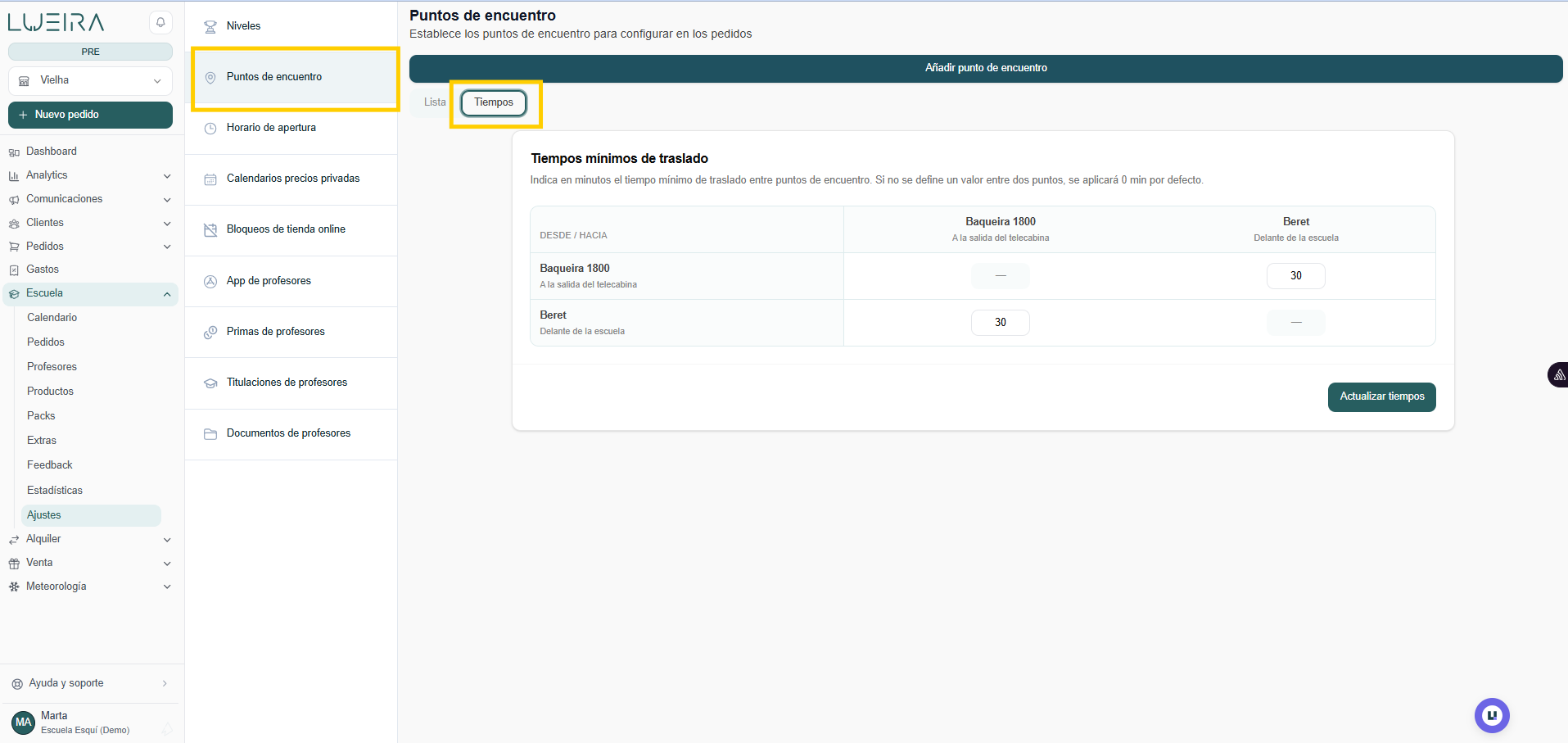
You need at least two meeting points created to be able to set times between them.
You will see a matrix with all your meeting points in rows (origin) and columns (destination). In each cell, enter the minimum travel time, in minutes, from the point in the row to the point in the column.
The time can be asymmetric: the time from A to B does not have to match the time from B to A (for example, if there is a difference in elevation or traffic depending on the direction).
If you do not define a value between two points, 0 minutes applies by default (no minimum). To remove a minimum time you have already set, enter "0" again in that cell.
Click "Update times" to save your changes (it will ask for confirmation before applying them).
Effect on the Online Store
This check is blocking in the Online Store: if it is not met, the time slot or option is not shown as available. It affects two different cases:
Private products: before showing the availability of time slots, Lueira checks that there is at least one teacher, instructor or guide who can meet the minimum travel time to (or from) the selected meeting point.
Group products with "requires teacher" (participants/teacher ratio): when calculating how many teachers are available for a session, those who would not arrive on time from/to that session's meeting point are not counted.
Effect in Admin
In Admin, the check is not blocking: if, when assigning or moving a teacher, instructor or guide, the minimum travel time to another consecutive activity of theirs is not met, an "Assignment warning" appears, showing the meeting points involved and the minutes that are missing.
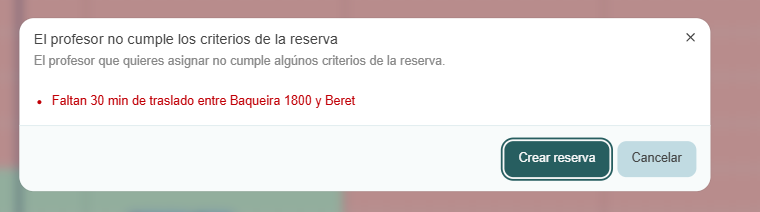
This warning appears in the following cases, for both private and group products:
When creating or editing a private booking and assigning a teacher/instructor/guide.
When dragging or moving a private booking or a group session in the School calendar to reassign the professional.
When assigning or changing the team from the detail screen of a group session.
In addition, when creating a booking for a group product with automatic teacher assignment (the "Only if Teachers are available" toggle), the automatic assignment also respects these travel times: if the teacher who would fit would not arrive on time from/to the session's meeting point, they are considered unavailable and the "No teachers available" warning appears. From that warning you can still create the booking and assign the teacher manually later (see Assigning instructors or guides in group products).
💡 The blocking in the Online Store is already in production. The warning in Admin and the "Times" settings tab were published more recently and are still being rolled out: if you do not see them in your account, they may not have reached production yet. Message us in the support chat if you have any questions.
Related articles
Meeting points in private products — how to set up several meeting points in a product and how the customer chooses between them.
Settings (School / Center / Activities) — overview of all the settings of the School module.
Assigning instructors or guides in group products — automatic assignment, availability checks and the "No teachers available" warning when creating bookings.
Adding school products — creating and configuring private and group products, including the participants/teacher ratio.
Related guides
- School navigationHere you will find everything the School section offers
- Which product type do I need? Group, private, pack, voucher or multi-day courseGuide to choosing the right product for what you sell: private lessons (price per hour or rates), several sessions priced by number of sessions, fixed dates, hour voucher, multi-day course or a single student with a group schedule.
- Add School productsComplete guide to creating and configuring private and group products in the School section: form fields, session availability and creating sessions in the calendar.
- Product sheet: Data, Translations, Settings, Extras and Related ProductsReference guide to the tabs of the product creation/editing form (private, group, rental or sale): what each one contains and links to the specific guides.
- How do I set up a new season?We show you how to set up a new ski season in Lueira
- How can I set up the new season of my ski school in LueiraWe show you how to set up a new ski season in Lueira