

Tide-based generation: sessions and availability based on high and low tide
How to generate group class sessions and instructor availability based on the tide: window, session duration and frequency, clock hours and 15-minute blocks.
On this page
If your activity depends on the tide, the best hours change every day. With tide-based generation you define the time window around high and low tide once, and Lueira calculates the sessions or your team's availability for the whole date range for you. You can use it in:
Group product sessions, from the Date range generator.
Availability of teachers, instructors or guides, from Bulk availability.
We always use the same example: a center in Los Cristianos, open from 08:00 to 20:00, with a window of 3 h before and 2 h after high tide, from 1 to 8 October.
Step 1: set up the window and the reference point
Path: School / Center / Activities > Settings > Tide generation
This is a global setting for your center: you define it once and it applies to every generation.
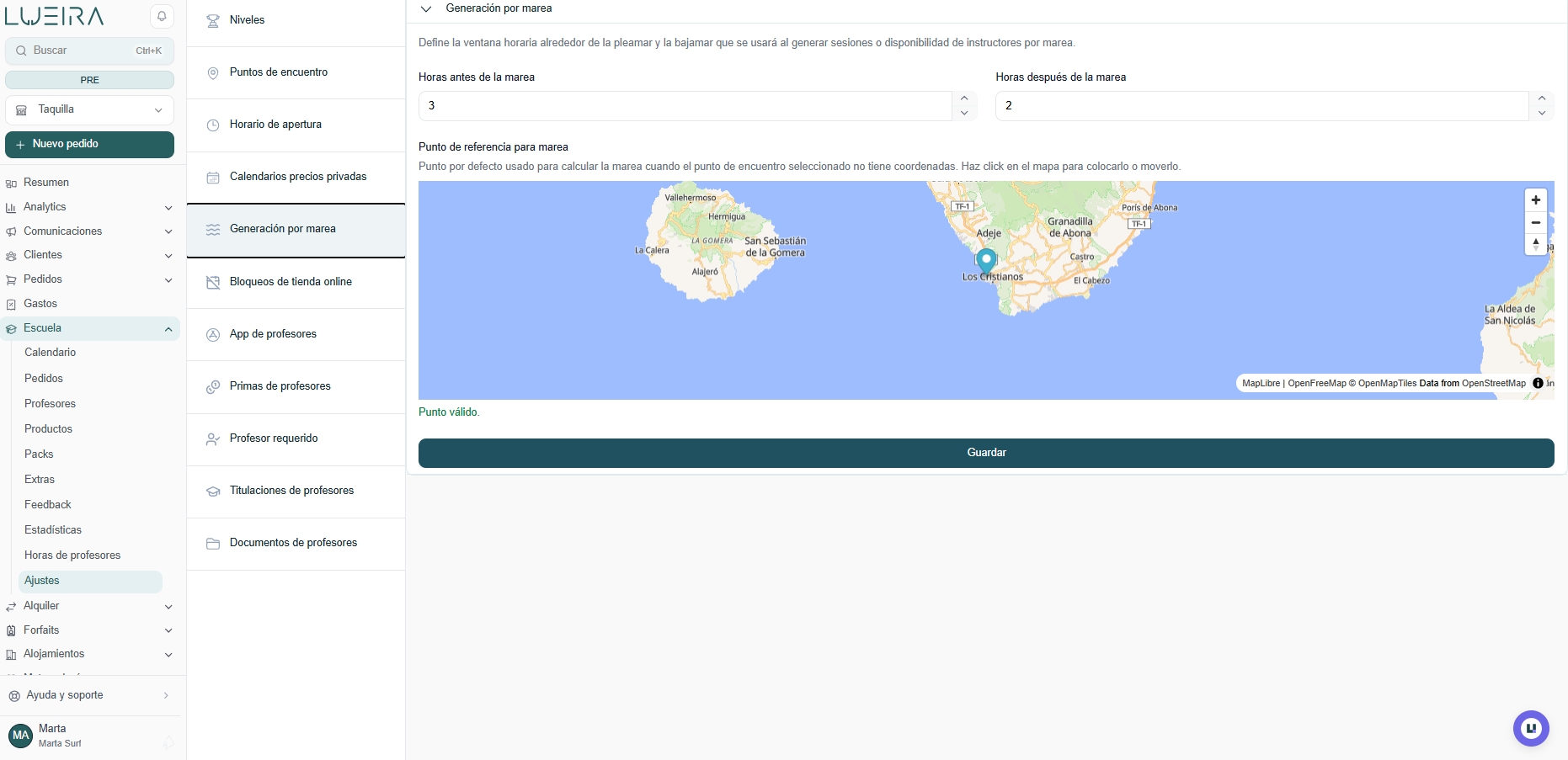
Hours before / after the tide: the window in which you can go out on the water. With 3 h / 2 h and a high tide at 16:55, the window runs from 13:55 to 18:55.
Tide reference point: click on the map to place it at your usual spot. It is used on all screens for tide-based generation, so the high tide is always the same. Only if the center has no point is the product's meeting point or dive point used.
Below the map you should see "Valid point". If not, move the marker further out to sea.
Click "Save".
💡 Also check your opening hours (Settings > Opening hours): anything that falls outside them is trimmed.
How Lueira calculates each day
For each tide, Lueira draws the window (tide − hours before to tide + hours after) and trims it to your opening hours. The window is not rounded. Then:
Availability: it is rounded inwards to 15-minute blocks.
Sessions: they are placed at clock hours within the window (Step 3).
With our example and 1-hour sessions:
High tide 16:55 → window 13:55–18:55 → availability 14:00–18:45 → sessions at 14:00, 15:00, 16:00 and 17:00.
High tide 09:13 → window 06:13–11:13, trimmed to 08:00–11:13 → availability 08:00–11:00 → sessions at 08:00, 09:00 and 10:00.
High tide 05:10 → the window falls before opening time → nothing is generated that day.
The tide shifts by about 50 minutes each day, so it is normal for some days to come out trimmed or empty.
Step 2: generate the team's availability
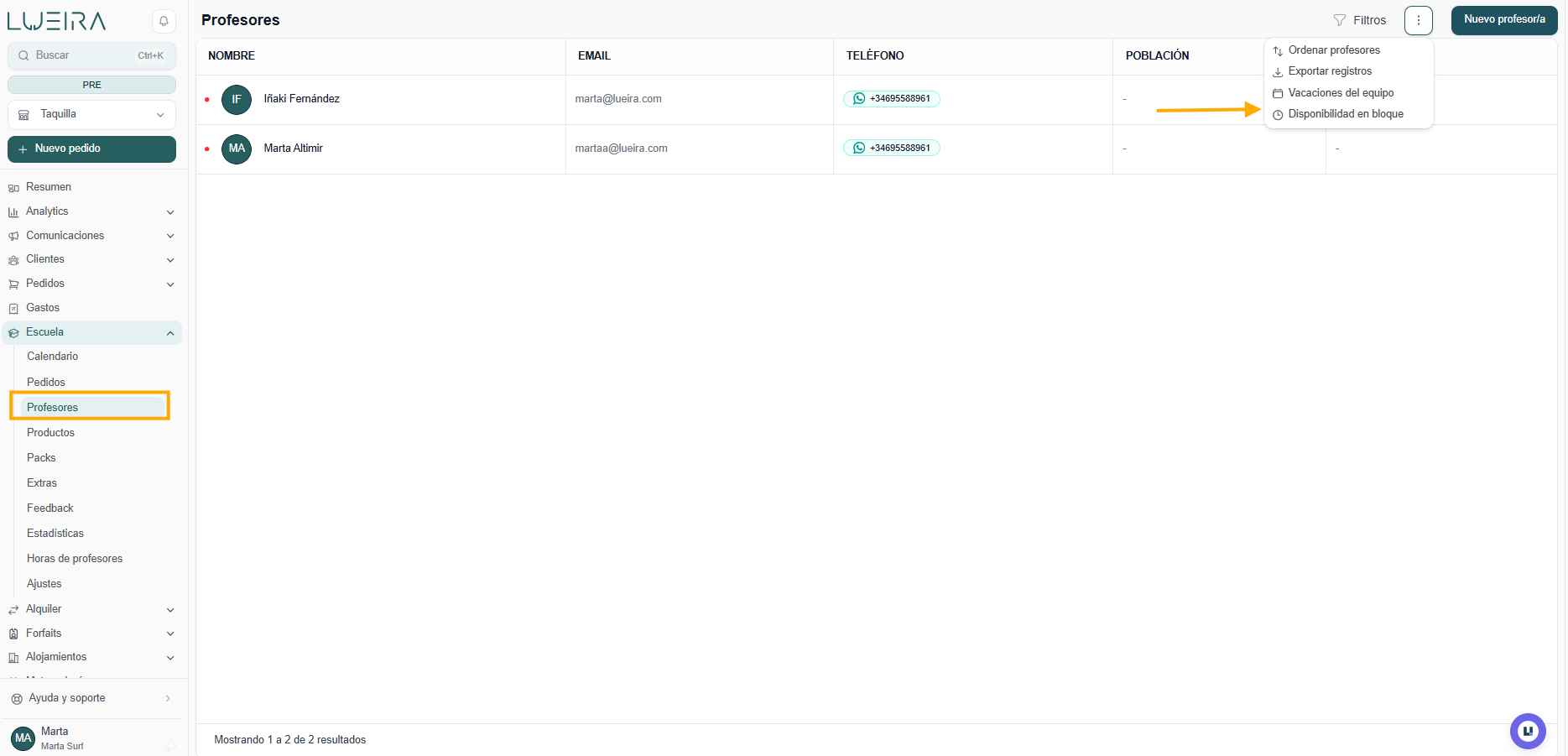
In Bulk availability you mark in one go, for several weeks, the hours when your team is available according to the tide.
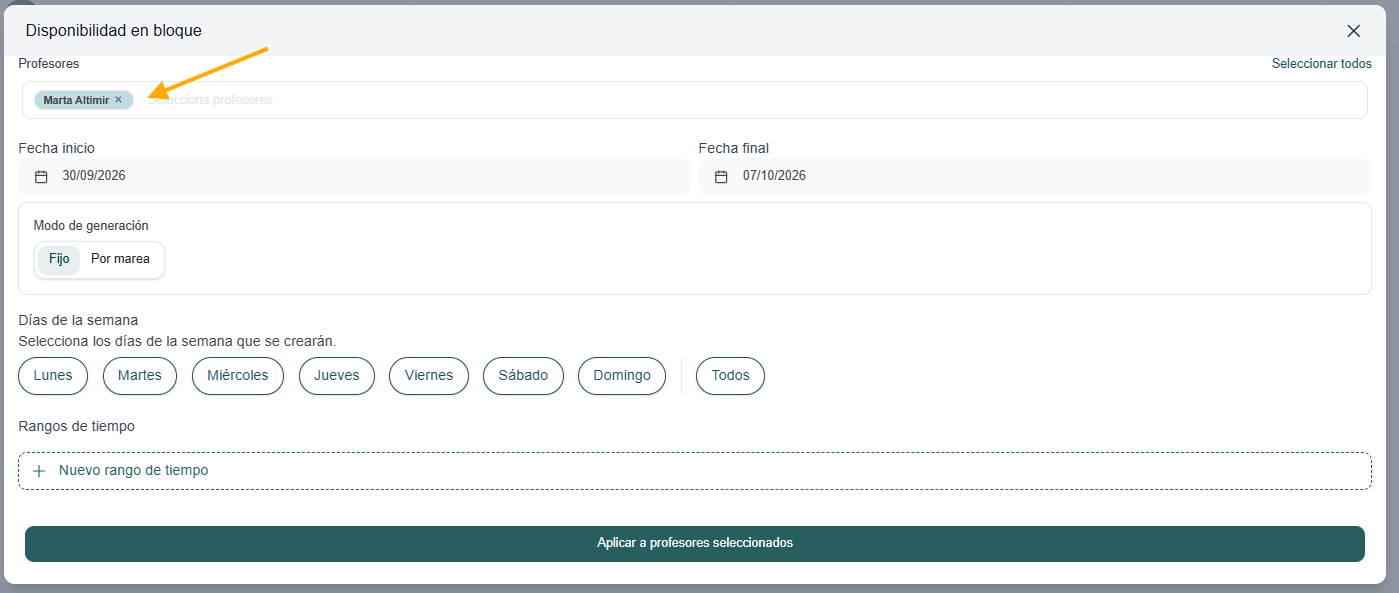
Select the teachers, instructors or guides.
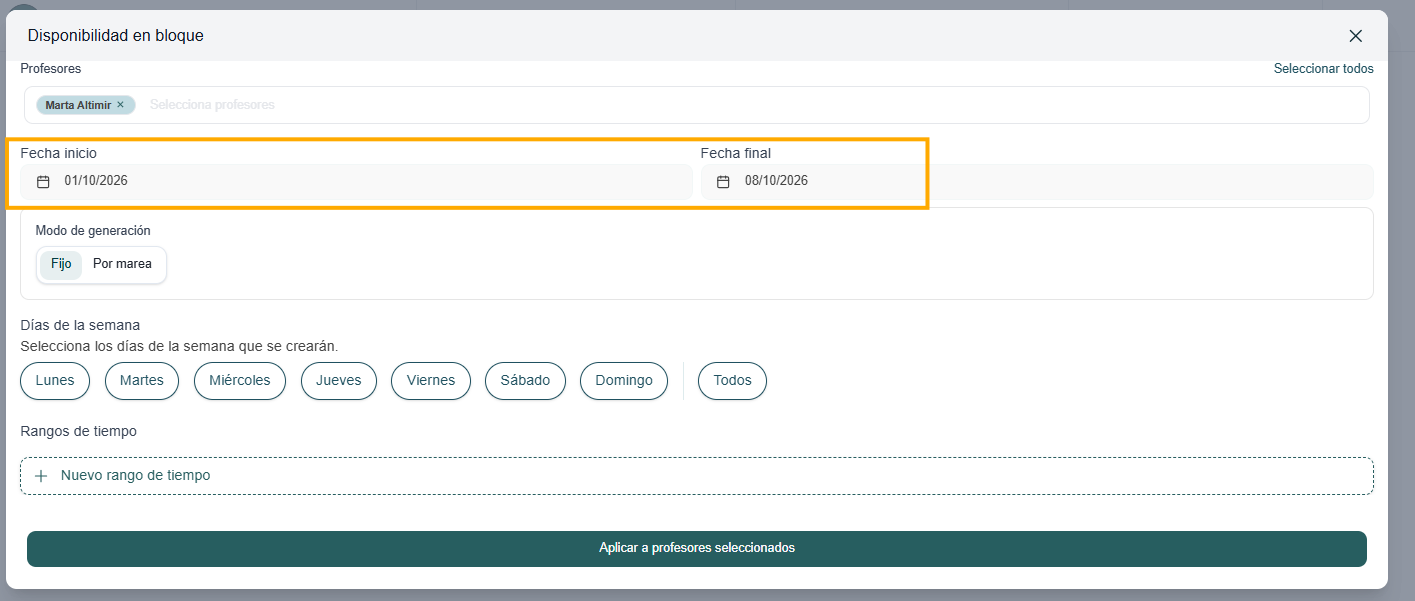
Choose the start date and the end date (in the example, 1 to 8 October).
Under Generation mode, click "By tide" and choose the Period: high tide, low tide or both.
Below you will see the hours before and after the tide, with the values from your Settings. You can change them just for this generation; the "Change the default value" link is for changing the value in Settings.
Review the preview calendar and click "Apply to selected teachers".
How to read the preview. Each day shows the actual tide time and the block that will be saved, for example High tide 16:55 14:00–18:45.
Step 3: generate sessions for a group product
In the product's Date range generator, choose Generation mode > By tide and define:
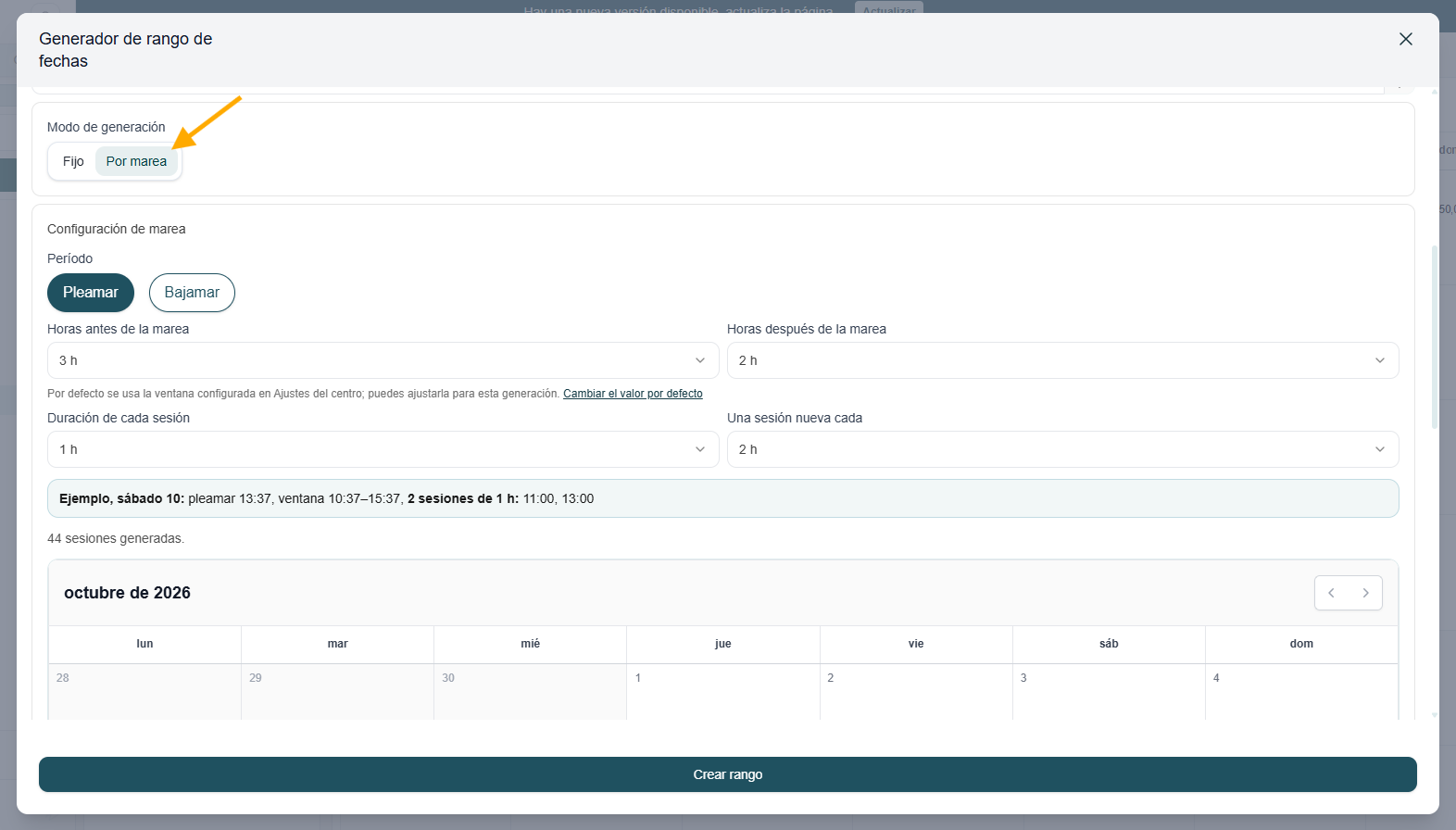
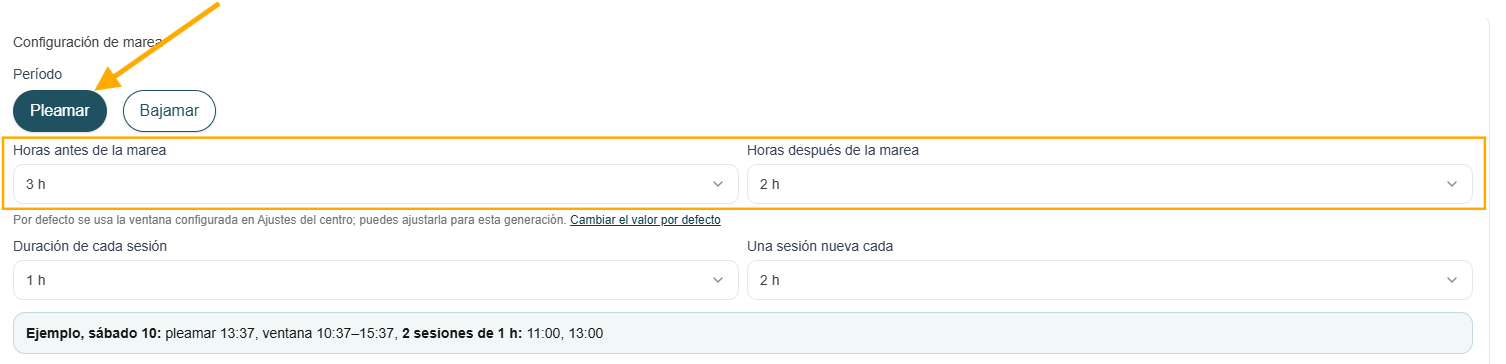
Period and hours before / after the tide. They start from the values in your Settings and you can adjust them in 15-minute steps just for this generation.
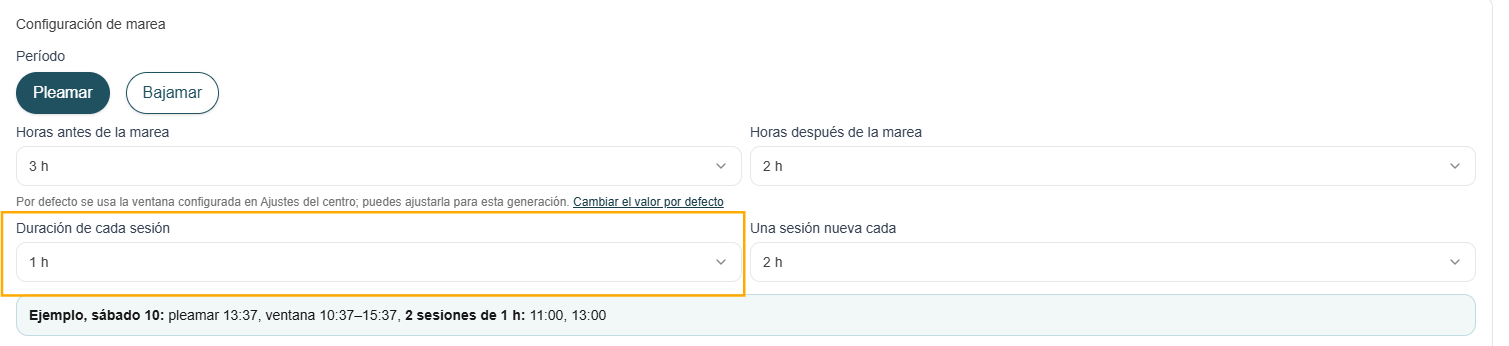
Duration of each session: in 15-minute steps (1 hour by default).
A new session every: how often a session starts. By default, "When the previous one ends" (back to back).
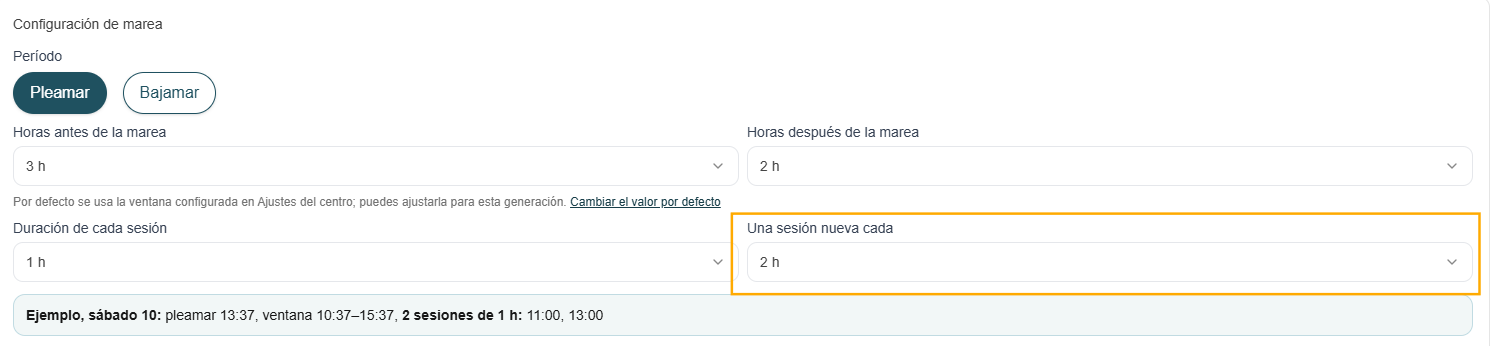
The duration and the frequency cannot exceed the window.
Sessions start at clock hours, not at the exact minute of the tide. The first one is the first clock hour within the window, and more are added as long as they fit entirely: on the hour if the frequency is in hours, at :00 / :30 if it is in half hours, and on quarter hours in all other cases.
With high tide at 16:55 (window 13:55–18:55):
1 h, back to back → 14:00, 15:00, 16:00 and 17:00. The 18:00 one would end at 19:00, outside the window, and is not created.
1 h 30 min, back to back → 14:00, 15:30 and 17:00.
1 h, a new one every 30 min → from 14:00 to 17:30 (8 sessions). They overlap and Lueira warns you.
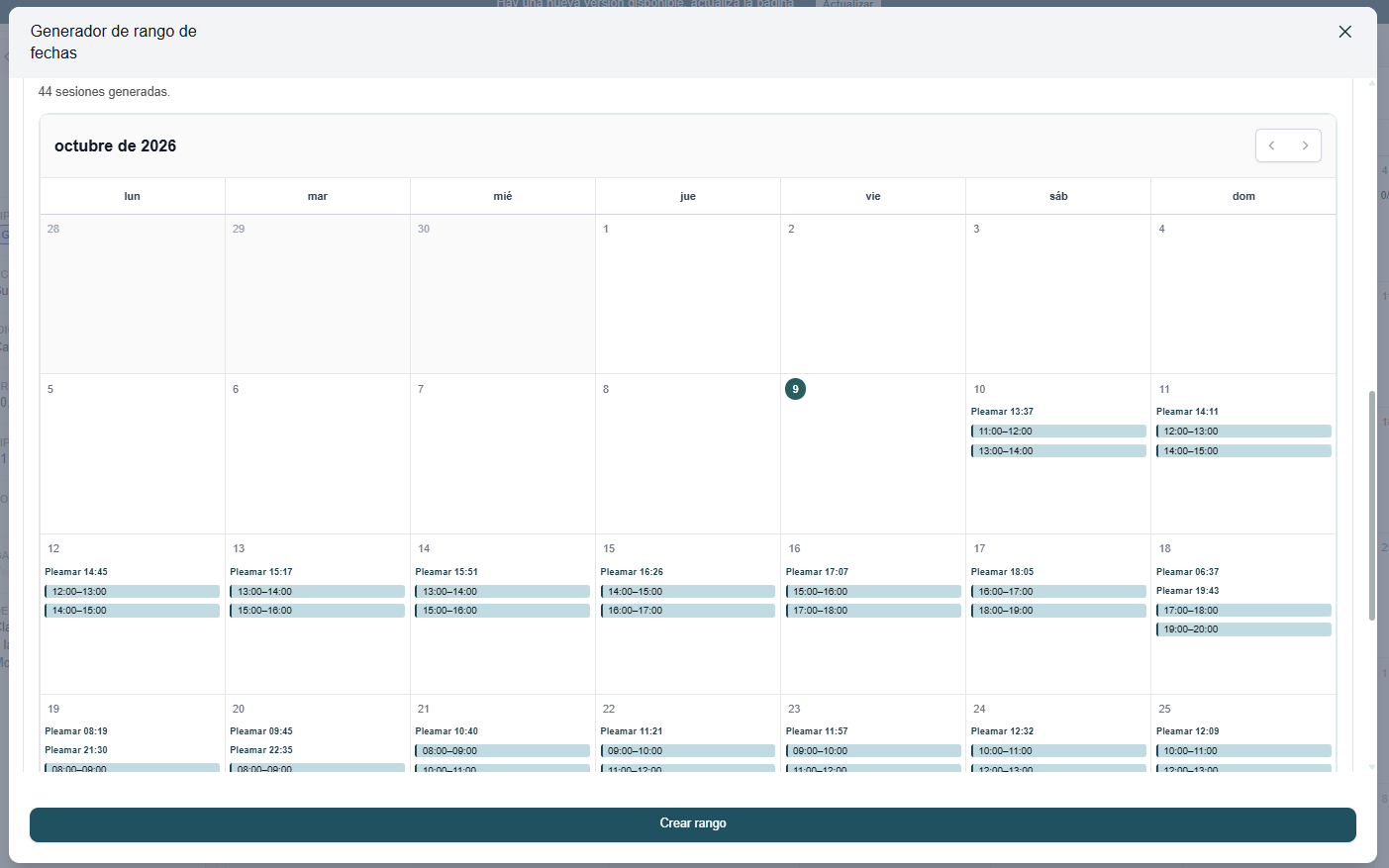
In the preview, each day shows the tide (for example, "High tide 16:55") and its sessions with their start time.
If you link teachers
If you link someone under Teachers, the session is only created if it also fits within their availability.
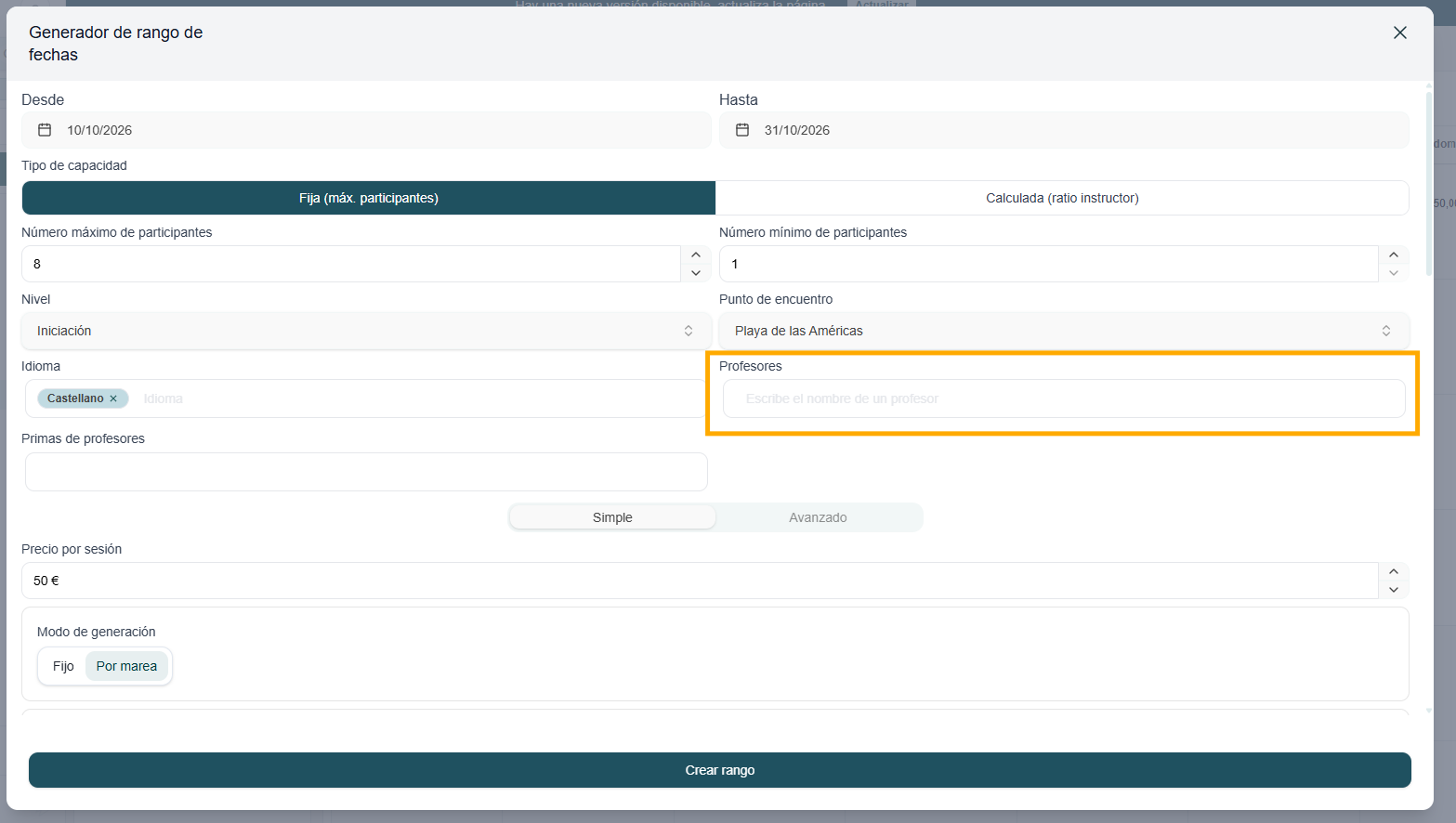
If you generated their availability by tide (Step 2) with the same window and the same period, all the sessions fit. If the window or the period is different, or the availability was entered by hand, some may be discarded: the preview tells you how many and whose availability is the cause.
Private lessons
Private lessons are not generated by tide: the tide fills in the team's availability (Step 2) and the online shop only offers the start times that fall within it and leave at least the minimum duration until the end of the block. With the 14:00–18:45 block and a minimum duration of 60 minutes, 14:00, 15:00, 16:00 and 17:00 are offered; not 18:00 (only 45 minutes would remain).
Related articles
Settings (School / Center / Activities) — overview of all the settings of the School module.
Add school products — creating and configuring group products and generating sessions in the calendar.
Assigning instructors or guides to group products — how the team is assigned to sessions and how their availability affects this.
Related guides
- School navigationHere you will find everything the School section offers
- Which product type do I need? Group, private, pack, voucher or multi-day courseGuide to choosing the right product for what you sell: private lessons (price per hour or rates), several sessions priced by number of sessions, fixed dates, hour voucher, multi-day course or a single student with a group schedule.
- Add School productsComplete guide to creating and configuring private and group products in the School section: form fields, session availability and creating sessions in the calendar.
- Product sheet: Data, Translations, Settings, Extras and Related ProductsReference guide to the tabs of the product creation/editing form (private, group, rental or sale): what each one contains and links to the specific guides.
- How do I set up a new season?We show you how to set up a new ski season in Lueira
- How can I set up the new season of my ski school in LueiraWe show you how to set up a new ski season in Lueira