

Change sessions that are already created (capacity, price, delete) and set instructor availability in bulk
How to edit or delete many sessions of a group product at once (by selection or by date range, including capacity) and how to generate an instructor's availability by ranges.
On this page
Change sessions that are already created and set availability in bulk
If you need to change the capacity, price or schedule of many sessions of a group product, or delete them all at once, you don't have to do it one by one. This guide explains how to edit or delete them in bulk and how to generate an instructor's availability by date ranges. Note: changing the capacity on the product page does not apply to sessions that already exist; use the steps below for that.
1. Open the product's session list
Go to the group product and open the Sessions tab.
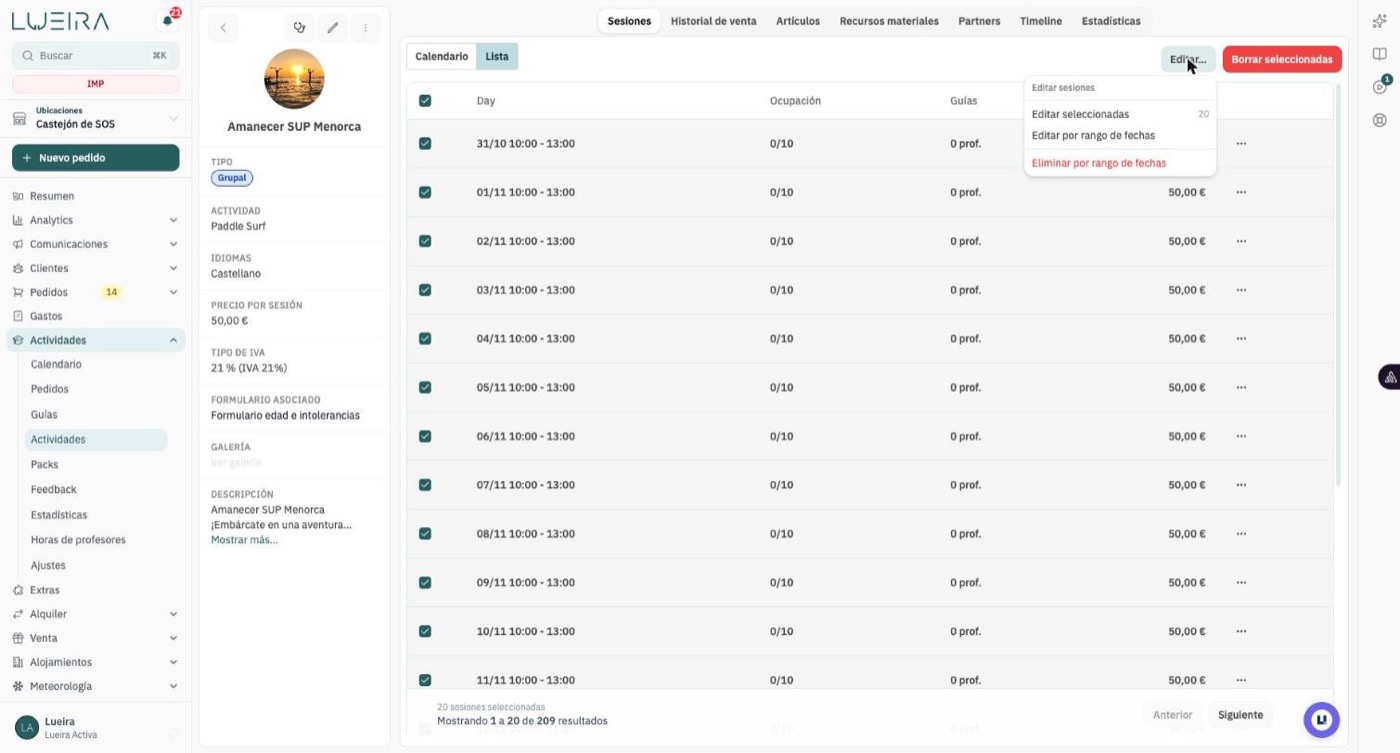
Switch from Calendar to List. You will see each session with its day and time, occupancy, guides and price, with a checkbox to select it.
2. Edit sessions in bulk
Click Edit…. The menu offers:
Edit selected: changes only the sessions you have ticked.
Edit by date range: changes all the sessions between two dates.
Delete by date range: deletes the sessions in a range.
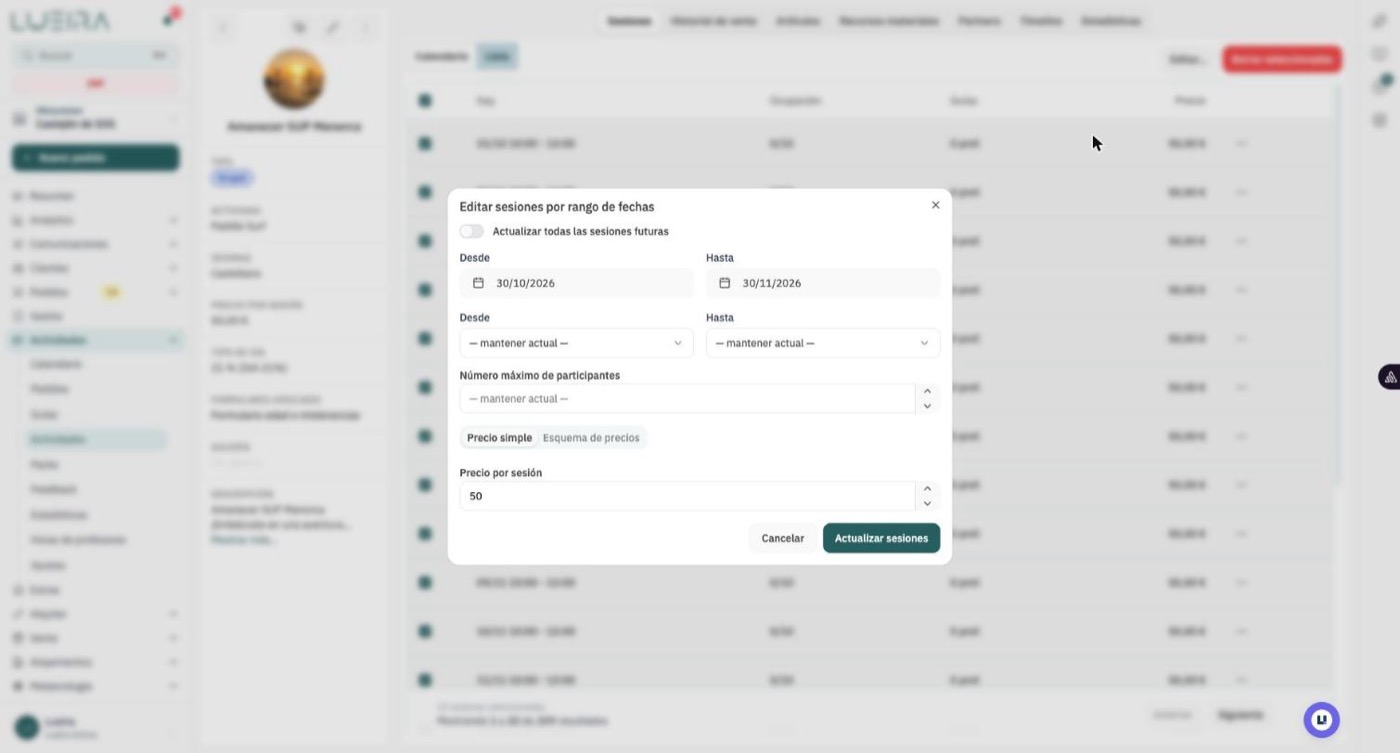
In Edit by date range you can change:
The From and To dates of the range (or turn on Update all future sessions).
The start and end time (— keep current — if you don't want to change it).
The Maximum number of participants (the capacity).
The price: Simple price (price per session) or Pricing scheme.
Click Update sessions to apply.
⚠️ Sessions that already have bookings may be affected by a change of schedule or capacity. Ask support what happens to existing bookings before reducing the capacity below the number of places sold: we have not tested it.
3. Delete sessions
Tick the sessions and click Delete selected, or use Delete by date range. The list shows 20 sessions per page: the checkbox in the header selects only the ones on the current page. For many more, use the date range.
4. An teacher's availability by ranges
Open the teacher (Guides menu or Teachers) and go to the Availability tab.
Click Generate range.
Choose the Start date and End date, the days of the week and one or more time ranges. Click Generate range.
The Generate range window is only for creating availability. Deleting the availability of a date range does not appear in that window: ask support how to do it (there is an open request to allow bulk deletion).
What to do if…
I changed the product's capacity and the sessions still have the previous one: the change on the product page only affects new sessions. Use Edit by date range with Update all future sessions.
Only 20 sessions get edited: the selection in the list works per page. Use the date range.
The teacher is still available until June and I want to remove that: see section 4.
Related guides
Related guides
- School navigationHere you will find everything the School section offers
- Which product type do I need? Group, private, pack, voucher or multi-day courseGuide to choosing the right product for what you sell: private lessons (price per hour or rates), several sessions priced by number of sessions, fixed dates, hour voucher, multi-day course or a single student with a group schedule.
- Add School productsComplete guide to creating and configuring private and group products in the School section: form fields, session availability and creating sessions in the calendar.
- Product sheet: Data, Translations, Settings, Extras and Related ProductsReference guide to the tabs of the product creation/editing form (private, group, rental or sale): what each one contains and links to the specific guides.
- How do I set up a new season?We show you how to set up a new ski season in Lueira
- How can I set up the new season of my ski school in LueiraWe show you how to set up a new ski season in Lueira