

Session packs
We show you how to group sessions to sell them as Packs
On this page
- 1. When will we offer Product Packs?
- 2. How many types of Packs are there?
- 3. Add a new Pack
- 4. Packs with several group products and minimum sessions per product
- 4.1 Link products to the pack
- 4.2 Define how many sessions of each product the customer must book
- 4.3 What the customer sees in the Online Store
1. When will we offer Product Packs?
You can create session vouchers so that the customer chooses when they want to do the activity and can pick the session pack they prefer. Packs are also offered during periods when you want to boost sales and make the product attractive to customers. Examples: Easter, Christmas, long weekends, etc.
2. How many types of Packs are there?
There are 2 types of Packs: fixed and consecutive.
Fixed Pack: create a fixed pack for dates on which you want to bundle the prices of several consecutive days. Example: you offer a €300 voucher at Easter for 7 days in a row.
Consecutive Pack: offer vouchers with as many sessions as you want, which can be used on fixed days or whenever the customer wants.
3. Add a new Pack
To create a new Pack, go to Packs → Add new pack.
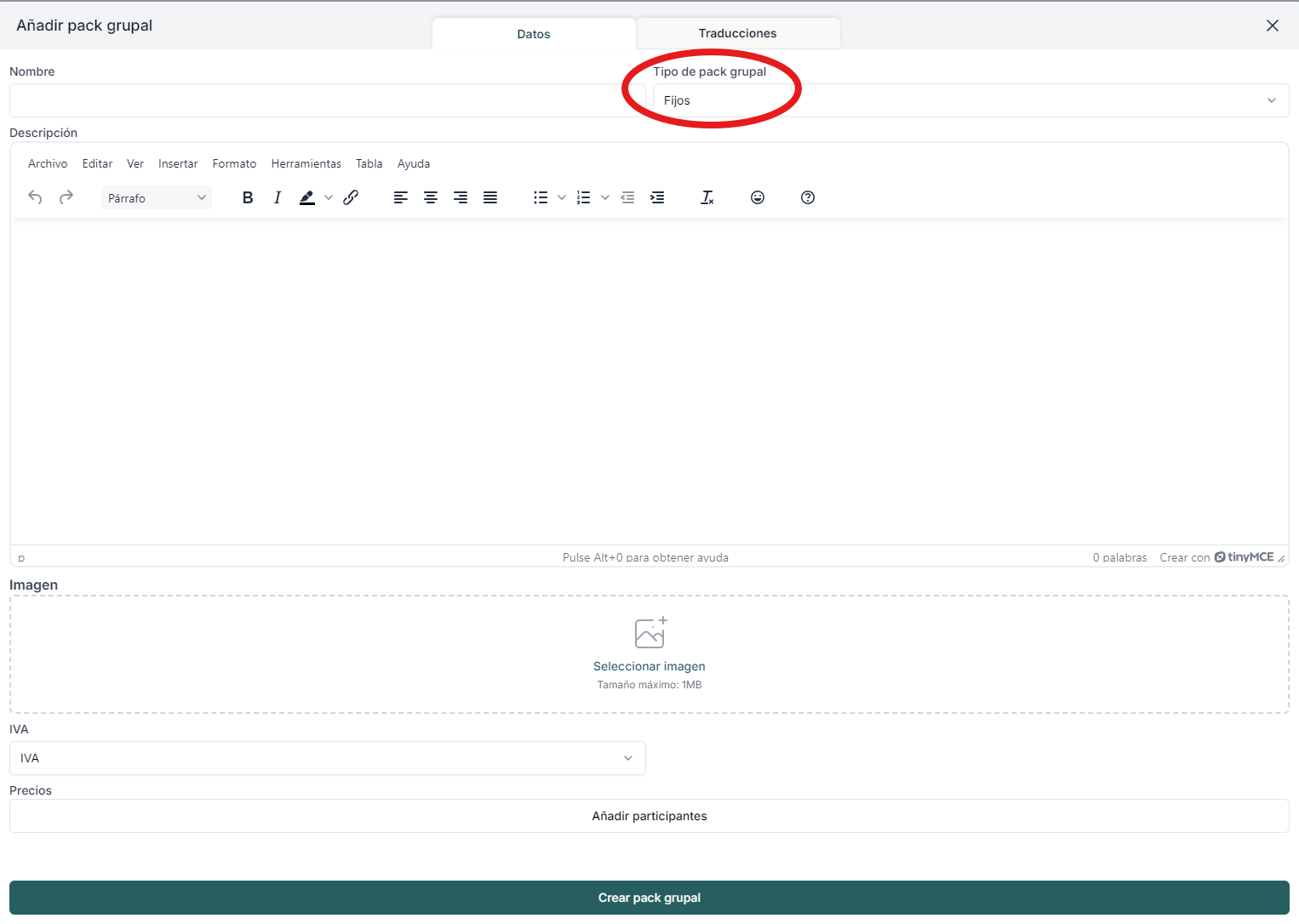
Inside the pack you can choose the type of Pack you want:
Fixed Pack: bundle the prices of the 7 days of Easter and make a €300 Easter pack.
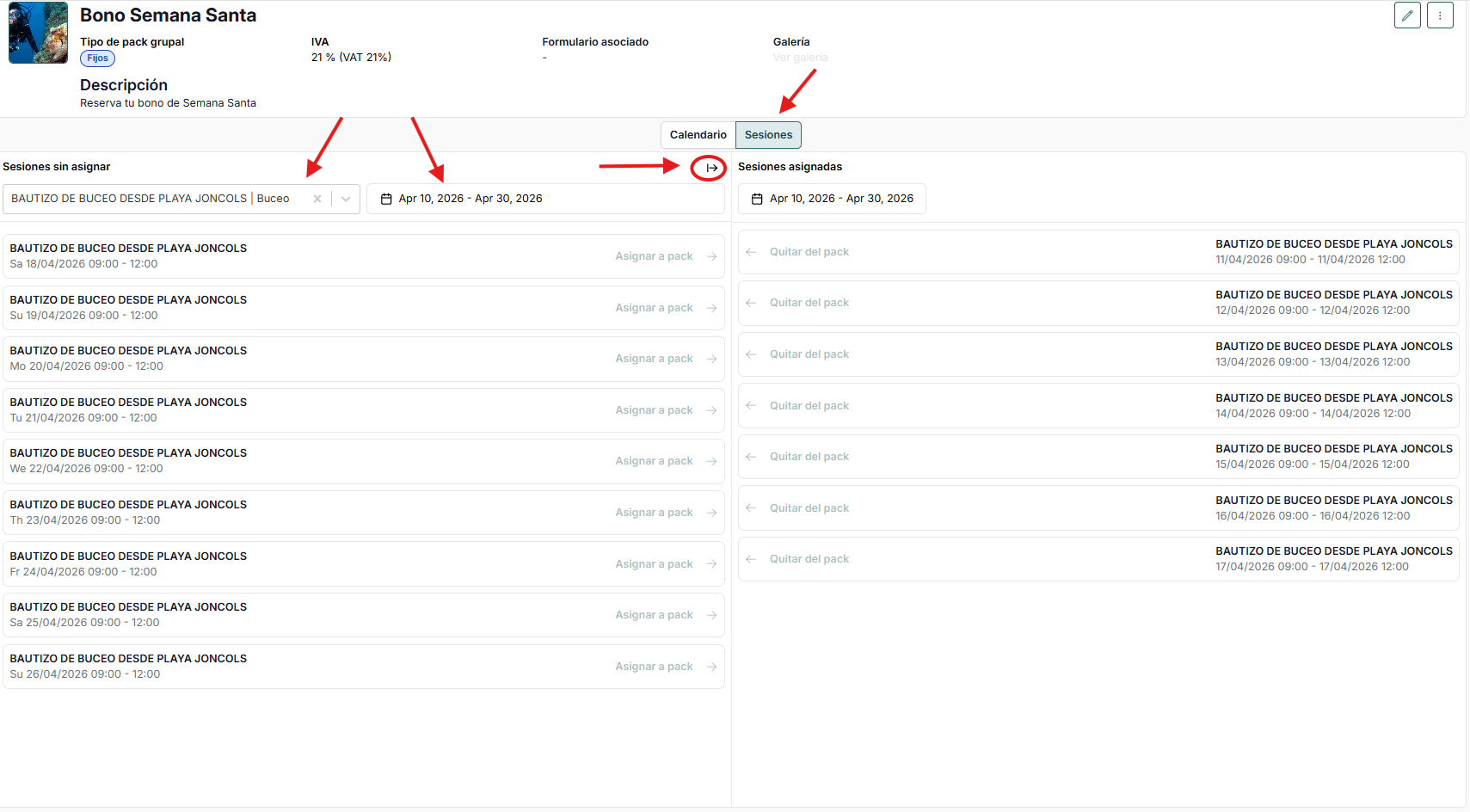
Select the group product whose sessions you want to choose from.
Select the dates on which you want to run the pack.
Click the button with the right-pointing arrow to select all the sessions.
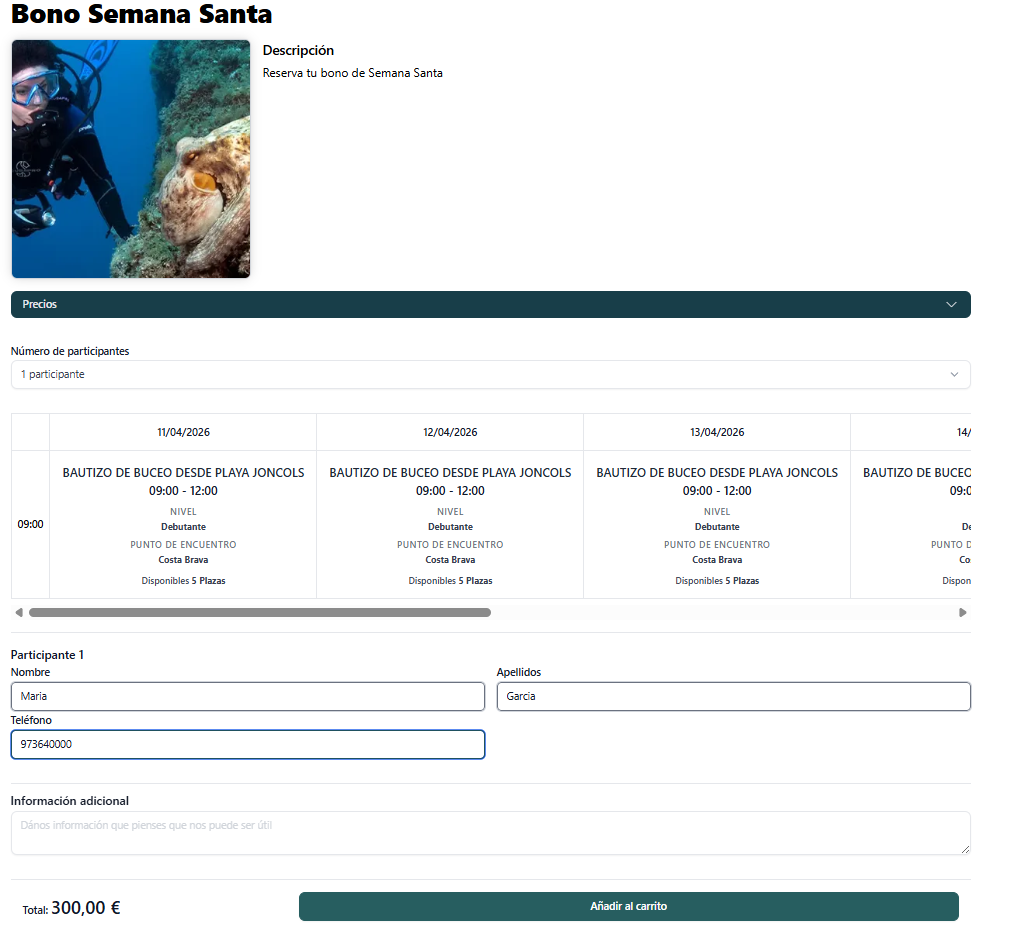
When someone selects this Pack through the online store, it will look like this:
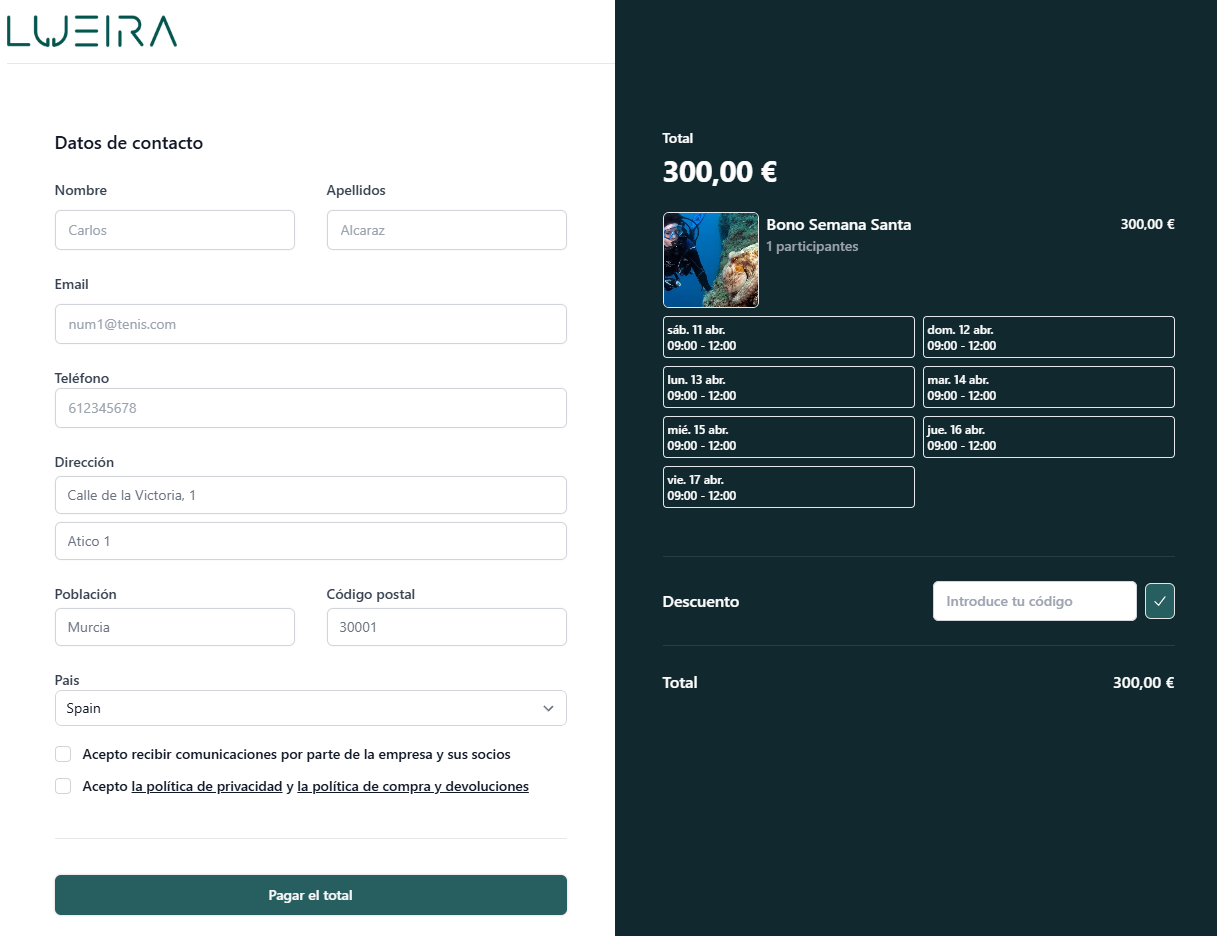
When they click add to cart, the 7 selected sessions appear:
Consecutive Pack: offer vouchers with as many sessions as you want, which can be used on fixed days or whenever the customer wants.
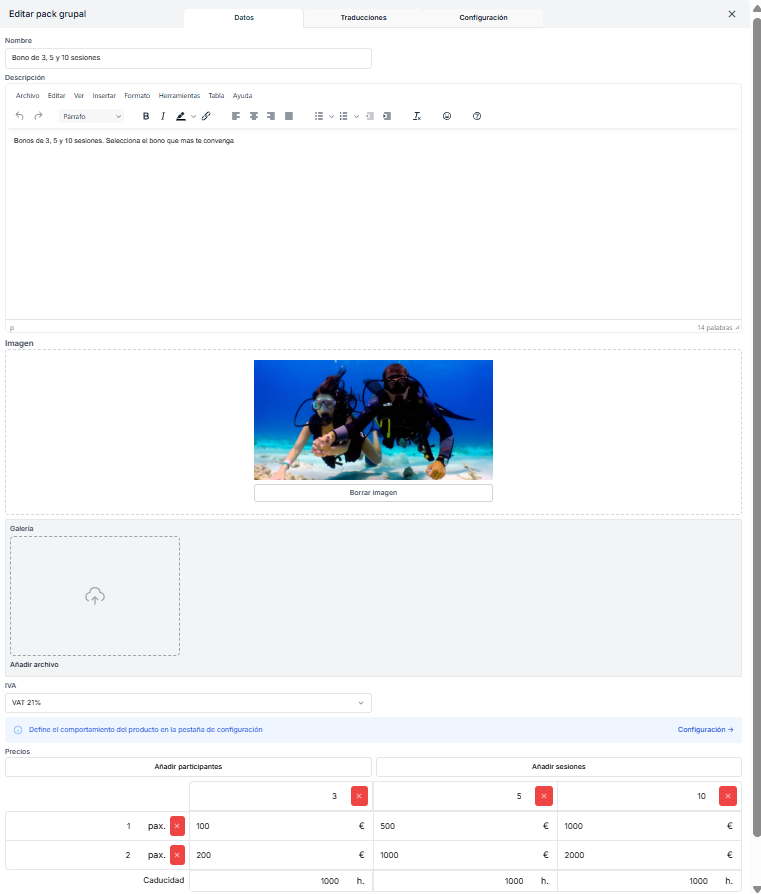
In this case, we create a voucher of 3, 5 and 10 sessions for a maximum of 2 people. We set the voucher prices and specify that the voucher sessions will expire after 1000 hours. This means the customer can use the session voucher whenever they want throughout the whole summer.
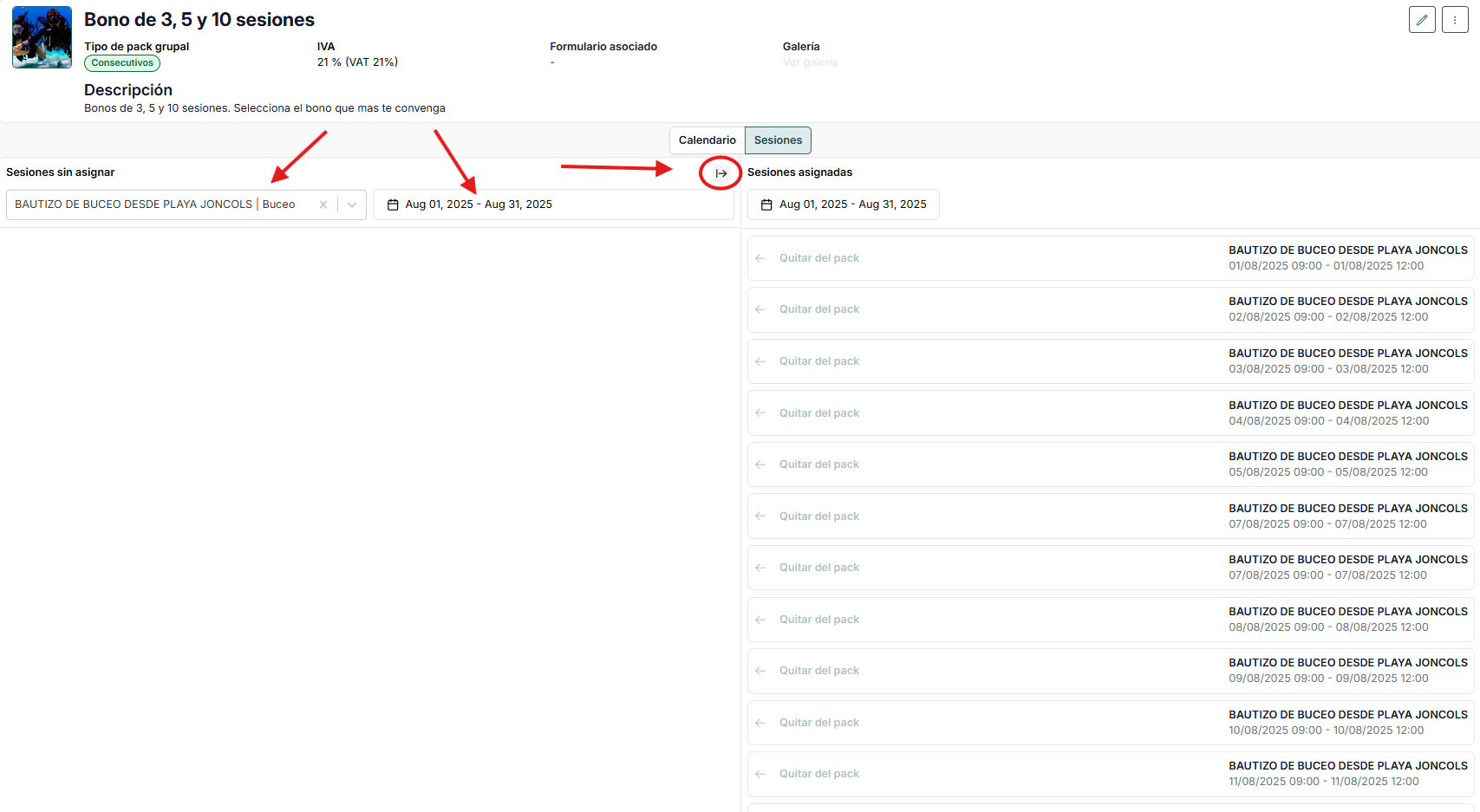
After creating the voucher, follow the same steps as for the fixed pack to assign the sessions you want to the voucher. In this case, we want the customer to be able to choose 3, 5 or 10 sessions during the month of August.
Select the group product whose sessions you want to choose from.
Select the dates on which you want to run the pack.
Click the button with the right-pointing arrow to select all the sessions.
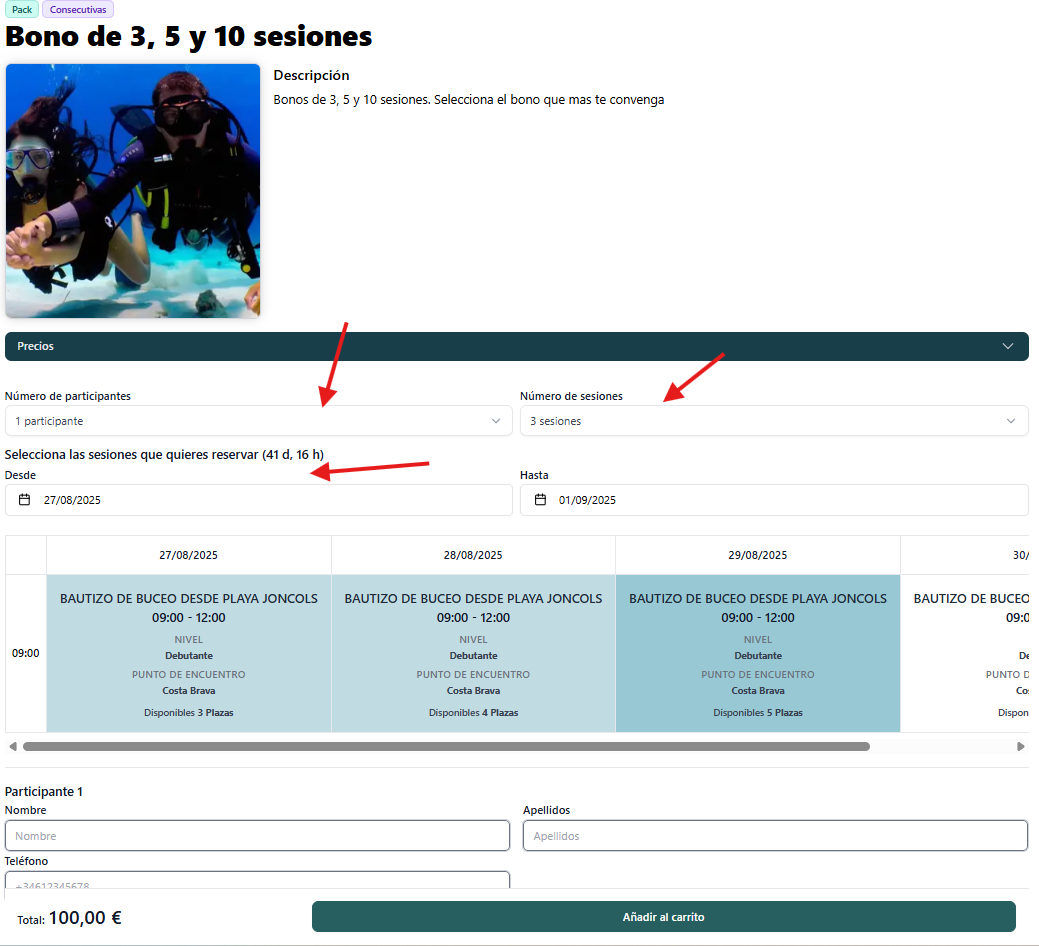
When someone selects this Pack through the online store, it will look like this:
4. Packs with several group products and minimum sessions per product
Besides creating a pack from a single group product, you can link several group products to the same pack and require the customer to book a minimum number of sessions of each. For example, in a Multi-adventure Pack that includes Kayak + Rafting, you can require the customer to choose at least one Kayak session and one Rafting session.
⚠️ This setting only has an effect on Consecutive Packs. In a Fixed Pack the customer does not choose sessions; they book directly with all the sessions you have assigned.
4.1 Link products to the pack
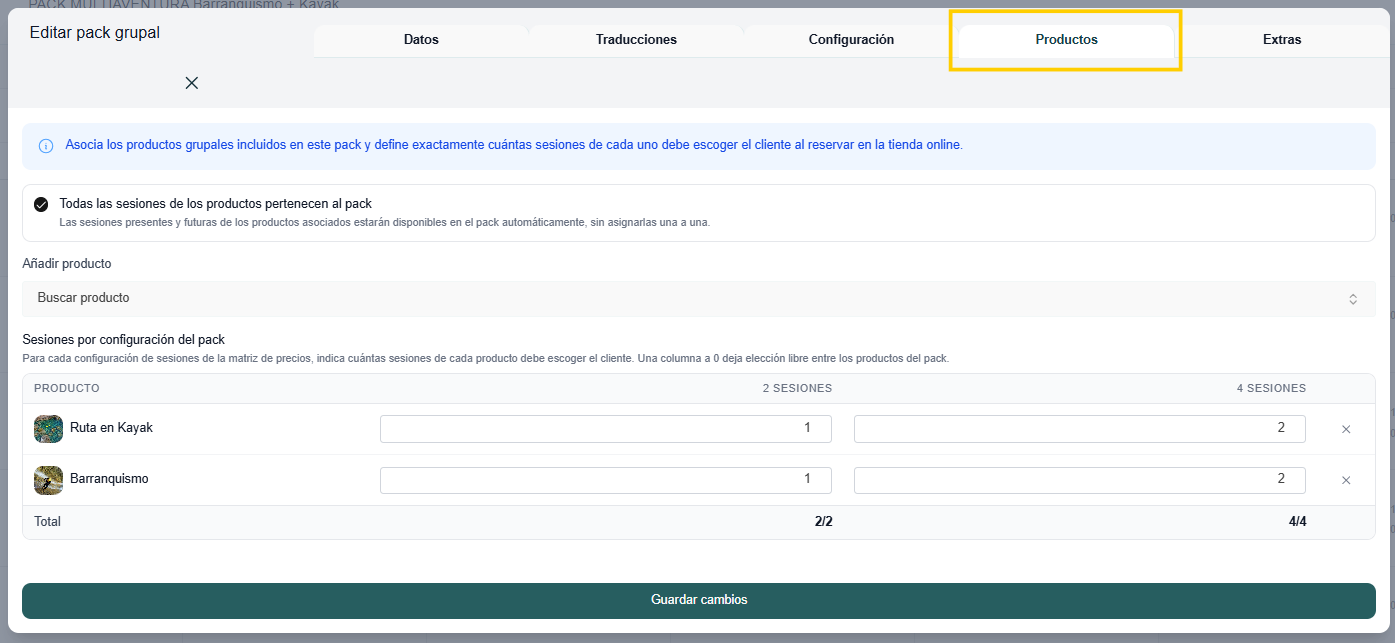
In the pack's page, open the Products tab. From there you can:
Add product: search for and link the group products you want to include in the pack.
Enable "All sessions of the products belong to the pack" if you want the current and future sessions of those products to be included in the pack automatically, without having to assign them one by one.
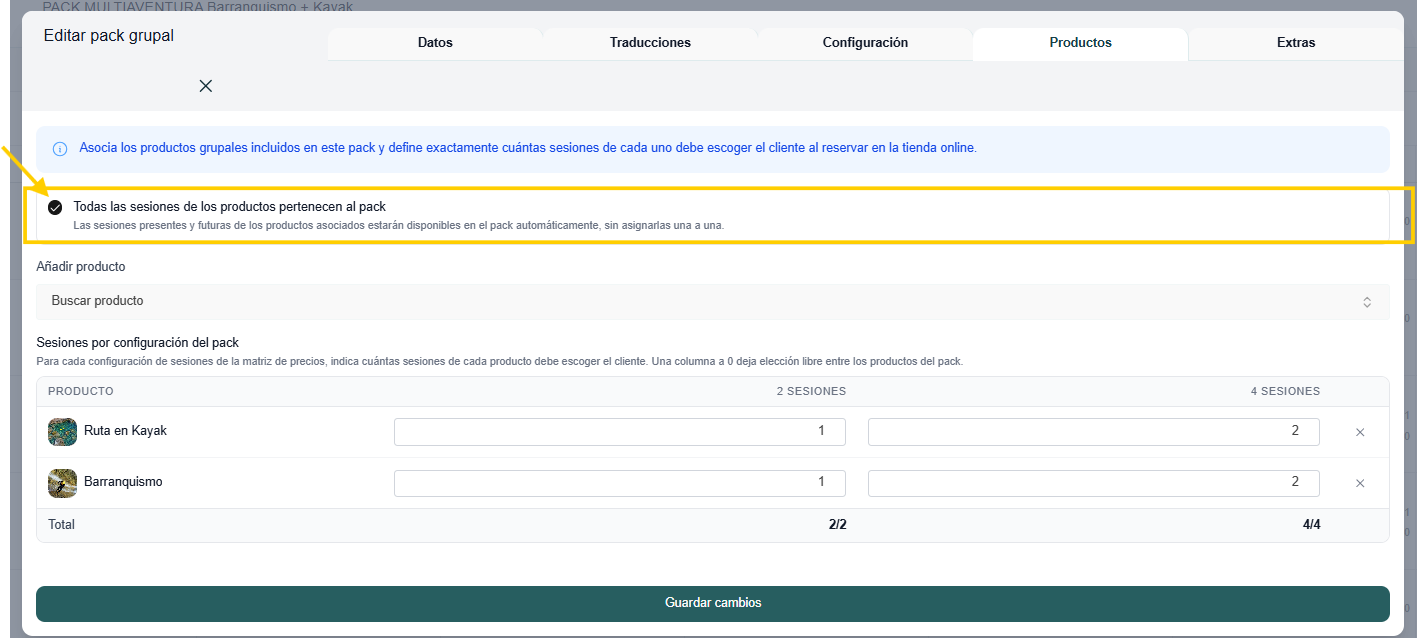
If you leave that option disabled, the pack keeps working as before: you will have to manually assign the sessions of each product from the pack's Sessions tab, and every time you create a new session of an already linked product you will have to go back to the pack to add it.
4.2 Define how many sessions of each product the customer must book
Below the list of linked products you will find the "Sessions per pack configuration" table. For each session configuration in the price matrix (each voucher of the Consecutive Pack, e.g. 3, 5 or 10 sessions — see Session pack pricing), indicate how many sessions of each product the customer must choose for that configuration.
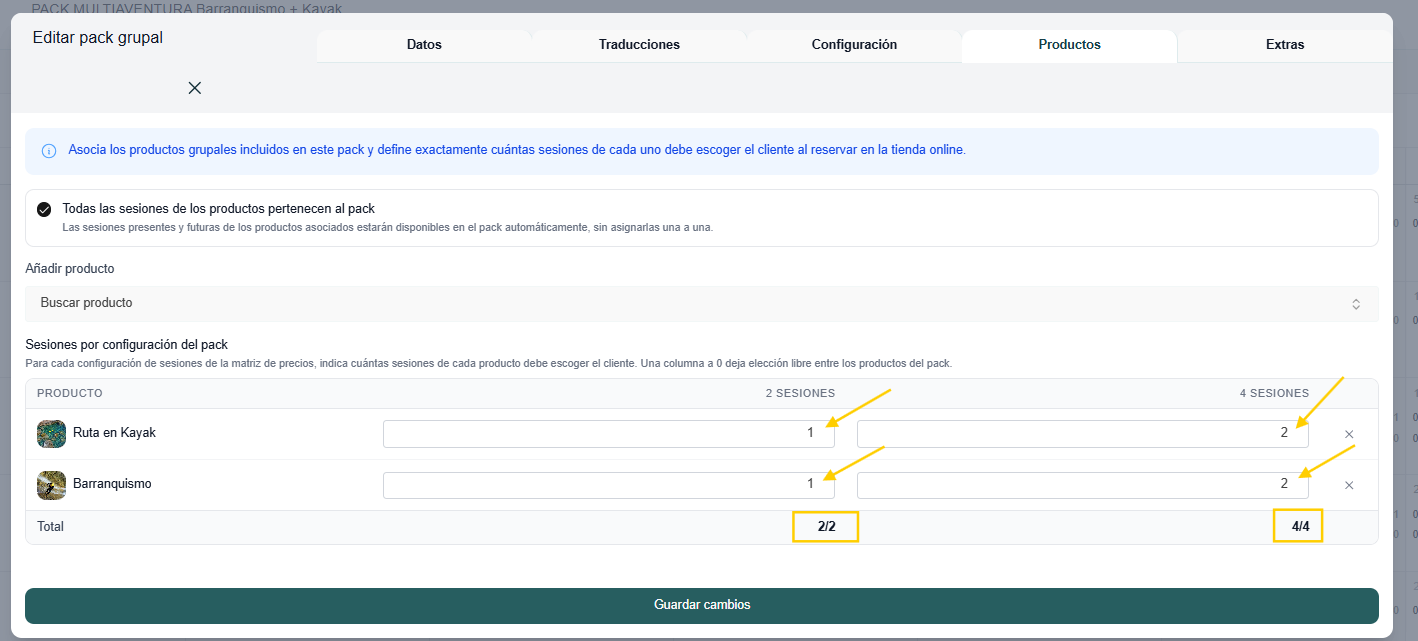
If you leave a column at 0, the customer has free choice among the pack's products for that configuration: only the total number of sessions is limited.
If you enter a number greater than 0, the customer must book exactly that number of sessions of that product in order to complete the booking.
Example: for the 2-session voucher of the Multi-adventure Pack (Kayak + Rafting), you set 1 Kayak session and 1 Rafting session in that column. The customer will have to choose one session of each activity in order to continue.
4.3 What the customer sees in the Online Store
When the pack has linked products, in the session selection step the Online Store shows one calendar per product, with the progress of selected sessions against the required ones.
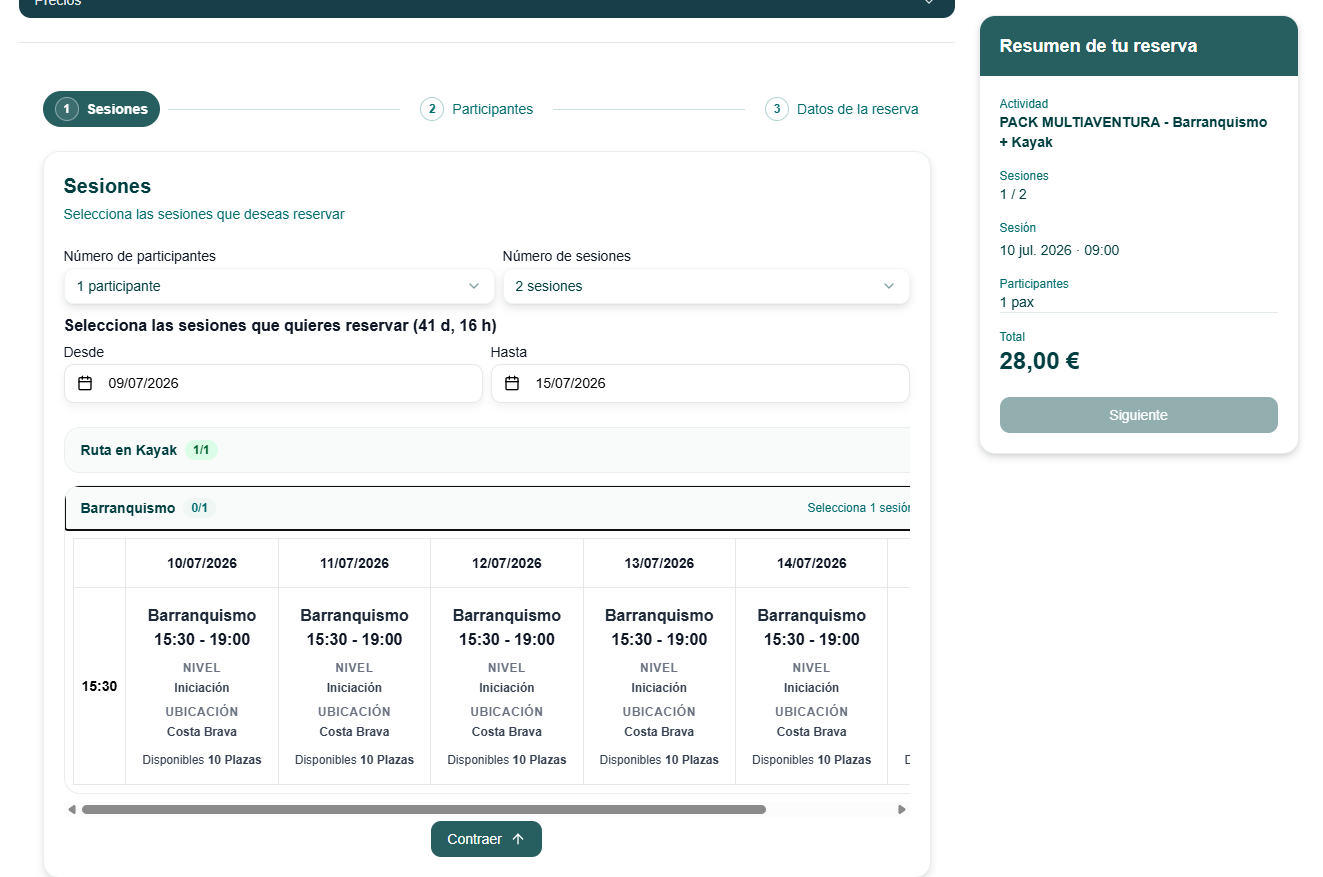
The Next button stays locked until the customer completes the minimum sessions for each product (or, if that configuration has free choice, until they complete the voucher's total number of sessions).
Related guides
- School navigationHere you will find everything the School section offers
- Which product type do I need? Group, private, pack, voucher or multi-day courseGuide to choosing the right product for what you sell: private lessons (price per hour or rates), several sessions priced by number of sessions, fixed dates, hour voucher, multi-day course or a single student with a group schedule.
- Add School productsComplete guide to creating and configuring private and group products in the School section: form fields, session availability and creating sessions in the calendar.
- Product sheet: Data, Translations, Settings, Extras and Related ProductsReference guide to the tabs of the product creation/editing form (private, group, rental or sale): what each one contains and links to the specific guides.
- How do I set up a new season?We show you how to set up a new ski season in Lueira
- How can I set up the new season of my ski school in LueiraWe show you how to set up a new ski season in Lueira