

Reply to and write emails from Lueira
How to reply to a received email and write a new one from the inbox: editor, Cc and Bcc, attachments, signature, saved drafts and sending limits.
On this page
Reply to a received email
Reply to a received email
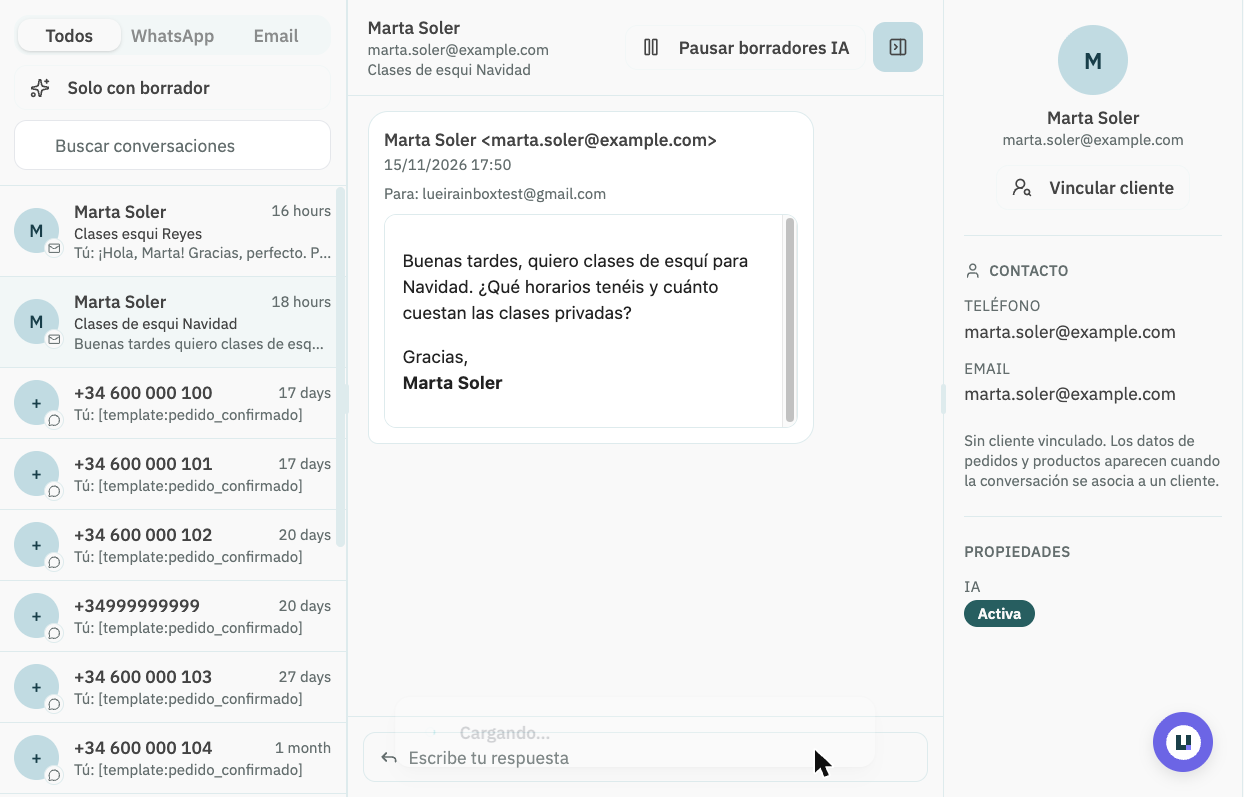
You can reply to your customers' emails without leaving Lueira; the reply goes out from the connected mailbox and stays in the same thread. You need permission to reply in the Communications inbox.
Open the email conversation from Communications.
Click the Write your reply box, below the last message. The subject already appears as “Re: …”.
Write your reply and click Send reply.
💡 The editor, attachments and signature work the same as when writing a new email: we explain them below.
Write a new email
Write a new email
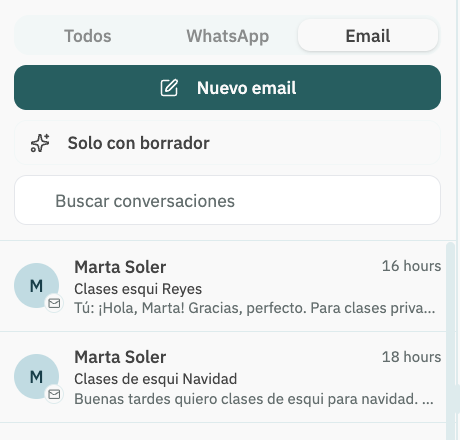
In Communications, open the Email tab and click New email.
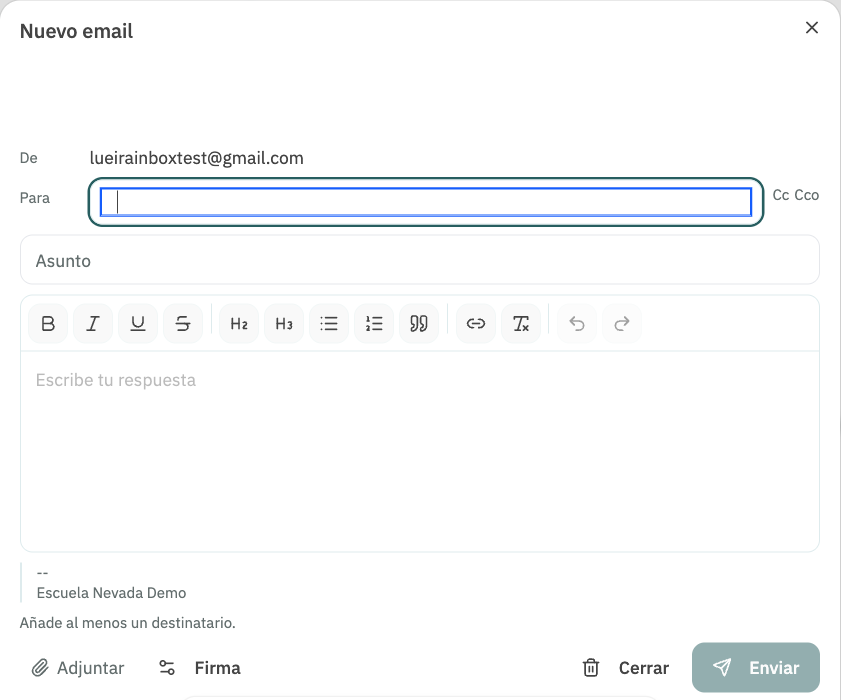
In From you will see the mailbox it will be sent from. In To type an address and press Enter to add it; you can add several.
Write the Subject and the message.
Click Send. The button becomes active when there is at least one recipient (“Add at least one recipient.”).
The editor, Cc, attachments and signature
The editor
The editor toolbar has bold, italic, underline and strikethrough, headings, bulleted and numbered lists, quote, link, clear formatting, and undo and redo. Links can only start with https:// or mailto:.
Cc and Bcc
Next to the To field click Cc or Bcc to add a copy or a blind copy. The maximum is 20 recipients per field.
Attachments
Click Attach (or drag the files onto the message). You can upload up to 10 files and 25 MB in total; empty files are rejected. Before sending you can remove one with its Remove button.
Signature
Click Signature, write your signature (“Name, role, phone…”) and turn on Add my signature. It is added at the end of your messages.
💡 The signature is saved only in this browser: “Saved only in this browser.” If you sign in from another computer you will have to write it again.
Saved drafts, limits and what to do if…
Saved drafts
While you write, the text is saved only in this browser. If you open New email again you will see “There is a saved draft” with two options: Restore or Discard. If you close the window with text written, Lueira asks whether you want to Save draft, Discard or Keep editing.
⚠️ Attachments are not saved in the draft: you will have to attach them again.
Sending limits
Each mailbox can send up to 60 emails per hour.
What to do if…
“You have reached the hourly sending limit. Try again later.” Wait a while and send again.
“The mailbox is not connected. Reconnect it in communications settings.” Reconnect the mailbox in Communications > Settings > Email.
I can't attach a file. Check the maximum: 10 files and 25 MB in total.
The New email button doesn't appear. Check that you are on the Email tab and that you have a connected mailbox.
More cases in Troubleshooting email in Communications.
Related guides
- Communications in LueiraThe Communications module brings together everything you need to talk to your customers by email and WhatsApp: templates, the WhatsApp Agent, the unified inbox and the knowledge base that feeds the WhatsApp Agent.
- Before connecting WhatsApp: prerequisites in MetaStep-by-step guide to preparing your Meta business portfolio, business verification, display name and number, and to choosing between the WhatsApp Business app (coexistence) and a dedicated number (Cloud API).
- Connect WhatsApp in LueiraHow to connect your WhatsApp Business number to Lueira: choose between connecting the WhatsApp Business app or a dedicated number, and complete the process in Meta in under 2 minutes.
- One WhatsApp number per locationIf your account has several locations, each one can have its own WhatsApp number. Requirements, how to connect them and what is shared between numbers.
- WhatsApp AgentSet up the WhatsApp Agent, which automatically replies to your customers' WhatsApp messages, uses your articles as its source of information and can create orders directly from the chat.
- What the WhatsApp Agent sells and what it does when it can'tThe WhatsApp Agent only books what exists as a product in your store. For everything else it sends the customer the purchase link from your website. Here you can see how it works and how to set it up.