

AI replies in email: no AI, with review or without review
What the AI does with your customers' emails, how to choose the mode for each mailbox, how to review and send a draft, when the AI sends on its own, how to pause it in a conversation and why it sometimes does not reply.
On this page
- What the AI does with your emails and how to choose the mode
- What the AI does with your emails and how to choose the mode
- AI with review: review and send a draft
- AI with review: review and send a draft
- Notices you may see
- AI without review: when it sends on its own
- AI without review: when it sends on its own
- Pause the AI in a conversation and write on demand
- Pause the AI in a conversation
- Write a reply on demand
- If it isn't generated
- Why the AI sometimes doesn't reply
- Why the AI sometimes doesn't reply
What the AI does with your emails and how to choose the mode
What the AI does with your emails and how to choose the mode
Lueira can help you answer your customers' emails with AI. Each mailbox has its own mode, which you choose in Communications > Settings > Email, in the AI replies area of the connected mailbox's row:
No AI: “The AI does not write replies in this mailbox. Your team answers them.” This is the mode every mailbox starts with.
AI with review: “The AI writes a draft and a person reviews and sends it.” Nothing goes out unless a person sends it.
AI without review: “The AI sends the safe replies (availability, prices, opening hours) by itself.” We explain it below.
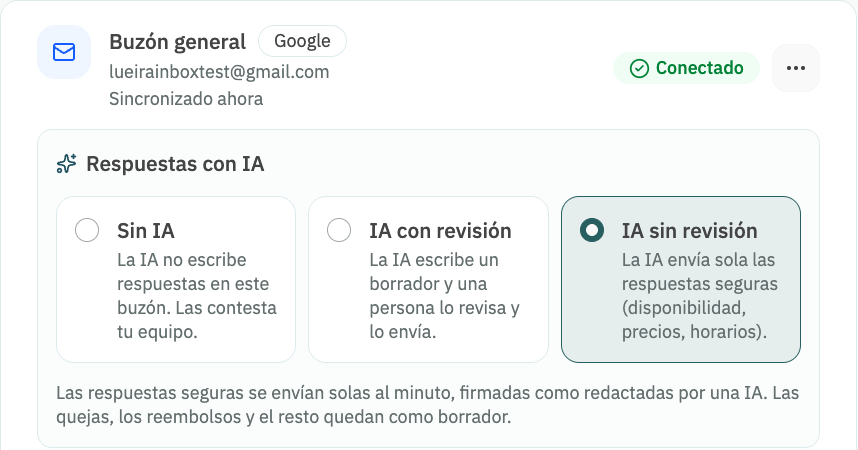
The AI answers information questions (availability, products, prices, opening hours and location) and writes in the customer's language (Spanish, Catalan, English or French). Complaints, refunds and other sensitive cases are never sent automatically.
💡 Each reply the AI writes is deducted from the AI replies in your plan.
⚠️ AI replies are part of Advanced communications. Without that plan you will see “Your plan does not include AI replies.” If you don't even see the AI replies area in the mailbox row, this feature is not turned on in your account yet: contact support.
AI with review: review and send a draft
AI with review: review and send a draft
When an email arrives that the AI can answer, the conversation shows the AI draft label in the list. To see only those conversations, turn on the Only with a draft filter.
Open the conversation. Above the reply box the AI draft panel appears with the proposed text.
Read it and, if needed, edit it. The panel shows Edited and the Restore button brings back the AI's original text.
Click Approve and send: Lueira shows “Sending the AI reply…” and the reply goes out from the mailbox. If you prefer to reply yourself, click Discard.
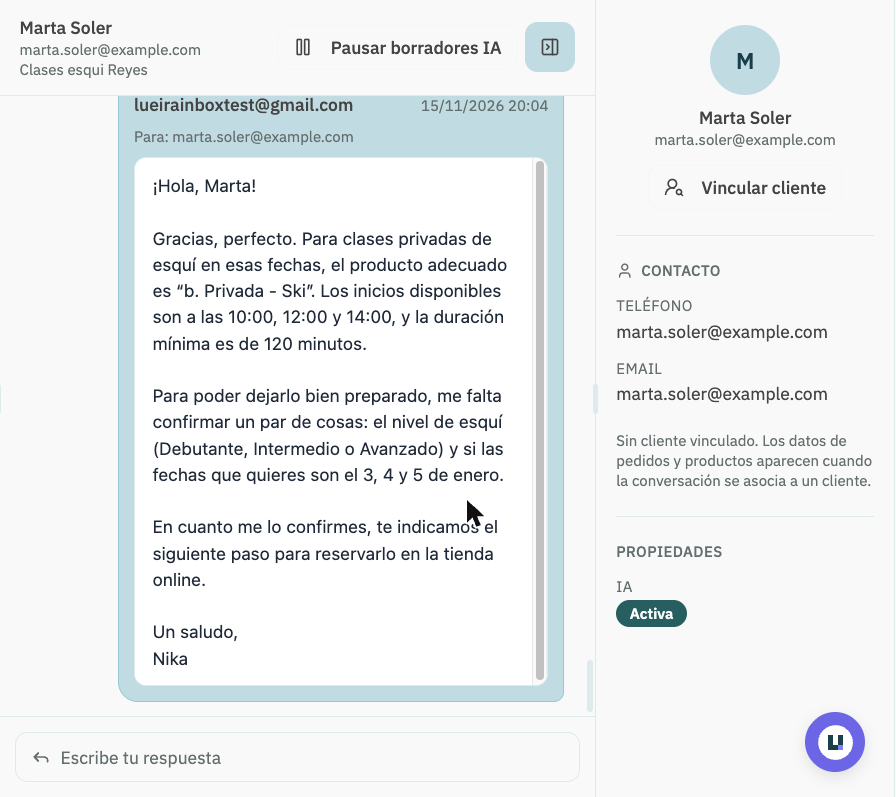
An AI reply that has already been sent appears in the conversation like any other team reply.
Notices you may see
“Possible complaint/refund: review before sending.” The AI has detected a sensitive case. Read it carefully before sending.
“Someone on your team has already sent this draft.” You don't need to do anything.
“A new email arrived or a reply was written by hand: this draft is out of date.” Read the new message and reply.
“The draft could not be sent. Write the reply by hand or discard it.” Try again or reply yourself.
“The draft changed while you were editing it. Your changes are kept here:” You can click Copy to take your text with you or Discard my changes.
AI without review: when it sends on its own
AI without review: when it sends on its own
This is an option per mailbox that you turn on on purpose. When you choose AI without review, Lueira asks “Send replies without review?” and explains what is going to happen. To confirm click Send without review; to leave it as it was, Cancel.
How it works:
The AI sends on its own, one minute after receiving the email, only the replies about availability, products, prices, opening hours and location that it is very confident about.
Those replies are signed as written by an AI, and that note cannot be removed.
Complaints, refunds and any other case stay as a draft for you to review.
If during that minute the customer writes again, someone on the team takes over the conversation or you turn the option off, the automatic sending is cancelled and the draft is left for review.
⚠️ The AI can be wrong and a sent email cannot be recalled. You can go back to AI with review or to No AI whenever you like.
💡 If on this option you see “Not available yet: for now every AI reply goes through review”, it means it isn't turned on for your account for the moment and all drafts wait for your approval.
Pause the AI in a conversation and write on demand
Pause the AI in a conversation
If you want to handle a conversation yourself, click Pause AI drafts in the header. The AI stops preparing drafts in that conversation and, in the contact panel, Properties > AI changes from Active to Taken over. To go back, click Resume AI drafts. The pause affects only that conversation.
Write a reply on demand
Even if the mailbox is on No AI or the AI hasn't prepared a draft, in the reply box you can click Generate with Lueira Intelligence: it writes a reply to that email while you write.
If you had already written something, Lueira asks “Replace your text?”. The signature and the quoted history are not touched. Choose Keep my text or Replace.
Each generation is deducted from the AI replies in your plan.
If it isn't generated
“Your plan does not include Lueira Intelligence for email.” Advanced communications is required.
“You have used up this month's AI credits.” Wait until next month or upgrade your plan.
“Too many generations in this conversation. Try again in a while.”
“Lueira Intelligence could not write a reply to this email” or “cannot reply to this email”. Reply yourself.
“The mailbox is not connected.” Reconnect it in Settings.
Why the AI sometimes doesn't reply
Why the AI sometimes doesn't reply
When the AI doesn't reply to an email, the conversation shows the No AI reply label with the reason. The most common ones:
“AI replies are switched off for this mailbox.” The mailbox is on No AI. Choose another mode in Communications > Settings > Email.
“This is an automatic email.” The AI doesn't answer notifications or emails sent by machines.
“Too many emails in a row from this sender.” This is a safeguard against message loops. Reply yourself.
“This kind of email is not answered by the AI.” For example, a complaint, a refund or a booking change.
“Your plan doesn't include AI replies” or “the AI reply limit was reached”. Check your plan in Billing.
“Conversation handed off to an agent” or “AI paused”. Someone paused the AI in the conversation: click Resume AI drafts.
“The AI access for your account could not be set up. Contact support.” Contact support and tell them which mailbox it is.
More cases in Troubleshooting email in Communications.
Related guides
- Communications in LueiraThe Communications module brings together everything you need to talk to your customers by email and WhatsApp: templates, the WhatsApp Agent, the unified inbox and the knowledge base that feeds the WhatsApp Agent.
- Before connecting WhatsApp: prerequisites in MetaStep-by-step guide to preparing your Meta business portfolio, business verification, display name and number, and to choosing between the WhatsApp Business app (coexistence) and a dedicated number (Cloud API).
- Connect WhatsApp in LueiraHow to connect your WhatsApp Business number to Lueira: choose between connecting the WhatsApp Business app or a dedicated number, and complete the process in Meta in under 2 minutes.
- One WhatsApp number per locationIf your account has several locations, each one can have its own WhatsApp number. Requirements, how to connect them and what is shared between numbers.
- WhatsApp AgentSet up the WhatsApp Agent, which automatically replies to your customers' WhatsApp messages, uses your articles as its source of information and can create orders directly from the chat.
- What the WhatsApp Agent sells and what it does when it can'tThe WhatsApp Agent only books what exists as a product in your store. For everything else it sends the customer the purchase link from your website. Here you can see how it works and how to set it up.