

The unified inbox: WhatsApp, email and web in one place
How to use the Communications inbox: tabs by channel, unread conversations, the drafts filter, how to read an email (images, quoted history, attachments) and what the contact panel shows.
On this page
The tabs and the conversation list
The tabs and the conversation list
The Communications inbox brings the conversations from all your channels together in a single list. At the top there are tabs to filter by channel:
All: all conversations, sorted by latest activity.
WhatsApp: WhatsApp conversations only.
Email: emails only. It appears when a mailbox is connected (see Connect a Microsoft 365 mailbox to the Lueira inbox).
Web: conversations from the web chat on your site, when it is available in your account. They are read-only.
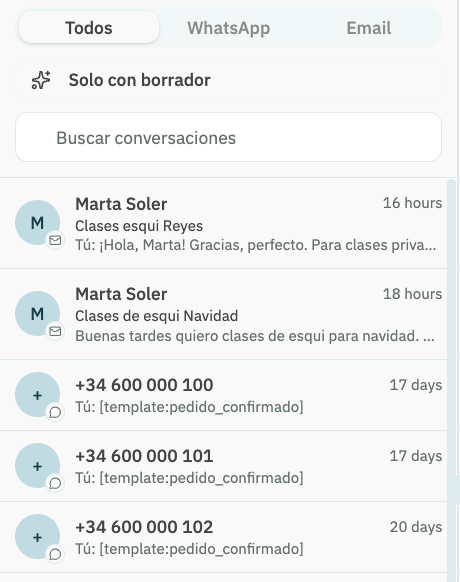
In each conversation, a small icon over the avatar shows the channel (an envelope for email, a bubble for WhatsApp). Unread conversations stand out, and the Inbox counter in the menu adds up the unread ones from all channels.
To find a conversation, type in Search conversations.
If your company has several locations
If your locations have their own WhatsApp number or their own mailbox, a selector appears under the tabs: Active center shows only the conversations of the active location and All centers those of all of them. You will see the mailboxes of your locations and the general mailbox.
Read an email
Read an email
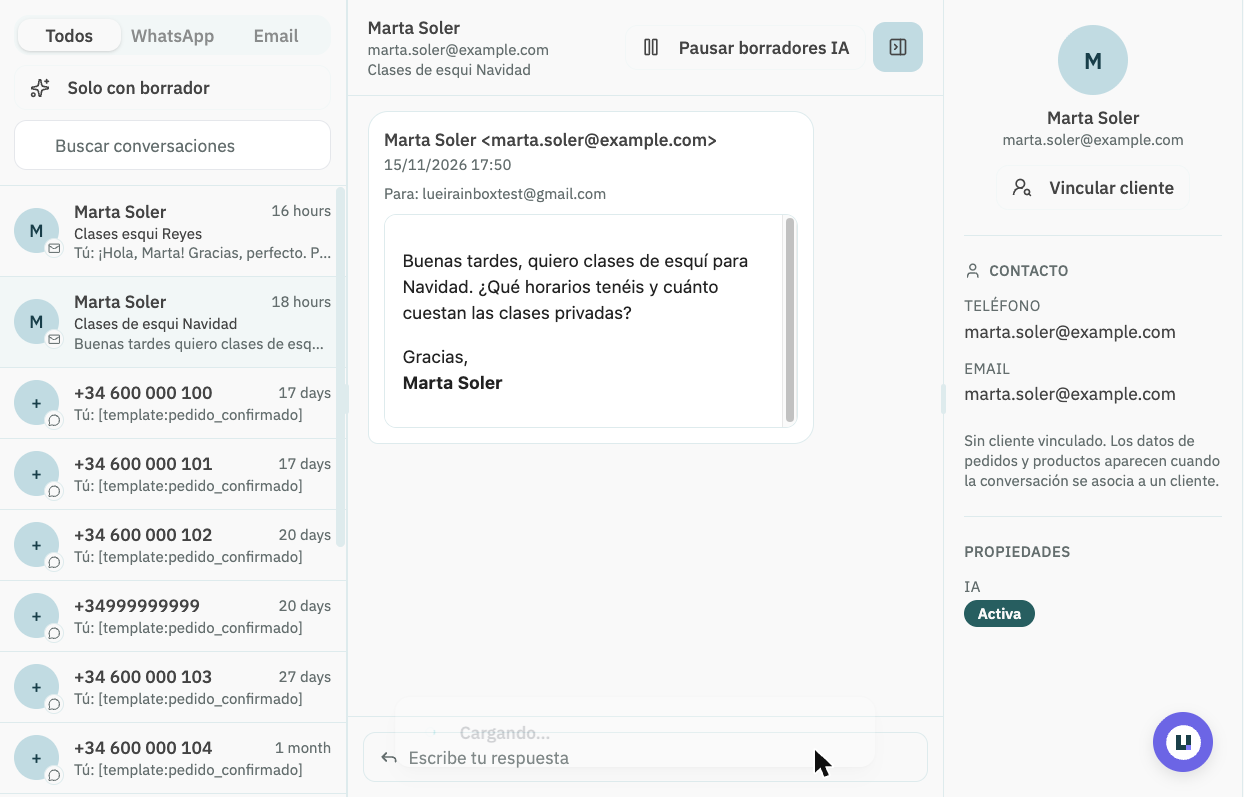
Click an email conversation to see it on the right. At the top you will see the sender's name and address and the subject; on each message, who sent it, when, and to whom (To and, if there are any, CC).
Images. For security, remote images are blocked: “Remote images in this email have been blocked.” Click Show images only if you trust the sender.
Quoted history. The earlier messages in the thread appear collapsed. Click Show quoted history to see them and Hide history to collapse them.
Attachments. They are downloaded from the conversation itself. If that isn't possible: “The attachment could not be downloaded.” If it is too large: “This attachment is too large to download from Lueira. Open it in Outlook.”
Very large emails. Only the text is shown (“This email is very large: only the text is shown.”) and you can open View original.
To reply or write a new email, see Reply to and write emails from Lueira.
The contact panel and AI drafts
The contact panel
To the right of the conversation you see the details of the person writing:
Contact: their email and phone number, if we know them.
Link customer: associates the conversation with a Lueira customer. While it isn't linked you will see “No linked customer. Order and product data appear once the conversation is associated with a customer.”
Properties > AI: Active if the AI can prepare drafts in this conversation, or Taken over if you have paused it or a person has taken it over.
AI drafts in the list
If your mailbox has AI replies turned on, conversations with a pending draft show the AI draft label, and the Only with a draft filter (above the search box) leaves only those conversations in the list. How to review and send them is explained in AI replies in email: no AI, with review or without review.
Related guides
- Communications in LueiraThe Communications module brings together everything you need to talk to your customers by email and WhatsApp: templates, the WhatsApp Agent, the unified inbox and the knowledge base that feeds the WhatsApp Agent.
- Before connecting WhatsApp: prerequisites in MetaStep-by-step guide to preparing your Meta business portfolio, business verification, display name and number, and to choosing between the WhatsApp Business app (coexistence) and a dedicated number (Cloud API).
- Connect WhatsApp in LueiraHow to connect your WhatsApp Business number to Lueira: choose between connecting the WhatsApp Business app or a dedicated number, and complete the process in Meta in under 2 minutes.
- One WhatsApp number per locationIf your account has several locations, each one can have its own WhatsApp number. Requirements, how to connect them and what is shared between numbers.
- WhatsApp AgentSet up the WhatsApp Agent, which automatically replies to your customers' WhatsApp messages, uses your articles as its source of information and can create orders directly from the chat.
- What the WhatsApp Agent sells and what it does when it can'tThe WhatsApp Agent only books what exists as a product in your store. For everything else it sends the customer the purchase link from your website. Here you can see how it works and how to set it up.