

Setting up Redsys and Bizum step by step (and what to do if a payment doesn't show up)
What details your bank gives you for Redsys and where to enter them in Lueira, how to move from testing to production, how to activate Bizum, how to use the same merchant account in several accounts, and what to do if the customer paid but the order is still pending.
On this page
- What this guide covers
- Before you start: what the bank asks you for and what it gives you
- What the bank usually asks you for
- The details the bank gives you
- How to enter the Redsys details in Lueira
- Moving from testing to production, activating Bizum and using the same merchant account in several accounts
- From testing to production
- Activating Bizum
- The same merchant account in several Lueira accounts
- Testing with an order
- The customer has paid but the order is still pending
- 1. Check where you are looking
- 2. Check the transaction in Redsys or at your bank
- 3. Contact support with the right details
- 4. Manually record a payment made outside Lueira
- What to do if…
- …the bank asks me for a URL to give me the card terminal
- …I don't know where to find my merchant details
- …I get an error when saving or paying
- …Bizum doesn't appear at payment
- …I can't find a Redsys payment in the Payments summary
- …I pasted the signing key in a chat or an email
- The Redsys payment link fails or I receive a rejected payment notice
- How the link for a partial payment works
- Who rejects the charge and what happens in Lueira
- Causes you can check yourself
- Causes that don't depend on you
- If it keeps failing
- Related articles
What this guide covers
Redsys is the virtual card terminal (TPV virtual) your bank gives you to take card payments in the online store and with payment links. Bizum works inside Redsys: it is not a separate gateway. This guide is the practical step-by-step; if you want to know what each payment method does, see Payment methods and gateways in Lueira.
This guide explains:
what details the bank gives you and where to enter them in Lueira;
how to move from test mode to production and how to activate Bizum;
whether you can use the same Redsys merchant account in several Lueira accounts;
what to do when the customer has paid (and the bank has charged them) but the order is still Pending.
💡 The short answer: go to Settings > Payments, click Edit details in the Redsys block, fill in the merchant code, terminal, currency and signing key, turn on Bizum if your bank has enabled it for you, and click Save settings.
⚠️ Do not share passwords or signing keys in the support chat. The Redsys signing key is like the password of your card terminal: with it, transactions can be signed on your behalf. Enter it yourself in Lueira. If you have ever pasted it into a chat or an email, ask your bank to generate a new one.
Before you start: what the bank asks you for and what it gives you
You sign the virtual card terminal contract directly with your bank; the Redsys fees are also agreed with it.
What the bank usually asks you for
The website you will take payments from. It is your own website: from it you will link to your Lueira online store (for example, with a "Book" button). The bank commonly checks that your website has a legal notice, a privacy policy and a purchase and refund policy.
If you want to take payments with Bizum, tell them when you sign up: Bizum is activated by the bank on that same terminal.
The details the bank gives you
You can usually find them in the bank's email or in the Redsys administration portal (merchant configuration section):
Merchant code (also called merchant number or FUC).
Terminal (usually 1).
Currency: code 978 corresponds to the euro.
Signing key (secret key). There may be one key for the test environment and another for production.
💡 Keep them in a safe place. To set them up you don't need to send them to anyone.
How to enter the Redsys details in Lueira
Go to Settings > Payments.
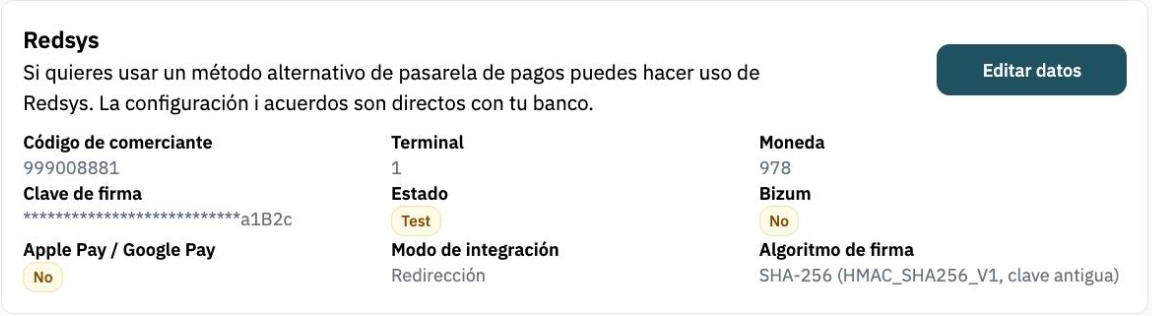
In the Redsys block you will see the current details: merchant code, terminal, currency, the hidden signing key (only the last characters are visible), the Status (for example, Test), whether Bizum and Apple Pay / Google Pay are active, and the integration mode. Click Edit details.
Fill in the form with the details from the bank: Merchant code, Terminal, Currency and Signing key.
Check the switches: Status (test mode), Bizum and Apple Pay / Google Pay. Only turn on what your bank has enabled on your terminal.
Click Save settings and check in the Redsys block that the details and the Status are what you expect.
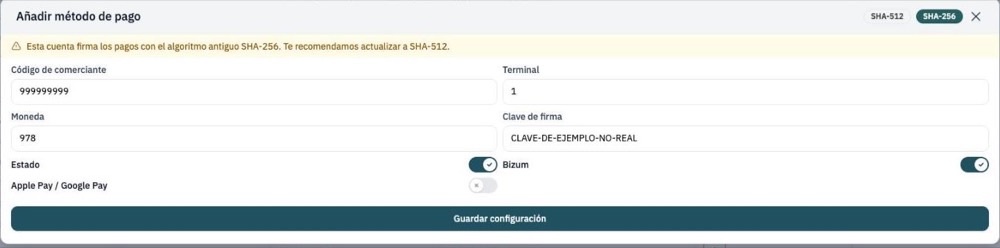
📌 The values in the image are examples. Copy the signing key exactly as it is, with no spaces at the beginning or end.
💡 At the top of the form, Lueira shows which algorithm is used to sign payments (SHA-256 or SHA-512) and may show you the notice "This account signs payments with the old SHA-256 algorithm. We recommend upgrading to SHA-512". If you want to change the algorithm, check with support first.
Moving from testing to production, activating Bizum and using the same merchant account in several accounts
From testing to production
While the Redsys block shows Status: Test, payments are made against the Redsys test environment and no real money moves.
Run your tests with the test details your bank gave you.
When the bank gives you the production details, go back to Settings > Payments > Edit details, replace the test details (above all the Signing key) and change the Status switch to leave test mode.
Save and check that the Redsys block no longer shows Test.
⚠️ If you save production details with test mode on (or the other way round), payments will fail. Always check both things together.
Activating Bizum
Ask your bank to activate Bizum on your Redsys terminal.
When they confirm it, turn on the Bizum switch in Edit details and save. In the Redsys block you will see Bizum: Yes.
If you turn on the switch without the bank having enabled it, the customer will not be able to complete the payment with Bizum.
The same merchant account in several Lueira accounts
If you have several Lueira accounts (for example, one per school or brand), you can set up the same Redsys merchant account in all of them. The configuration is not shared: you have to enter the details in Settings > Payments of each account. If an error appears when you do so, contact support stating which account it is, without sending the key.
Testing with an order
Before announcing the store, make a test purchase from start to finish:
Open your online store and book a product as a customer would.
On the payment screen choose card (and, if you have enabled it, Bizum) and complete the payment. In Test mode, use the test details your bank or Redsys gives you.
Go back to Lueira and open the order in Orders. In the Payments block the Redsys payment must appear and the order must no longer be Pending.
Also check that the payment appears in Orders > Payments summary, selecting the Online Store location (or All locations).
⚠️ Redsys does not accept payments of €0. If you apply a 100% discount to test, the payment cannot be processed. Run the test with a small amount and, if you are already in production, refund it afterwards from the order.
The customer has paid but the order is still pending
Sometimes the customer shows you the receipt and the bank has charged the amount, but in Lueira the order is still Pending and the Payments block is empty. Follow these steps:
1. Check where you are looking
In Orders > Payments summary payments are separated by location: online store payments are under Online Store, not in your physical centre. Choose All locations and the payment's date range before giving the payment up for lost.
Look up the order by its reference in Orders and open its Payments block.
2. Check the transaction in Redsys or at your bank
In the Redsys portal or your bank's portal, locate the transaction (date, amount and Redsys order number) and confirm that it is authorised, not just started.
3. Contact support with the right details
Write to us from the help chat with:
the order reference in Lueira (for example, 5UYW-VNSP);
the date, amount and Redsys transaction or order number, or a screenshot of the transaction in the Redsys portal.
🔒 Never include the signing key, your bank portal passwords or the customer's full card details in the screenshot or in the message.
4. Manually record a payment made outside Lueira
If the customer paid you by another route (a Bizum to your mobile, a bank transfer, cash) or support tells you to record the payment yourself, do it from the order itself:
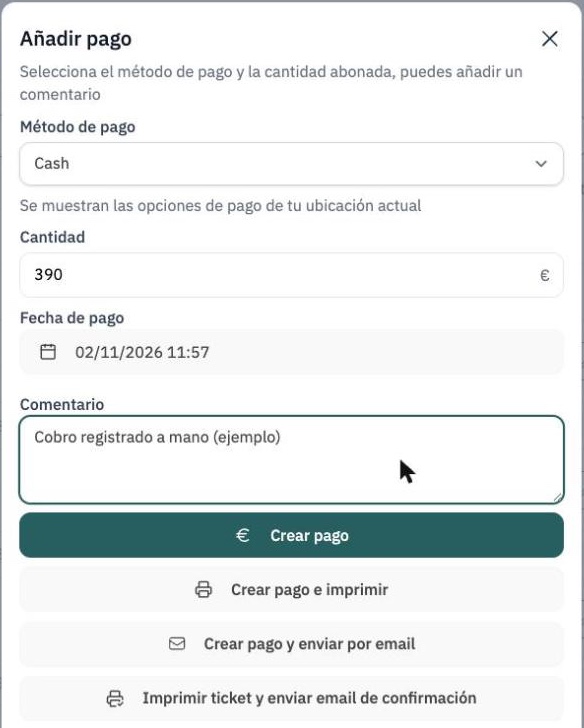
Open the order and click Create payment (or the + in the Payments block).
Choose the Payment method you actually received the money through. Only the methods of your current location are shown.
Check the Amount and change the Payment date to the actual date of the payment.
In Comment, write where the money comes from (for example, the bank reference) and click Create payment.
Lueira asks whether you want to change the order status to confirmed. Choose Confirm order or Do not change the order status.
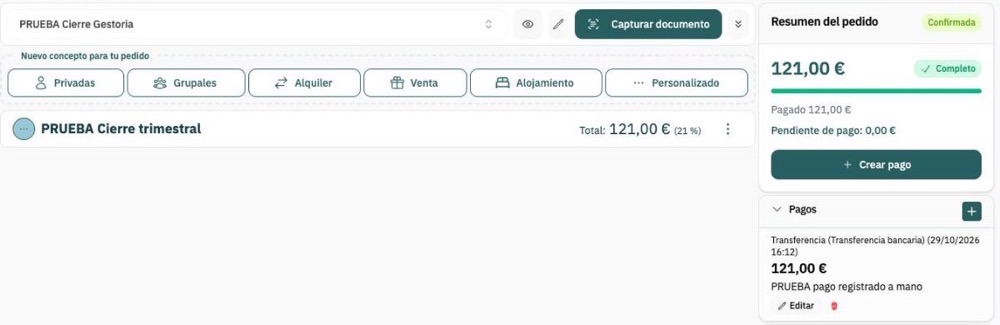
The order changes to Complete in the summary and the payment appears in the Payments block, where you can Edit it if you made a mistake.
⚠️ If you choose Redsys as the method in Create payment, you are not recording a payment already made: the Expires on field appears because Lueira prepares a new charge through Redsys. For a payment the bank has already collected, do not use it this way; check with support first so you don't charge the customer twice.
What to do if…
…the bank asks me for a URL to give me the card terminal
Give the address of your own website, from which you will link to the Lueira online store. Make sure it has a legal notice, a privacy policy and a purchase and refund policy. Without the Redsys details the bank gives you, you will not be able to activate Redsys payments in your online store.
…I don't know where to find my merchant details
Look for them in the Redsys administration portal, in the merchant configuration, or ask your bank. You need the merchant code, terminal, currency and signing key.
…I get an error when saving or paying
Check that the merchant code and the terminal are exactly the ones from the bank, that the key has no spaces and that the Status switch matches the details you entered (test or production). If it keeps failing, write to support with the reference of the test order or a screenshot of the error, without the key.
…Bizum doesn't appear at payment
Check that the Redsys block shows Bizum: Yes and that your bank has activated Bizum on that terminal.
…I can't find a Redsys payment in the Payments summary
Change the location to Online Store or to All locations and check the date range. Online payments do not appear in your physical centre's location.
…I pasted the signing key in a chat or an email
Ask your bank for a new key and, once you have it, update it in Settings > Payments > Edit details.
🔒 Important: the support team will never ask you for the signing key or your bank password in the chat.
The Redsys payment link fails or I receive a rejected payment notice
If a customer tries to pay a partial payment (for example, 50% of a booking) with the Redsys link and gets an error, or you receive a "payment rejected" notice, start by understanding what the link does and who rejects the charge.
How the link for a partial payment works
Each payment you create with Redsys in the order's Payments block is an independent charge: the link charges exactly the Amount of that payment, not the order total. For 50%, create a payment for half the amount.
The link can only be paid while the payment is in Pending status. It stops working if the payment has already been paid, if its Expires on date has passed, or if the payment was cancelled because the order changed and a new link was generated. In those cases the customer sees an expired link, not a bank rejection: create a new payment and send them the new link.
Each time the customer opens the link and tries to pay, Lueira starts a new transaction in Redsys. If an attempt fails, the customer can try again with the same link as long as it is still valid.
Who rejects the charge and what happens in Lueira
When Redsys or the customer's bank denies the transaction, Lueira changes nothing: the payment remains Pending and the order is not marked as paid. Lueira also does not send any "payment rejected" email; if you receive that notice, it is sent by Redsys or your bank. To see the exact reason, look up the transaction in the Redsys portal or ask your bank about that attempt (date, time and amount).
Causes you can check yourself
Test mode and production details mixed up. While Status is Test, payments go to the Redsys test environment; if you have entered production details (or the other way round), the payment fails. Check Settings > Payments > Redsys.
Signing algorithm that does not match your key. In Edit details there is a Signing algorithm field (SHA-256 or SHA-512) that must match the type of key Redsys gave you for that terminal. If your bank has changed the key or the terminal, check with them which type it is and consult support before changing the algorithm.
Incorrect merchant code, terminal, currency or key (for example, a key with spaces at the beginning or end). Copy them again exactly as the bank gave them.
Causes that don't depend on you
If your configuration is correct and other Redsys payments work, the most likely explanation is that the customer's bank denied that transaction (card balance or limit, cardholder authentication not completed, card blocked for online purchases). Ask them to try another card or to contact their bank.
If it keeps failing
If the customer pays you by another route, record the payment manually as explained in Managing payments on orders.
Write to support with the order reference, the date, time and amount of the attempt and, if you have it, the transaction reference in Redsys. Never include the signing key or full card details.
Related articles
Related guides
- Configuring Company Settings in LueiraIn this section you can configure all the properties of your school
- Settings (School / Center / Activities)Configure the parameters of your school, center or activities space: levels, meeting points, schedules, prices and more.
- Features: turn optional features on or off in your accountHow to turn Short courses, Private lesson vouchers, Material resources and Instructor ranking on or off from Settings > Company > Features.
- Several sites or centers in one Lueira accountHow to manage several sites (establishments) in the same account: create a site, give it its own online store link and decide whether it invoices with its own tax details.
- Diagnose: check your setup, an order or a productHow to use the Diagnose button and the Setup status screen to find out what is missing or wrong in your account, your store, an order, a pack or a product, and how to fix it.
- Create and manage locationsHow to create, edit and delete a location (a physical place where you operate) in Settings > Locations, what each field means and what to do if you cannot create one.