

View and search your orders in the Partner Portal
What the order list shows, how to search and filter by status, payment or date, move between pages, and delete an order that's in progress.
On this page
The Orders section of the portal is the list of bookings of the company you are working with. It is the first thing you see after choosing the account.
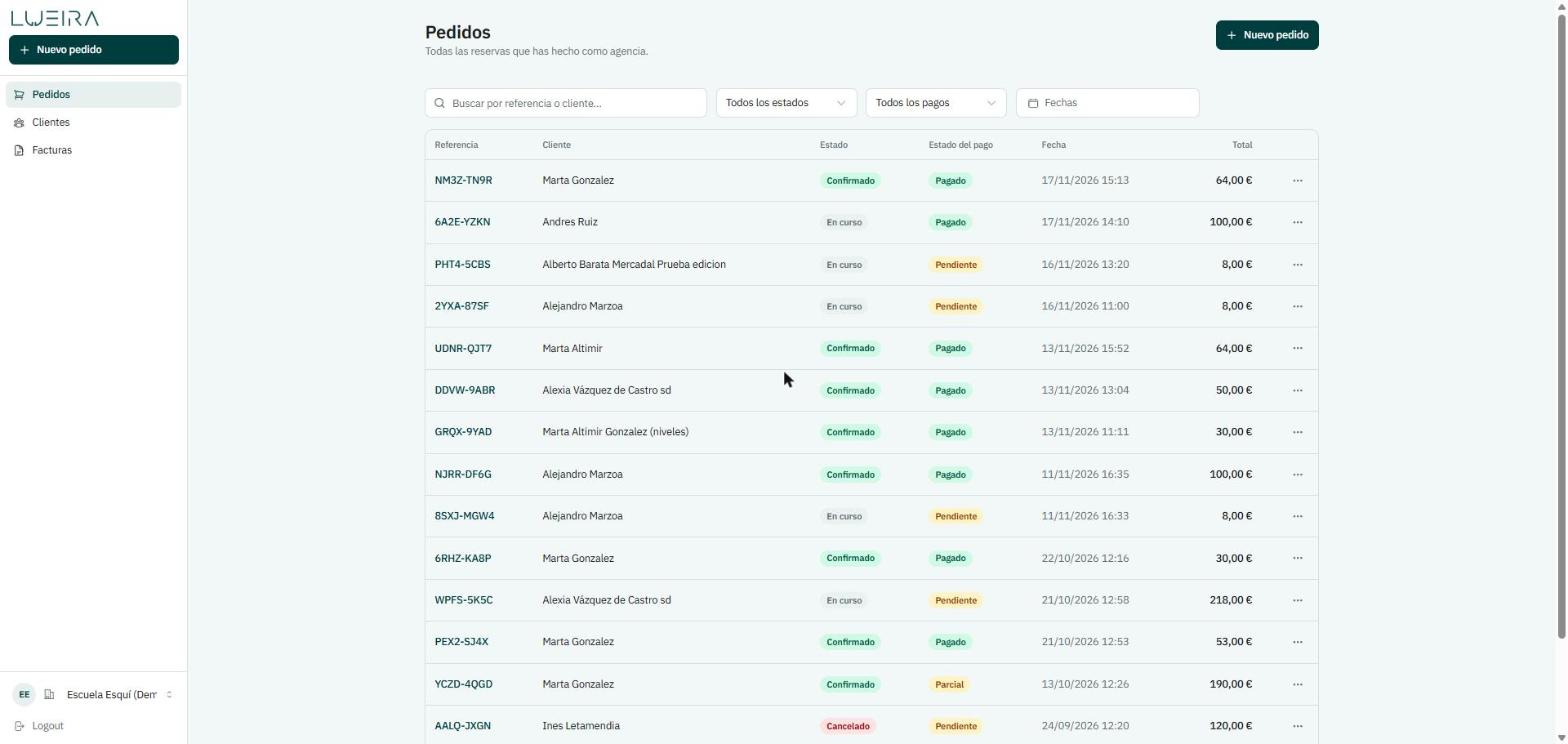
What the list shows
- Reference: the order code (for example, ABCD-1234).
- Customer.
- Order status: In progress, Quote, Confirmed, Completed or Canceled.
- Payment status: Pending, Partial, Paid, Overpaid or None. This column only appears if the company lets you see your orders' payments.
- Creation date (day and time).
- Total.
The most recent orders appear first.
Search and filter orders
Type in the "Search by reference or customer…" search box. The search updates as you type, goes back to the first page, and you can paste the reference exactly as it appears in the list (with the hyphen).
Above the list you have three more filters:
- All statuses: filters by order status.
- All payments: filters by payment status (only available if you see that column).
- Dates: pick a range with the calendar and click Apply; Clear period removes the filter.
If you reach this list from a customer's page, orders are automatically filtered to that customer; you'll see a "Customer: name" chip you can remove with the X to see all orders again.
Move through the list
- 20 orders are shown per page. Use Previous and Next; the current page is shown as "Page X".
- Below the list you can see which orders you are viewing ("Showing 1-20") and, when known, the total.
- If no orders match your search or filters, you will see "No bookings match.". If you don't have any orders yet, you will see "No orders yet" with a button to create the first one.
- If the list does not load, click Retry.
Open an order
Click any row to open the order details: Order details and commission.
Delete an order
From each row's ··· menu (or from the order itself) you can delete an order. The Delete option only appears on orders In progress: a confirmed, quoted, completed or canceled order can never be deleted from the portal.
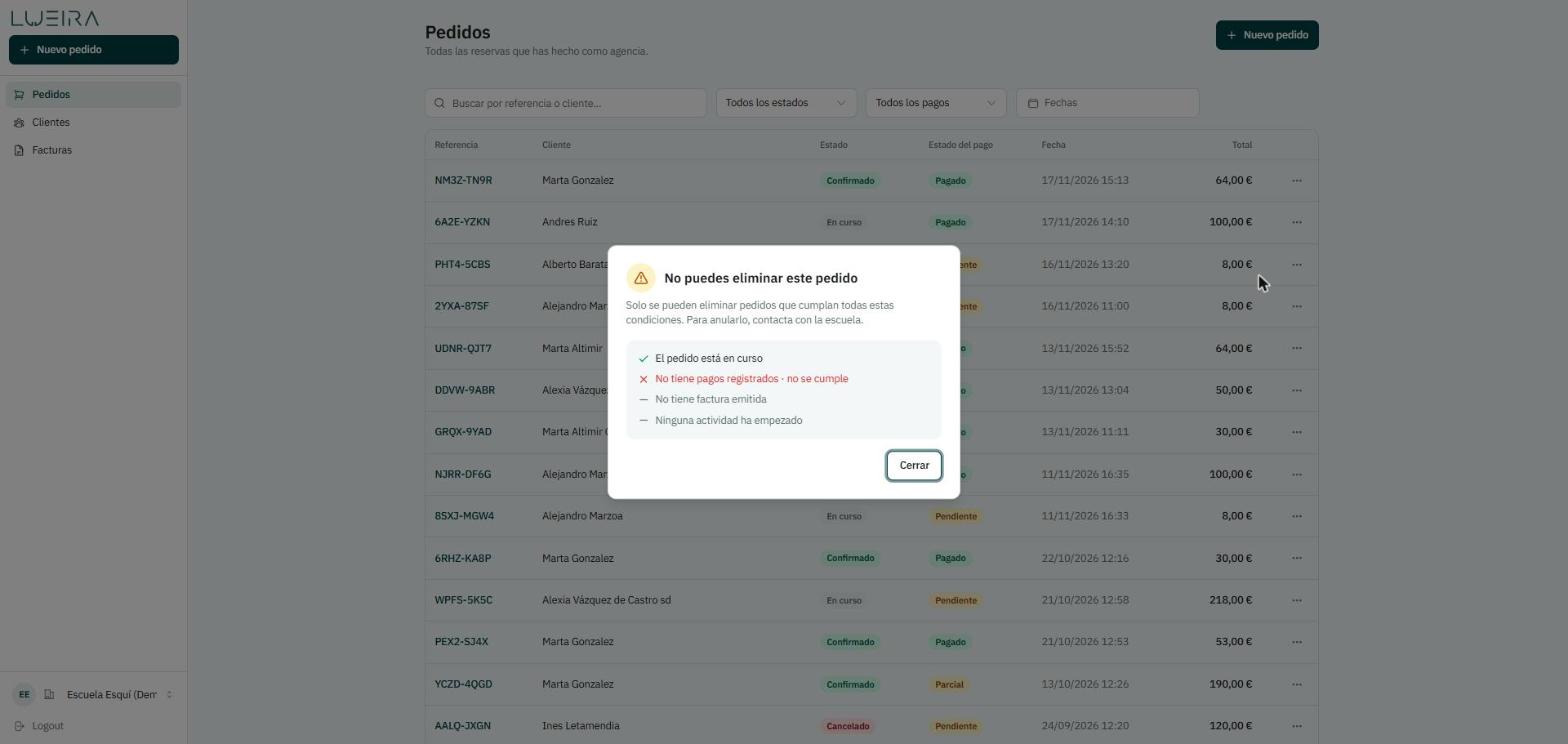
Before deleting, the portal checks four conditions: the order is in progress, it has no recorded payments, it has no invoice issued, and no activity has started yet. If all of them hold, it will ask you to confirm ("The booked spots, equipment and instructors will be released. This action cannot be undone."). If any of them don't, as in the image, the portal shows you which one and suggests contacting the company to cancel it (you can do so with the Contact the school button on the order itself).
What you cannot do from the portal
The list and the detail are mostly read-only: from the portal you cannot pay or confirm an order, and you can only delete one that is in progress and meets the conditions above. For any other change or cancellation, ask the company.
Related guides
Related guides
- Partner PortalIndex of the Partner Portal guides: how to set it up, how partners log in and how they create bookings of each type.
- Give a partner access to the Partner PortalHow to enable a partner's access to the Partner Portal from Lueira and what you need to share with them so they can log in.
- Partner catalog: which products a partner can sellHow to limit the products a partner sees and sells in the Partner Portal with their catalog, and what happens if they don't have one.
- Partner prices: inherit, fixed price and pricing schemesHow to give each partner their own prices and VAT in their catalog: inherit the price, set a fixed one or use flat and tiered schemes.
- Find out about the bookings your partners makeWhere to see the bookings created from the Partner Portal and how to turn on the email notification.
- Log in to the Partner PortalHow a partner enters the portal with their email and a verification code, and what to do if something goes wrong.