

Order details and commission in the Partner Portal
What information the order details screen offers: products, dates, warnings and commission.
On this page
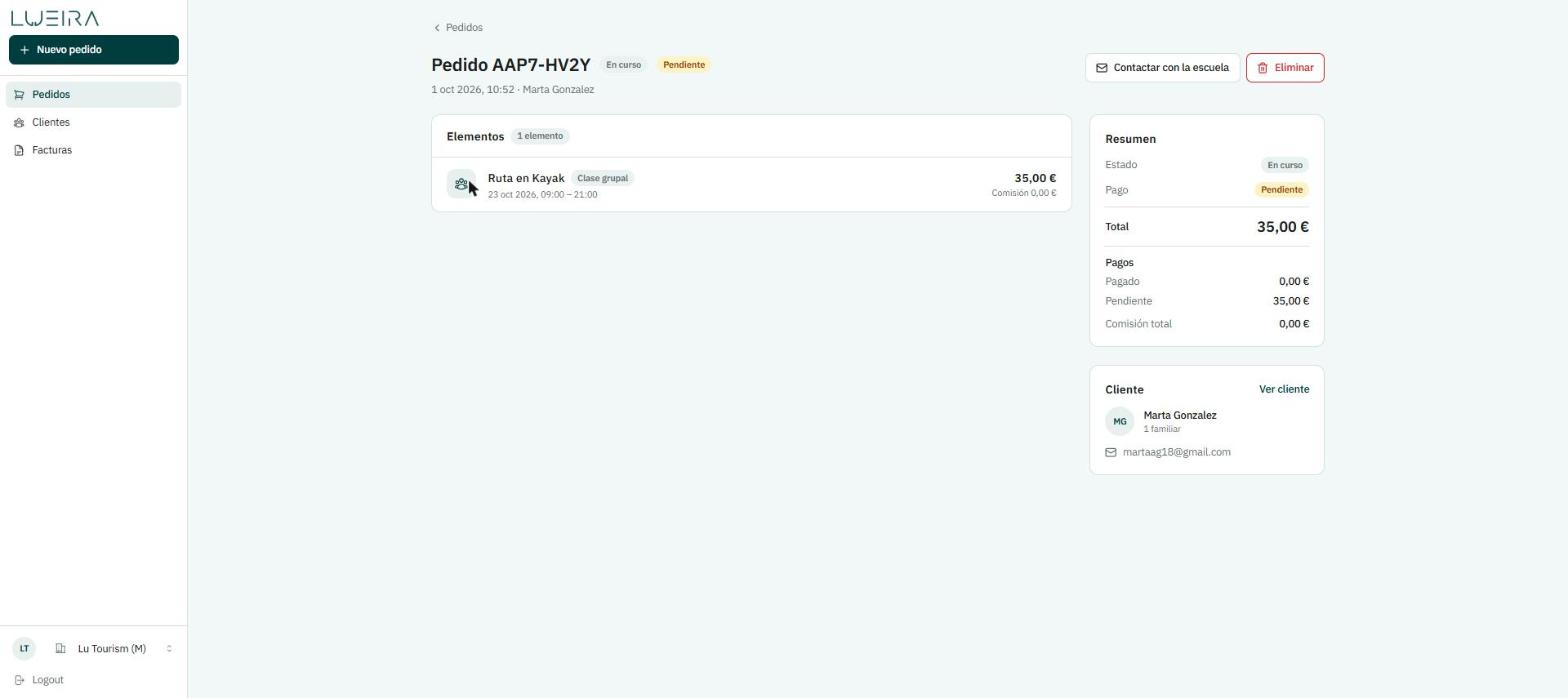
When you click an order in the list, its details open. It is mostly a read-only screen, although you can delete the order from here if its status allows it.
What it shows
- Header: "Order" with its reference, the order status and the payment status, the date and the customer's name. On the right, the Contact the school button and, only when the order is In progress, the Delete button; if it already has an invoice, Download invoice also appears.
- Items: a table with the name and description of each product, its Type, the Price and the Commission. Below the name appear the sessions or the booked period (in the company's time, not your browser's).
- Summary: the order's Status and Payment, the Total, the Payments breakdown (Paid / Pending) and the total Commission.
- Customer: the order's customer, with their number of relatives and their email; the View customer link opens their full record (see Customers in the Partner Portal).
- Invoices: only appears if the order has an invoice issued, with its download button; see View and download your invoices in the Partners Portal.
Product types
In the Type column you can see: Group class, Private class, Rental, Rental pack, Class pack, Course, Lift pass, Shop or Custom.
Commission
- The commission is visible after booking, in the list and in the details. It is not shown while you create the booking.
- Each product shows its amount and, when there is a percentage, the percentage in parentheses (for example, "(10 %)"). If it has no commission, "—" appears. The Summary card also shows the order's total commission.
- The portal does not explain how it is calculated: the percentage is agreed and configured by the company. If you have questions about a commission, ask the company.
Booking warnings
If the order has warnings, you will see an amber box "Booking warnings". What each one means: Warnings and errors when booking.
If the order does not load
"Order not found." means that order does not exist in the account you are working with: check that you have chosen the right company (Choose and switch accounts). If an error appears, click Retry.
Related guides
Related guides
- Partner PortalIndex of the Partner Portal guides: how to set it up, how partners log in and how they create bookings of each type.
- Give a partner access to the Partner PortalHow to enable a partner's access to the Partner Portal from Lueira and what you need to share with them so they can log in.
- Partner catalog: which products a partner can sellHow to limit the products a partner sees and sells in the Partner Portal with their catalog, and what happens if they don't have one.
- Partner prices: inherit, fixed price and pricing schemesHow to give each partner their own prices and VAT in their catalog: inherit the price, set a fixed one or use flat and tiered schemes.
- Find out about the bookings your partners makeWhere to see the bookings created from the Partner Portal and how to turn on the email notification.
- Log in to the Partner PortalHow a partner enters the portal with their email and a verification code, and what to do if something goes wrong.