

Customers in the Partner Portal
How to view, create and edit your customers' records in the Partner Portal, and what each of their tabs shows.
On this page
In Customers, in the side menu, you'll find the people you make bookings for. From here you can search for them, create a new record and check their order, relatives and invoice history.
Customer list
The list shows Customer, Email, Phone, Country and Created (the date they were added), and you can search by name, email or phone. Click a row to open the customer's record, or the New customer button to create one.
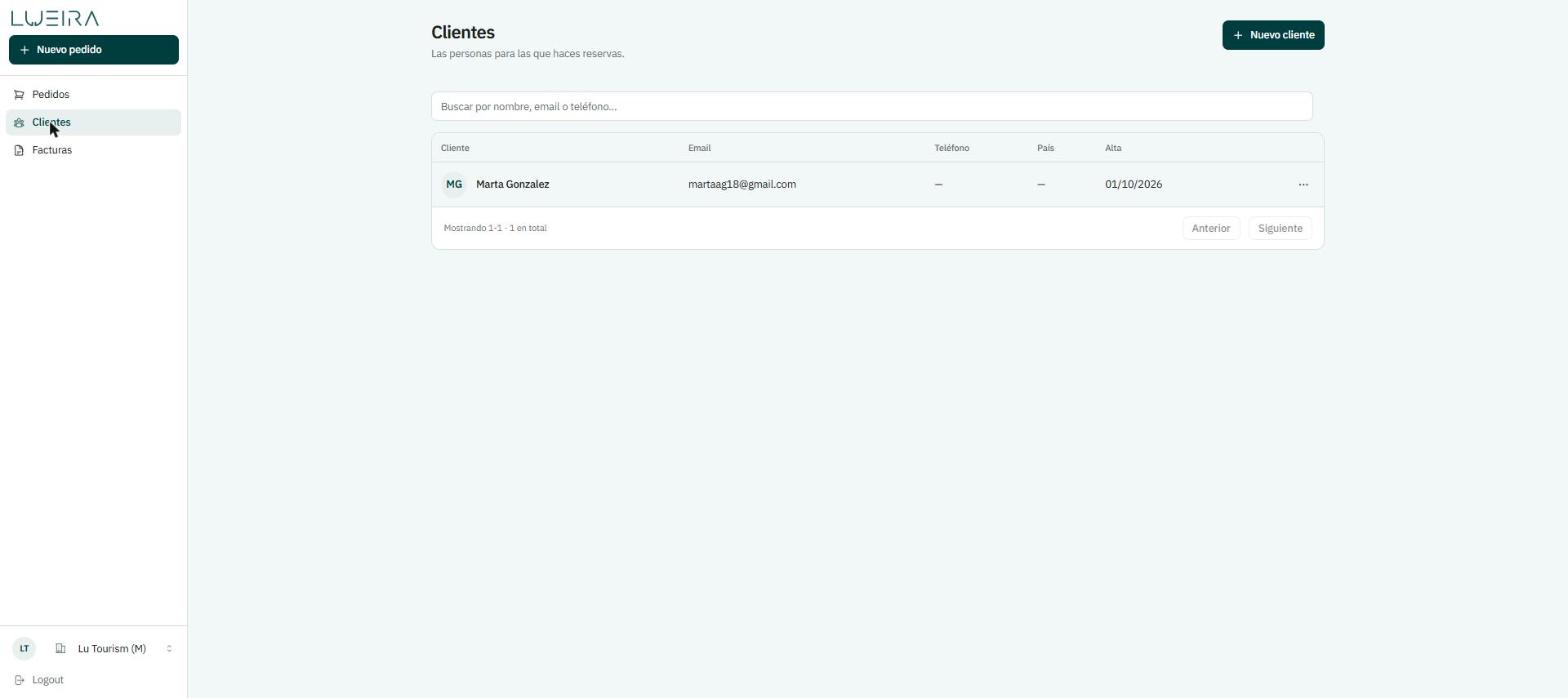
Create or edit a customer
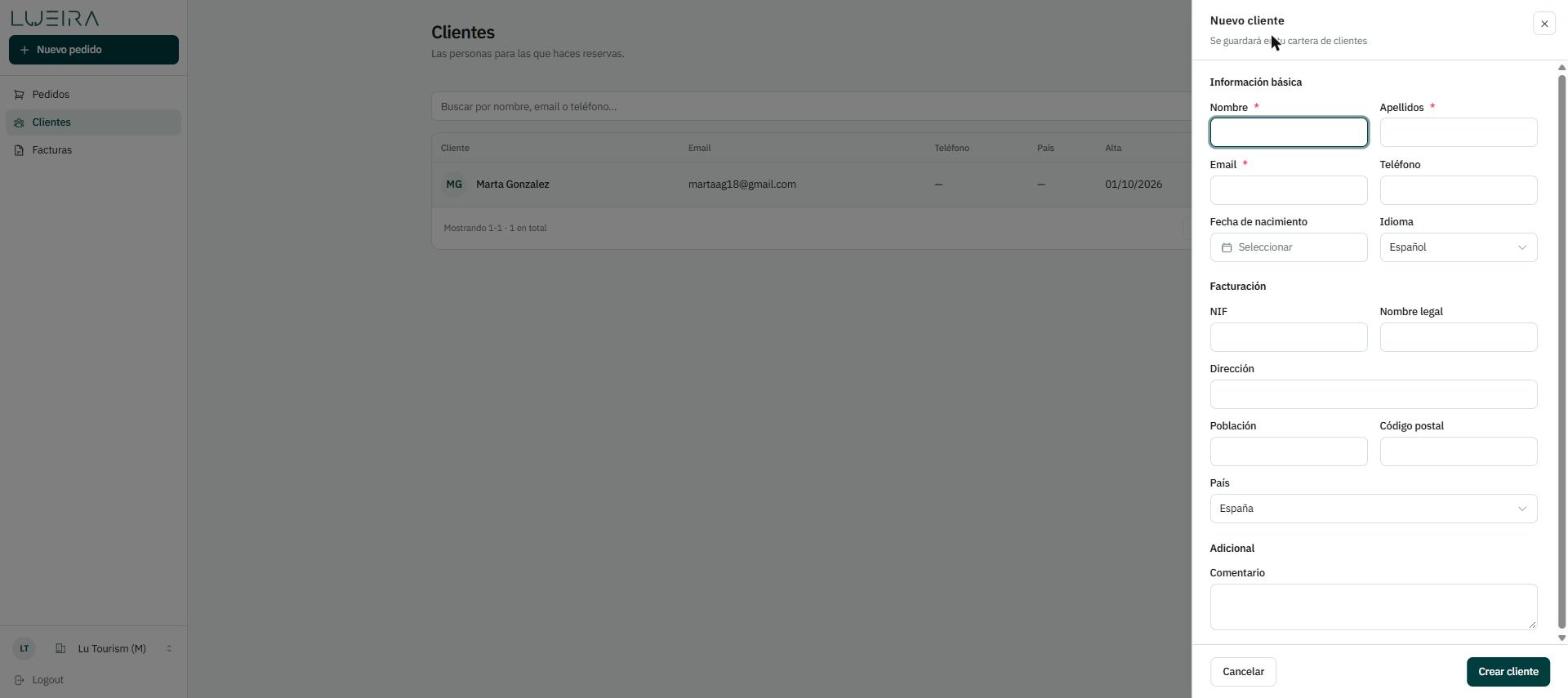
The form is organised in three sections:
- Basic information: Name, Surname, Email, Phone, Date of birth and Language. Name, Surname and Email are required when creating the record; when editing it, the email can be left blank if you don't know it.
- Billing: Tax ID, Legal name, Address, City, Postal code and Country.
- Additional: a free-text Comment.
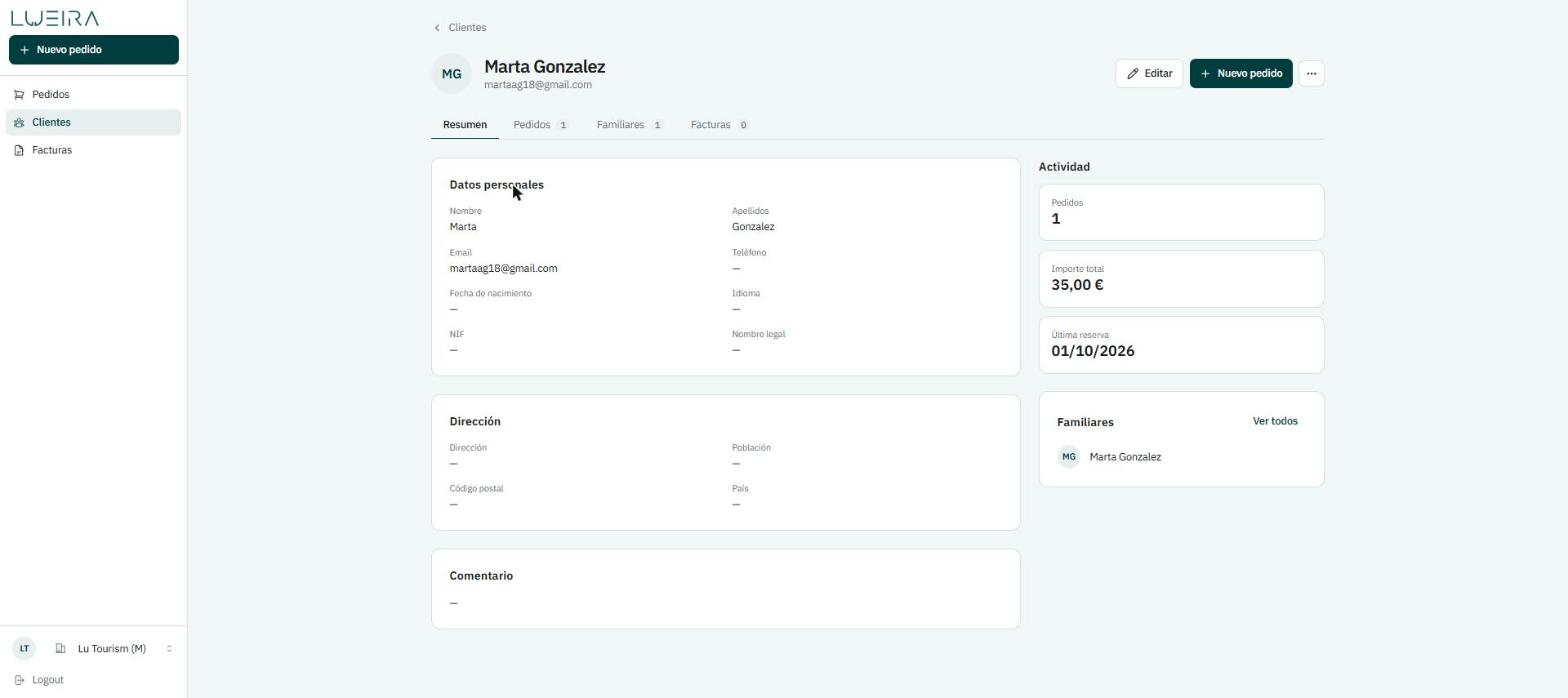
The customer record
Opening a customer shows their name, their email and the Edit and New order buttons, and, in the «...» menu, Delete (and Call on mobile, if they have a phone number). The record is split into four tabs.
Summary
The customer's personal details and address, a comment if there is one, and on the right their activity (number of orders, total amount and date of the last booking) together with a preview of their relatives.
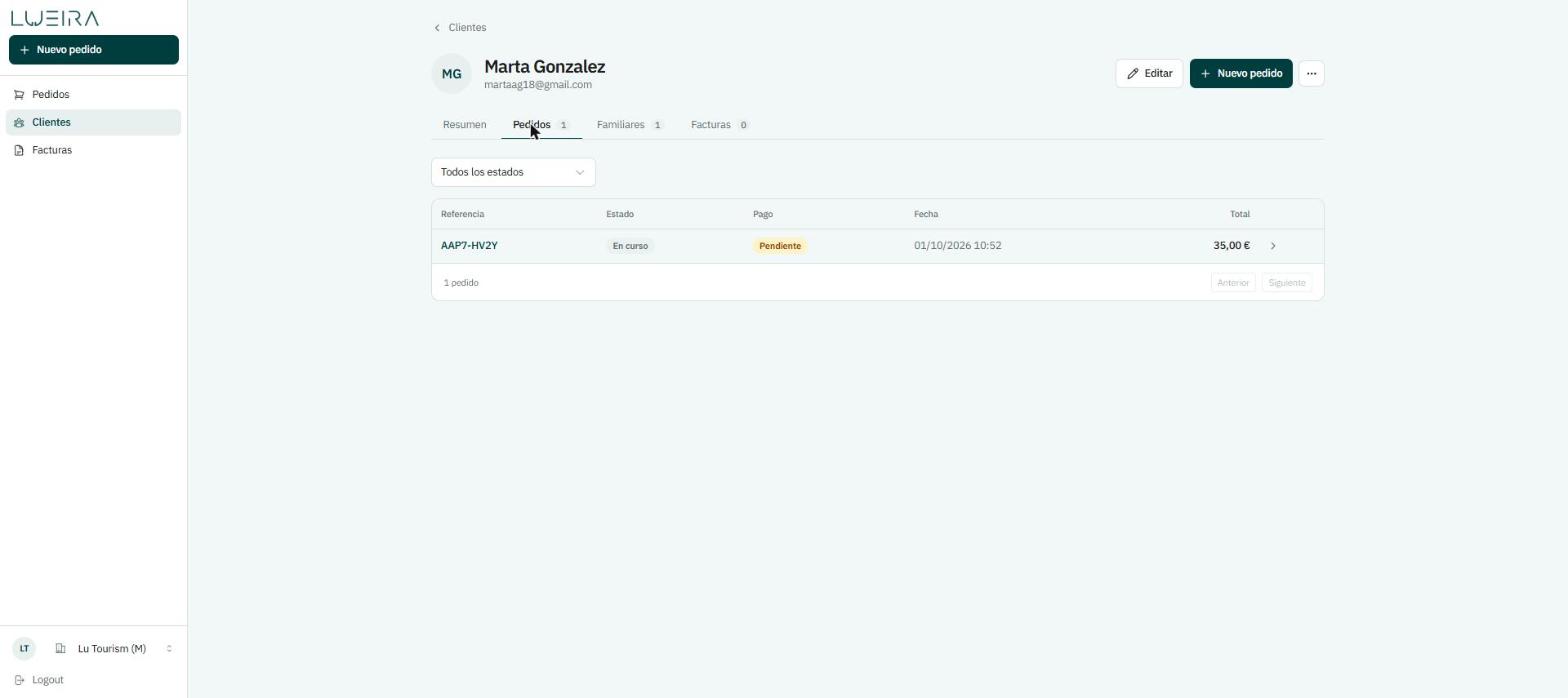
Orders
Every order from that customer, with a status filter and the Reference, Status, Payment, Date and Total columns. Click the reference to open the order details.
Relatives
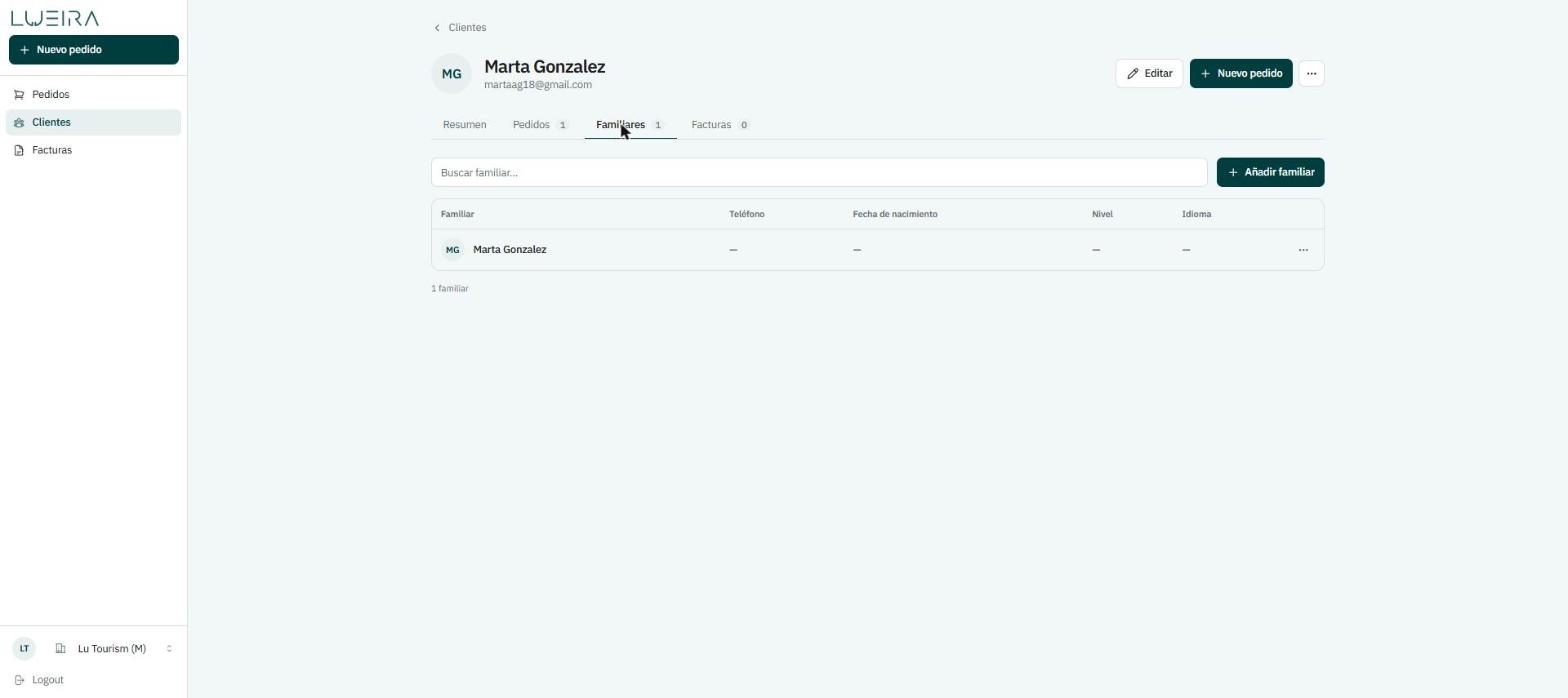
The people who book alongside this customer (children, partner...): you can search them, add a new one with Add relative and see their phone, date of birth, level and language.
Invoices
The invoices issued to that customer, with their number, type, order reference, date and total, and a download button. If they don't have any yet, you'll see "This customer has no invoices yet." For more detail: View and download your invoices in the Partners Portal.
Deleting a customer
You can delete a record from the «...» menu on its row in the list, or from the record itself. If the customer already has orders, the portal won't let you delete them and shows an error; in that case, it's best to keep the record for the history.
Related guides
Related guides
- Partner PortalIndex of the Partner Portal guides: how to set it up, how partners log in and how they create bookings of each type.
- Give a partner access to the Partner PortalHow to enable a partner's access to the Partner Portal from Lueira and what you need to share with them so they can log in.
- Partner catalog: which products a partner can sellHow to limit the products a partner sees and sells in the Partner Portal with their catalog, and what happens if they don't have one.
- Partner prices: inherit, fixed price and pricing schemesHow to give each partner their own prices and VAT in their catalog: inherit the price, set a fixed one or use flat and tiered schemes.
- Find out about the bookings your partners makeWhere to see the bookings created from the Partner Portal and how to turn on the email notification.
- Log in to the Partner PortalHow a partner enters the portal with their email and a verification code, and what to do if something goes wrong.