

Selling insurance with ingood by Reale
What ingood by Reale is, how the non-attendance refund insurance works and how to start selling it on your products: extra, checkout, policies and monthly settlement.
On this page
- How it works at a glance
- Before you start you need
- 1. Check that it is activated
- 2. Create the insurance extra
- 3. Add it to your products
- 4. Make a test purchase
- What happens after the purchase
- Rules worth knowing
- The monthly settlement
- Possible statuses of a settlement
- If the sale of insurance is paused
- Frequently asked questions
- Related articles
With ingood by Reale you can offer your customers a non-attendance refund insurance as an extra on their bookings. If the customer cannot attend for a covered reason (for example, an illness or a serious accident), the insurer refunds what they paid for that booking, according to the policy conditions.
You don't have to sign anything with the insurer or manage policies: Lueira takes care of the contract with Reale and of issuing each policy. You just decide which products you offer the insurance on. This guide explains how it works and how to start selling it, step by step.
How it works at a glance
You create the "Non-attendance refund insurance" extra and add it to the products you want to insure.
The customer chooses it when booking in your online store and sees the price of the insurance calculated on the spot.
The customer pays the booking and the insurance together, with any of the payment methods you have active.
Once the payment is confirmed, Lueira issues the policy and the insurer sends the documentation to the customer by email.
At the beginning of the month, Lueira automatically charges you what you collected in insurance the previous month (the "monthly settlement").
💡 The insurance premium is not income for your business: you collect it from your customers on behalf of the insurer and it is settled every month. Its price and VAT (IVA, Spanish value-added tax) cannot be configured in Lueira.
Before you start you need
Lueira to have activated ingood by Reale on your account. It is not activated automatically and you cannot activate it yourself: the Lueira team does it. If you don't see the ingood by Reale card in Settings > Integrations, write to us at support@lueira.com.
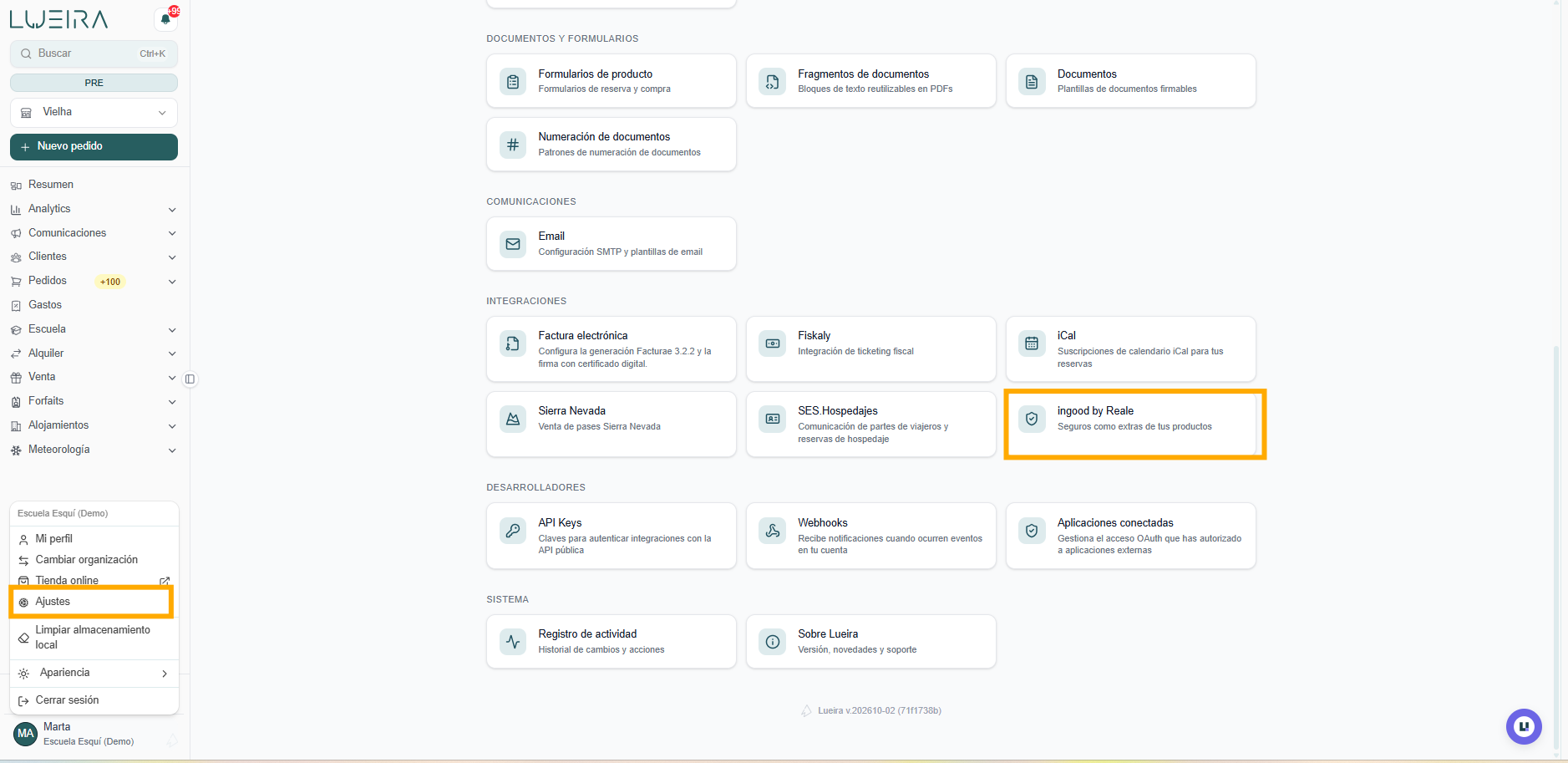
An active Lueira subscription with a saved payment method. This is where the monthly settlement is charged. If it is missing, Lueira will send you a link to add it before activating the insurance for you.
Administrator access to Lueira.
Your online store active: it is where the customer chooses and takes out the insurance.
1. Check that it is activated
Go to Settings > Integrations and click the ingood by Reale card ("Insurance as extras for your products").
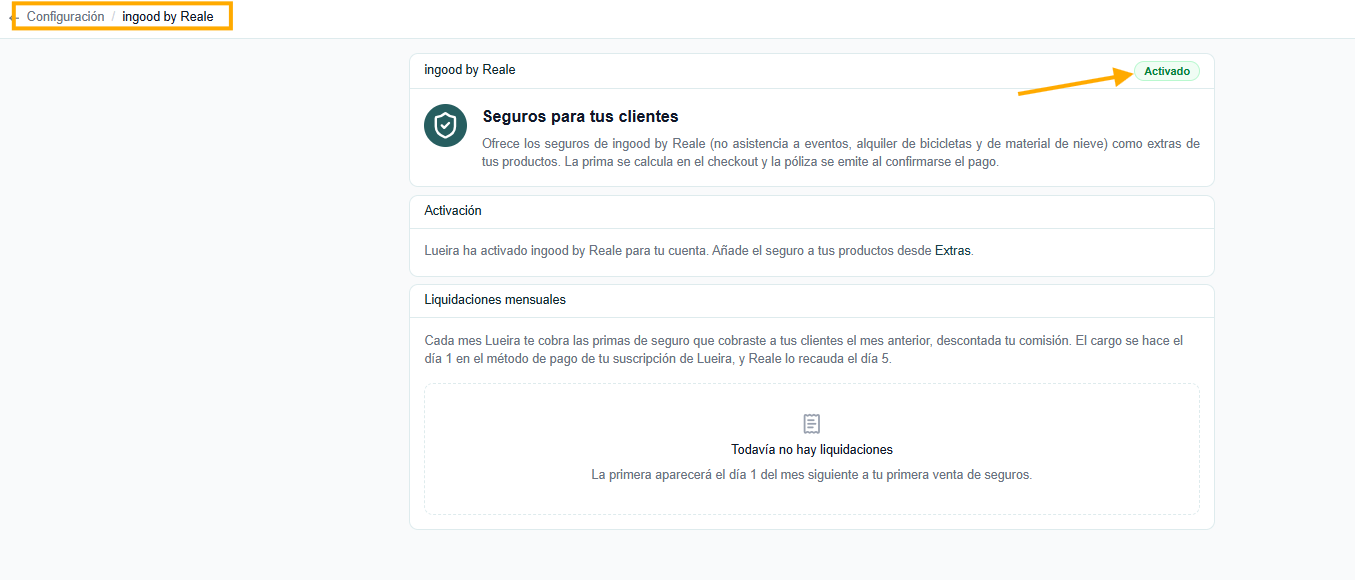
At the top right, the Activated label must appear.
On that same screen you will see the Activation section and, further down, Monthly settlements, where your settlements will appear. At first you will see "There are no settlements yet": the first one appears on the 1st of the month following your first insurance sale.
2. Create the insurance extra
You only have to do this once: the same extra works for all your products.
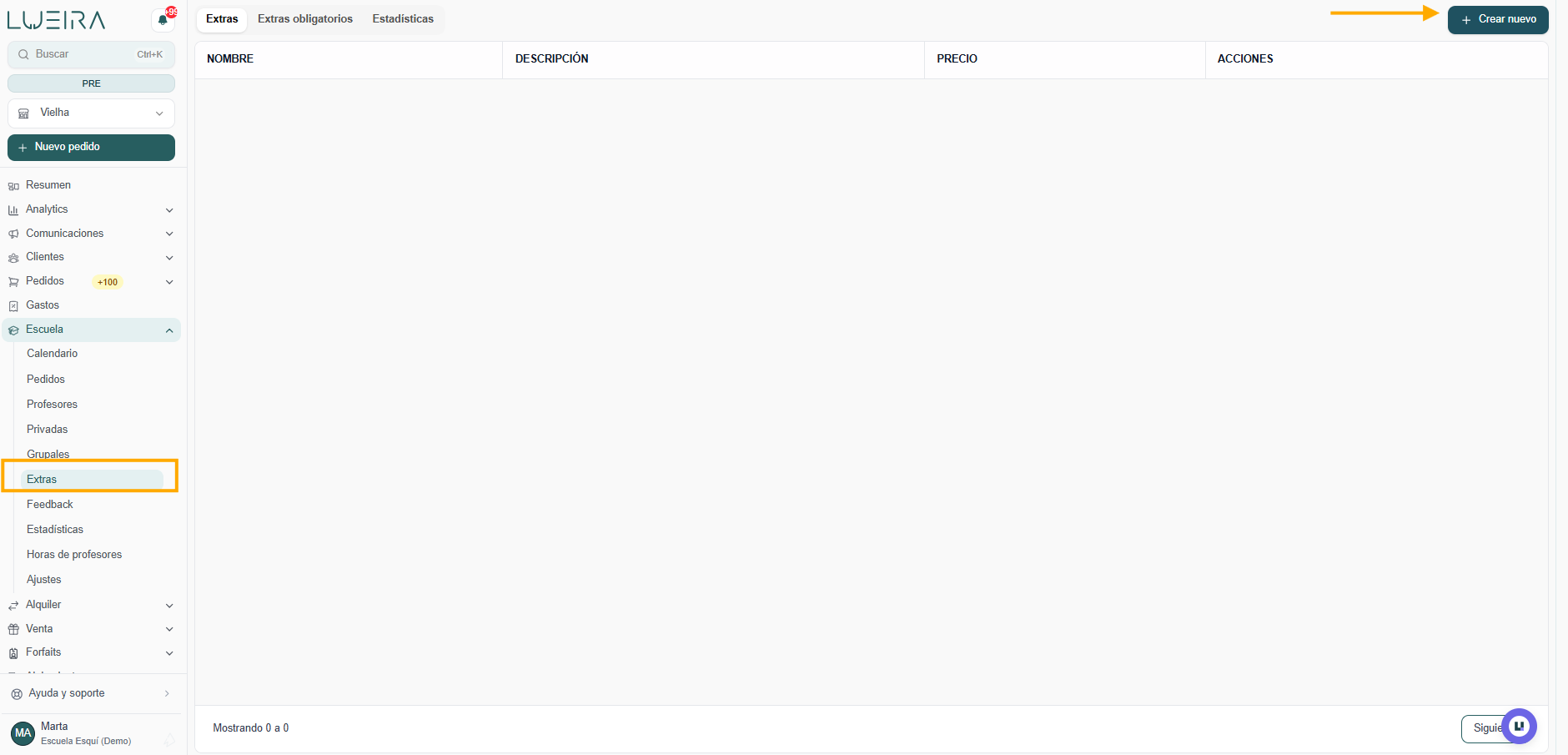
Go to School > Extras and click Create new.
In Extra type, choose ingood by Reale.
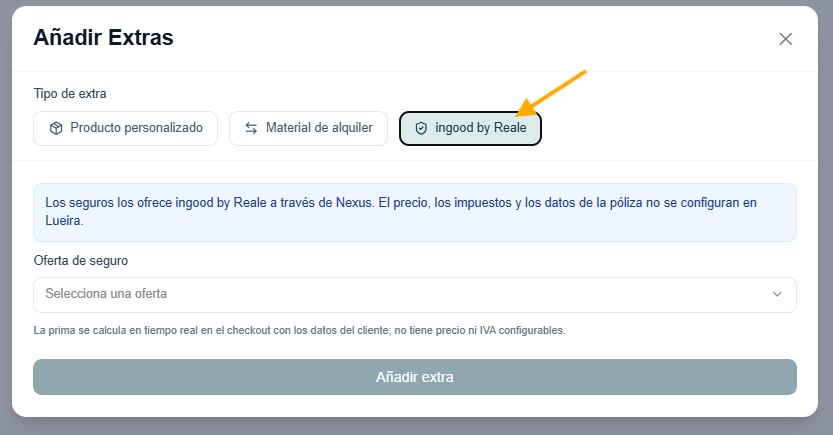
In Insurance offer, select Non-attendance refund insurance.
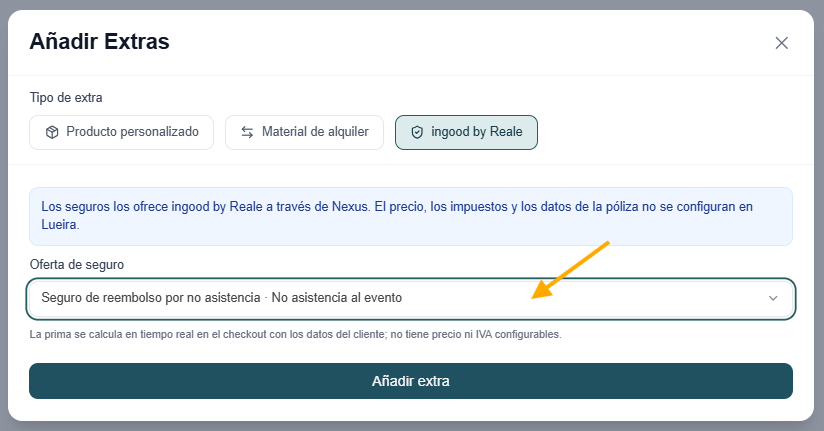
Click Add extra.
The extra will appear in the list with the ingood by Reale label and the price "Calculated at checkout". You cannot edit its price or its VAT: the premium is calculated in real time with the customer's data and the amount of the booking being insured.
3. Add it to your products
The insurance is only offered on the products you add it to. It can be added to group classes, group class packs, private classes, courses and rental products.
Open the product (for example, School > Group classes and click the product).
Click the Edit pencil.
Go to the Extras tab, find Non-attendance refund insurance and select it.
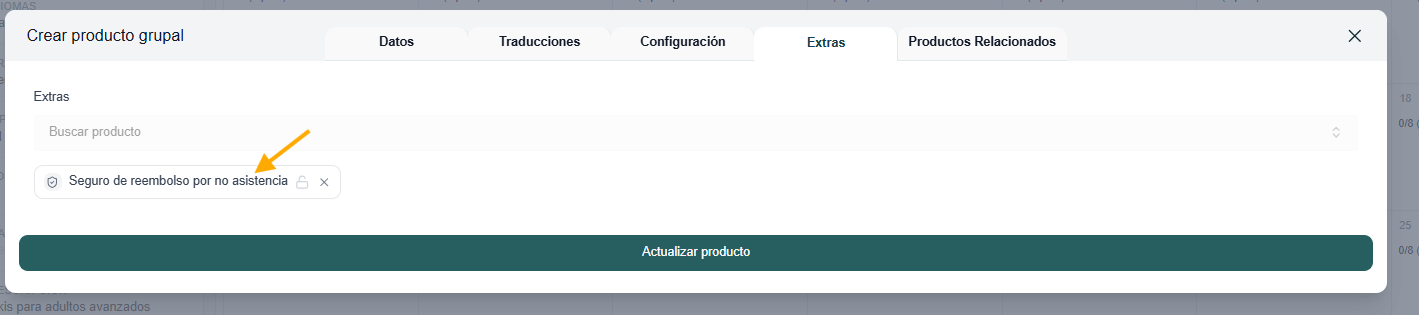
Click Update product.
Repeat the process on every product where you want to offer it. For more detail on linking extras, see 👉 Extras (Add-ons).
4. Make a test purchase
Before announcing it to your customers, check that everything looks as you expect:
Go to your online store and choose a product with the insurance added. You will see the insurance card with the indicative price.
Add the insurance, fill in the details and accept the conditions.
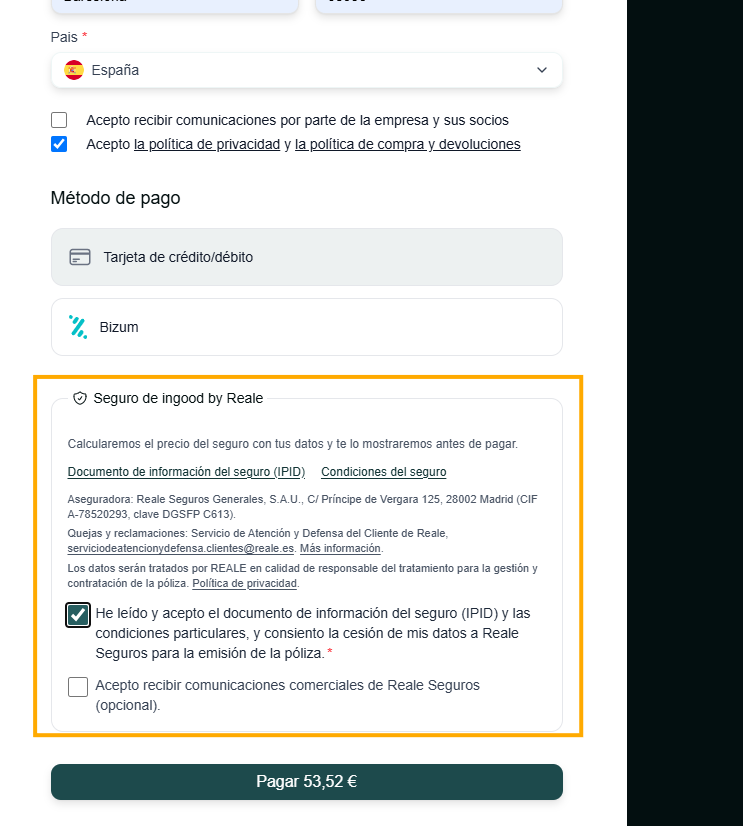
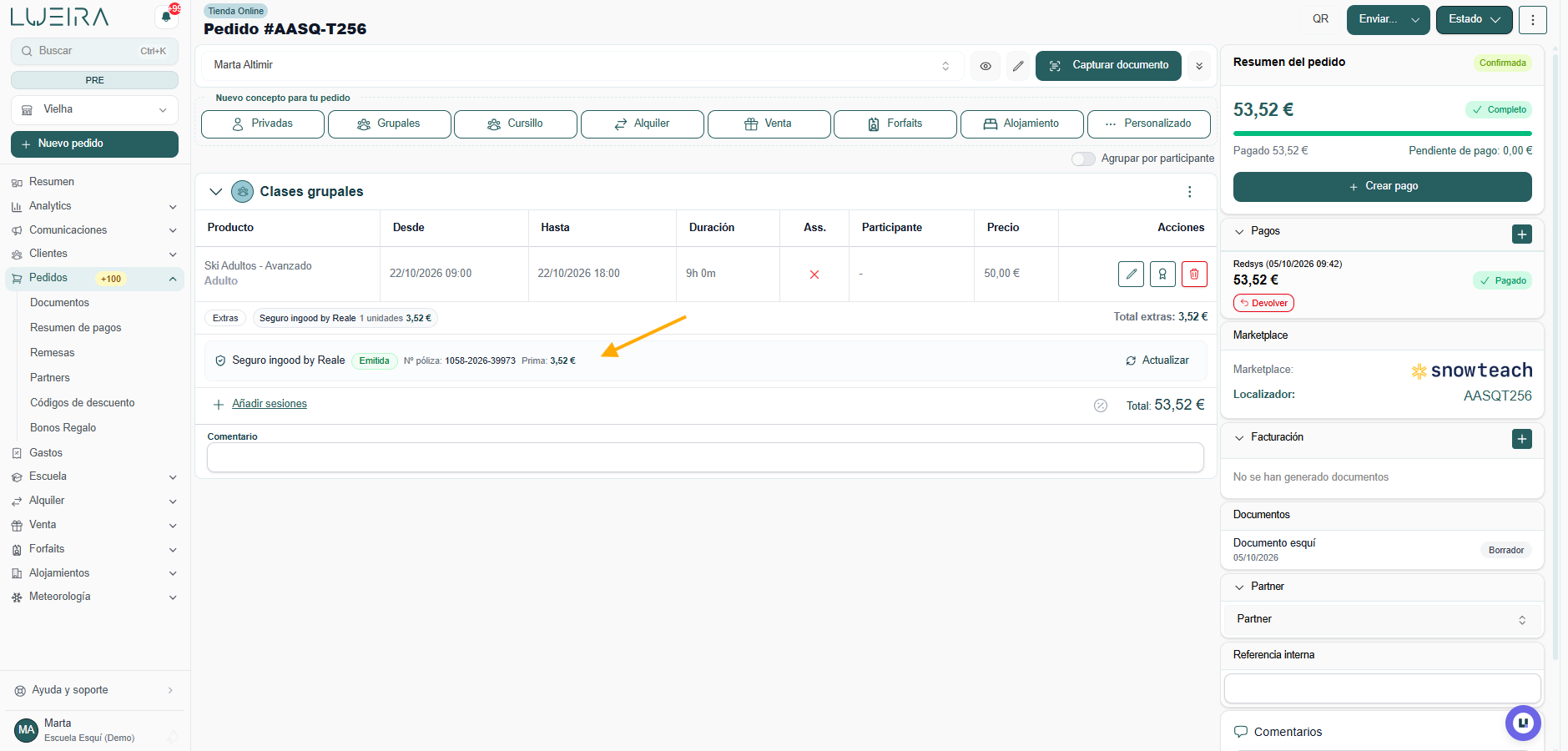
Pay and, when you finish, open the order in Lueira: the insurance must appear among the extras.
What happens after the purchase
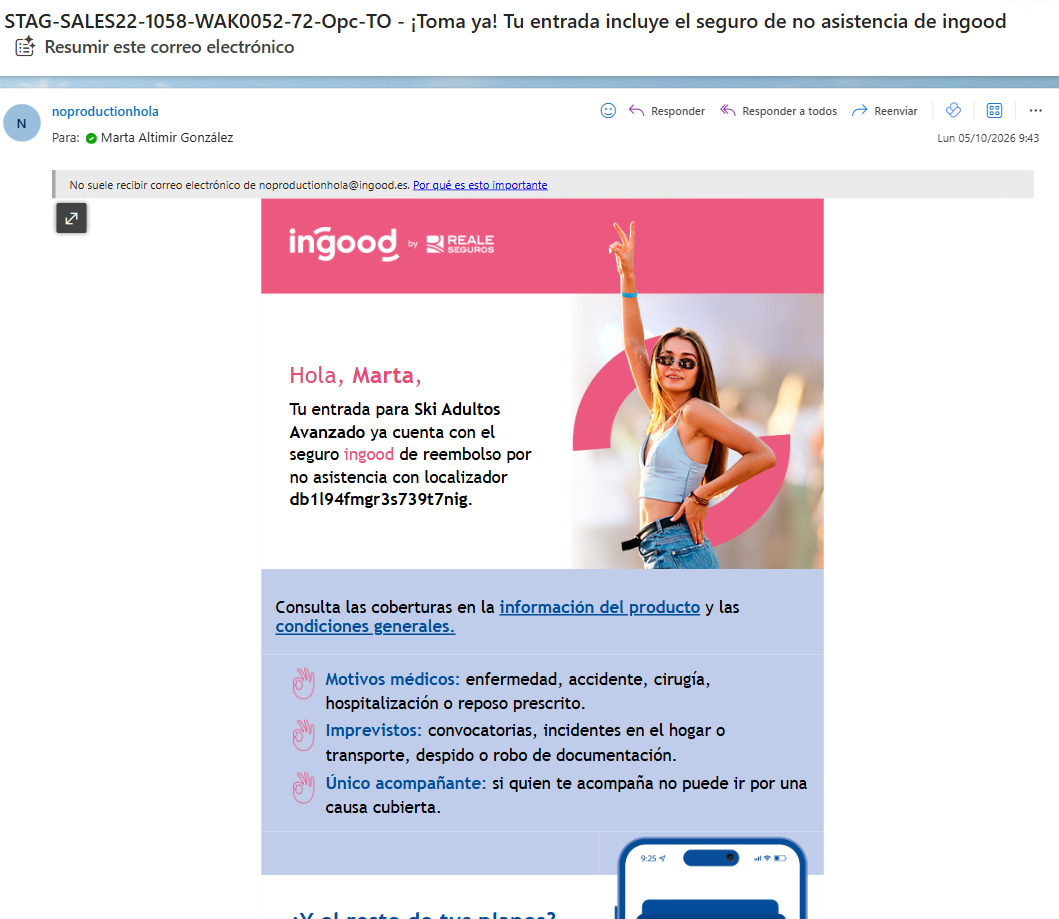
Policy issuance: as soon as the payment is confirmed, Lueira issues the policy. If the order is paid later (for example, by bank transfer), it is issued when you record the payment. The insurer sends the policy documentation to the customer by email.
Coverage: the policy covers from the day of purchase until the date of the activity. For a pack, the date of the first session is used.
One policy per participant: the insurance is linked to the person the booking is for and is calculated on the price of that booking.
In the order details you see the insurance as one more extra, with its status. If the issuance fails, you will see the reason and you can retry it from the order itself.
Cancellations and refunds: if you cancel the order, remove the insured line or make a full refund, Lueira requests the cancellation of the policy and the premium is deducted in that month's settlement.
Rules worth knowing
Discounts do not affect the insurance: a discount code reduces the rest of the order, but never the price of the insurance.
The insurance is not split: if the order is paid in several payments (deposit, instalments, etc.), the first payment always includes the full insurance. The split applies to the rest of the order.
No VAT: insurance premiums are exempt from VAT (IVA) and are recorded separately from the VAT of the booking.
LueiraPay: the processing fee is not calculated on the part of the payment that corresponds to the insurance.
Marketplaces: the ingood by Reale insurance is not exported to GetYourGuide and cannot be resold through marketplaces.
The monthly settlement
Every month Lueira charges you the insurance premiums you collected from your customers the previous month, minus your commission if your agreement with Lueira includes one. If you have no agreed commission, the amount equals the total premiums for the month. Everything runs on Madrid time.
When | What happens |
During the month | Your customers take out insurance. Lueira records the policies issued and cancelled. |
Day 1 | The previous month is closed and your settlement appears in Settings > Integrations > ingood by Reale. The amount is charged automatically to the payment method of your Lueira subscription. If there were no sales, nothing is charged. |
Days 2 to 4 | If the charge fails, Lueira retries it every day and notifies you by email with a link to pay. |
Day 5 | If it is still unpaid, the sale of new insurance is paused until it is paid. |
Each settlement is charged with its own invoice that Lueira emails you, with the month's breakdown. For example: "ingood by Reale – September 2026: 12 policies · gross €38.88 · your commission €0.00 · to pay €38.88". In the list of settlements in Settings you see, for each month, the number of policies, the gross premium, your commission, the amount charged, the due date and the link to the invoice.
Possible statuses of a settlement
Status | What it means |
Pending | Invoiced, waiting for payment. |
Paid | Charged successfully. |
Failed | The charge has failed and is retried until day 4. |
Paused | Unpaid after day 4: the sale of new insurance is paused. |
Credited (credit) | That month there were more cancellations than sales. The amount remains as a balance in your favour and is applied to your upcoming Lueira invoices. |
No amount | There were no insurance sales that month. Nothing is charged. |
If the sale of insurance is paused
Customers stop seeing the insurance in your store and new insurance cannot be taken out.
Policies already issued, orders already paid and cancellations are not affected.
To reactivate it, pay the outstanding invoice (use the link in the email or the one shown on the ingood by Reale screen). It is reactivated as soon as the payment is received.
💡 The insurance charge is independent of your Lueira subscription: if it fails, the status of your plan does not change.
Frequently asked questions
What does the insurance cover?
It refunds the amount of the booking when the customer cannot attend for an involuntary and justified reason, such as a serious illness or accident, a death, a legal summons or a vehicle breakdown. It does not cover voluntary withdrawal, chronic illnesses existing before taking out the policy, pandemics or epidemics, among other exclusions. The full conditions are in the pre-contractual information document and the general conditions that the customer can consult when taking out the insurance.
A customer cannot attend. What do they do?
They must report it directly to ingood at ayuda@ingood.es, at most 7 days after learning of the event that prevents them from attending. The insurer is the one who assesses the coverage.
I don't see "ingood by Reale" when creating an extra.
It is not yet activated on your account. Write to us at support@lueira.com and we will handle it.
The insurance doesn't appear in my online store.
Check the following:
That the extra is added to the product (Extras tab of the product).
That you don't have an unpaid settlement: after day 4, the sale of insurance is paused.
That the booking has a date: the insurance covers up to the date of the activity.
If everything is fine and it still doesn't appear, write to us at support@lueira.com.
Can I change the price of the insurance or add VAT to it?
No. The price is calculated by the insurer for each booking and has no VAT.
Can I add the insurance to an order I create myself from Lueira?
The insurance is designed to be taken out at the online store checkout, where its price is calculated with the customer's data and the customer accepts the conditions.
Related articles
Extras (Add-ons) — how to create extras and link them to your products.
Order lifecycle: statuses, payment and confirmation — when an order and its payment are confirmed.
Payment methods and gateways in Lueira — payment methods available in your store.
Related guides
- Configuring Company Settings in LueiraIn this section you can configure all the properties of your school
- Settings (School / Center / Activities)Configure the parameters of your school, center or activities space: levels, meeting points, schedules, prices and more.
- Features: turn optional features on or off in your accountHow to turn Short courses, Private lesson vouchers, Material resources and Instructor ranking on or off from Settings > Company > Features.
- Several sites or centers in one Lueira accountHow to manage several sites (establishments) in the same account: create a site, give it its own online store link and decide whether it invoices with its own tax details.
- Diagnose: check your setup, an order or a productHow to use the Diagnose button and the Setup status screen to find out what is missing or wrong in your account, your store, an order, a pack or a product, and how to fix it.
- Create and manage locationsHow to create, edit and delete a location (a physical place where you operate) in Settings > Locations, what each field means and what to do if you cannot create one.