

Adding bank details in Lueira
We show you how to add your company's and your customers' bank details in Lueira so you can use the Remittances feature
Adding our company's bank details
To add the details of the bank account our company uses, we go to the company account settings from the drop-down menu that appears when we click on our user name, in the bottom left corner of the screen. Here we select "Settings", and in the side menu that appears on the main page we go to "Banks".
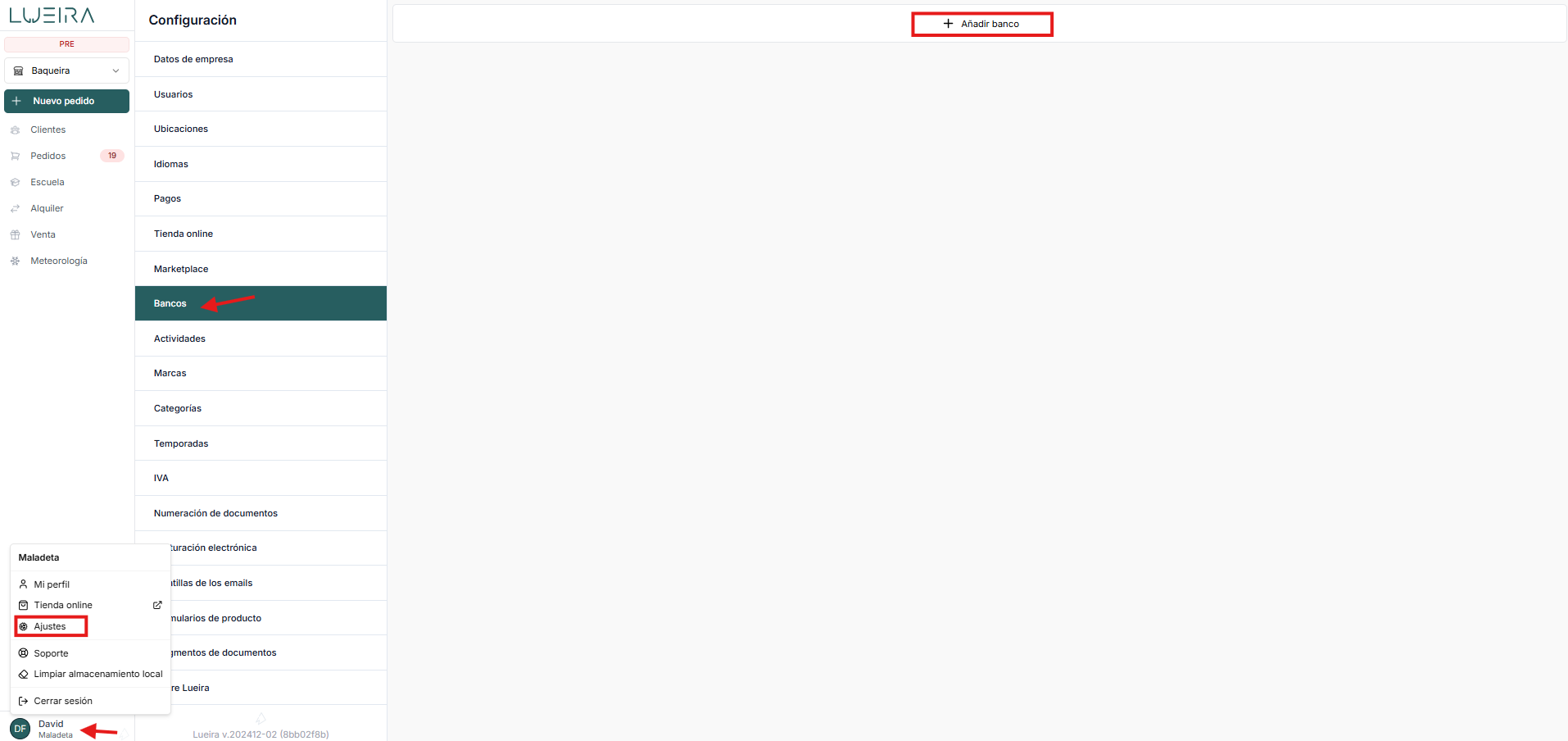
We use the "+ Add bank" option and, when we click it, a new section opens where we only need to fill in the details it asks for: the name we want to give the bank account, IBAN, SWIFT/BIC code and the Creditor Identifier for SEPA Remittances. Once all the details are filled in, we save the changes by clicking the "Create bank account" button at the bottom.

Once the bank account is saved, it will appear in the list of accounts of our Lueira account.
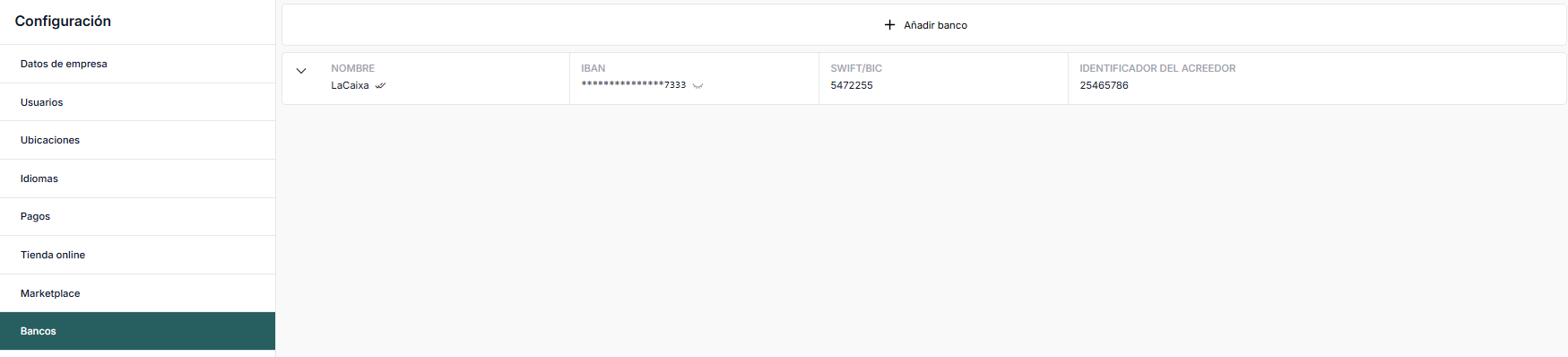
Adding our customers' bank details
To add our customers' bank account details, we do it from the customer's record, in the "Banks" section found in the section tabs of the customer page (Orders, Relatives, Files and Banks).
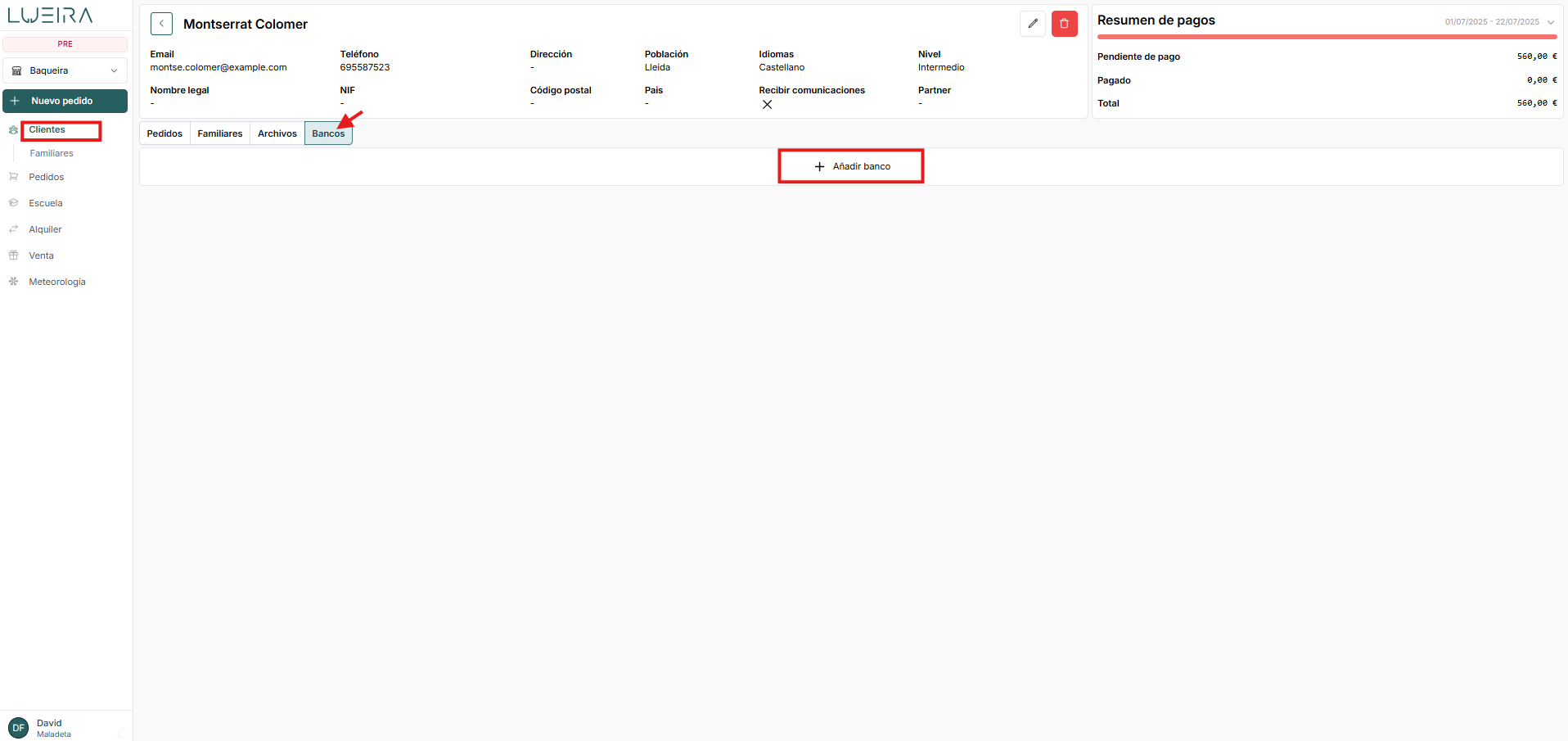
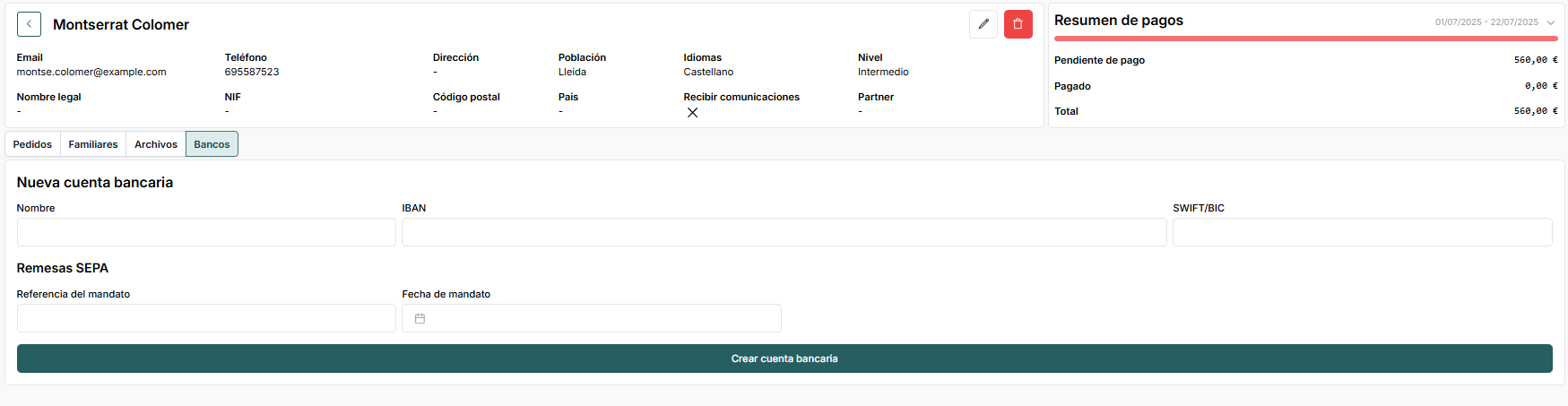
When we select "Banks", the "+ Add banks" option appears and, when we click it, a new section opens where we only need to fill in the details it asks for: the name we want to give the bank account, IBAN, SWIFT/BIC code and the mandate reference number and the mandate date. Once all the details are filled in, we save the changes by clicking the "Create bank account" button at the bottom.
If you have any questions, don't hesitate to contact Lueira Support!
Related guides
- Configuring Company Settings in LueiraIn this section you can configure all the properties of your school
- Settings (School / Center / Activities)Configure the parameters of your school, center or activities space: levels, meeting points, schedules, prices and more.
- Features: turn optional features on or off in your accountHow to turn Short courses, Private lesson vouchers, Material resources and Instructor ranking on or off from Settings > Company > Features.
- Several sites or centers in one Lueira accountHow to manage several sites (establishments) in the same account: create a site, give it its own online store link and decide whether it invoices with its own tax details.
- Diagnose: check your setup, an order or a productHow to use the Diagnose button and the Setup status screen to find out what is missing or wrong in your account, your store, an order, a pack or a product, and how to fix it.
- Create and manage locationsHow to create, edit and delete a location (a physical place where you operate) in Settings > Locations, what each field means and what to do if you cannot create one.