

Partner management in Lueira
We show you how to link Partners to orders and to the online store, and how to group them to share a catalog and commission
On this page
- Partner management in Lueira
- 1. What is a Partner?
- 2. Add a Partner
- 3. Link a Partner to an order
- 4. Partner in the Online Store: link and QR
- Frequently asked questions
- 5. Frequently asked questions
- A customer entered through the partner's link and the order was not linked
- Does Lueira notify me when a partner creates a booking?
Partner management in Lueira
1. What is a Partner?
A Partner is any third party who brings you customers and receives a bonus (commission) for it: hotels, tour operators, tourist accommodations, etc. In Lueira, a partner can generate sales in two ways:
By manually linking them to an order created from Admin, or
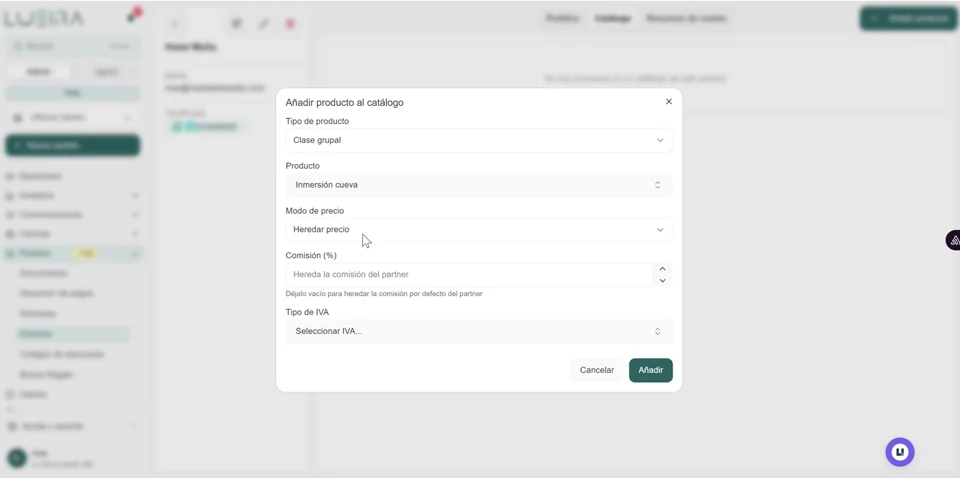
Through a link/QR to your online store, or through the Partner Portal if you have it enabled (the partner creates their own bookings).
 Configurar Portal Partners
2. Add a Partner
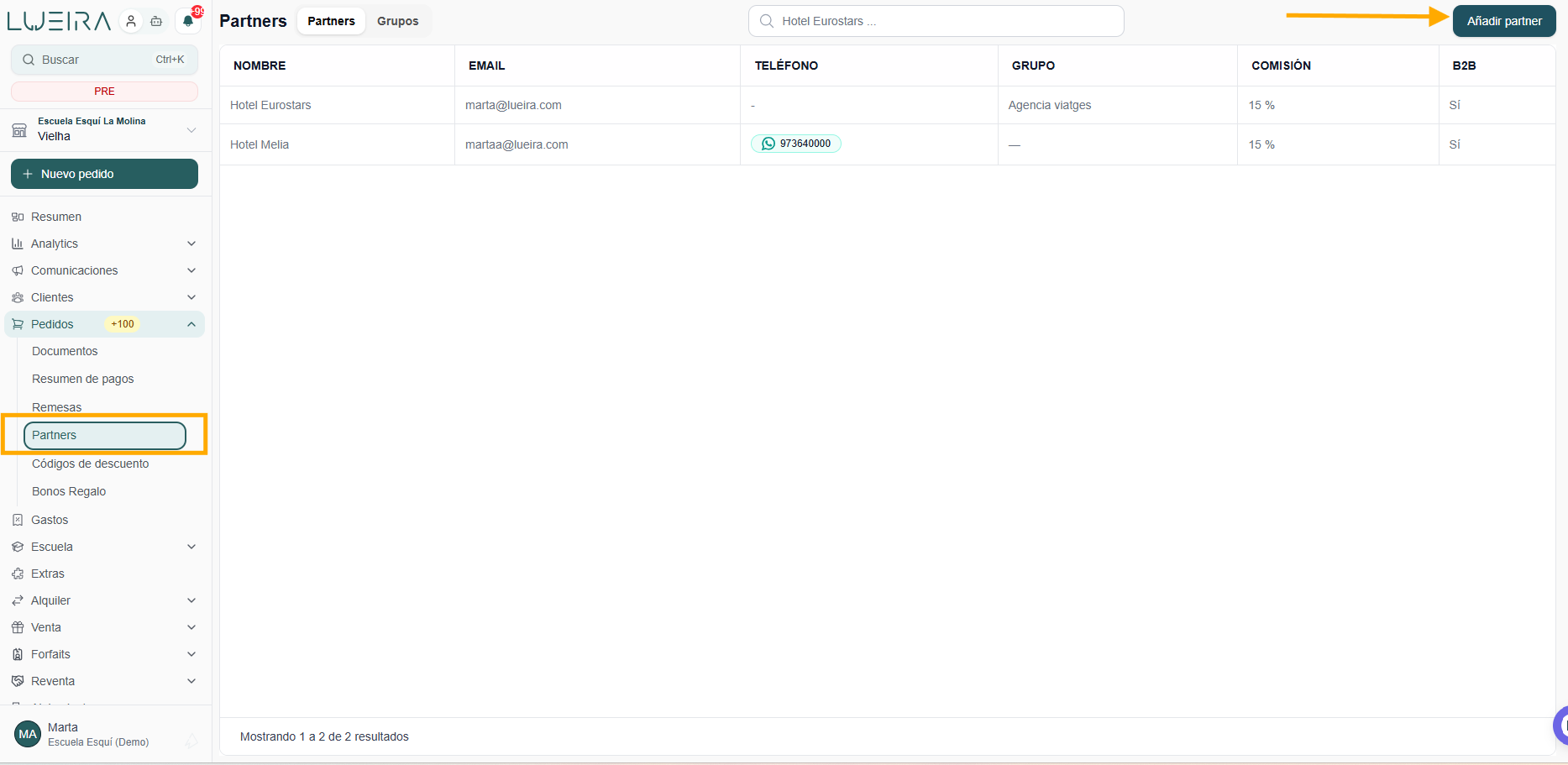
Go to Orders → Partners and click Add partner (top right).
The Add partner form opens, with these fields:
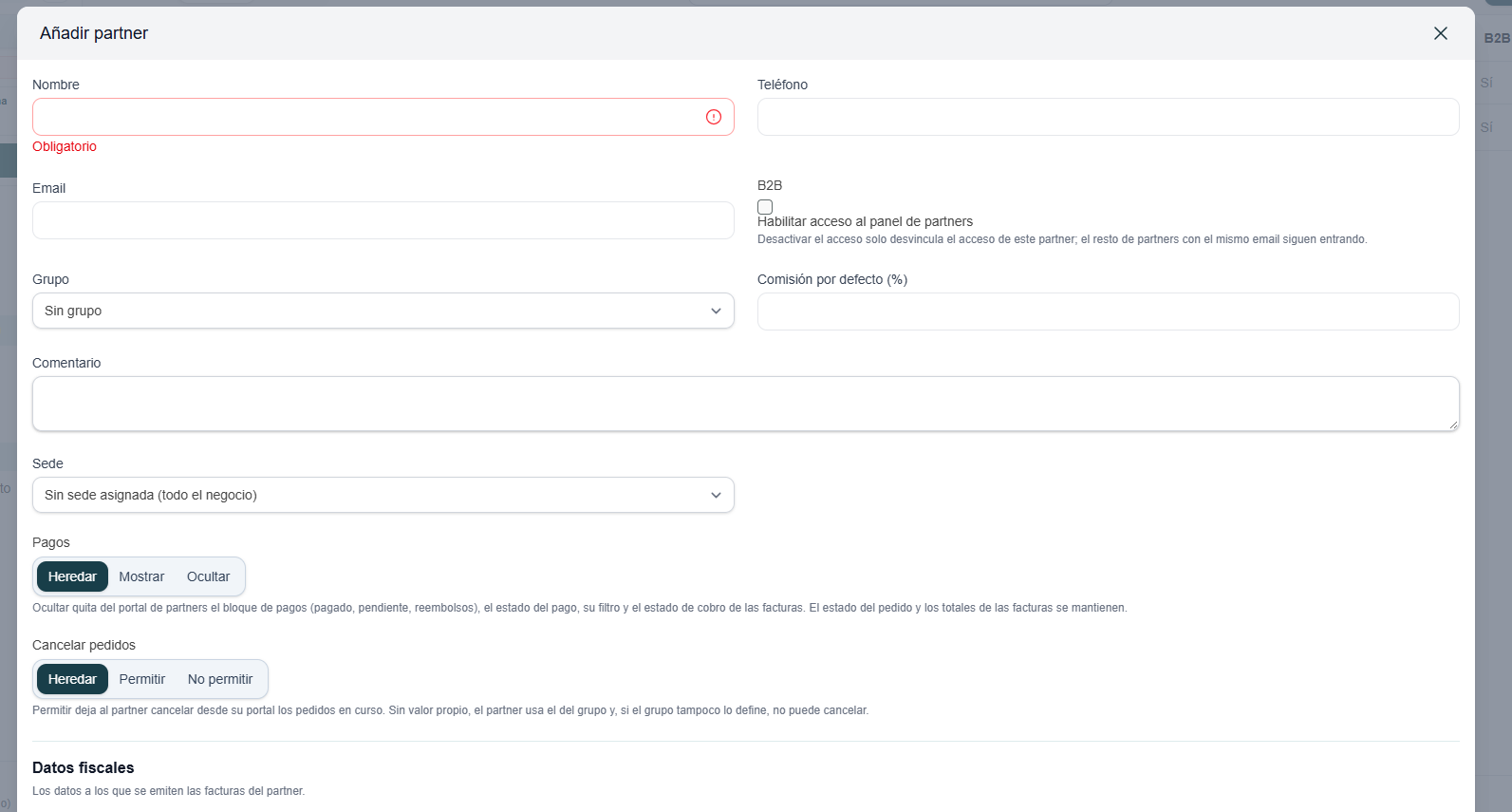
Name (required) and Phone.
Email: if you enable access to the Partner Portal, this is the email the partner will use to log in (passwordless login, with a code sent to the email).
B2B — "Enable access to the partner panel": turn it on if you want this partner to be able to enter the Partner Portal and create their own bookings. If you later turn it off, only this partner's access is unlinked: other partners sharing that same email can still log in.
Group (optional): if you have created partner groups, you can assign this partner to one from the selector ("No group" appears by default). A partner can only be in one group. When you choose a group, the partner starts selling with the group's catalog and settings marked "Inherit" will take the group's value. To group several partners so they share a catalog and commission, see Partner groups.
Default commission (%): the percentage that will apply to all of this partner's sales, unless you override it per product in their catalog. This is the key field if what you need is to set how much the partner earns per sale (for example, a hotel that refers customers to you). See Partner commissions for the full detail on how it's calculated and when it applies.
Comment: free internal note (for example, to write down the conditions agreed with the partner). It is just a text field for your team and does not affect any calculation.
Center (optional): if your business has several centers, you can restrict this partner to one in particular. By default it shows "No center assigned (whole business)": the partner is not restricted to any center.
Payments (Inherit / Show / Hide): controls whether the partner sees, in the Partner Portal, the payments block for their orders (paid, pending, refunds), the payment status, its filter and the invoices' collection status. Hide removes that information; the order status and invoice totals always stay visible. Inherit uses the partner's group value (and, if the group doesn't define it either, it shows by default).
Cancel orders (Inherit / Allow / Don't allow): decides whether the partner can cancel, from their portal, orders that are still in progress. With Inherit and no group (or if the group doesn't define it either), the partner cannot cancel orders.
Fiscal data: this is the data used to issue invoices in this partner's name (legal name, tax ID, fiscal address and, optionally, who to send them to if different). It's not required to register the partner, but without it you won't be able to invoice them in their name. It's explained in detail in Invoicing a partner: fiscal data and recipient.
3. Link a Partner to an order
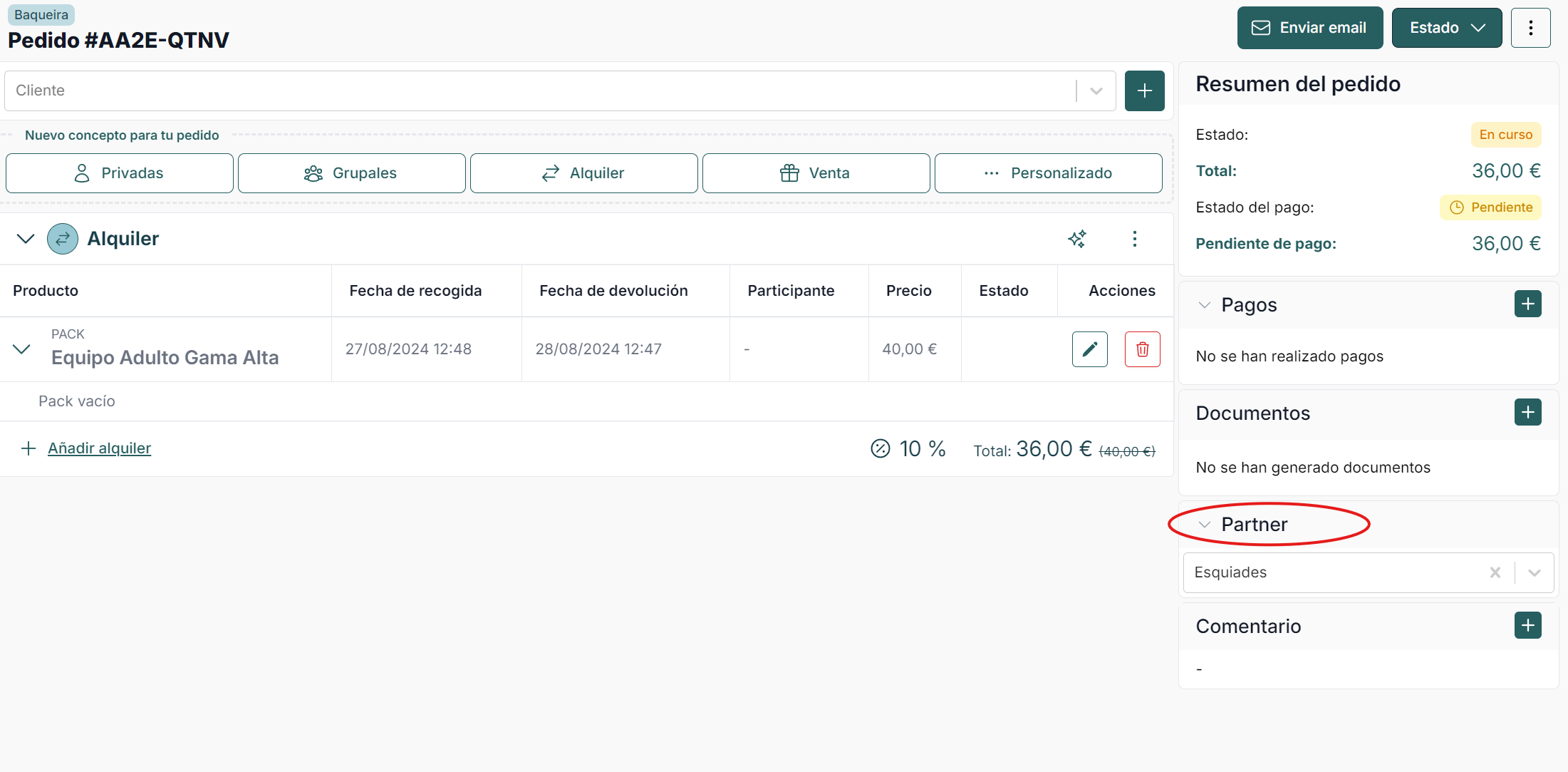
To link a partner to an order created manually from Admin, do it from the order itself: on the right-hand side you will find the Partner button, from where you can link them.
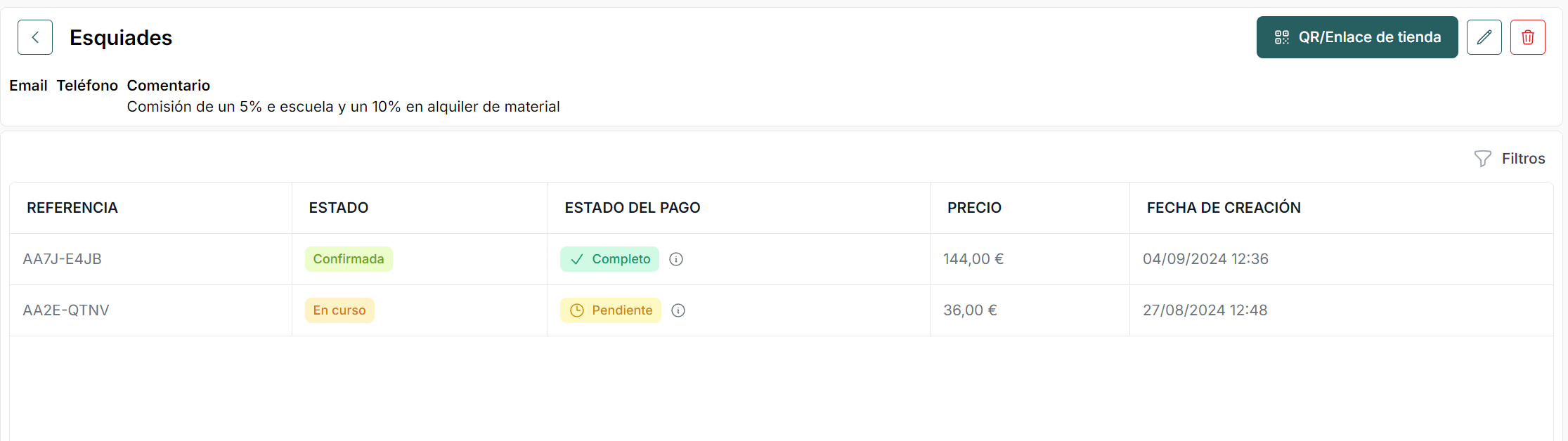
From the partner's record, in the Orders tab, you can see all the orders linked to that partner (reference, status, payment status, price, location and date).
4. Partner in the Online Store: link and QR
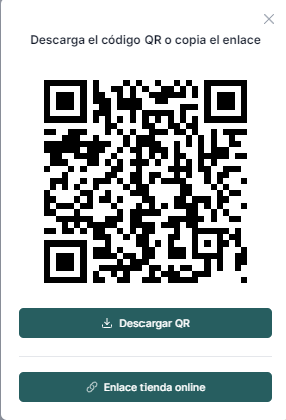
From the partner's record, the QR icon generates a unique link to your online store for that partner (you can copy the link or download the QR as an image). When a customer enters through that link or scans the QR, the order they generate will be automatically linked to that partner.
⚠️ This link does not apply an automatic generic discount.
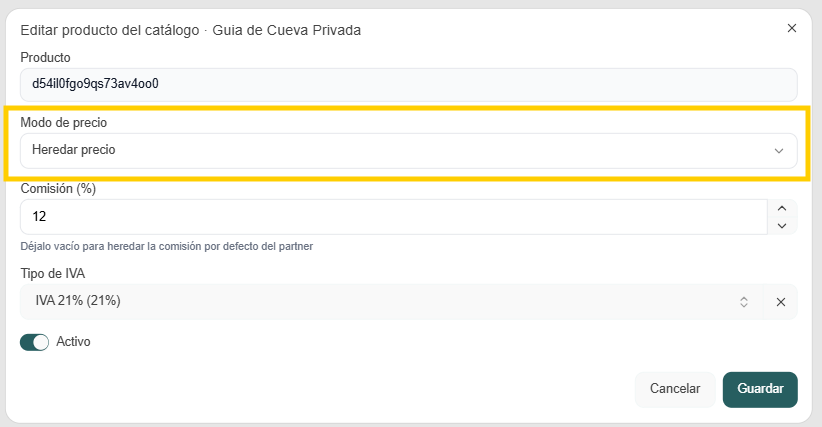
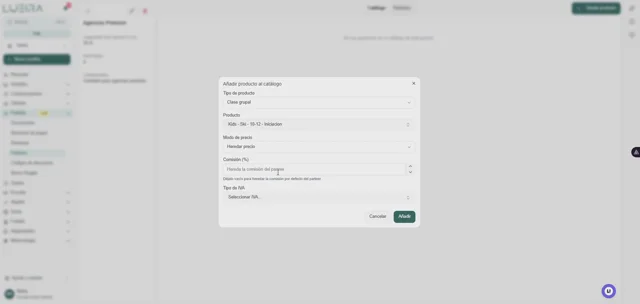
If you want that partner to have different prices (or only a certain catalog), you have to set it up in the Catalog tab of their record (inherited price, fixed price or pricing scheme, and specific VAT per product). If the partner belongs to a group, the catalog is set up in the group and applies to all its partners (see Partner groups).
📘 See the full details in Partner Portal, section "Partner catalog and custom prices" (it applies equally whether the partner books from the Portal or the customer enters through this link/QR).
If you have any questions, don't hesitate to contact the Lueira support team!
Frequently asked questions
5. Frequently asked questions
A customer entered through the partner's link and the order was not linked
The link depends on the
?partner=parameter carried by the partner's link/QR. If the partner shares another link from your store (for example, that of a specific product copied from the browser), check that it keeps that parameter at the end of the URL.While the customer browses the store, the partner is remembered through a cookie. If the customer rejects cookies or browses in incognito mode, the link may be lost and the order will arrive without a partner. In that case, you can link the partner by hand from the order itself (section 3).
Does Lueira notify me when a partner creates a booking?
Yes, if you turn it on. Go to Settings → Email → Email settings and turn on Notify of new Partner Portal bookings: you will receive an email every time a booking created from the Partner Portal comes in.
Videos about this guide
Related guides
- Orders navigationView the status of all your orders, invoices or payments
- How to create ordersWe show you how to create orders and add every type of product to them.
- Creating a lesson booking from the admin: several days, a second teacher and line priceHow to create a lesson order from the admin: add private or group sessions, book several days in a row, add a second teacher without losing the charge for the second lesson and change the price of a line.
- Order statusesThis section gives you an overview of the status an order is in
- Order lifecycle: statuses, payment and confirmationA complete explanation of the order and payment statuses in Lueira, how they relate to each other, and when an order is confirmed automatically or manually depending on the payment method.
- Deleted and cancelled orders: the difference, how to see them and how to ask for them to be restoredThe difference between cancelling and deleting an order, where to find cancelled orders, how to find out who changed or deleted an order with Change tracking, and what to do so support can restore an order deleted by mistake.