

Cash closings: save and validate each day's takings
Save what was taken with each payment method per location and day, validate it, and export closings as PDF.
On this page
What a cash closing is
A cash closing stores, for one location and one day, what was taken with each payment method. You can compare what Lueira shows with what is in the till and have a person validate it.
Find it under Orders → Payments summary → Cash closings. If you don't see the tab, the feature isn't enabled for your business yet: contact us and we'll turn it on.
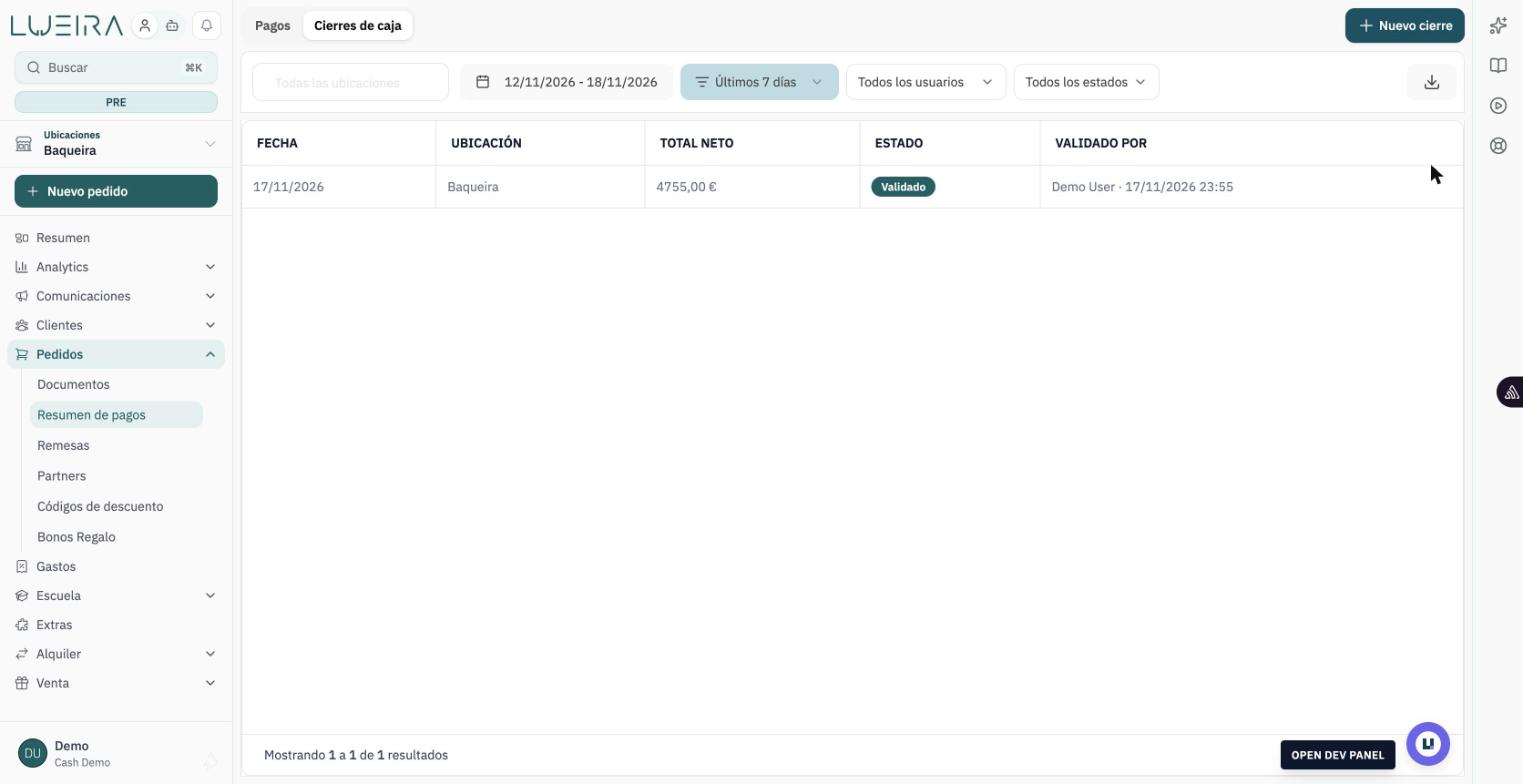
- The filters above the table (location, dates, who validated and status) also apply when you export.
- Each row is one day and one location. Click a row to see its detail.
- The status is either Draft (can be recalculated) or Validated (locked).
Create and save a closing
- Click New closing.
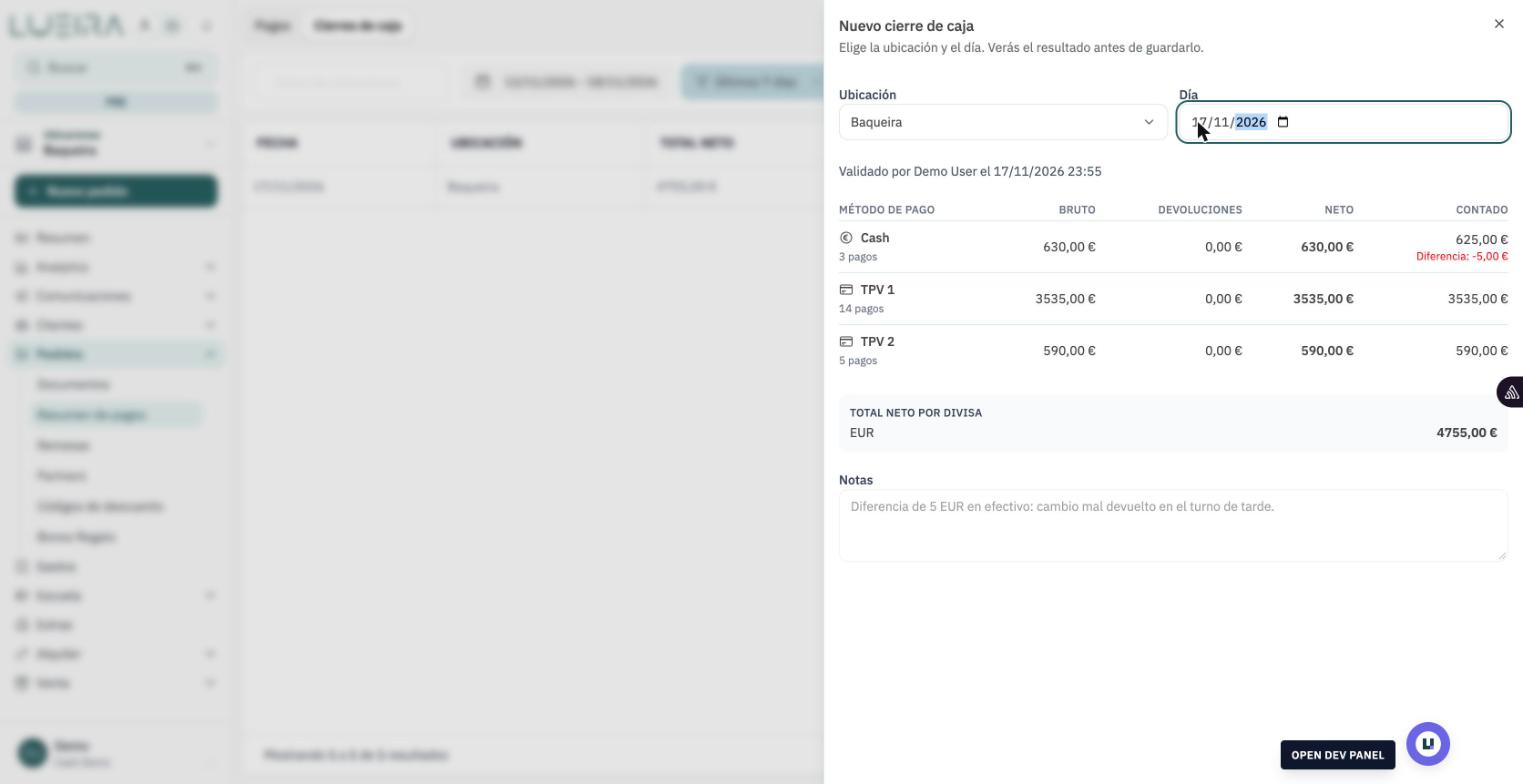
- Choose the location and the day. You see the result before saving it.
- Review the table: for each payment method, the gross, refunds and net for the day.
- For manual methods (cash, card terminal…) you can enter the amount counted in the till. Lueira shows the difference from the net.
- Add a note if needed and click Save closing.
What counts on each day:
- The day follows your business time zone.
- Completed payments count; pending, failed and canceled ones don't.
- Refunds are deducted on the day they were made, not the day of the original payment.
- Online payments are shown for information only: they can't be counted in the till.
Validate, correct and export to PDF
Open a draft closing and click Validate. Lueira records who validated it and when, and the closing is locked.
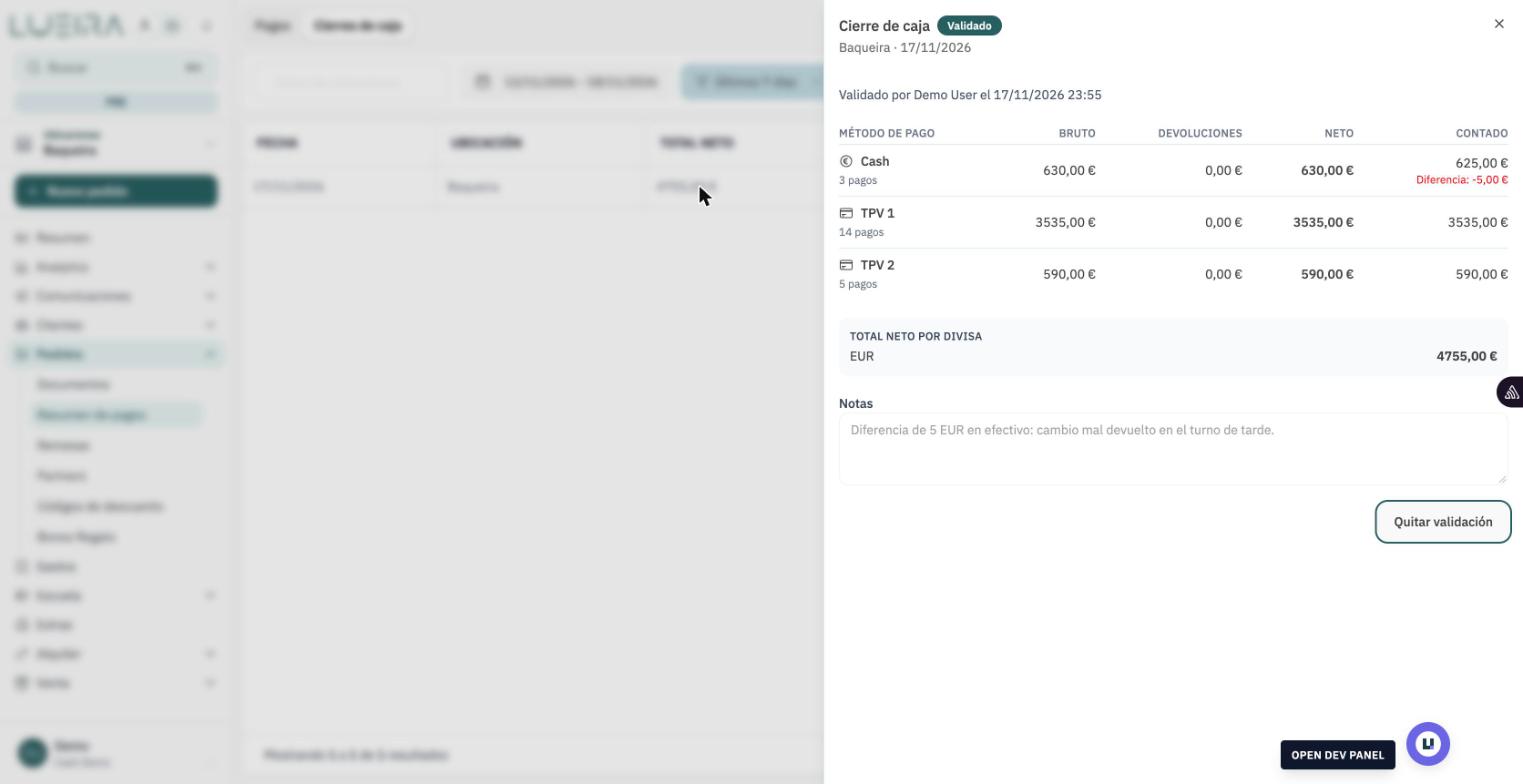
- A closing is a snapshot of the day: if payments change afterwards, the closing doesn't, but you'll see the warning Payments have changed.
- To correct it, click Remove validation, then Regenerate and validate again.
Export to PDF
With the same filters as the table, click the download button and choose:
- A4 summary: one sheet with every location, one day per row and the totals per method.
- Tickets per location: one 80 mm ticket per location, with the counted amount, differences and a signature line.
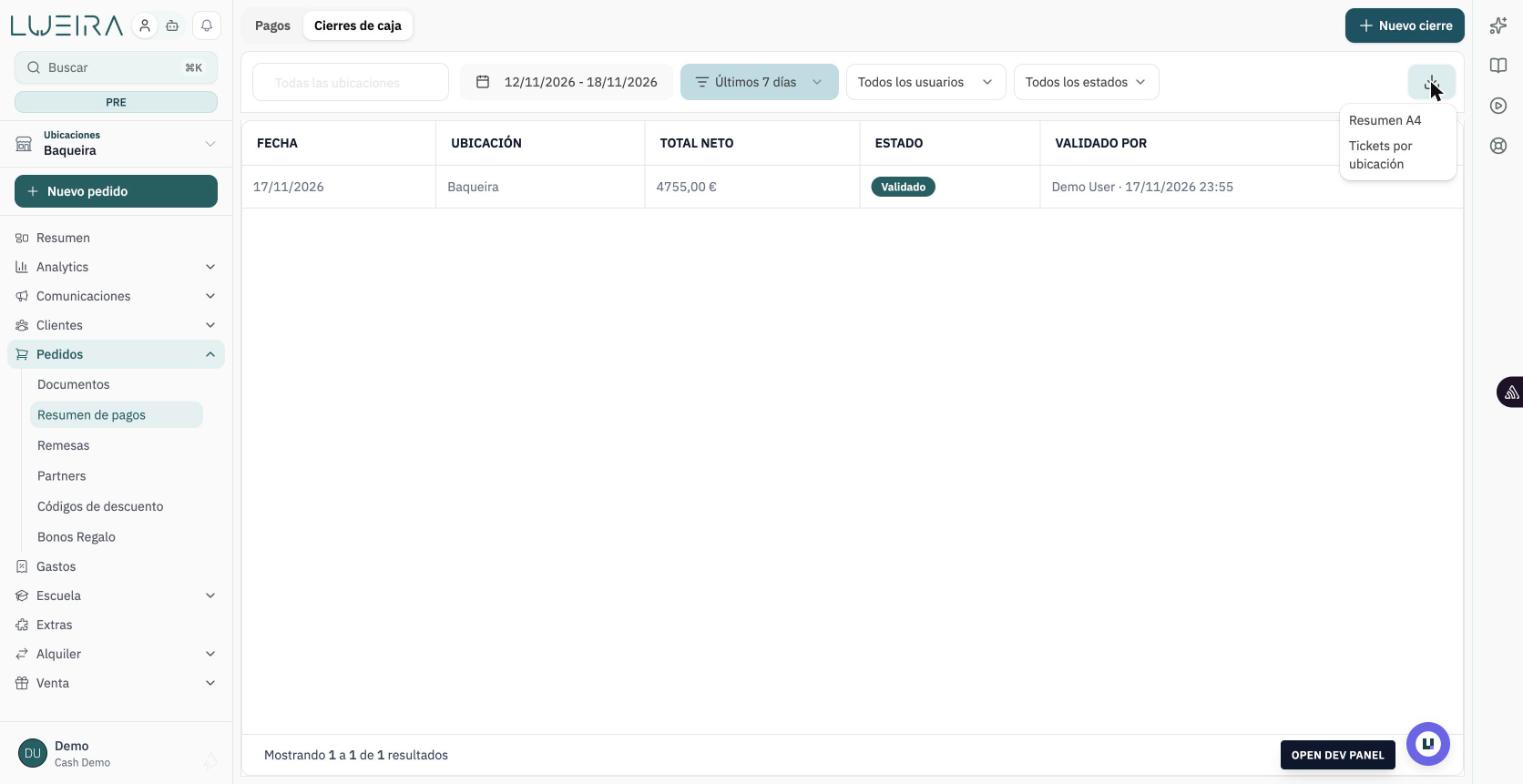
Exporting requires the permission to export financial data.
Related guides
- Orders navigationView the status of all your orders, invoices or payments
- How to create ordersWe show you how to create orders and add every type of product to them.
- Creating a lesson booking from the admin: several days, a second teacher and line priceHow to create a lesson order from the admin: add private or group sessions, book several days in a row, add a second teacher without losing the charge for the second lesson and change the price of a line.
- Order statusesThis section gives you an overview of the status an order is in
- Order lifecycle: statuses, payment and confirmationA complete explanation of the order and payment statuses in Lueira, how they relate to each other, and when an order is confirmed automatically or manually depending on the payment method.
- Deleted and cancelled orders: the difference, how to see them and how to ask for them to be restoredThe difference between cancelling and deleting an order, where to find cancelled orders, how to find out who changed or deleted an order with Change tracking, and what to do so support can restore an order deleted by mistake.