

Add groups to your online shop menu and translate them
How to show a group in your online shop menu, reorder and hide entries, change their names and translate them with Lueira Intelligence.
On this page
Add a group to the menu
In Settings > Online shop > Product groups, below the list of groups, you will find Store navigation: the entries of your shop menu, in order.
- In Add a published group, choose the group (only published groups are listed).
- Click Add.
- Click Save to apply the changes, or Discard changes to go back to the previous state.
If you have several shops, use the store selector at the top: each shop has its own navigation, so you can show different groups in each one.
Reorder, hide and rename entries
- Reorder: drag each entry by the six-dot handle.
- Hide or show: use the Visible in the store switch of each entry. System entries (School, Rent, Shop and Passes) can be hidden but not removed.
- Change the icon and the name: click the pencil (Edit icon and label) of the entry. Choose an Icon and write the Label per language, which is the name your customers will see in the menu in each language. If you leave a label empty, the default one is used. Click Apply and then Save. It also works on system entries.
When the menu does not fit on the screen, the shop automatically groups the extra entries into a More dropdown on desktop, or into a menu icon that slides in from the side on mobile. You do not need to configure anything.
Translate the group with Lueira Intelligence
The Translations tab of a group shows a block for each language you have enabled in your account (the main language is written in the Data tab).
- Write the name and description in the Data tab.
- Go to Translations and click Translate with Lueira Intelligence: the name and description are translated into the enabled languages.
- If some language already had text, Lueira asks whether you want to Only fill the empty ones or Replace all.
- Review the texts and adjust them if needed. You can also write them by hand.
- Click Save.
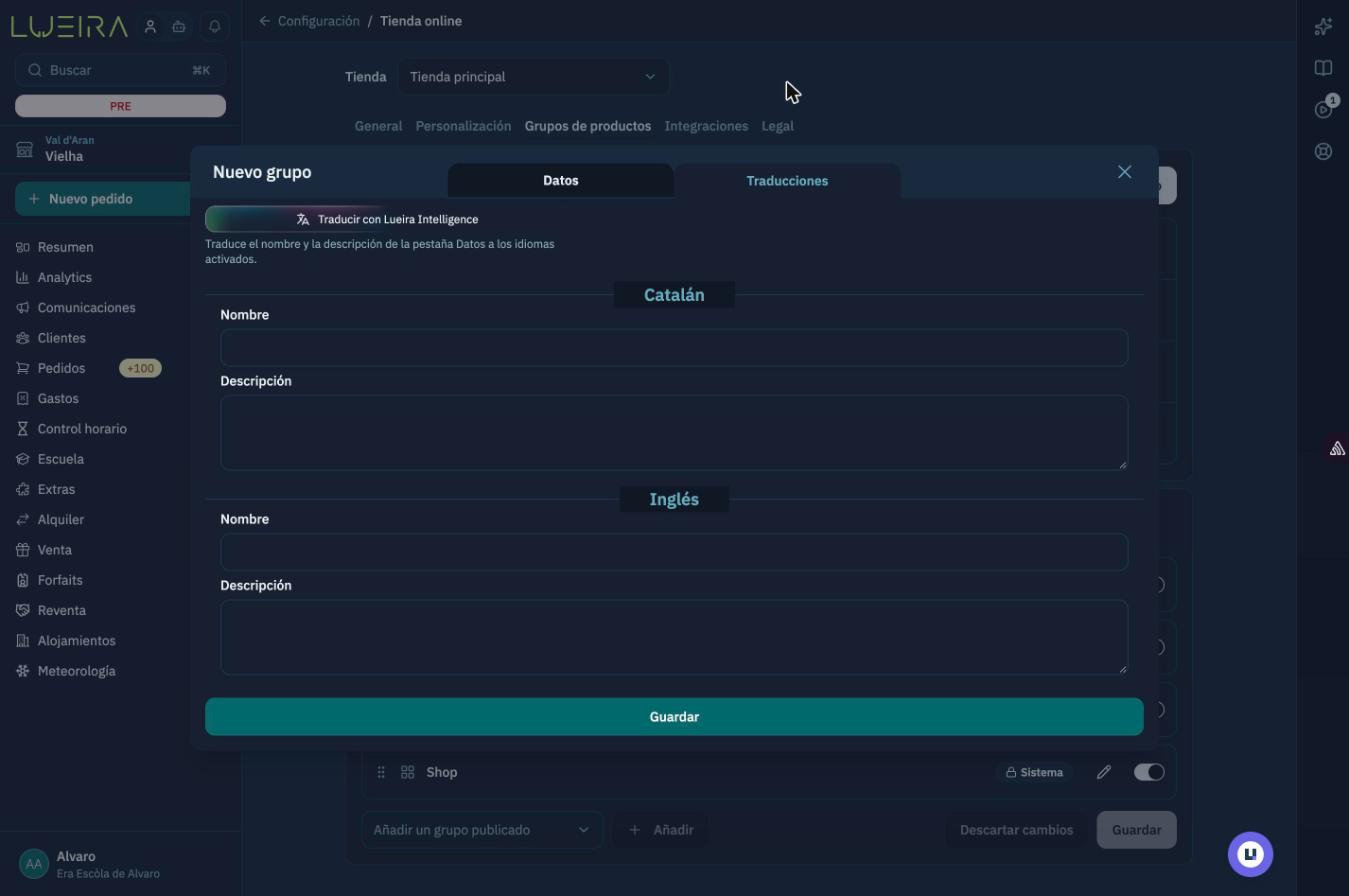
Your customers will see the group in the language they browse the shop in; if a language has no translation, the name in the main language is shown.
Related guides
- Online store settingsThis guide shows you how to set up your online store in Lueira, including the purchase (checkout) form fields that can be shown as visible or required.
- Purchase form fields in the online storeHow to configure which fields appear in the online store checkout form and which ones are required for the customer.
- Automatic invoicing in the online storeHow to set up the automatic generation of invoices and receipts when a payment is completed in the online store, including numbering series and compatibility with Verifactu and TicketBAI.
- Product order in the Online StoreGuide to defining the order in which products are displayed in the Online Store
- Product page layouts in the Online StoreLearn how to choose between the 4 layouts available for your Online Store's product page and how to preview them before enabling them
- Online store screen layoutThe online store shows School/Center/Activities, Rental and Sales as separate tabs depending on which modules are enabled on your account.