

Expenses module: record and control your business expenses
How to record expenses in Lueira with a step-by-step example: contact, lines with VAT, attached file, partial or full payments and statuses.
On this page
What is the Expenses module?
The Expenses module lets you record any expense of your business: purchases from suppliers, supplies, rents, commissions, general expenses, etc. For each expense you can save the amount broken down into lines with their taxes, attach the original document, record the payments you make and easily check how much you still have left to pay.
Accessing the module
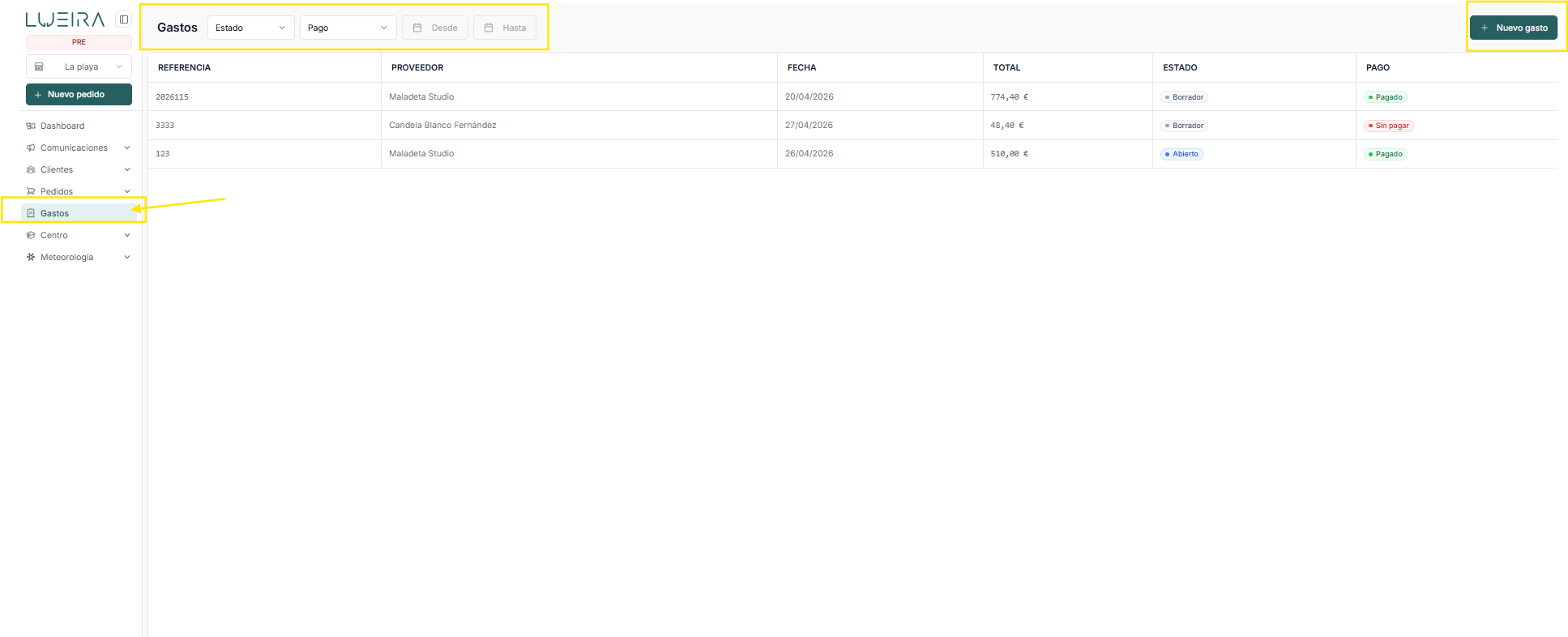
In the side menu, click Expenses. You will see the list of all the center's expenses with these columns: Reference, Supplier, Date, Total, Status and Payment. You can filter by Status, Payment, From and To, and create a new expense with the + New expense button (top right corner).
Creating an expense: step-by-step example
Let's record the annual invoice for the Lueira software that Maladeta Studio has sent us:
Click + New expense.
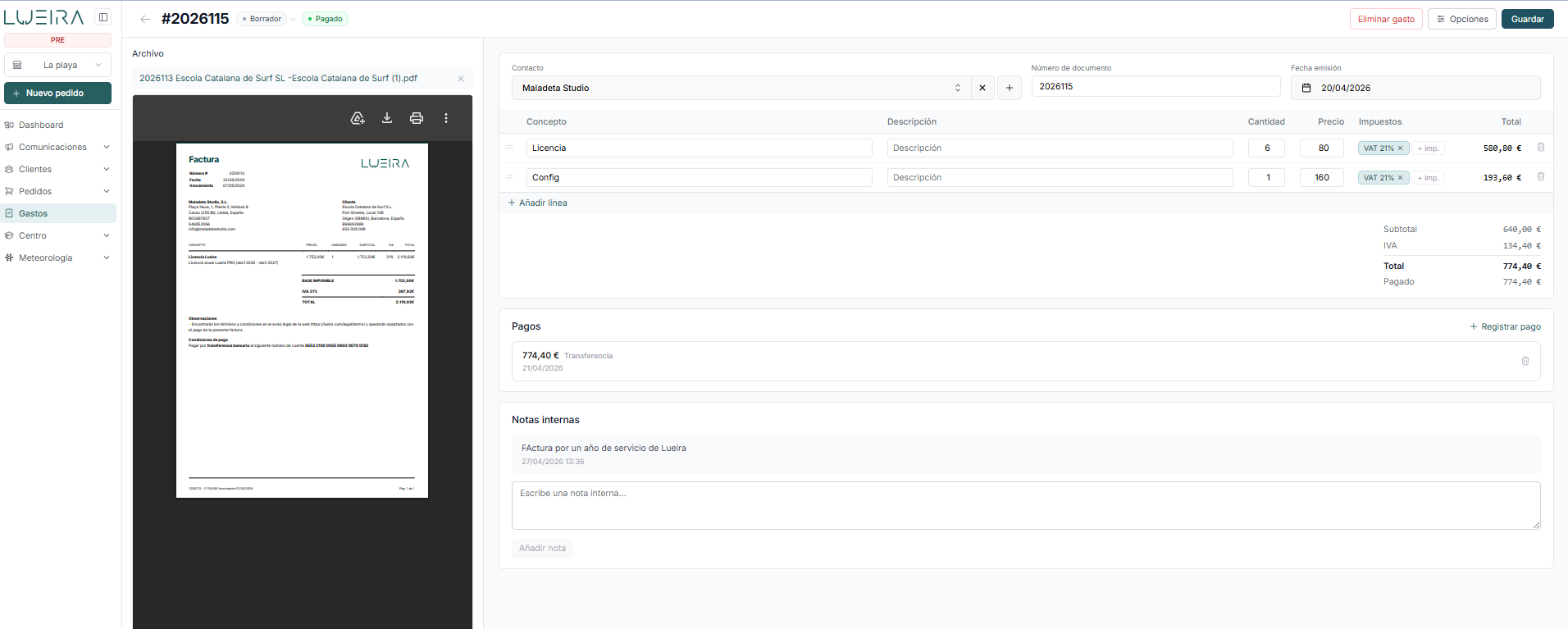
In the expense header, fill in:
Contact: Maladeta Studio. It is optional — if the expense does not correspond to a specific contact (for example, a one-off purchase), you can leave it empty.
Document number: 2026115 (the invoice reference).
Issue date: 20/04/2026.
In the File panel on the left, drag or select the invoice PDF. A preview of the document will be shown inside the expense itself, so the reference is never lost.
Add the expense lines (+ Add line button):
Description: License · Quantity: 6 · Price: €80 · Taxes: VAT 21% → Line total: €580.80
Description: Setup · Quantity: 1 · Price: €160 · Taxes: VAT 21% → Line total: €193.60
As you change quantities, prices or taxes, the line total is recalculated automatically. On the right you will see the summary: Subtotal €640.00, VAT €134.40, Total €774.40.
Click Save. Your expense stays in Draft status until you decide to confirm it.
Expense statuses
An expense goes through these statuses, which you will see as a badge next to the reference:
Draft: initial status. You can keep editing all the fields. The expense in the example (#2026115) is in Draft.
Open: the expense is confirmed. For example, expense #123 in the list, also from Maladeta Studio for €510.00, is already marked as Open.
Voided: the expense is cancelled. Use it when it was created by mistake or the document has been fully refunded.
To change status, go to the expense detail and, from the Options button (top right), choose Mark as open, Void or Revert to draft.
Recording payments
Even if the expense is in draft, you can record the payments you have already made. In the Payments block of the detail, click + Record payment and fill in:
Amount: you can record partial payments if you have paid only part of the invoice.
Method: Cash, Transfer, Card or Other.
Date of the payment.
Note: optional.
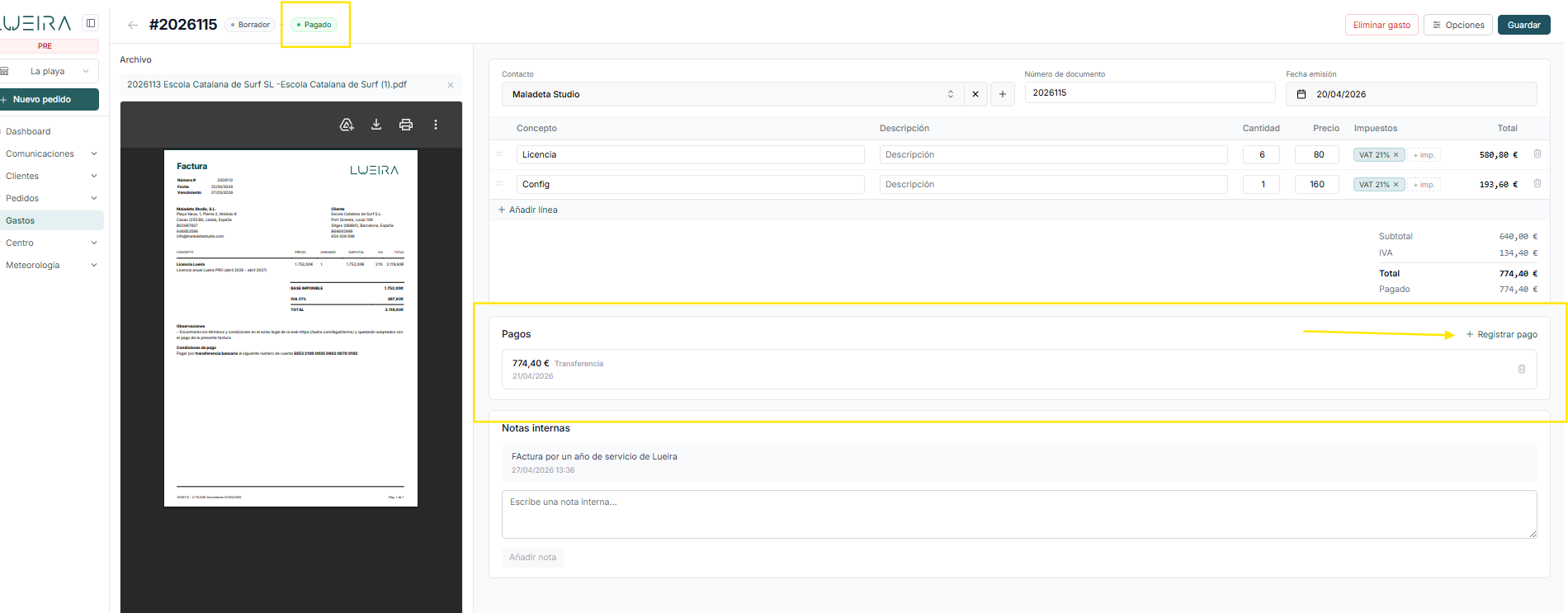
Following the example, we have paid the €774.40 of the invoice by Transfer on 21/04/2026. The payment appears as a row inside the Payments block and, automatically, the expense's payment badge changes to Paid.
The possible payment statuses are:
Unpaid: no payment has been recorded yet. For example, expense #3333 to Candela Blanco Fernández for €48.40 is Unpaid.
Partially paid: part has been paid but not all.
Paid: the sum of the payments covers the expense amount.
Important: the expense status and the payment status are independent. An expense in Draft can perfectly well appear as Paid if you have already made the transfer, as happens in the example.
Internal notes
Each expense has an Internal notes block so that you and your team can leave comments about the document, incidents or any information you want to keep alongside the expense. For example, in expense #2026115 we added the note: "Invoice for one year of Lueira service". Notes are saved with date and time and are not visible outside the center.
Filtering the list
From the main Expenses screen you can narrow down the list with the drop-downs:
Status: Draft / Open / Voided.
Payment: Unpaid / Partially paid / Paid.
From and To: issue date range.
The counter at the bottom tells you how many results you are viewing (for example, "Showing 1 to 3 of 3 results").
Related guides
- Configuring Company Settings in LueiraIn this section you can configure all the properties of your school
- Settings (School / Center / Activities)Configure the parameters of your school, center or activities space: levels, meeting points, schedules, prices and more.
- Features: turn optional features on or off in your accountHow to turn Short courses, Private lesson vouchers, Material resources and Instructor ranking on or off from Settings > Company > Features.
- Several sites or centers in one Lueira accountHow to manage several sites (establishments) in the same account: create a site, give it its own online store link and decide whether it invoices with its own tax details.
- Diagnose: check your setup, an order or a productHow to use the Diagnose button and the Setup status screen to find out what is missing or wrong in your account, your store, an order, a pack or a product, and how to fix it.
- Create and manage locationsHow to create, edit and delete a location (a physical place where you operate) in Settings > Locations, what each field means and what to do if you cannot create one.