

Handling fees on ski passes: setting up the rules
How to create the rules that automatically add handling fees when selling ski passes: per person, per day and with a fixed amount from a certain number of people.
On this page
Handling fees are a charge that Lueira automatically adds to the order when you sell ski passes, on top of the price of the pass. You define the rules once and they apply by themselves, whether you create the order in the admin or the customer buys it in the online store.
Typical example: "1 day: €3 per person; if there are 3 or more people, a fixed €6 per order".
Where are they set up?
Go to Passes → Settings → Handling fees. You will see the list of rules with their name, a summary of the amount, a switch to turn each one on or off and the buttons to move it up, move it down, edit it or delete it.
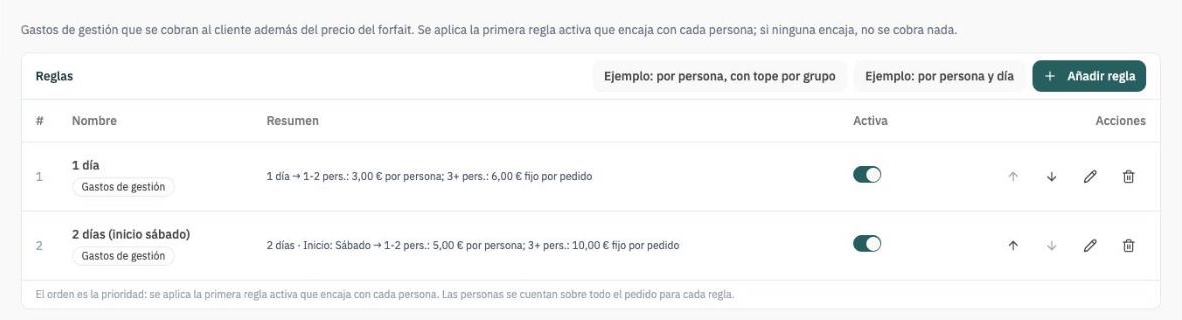
To get started you can click one of the examples (Example: per person, with a cap per group or Example: per person and day) and adapt it, or click Add rule to create one from scratch.
Create or edit a rule
When you click Add rule (or the pencil of an existing one) the Edit rule window opens:
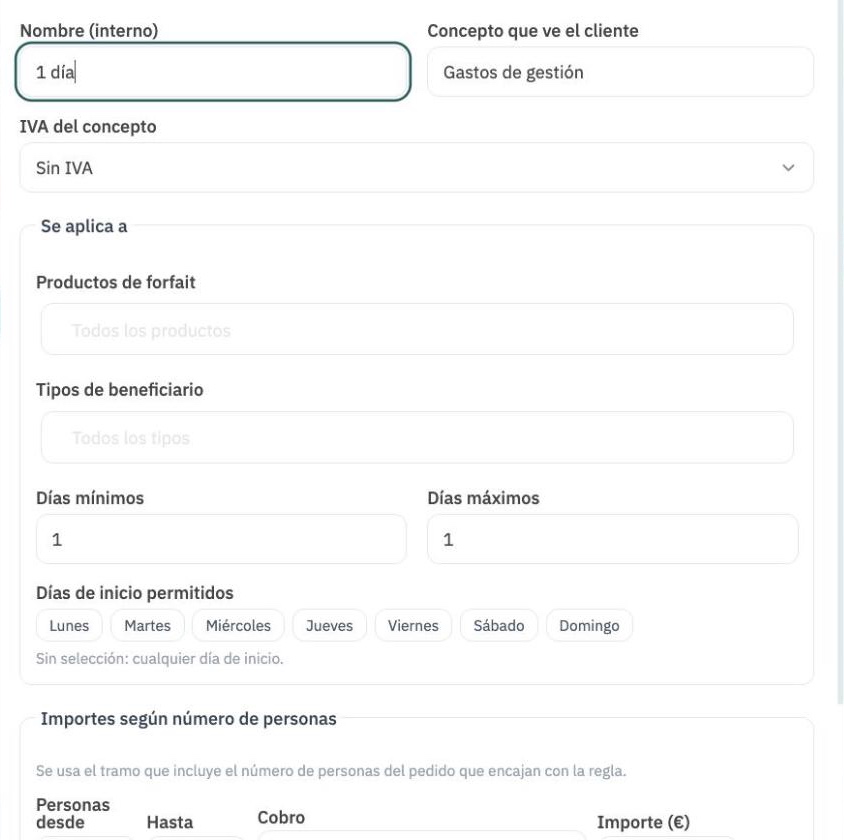
Name (internal): only you see it, to recognise the rule (for example "1 day").
Description the customer sees: the text of the line that will appear on the order and in the store (for example "Handling fees").
VAT for the item: the tax applied to that charge.
Applies to (all these filters are optional; if you leave them empty, the rule applies to everything):
Pass products: limits the rule to certain passes. Empty = all products.
Beneficiary types: for example only Senior+ or Benjamín. Empty = all types.
Minimum days / Maximum days: the duration of the pass. For "1 day" enter 1 and 1.
Allowed start days: the day of the week the pass starts on (for example only Saturday, for weekend passes). No selection = any day.
Amounts by number of people
At the bottom of the window you define one or more tiers. Each tier has:
People from / To: the range of people in the order the tier applies to (leave "To" empty for "and above").
Charge: Per person (the amount is multiplied by the number of people) or Fixed amount per order (a single amount, whatever the number of people in the tier).
Amount (€).
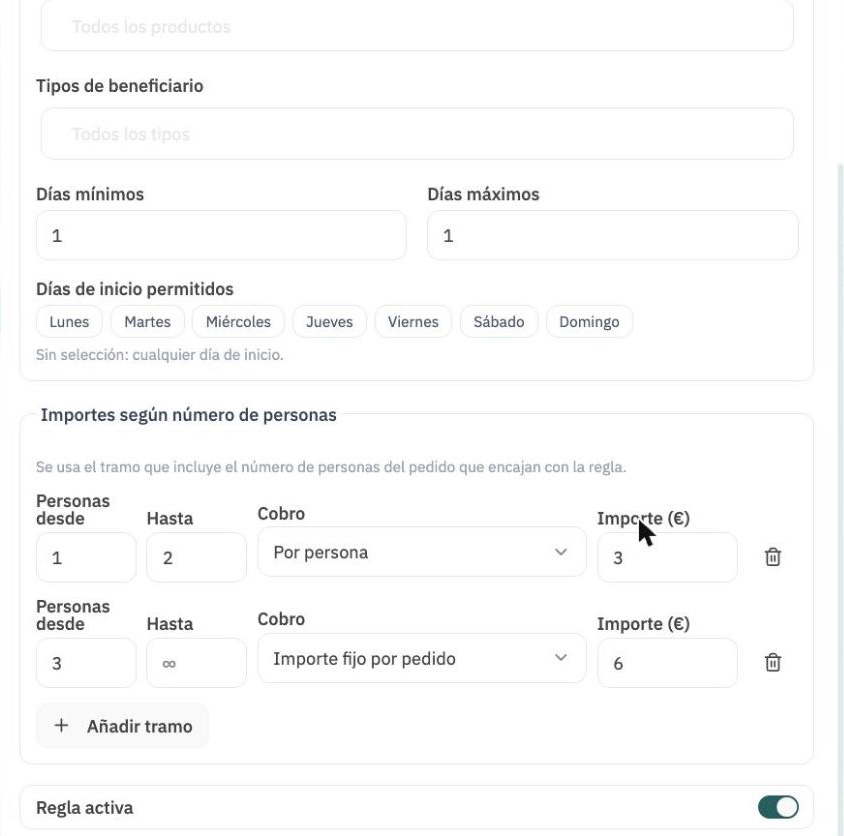
In the example in the image: from 1 to 2 people €3 per person is charged; from 3 people on, a fixed €6 per order is charged. Click Add tier to add more, and leave the Active rule switch on. Finish with Save.
Several rules: the order is the priority
You can have several rules (for example one for 1-day passes and another for weekend passes). For each person, the first active rule that matches is applied, from top to bottom; if none matches, nothing is charged. Use the arrows to change the order.
People are counted across the whole order for each rule: if an order has two 1-day passes for one person each, the "1 day" rule sees 2 people.
When are they applied?
When adding a pass to an order from the admin.
When the customer adds or removes passes in the online store.
New rules only affect passes added from that moment on: orders already created keep their fees.
👉 How they look on an order and what the customer sees: Handling fees on ski passes: how they appear on the order and in the cart link. More about ski passes in Ski passes: selling Sierra Nevada passes (or your own passes) in Lueira.
If you have any questions, don't hesitate to contact Lueira's support department!
Related guides
- Configuring Company Settings in LueiraIn this section you can configure all the properties of your school
- Settings (School / Center / Activities)Configure the parameters of your school, center or activities space: levels, meeting points, schedules, prices and more.
- Features: turn optional features on or off in your accountHow to turn Short courses, Private lesson vouchers, Material resources and Instructor ranking on or off from Settings > Company > Features.
- Several sites or centers in one Lueira accountHow to manage several sites (establishments) in the same account: create a site, give it its own online store link and decide whether it invoices with its own tax details.
- Diagnose: check your setup, an order or a productHow to use the Diagnose button and the Setup status screen to find out what is missing or wrong in your account, your store, an order, a pack or a product, and how to fix it.
- Create and manage locationsHow to create, edit and delete a location (a physical place where you operate) in Settings > Locations, what each field means and what to do if you cannot create one.