

Your own passes in Passes: create and manage your own catalogue
How to register your own pass in the Passes module, without needing to connect Sierra Nevada. To set up how it is sold and how a customer buys it, see the general Passes guide.
This guide is part of the Passes module. Here you'll see how to create and manage your own pass, without needing to connect to Sierra Nevada. If instead you sell Sierra Nevada passes synced from Cetursa, see the guide Sierra Nevada ski passes: connect your account and sync the catalogue. Once your catalogue is ready, continue in the guide Ski passes: selling Sierra Nevada passes (or your own passes) in Lueira to decide how it is sold, sell it manually or let the customer buy it in your Online Store.
Step 1. Create your own pass
Go to the Passes → Products menu and click New product to register a pass that you manage yourself (it doesn't require being connected to Sierra Nevada).
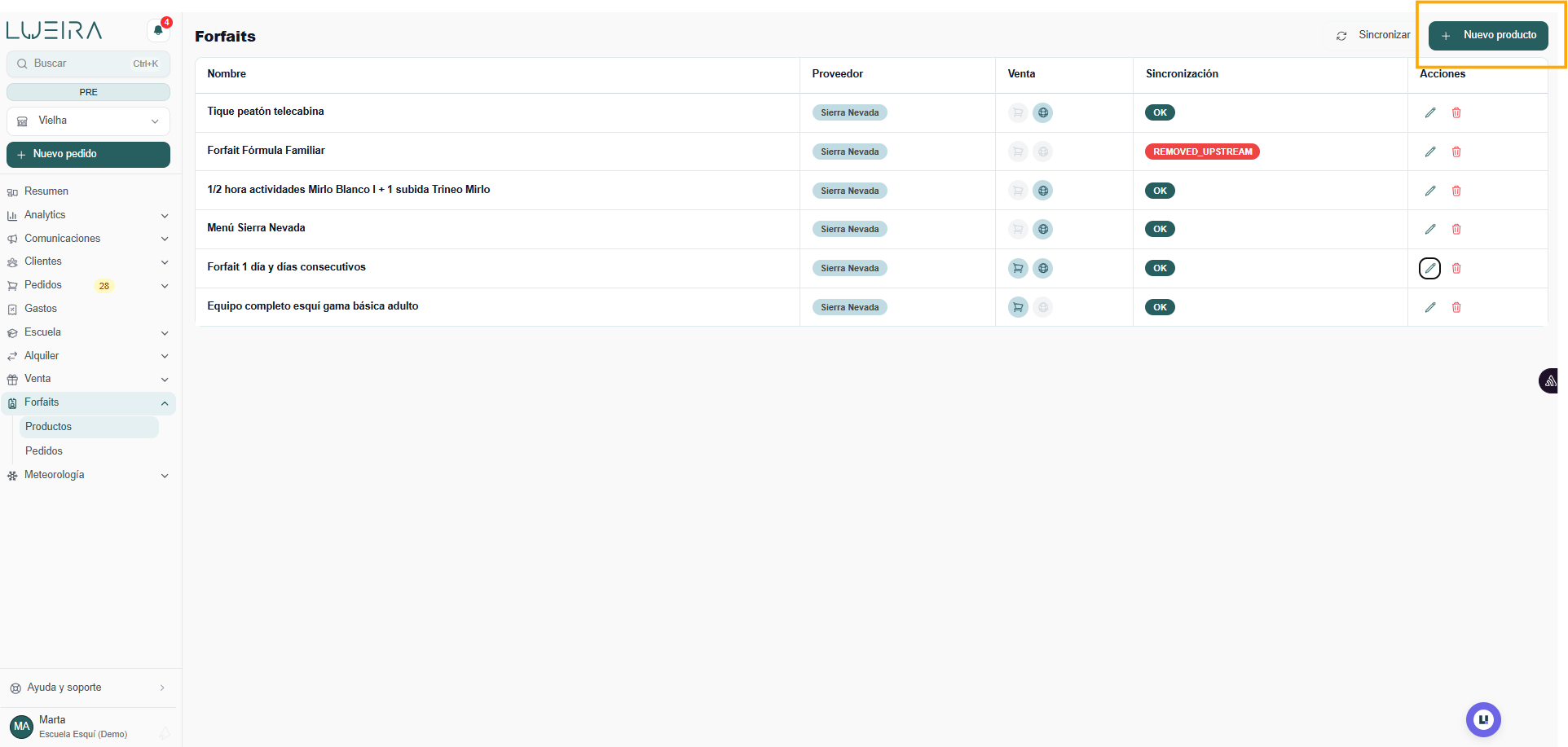
Fill in:
Name, description and image.
Prices: one row per combination of beneficiary type (adult, child... leave it blank if you want a single price) and number of days, with its amount.
Capacity: leave it empty for unlimited capacity, or define a default capacity and exceptions for specific dates.
Once your pass is created, go to the general Passes guide to decide how it is sold, sell it manually from an order or let the customer buy it in your Online Store.
If you have any questions, don't hesitate to contact Lueira's support department.
Related guides
- Configuring Company Settings in LueiraIn this section you can configure all the properties of your school
- Settings (School / Center / Activities)Configure the parameters of your school, center or activities space: levels, meeting points, schedules, prices and more.
- Features: turn optional features on or off in your accountHow to turn Short courses, Private lesson vouchers, Material resources and Instructor ranking on or off from Settings > Company > Features.
- Several sites or centers in one Lueira accountHow to manage several sites (establishments) in the same account: create a site, give it its own online store link and decide whether it invoices with its own tax details.
- Diagnose: check your setup, an order or a productHow to use the Diagnose button and the Setup status screen to find out what is missing or wrong in your account, your store, an order, a pack or a product, and how to fix it.
- Create and manage locationsHow to create, edit and delete a location (a physical place where you operate) in Settings > Locations, what each field means and what to do if you cannot create one.