

Before you start: your account is real, how to test a purchase without paying and undo your tests
The trial period only applies to the subscription: Lueira has no test mode that gets wiped. What is kept, how to test a purchase with a 100% code, what happens to test invoices (draft, issued, corrective) and what to do with test bookings.
On this page
- Before you start: your account is real
- 1. What it means that the account is real
- 2. Testing a purchase without paying: 100% discount code
- 3. Test invoices: draft, issued and corrective
- 4. Document numbering
- Test bookings
- 5. The "Season" field and when a product goes on sale
- 6. Recommended order to get started
- What to do if…
Before you start: your account is real
If you are on a trial period and you wonder "will I have to redo everything I set up?", "how do I test a purchase without paying?" or "how do I delete test invoices?", this guide is for you. In short: the trial period only applies to the subscription. Lueira works with real data and there is no test mode that gets wiped.
1. What it means that the account is real
Everything you set up (products, rates, users, settings, templates) stays as it is the day you start selling. There is no need to redo it.
What does have real consequences are documents: an issued invoice receives a number from the series and can no longer be deleted.
You can prepare the catalogue at your own pace and decide when it goes on sale (section 5).
2. Testing a purchase without paying: 100% discount code
Go to Orders > Discount codes and click Add discount code. Create a code with a 100% discount.
Make a test purchase in your online store and apply the code in the cart.
Check the confirmation email and the order in Orders.
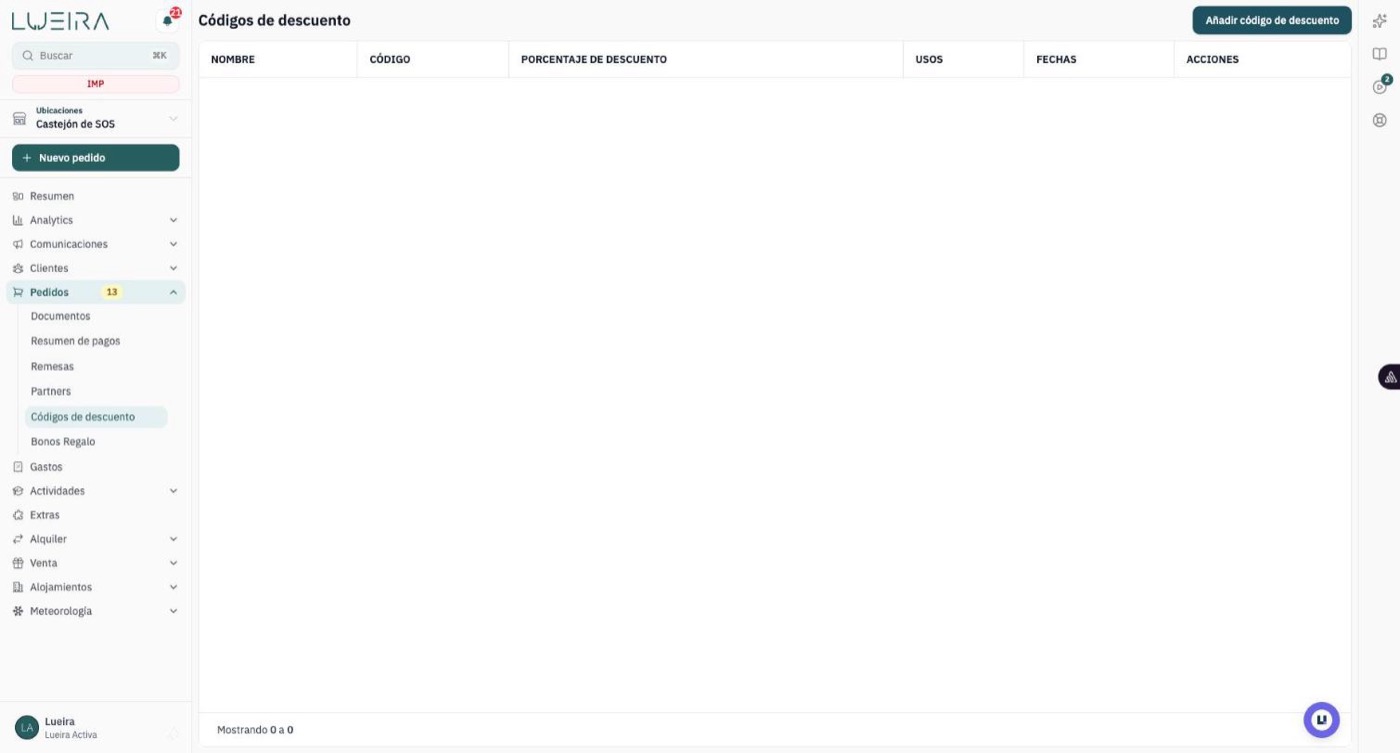
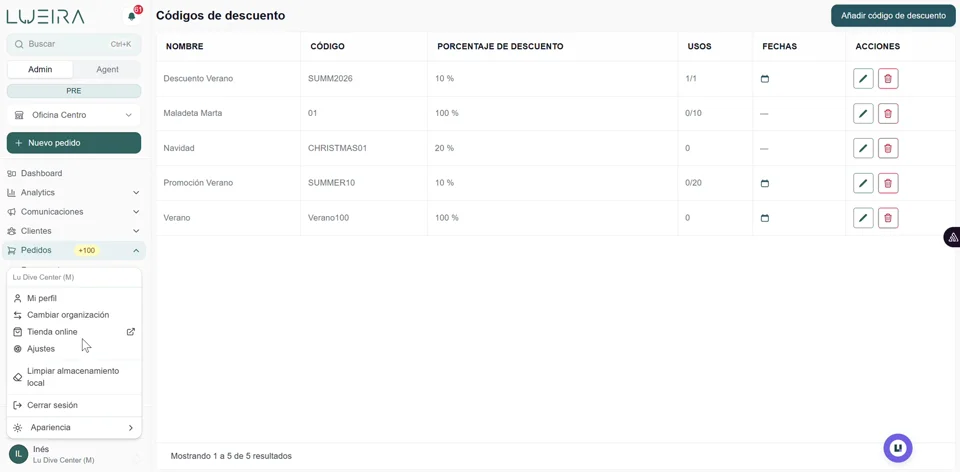 Aplicar un 100% de descuento en un pedido online
⚠️ Use your own email for the test, not that of a real customer: the confirmation is actually sent. Deactivate or delete the code when you finish.
3. Test invoices: draft, issued and corrective
From an order, in the Invoicing block, click +: the Documents window opens with the tabs Invoice, Ticket, Quote and Proforma. At the bottom you have the Issue button and, on its arrow, Issue and download and Save as draft.
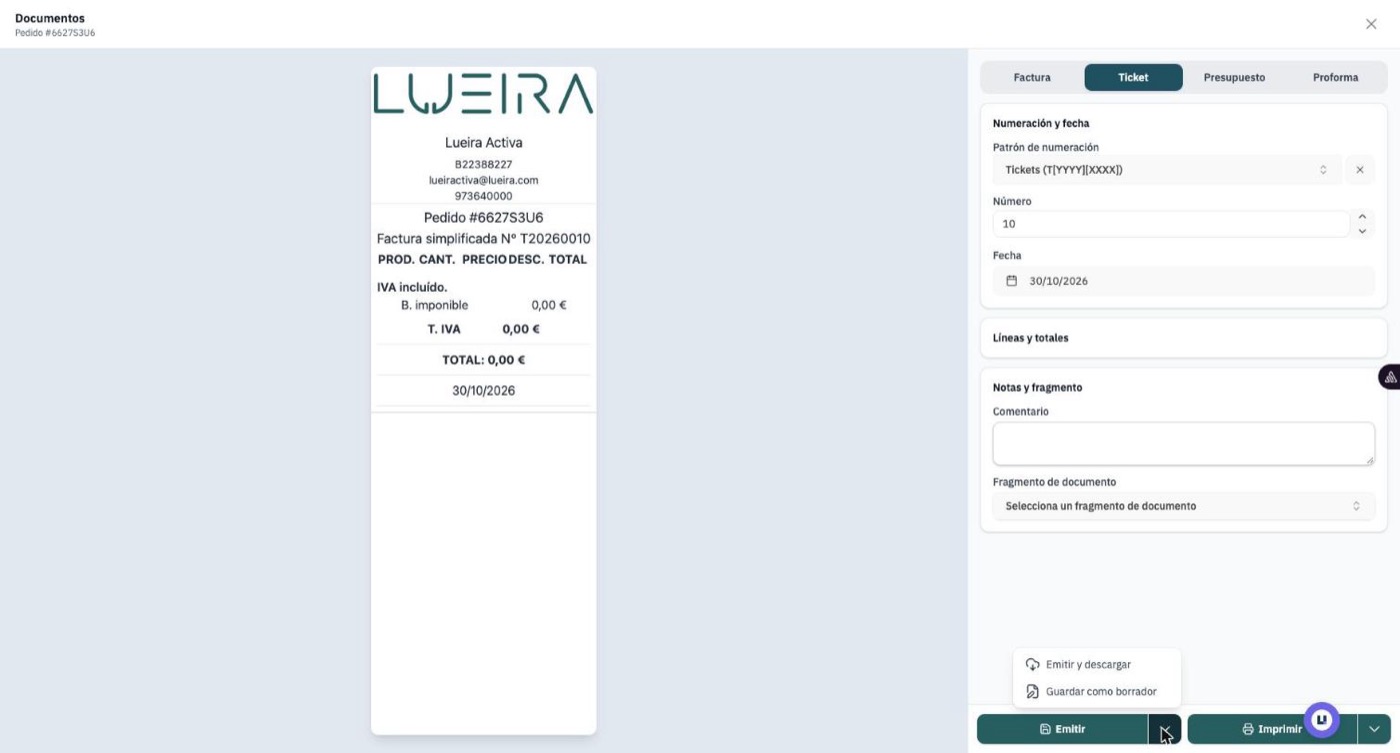
Draft (Save as draft): it has no number and can be edited and deleted. This is what you should use for testing.
Issue: the invoice receives the next number in the series and can no longer be deleted.
Correct: on an issued invoice, it generates a new document with the amounts in negative, which also receives a number and cannot be deleted either.
Correcting does not move money. Afterwards you must record the refund: with Refund on the payment if it was online, or with a negative payment if it was manual. It is normal for the order to appear in red as Pending: it indicates that it is no longer paid. "Confirming" a corrective invoice is the Approve button (or Correct and approve) and it does not change the payment status.
More detail in Invoicing: tickets, invoices and quotes and Correcting an invoice or ticket and numbering.
💡 Golden rule: do not issue or charge anything that is not going to be real. To practise, leave invoices as drafts.
4. Document numbering
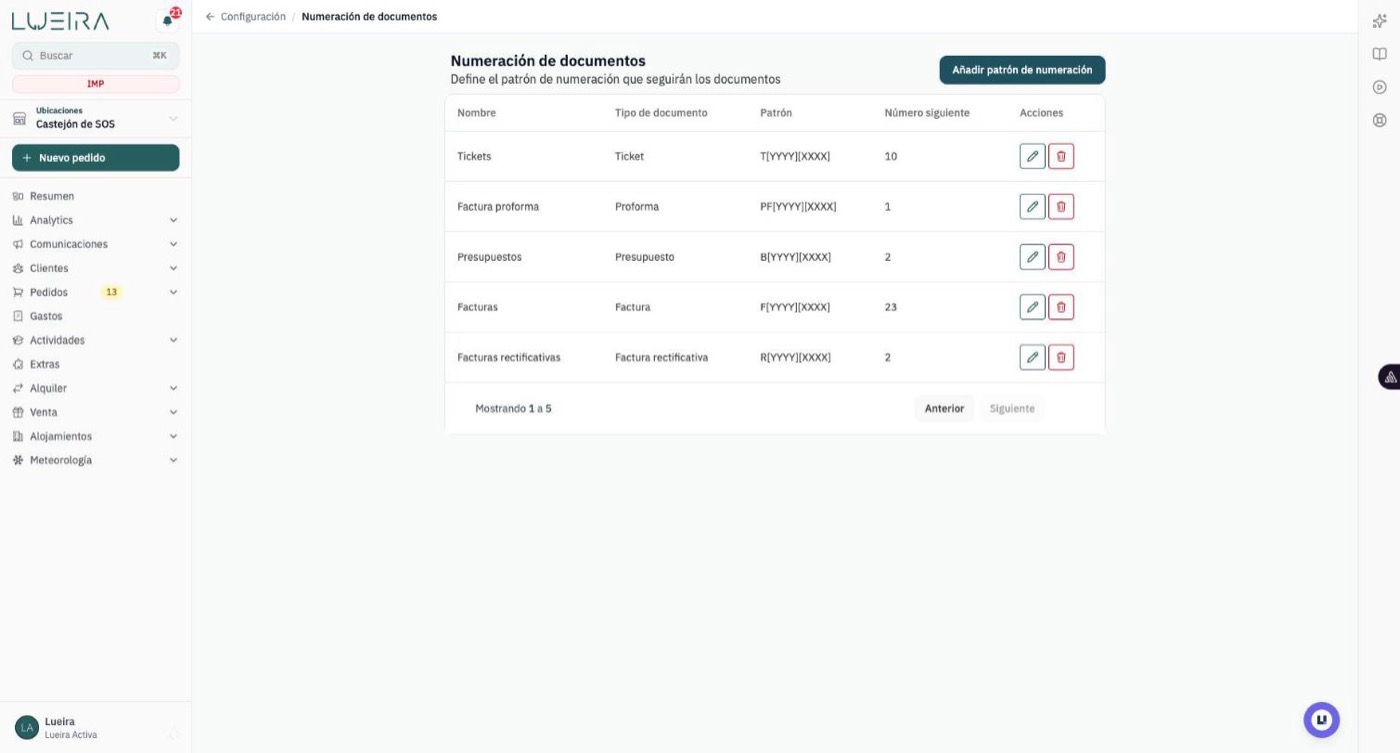
Numbering patterns are managed in Settings > Document numbering: one pattern for tickets, invoices, quotes, proformas and corrective invoices (for example F[YYYY][XXXX]), with the next number of each series. Change them before issuing your first real invoice.
Test bookings
A test booking can be cancelled or deleted, but cancelling does not refund money or void the invoice. If you have really charged for it, first review Order lifecycle and Deleted and cancelled orders. If in doubt, contact support before deleting.
5. The "Season" field and when a product goes on sale
A product's Season field is just a label for classifying and filtering: it has no dates and it does not activate or deactivate sales. What decides whether a product can be sold is In catalogue (for rental) and the visibility in the online store. If you do not want something to go on sale yet, deactivate it there.
6. Recommended order to get started
Settings > Configuration status: check at a glance whether your account, your tax details, the store and payments are properly set up.
Settings > Company details and Document numbering: Company settings.
Users and roles: Users and access problems.
Products: What type of product do I need?
Online store and payments: Online store setup.
A test purchase with the 100% code and a draft invoice.
If you prefer to do it with some guidance, you can book a training session with the support team.
What to do if…
I issued an invoice by mistake: it cannot be deleted; correct it and record the refund if there was a charge (section 3).
My business invoices with a special tax legend (for example a special travel agency regime): you can add the text as a document snippet (Document snippet field in the Documents window); contact support before issuing the first real invoice, because there is no specific exemption option.
Should I activate Verifactu now? Contact support: the team recommends not activating it and deactivating it just to test.
Related guides
- General navigationLearn how to navigate the platform and get to know the main modules and features
- Getting started with LueiraThis guide gives you a detailed route to personalise your Lueira account and update your company information.
- Using Lueira on your phone or tablet (browser and home screen)How to access the Lueira admin from your phone or tablet using the browser, add it to your home screen as an app, and what to do if you had downloaded the old "Lueira admin" app, which is no longer maintained.
- What is Lueira?Find out how our management software can help sports and active tourism businesses