

Calendar subscriptions (iCal)
How to generate iCal subscription URLs to sync your lessons and bookings with Google Calendar, Apple Calendar or Outlook, what each type of calendar includes and how to revoke a subscription if it leaks.
On this page
iCal subscriptions let you generate a calendar URL to sync your lessons, sessions and bookings from Lueira with any calendar app (Google Calendar, Apple Calendar, Outlook…).
How to access
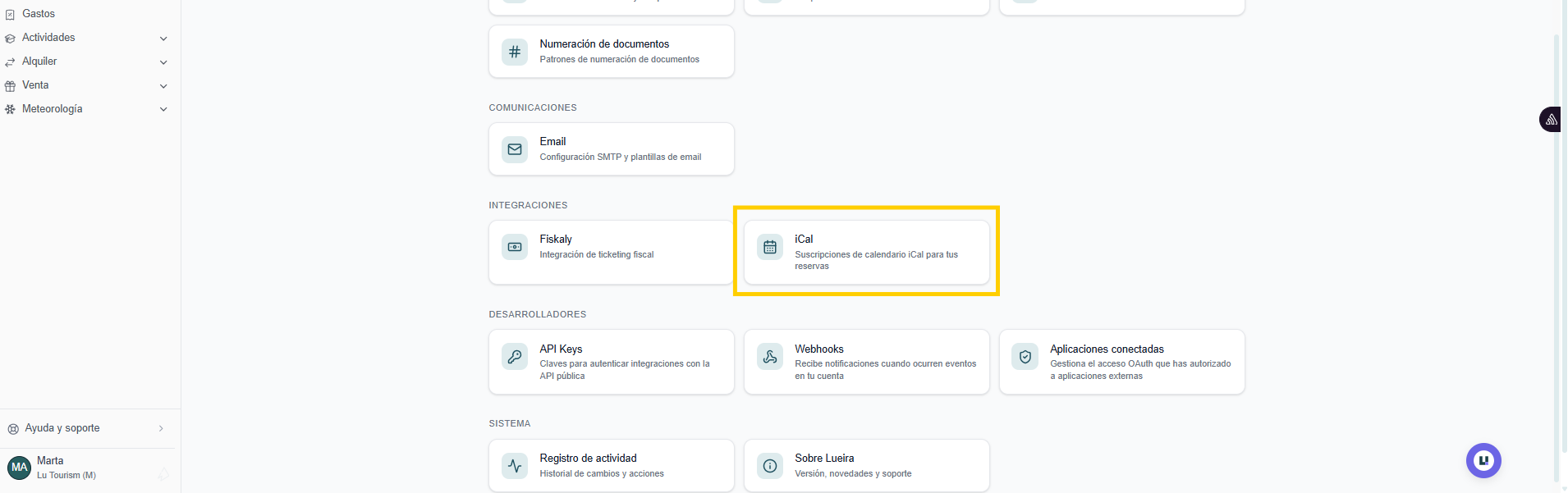
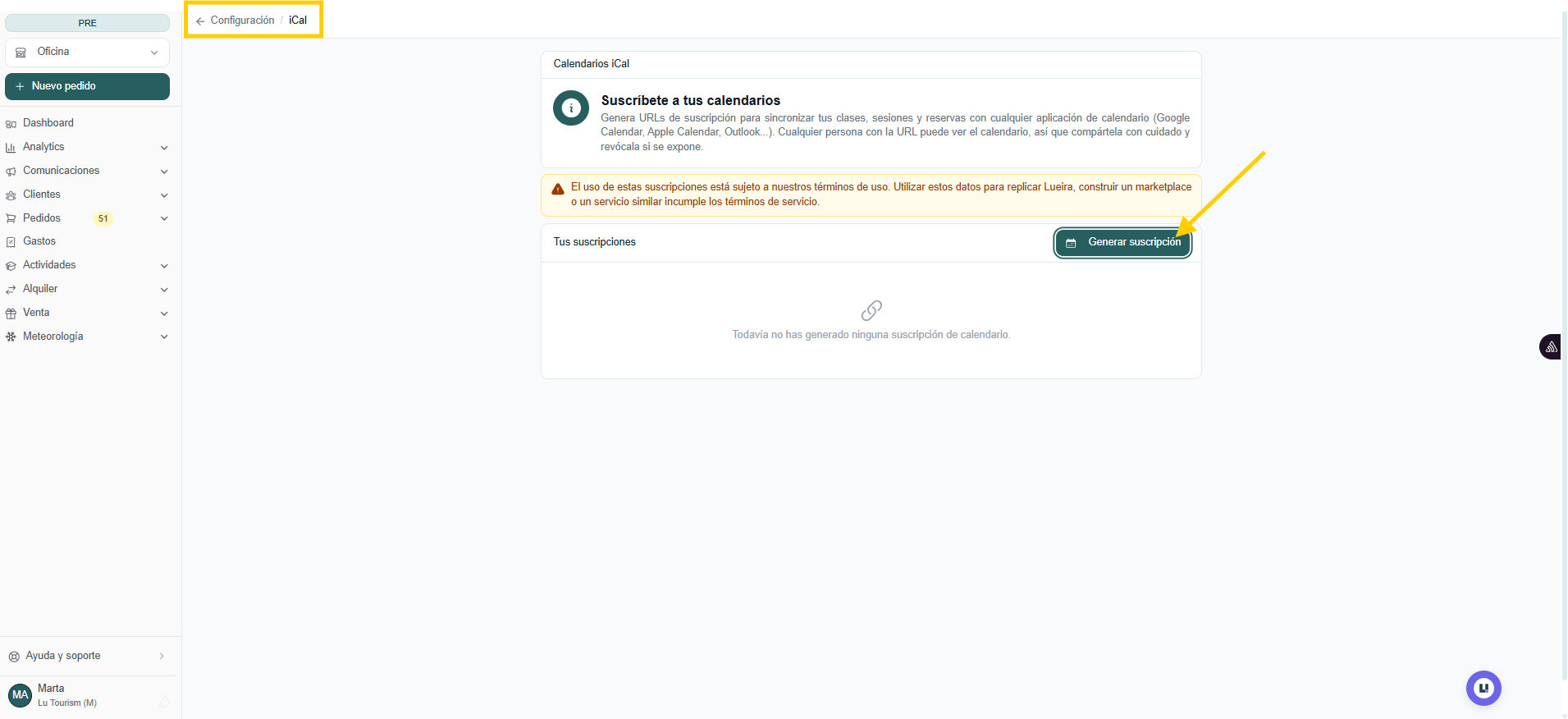
Go to Settings → iCal. In the Your subscriptions block you will see the URLs you have already generated and the Generate subscription button to create a new one.
Calendar types
When you generate a subscription you choose what content it includes. There are five types:
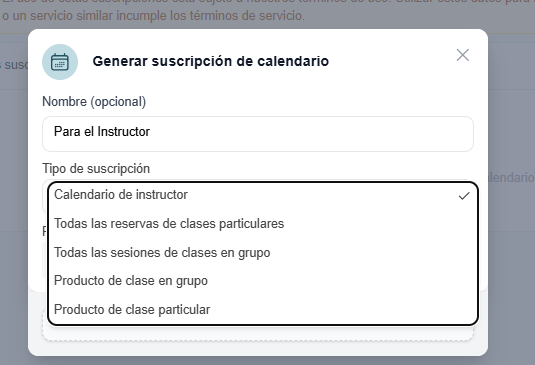
Teacher / instructor → combines in a single calendar the private lessons and the group sessions of a specific teacher. You must select the teacher.
Private lessons (all) → all the private lesson bookings of the centre.
Group lessons (all) → all the group lesson sessions of the centre.
Group lesson product → all the sessions of a specific group product. You must select the product.
Private lesson product → all the bookings of a specific private lesson product. You must select the product.
The types per teacher or per product require you to specify the resource (teacher or product); the global types do not.
Generate a subscription
Click Generate subscription, choose the calendar type, select the resource if the type requires one and, optionally, give it a name to identify it (if you leave it empty, the calendar will get a default name according to its type).
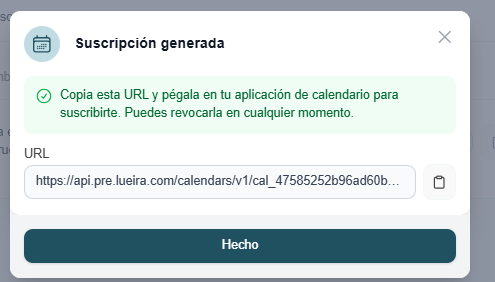
Once you confirm, Lueira creates a unique URL that appears in the Your subscriptions list. Copy that URL to add it to your calendar app.
Subscribe from your calendar app
The subscription is read-only: you will see the events in your calendar, but you cannot edit them from there (changes are always made in Lueira).
Once subscribed, your app will check the URL periodically and reflect the changes automatically (roughly every hour, depending on the app).
Google Calendar → Other calendars → + → From URL and paste the URL.
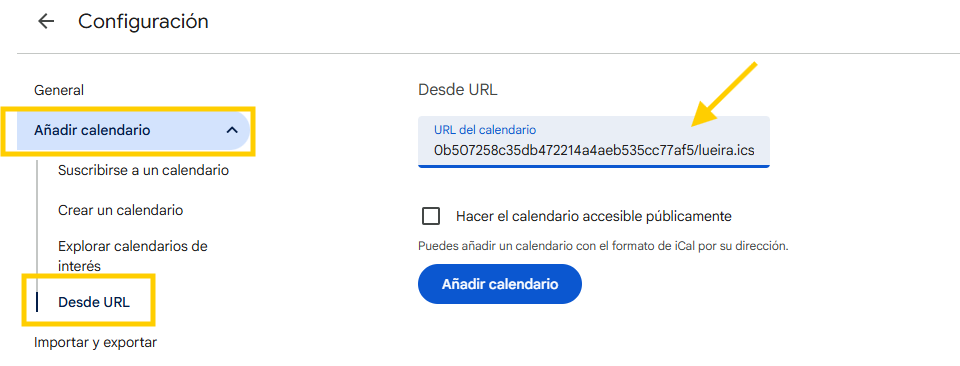
Apple Calendar → File → New Calendar Subscription and paste the URL.
Outlook → Add calendar → Subscribe from web and paste the URL.
Security and revocation
The subscription URL is not password-protected: the address itself is the credential.
Anyone who has the URL can see the calendar, so share it carefully.
If a URL leaks or you no longer need it, revoke it from the Your subscriptions list. Once revoked, the address stops working immediately and the subscribed calendar will stop receiving updates. If you need it again, generate a new subscription.
The use of these subscriptions is subject to Lueira's terms of use. Using this data to replicate Lueira, build a marketplace or a similar service breaches the terms of service.
If you have any questions, don't hesitate to contact Lueira's support team!
Related guides
- Configuring Company Settings in LueiraIn this section you can configure all the properties of your school
- Settings (School / Center / Activities)Configure the parameters of your school, center or activities space: levels, meeting points, schedules, prices and more.
- Features: turn optional features on or off in your accountHow to turn Short courses, Private lesson vouchers, Material resources and Instructor ranking on or off from Settings > Company > Features.
- Several sites or centers in one Lueira accountHow to manage several sites (establishments) in the same account: create a site, give it its own online store link and decide whether it invoices with its own tax details.
- Diagnose: check your setup, an order or a productHow to use the Diagnose button and the Setup status screen to find out what is missing or wrong in your account, your store, an order, a pack or a product, and how to fix it.
- Create and manage locationsHow to create, edit and delete a location (a physical place where you operate) in Settings > Locations, what each field means and what to do if you cannot create one.