

Worker app
How to use the Lueira app as a worker: clock in and out, manage your documents, request time off and check your contract and protocol.
Home and navigation
When you open the app you will see the home screen with a summary of your activity. In the bottom bar you will find the main sections:
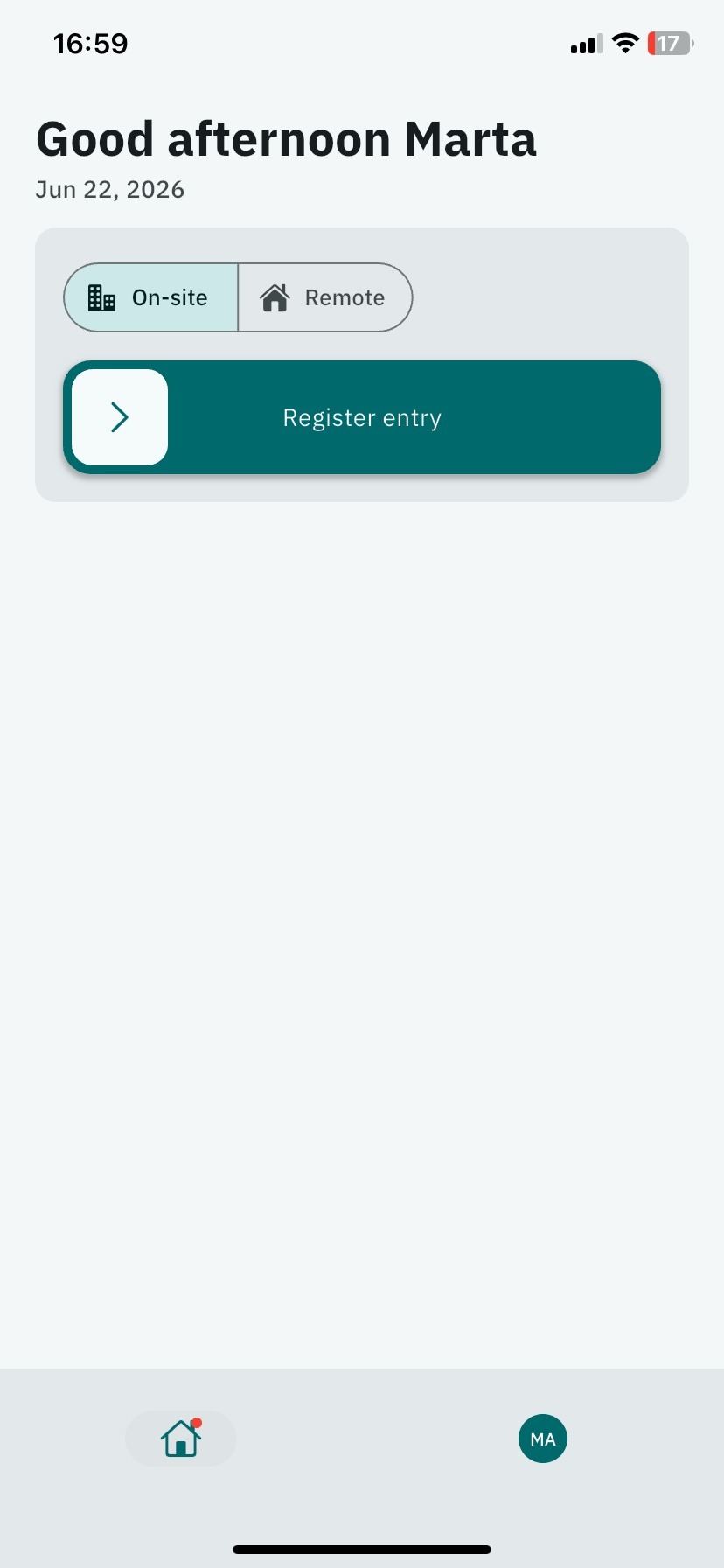
Home: quick access to clocking in and out and a summary of the day
Profile: your documents, time off and contract
Your profile
Documents
In Profile → Documents you will find the list of documents your center has requested from you (qualifications, certificates, etc.). Each document shows its status: pending or submitted.
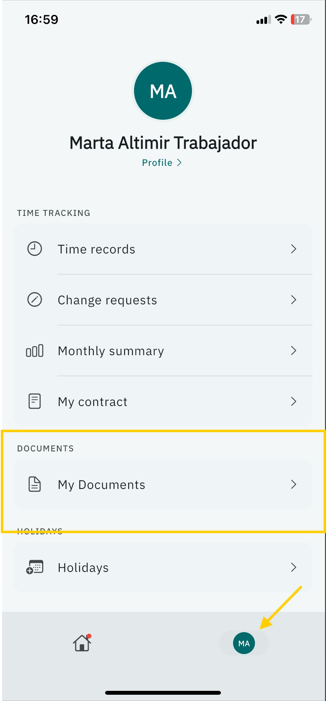
To upload a document:
Tap the document you want to submit.
Select the file from your phone.
The status will be updated once the administrator has reviewed it.
Time off request
In Profile → Time off you can request days off or leave. There are two types:
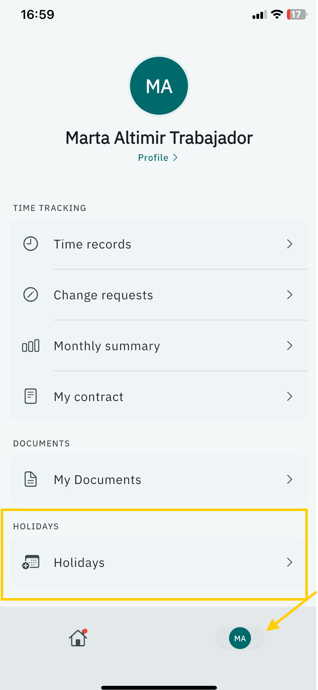
Full day: select the day or days you want to request.
Specific hours: enter the exact time range (e.g. 14:00–16:00).
Once sent, the request stays in Pending status until the administrator approves or rejects it.
My contract
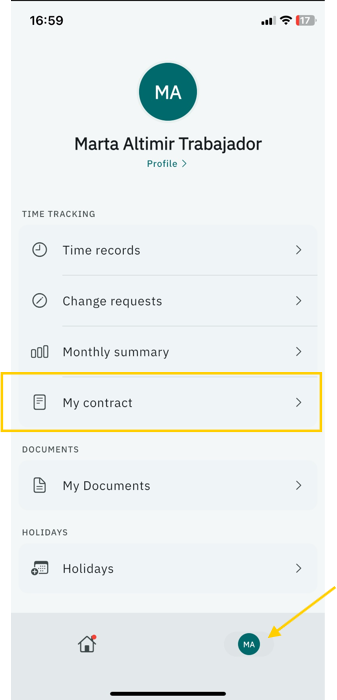
In Profile → My contract you can check the details of your contract: type of working day, weekly hours and schedule. This section is read-only — if you need to make any changes, contact your administrator.
Time Tracking
The Time Tracking module lets you clock in and out, manage breaks, check your record history and request changes to past records.
See the full guide here: Time Tracking in Lueira: Complete guide for workers and administrators
Related guides
- App assistant: what it can do and how to confirm its proposalsWhat the Lueira app assistant can look up and prepare, how to ask it questions, how to confirm or cancel what it proposes and how to adjust its style.
- App for instructors or guidesComplete guide to the Lueira Team app for instructors and guides: classes, attendance, feedback, clocking in, holidays, documents and contract.
- App Home: your day at a glanceWhat the Lueira app home screen shows: your current lesson, the next ones, the ones you have already done, the day off and the bottom bar with clock-in.
- App settings, notifications and account: the Me tabWhat is in the Me tab of the app: your profile, notifications, calendar settings, changing school and logging out.
- Calendar in the app: day and week viewHow to check your lessons by day or by week in the app, what the colors mean and how to change the default view.
- Create feedback from the app: comment, awards, photos and assistant draftHow to leave feedback for a participant or for the whole session from the app, give awards, add photos, use the assistant draft and share it.