

Group pricing schemes: advanced configuration
Category translation, maximum quantity per category and mapping categories to connected marketplaces within a pricing scheme.
On this page
This guide complements Group product pricing with configuration options that you don't need day to day, but which are available within a pricing scheme (flat or tiered).
Translating category names
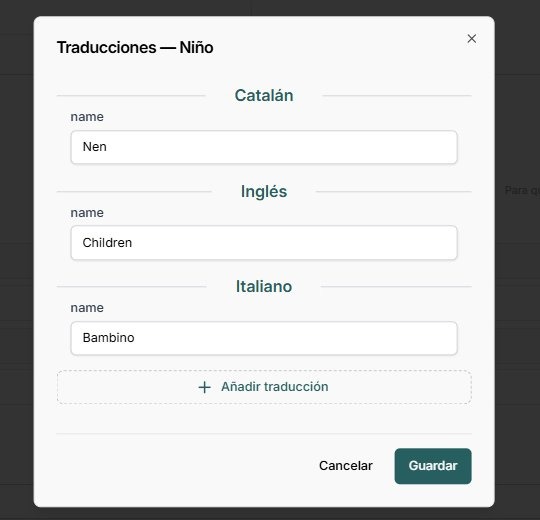
If your online store or connected marketplaces are in several languages, you can translate the name of each category so that it appears in the visitor's language.
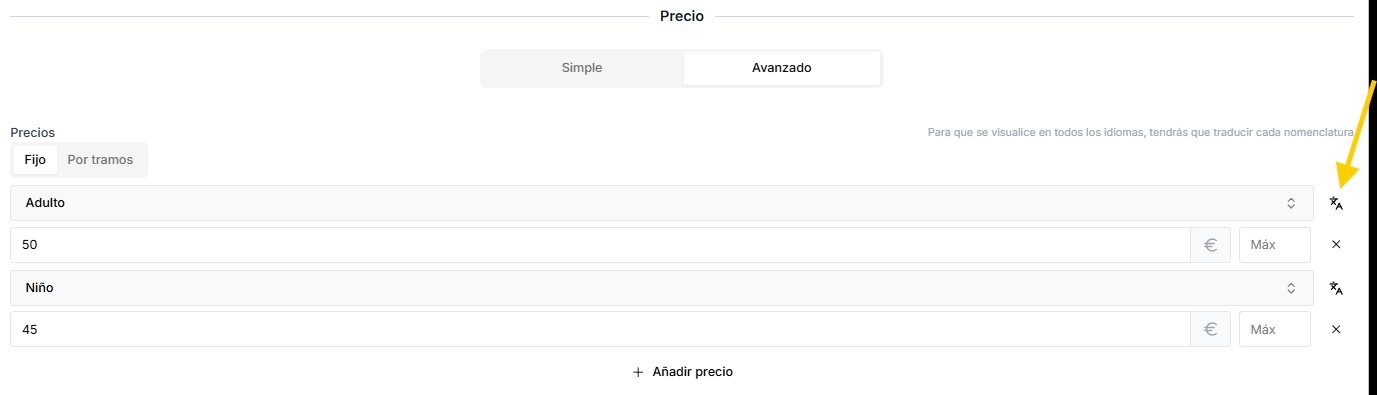
To add or edit translations, open the product, go to the Price section (Advanced mode) and click the translation icon to the right of the category name. A modal will open where you can type the translated name language by language.
💡 The panel itself reminds you: "To display it in all languages, you will need to translate each name".
Where are the translations applied?
Online Store — the store detects the visitor's language and shows the category name in that language. If there is no translation for that particular language, the default name is shown.
Connected marketplaces — the API exposes each category's translations so that platforms such as GetYourGuide can display the names in each market's language.
Maximum quantity per category (fixed scheme)
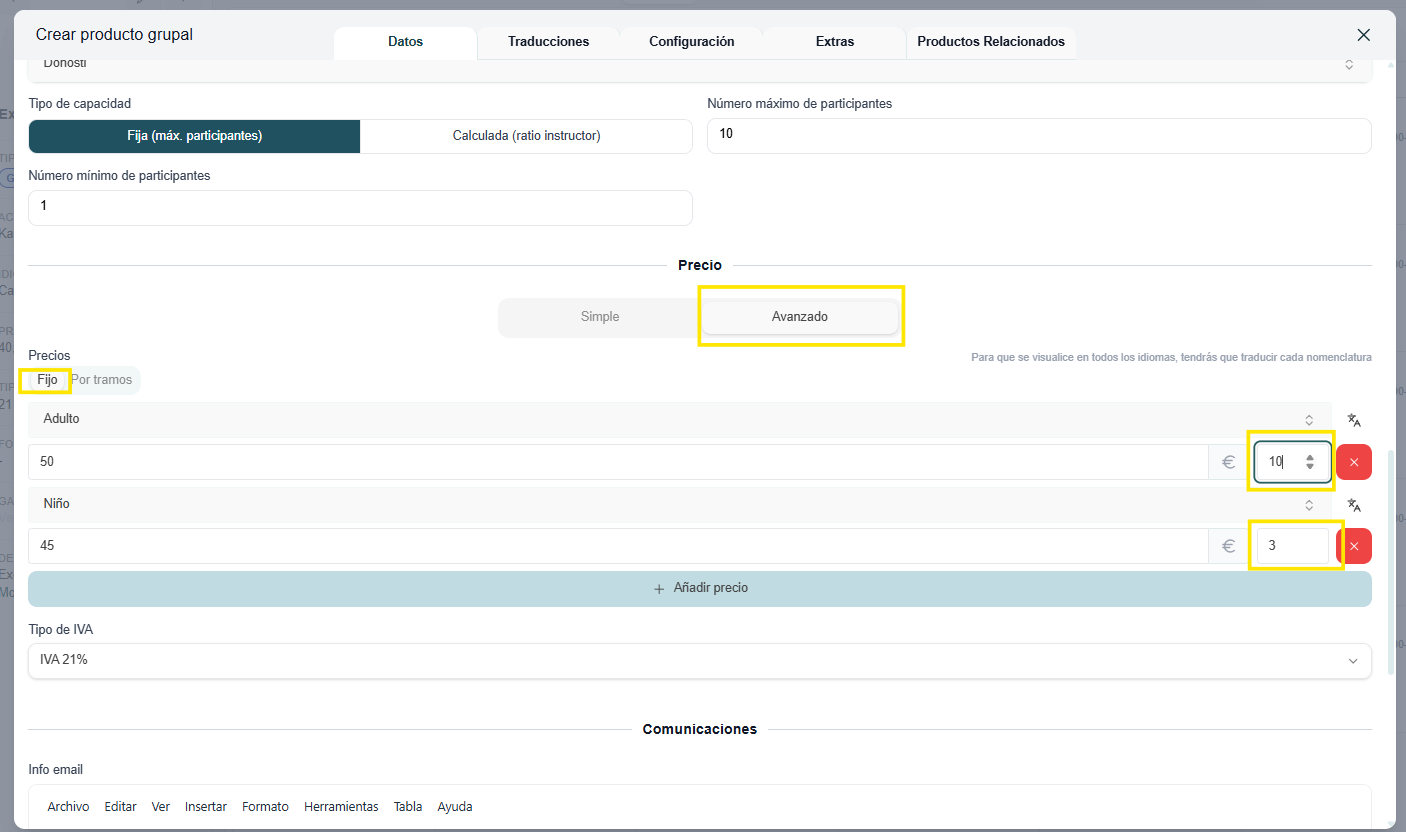
In a fixed scheme, next to each category's price there is an optional "Max" field. It lets you limit how many units of that category can be booked (for example, a maximum of 8 "Adult" per booking). If you leave it empty, there is no limit.
This field only exists in fixed schemes.
In a tiered scheme it isn't needed, because the upper limit of each tier already serves that purpose.
Mapping categories to marketplaces
If your product is connected to one or more marketplaces (for example GetYourGuide), an additional section appears in the pricing scheme configuration to map each of your categories (Adult, Child...) to the equivalent category on that marketplace.
This ensures that bookings arriving from that channel apply the correct category and price within Lueira. If you add a new category and don't complete its mapping, you will see a "Required" warning next to the selector — we recommend completing it for every connected marketplace before publishing the product.
If you have any questions, don't hesitate to contact Lueira's support team!
Related guides
- School navigationHere you will find everything the School section offers
- Which product type do I need? Group, private, pack, voucher or multi-day courseGuide to choosing the right product for what you sell: private lessons (price per hour or rates), several sessions priced by number of sessions, fixed dates, hour voucher, multi-day course or a single student with a group schedule.
- Add School productsComplete guide to creating and configuring private and group products in the School section: form fields, session availability and creating sessions in the calendar.
- Product sheet: Data, Translations, Settings, Extras and Related ProductsReference guide to the tabs of the product creation/editing form (private, group, rental or sale): what each one contains and links to the specific guides.
- How do I set up a new season?We show you how to set up a new ski season in Lueira
- How can I set up the new season of my ski school in LueiraWe show you how to set up a new ski season in Lueira