

Setting up withholdings (IRPF) on invoices
How to create a withholding tax (IRPF), assign it to your company, mark the customers that must have withholding applied and see the calculation applied on the invoice.
On this page
Lueira lets you apply withholdings (for example, IRPF – the Spanish personal income tax withholding) on sales invoices to customers. The withholding is configured as one more type within the Taxes section of the company settings, is assigned by default to your business profile and is applied automatically on the invoices of the customers you have marked as subject to withholding.
The calculation is made on the order's taxable base (amount excluding VAT) and is deducted from the total to be collected, just like an IRPF on a traditional invoice.
1. Create a withholding type
Withholdings are managed in the same section where you manage VAT. To keep all taxes in a single place, this section is called Taxes within the company settings.
Access the account Settings from the drop-down menu in the bottom left corner and go into the Taxes section (previously VAT).
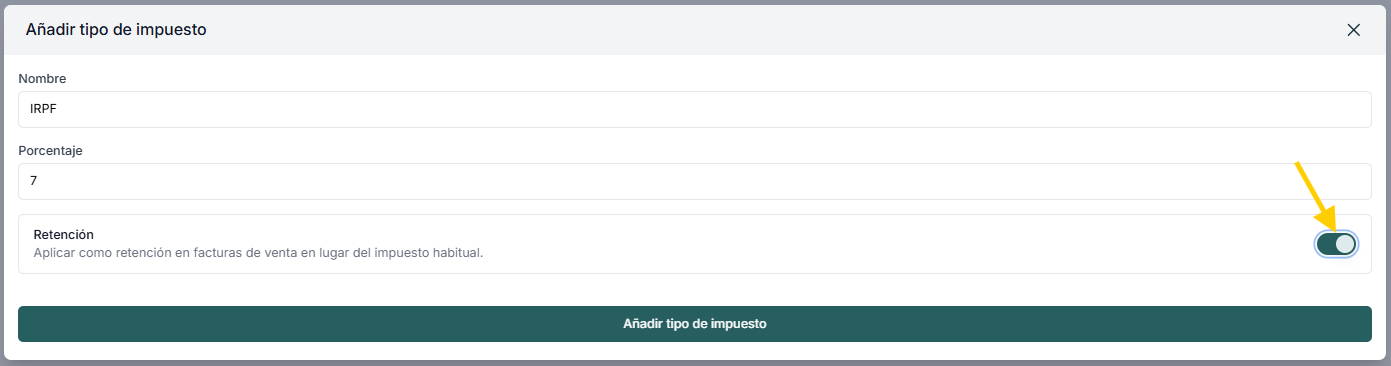
Click Add tax type and fill in the fields:
Name: IRPF.
Percentage: the withholding percentage you want to apply.
Withholding: turn this switch on. It is the option that distinguishes a charged tax (VAT) from a withheld one (IRPF). Under the switch you will see the description "Apply as a withholding on sales invoices instead of regular VAT".
Save. The new type will appear in the list, identified as a withholding. Withholdings are not offered as a VAT type when adding products or order lines; they only appear where they are meant to be applied.
You can create as many withholding types as you need (for example, IRPF 15% and IRPF 7%). Below we explain which one is applied in each case.
2. Assign the default withholding to your company
Once created, you must tell Lueira which withholding to use by default on sales invoices. This is done in the tenant's general settings (company profile).
Within Settings > Company details, look for the Default withholding on sales selector.
Select the withholding type you created in the previous step (for example, "IRPF 15%"). Only the types marked as withholding appear in the drop-down.
Save the changes. From that moment on, that withholding will be the one applied to all the customers you mark as subject to withholding.
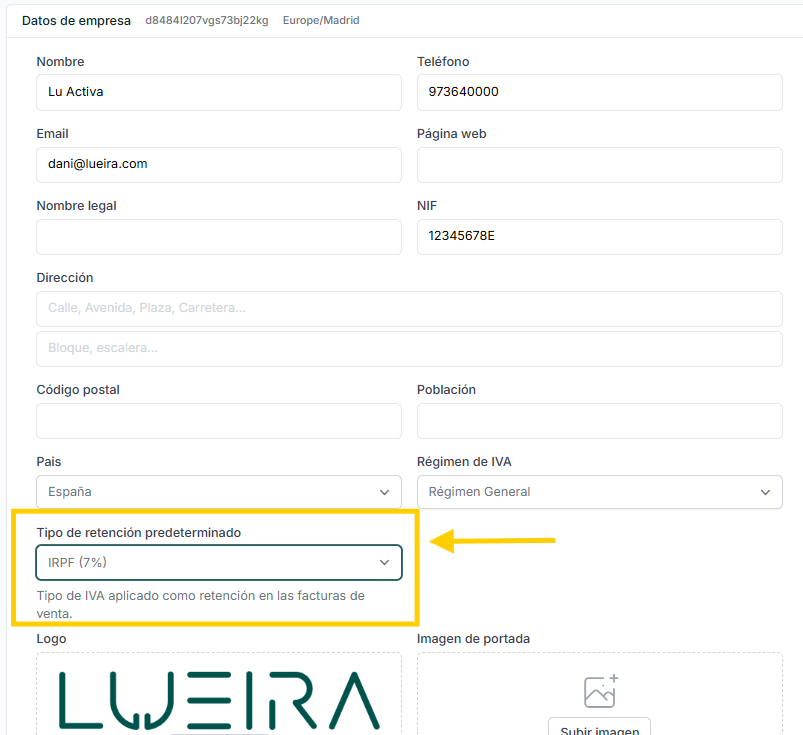
Important: only one withholding can be assigned by default at any given time, and it will be the same for all the customers marked as subject to withholding. Today Lueira does not allow applying different percentages to different customers on sales invoices.
If you do not assign any default withholding to the company, the "Apply sales withholding" switch will not even appear in the customers' records — the company-level assignment is what activates this whole feature.
3. Mark the customer as subject to withholding
The withholding is only applied to the customers who have the option enabled in their record. This way you can invoice with or without IRPF within the same business depending on the type of customer (self-employed professionals, companies, individuals, etc.).
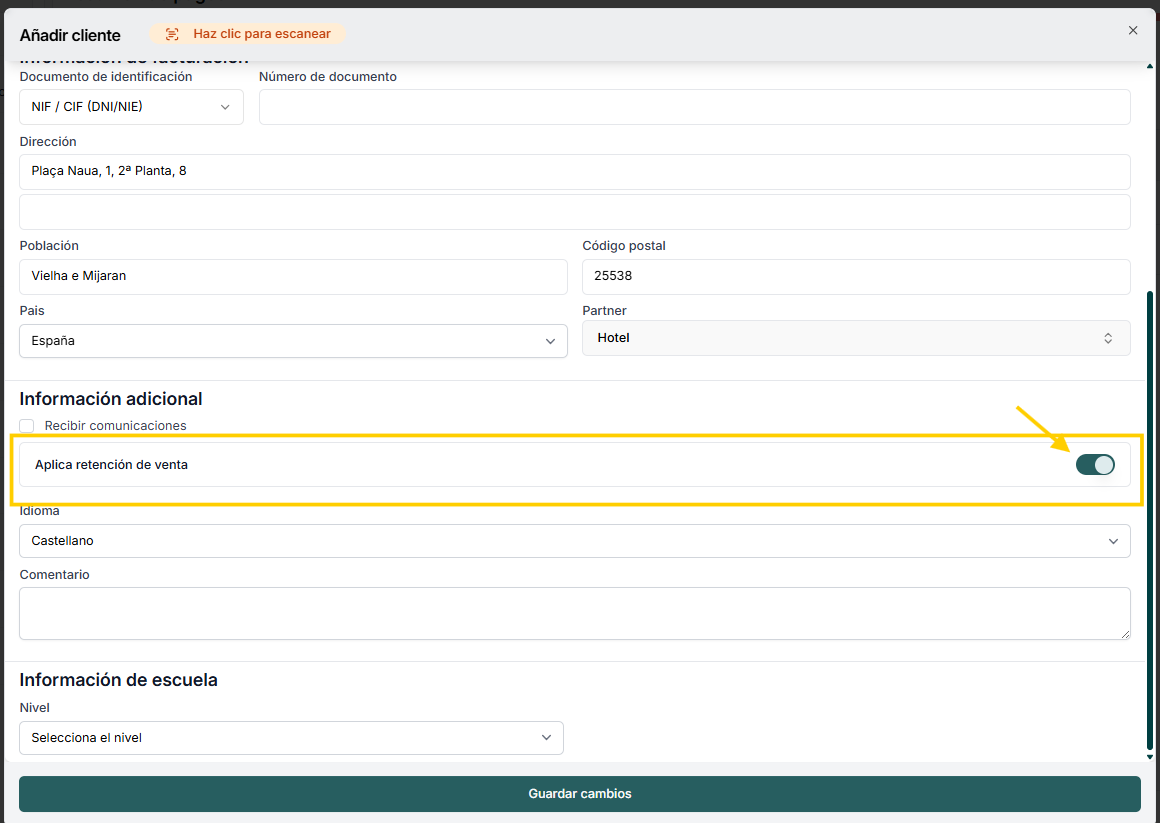
Go to Customers and open the record of the customer you want to apply withholding to (or create a new one following the Add a new customer guide).
Enable the Apply withholding on sales option within the "Additional information" block of the record.
Save. From now on, all of this customer's orders and invoices will carry the default withholding you have configured in the company.
Remember to keep the customer's tax details (NIF – the Spanish tax identification number –, address, etc.) correct, as they are required to issue any invoice, including those with withholding.
4. How it is calculated and shown on the invoice
When the three conditions are met (a withholding type exists, it is assigned as the default withholding in the company and the order's customer has the option enabled), Lueira applies the withholding automatically when recalculating the order's price:
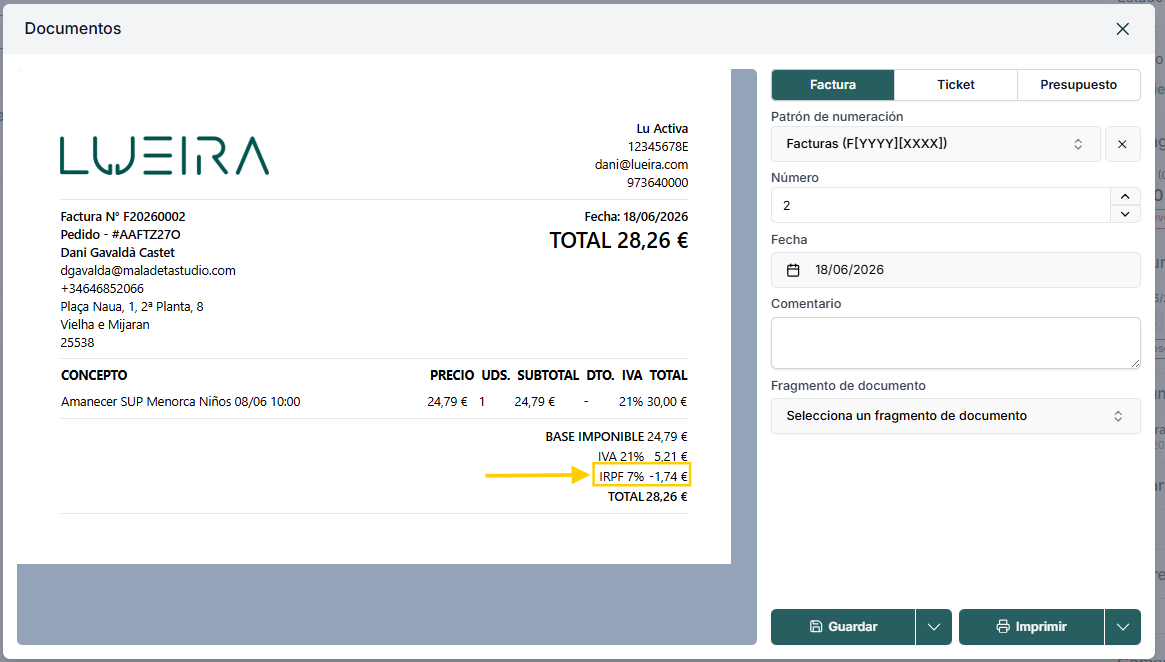
The withholding percentage is applied on the order's taxable base (the total excluding VAT).
The resulting amount is subtracted from the total to be collected, just as on a traditional invoice with IRPF withholding.
The invoice will show a separate line with the withholding applied and the final total already deducted.
Example: an order with a taxable base of €1,000 + 21% VAT (€210) and a 15% withholding would be calculated like this: gross total €1,210, withholding €1,000 × 15% = €150, total to be collected from the customer: €1,060.
If you modify the order lines (add, remove or change quantities), the withholding is automatically recalculated with the new taxable base.
Frequently asked questions
Why can't I see the withholding on a customer's invoice?
Check that the three conditions are met: the withholding type exists in Settings > Taxes, it is selected as the default withholding in the company details, and the customer has the Apply withholding on sales option enabled in their record.
Does the withholding appear as a VAT type when adding products?
No. The types marked as withholding are filtered out of the VAT drop-downs when you create products or add lines to an order, to prevent them from being confused with a charged VAT. They are only applied as a withholding on the invoice total.
I have several IRPF rates configured (for example, 15% and 7%). Can I apply one to some customers and another to others?
Today, no. On sales invoices only the withholding assigned as the default withholding in your company details is applied, and it is the same for all the customers who have the "Apply sales withholding" switch enabled. If you change the default withholding, the change applies to all the marked customers at once.
Having several IRPF types configured is still mainly useful for the Expenses module, where you can apply whichever withholding you want to each expense line independently.
Does it also work for expenses?
Yes. In the Expenses module you can add several rates (VAT + withholding) to the same line, freely choosing which withholding to apply in each case. This lets you manage expenses from suppliers with different IRPF percentages.
If you have any questions about setting up or calculating withholdings in Lueira, don't hesitate to contact the support team.
Related guides
- Configuring Company Settings in LueiraIn this section you can configure all the properties of your school
- Settings (School / Center / Activities)Configure the parameters of your school, center or activities space: levels, meeting points, schedules, prices and more.
- Features: turn optional features on or off in your accountHow to turn Short courses, Private lesson vouchers, Material resources and Instructor ranking on or off from Settings > Company > Features.
- Several sites or centers in one Lueira accountHow to manage several sites (establishments) in the same account: create a site, give it its own online store link and decide whether it invoices with its own tax details.
- Diagnose: check your setup, an order or a productHow to use the Diagnose button and the Setup status screen to find out what is missing or wrong in your account, your store, an order, a pack or a product, and how to fix it.
- Create and manage locationsHow to create, edit and delete a location (a physical place where you operate) in Settings > Locations, what each field means and what to do if you cannot create one.