

Book a group class from the Partner Portal
How to choose the activity, the session and the number of participants for a group class, and how the price is calculated.
On this page
A group class is an activity held in open sessions, together with other participants. This guide explains the steps specific to this type of booking; the rest (customer, summary, confirmation) is in Create a booking in the Partner Portal: common steps.
In step 1, choose the customer and the booking type Group.
Step 2: choose the activity
The group activities from your catalog are shown. You can search by name and filter by activity type and level. If there are none, you will see "No group classes available."
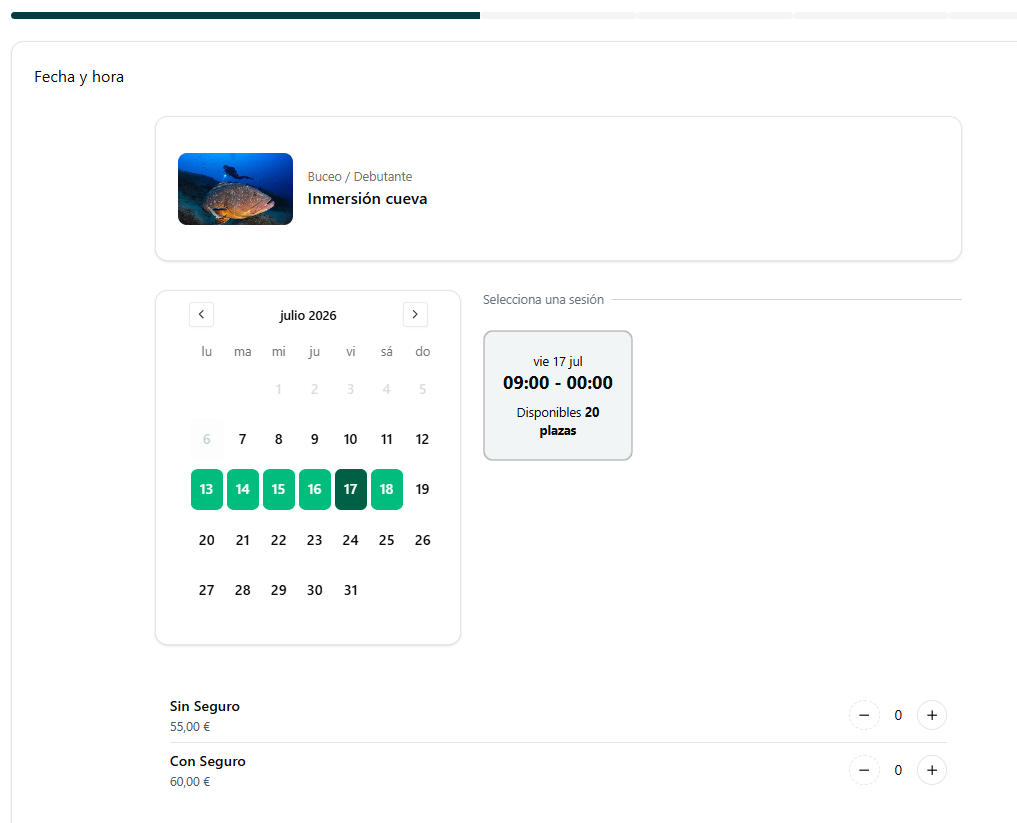
Step 3: date, session and participants
- In the calendar, choose the day. Days with available sessions appear in green. Only days from tomorrow onwards can be booked.
- In Select a session, choose the time. Each session shows how many spots are left ("N spots available"). Full sessions cannot be selected.
- Enter how many participants there are of each type (adult, child…).
If the activity has a minimum number of participants, the step shows it ("Minimum N participants") and you will not be able to continue until you reach it.
How the price is calculated
- The pricing scheme from your catalog is applied if you have one configured; otherwise, the product's standard price.
- In tiered schemes, the price per person depends on the total number of participants: everyone pays the price of the corresponding tier.
- The total is shown in the bottom bar of the step.
Next steps
After that you can assign participants, add extras and complete forms if the product has them (Participants, extras and forms). Finish with the summary and Confirm Booking.
You can add private classes to the same booking with "Do you want to add anything else to your booking?".
If something goes wrong
If a session no longer has spots or its sign-up cut-off time has passed, the portal tells you when you confirm. See Warnings and errors when booking.
Related guides
Related guides
- Partner PortalIndex of the Partner Portal guides: how to set it up, how partners log in and how they create bookings of each type.
- Give a partner access to the Partner PortalHow to enable a partner's access to the Partner Portal from Lueira and what you need to share with them so they can log in.
- Partner catalog: which products a partner can sellHow to limit the products a partner sees and sells in the Partner Portal with their catalog, and what happens if they don't have one.
- Partner prices: inherit, fixed price and pricing schemesHow to give each partner their own prices and VAT in their catalog: inherit the price, set a fixed one or use flat and tiered schemes.
- Find out about the bookings your partners makeWhere to see the bookings created from the Partner Portal and how to turn on the email notification.
- Log in to the Partner PortalHow a partner enters the portal with their email and a verification code, and what to do if something goes wrong.